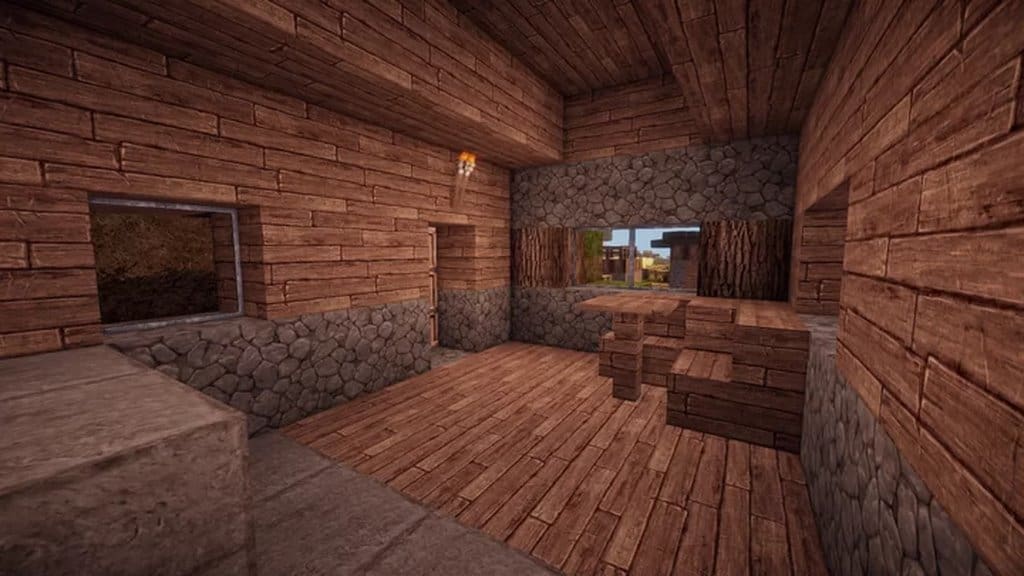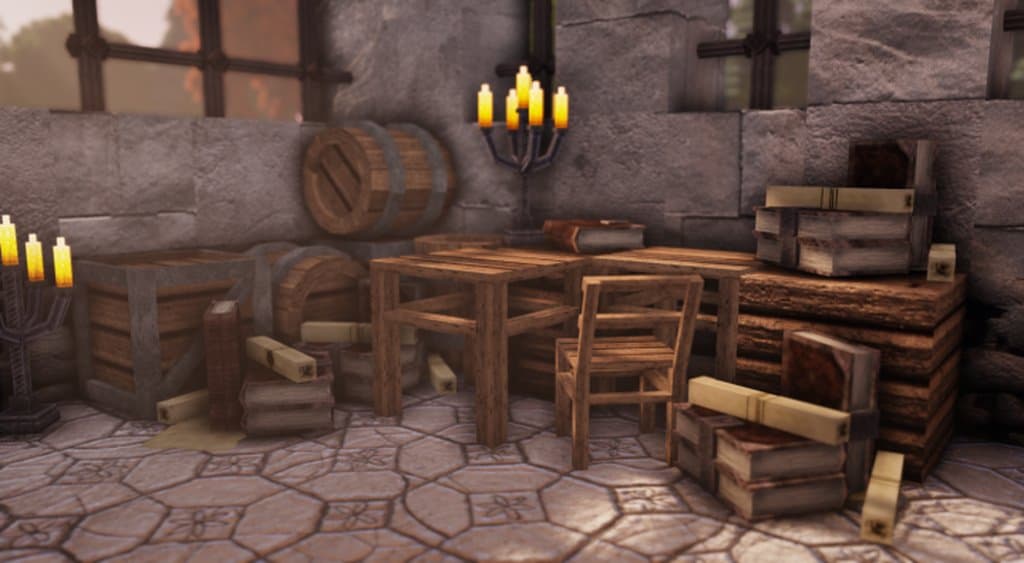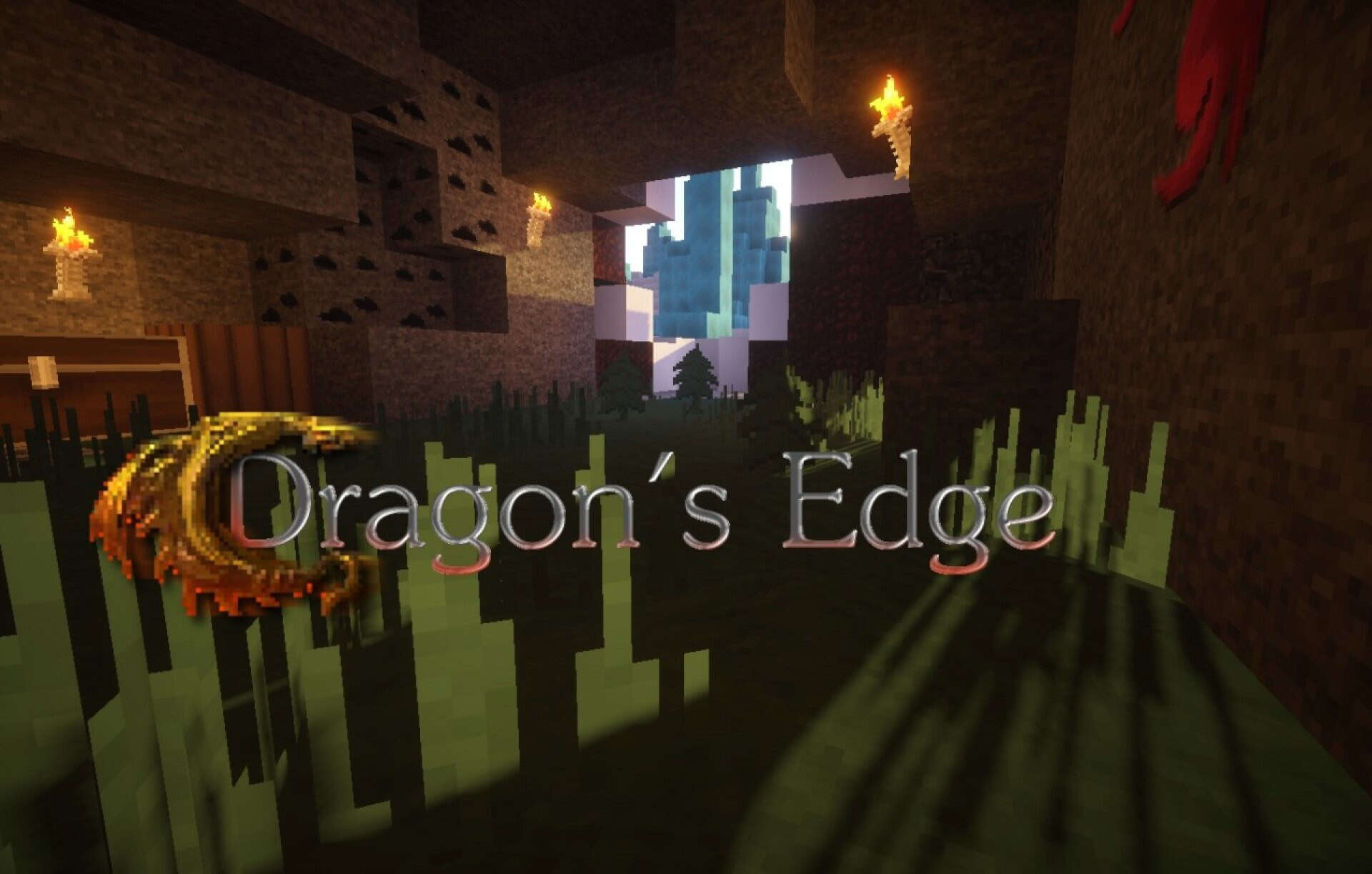
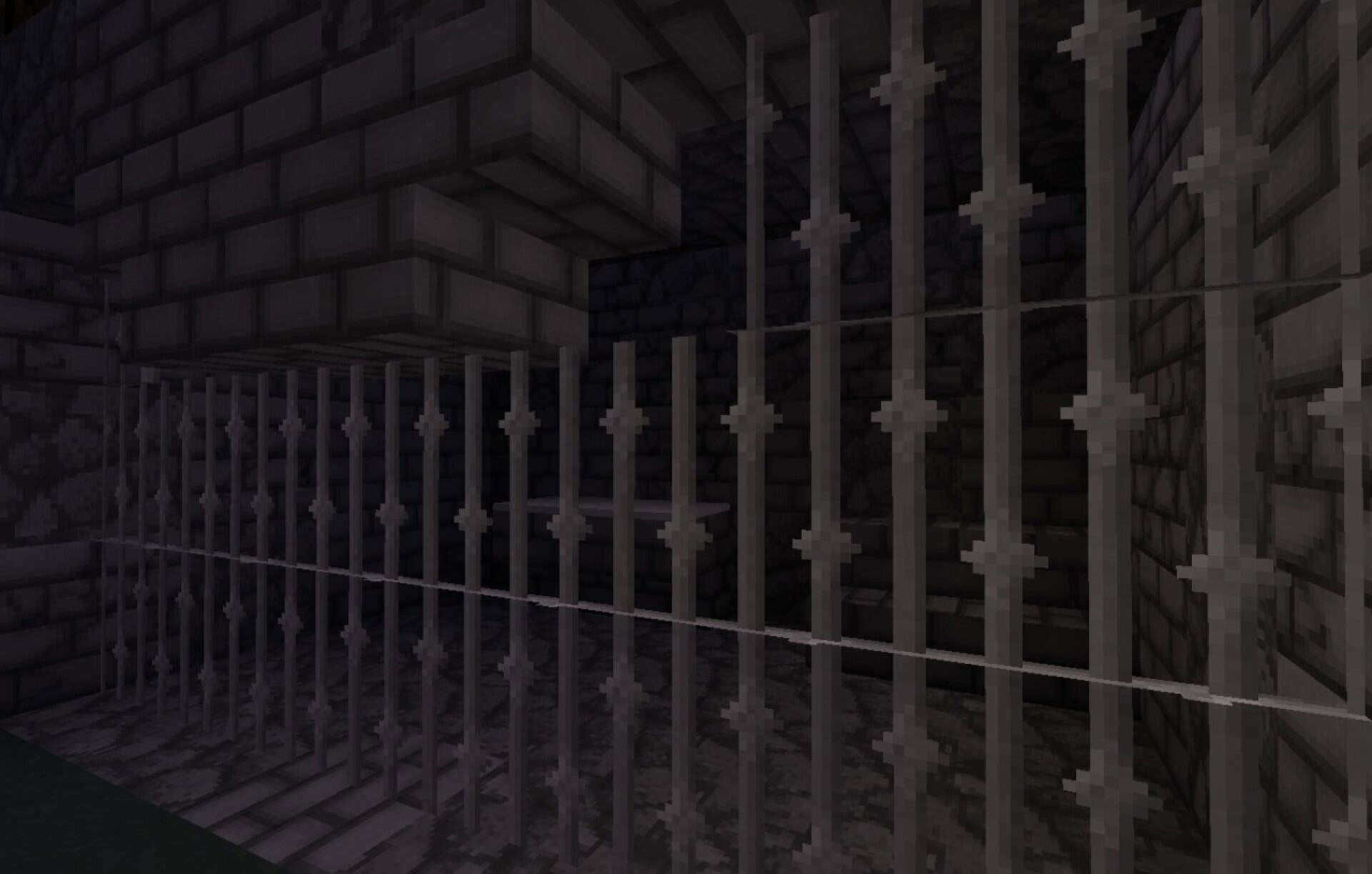
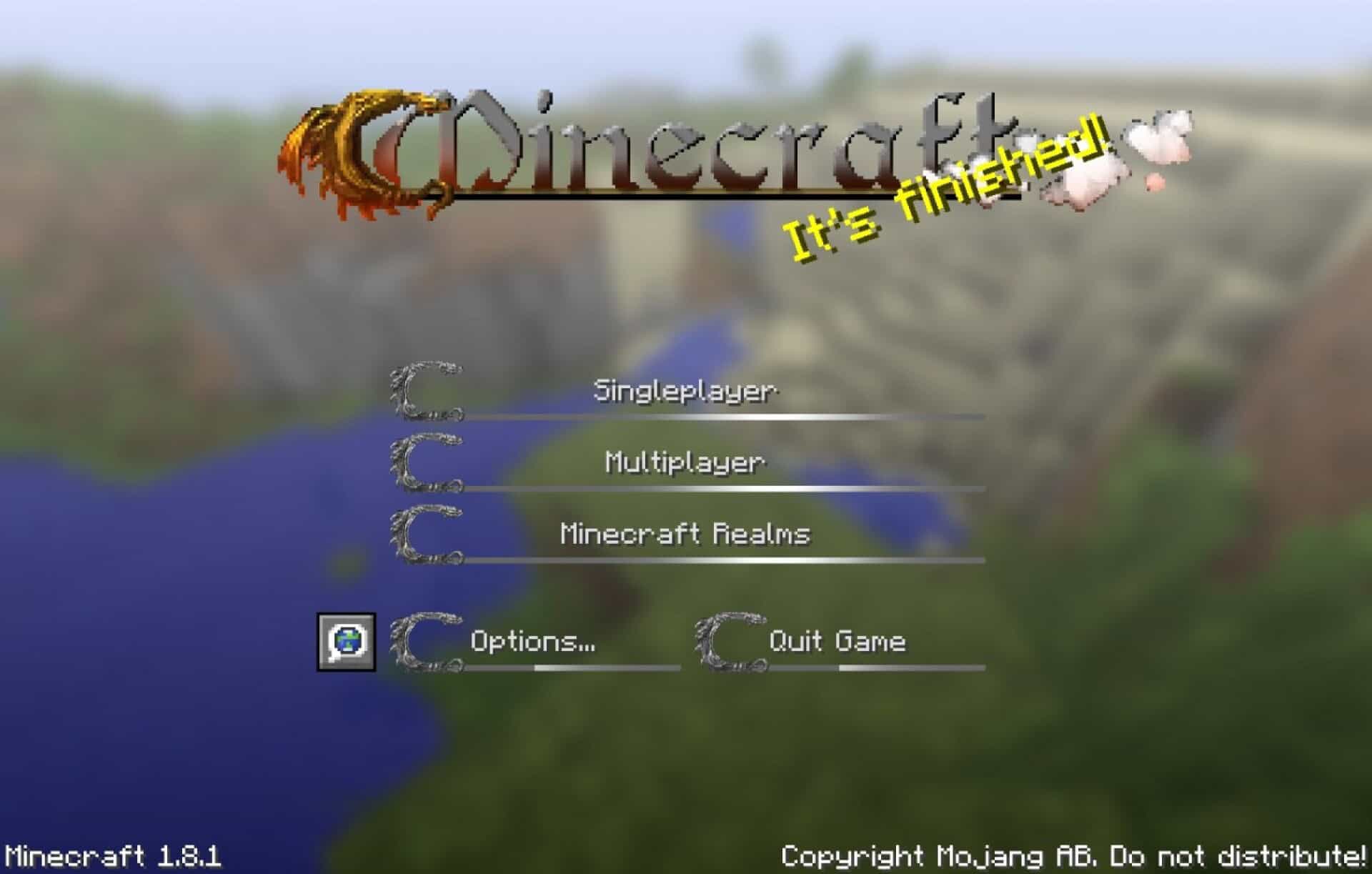
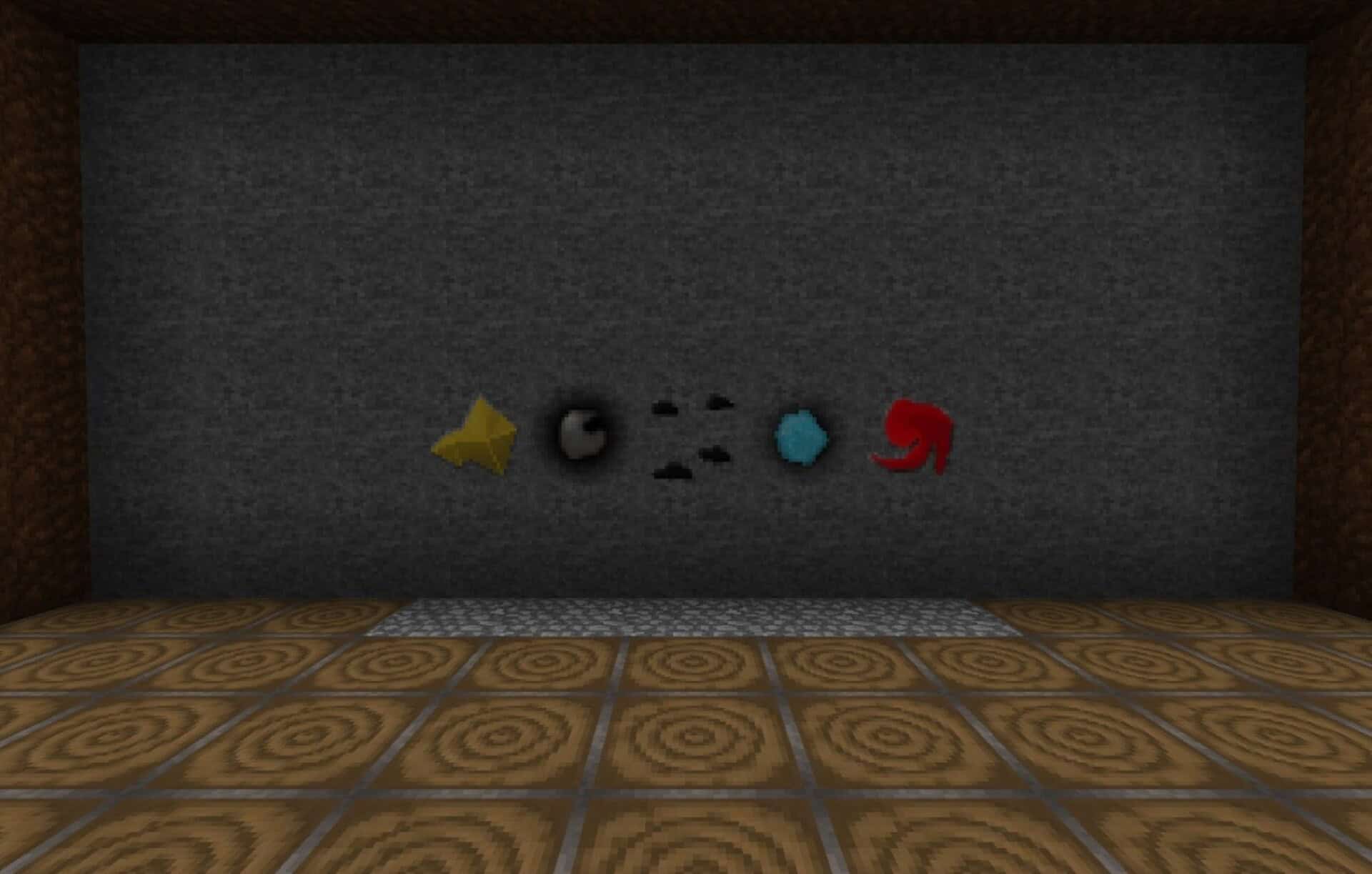
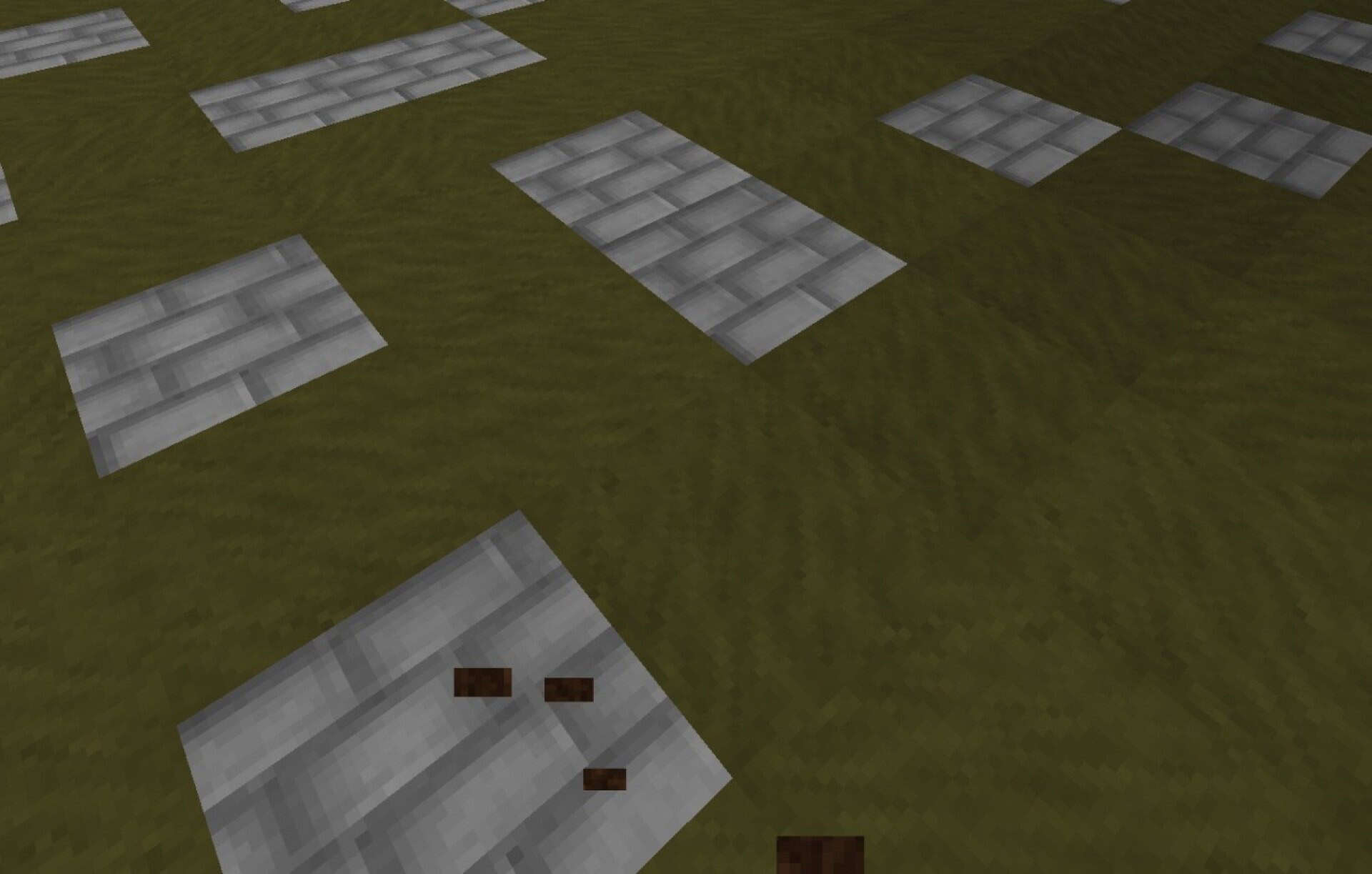
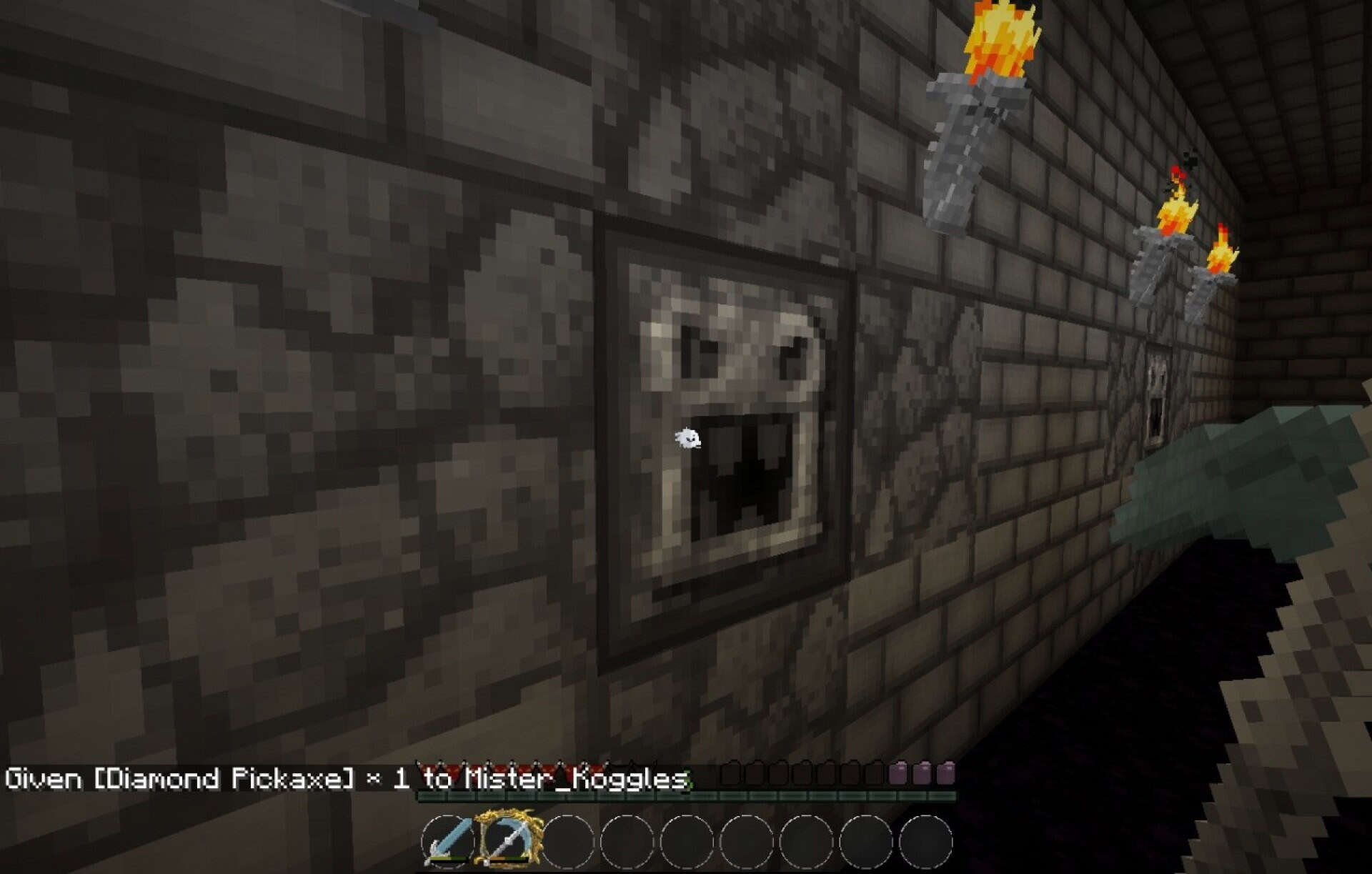
If you love a darker fantasy look with a medieval feel, the Dragon’s Edge resource pack completely shifts Minecraft’s style without changing core gameplay. You still mine, craft, farm, and fight just like vanilla, and you do not need any mods to enjoy the theme. The pack moves the world away from bright vanilla colors toward an RPG setting. Caves look harsher and grim, but lighting creates strong contrast. Placing torches and carving a safe path makes the warm glow stand out against darker stone, making your base feel protected.
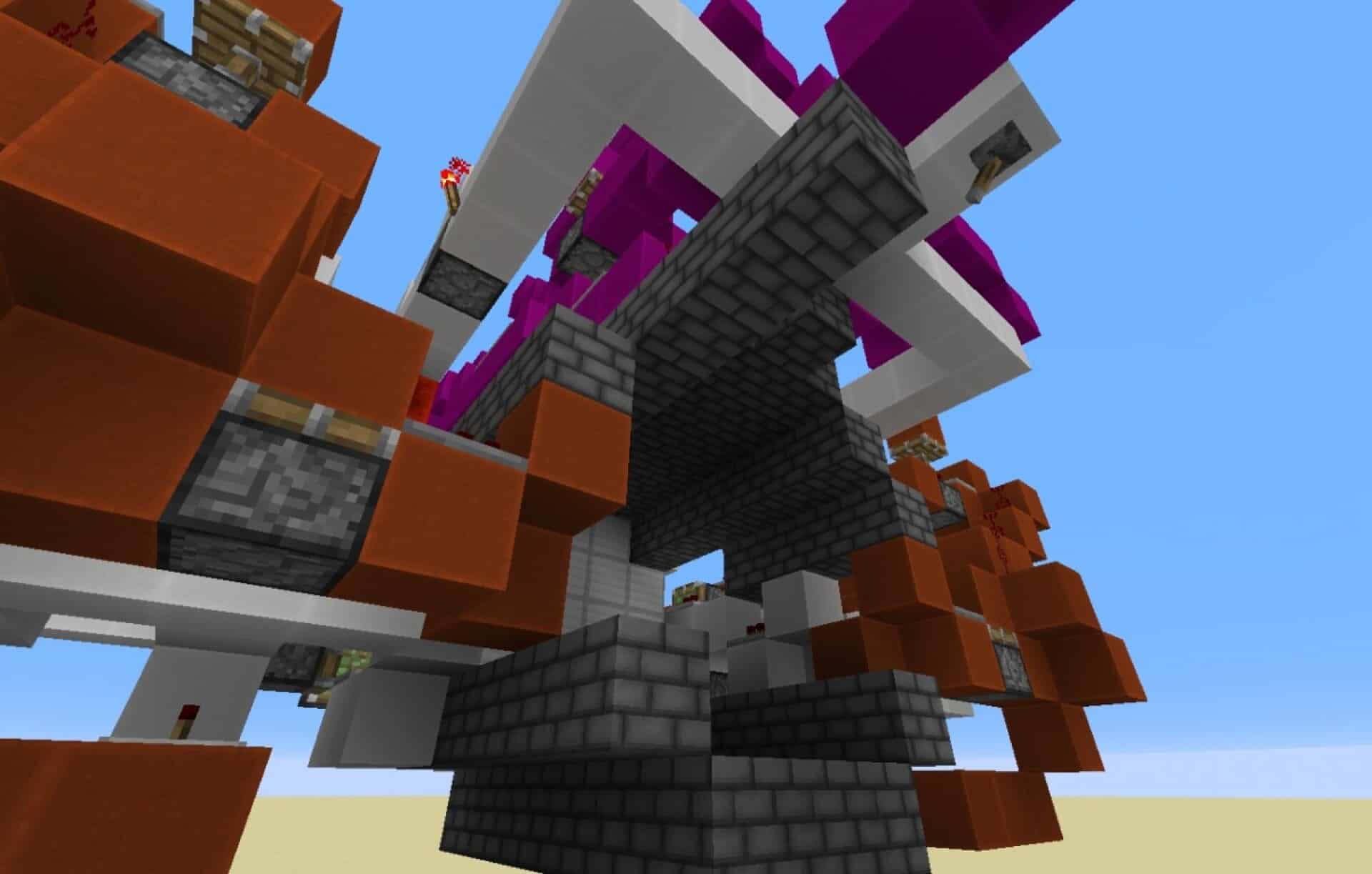
Running at 32x, the pack keeps blocks clean and sharp without forcing extreme detail onto every texture, striking a great balance for mining routes, quick builds, and fast combat decisions. The tone fits builds leaning into dungeons and ruins. Note that the author marked the project as incomplete at around twenty-five percent progress, so you may run into missing textures on less common blocks. Performance stays straightforward for most systems since a 32x resolution rarely causes major frame drops by itself.
Dragon’s Edge should be compatible with all of these Minecraft versions: 1.8.9 – 1.8.8 – 1.8.1 – 1.8.6 – 1.8 – 1.7.10 – 1.7.9 – 1.7.4 – 1.7
Screenshots
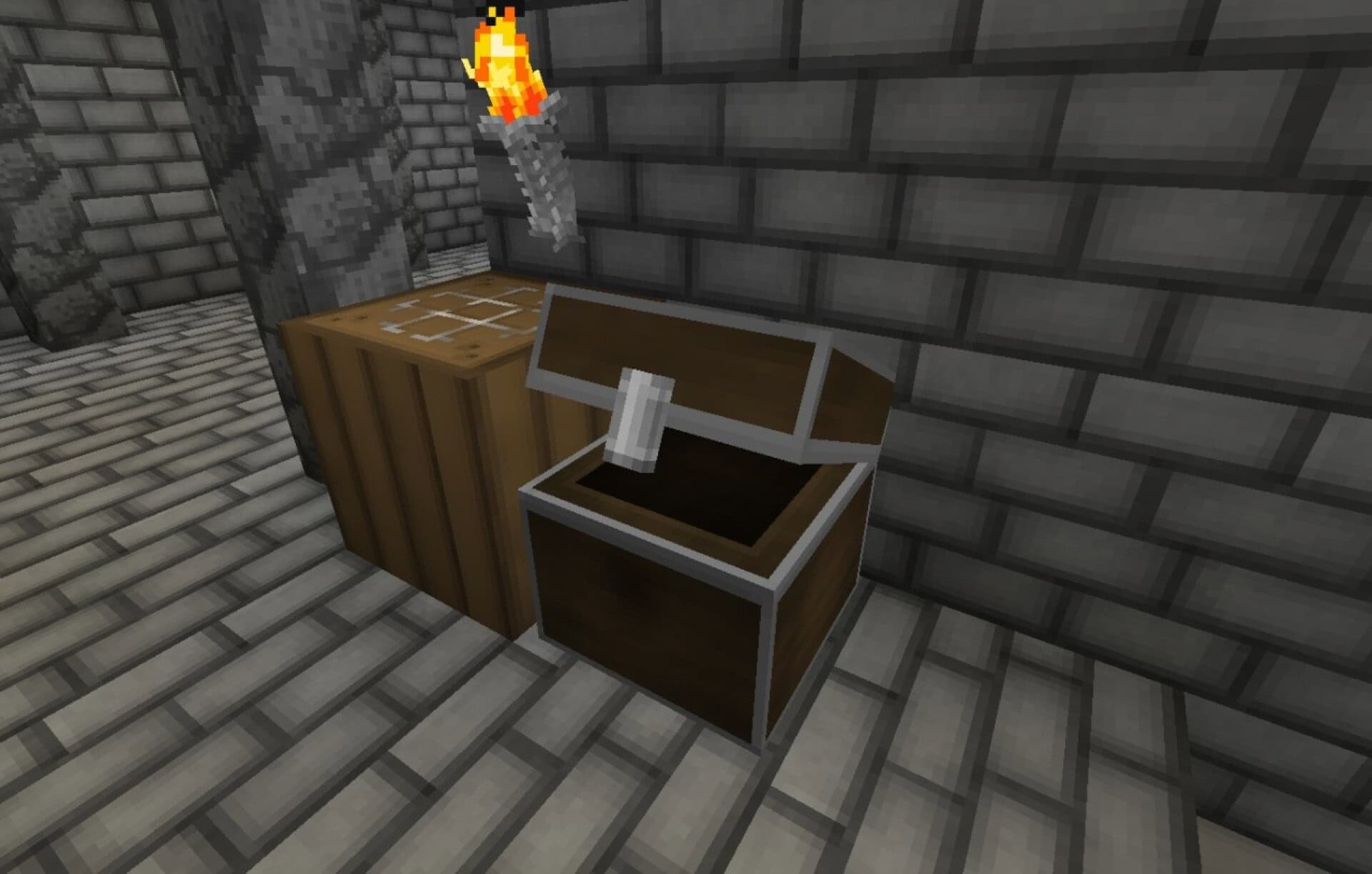
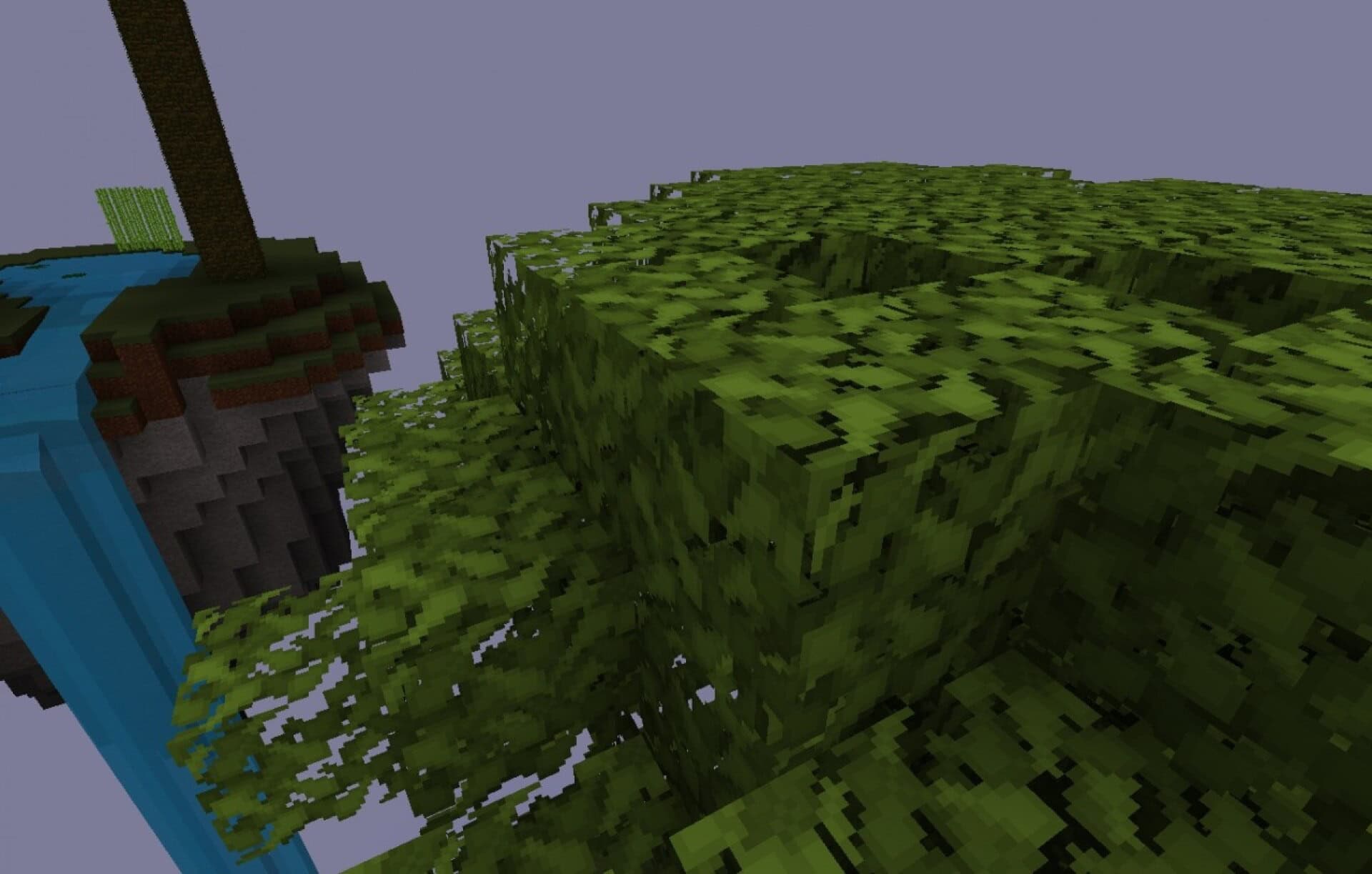
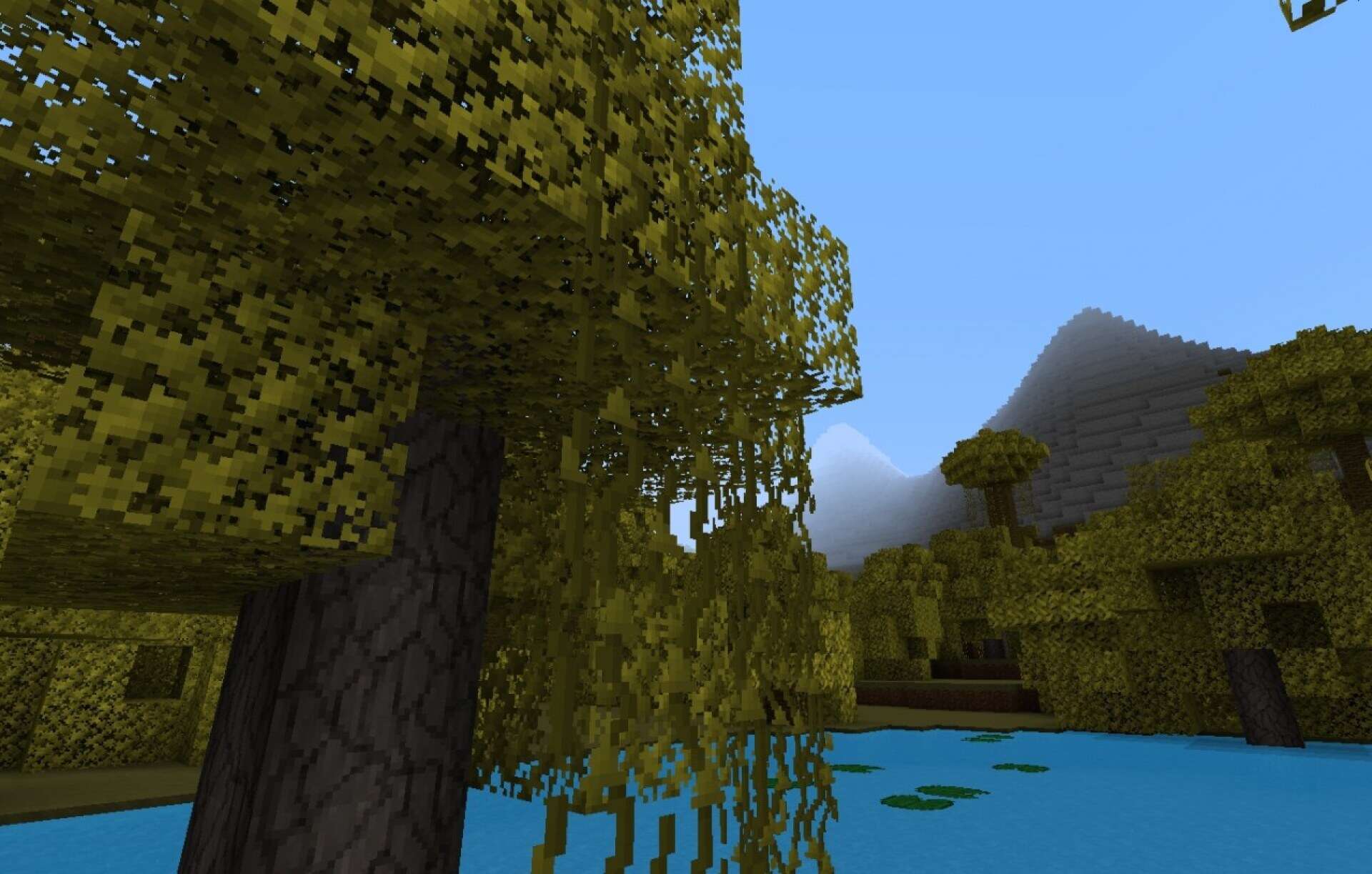
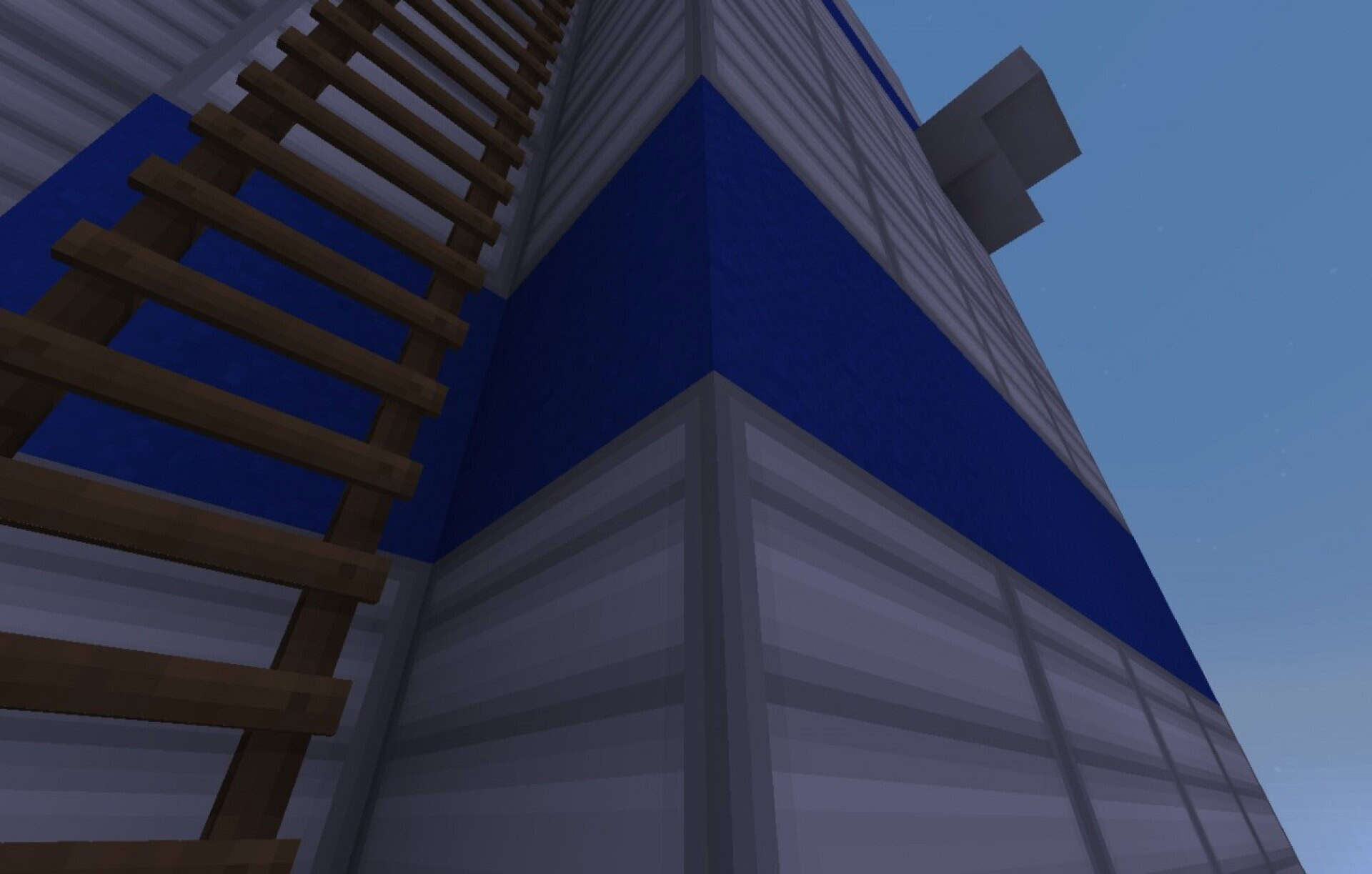
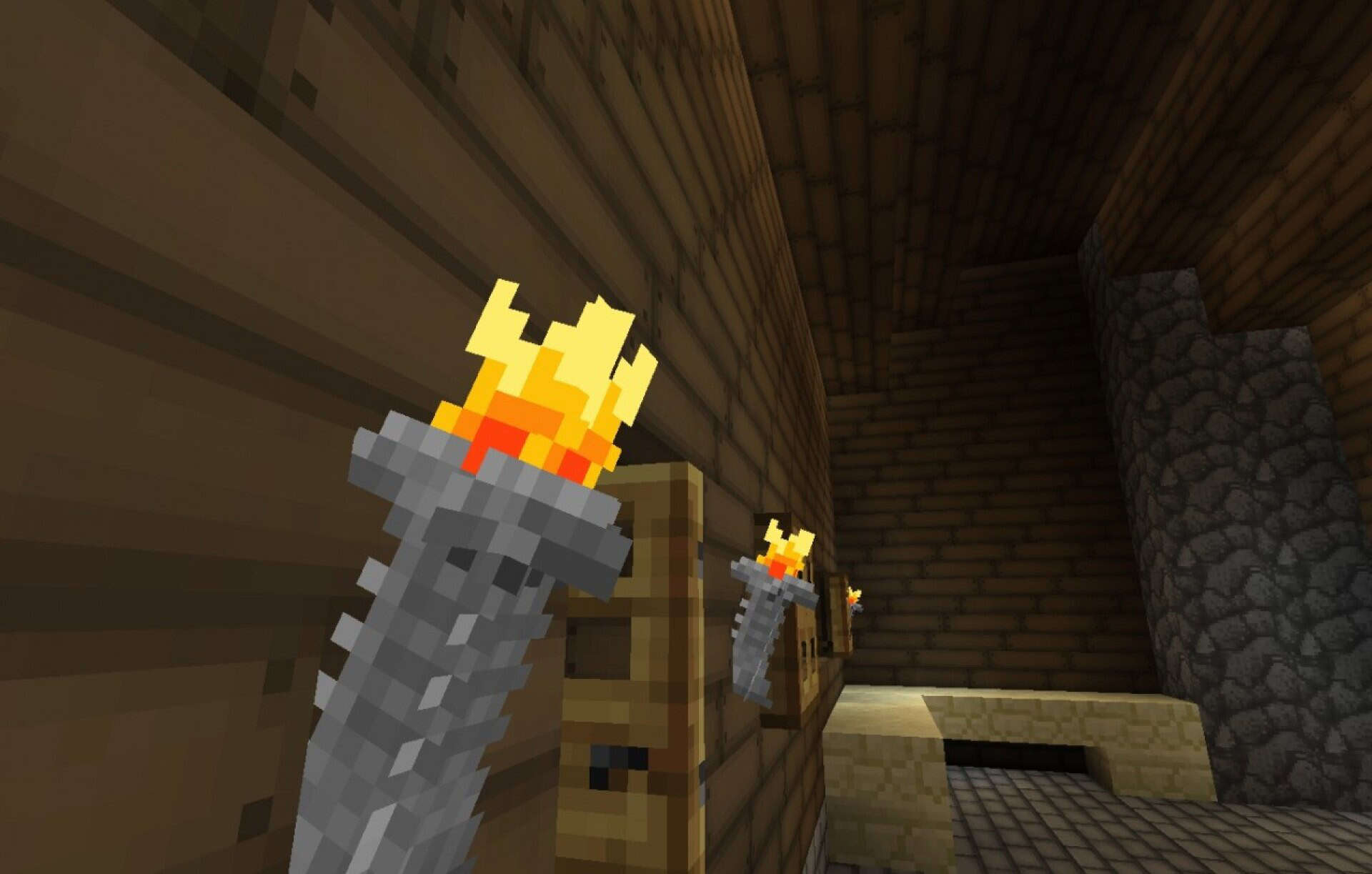
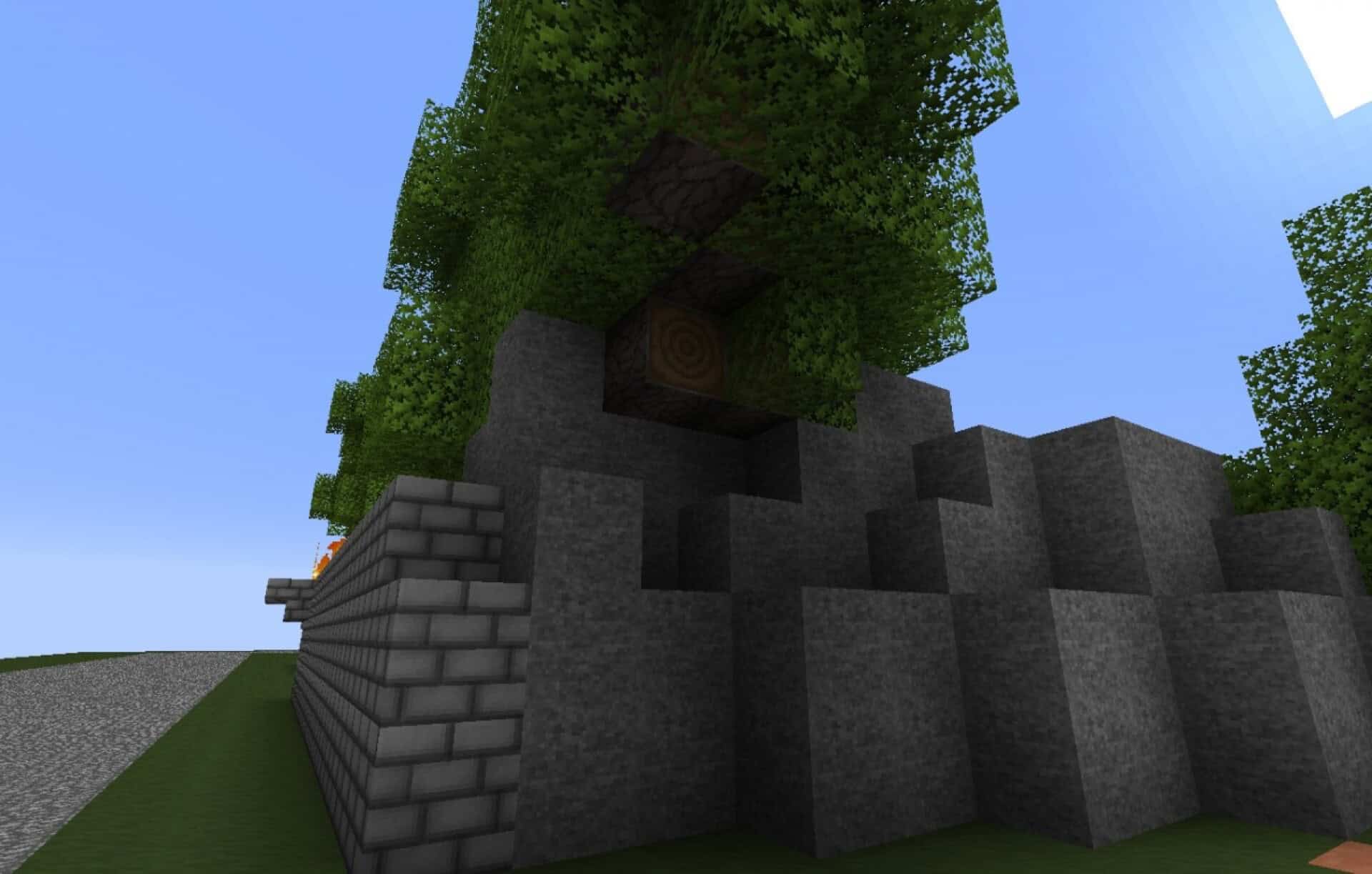
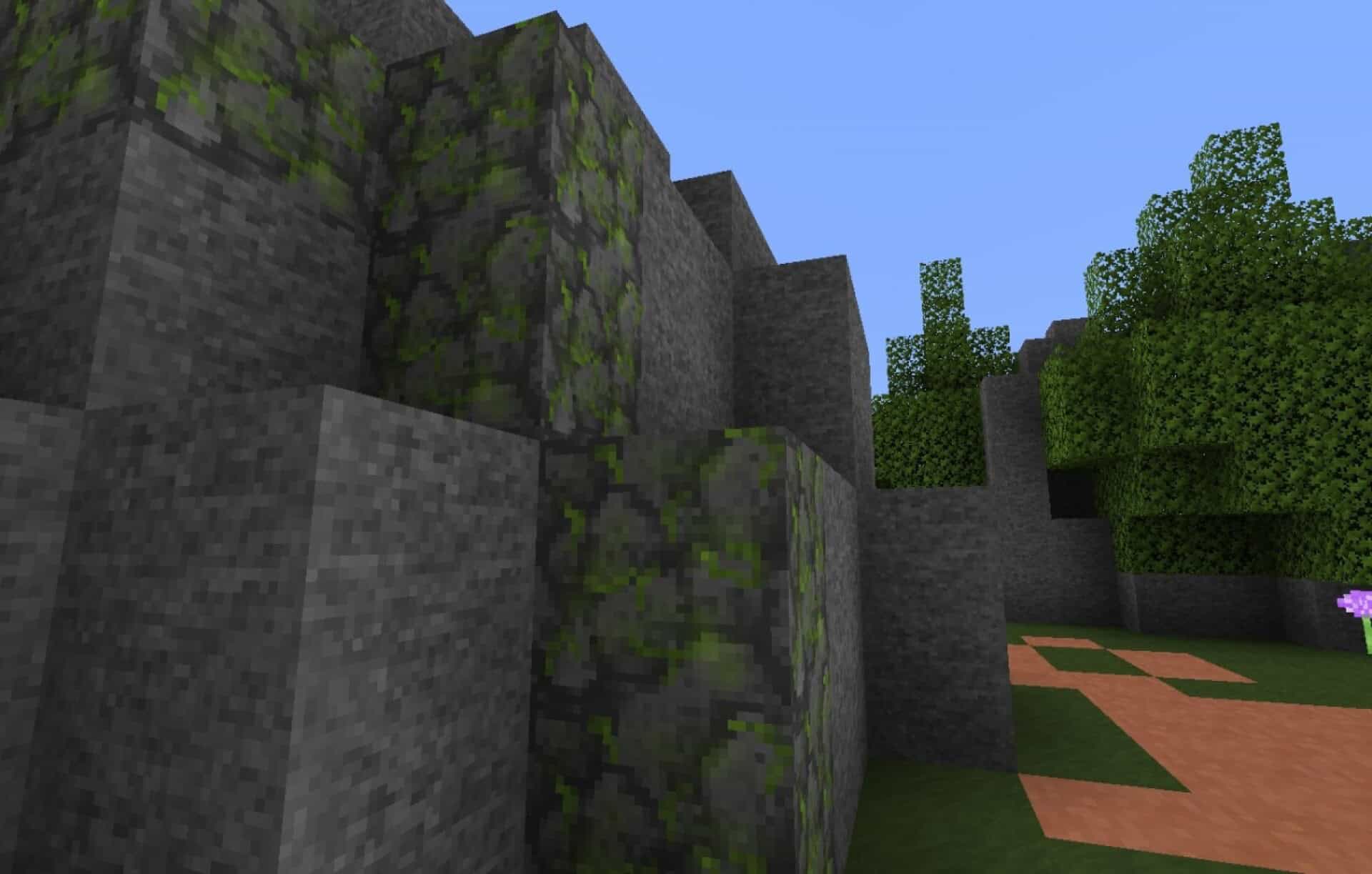
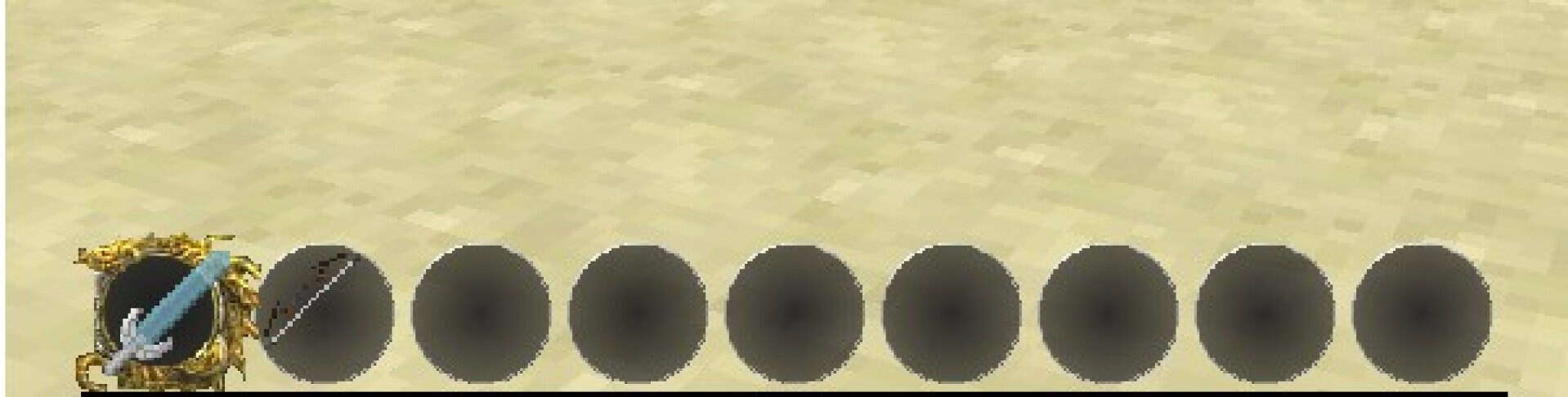
How to Install Texture Pack (Simple 10 Steps)
- Download OptiFine: Most of the texture packs and shaders need OptiFine. That’s why, first download and install OptiFine for the version of Minecraft you want to play.
- Download the Texture Pack: Get the texture pack you want from the download section. Choose the version that works with your Minecraft and your PC’s performance.
- Open Minecraft Launcher: Start Minecraft using the official game launcher — or even TLauncher, if you use that.
- Go to Options: From the main menu, click on the “Options” button.
- Open Resource Packs: Inside Options, click on “Resource Packs…”.
- Open the Resource Pack Folder: Click on “Open Resource Pack Folder” — this will open a folder named “resourcepacks”.
- Move the Pack File: Copy or move the .zip file you downloaded into that “resourcepacks” folder. (Don’t unzip the file — Minecraft uses it as-is!)
- Go Back and Refresh: Close the folder and click “Done”, then go back into “Resource Packs…” again.
- Activate the Pack: You’ll see the pack on the left side. Hover over it and click the arrow to move it to the right (active side).
Tip: If you get a message that the pack is for a different version, just click “Yes” — it usually works fine. - Click Done and Enjoy: Click “Done” again. Now your pack is ready to use in-game. It’s that easy!
Credits
This resource pack was originally created by Skitto493. We do not claim ownership of this content, nor have we modified the files. All rights belong to the original creator. We highly recommend supporting Skitto493 by visiting their official download and project pages.
Download Instructions
Curseforge: download starts automatically after a few seconds;
Mediafire: click the big blue button with the text “DOWNLOAD”;
Google Drive: in the top right corner you will see a small download icon (down arrow), click it and the download should start;