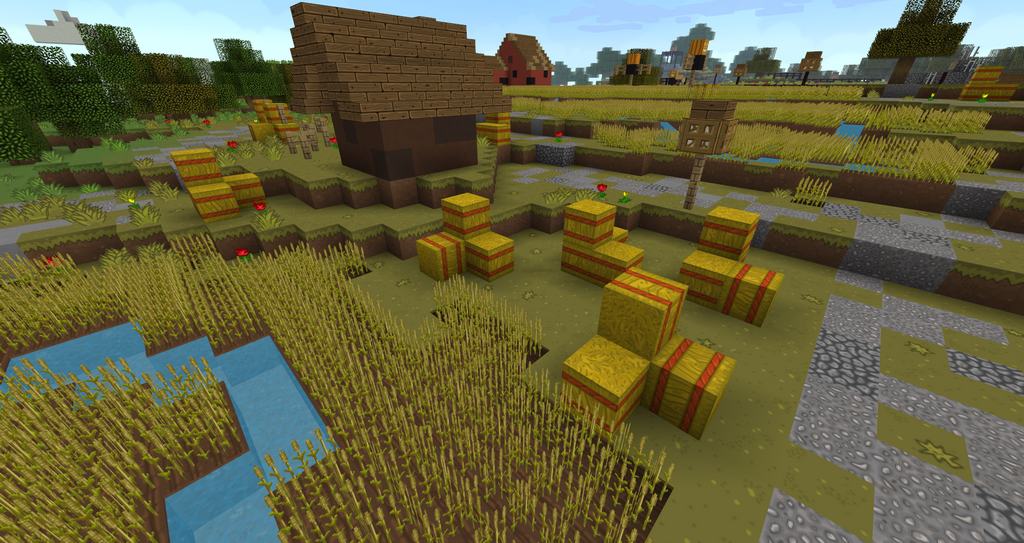
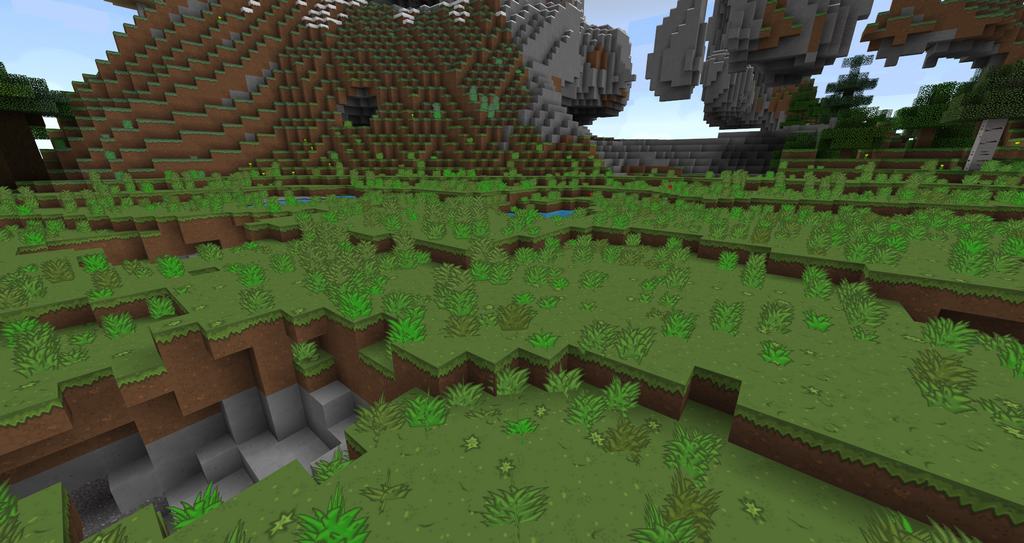
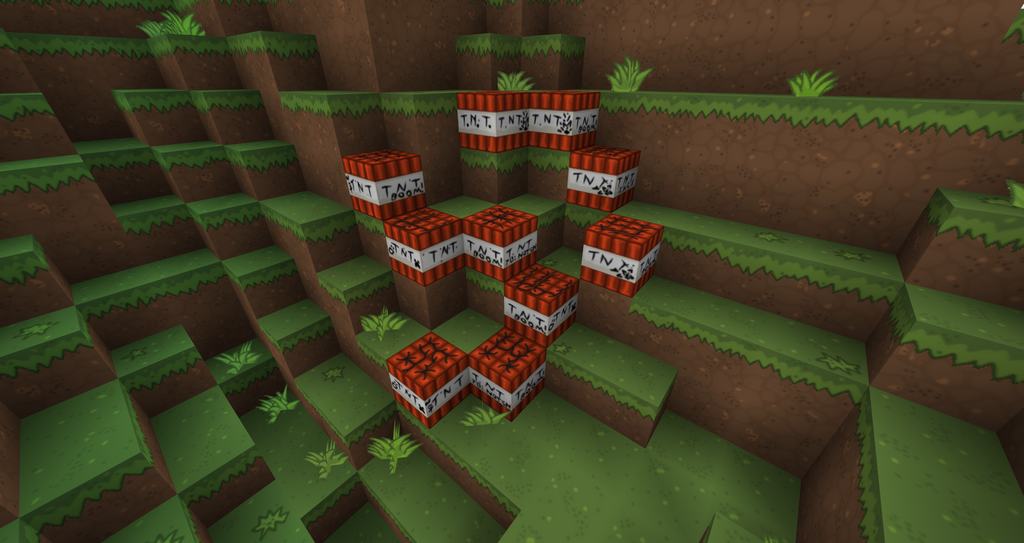
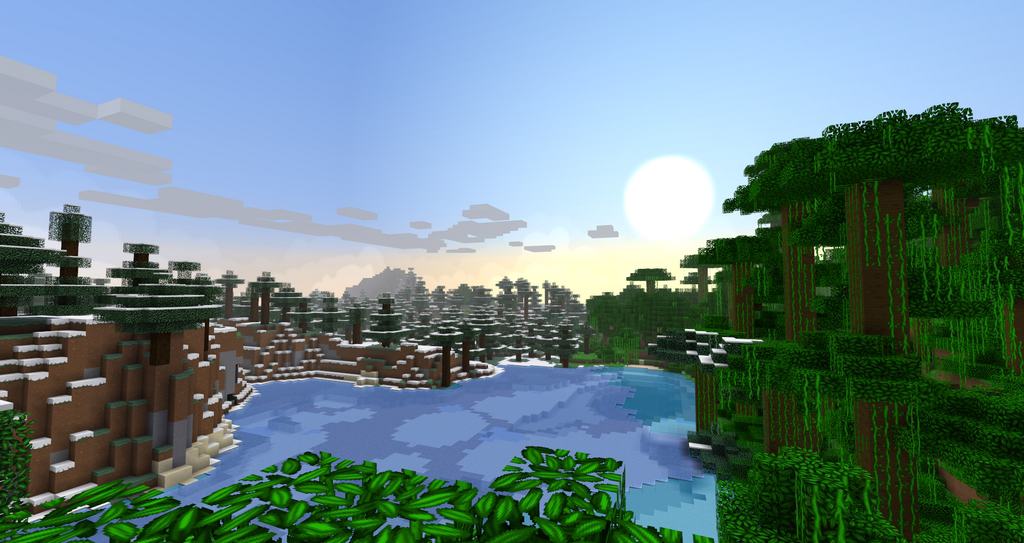
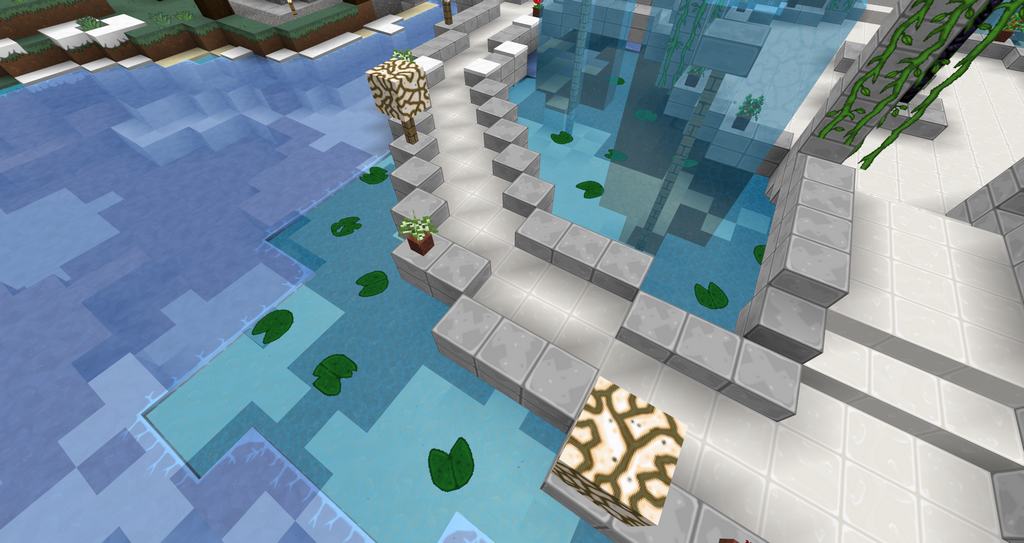
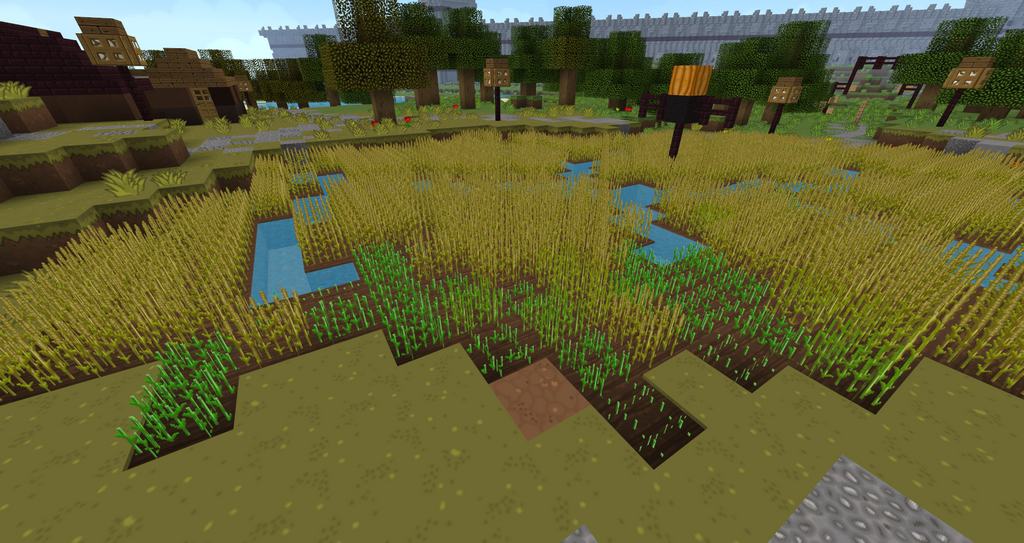
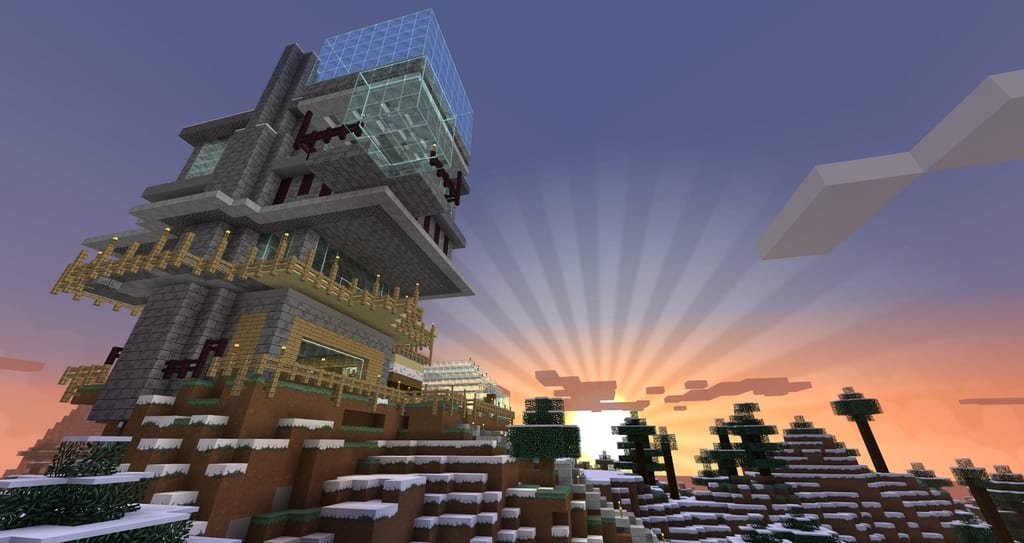
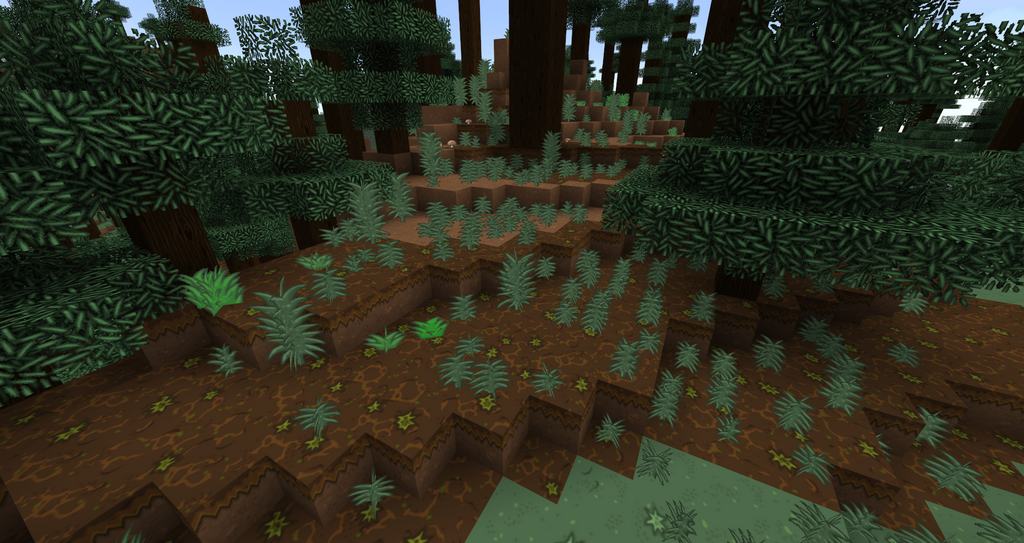
Staying wonderfully true to Minecraft’s original feel, I found that the SixtyGig resource pack beautifully improves the graphics to a crisp 64x resolution without making any specific textures stand out more than usual. It gives the game a remarkably vibrant cartoon-like appearance with icons and items truly popping off the screen in vivid color. To further enhance your visual experience, I noticed there are also subtle shadow effects at work. Because the pack stays so true to the vanilla world, the original feel of Minecraft is thoroughly maintained and the basic shapes of items remain completely the same. This has the fantastic added benefit of allowing for convenient multiplayer experiences. You want to know your builds look nice in the vanilla world so everyone can enjoy your masterpieces without you having to switch back and forth between the original textures and the resource pack.
Since the SixtyGig resource pack was made specifically to run with MCPatcher, certain adjustments have to be made before the resource pack can be used if another mod loader like Forge is installed. Therefore, I think it is well worth going through a bit of additional effort to get the full experience the SixtyGig resource pack has to offer. It is also only compatible with earlier versions of Minecraft. As of the moment, it was recently updated to 1.7.x and plans are in place to get it compatible with the latest updates, but the SixtyGig resource pack will not probably work with Minecraft 1.8.x. and up. While it is an understandable source of frustration, this pack has amazing textures to offer that easily make up for having to dial back the game to an earlier version. Rest assured authors are hard at work to ensure you can enjoy this amazing resource pack in whatever form of the game you desire.
SixtyGig should be compatible with all of these Minecraft versions: 1.7.10 – 1.7.9 – 1.7.4 – 1.7
Screenshots
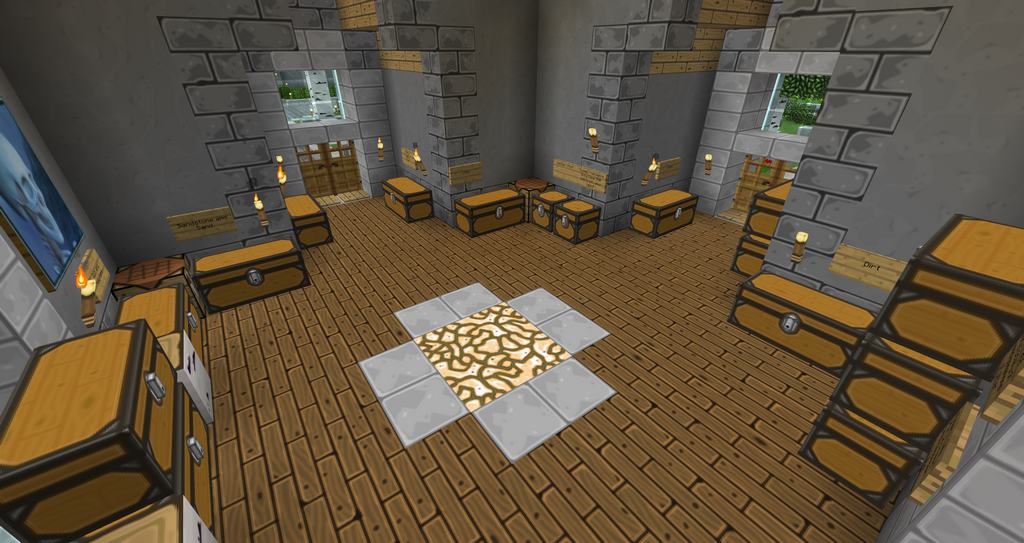


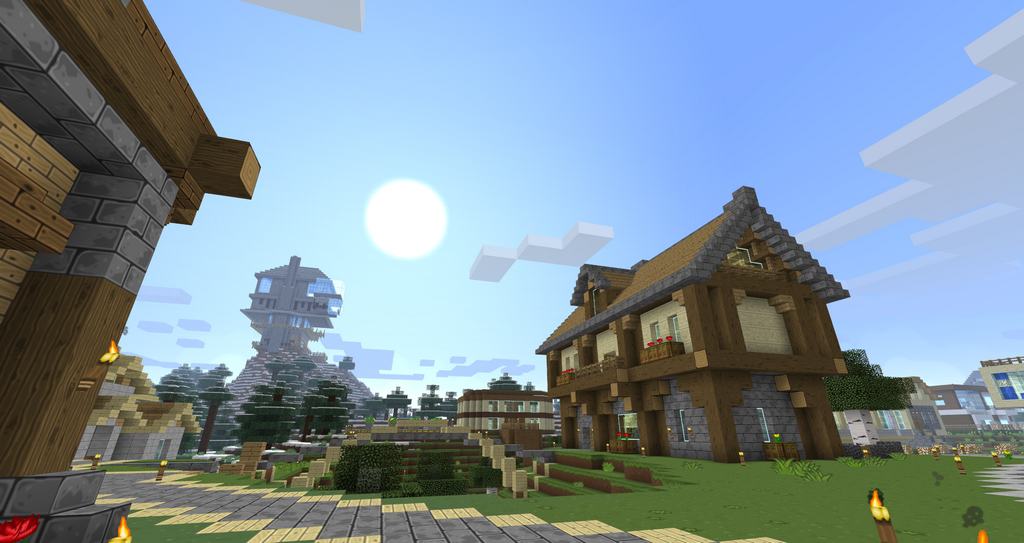

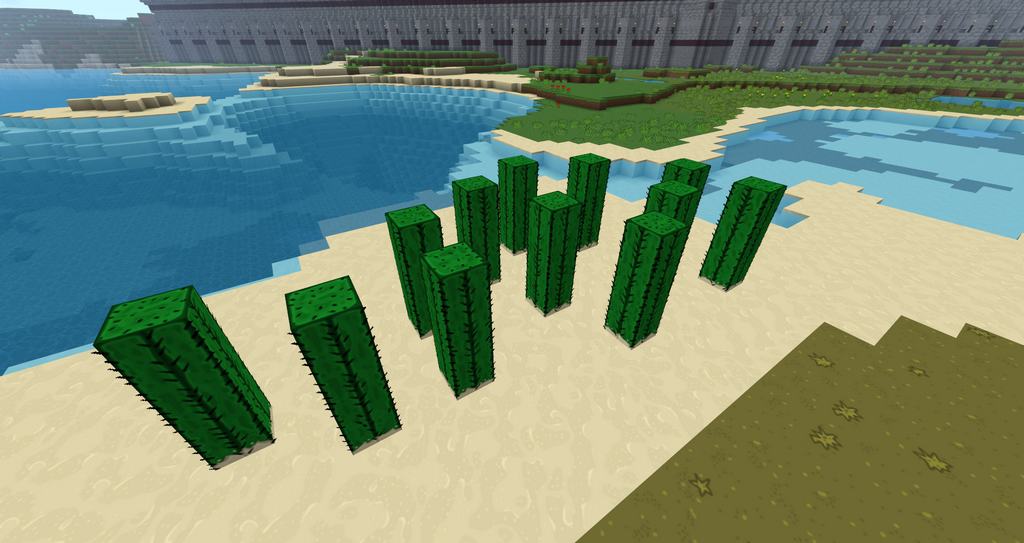
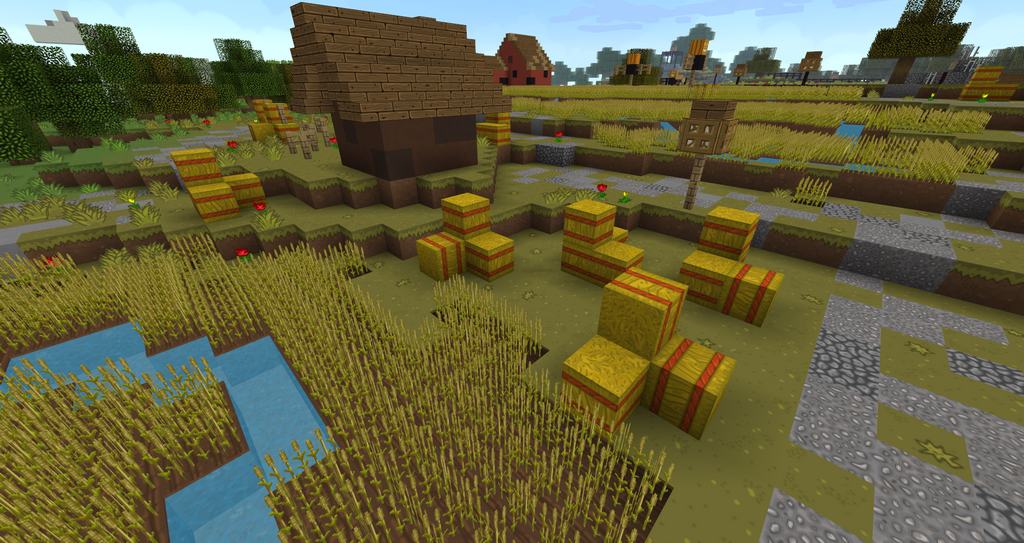

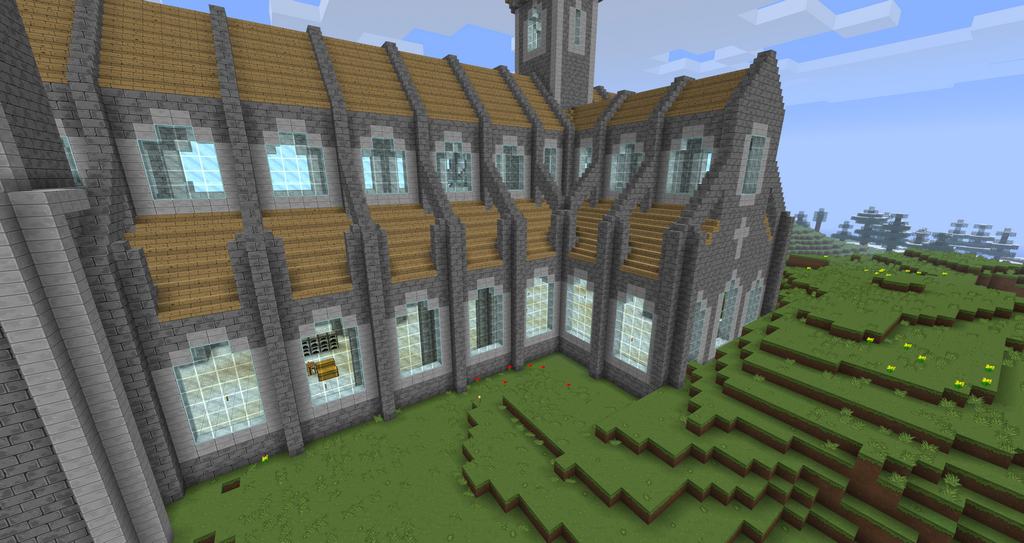

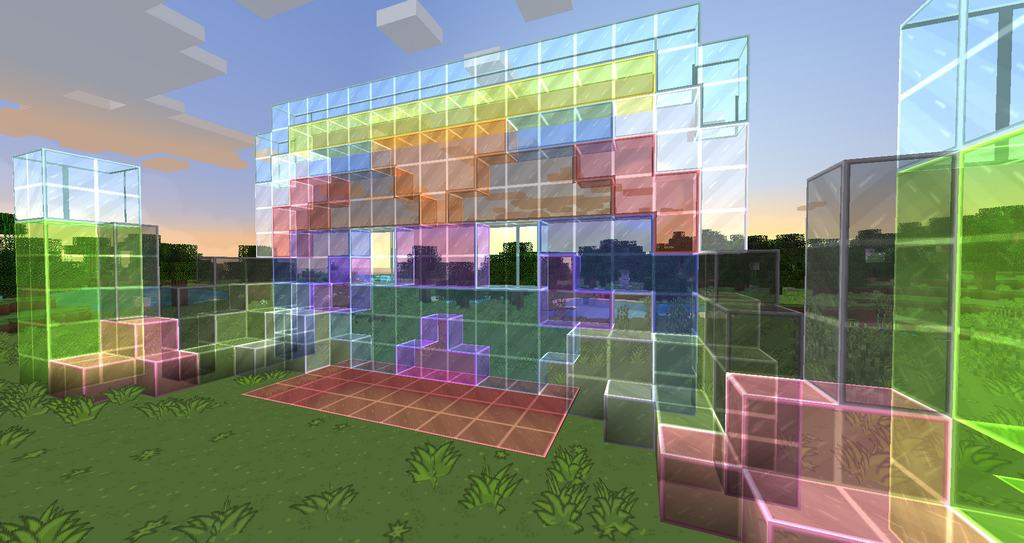
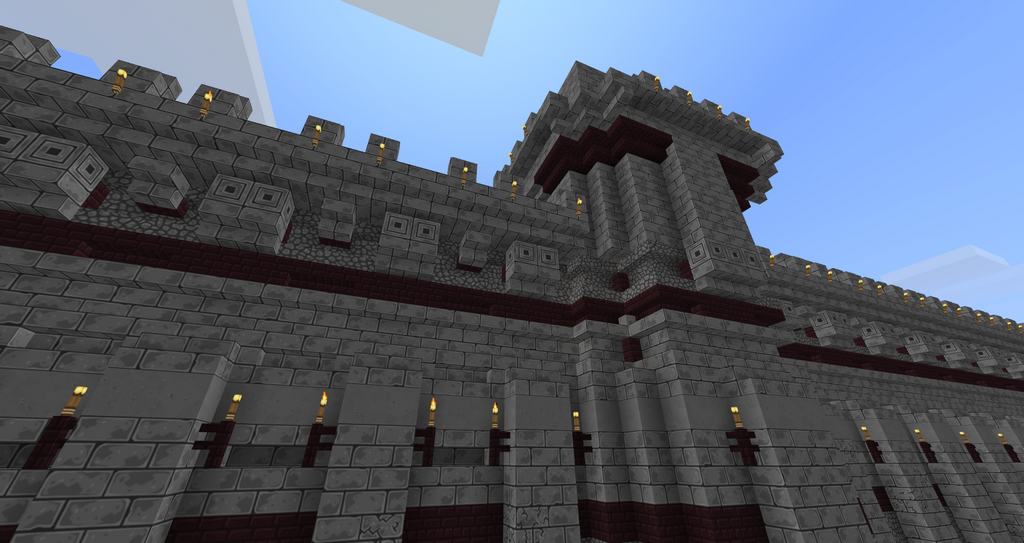
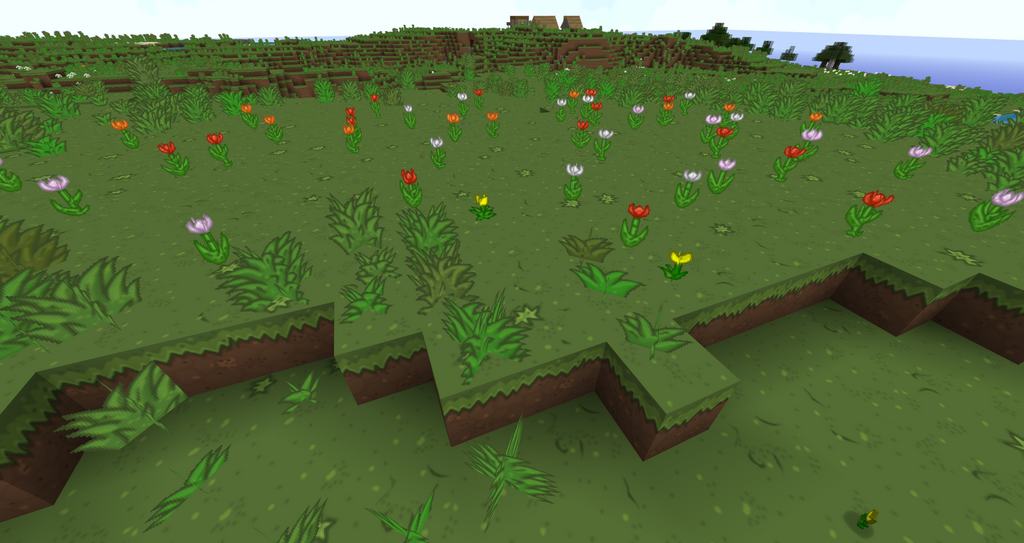
How to Install Texture Pack (Simple 10 Steps)
- Download OptiFine: Most of the texture packs and shaders need OptiFine. That’s why, first download and install OptiFine for the version of Minecraft you want to play.
- Download the Texture Pack: Get the texture pack you want from the download section. Choose the version that works with your Minecraft and your PC’s performance.
- Open Minecraft Launcher: Start Minecraft using the official game launcher — or even TLauncher, if you use that.
- Go to Options: From the main menu, click on the “Options” button.
- Open Resource Packs: Inside Options, click on “Resource Packs…”.
- Open the Resource Pack Folder: Click on “Open Resource Pack Folder” — this will open a folder named “resourcepacks”.
- Move the Pack File: Copy or move the .zip file you downloaded into that “resourcepacks” folder. (Don’t unzip the file — Minecraft uses it as-is!)
- Go Back and Refresh: Close the folder and click “Done”, then go back into “Resource Packs…” again.
- Activate the Pack: You’ll see the pack on the left side. Hover over it and click the arrow to move it to the right (active side).
Tip: If you get a message that the pack is for a different version, just click “Yes” — it usually works fine. - Click Done and Enjoy: Click “Done” again. Now your pack is ready to use in-game. It’s that easy!
Credits
The SixtyGig Resource Pack was originally created and developed by Rayvolution. All rights, ownership, and intellectual property remain with the original author. We do not claim ownership of this content, nor do we host modified versions of these files. We strongly encourage players to support the creator by downloading from their official links.
Download Links
Java Edition
Download Instructions
Curseforge: download starts automatically after a few seconds;
Mediafire: click the big blue button with the text “DOWNLOAD”;
Google Drive: in the top right corner you will see a small download icon (down arrow), click it and the download should start;


