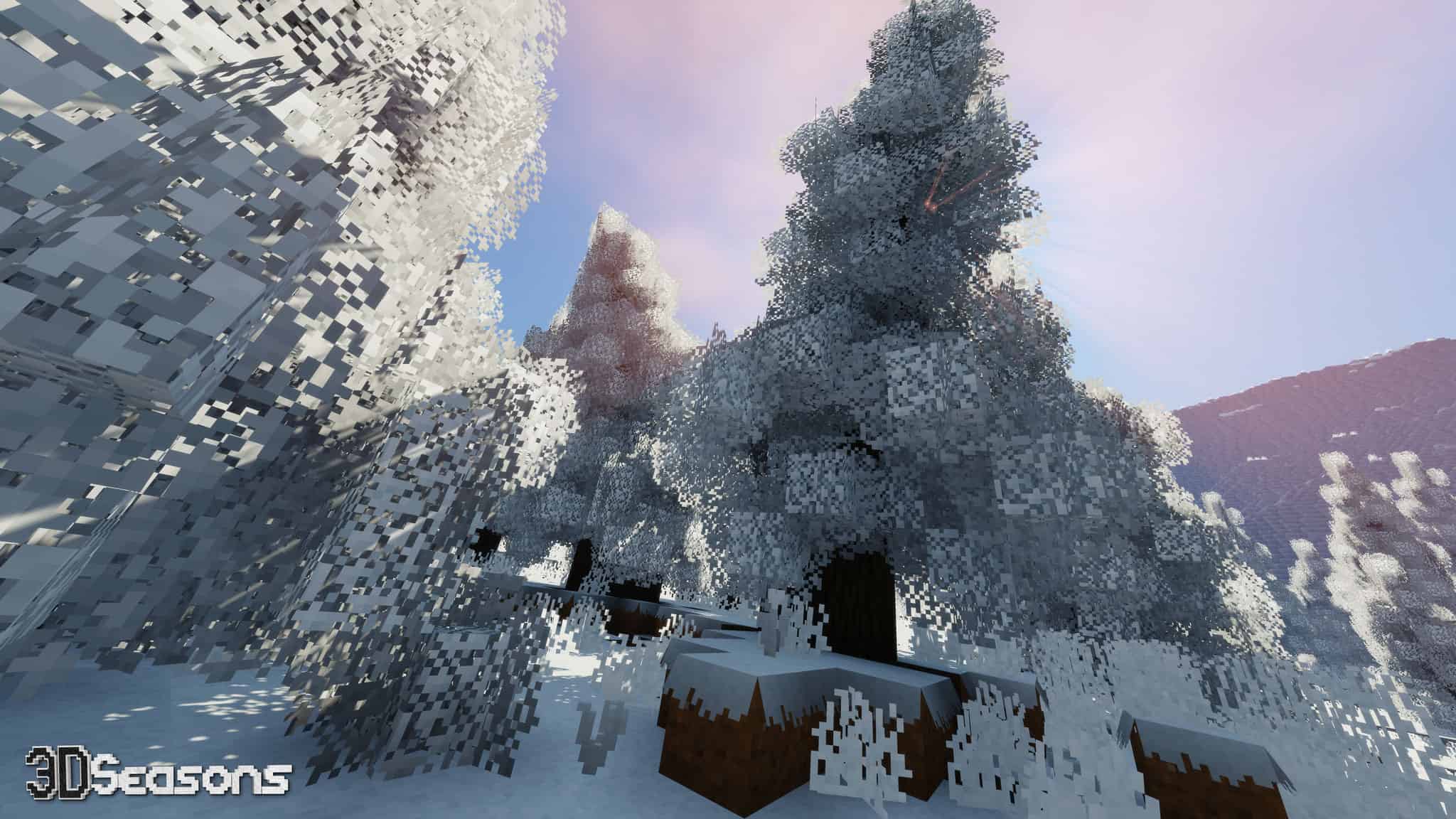
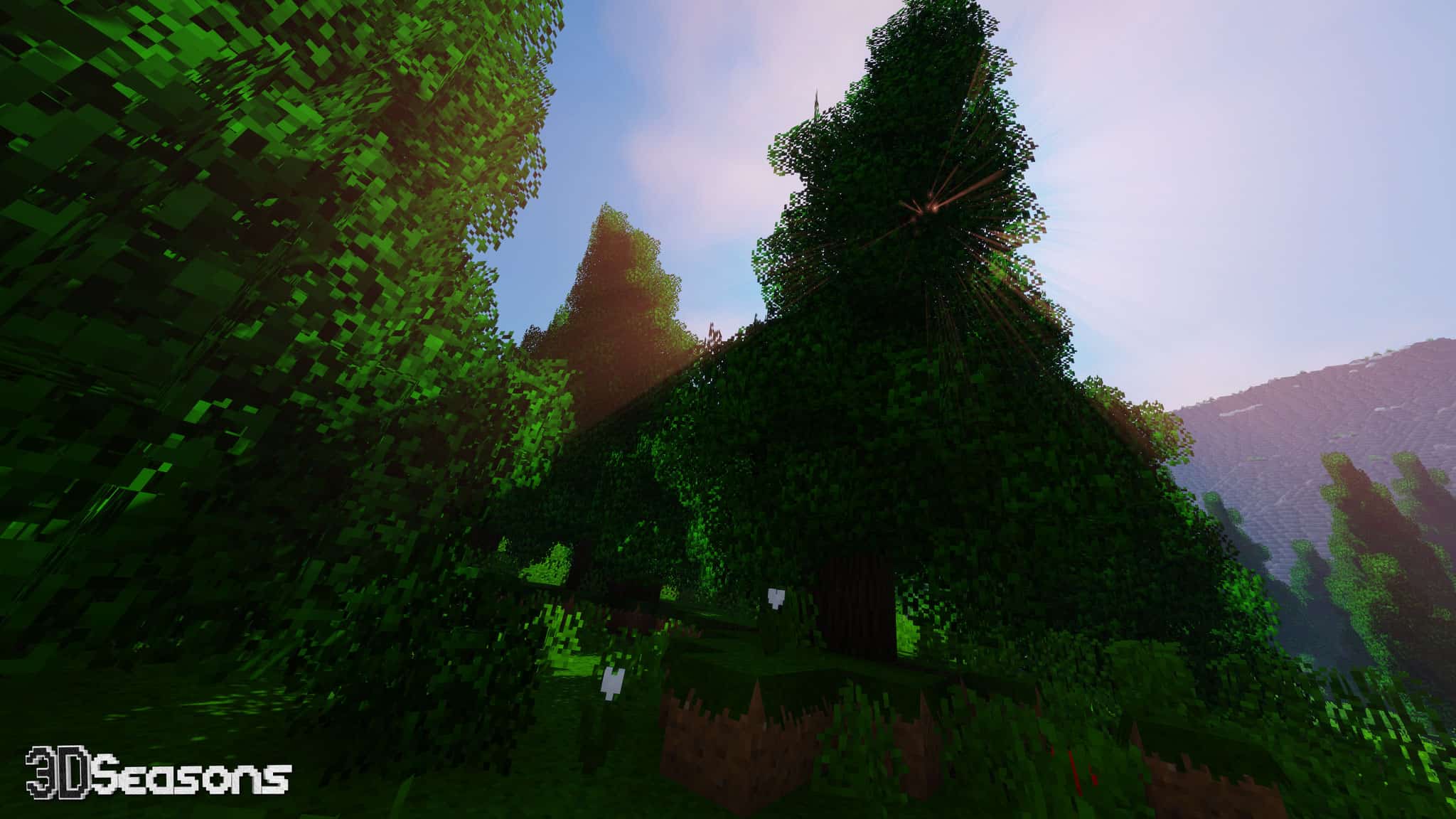
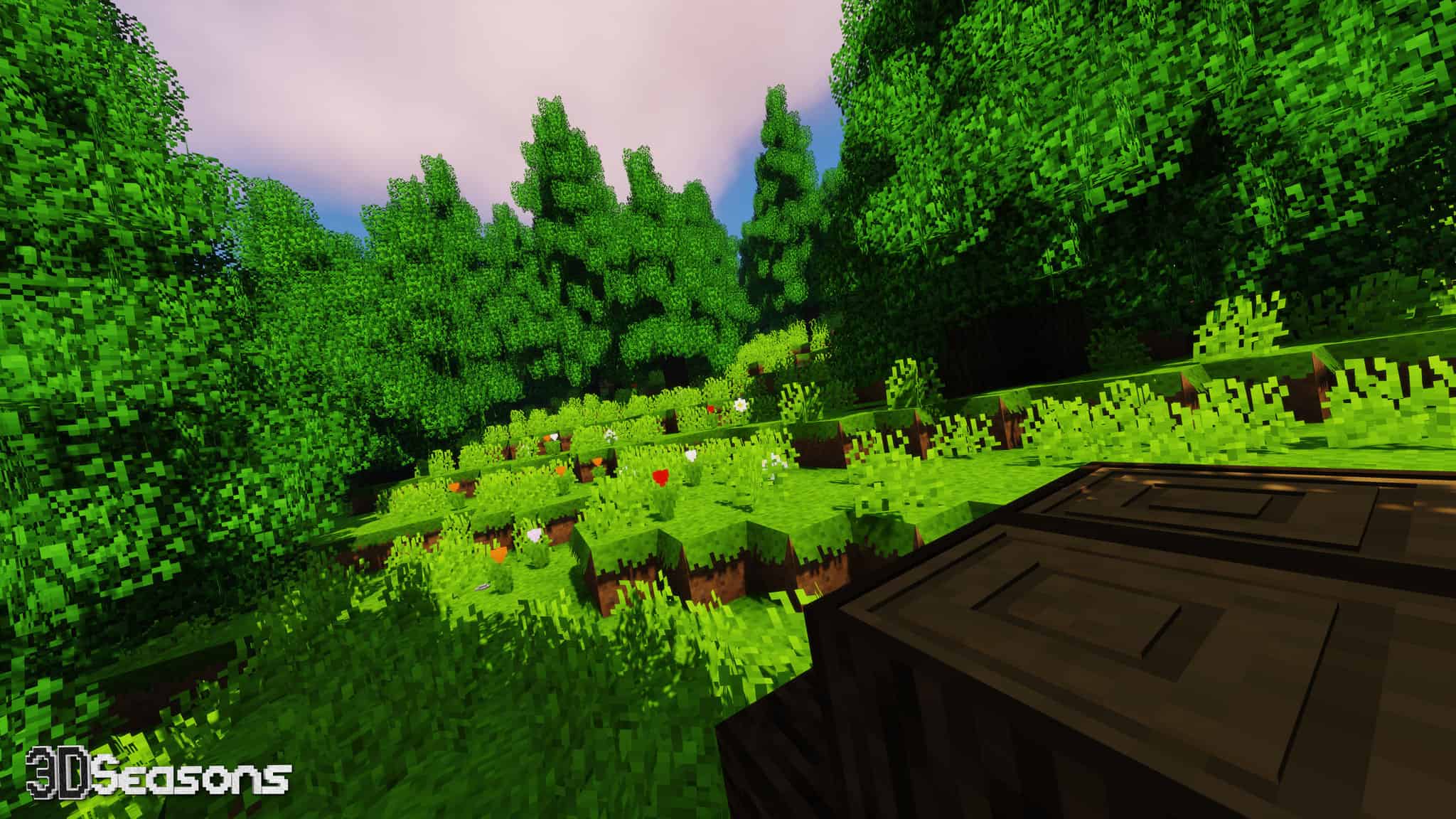
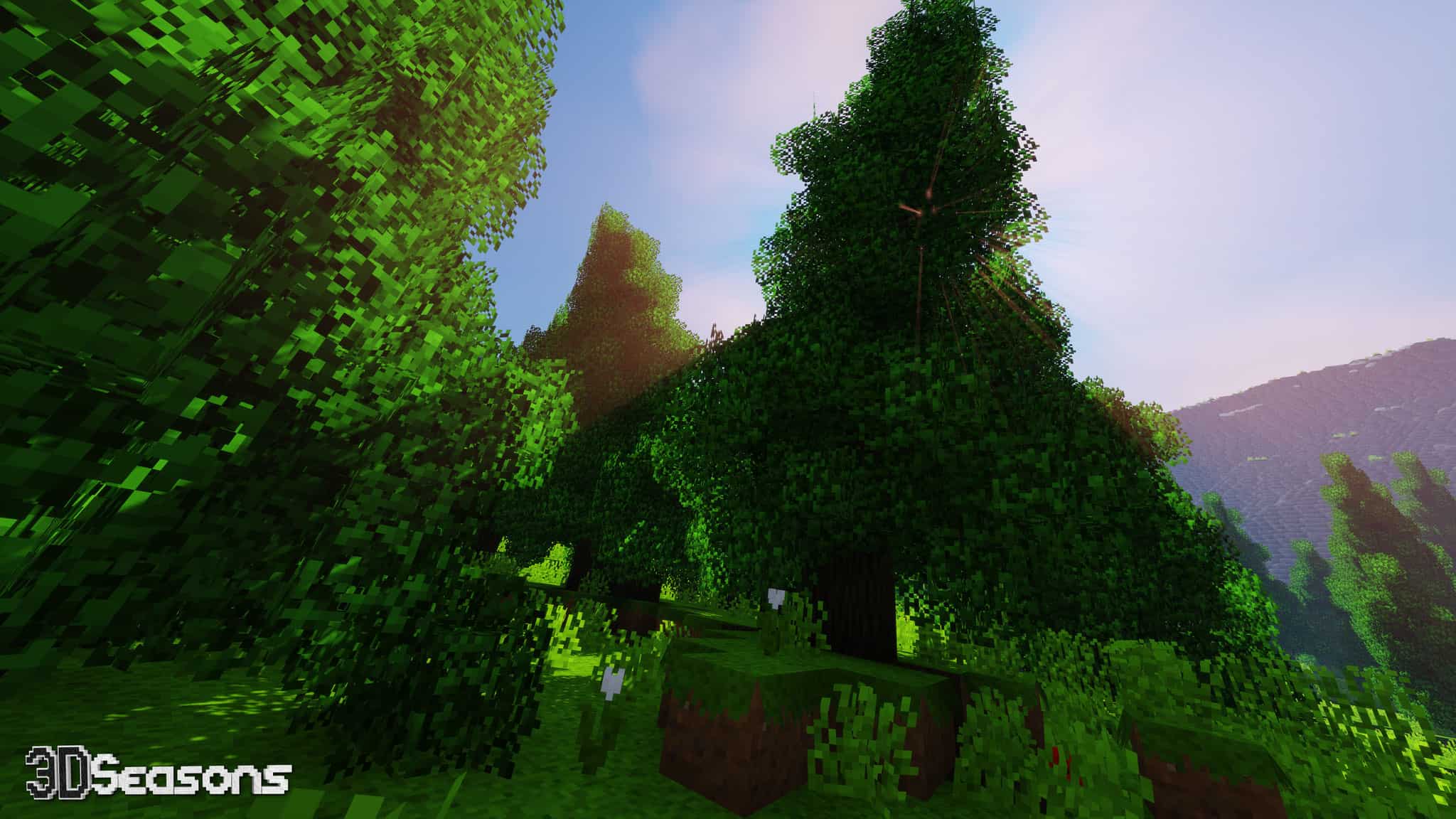
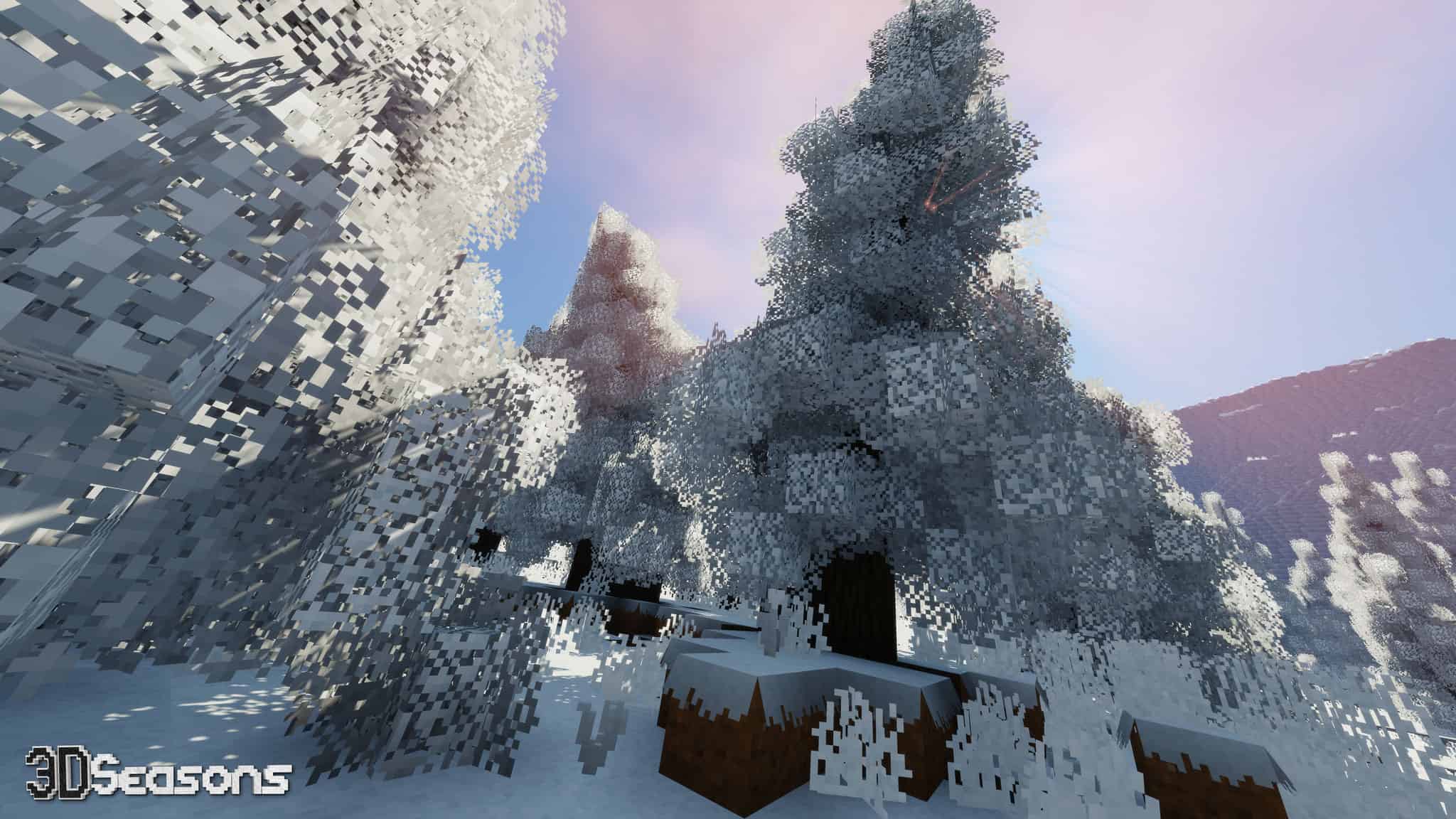
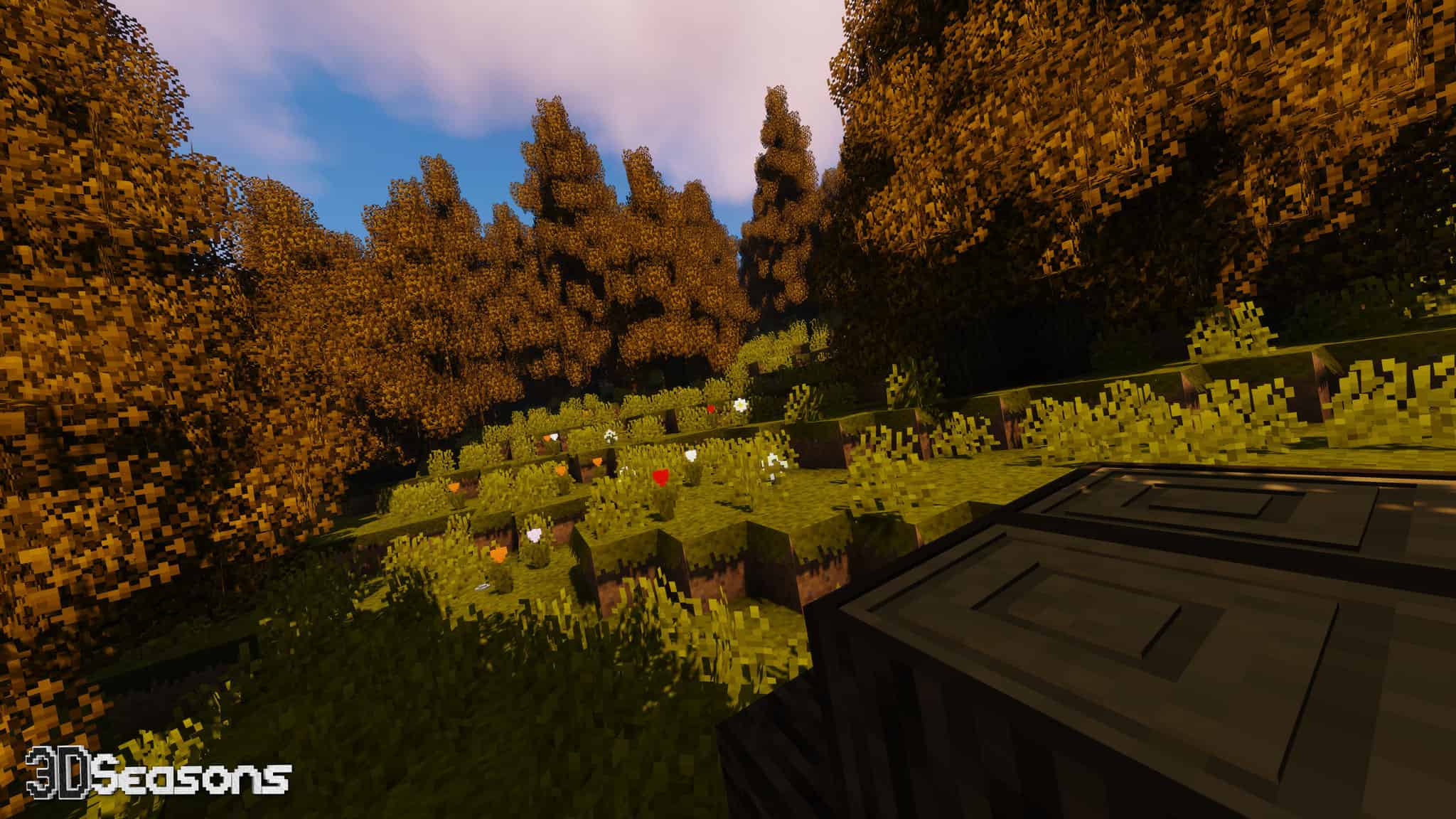
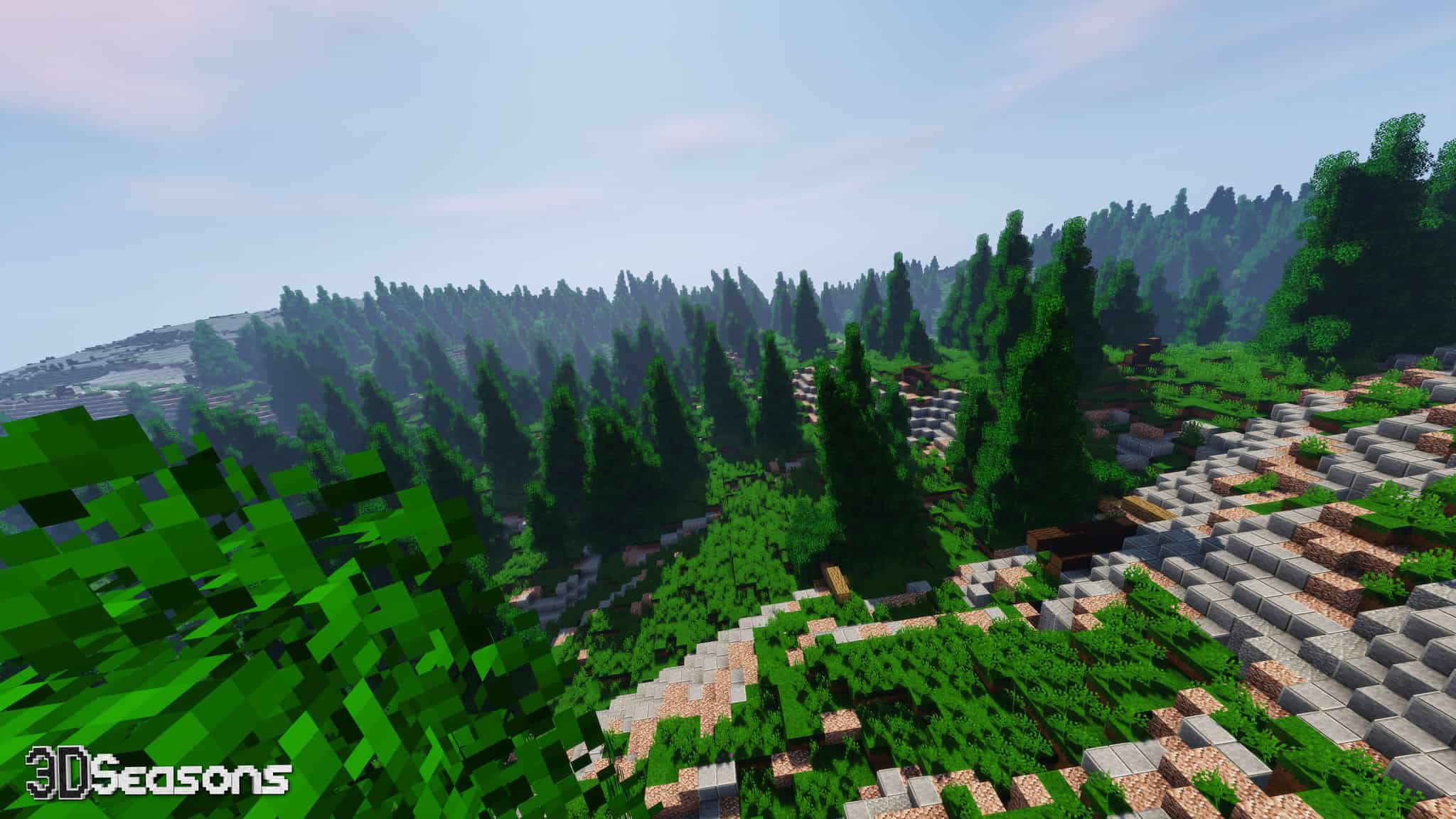
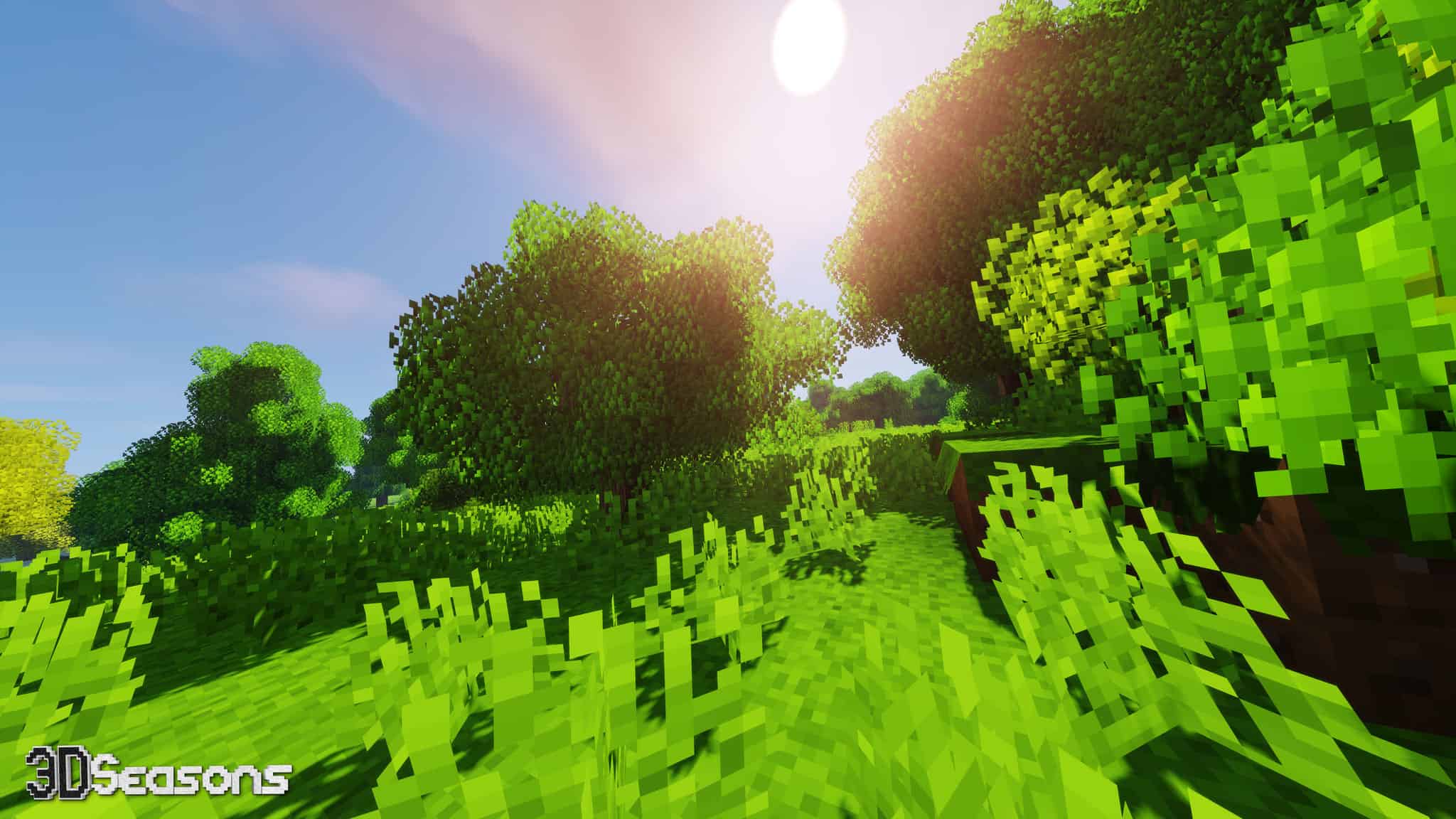
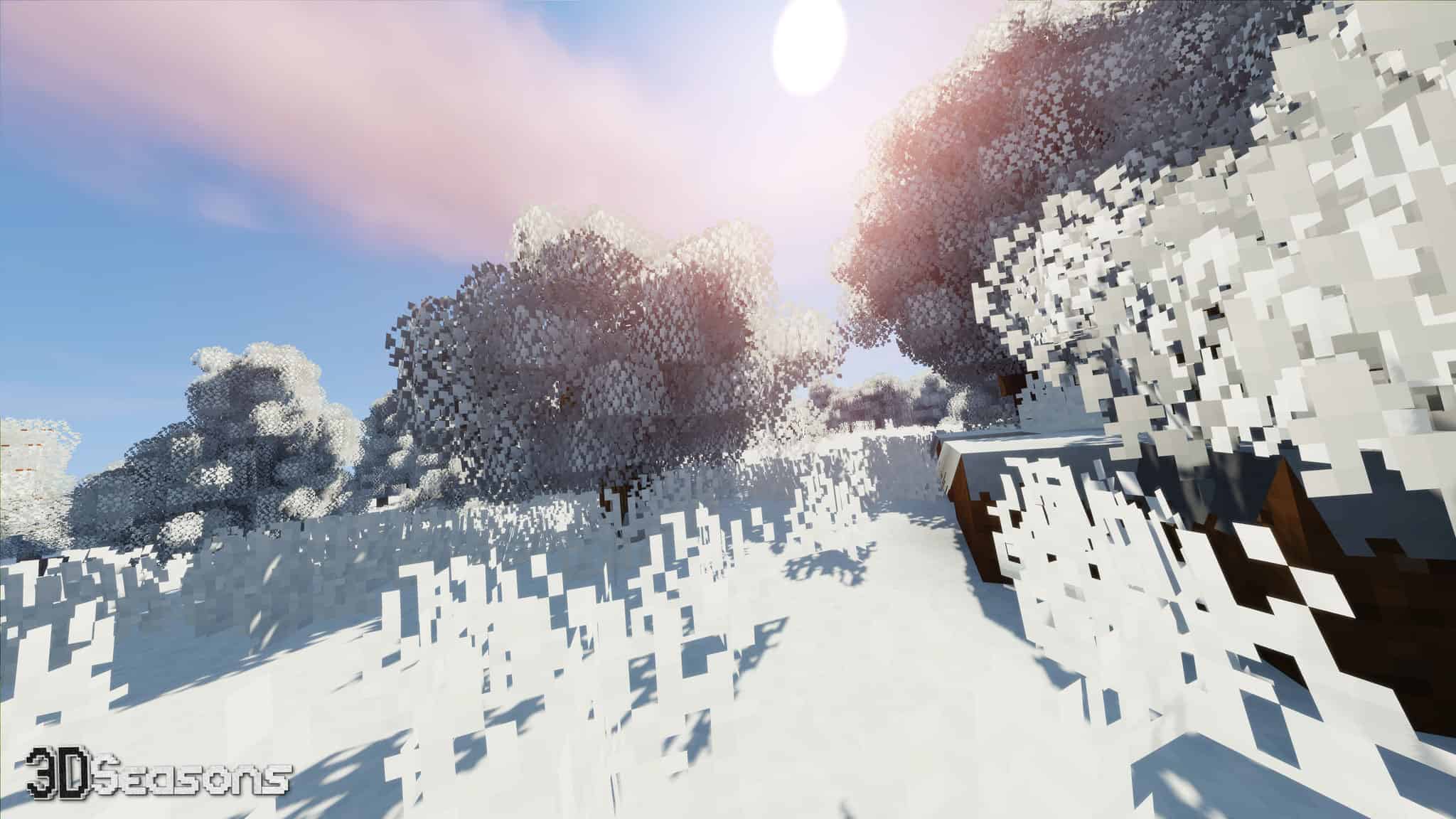
Minecraft has consistently remained one of those phenomenal video games that players deeply love, and a major reason behind this enduring fame is the incredible library of regularly updated resource packs and mods. One such latest texture pack is the brilliant 3D Seasons add-on resource pack from 3D CreatorCraft that I found to be absolutely interesting. Instead of offering a standard Minecraft gameplay experience, it brilliantly introduces distinct seasons into the game, helping to make the world look remarkably more visually appealing and fresh. All four classic seasons have been thoughtfully introduced: autumn, spring, winter, and summer. There is a cyclic season change feature, and whenever that happens, it provides an entirely fresh visual feel to your surroundings. Each season brings with it a stunning change in the color of the leaves, grass, crops, and plants. Spring comes alive with a vibrant, full green look, which smoothly transitions into a pure white landscape when winter arrives. A rich brown tone is used to perfectly depict autumn. Even in the case of the summer season, the vibrant green color stays predominant, but the sky looks noticeably much brighter and more vivid.
The aesthetic look and the texture in each of the seasons are beautifully designed, something you will truly appreciate and experience the moment you start using the pack in your world. Since a particular season does not remain present for too long, you will not have to bear with the same monotonous colors and thus will never get bored while playing. If you want to fully enjoy this fantastic seasons change feature in Minecraft (1.13), you definitely need to make use of 3D CreatorCraft, or else this amazing pack is simply not going to function properly. This season feature is such a remarkably interesting addition that really helps pep up the game. It is such a creative way to keep the core features in the exact same way while still bringing about a wonderful change that cannot go unnoticed. Since the texture’s resolution is a smooth 16x, even those players with lower-end PCs can comfortably enjoy playing with it, letting everyone experience the beautiful season changes in their favorite game.
3D Seasons should be compatible with all of these Minecraft versions: 1.15.1 – 1.15 – 1.14.4 – 1.14.3 – 1.14.2 – 1.14 – 1.13.2 – 1.13.1 – 1.13
Screenshots
How to Install Texture Pack (Simple 10 Steps)
- Download OptiFine: Most of the texture packs and shaders need OptiFine. That’s why, first download and install OptiFine for the version of Minecraft you want to play.
- Download the Texture Pack: Get the texture pack you want from the download section. Choose the version that works with your Minecraft and your PC’s performance.
- Open Minecraft Launcher: Start Minecraft using the official game launcher — or even TLauncher, if you use that.
- Go to Options: From the main menu, click on the “Options” button.
- Open Resource Packs: Inside Options, click on “Resource Packs…”.
- Open the Resource Pack Folder: Click on “Open Resource Pack Folder” — this will open a folder named “resourcepacks”.
- Move the Pack File: Copy or move the .zip file you downloaded into that “resourcepacks” folder. (Don’t unzip the file — Minecraft uses it as-is!)
- Go Back and Refresh: Close the folder and click “Done”, then go back into “Resource Packs…” again.
- Activate the Pack: You’ll see the pack on the left side. Hover over it and click the arrow to move it to the right (active side).
Tip: If you get a message that the pack is for a different version, just click “Yes” — it usually works fine. - Click Done and Enjoy: Click “Done” again. Now your pack is ready to use in-game. It’s that easy!
Credits
This resource pack was created by creatorLabs. We do not own or modify the files, and all rights belong entirely to the original author. Please visit and support the creator through their official channels.
Download Links
Java Edition
Download Instructions
Curseforge: download starts automatically after a few seconds;
Mediafire: click the big blue button with the text “DOWNLOAD”;
Google Drive: in the top right corner you will see a small download icon (down arrow), click it and the download should start;


