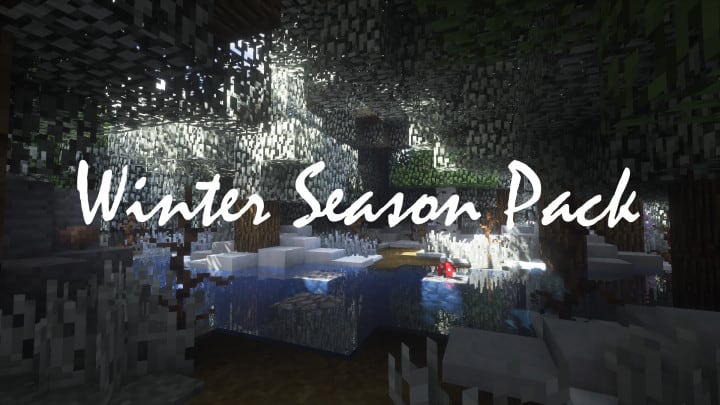
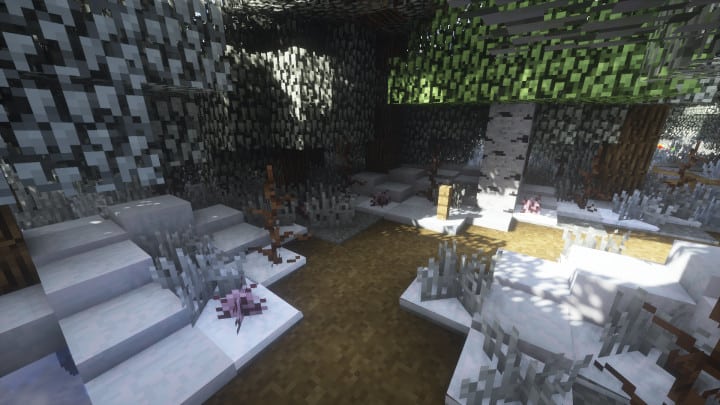
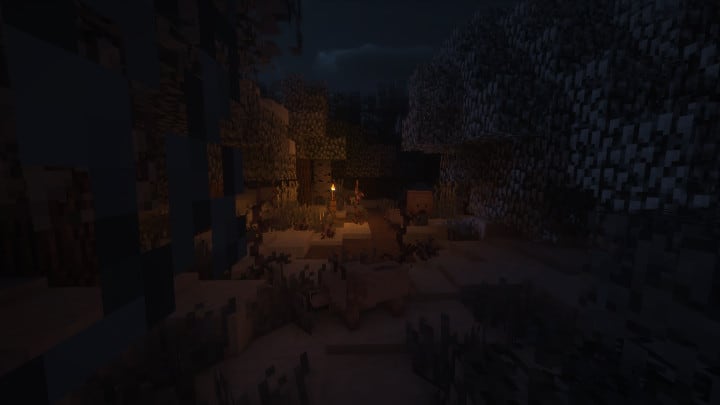
Recently, the talented Light Drifter released an Autumn Season resource pack that brought truly refreshing activities to Minecraft, and now the winter pack follows up on that success by focusing heavily on visualizing the game to dramatically improve your overall gaming experience through seasonal changes! This Winter Season resource pack aims to ensure that Minecraft players acquire an advanced, pleasing mood from the game through an overflow of lush tones. I really recommend this package for all players to ensure an improved gaming experience by subtly modifying things just enough for an uplifting feel. Best of all, the Winter Season pack is not aimed at an overwhelming, drastic overhaul of the visuals, keeping the core game environment comfortably familiar.
That subtle change in the in-game environment is so important in providing maximum satisfaction to individuals who truly love Minecraft. These environment adjustments do not drastically alter the fundamental game world as a large part of it remains the same, but believe me, you will deeply feel that classic winter mood! It is crucial for players to try out this pack to truly appreciate the wonderful art style infused into the game. The Winter Season pack features improved design systems aimed at enhancing your results by simulating a harsh winter right inside your game world. The average resolution of the Winter Season resource pack is 16x, making it wonderfully compatible with many older or slower computers. You will not experience any trouble running this pack on your PC since it sticks to the classic vanilla Minecraft resolution, guaranteeing a wonderfully stable frame rate throughout your adventures.
Winter Season Pack should be compatible with all of these Minecraft versions: 1.12.2 – 1.12 – 1.11.2 – 1.11
Screenshots
How to Install Texture Pack (Simple 10 Steps)
- Download OptiFine: Most of the texture packs and shaders need OptiFine. That’s why, first download and install OptiFine for the version of Minecraft you want to play.
- Download the Texture Pack: Get the texture pack you want from the download section. Choose the version that works with your Minecraft and your PC’s performance.
- Open Minecraft Launcher: Start Minecraft using the official game launcher — or even TLauncher, if you use that.
- Go to Options: From the main menu, click on the “Options” button.
- Open Resource Packs: Inside Options, click on “Resource Packs…”.
- Open the Resource Pack Folder: Click on “Open Resource Pack Folder” — this will open a folder named “resourcepacks”.
- Move the Pack File: Copy or move the .zip file you downloaded into that “resourcepacks” folder. (Don’t unzip the file — Minecraft uses it as-is!)
- Go Back and Refresh: Close the folder and click “Done”, then go back into “Resource Packs…” again.
- Activate the Pack: You’ll see the pack on the left side. Hover over it and click the arrow to move it to the right (active side).
Tip: If you get a message that the pack is for a different version, just click “Yes” — it usually works fine. - Click Done and Enjoy: Click “Done” again. Now your pack is ready to use in-game. It’s that easy!
Credits
This resource pack was created by Light Drifter, who holds all original ownership and rights. We do not claim ownership of this modification, nor do we host or distribute modified versions of these files. We strongly encourage all players to support Light Drifter by visiting their official download pages and showing appreciation for their creative work.
Download Instructions
Curseforge: download starts automatically after a few seconds;
Mediafire: click the big blue button with the text “DOWNLOAD”;
Google Drive: in the top right corner you will see a small download icon (down arrow), click it and the download should start;


