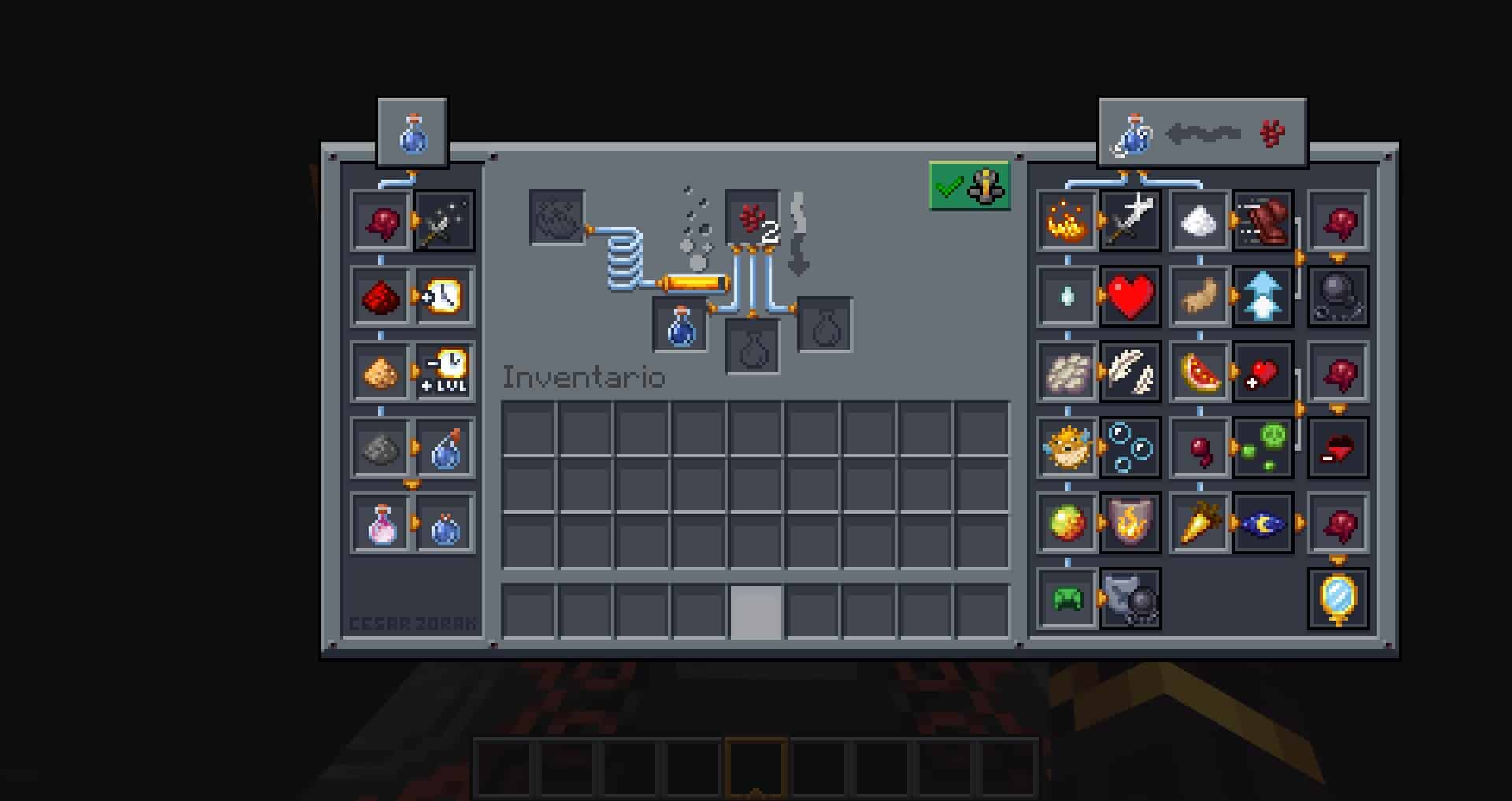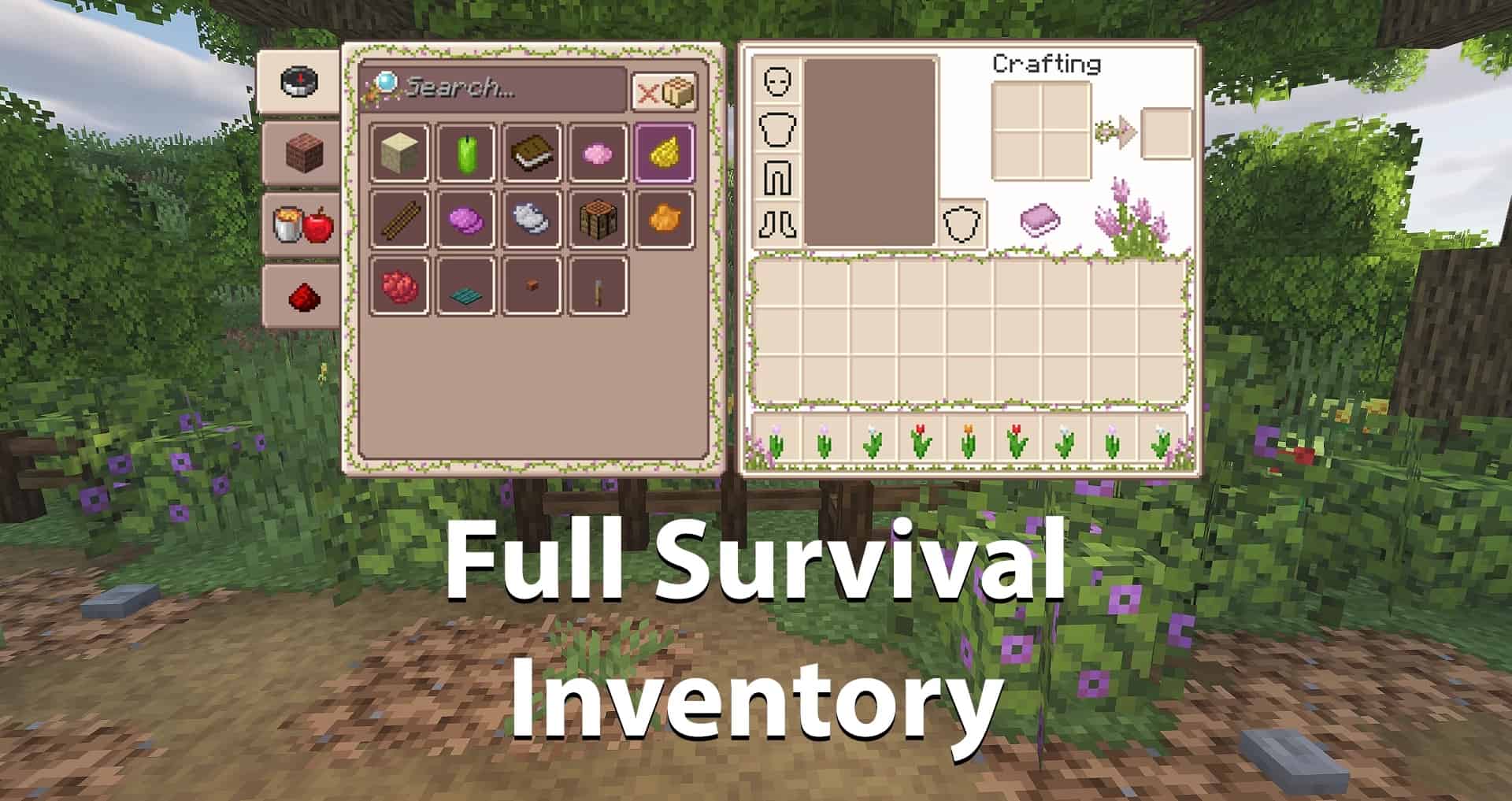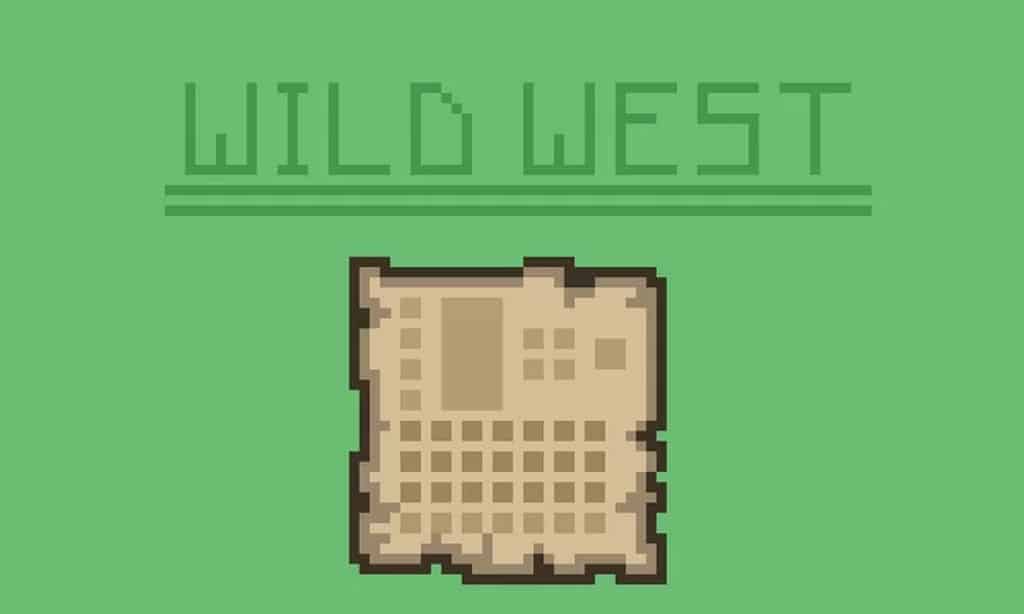
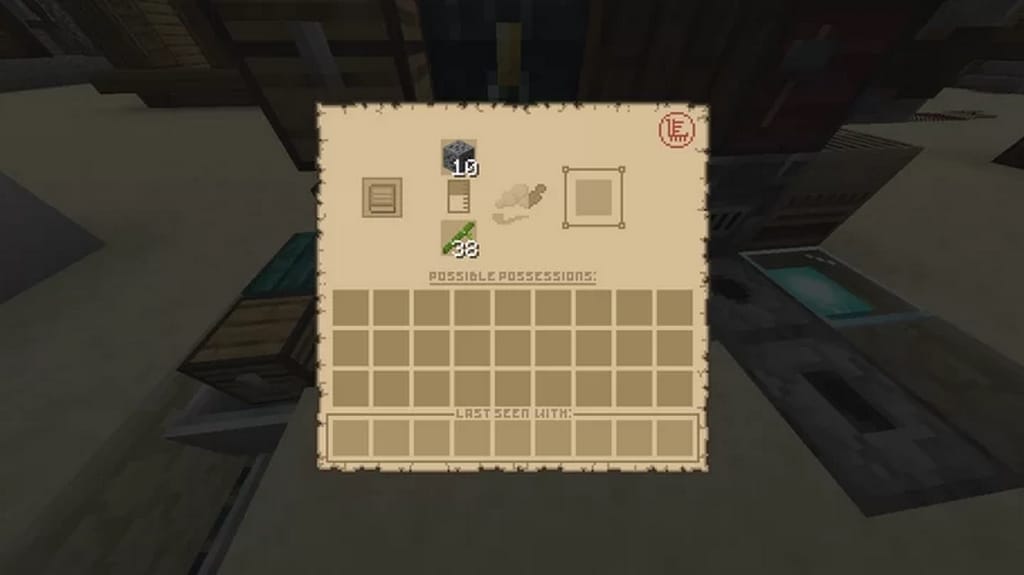
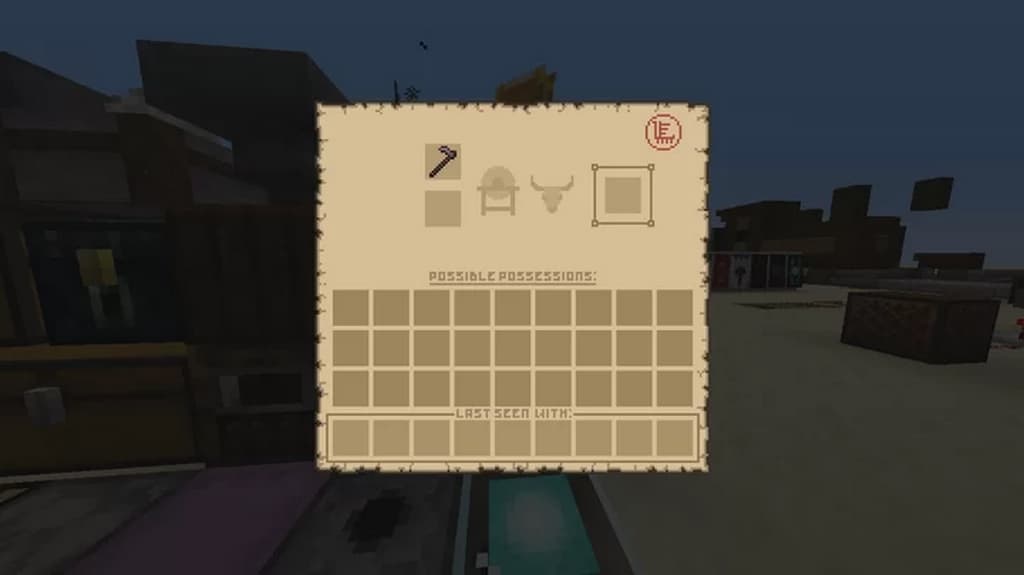
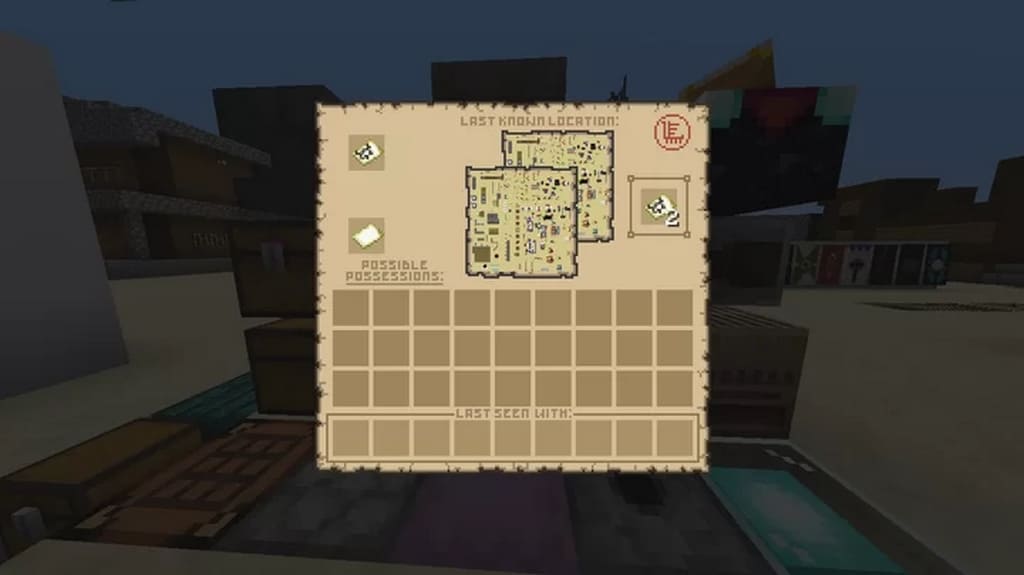
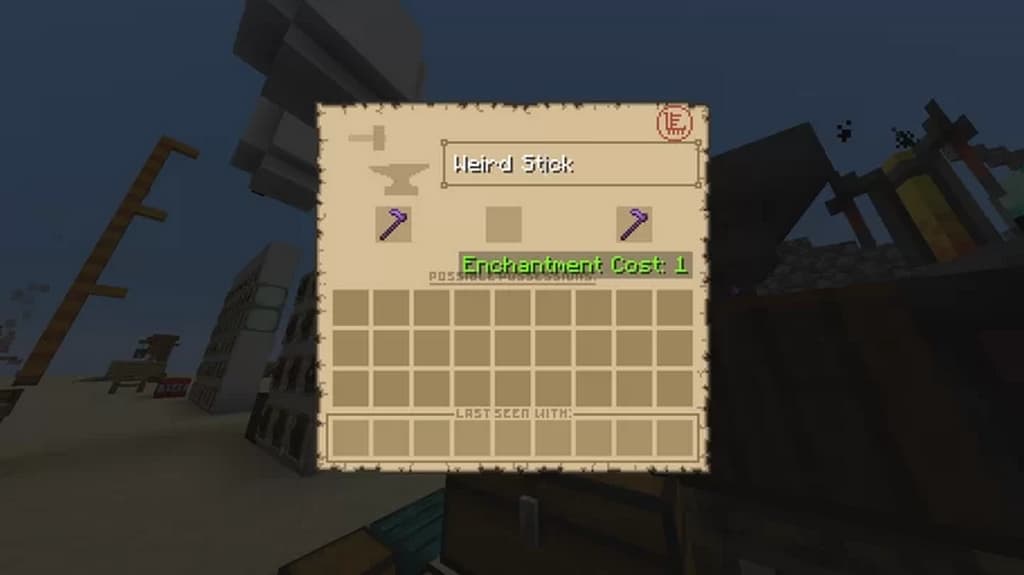
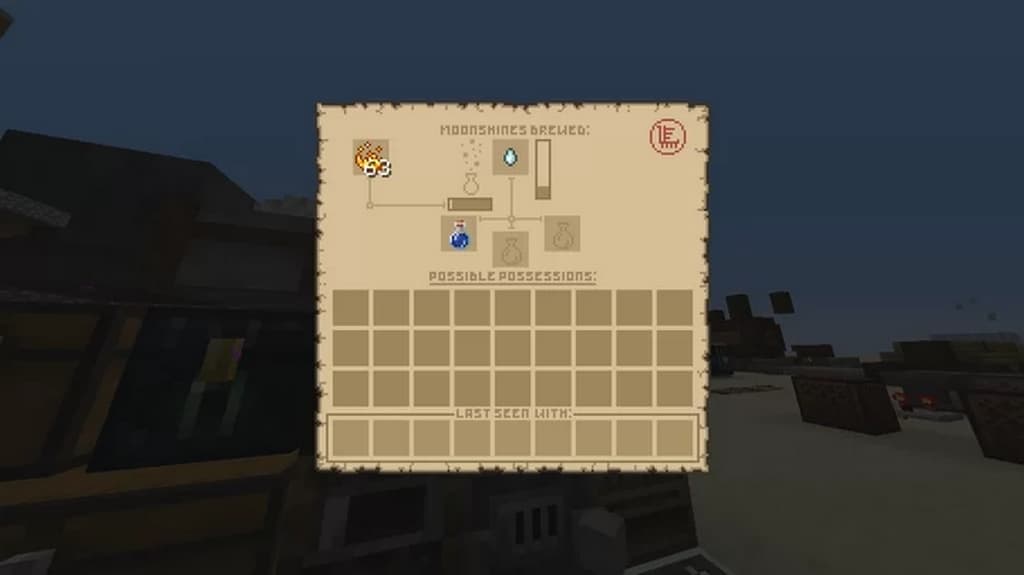
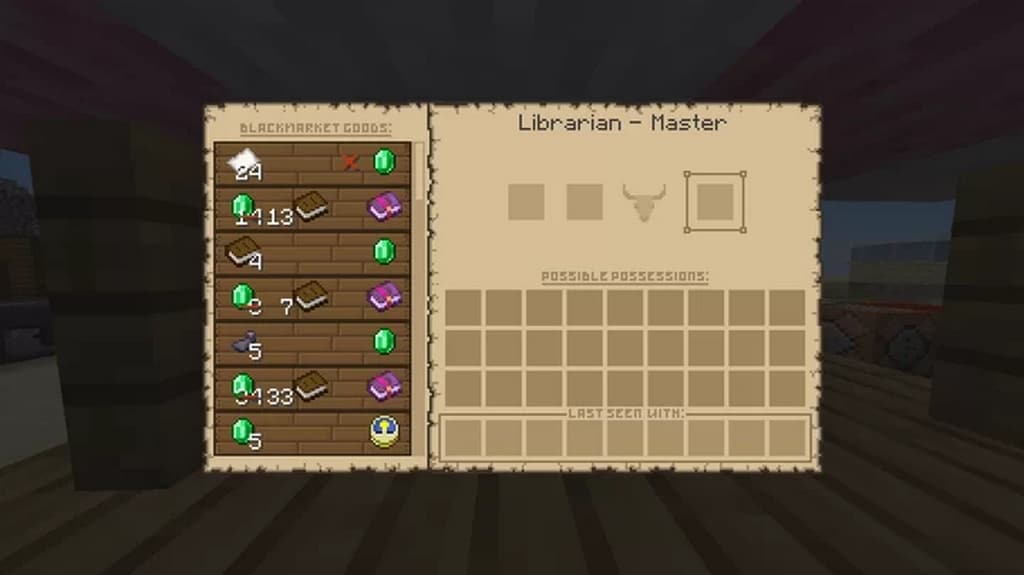
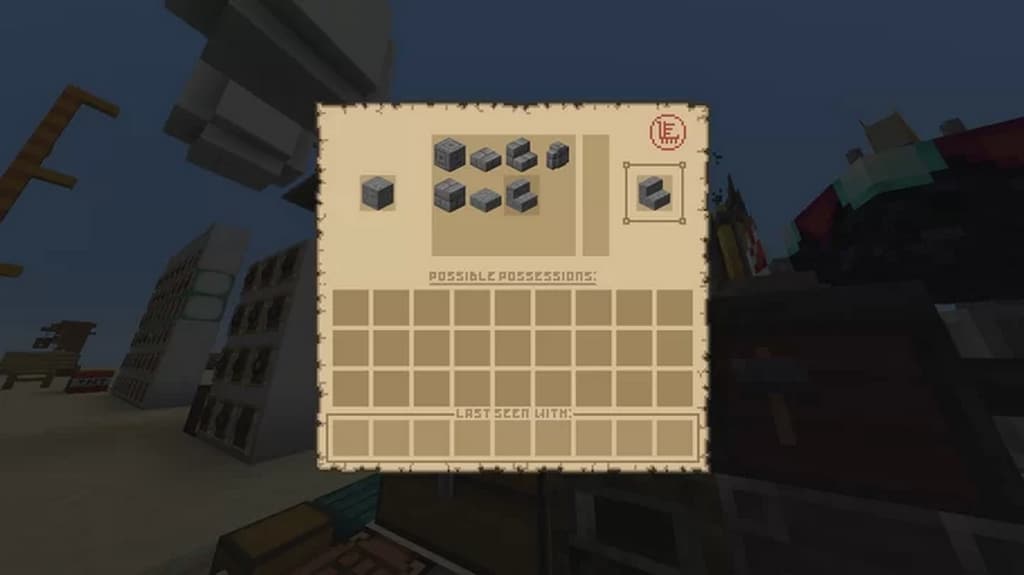
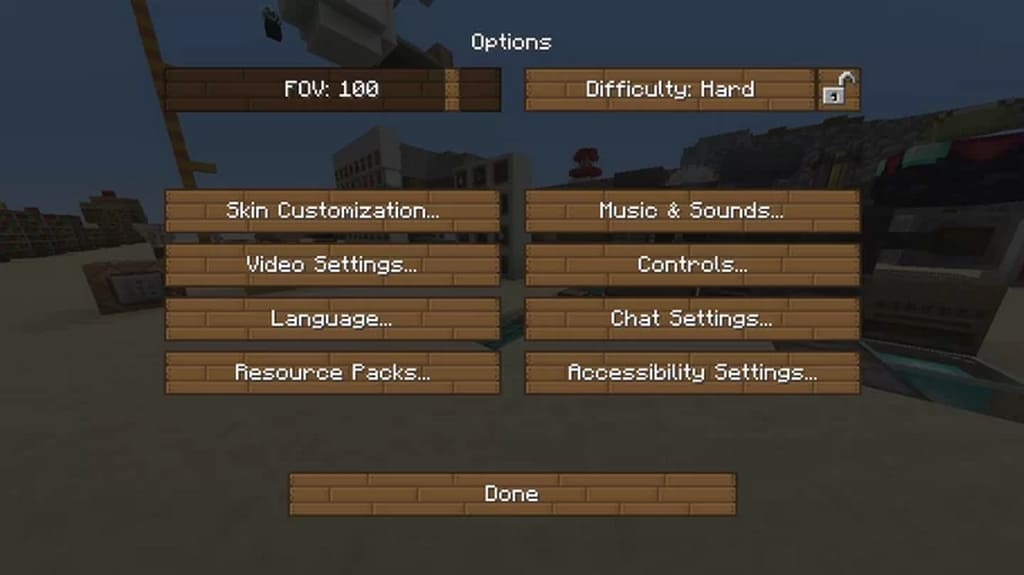
If you absolutely love the Wild West theme, you will certainly enjoy testing out the Wild West GUI resource pack for Minecraft! This fantastic texture pack introduces a unique new theme without altering the core game itself, leaving just a wonderful effect over the visuals. All game mechanics and features remain entirely intact while the Wild West GUI resource pack only changes the interface or GUI of the game with gorgeous new textures. While the game still retains its recognizable features, the revamped GUI visuals will certainly give it a refreshing look and a pleasant new experience. I found that the texture pack perfectly addresses the desire of certain players for a brand new GUI. If you are one of the many that find the old Minecraft user interface outdated, the Wild West GUI may prove to be a long-overdue revamp that will bring in a new level of enjoyment to the game. The Wild West GUI resource pack takes a strong stand against the old monochromatic, grey, and blocky Minecraft interface. It adds a whole new visual theme inspired by Western or Old West movies and visuals, and I think it looks stunning in-game. All the old gray interface elements have now been swapped with a warm sand-color which stands out more and looks different while still feeling completely familiar. The visual changes were applied not only across the main HUD but also to the crafting table and inventory, wiping out all traces of the old, outdated blocky and gray interface. To ensure optimal performance and no glitches, the pack uses the standard 16×16 resolution just like the vanilla version of the game, meaning it runs buttery smooth. Wild West GUI was designed to work just like the original Minecraft GUI. Since it is just a texture pack that uses the same standard resolution, it will run seamlessly on any hardware that can already run vanilla Minecraft. It does not alter standard game features, mechanics, and performance in any negative way. In simple words, it can be enjoyed by any Minecraft player that got bored of the original GUI.
Wild West GUI should be compatible with all of these Minecraft versions: 1.18.2 – 1.18.1 – 1.18 – 1.17.1 – 1.17 – 1.16.5 – 1.16.4 – 1.16.3 – 1.16.2 – 1.16.1 – 1.16 – 1.15.2 – 1.15.1 – 1.15
Screenshots



How to Install Texture Pack (Simple 10 Steps)
- Download OptiFine: Most of the texture packs and shaders need OptiFine. That’s why, first download and install OptiFine for the version of Minecraft you want to play.
- Download the Texture Pack: Get the texture pack you want from the download section. Choose the version that works with your Minecraft and your PC’s performance.
- Open Minecraft Launcher: Start Minecraft using the official game launcher — or even TLauncher, if you use that.
- Go to Options: From the main menu, click on the “Options” button.
- Open Resource Packs: Inside Options, click on “Resource Packs…”.
- Open the Resource Pack Folder: Click on “Open Resource Pack Folder” — this will open a folder named “resourcepacks”.
- Move the Pack File: Copy or move the .zip file you downloaded into that “resourcepacks” folder. (Don’t unzip the file — Minecraft uses it as-is!)
- Go Back and Refresh: Close the folder and click “Done”, then go back into “Resource Packs…” again.
- Activate the Pack: You’ll see the pack on the left side. Hover over it and click the arrow to move it to the right (active side).
Tip: If you get a message that the pack is for a different version, just click “Yes” — it usually works fine. - Click Done and Enjoy: Click “Done” again. Now your pack is ready to use in-game. It’s that easy!
Credits
This resource pack was originally created and developed by Sucro120, who retains all ownership rights. We do not claim ownership of this content and provide these download links as a convenience to the community. We encourage you to support Sucro120 and their original release.
Download Instructions
Curseforge: download starts automatically after a few seconds;
Mediafire: click the big blue button with the text “DOWNLOAD”;
Google Drive: in the top right corner you will see a small download icon (down arrow), click it and the download should start;