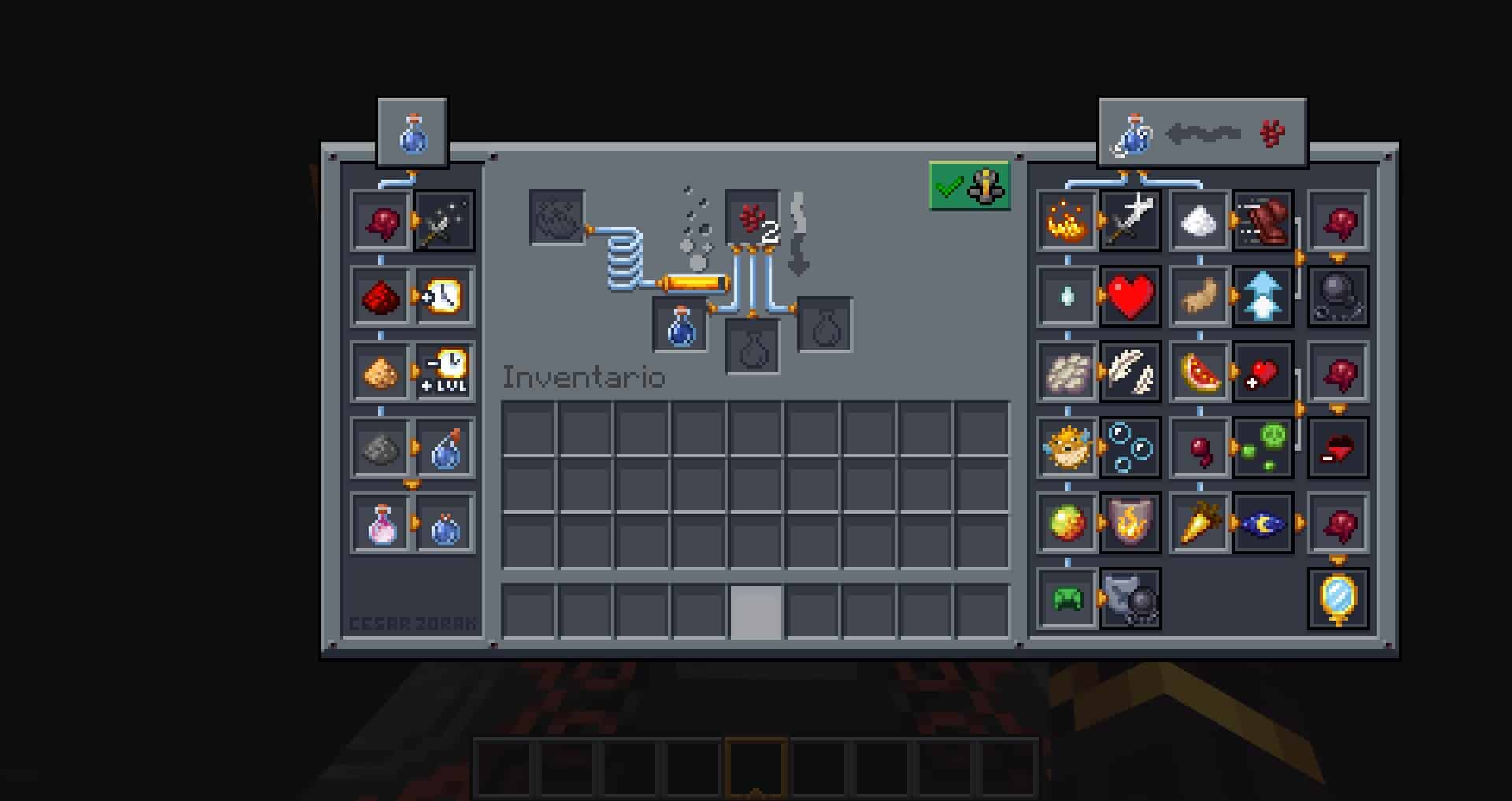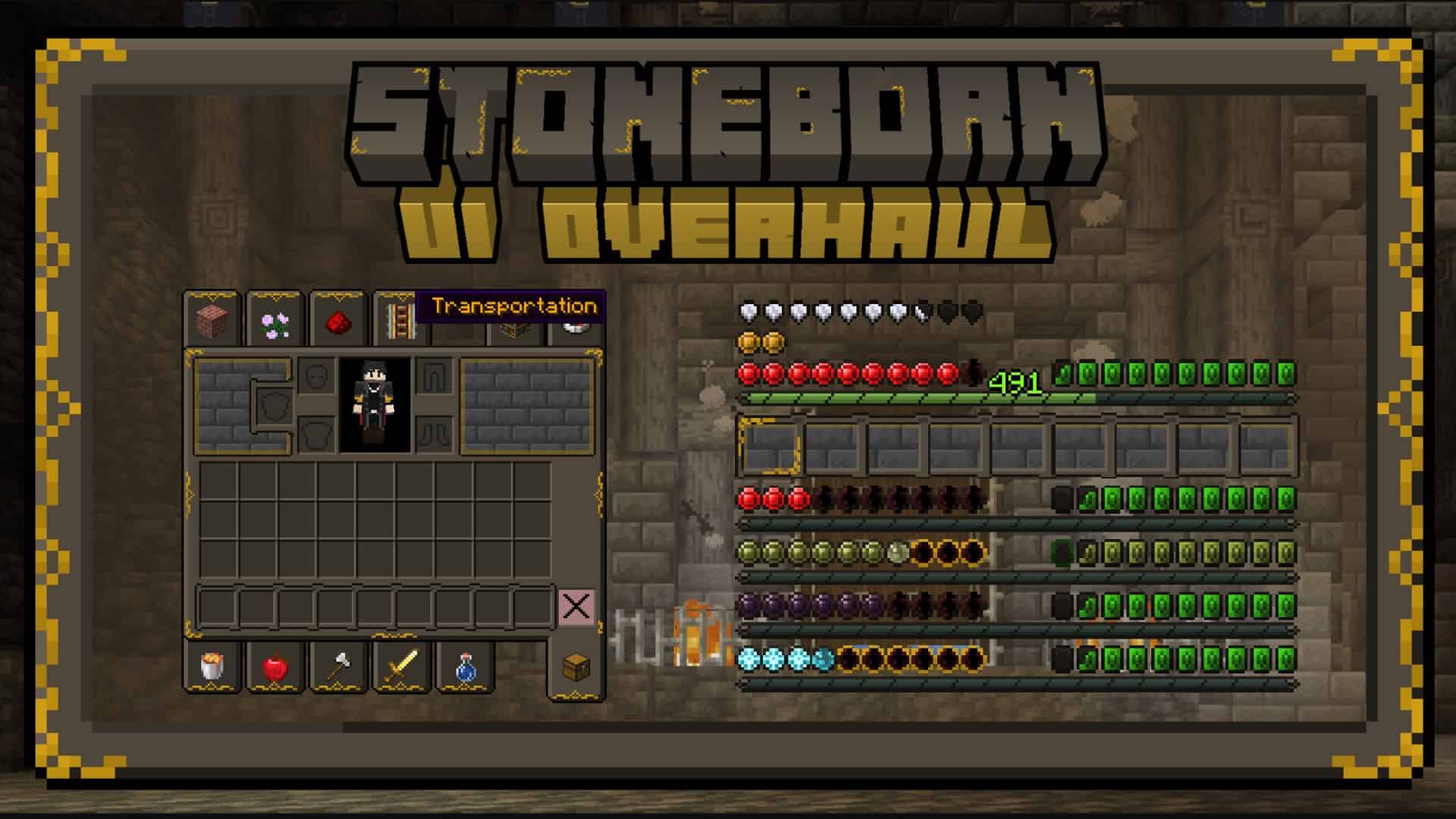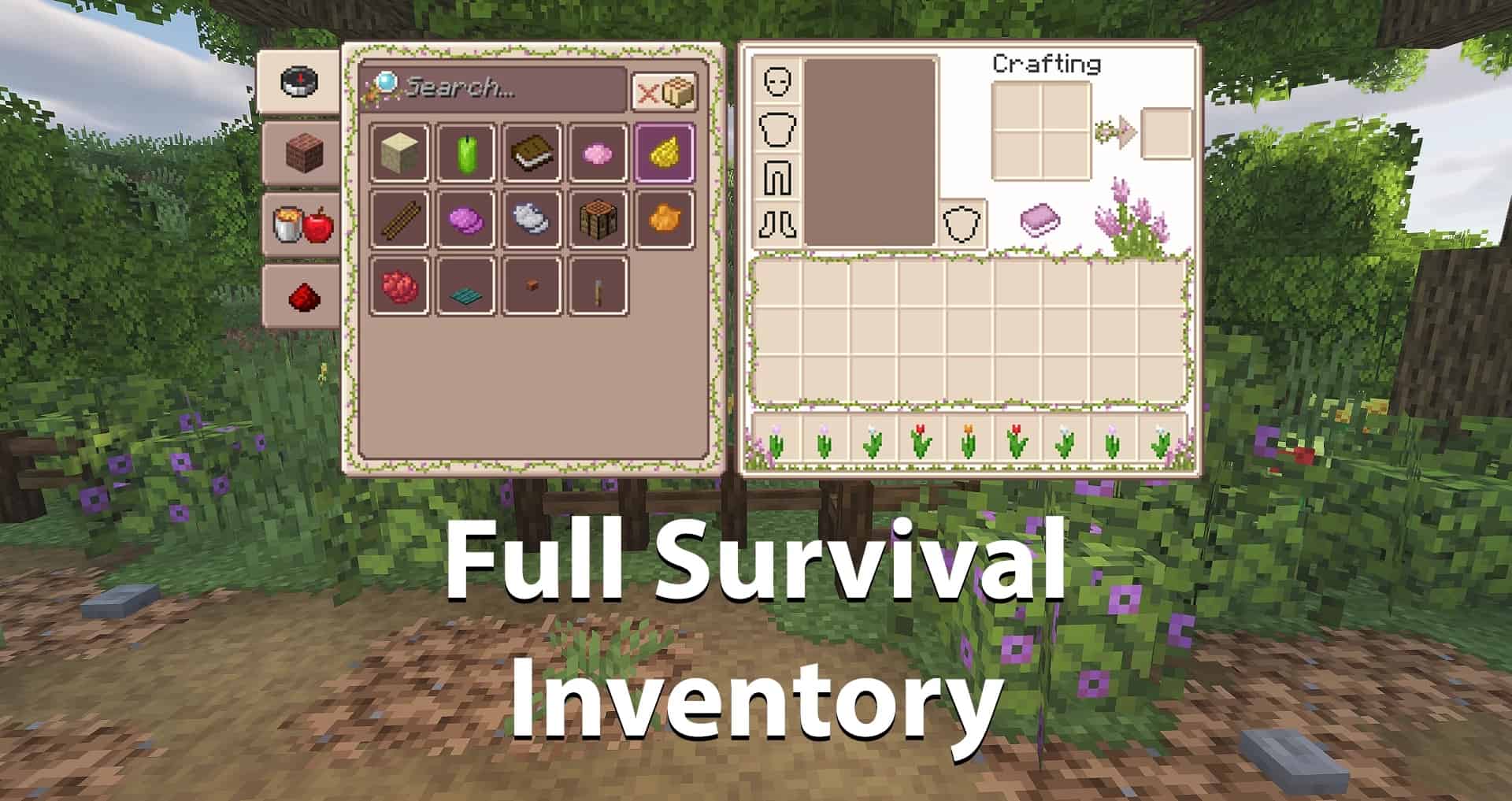
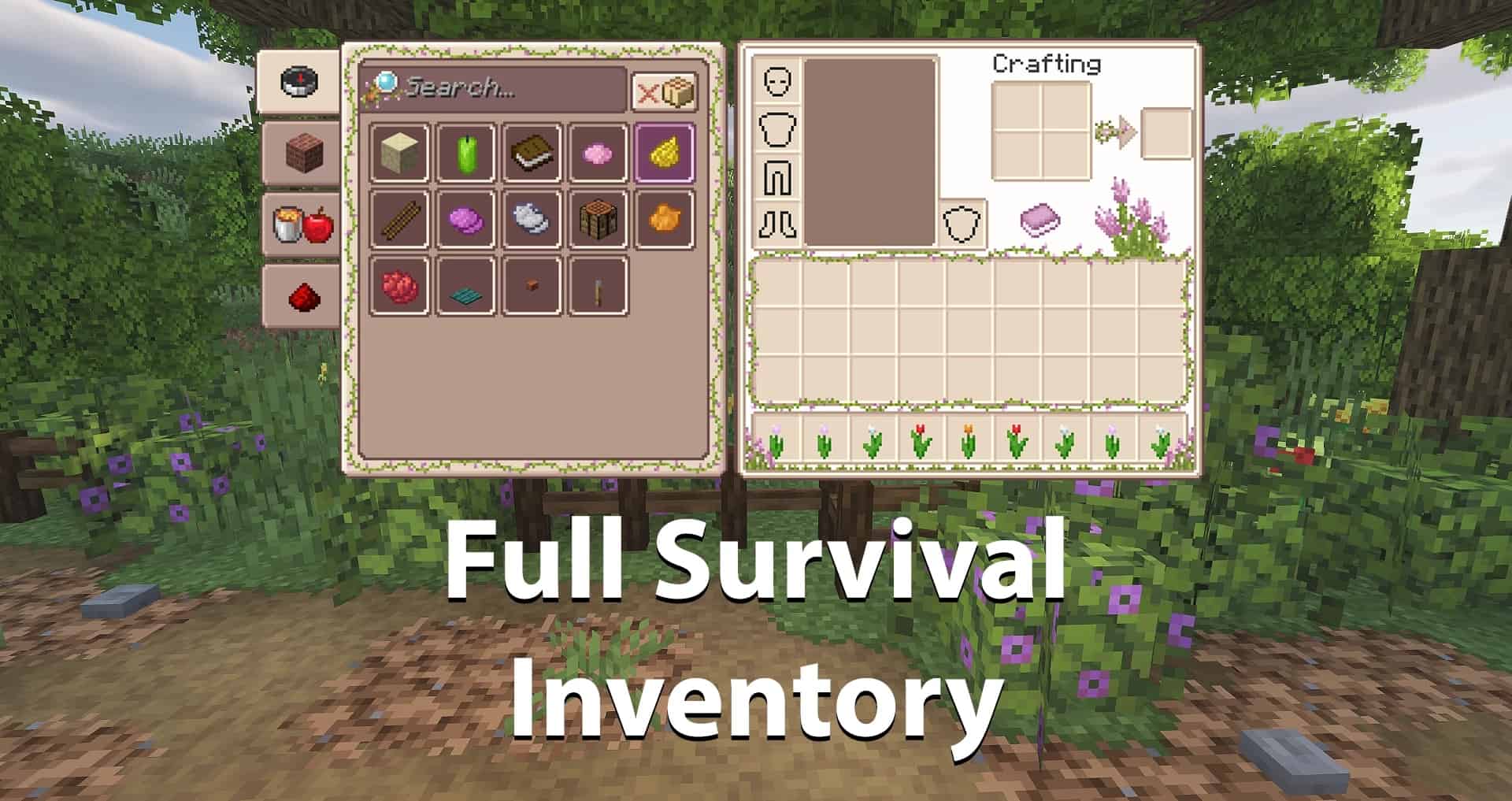
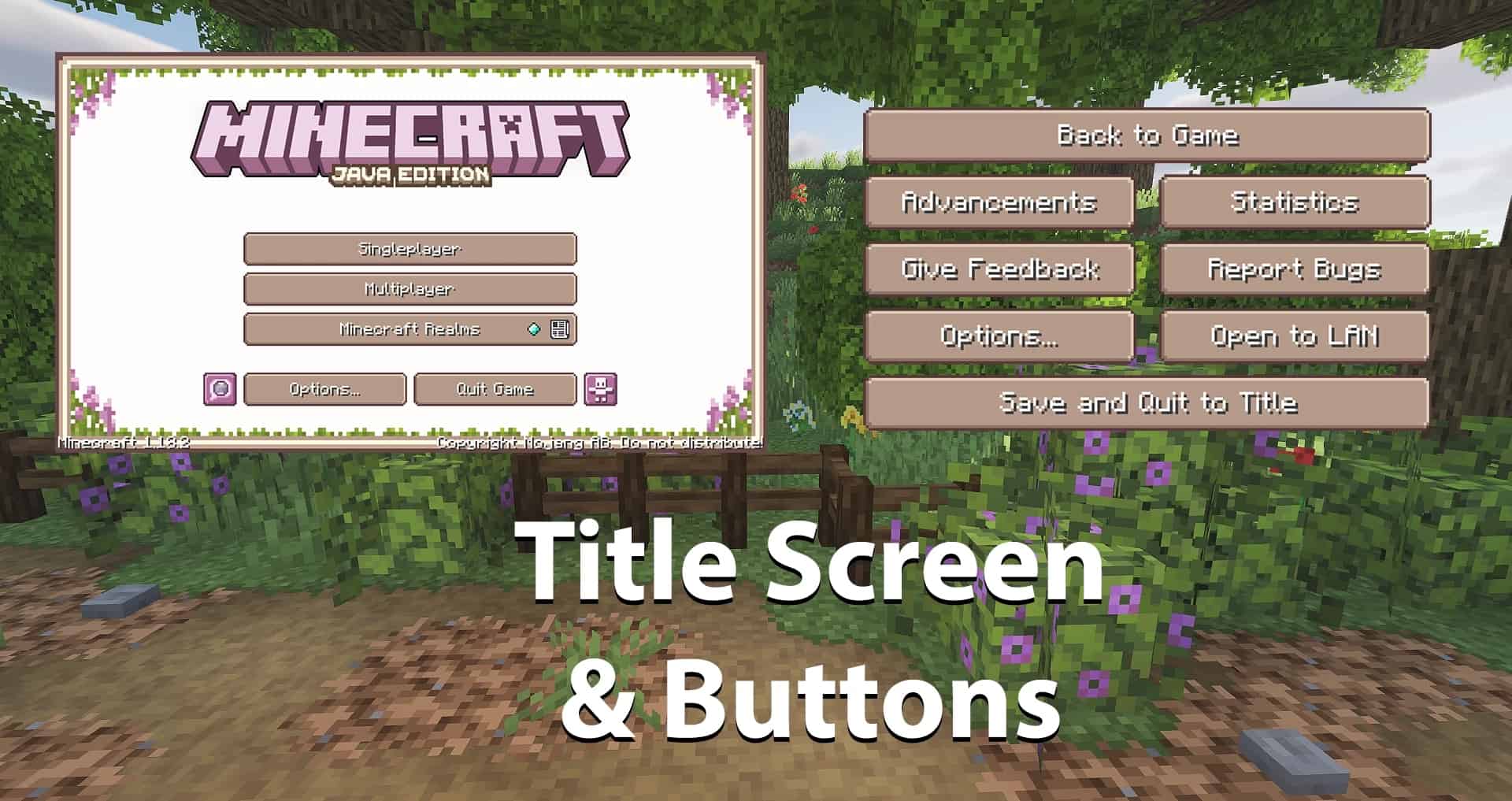
When you think about resource packs, the Overgrown Flowery GUI is probably not something that you would typically associate them with. By now, we are all wonderfully used to the regular packs that change most of the textures inside the game, including blocks, tools, mobs, and everything else that you can see and play around with. However, in many of those cases, there is one very important factor that gets overlooked and untouched – the user interface. Minecraft’s GUI includes a lot of different details. For example, all of the special screens that pop up when you interact with certain blocks such as a crafting table, furnace, anvil, etc are part of the GUI. They provide additional information and encapsulate the gameplay. Other parts of the user interface include health and hunger bars, jump bars, buttons, effects, and other similar things. With the name of the resource pack itself and the understanding of the meaning behind GUI, you can probably figure out what the Overgrown Flowery GUI resource pack is going to modify and improve. In the original Minecraft GUI, gray is the dominant color. It has quite a gloomy appearance and it can get boring – especially if you’ve been playing the game for a long time. From the alpha versions till now (during which over 12 years have passed), there haven’t been any drastic changes to this important element. The buttons have only been slightly changed with rounded corners, but that’s not enough to fill in the void left by the very bland and basic interface. You’ll notice the novelties that Overgrown Flowery GUI brings as soon as the game loads up. The entire menu has a purplish hue, including the buttons and the center logo itself. It also adds a frame with beautiful violas in the corners for a much more lively look. Buttons on other elements (such as inside the pause menu) are modified as well. The theme of the whole pack is focused on flowers which is quite a welcome change. The rest of the retextures are apparent once you join a world. Some of the most noticeable ones are the bottom elements.
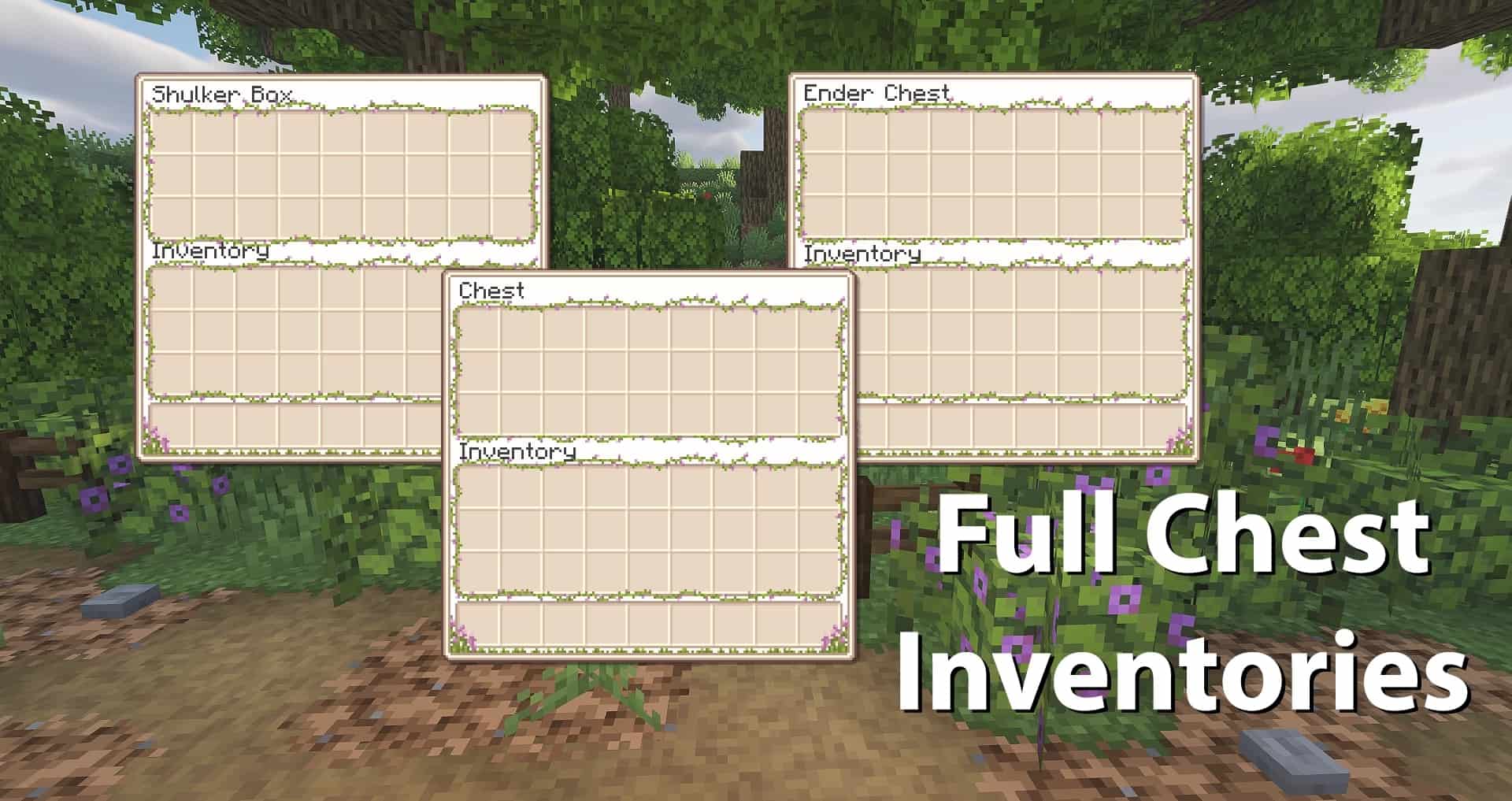
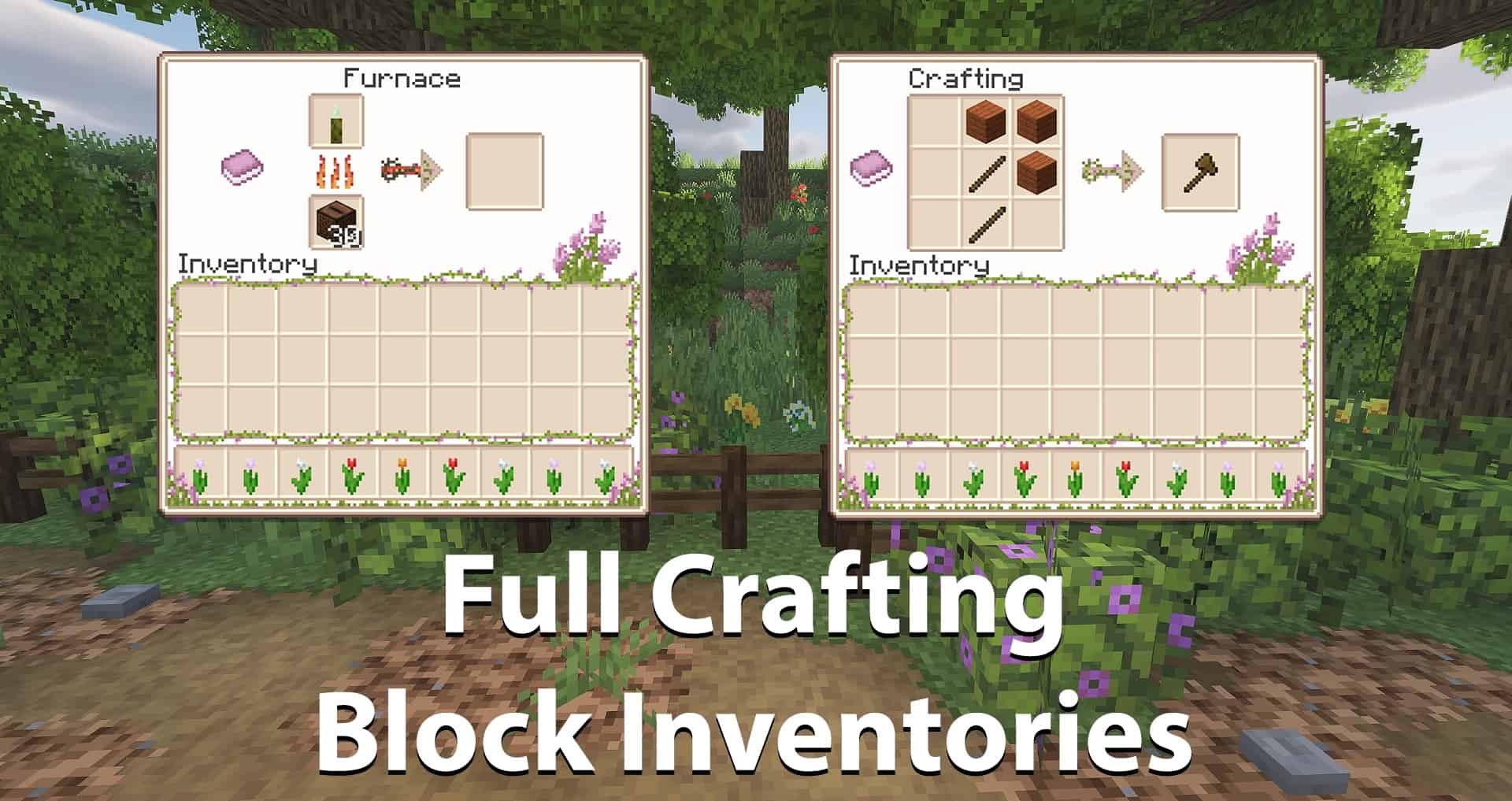
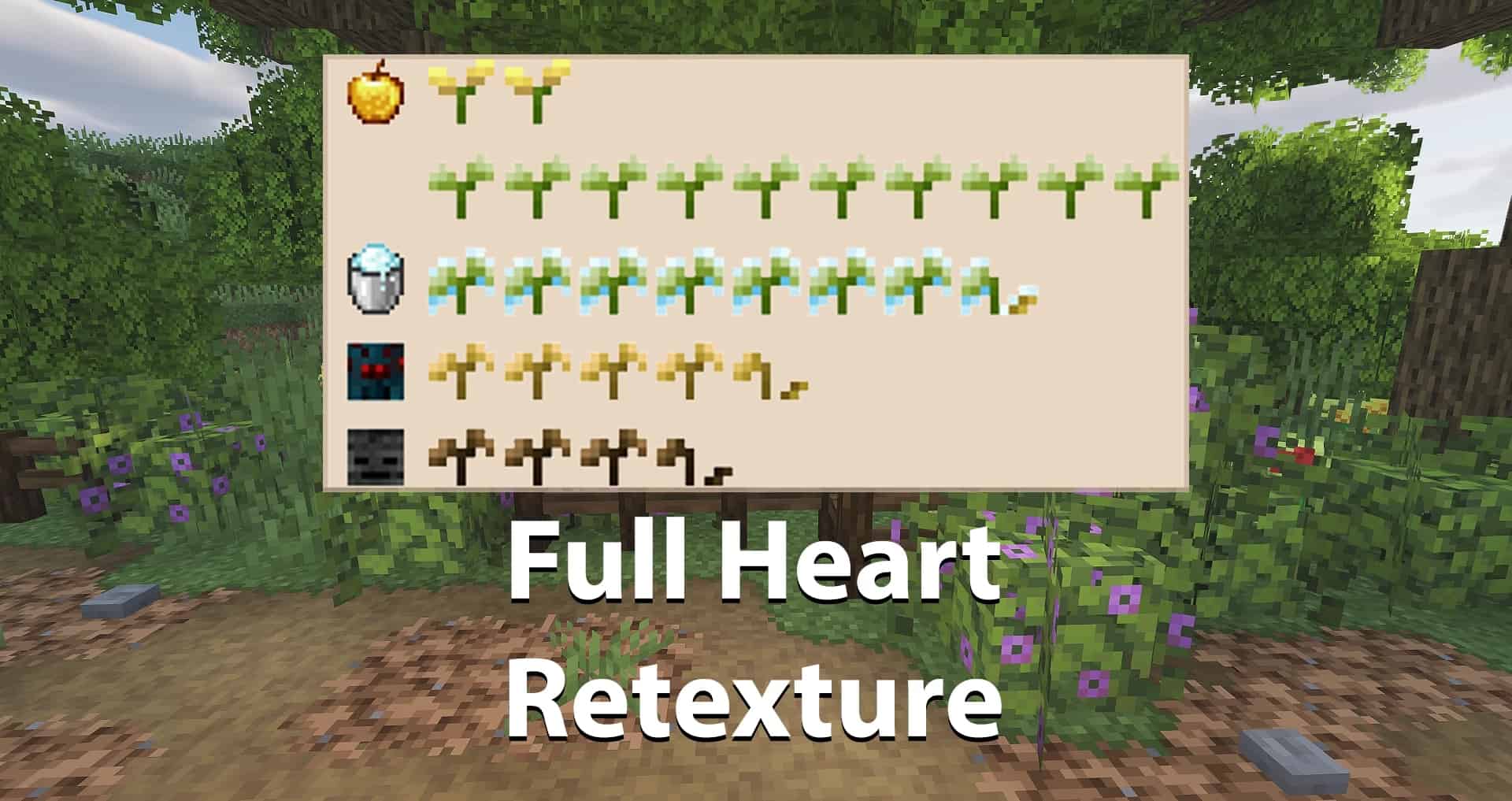
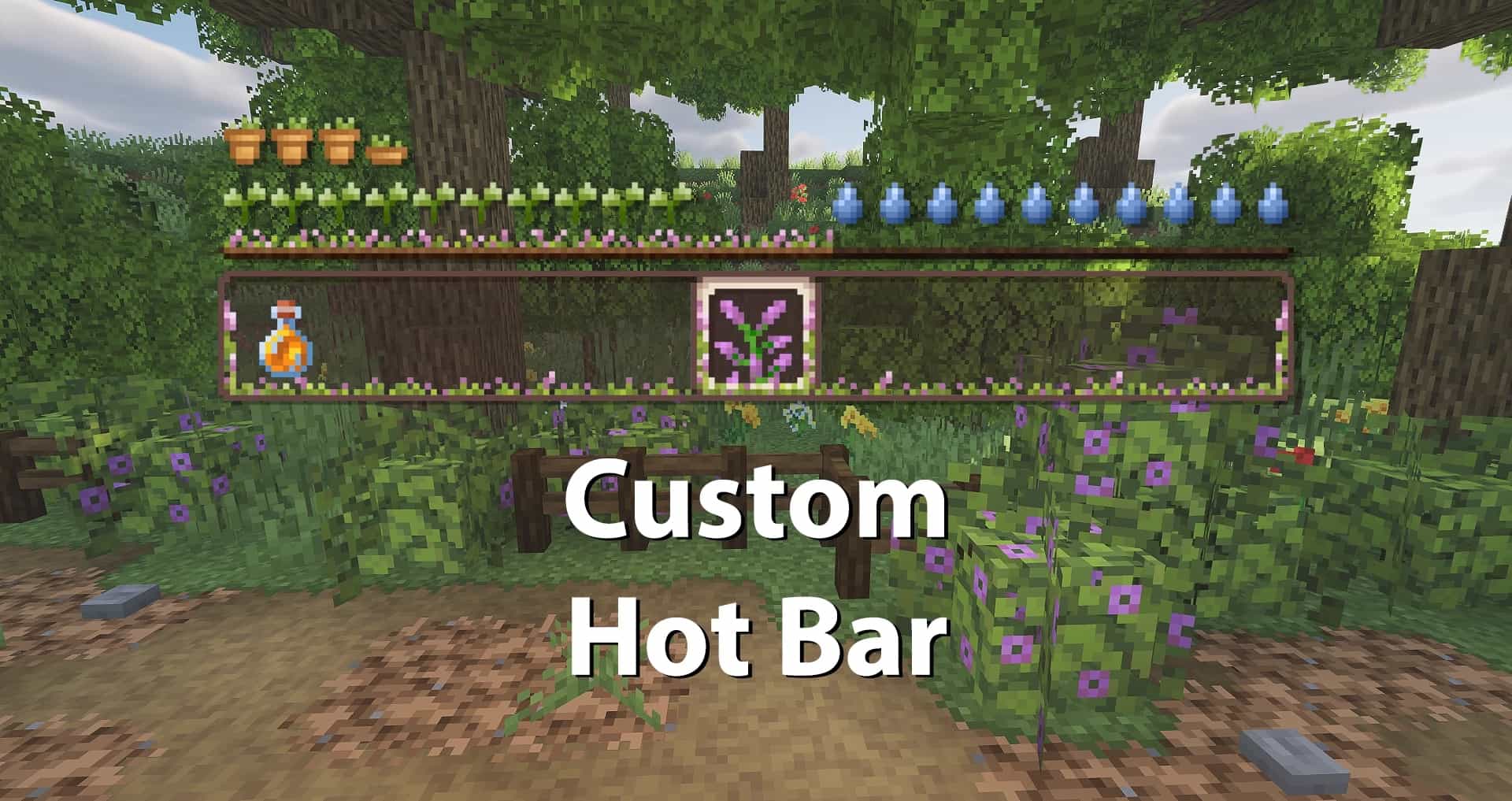
The hunger indicators no longer look like drumsticks – instead, they’re brilliantly represented by water droplets. Similarly, health is displayed via lovely green flowers. There are modifications for every possible effect. When you eat a golden apple, the flower gets golden petals, the wither effect causes them to become brown, the poison effect changes them into a dark yellow, and the powdered snow gives them a baby blue outline. As far as the armor goes, it’s shown as adorable flower pots. The whole hotbar and the experience bar are surrounded by grass and flowers, truly bringing in that wonderful overgrown look. Moving on, all of the inventories have been redone. The furnaces, crafting tables, and chests are all decorated with a combination of grass and flowers. The smelting animation inside the furnaces has also been changed, along with the arrow that presents the progress. When your character is under the influence of an effect, the timers inside your inventory will be similar to the overall overgrown theme. While all of these modifications might not seem like much at first, it’s truly a refreshing experience when you compare it to the traditional, dull style. As far as performance is concerned, you probably won’t notice much of an effect, if any. The resolution remains the same as with the vanilla game, 16×16. The experience orbs have been changed to look like flowers growing out of the ground, but they shouldn’t impact the gameplay much. It doesn’t seem like Optifine is required but it’s best to be certain, and you’ll receive a couple of extra FPS when you install it. Since Overgrown Flowery GUI retains the same texture of blocks, mobs, and items, you can combine it with other “traditional” resource packs to fully transform the game. There are many that follow the same theme, so you can combine them to get one whole. The developer, Kchem, is regularly updating the pack to support all of the latest updates and continues to make additional improvements. If you’ve grown cold to the Minecraft roots, maybe it’s time to try out something new, and Overgrown Flowery GUI is a truly perfect starting point.
Overgrown Flowery GUI should be compatible with all of these Minecraft versions: 26.2 – 26.1.2 – 26.1.1 – 26.1 – 1.21.11 – 1.21.10 – 1.21.9 – 1.21.8 – 1.21.7 – 1.21.6 – 1.21.5 – 1.21.4 – 1.21.3 – 1.21.2 – 1.21.1 – 1.21 – 1.20.6 – 1.20.5 – 1.20.4 – 1.20.3 – 1.20.2 – 1.20.1 – 1.20 – 1.19.4 – 1.19.3 – 1.19.2 – 1.19.1 – 1.19 – 1.18.2 – 1.18.1 – 1.18 – 1.17.1 – 1.17 – 1.16.5 – 1.16.4 – 1.16.3 – 1.16.2 – 1.16.1 – 1.16 – 1.15.2 – 1.15.1 – 1.15 – 1.14.4 – 1.14.3 – 1.14.2 – 1.14 – 1.13.2 – 1.13.1 – 1.13 – 1.12.2 – 1.12 – 1.11.2 – 1.11 – 1.10.2 – 1.10 – 1.9.4 – 1.9 – Bedrock Edition – PE
Screenshots
How to Install Texture Pack (Simple 10 Steps)
- Download OptiFine: Most of the texture packs and shaders need OptiFine. That’s why, first download and install OptiFine for the version of Minecraft you want to play.
- Download the Texture Pack: Get the texture pack you want from the download section. Choose the version that works with your Minecraft and your PC’s performance.
- Open Minecraft Launcher: Start Minecraft using the official game launcher — or even TLauncher, if you use that.
- Go to Options: From the main menu, click on the “Options” button.
- Open Resource Packs: Inside Options, click on “Resource Packs…”.
- Open the Resource Pack Folder: Click on “Open Resource Pack Folder” — this will open a folder named “resourcepacks”.
- Move the Pack File: Copy or move the .zip file you downloaded into that “resourcepacks” folder. (Don’t unzip the file — Minecraft uses it as-is!)
- Go Back and Refresh: Close the folder and click “Done”, then go back into “Resource Packs…” again.
- Activate the Pack: You’ll see the pack on the left side. Hover over it and click the arrow to move it to the right (active side).
Tip: If you get a message that the pack is for a different version, just click “Yes” — it usually works fine. - Click Done and Enjoy: Click “Done” again. Now your pack is ready to use in-game. It’s that easy!
Credits
This resource pack was created by Kchem. We do not claim ownership of this content and do not modify the original files. All rights belong to the original creator. We encourage you to support Kchem by downloading the pack from the official sources.
Download Links
Java Edition
Bedrock Edition
Download Instructions
Curseforge: download starts automatically after a few seconds;
Mediafire: click the big blue button with the text “DOWNLOAD”;
Google Drive: in the top right corner you will see a small download icon (down arrow), click it and the download should start;