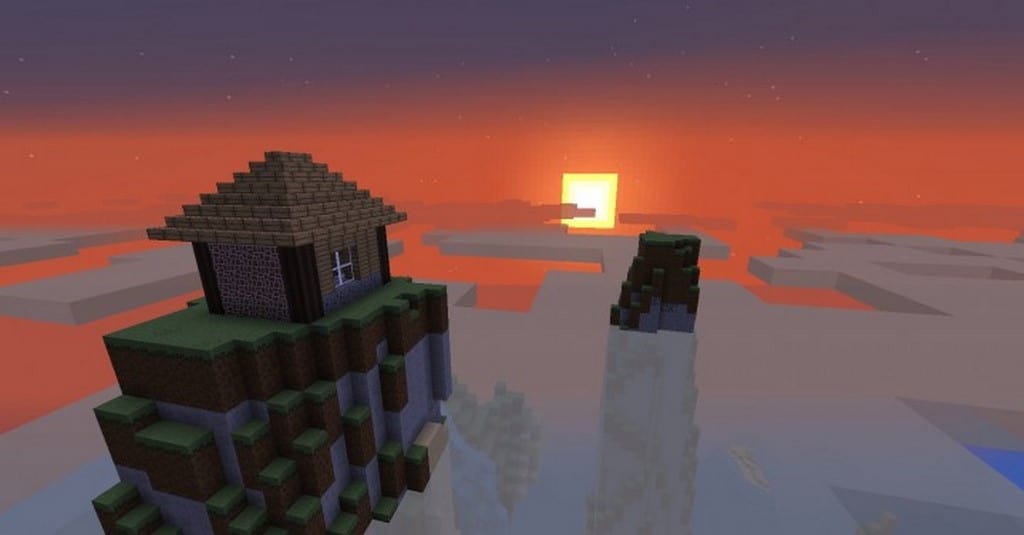
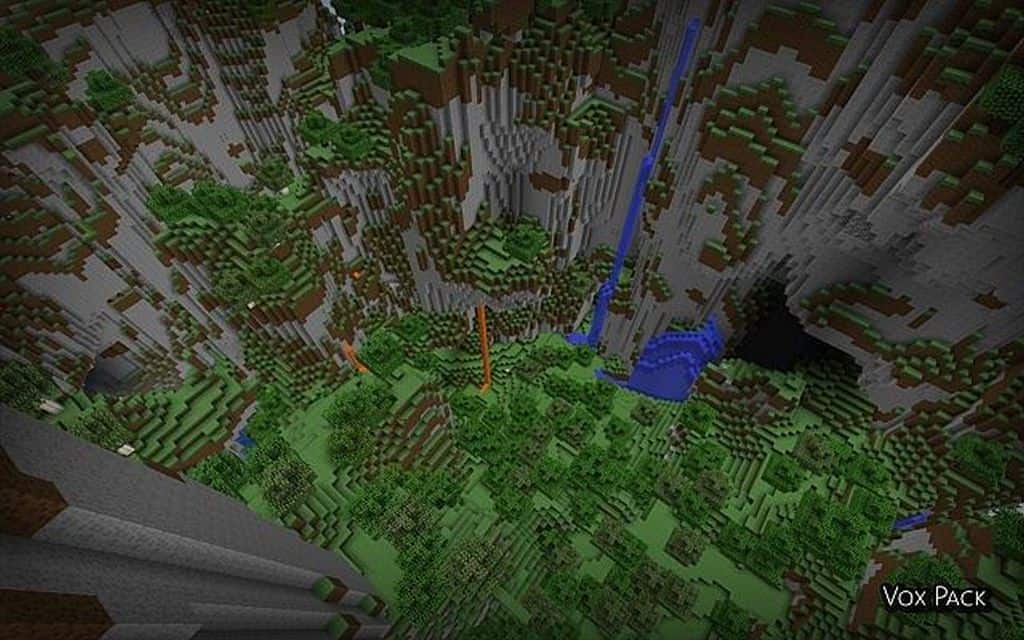
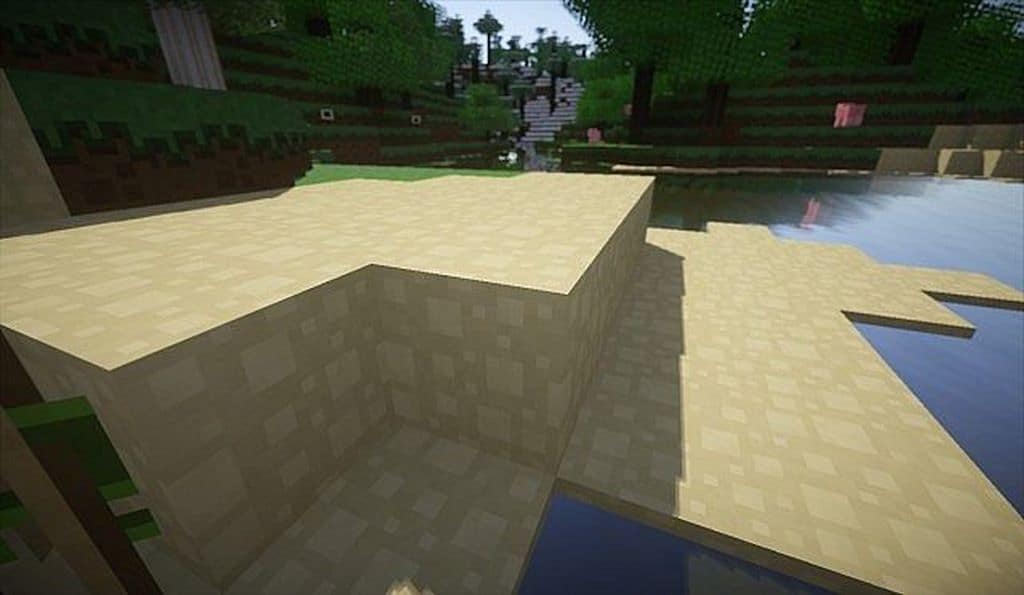
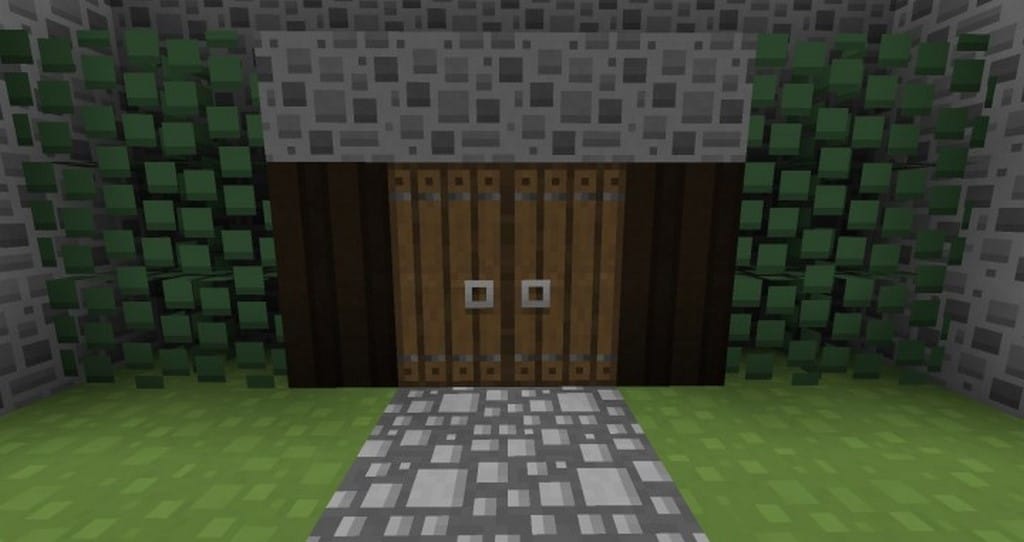
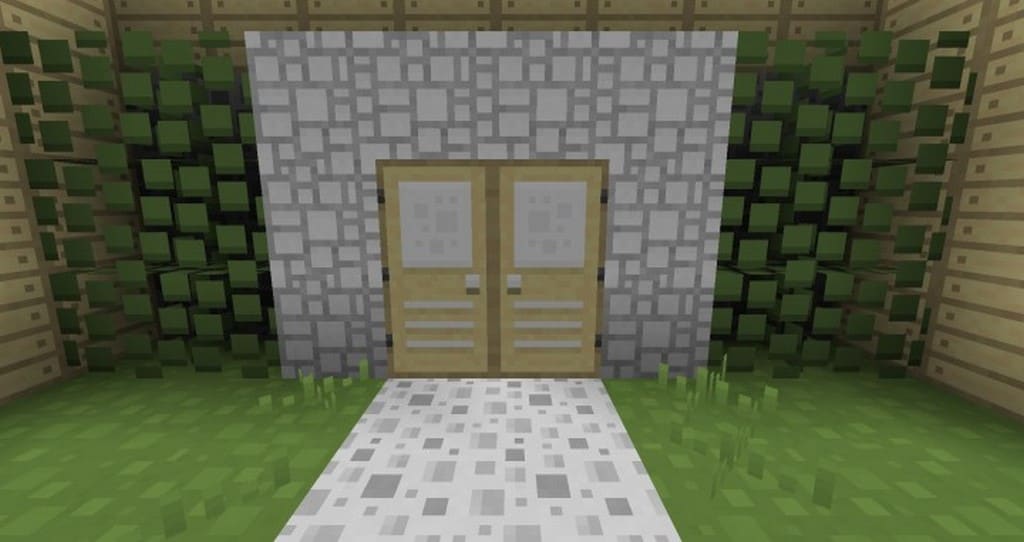
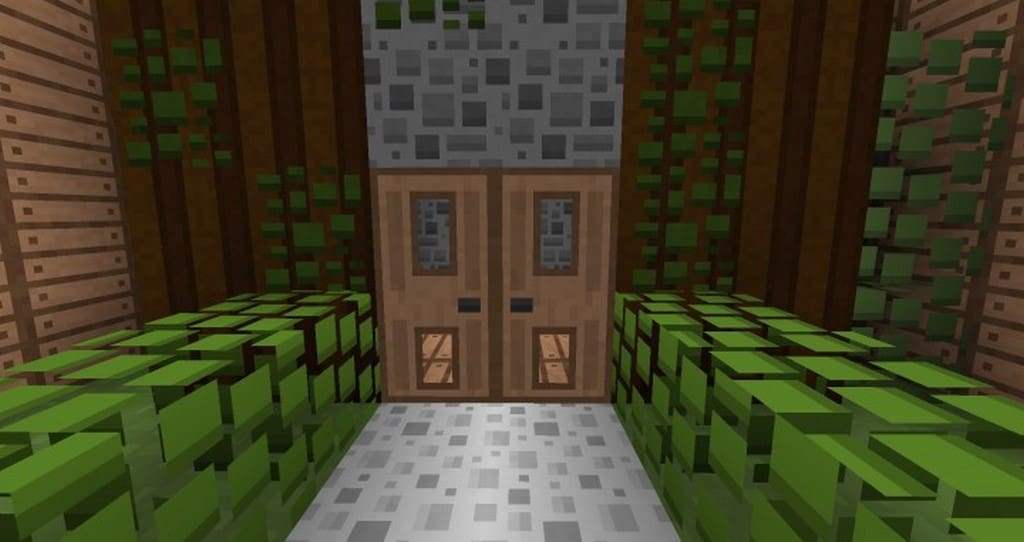
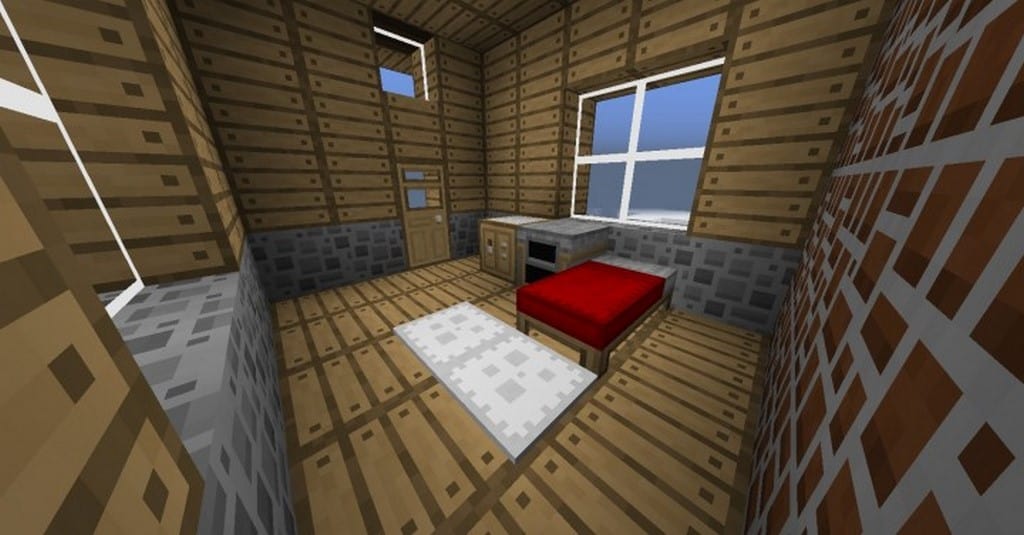
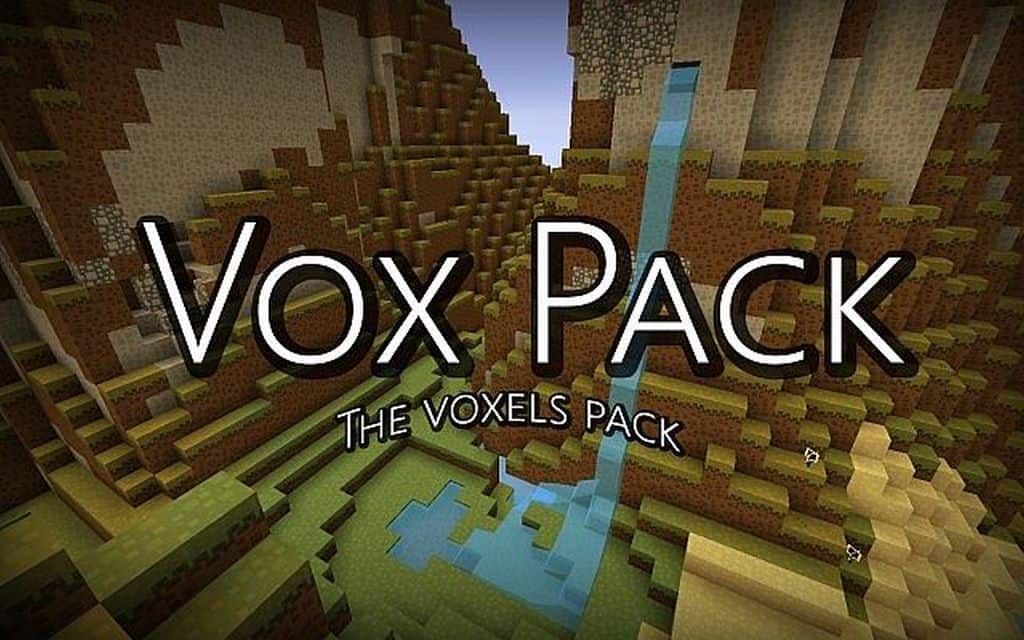
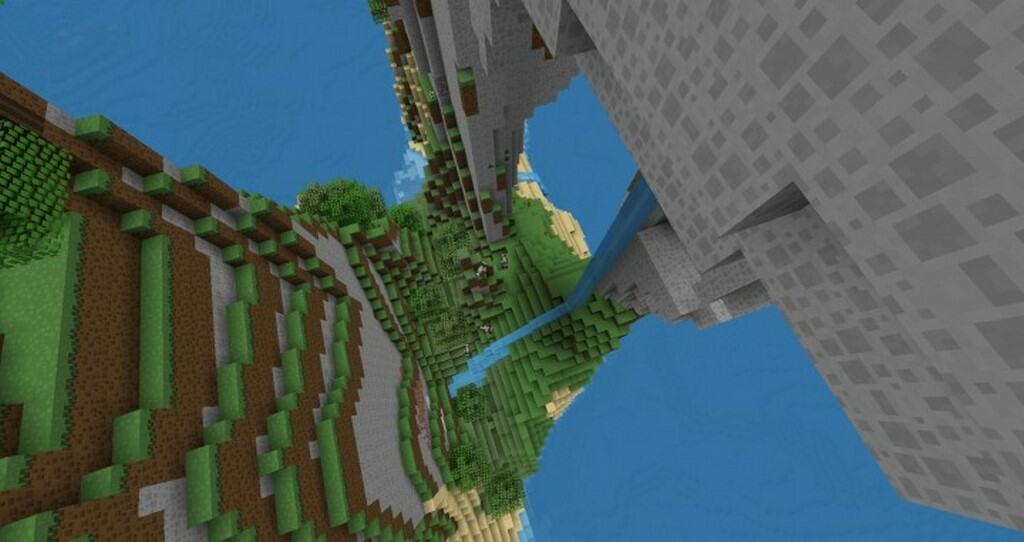
Minecraft is widely known for its massive selection of low-resolution texture packs. A primary reason for this is that many players use lower-tier computers that simply cannot handle the heavy performance strain brought on by more demanding graphics packs. However, I recently tested an incredible option called the Vox resource pack that significantly enhances game textures without placing any noticeable strain on your system. It genuinely sounds too good to be true, but that is precisely what it accomplishes! It upgrades the overall visual textures of the game while keeping changes subtle enough to remain extremely lightweight on your hardware. I really love how it brings a much cleaner look to the entire world, instantly giving you a wonderful sense of old Super Nintendo game nostalgia. If you happen to be on the hunt for a pack like this, I can easily recommend the Vox pack as the absolute perfect choice. Featuring a standard 16×16 resolution, it runs smoothly without any frame rate drops or performance issues on literally any machine that can already run vanilla Minecraft.
Vox Pack should be compatible with all of these Minecraft versions: 1.8.9 – 1.8.8 – 1.8.1 – 1.8.6 – 1.8 – 1.7.10 – 1.7.9 – 1.7.4 – 1.7
Screenshots
How to Install Texture Pack (Simple 10 Steps)
- Download OptiFine: Most of the texture packs and shaders need OptiFine. That’s why, first download and install OptiFine for the version of Minecraft you want to play.
- Download the Texture Pack: Get the texture pack you want from the download section. Choose the version that works with your Minecraft and your PC’s performance.
- Open Minecraft Launcher: Start Minecraft using the official game launcher — or even TLauncher, if you use that.
- Go to Options: From the main menu, click on the “Options” button.
- Open Resource Packs: Inside Options, click on “Resource Packs…”.
- Open the Resource Pack Folder: Click on “Open Resource Pack Folder” — this will open a folder named “resourcepacks”.
- Move the Pack File: Copy or move the .zip file you downloaded into that “resourcepacks” folder. (Don’t unzip the file — Minecraft uses it as-is!)
- Go Back and Refresh: Close the folder and click “Done”, then go back into “Resource Packs…” again.
- Activate the Pack: You’ll see the pack on the left side. Hover over it and click the arrow to move it to the right (active side).
Tip: If you get a message that the pack is for a different version, just click “Yes” — it usually works fine. - Click Done and Enjoy: Click “Done” again. Now your pack is ready to use in-game. It’s that easy!
Credits
This resource pack was created by OeBaldi. We do not claim ownership of this content nor have we modified the download files. All rights belong to the original author, and we strongly encourage supporting OeBaldi by downloading the pack through their official distribution channels.
Download Links
Java Edition
Download Instructions
Curseforge: download starts automatically after a few seconds;
Mediafire: click the big blue button with the text “DOWNLOAD”;
Google Drive: in the top right corner you will see a small download icon (down arrow), click it and the download should start;


