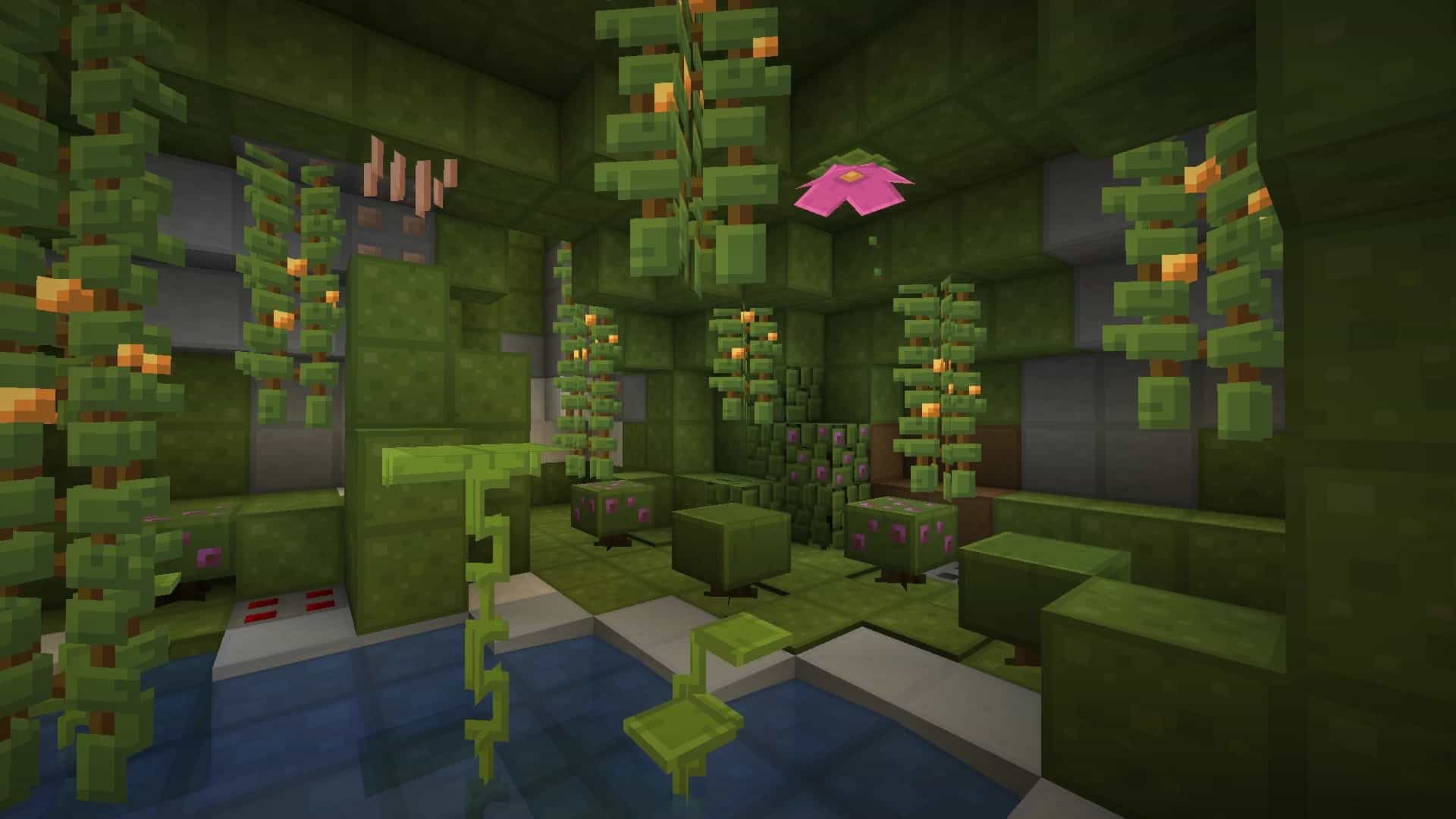
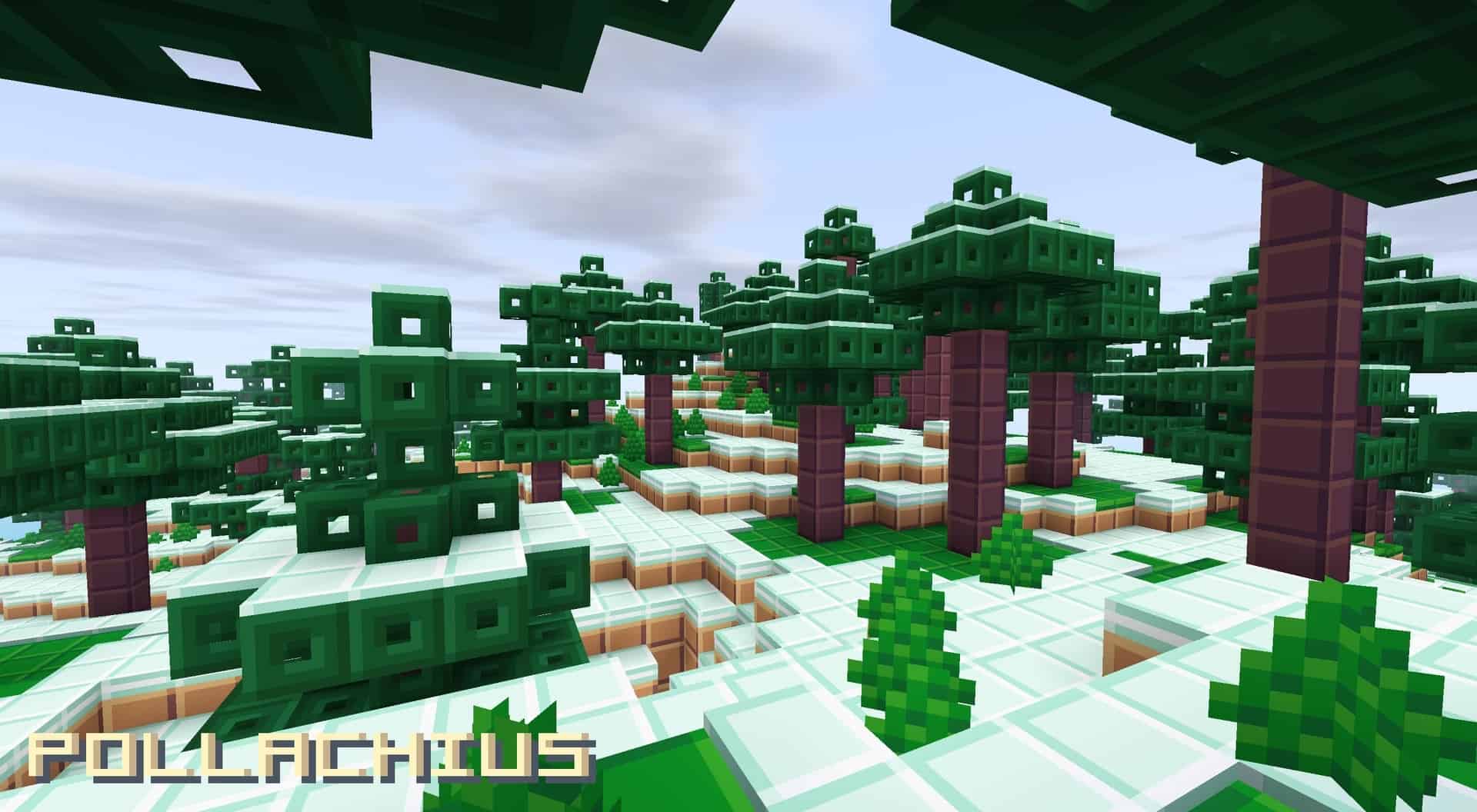
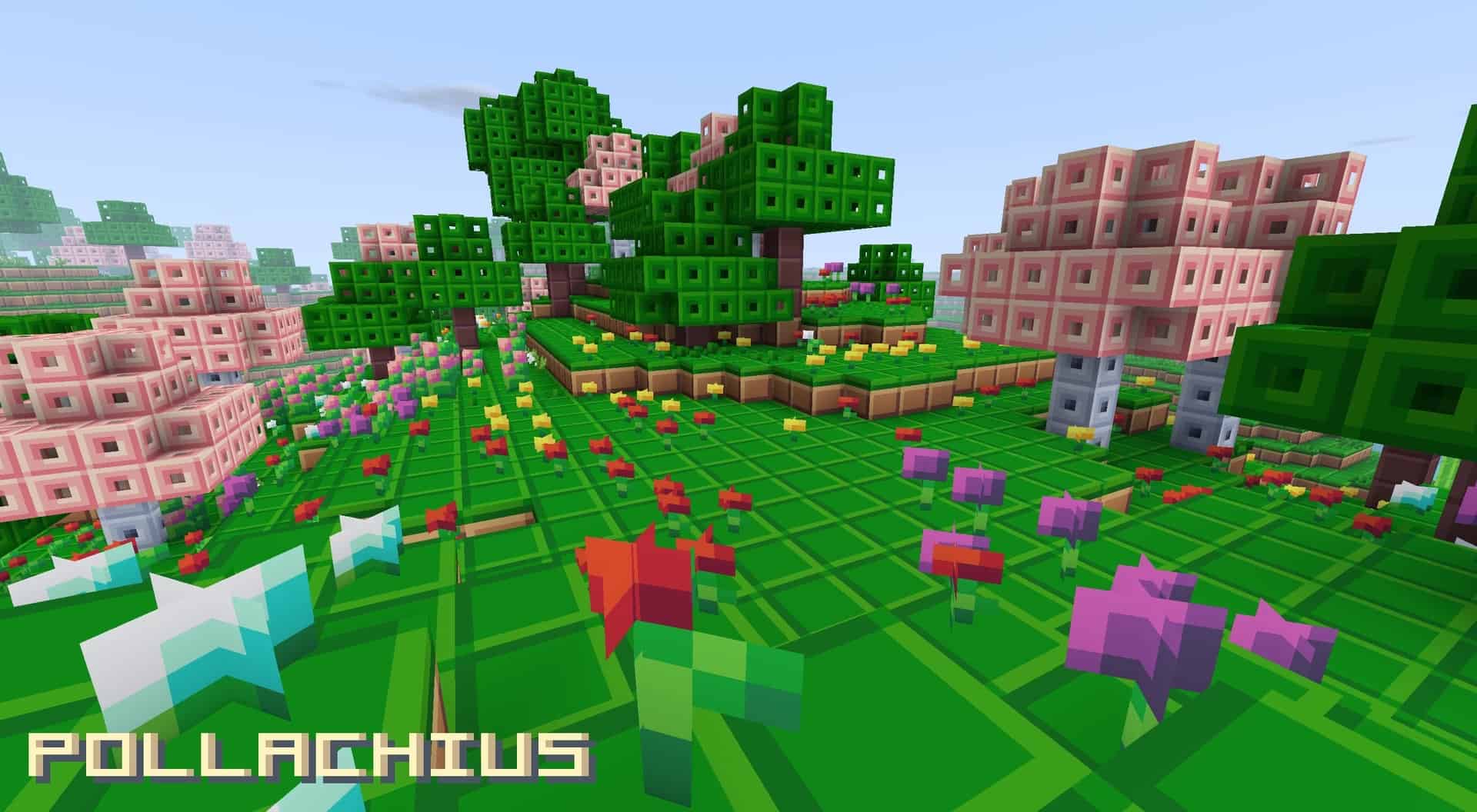
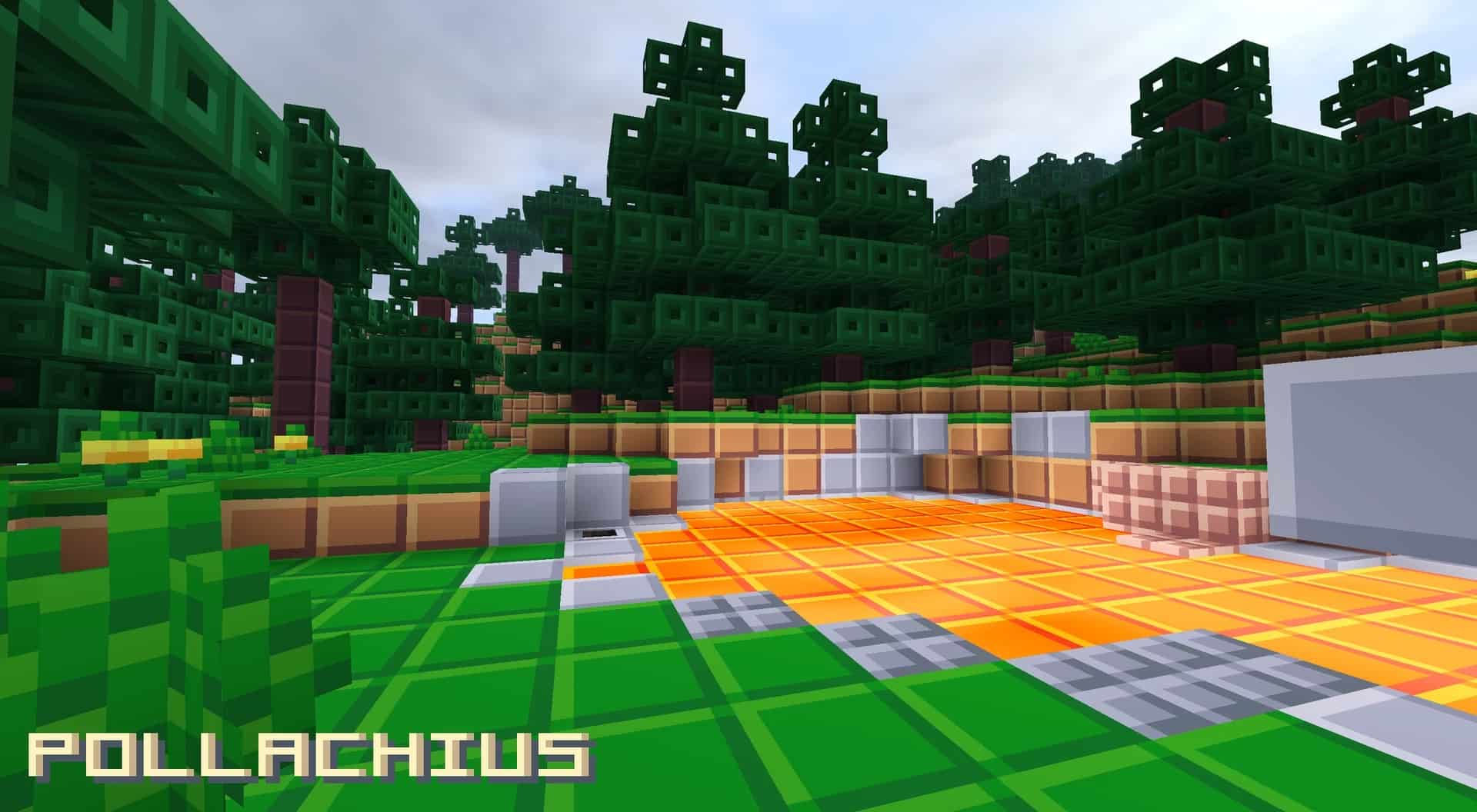
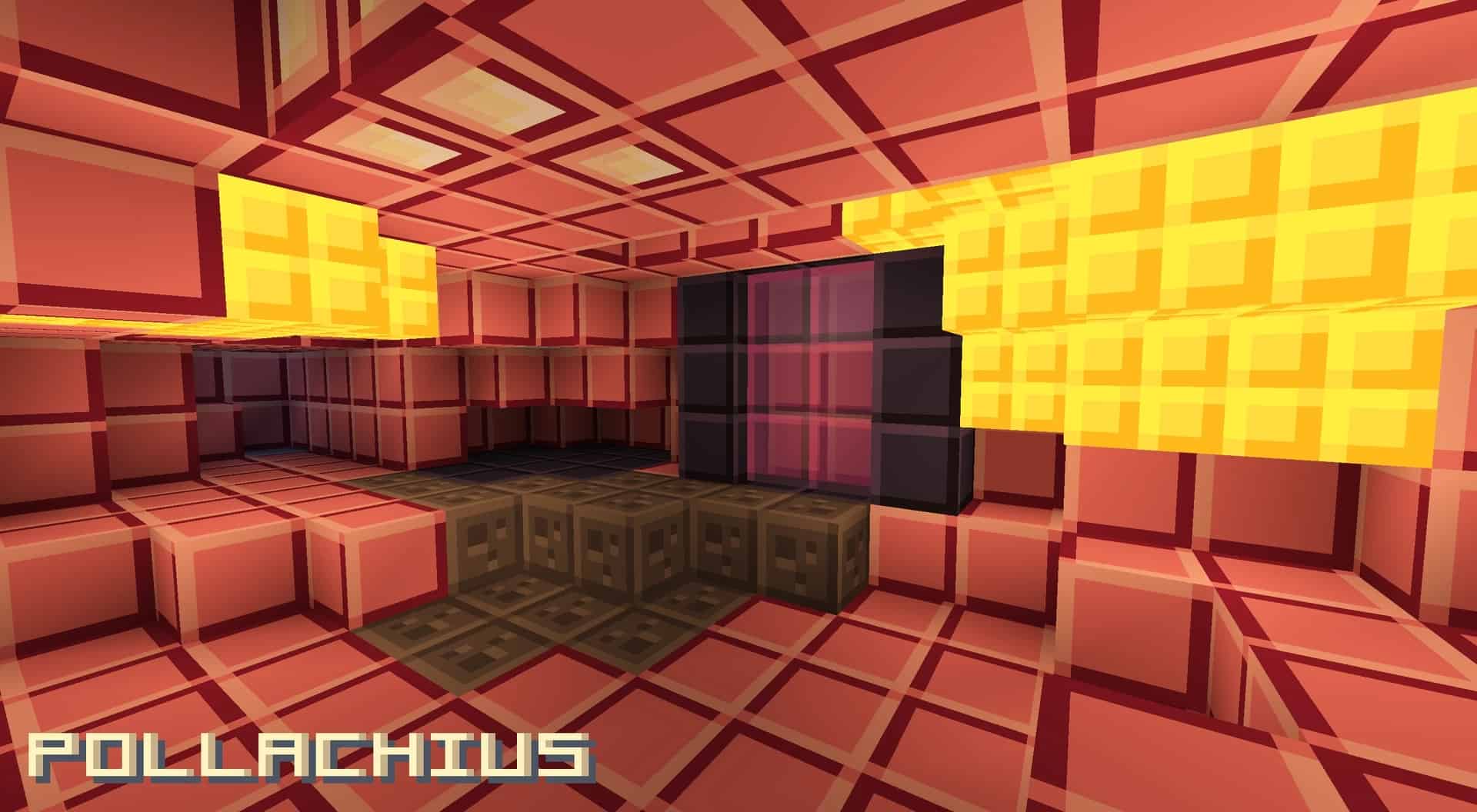
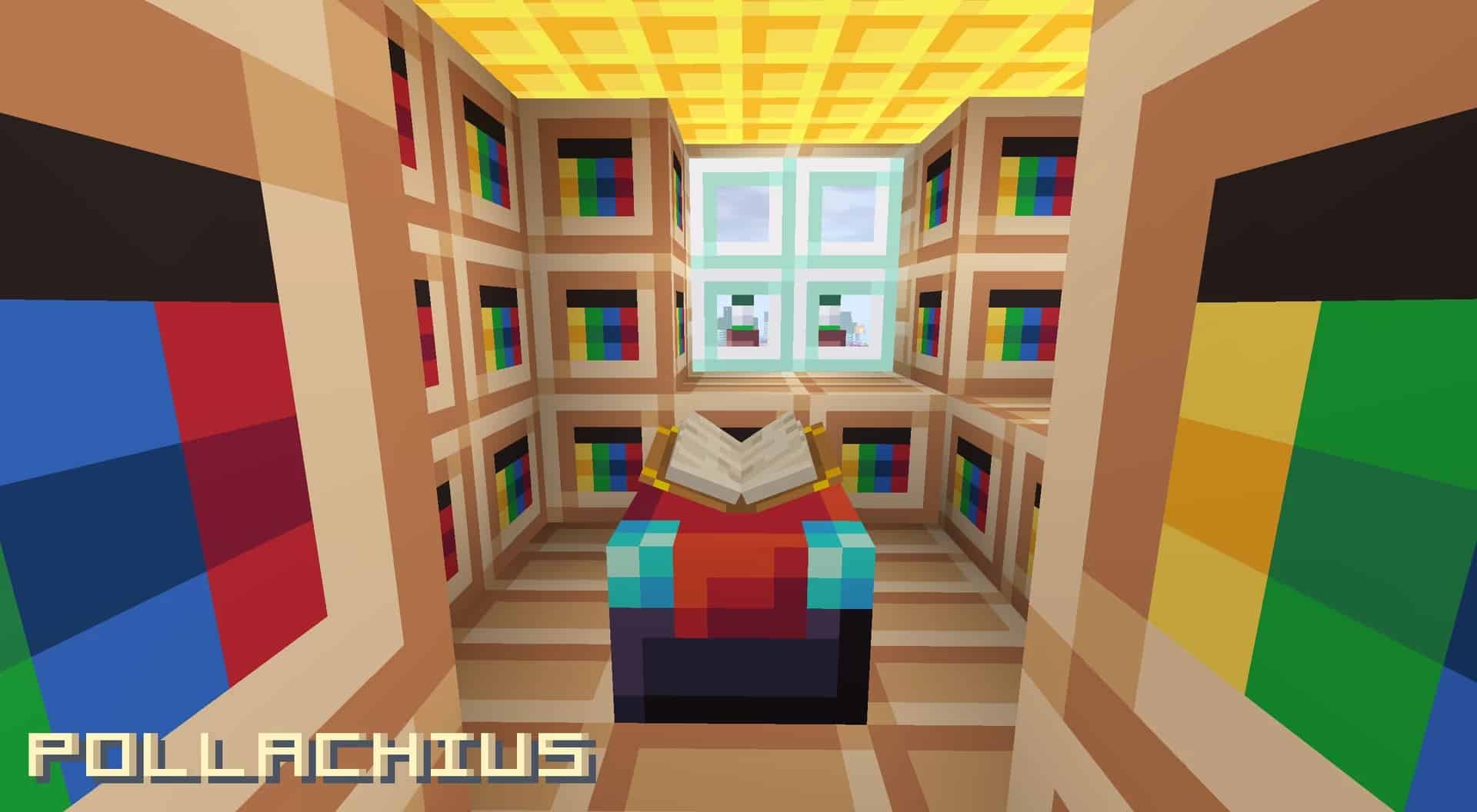
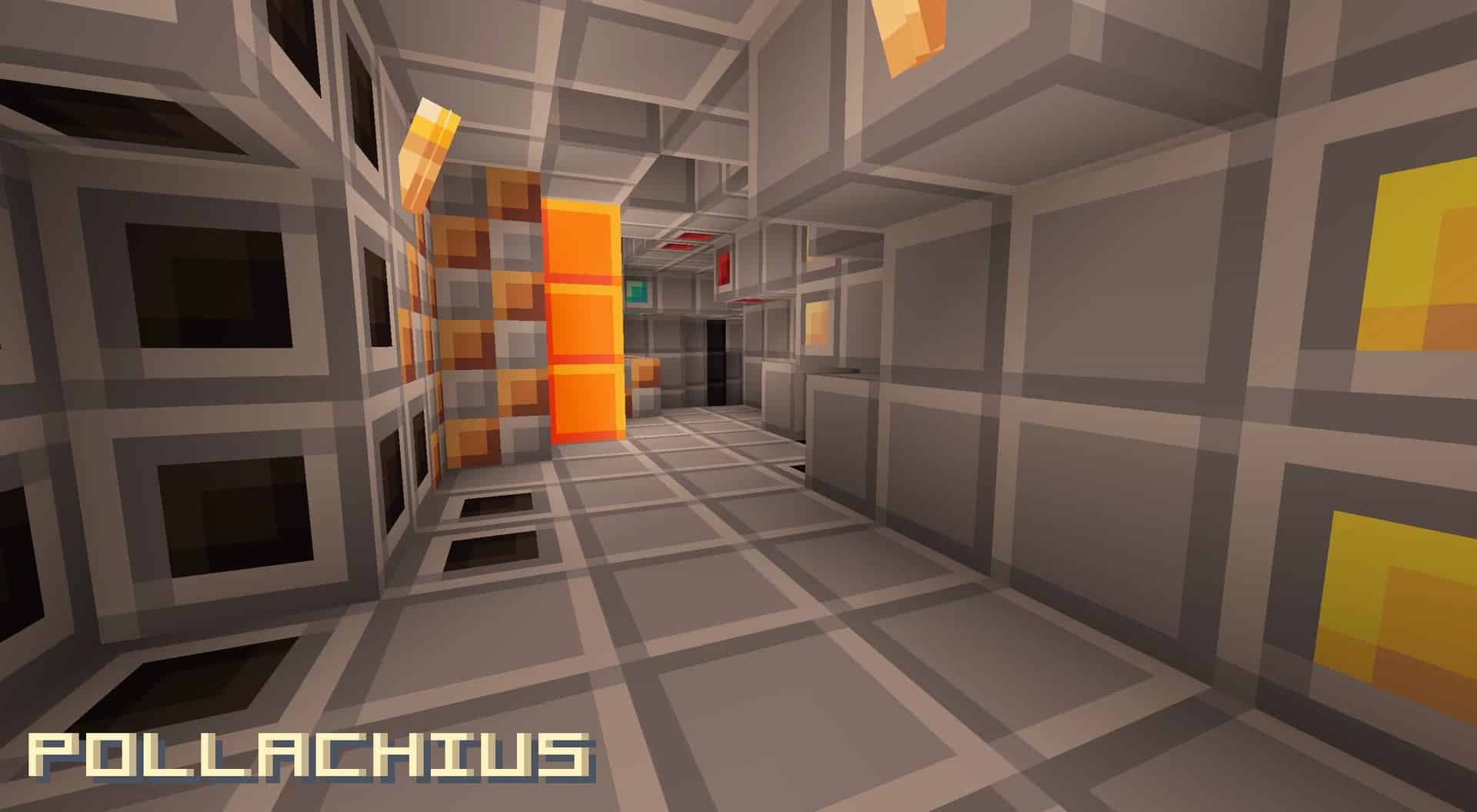
When it comes to Minecraft resource packs, there is a massive craze for ultra-high-resolution textures and heavy photorealistic visuals. However, some of the most beloved resource packs completely skip high-resolution textures and pretentious features, and I think that is wonderful. The Pollachius resource pack is a fantastic example that brilliantly proves less is truly more. Built to be a vibrant and boxy resource pack, Pollachius keeps things wonderfully simple while still managing to stand out from other packs, bringing an entirely fresh vibe to vanilla Minecraft. If this sounds like a texture pack that you might enjoy, I definitely recommend sticking around to learn more about it and how it came to be. A successful resource pack usually relies on a talented developer or a dedicated group of developers, and Pollachius was wonderfully crafted by a community creator known as cheezlordy. Released back in June 2021, the texture pack has managed to rake in tens of thousands of downloads across several sites where it has been published. Before Pollachius, cheezlordy released a couple of other projects, though not all of them managed to take off quite as well. Ever since its initial release, the resource pack has received several consistent updates and proudly continues to receive active support from the developer. He is wonderfully active within the Minecraft community and appears to be genuinely receptive to constructive criticism and suggestions for future updates. To truly understand what makes Pollachius such a gorgeous resource pack, it is important to compare it directly to vanilla Minecraft. The original game features textures that can feel a bit less vibrant, leaning heavily into shades of gray with textures that can easily be confused with one another due to their stark resemblance. Pollachius fixes these aspects brilliantly by introducing new textures which appear to feature fewer intricate details while utilizing a much more vibrant color palette. The colors are wonderfully rich, and everything just looks brighter overall. The grass is greener, the sand is a lovely light gold, the wood sports a rich red-ish brown color, flowers are brightly colored in red, blue, or yellow, lava radiates a brilliant gold color, and the amazing changes simply do not stop there.
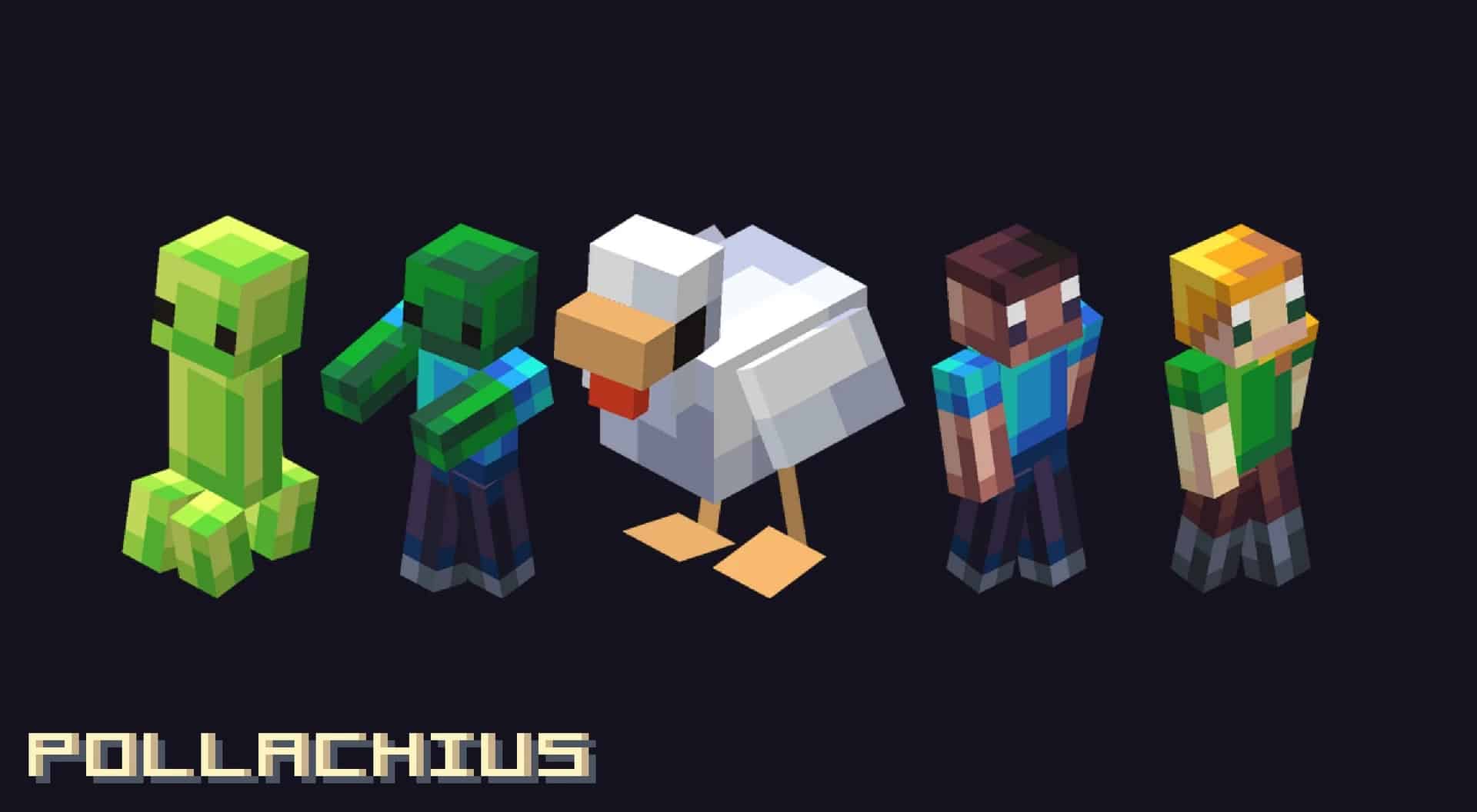
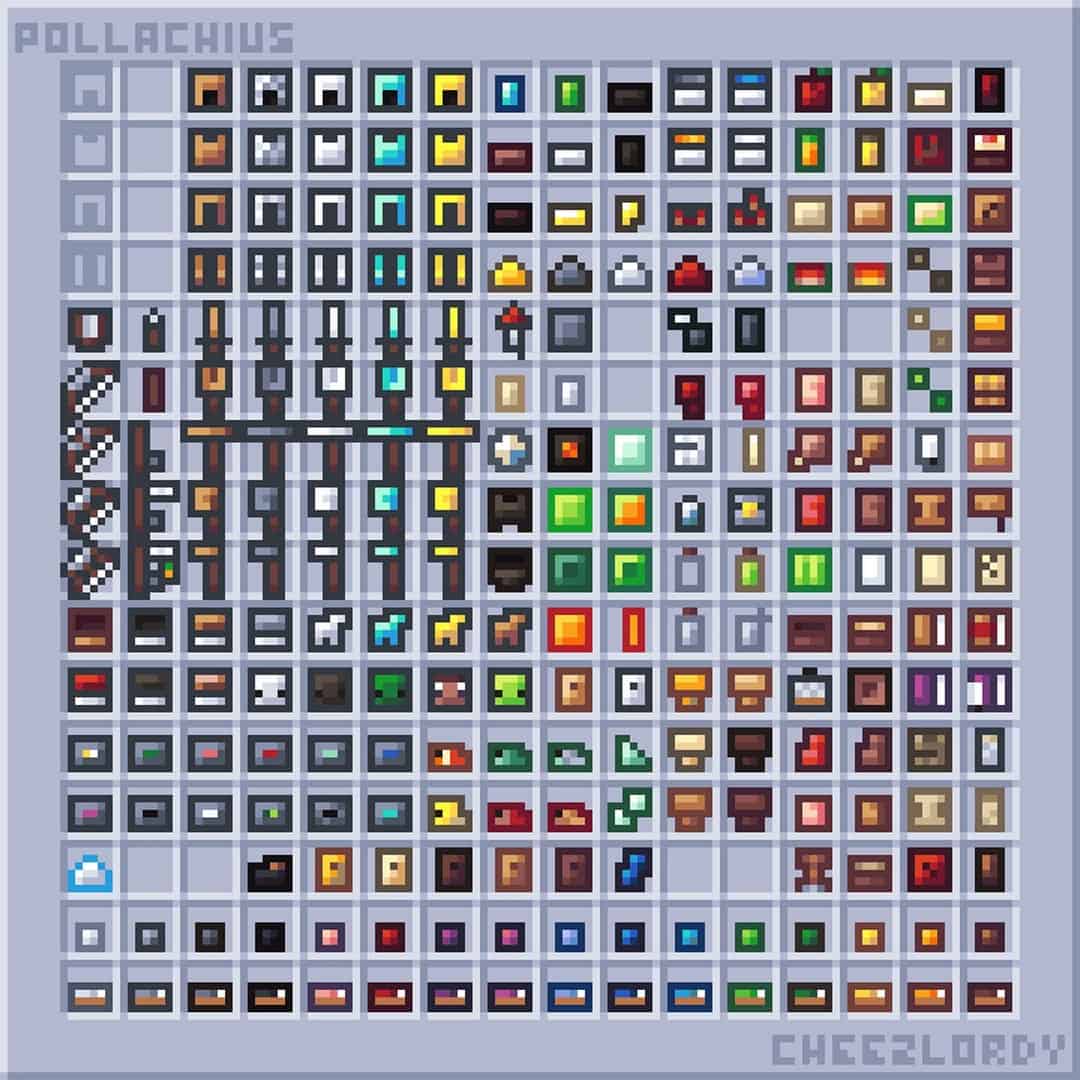
As I mentioned previously, the textures appear to have fewer details on them at first glance, but this is merely a visual effect resulting from the shift in texture colors. In reality, Pollachius offers the exact same level of detail as vanilla Minecraft, utilizing the very same 8×8 texture resolution. The charming boxy aesthetics and colors simply make it seem as though the textures have fewer details. Pollachius thankfully does not fiddle around too much with the player HUD and UI, keeping things nicely familiar. However, it does introduce brand new inventory item icons for existing blocks and objects. These new icons use much more vibrant colors, yet for the most part, they still retain a look very similar to the original ones. Additionally, you will find fresh new textures for players, certain mobs, and some lovely critters. One aspect that is very important to note is that in some presentation screenshots, the lighting and shadows in Minecraft appear to be significantly improved when running the game with Pollachius installed. In reality, the resource pack does not include any changes to lighting, shaders, or anything of that sort; it does not even use special textures or new textures for the sky, clouds, or water. If you want to obtain a similar effect to what you see in those promotional screenshots, you will simply need to pair it with a separate shader pack. Sadly, the developer does not provide any specific recommendations for a shader pack that works best with the Pollachius resource pack, but experimenting is half the fun. If you install Pollachius without a shader pack, you will honestly be so pleasantly surprised by just how amazingly well Minecraft will run. The resource pack is exceptionally well optimized. Furthermore, utilizing an 8×8 texture resolution makes the game far less taxing when it comes to system resource usage. This means that it can run smoothly and wonderfully on older computers that can already handle vanilla Minecraft. At the same time, because it does not negatively impact game performance, Pollachius makes for an absolute stellar PvP resource pack. It makes objects and player textures much easier to distinguish on the fly, providing you with a silky smooth and remarkably high framerate. Even if you can afford just a small decrease in frame rate, I think it is well worth using a compatible shader pack along with the Pollachius resource pack for that extra visual flair. When it comes to getting it set up, Pollachius can be installed easily via manual methods. All you have to do is download the zip file, place it directly into your resource pack folder located inside the main Minecraft directory, and then load the resource pack right from your in-game menu.
Pollachius should be compatible with all of these Minecraft versions: 26.2 – 26.1.2 – 26.1.1 – 26.1 – 1.21.11 – 1.21.10 – 1.21.9 – 1.21.8 – 1.21.7 – 1.21.6 – 1.21.5 – 1.21.4 – 1.21.3 – 1.21.2 – 1.21.1 – 1.21 – 1.20.6 – 1.20.5 – 1.20.4 – 1.20.3 – 1.20.2 – 1.20.1 – 1.20 – 1.19.4 – 1.19.3 – 1.19.2 – 1.19.1 – 1.19 – 1.18.2 – 1.18.1 – 1.18 – 1.17.1 – 1.17 – 1.16.5 – 1.16.4 – 1.16.3 – 1.16.2 – 1.16.1 – 1.16 – 1.8.9 – 1.8.8 – 1.8.1 – 1.8.6 – 1.8 – Bedrock Edition – PE
Screenshots


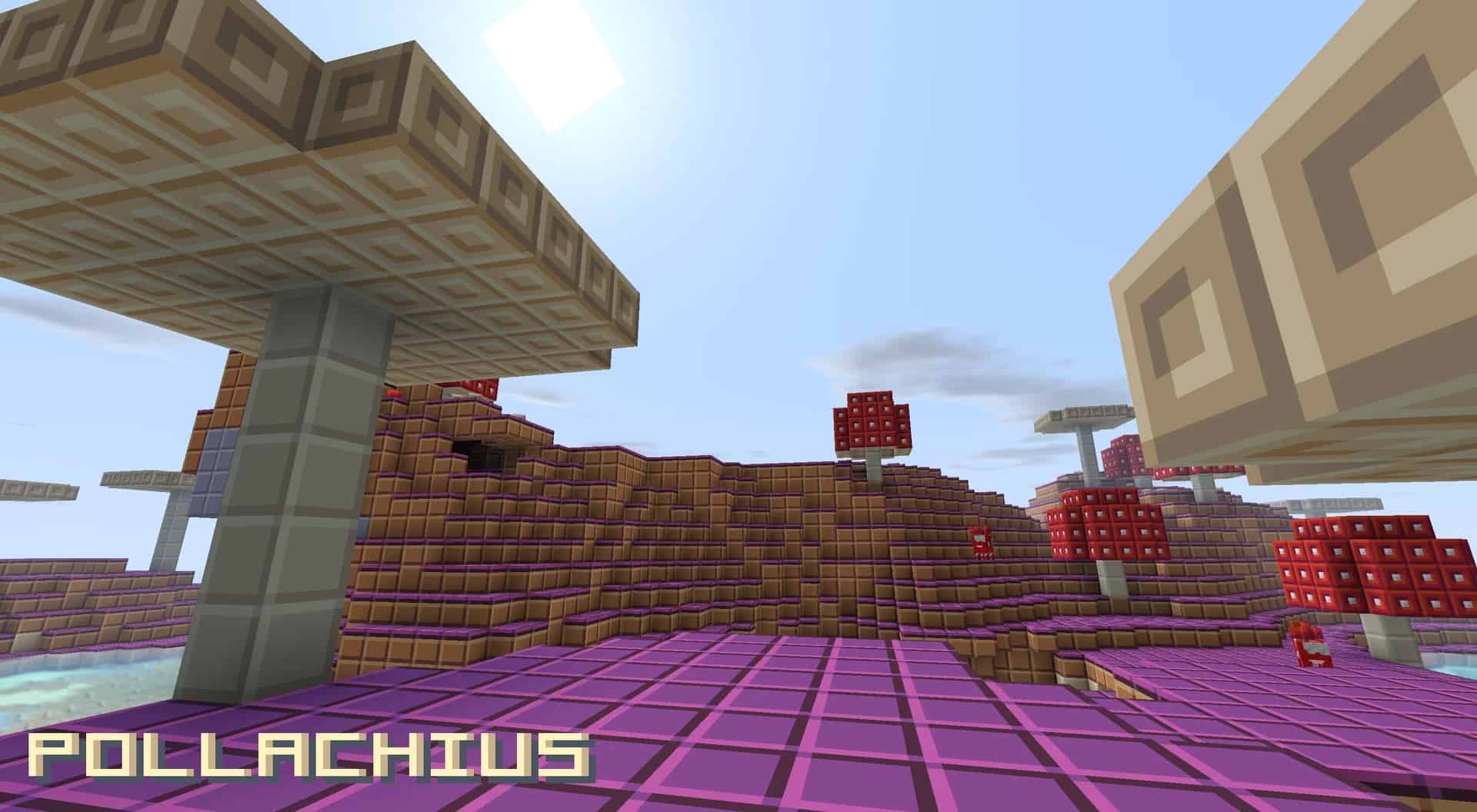
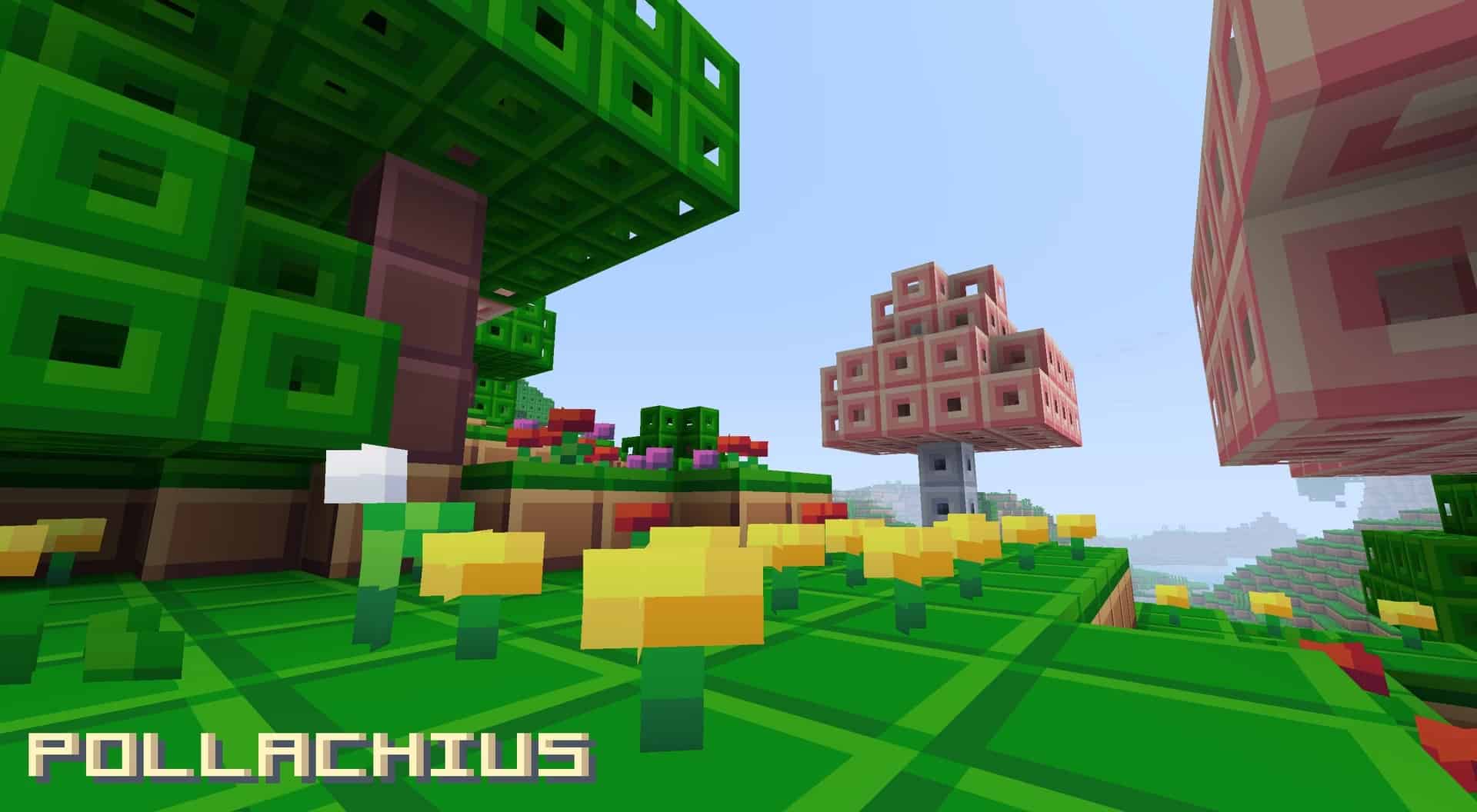
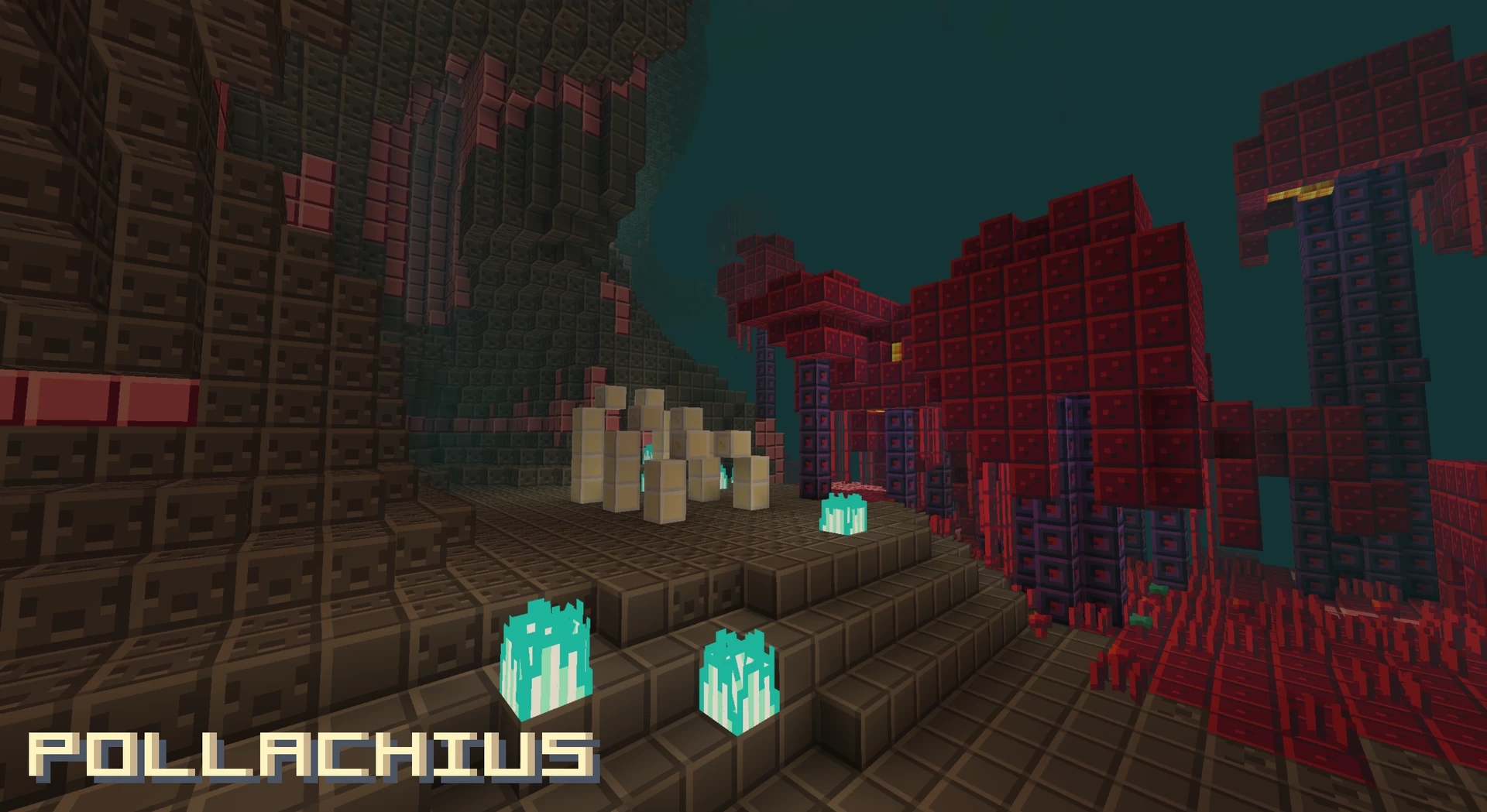
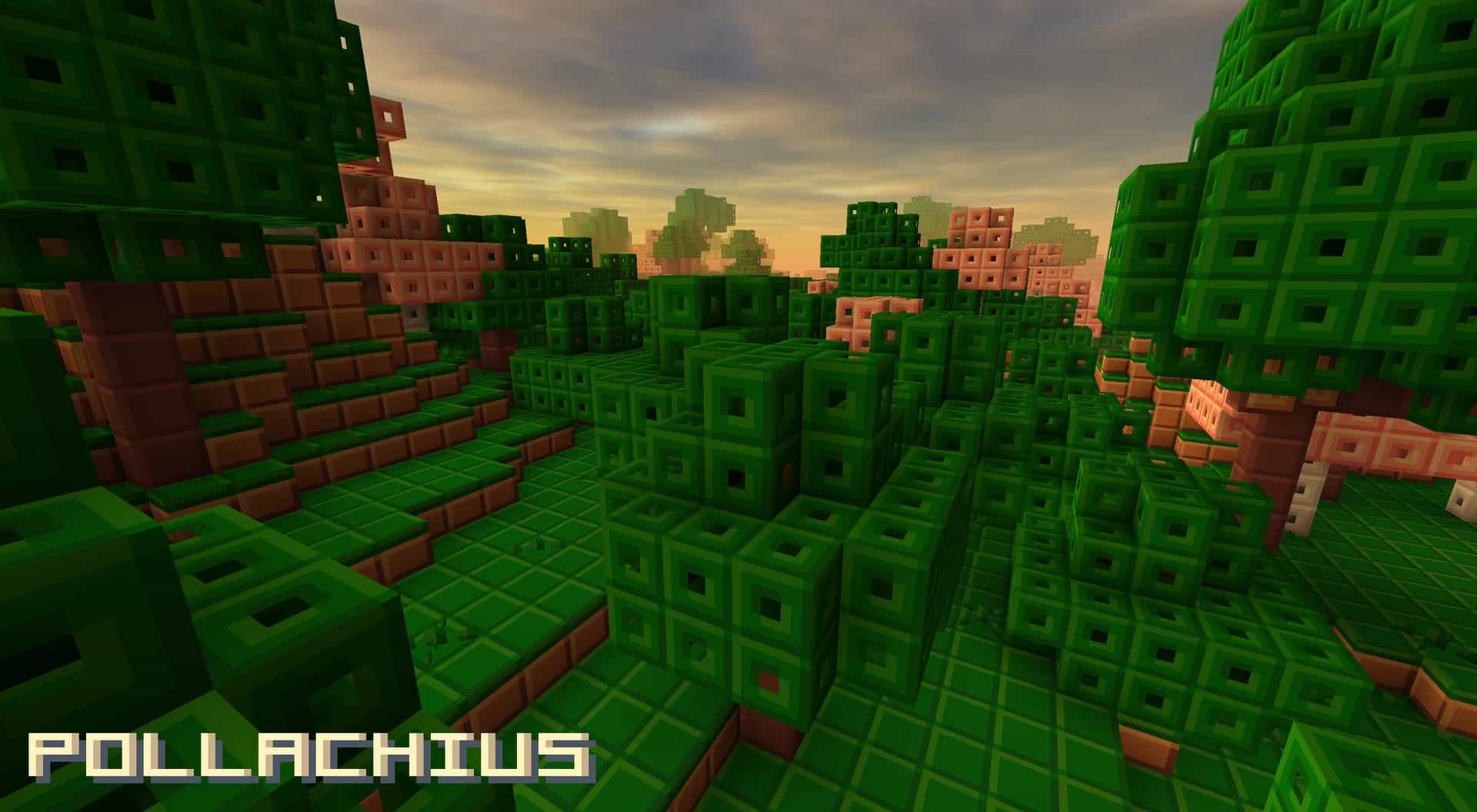
How to Install Texture Pack (Simple 10 Steps)
- Download OptiFine: Most of the texture packs and shaders need OptiFine. That’s why, first download and install OptiFine for the version of Minecraft you want to play.
- Download the Texture Pack: Get the texture pack you want from the download section. Choose the version that works with your Minecraft and your PC’s performance.
- Open Minecraft Launcher: Start Minecraft using the official game launcher — or even TLauncher, if you use that.
- Go to Options: From the main menu, click on the “Options” button.
- Open Resource Packs: Inside Options, click on “Resource Packs…”.
- Open the Resource Pack Folder: Click on “Open Resource Pack Folder” — this will open a folder named “resourcepacks”.
- Move the Pack File: Copy or move the .zip file you downloaded into that “resourcepacks” folder. (Don’t unzip the file — Minecraft uses it as-is!)
- Go Back and Refresh: Close the folder and click “Done”, then go back into “Resource Packs…” again.
- Activate the Pack: You’ll see the pack on the left side. Hover over it and click the arrow to move it to the right (active side).
Tip: If you get a message that the pack is for a different version, just click “Yes” — it usually works fine. - Click Done and Enjoy: Click “Done” again. Now your pack is ready to use in-game. It’s that easy!
Credits
This resource pack was created by cheezlordy. We are not the original creators or owners of this content, and we do not host modified versions of these files. All rights and ownership belong fully to cheezlordy. We strongly encourage you to visit the official download pages to support the creator.
Download Links
Java Edition
- [8x] Minecraft 26.2.x – 26.1.x
- [8x] Minecraft 1.21.x
- [8x] Minecraft 1.20.6 – 1.20.2
- [8x] Minecraft 1.20.1 – 1.20
- [8x] Minecraft 1.19.x
- [8x] Minecraft 1.18.x
- [8x] Minecraft 1.17.x
- [8x] Minecraft 1.16.x
- [8x] Minecraft 1.8.x
Bedrock Edition
Download Instructions
Curseforge: download starts automatically after a few seconds;
Mediafire: click the big blue button with the text “DOWNLOAD”;
Google Drive: in the top right corner you will see a small download icon (down arrow), click it and the download should start;