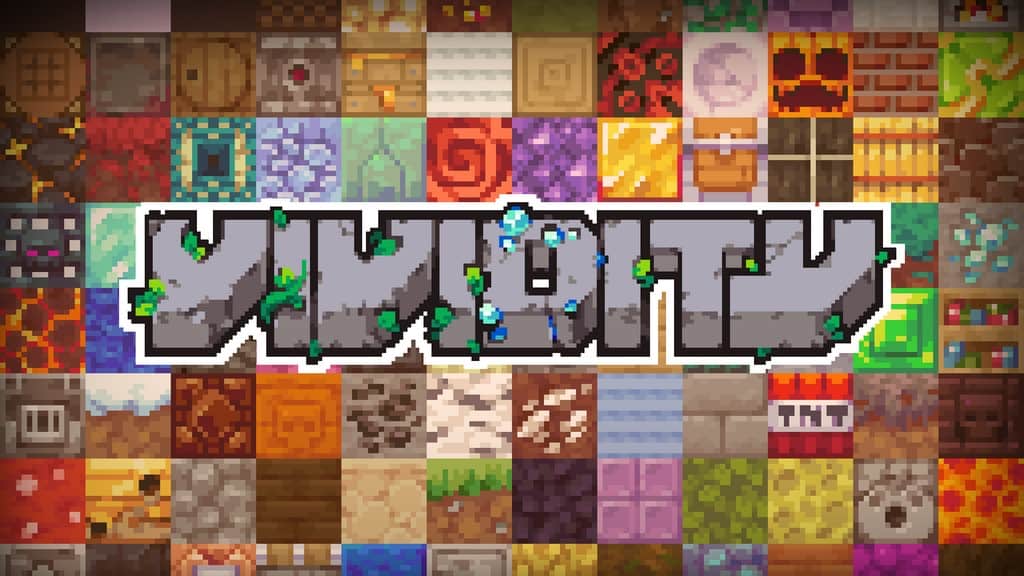
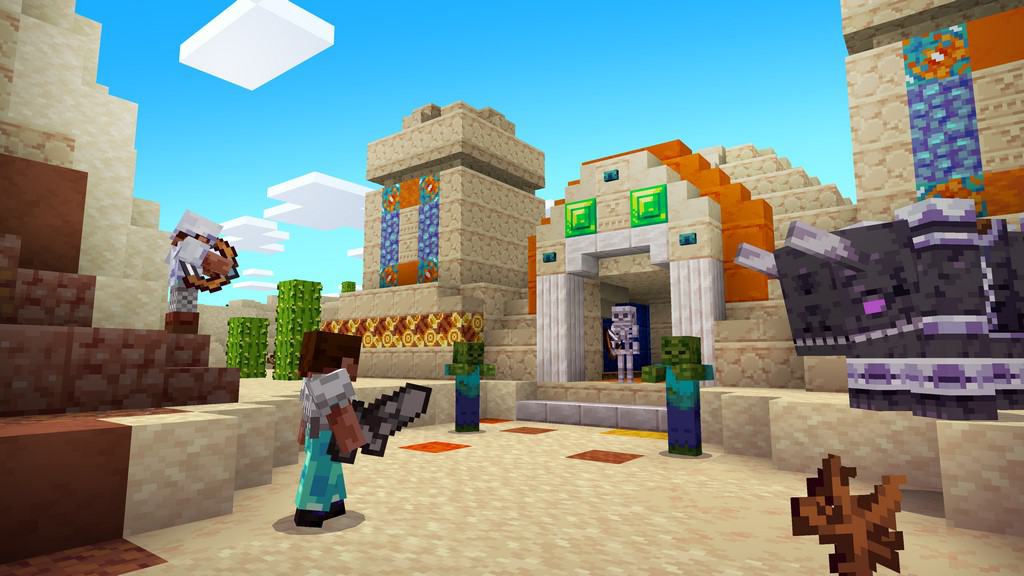
There are only a handful of Minecraft resource packs that you can truly call great, and I am happy to report that the Vividity resource pack is definitely one of them. Surprisingly, it does not focus on photo-realism at all. The Vividity pack shines for a lot of reasons that very few players will argue against. Right off the bat, Vividity does not attempt to completely change the game to mimic something else or introduce so many new blocks that it would make Minecraft look unrecognizable. What this wonderful resource pack actually does is change all the textures in Minecraft for the better. The colors are much brighter, yet everything retains the same familiar default feeling. If you know every single block in vanilla Minecraft, you will easily recognize all of them in the Vividity resource pack. It is definitely worth mentioning that the resource pack preserves the true identity of the game by carefully using textures of the exact same resolution as vanilla. Vividity is a 16x resource pack, meaning that it will have almost no impact over how smoothly your game runs, whether you use it with or without performance mods. The Vividity resource pack was developed by a team of creative individuals who are also avid Minecraft players themselves. One annoying issue that this resource pack completely avoids is missing textures; Vividity is proudly one of the few resource packs that are 100 percent complete. There are no missing textures anywhere, and every single one of them has been noticeably improved. Being so exceptionally well put together, the Vividity texture pack even earned a coveted listing on the official Minecraft website!
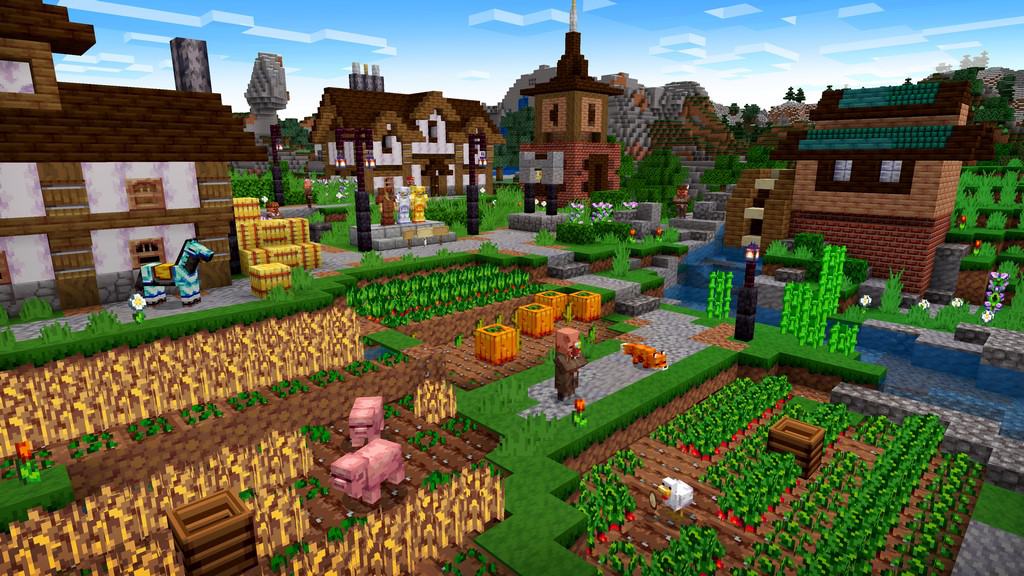
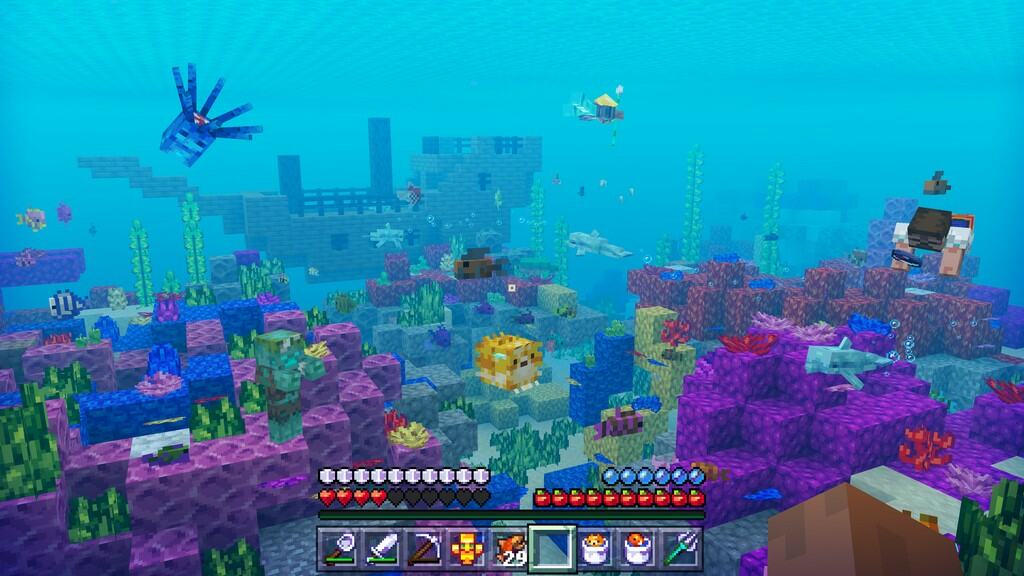
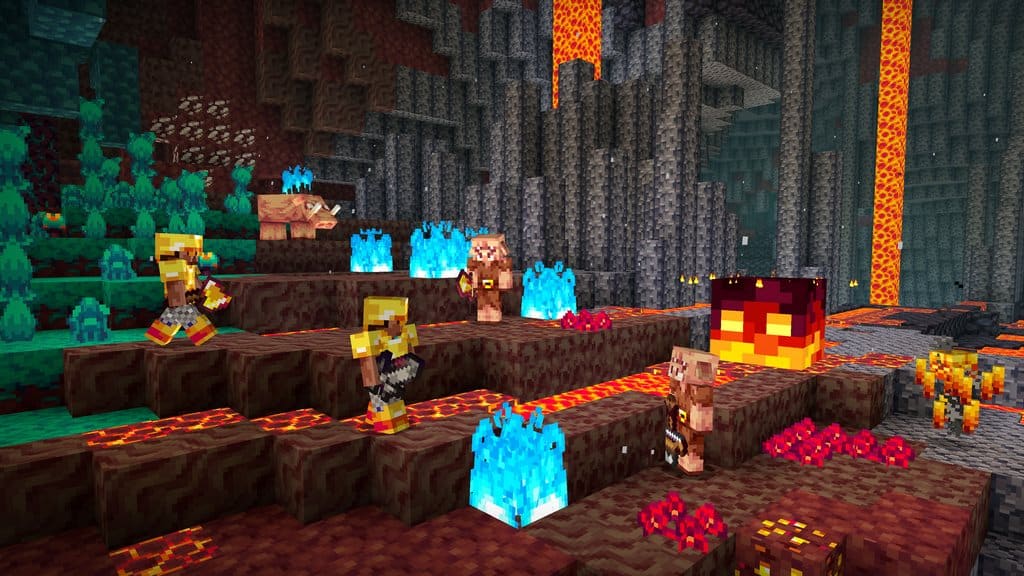
You can easily download it from the official website for Bedrock Edition, and I promise you that it is visually gorgeous. The vibrant colors of the textures that Vividity uses make the entire game world feel so much more alive. Water biomes are filled with stunning purple, blue, and red blocks, alongside wonderfully retexturized fish and vegetation. Crops look so much brighter and satisfying to harvest. Mobs and hostile enemies also received fantastic texture upgrades, and there are even some neat new weapon visuals introduced by the resource pack. Its gorgeous visuals are heavily reminiscent of old, charming, child-friendly social media flash games such as Farmville. To a certain extent, it wonderfully enables every player to build their own colorful house, grow crops, or go on thrilling adventures fighting skeletons and other monsters lurking in dungeons and castles. It has an incredible rustic vibe to it mixed with many delightful fantasy elements. Lastly, one aspect that is often overlooked is the dedicated support a resource pack gets from its creators, as many packs unfortunately end up abandoned. The Vividity resource pack is one of the rare gems that still receives consistent updates and previews. Even though it was released a while ago, the developers are constantly providing active posts on what they are working on for the next update for Vividity. This type of fantastic support means that the resource pack will seamlessly work with all the latest versions of Minecraft. Also, because it was masterfully developed to improve the existing visuals in Minecraft without overcomplicating things, Vividity does not try to change things such as sky textures, meaning it does not require any special features and can be easily installed manually without even needing Optifine.
Vividity should be compatible with all of these Minecraft versions: 1.20.1 – 1.20 – 1.19.4 – 1.19.3 – 1.19.2 – 1.19.1 – 1.19 – 1.18.2 – 1.18.1 – 1.18 – 1.17.1 – 1.17 – 1.16.5 – 1.16.4 – 1.16.3 – 1.16.2 – 1.16.1 – 1.16 – 1.12.2 – 1.12 – 1.8.9 – 1.8.8 – 1.8.1 – 1.8.6 – 1.8 – Bedrock Edition – PE
Screenshots

How to Install Texture Pack (Simple 10 Steps)
- Download OptiFine: Most of the texture packs and shaders need OptiFine. That’s why, first download and install OptiFine for the version of Minecraft you want to play.
- Download the Texture Pack: Get the texture pack you want from the download section. Choose the version that works with your Minecraft and your PC’s performance.
- Open Minecraft Launcher: Start Minecraft using the official game launcher — or even TLauncher, if you use that.
- Go to Options: From the main menu, click on the “Options” button.
- Open Resource Packs: Inside Options, click on “Resource Packs…”.
- Open the Resource Pack Folder: Click on “Open Resource Pack Folder” — this will open a folder named “resourcepacks”.
- Move the Pack File: Copy or move the .zip file you downloaded into that “resourcepacks” folder. (Don’t unzip the file — Minecraft uses it as-is!)
- Go Back and Refresh: Close the folder and click “Done”, then go back into “Resource Packs…” again.
- Activate the Pack: You’ll see the pack on the left side. Hover over it and click the arrow to move it to the right (active side).
Tip: If you get a message that the pack is for a different version, just click “Yes” — it usually works fine. - Click Done and Enjoy: Click “Done” again. Now your pack is ready to use in-game. It’s that easy!
Credits
This Resource Pack was created by TheNoxcrew and thxsprites. We do not claim ownership of this content and do not host modified files. Please support the original creators by downloading through their official links.
Download Links
Java Edition
- [16x] Minecraft 1.20.x
- [16x] Minecraft 1.19.x – 1.18.x
- [16x] Minecraft 1.17.x
- [16x] Minecraft 1.16.x
- [16x] Minecraft 1.12.x
- [16x] Minecraft 1.8.x
Bedrock Edition
Download Instructions
Curseforge: download starts automatically after a few seconds;
Mediafire: click the big blue button with the text “DOWNLOAD”;
Google Drive: in the top right corner you will see a small download icon (down arrow), click it and the download should start;


