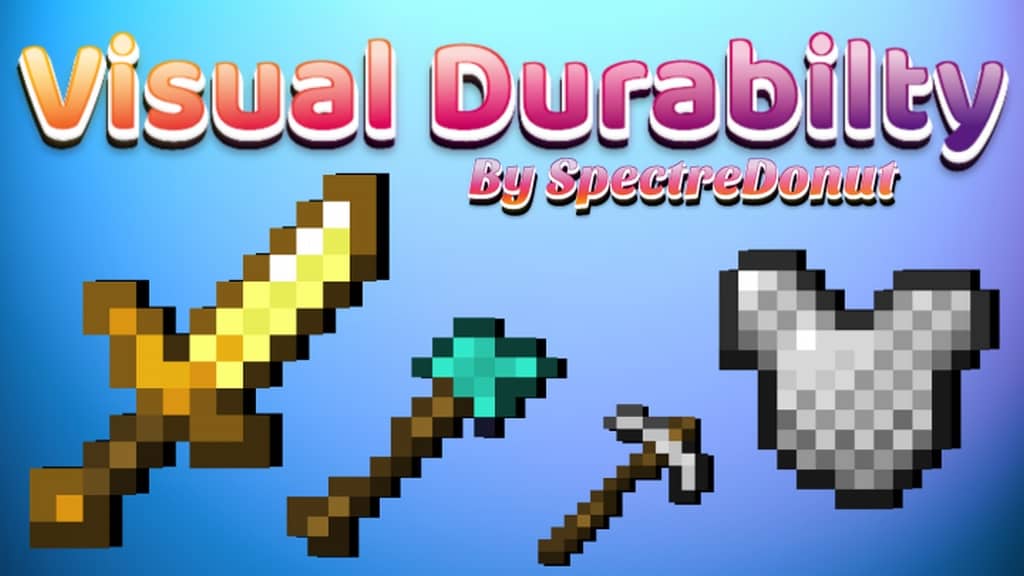
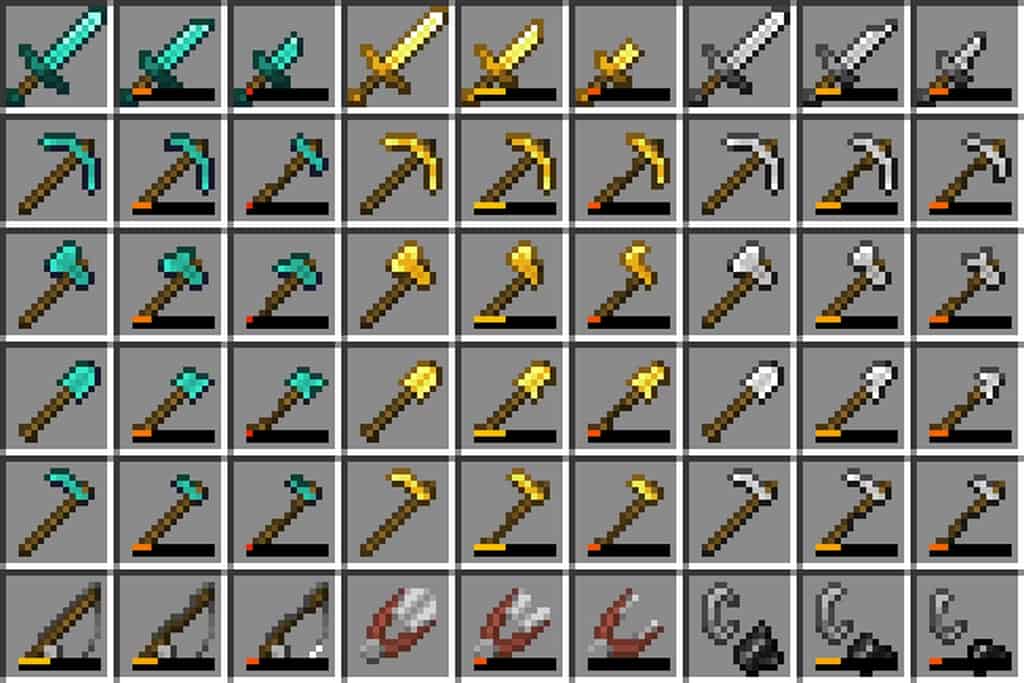
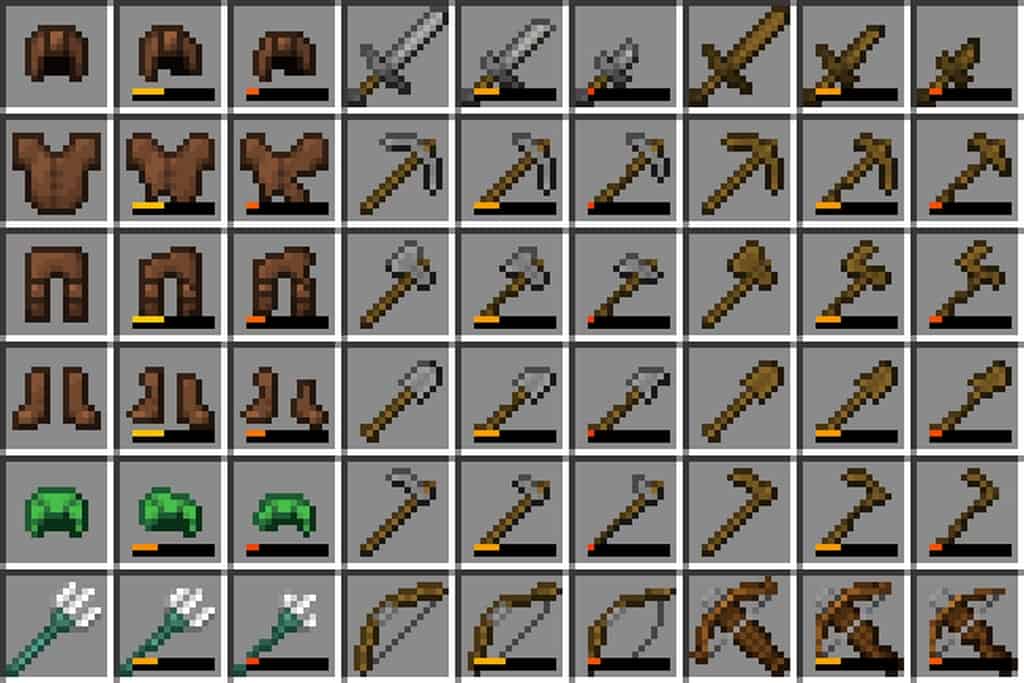
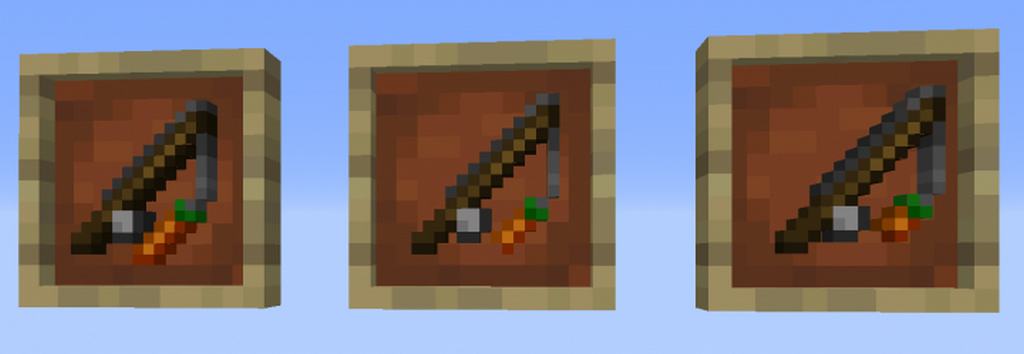
The Visual Durability resource pack is definitely one that you should check out right away. When you use this fantastic pack, the texture of your tools and armor items will change based on how much damage they have taken, which is entirely unique and genuinely changes your gameplay in big ways. Having the visual of your tools and armor change based on the damage they’ve taken is a great feature to add to your game for many different reasons. The most significant benefit is that you no longer have to rely on the small bar on the bottom of your screen to know how your items are doing. Instead, you can focus entirely on your gameplay and be confident that you won’t suddenly find yourself without armor. This might seem like a small and insignificant detail at first glance. Still, this resource pack’s creator has gone through the work of adding durability textures to all of the items that degrade, which gives the pack a cohesive and thoroughly enjoyable experience. Since this resource pack is small, you can easily stack it up with other resource packs, both big and small, to really customize your gameplay experience. This resource pack is perfect for people who are just learning how to play the game, as well as those who have been playing for a long time and are looking for something new to add to their world. We highly recommend Visual Durability for those who are looking for an innovative, immersive, and useful tool to enhance their gameplay. One crucial thing to be aware of is that the Visual Durability texture pack requires Optifine to be installed on your device to function properly. Without Optifine, this resource pack will not change anything about your game.
Visual Durability should be compatible with all of these Minecraft versions: 1.16.5 – 1.16.4 – 1.16.3 – 1.16.2 – 1.16.1 – 1.16 – 1.15.2 – 1.15.1 – 1.15 – 1.14.4 – 1.14.3 – 1.14.2 – 1.14
Screenshots

How to Install Texture Pack (Simple 10 Steps)
- Download OptiFine: Most of the texture packs and shaders need OptiFine. That’s why, first download and install OptiFine for the version of Minecraft you want to play.
- Download the Texture Pack: Get the texture pack you want from the download section. Choose the version that works with your Minecraft and your PC’s performance.
- Open Minecraft Launcher: Start Minecraft using the official game launcher — or even TLauncher, if you use that.
- Go to Options: From the main menu, click on the “Options” button.
- Open Resource Packs: Inside Options, click on “Resource Packs…”.
- Open the Resource Pack Folder: Click on “Open Resource Pack Folder” — this will open a folder named “resourcepacks”.
- Move the Pack File: Copy or move the .zip file you downloaded into that “resourcepacks” folder. (Don’t unzip the file — Minecraft uses it as-is!)
- Go Back and Refresh: Close the folder and click “Done”, then go back into “Resource Packs…” again.
- Activate the Pack: You’ll see the pack on the left side. Hover over it and click the arrow to move it to the right (active side).
Tip: If you get a message that the pack is for a different version, just click “Yes” — it usually works fine. - Click Done and Enjoy: Click “Done” again. Now your pack is ready to use in-game. It’s that easy!
Credits
This resource pack was originally created and owned by SpectreDonut. We do not claim ownership of this modification and do not host modified versions of the file. All rights remain with the original author. We encourage you to support SpectreDonut by visiting their official release links.
Download Instructions
Curseforge: download starts automatically after a few seconds;
Mediafire: click the big blue button with the text “DOWNLOAD”;
Google Drive: in the top right corner you will see a small download icon (down arrow), click it and the download should start;