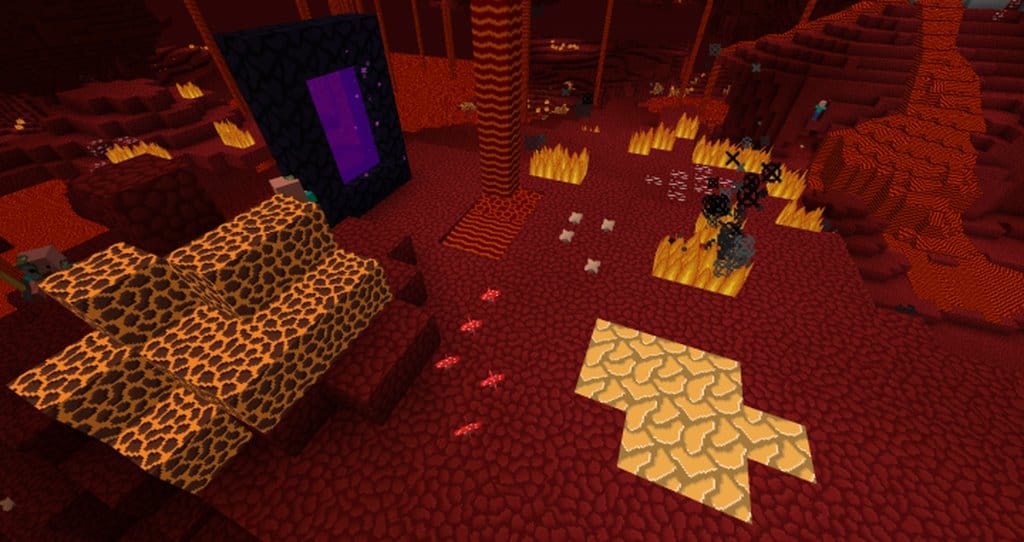
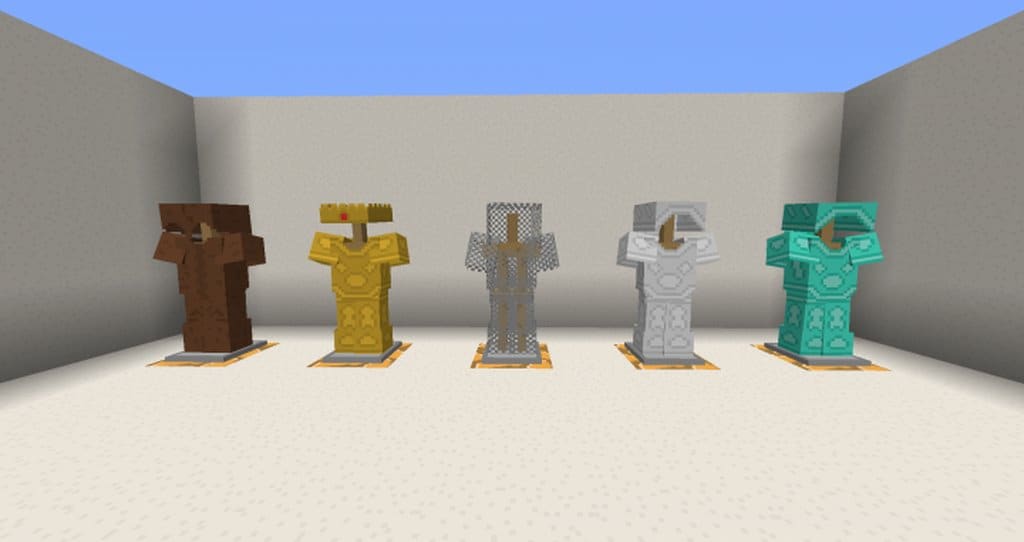
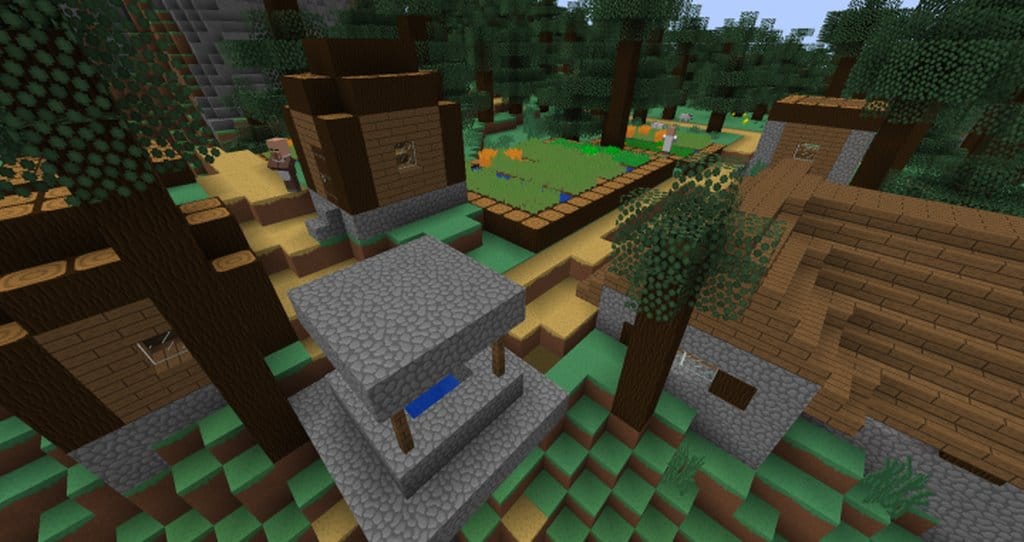
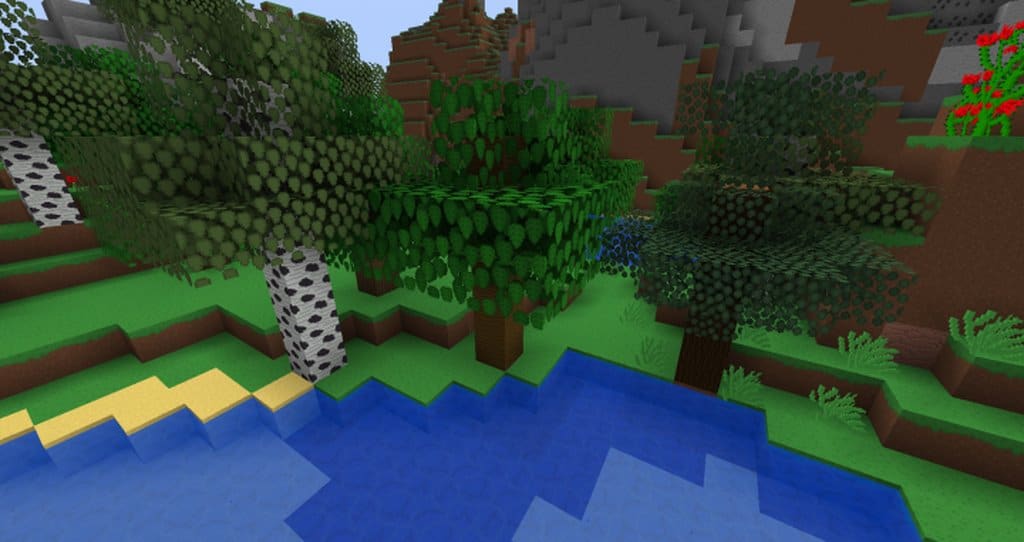
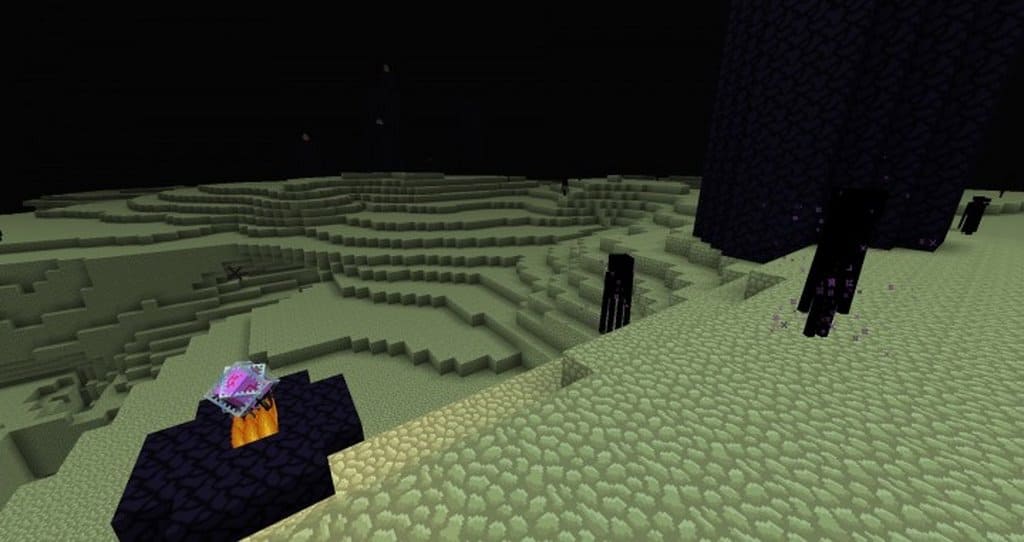
Even though Minecraft has been around for over a decade, it remains wildly popular today. Part of this longevity comes from constant updates and trusty resource packs that completely refresh the visual atmosphere. Changing up the scenery makes the game feel brand new, inspiring you to dive back in and play even more. The Vis Mundus resource pack originally launched six years ago, which could easily cause compatibility issues with modern versions given how much the game has evolved. Thankfully, it has received continuous updates, keeping it fresh and fully adapted for modern gameplay. The creator has marked it as 100% complete, so if you have not experienced it yet, now is definitely the right time to jump in. Overall, it has a wonderfully pleasant aesthetic, making the game look notably smoother, which really stands out across the terrain and especially on the grass.
In my experience, this makes the world much easier on the eyes, delivering a far superior visual journey. You will also notice that all the plants are considerably brighter, causing them to truly pop and making distant foliage much easier to spot during your travels. If you love playing with mods, you are in luck because Vis Mundus offers built-in support for six popular mods: Buildcraft, Backpack, HungerOverhaul, Hats, Baubles, and EnchantingPlus. It is easily one of the finest packs you can pick up as a newer player, thanks to its stellar mod compatibility, clean yet gorgeous design, and the fact that it preserves the authentic feel of vanilla Minecraft. Many packs alter the visual style so drastically that it barely resembles Minecraft anymore—which is fine sometimes—but whenever you want a revamped look while still retaining that classic vibe, the Vis Mundus pack delivers precisely that.
Vis Mundus should be compatible with all of these Minecraft versions: 26.2 – 26.1.2 – 26.1.1 – 26.1 – 1.21.11 – 1.21.10 – 1.21.9 – 1.21.8 – 1.21.7 – 1.21.6 – 1.21.5 – 1.21.4 – 1.21.3 – 1.21.2 – 1.21.1 – 1.21 – 1.20.6 – 1.20.5 – 1.20.4 – 1.20.3 – 1.20.2 – 1.20.1 – 1.20 – 1.19.4 – 1.19.3 – 1.19.2 – 1.19.1 – 1.19 – 1.18.2 – 1.18.1 – 1.18 – 1.17.1 – 1.17 – 1.16.5 – 1.16.4 – 1.16.3 – 1.16.2 – 1.16.1 – 1.16 – 1.15.2 – 1.15.1 – 1.15 – 1.14.4 – 1.14.3 – 1.14.2 – 1.14 – 1.13.2 – 1.13.1 – 1.13 – 1.12.2 – 1.12 – 1.11.2 – 1.11 – 1.10.2 – 1.10 – 1.9.4 – 1.9 – 1.8.9 – 1.8.8 – 1.8.1 – 1.8.6 – 1.8
Screenshots
How to Install Texture Pack (Simple 10 Steps)
- Download OptiFine: Most of the texture packs and shaders need OptiFine. That’s why, first download and install OptiFine for the version of Minecraft you want to play.
- Download the Texture Pack: Get the texture pack you want from the download section. Choose the version that works with your Minecraft and your PC’s performance.
- Open Minecraft Launcher: Start Minecraft using the official game launcher — or even TLauncher, if you use that.
- Go to Options: From the main menu, click on the “Options” button.
- Open Resource Packs: Inside Options, click on “Resource Packs…”.
- Open the Resource Pack Folder: Click on “Open Resource Pack Folder” — this will open a folder named “resourcepacks”.
- Move the Pack File: Copy or move the .zip file you downloaded into that “resourcepacks” folder. (Don’t unzip the file — Minecraft uses it as-is!)
- Go Back and Refresh: Close the folder and click “Done”, then go back into “Resource Packs…” again.
- Activate the Pack: You’ll see the pack on the left side. Hover over it and click the arrow to move it to the right (active side).
Tip: If you get a message that the pack is for a different version, just click “Yes” — it usually works fine. - Click Done and Enjoy: Click “Done” again. Now your pack is ready to use in-game. It’s that easy!
Credits
Vis Mundus was created by LetsPlay2D. We do not claim ownership of this resource pack and do not host modified files on our servers. All rights remain with the original author. We strongly recommend visiting the official download links to support the creator and appreciate their hard work.
Download Links
Java Edition
- [32x] Minecraft 26.2.x – 26.1.x
- [32x] Minecraft 1.21.x
- [32x] Minecraft 1.20.6 – 1.20.2
- [32x] Minecraft 1.20.1 – 1.20
- [32x] Minecraft 1.19.x
- [32x] Minecraft 1.18.x
- [32x] Minecraft 1.17.x
- [32x] Minecraft 1.16.x
- [32x] Minecraft 1.15.x
- [32x] Minecraft 1.14.x
- [32x] Minecraft 1.13.x
- [32x] Minecraft 1.12.x
- [32x] Minecraft 1.11.x
- [32x] Minecraft 1.10.x
- [32x] Minecraft 1.9.x
- [32x] Minecraft 1.8.x
Download Instructions
Curseforge: download starts automatically after a few seconds;
Mediafire: click the big blue button with the text “DOWNLOAD”;
Google Drive: in the top right corner you will see a small download icon (down arrow), click it and the download should start;


