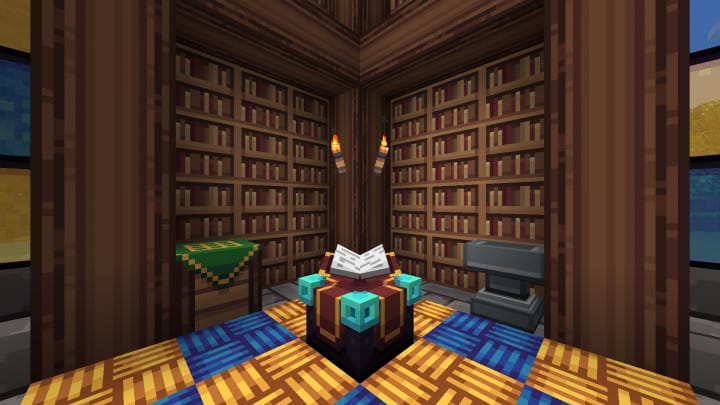
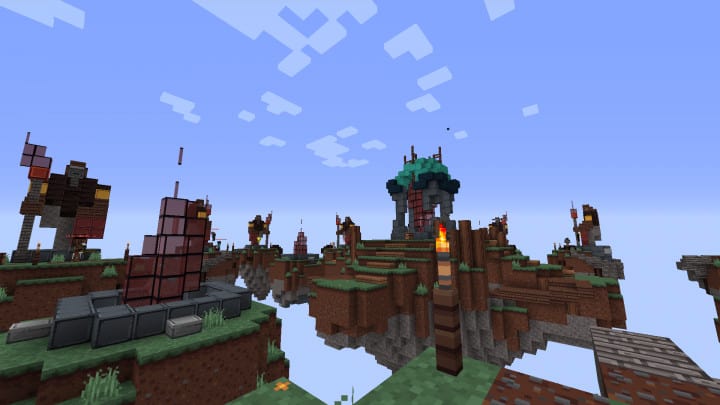
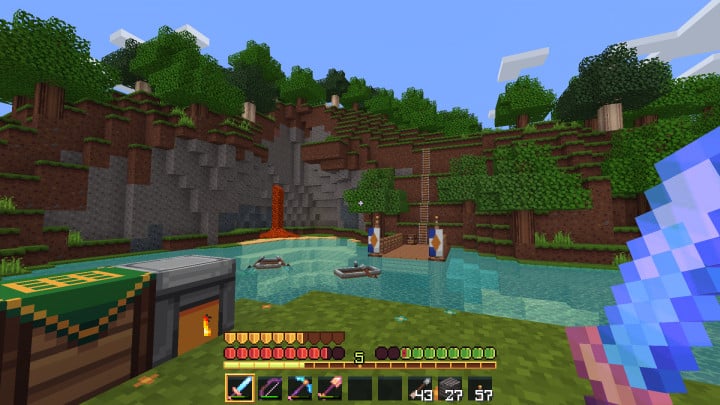
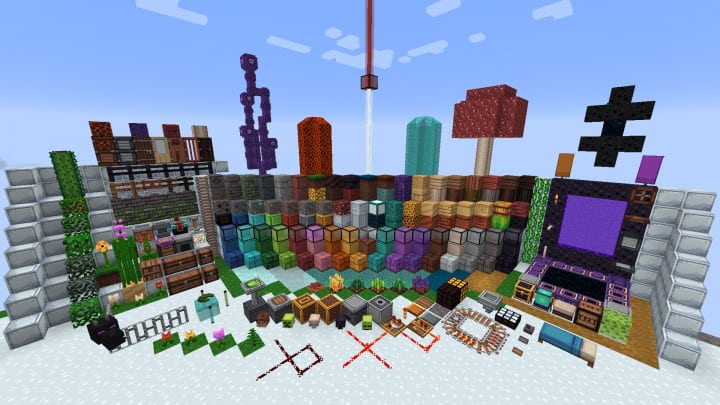
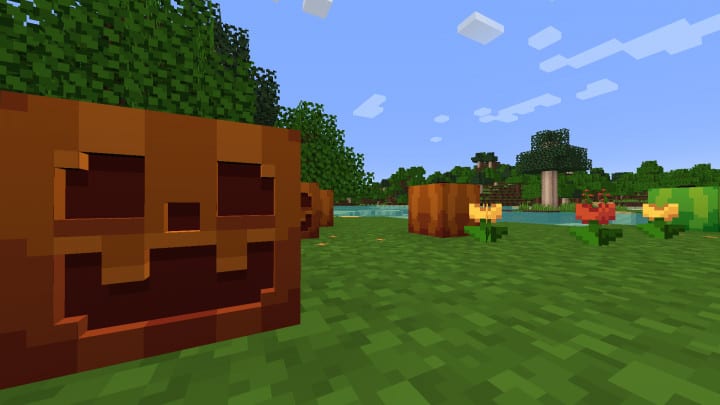
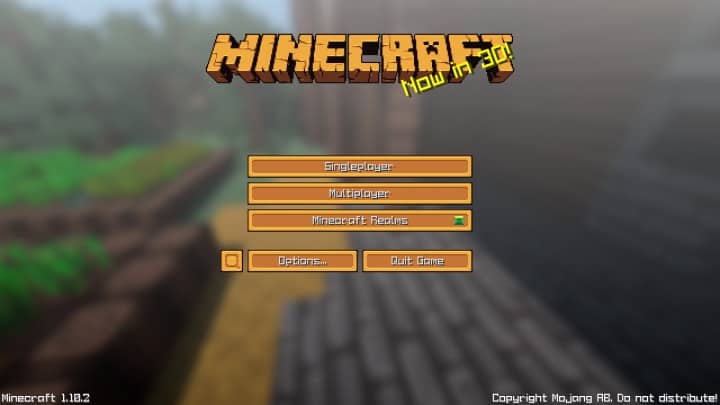
The Ventura resource pack can honestly be described as an absolute must-have replacement for default Minecraft due to its wonderfully unique style. This low-resolution resource pack is heavily preferred by so many players out there because it is truly visually appealing to the eye. Apart from being genuinely adventurous and stunning to look at, the Ventura pack is proudly presented in a wonderfully simple style. The resource pack is thoughtfully built to feature a simple, bright, and adventurous theme. However, that does not mean that the Vanilla Minecraft visuals are not appealing as well; it is only that default Minecraft simply does not have the intense charisma that is so vividly alive with Ventura. Default Minecraft textures just do not have that charming experience to truly make users feel more lively. On the contrary, the Ventura resource pack features remarkably bright and appealing textures which, together with the brilliant overall design of the pack, add so much more life and charisma to the game. This resource pack has clearly been developed with one main thing in mind: to provide every user with a refreshing and captivating experience that you will fall in love with.
The Ventura resource pack is uniquely designed to feature incredible vibrancy and energy. Unlike other resource packs that tend to exaggerate things purely in the name of adding brightness and colorfulness, the Ventura pack is wonderfully different. It expertly balances simplicity and vibrancy, making it endlessly visually appealing to the eye. The Ventura resource pack stands out from the rest because, unlike other packs that are built to implement overly complex and detailed textures, Ventura features a classic 16×16 pixel resolution which works seamlessly and perfectly with the entire pack. Because of this low resolution, players are fully assured to run the pack smoothly without ever having to worry about annoying frame-rate drops or any technical performance issues at all. Best of all, the Ventura resource pack is still being actively worked on and improved, and while it hasn’t reached final completion yet, the vast majority of this amazing work is already done and ready for you to enjoy right now.
Ventura should be compatible with all of these Minecraft versions: 1.12.2 – 1.12 – 1.11.2 – 1.11 – 1.10.2 – 1.10 – 1.9.4 – 1.9 – 1.8.9 – 1.8.8 – 1.8.1 – 1.8.6 – 1.8
Screenshots
How to Install Texture Pack (Simple 10 Steps)
- Download OptiFine: Most of the texture packs and shaders need OptiFine. That’s why, first download and install OptiFine for the version of Minecraft you want to play.
- Download the Texture Pack: Get the texture pack you want from the download section. Choose the version that works with your Minecraft and your PC’s performance.
- Open Minecraft Launcher: Start Minecraft using the official game launcher — or even TLauncher, if you use that.
- Go to Options: From the main menu, click on the “Options” button.
- Open Resource Packs: Inside Options, click on “Resource Packs…”.
- Open the Resource Pack Folder: Click on “Open Resource Pack Folder” — this will open a folder named “resourcepacks”.
- Move the Pack File: Copy or move the .zip file you downloaded into that “resourcepacks” folder. (Don’t unzip the file — Minecraft uses it as-is!)
- Go Back and Refresh: Close the folder and click “Done”, then go back into “Resource Packs…” again.
- Activate the Pack: You’ll see the pack on the left side. Hover over it and click the arrow to move it to the right (active side).
Tip: If you get a message that the pack is for a different version, just click “Yes” — it usually works fine. - Click Done and Enjoy: Click “Done” again. Now your pack is ready to use in-game. It’s that easy!
Credits
This resource pack was originally created by Irish. We do not claim ownership of this content, nor do we host modified files on our servers. All rights and intellectual property remain with the original creator. We strongly encourage you to support Irish by downloading the pack from the official sources provided.
Download Instructions
Curseforge: download starts automatically after a few seconds;
Mediafire: click the big blue button with the text “DOWNLOAD”;
Google Drive: in the top right corner you will see a small download icon (down arrow), click it and the download should start;


