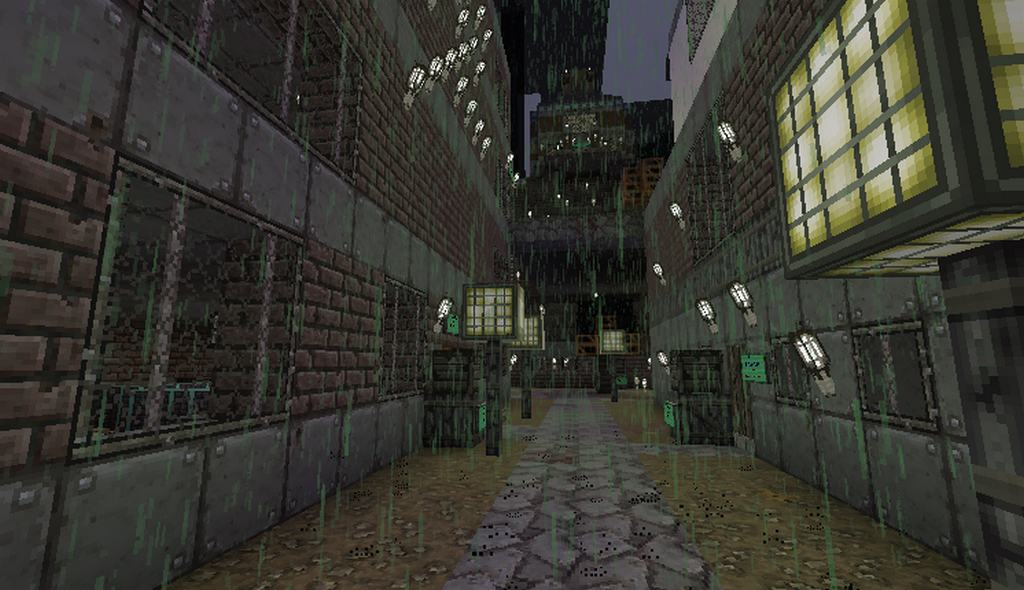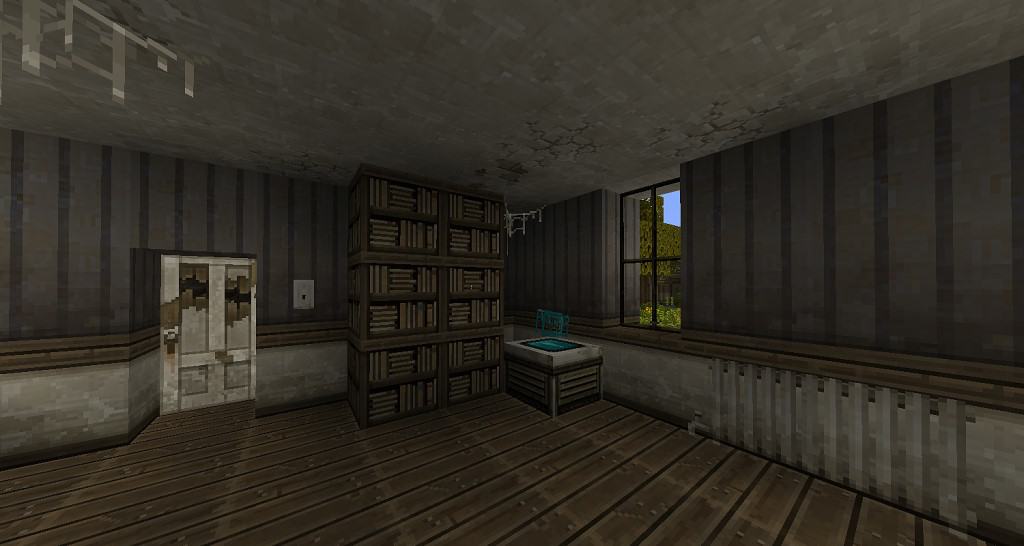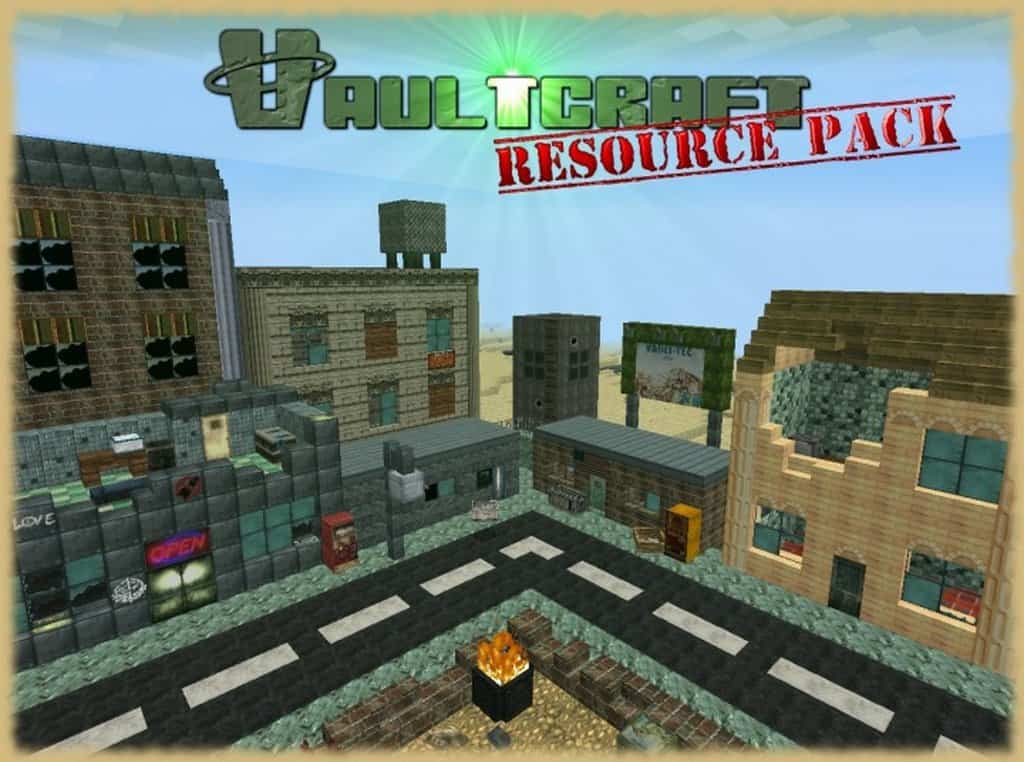
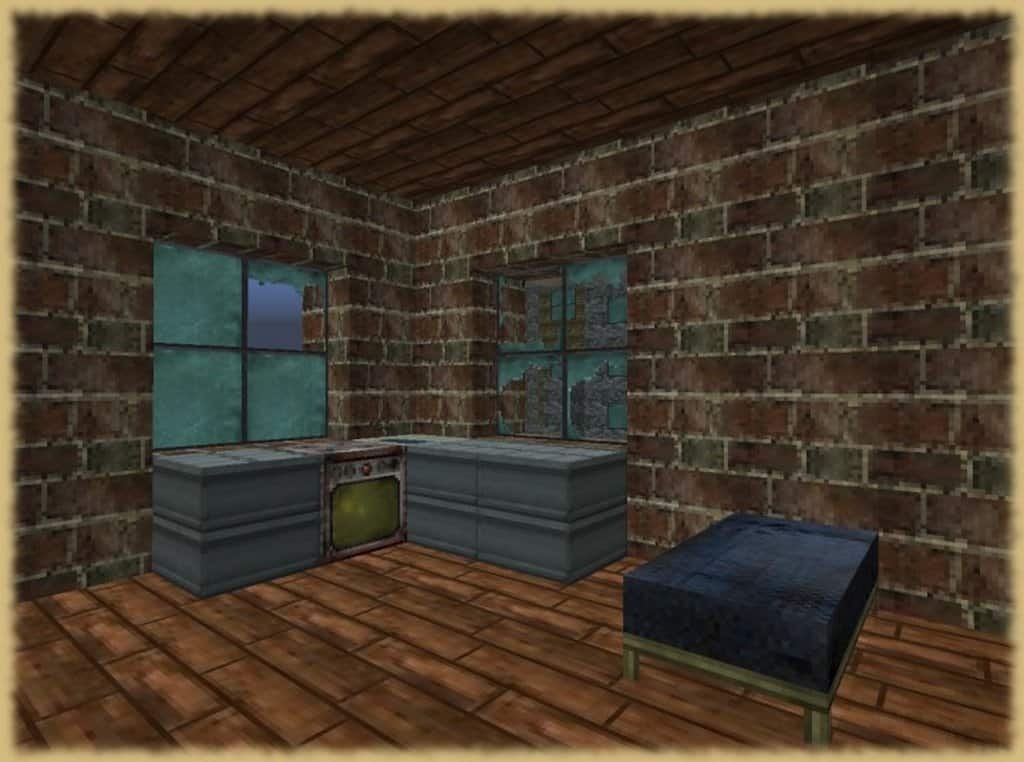
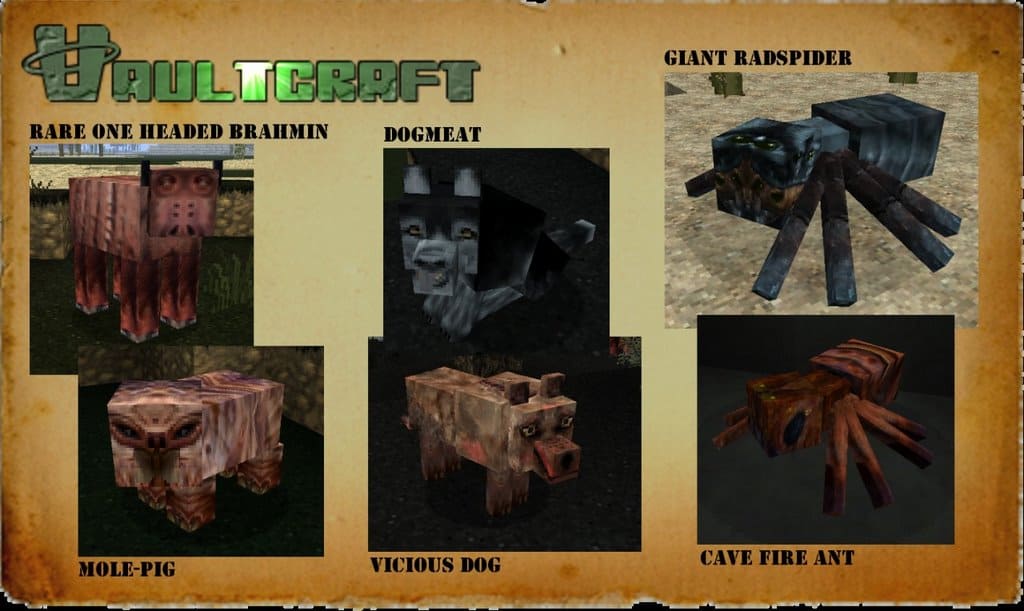
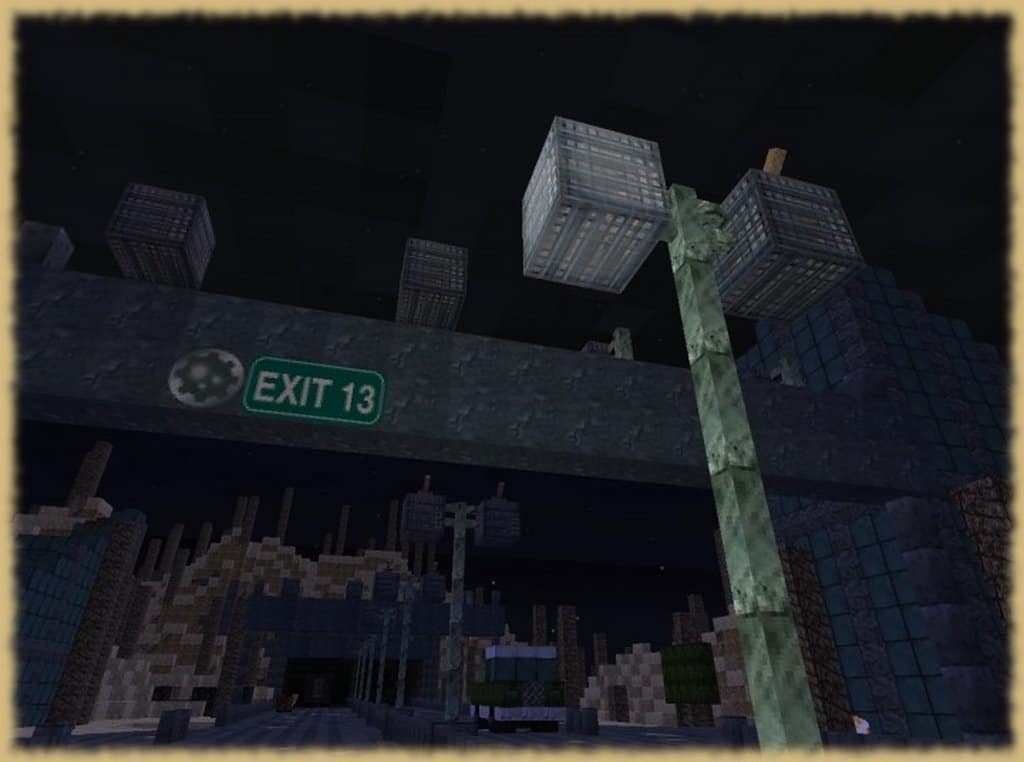
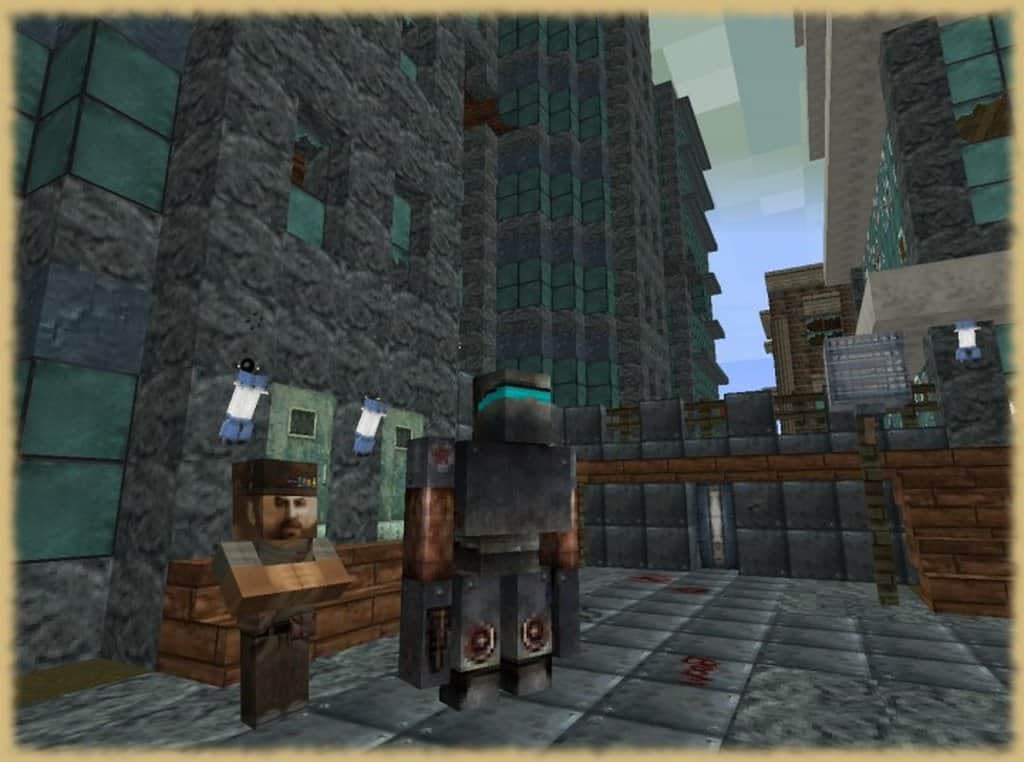
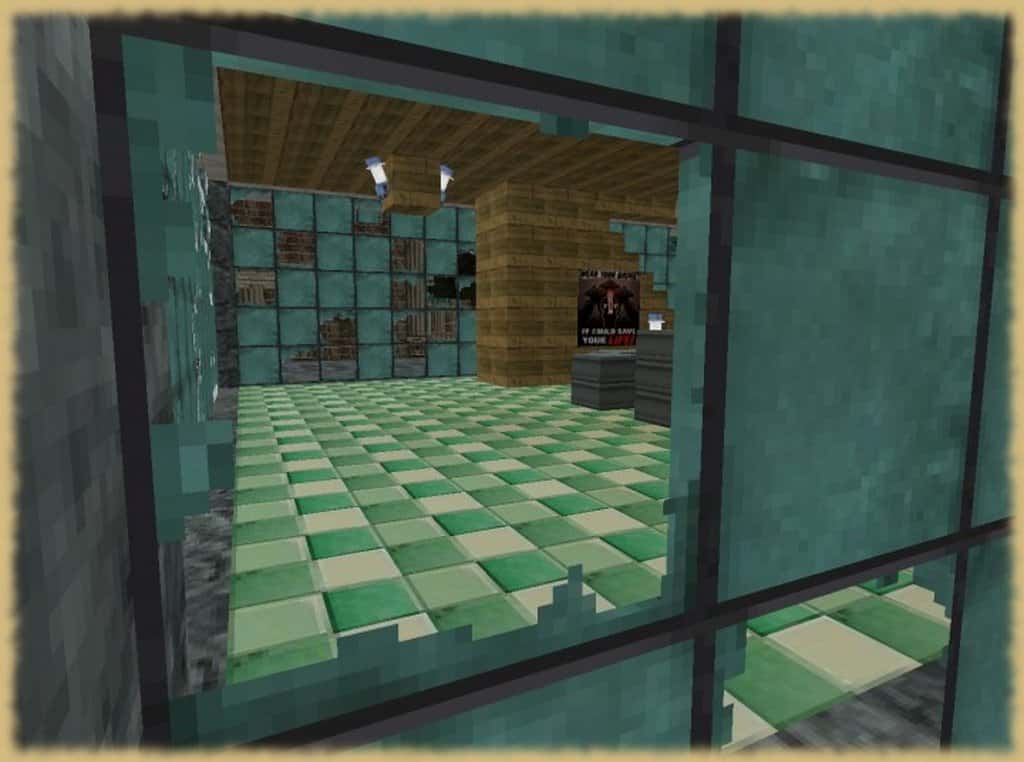
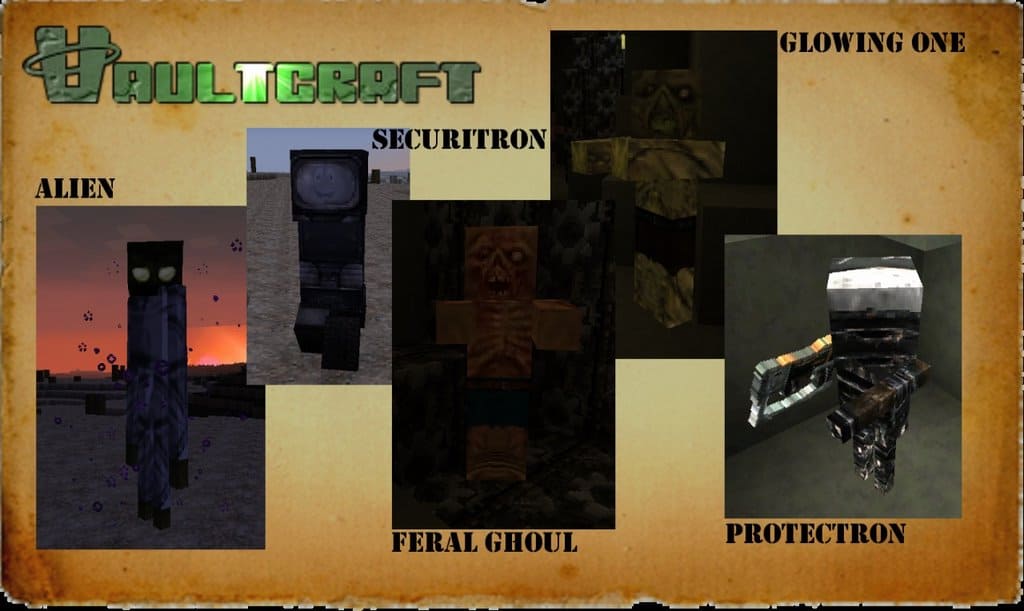
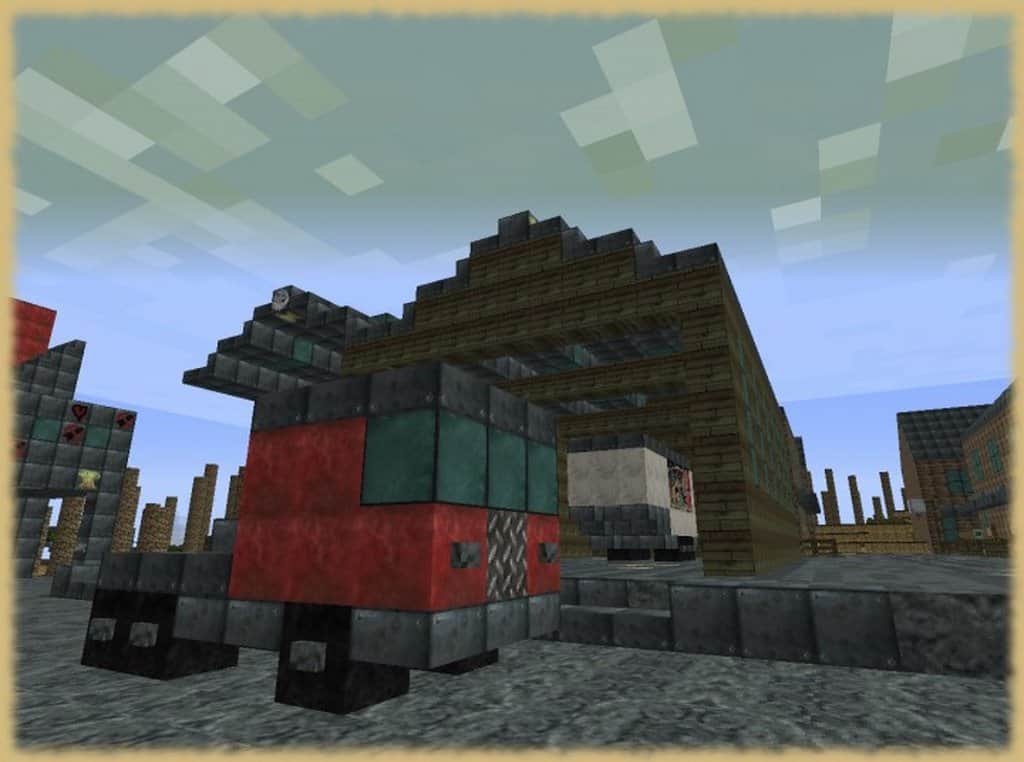
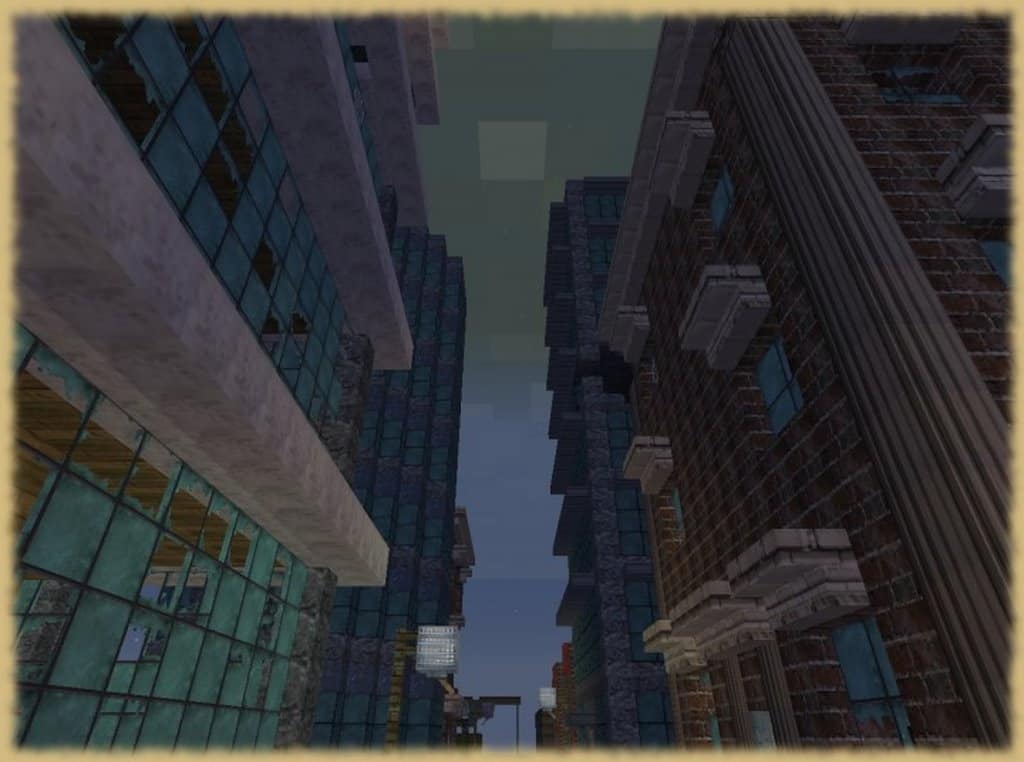
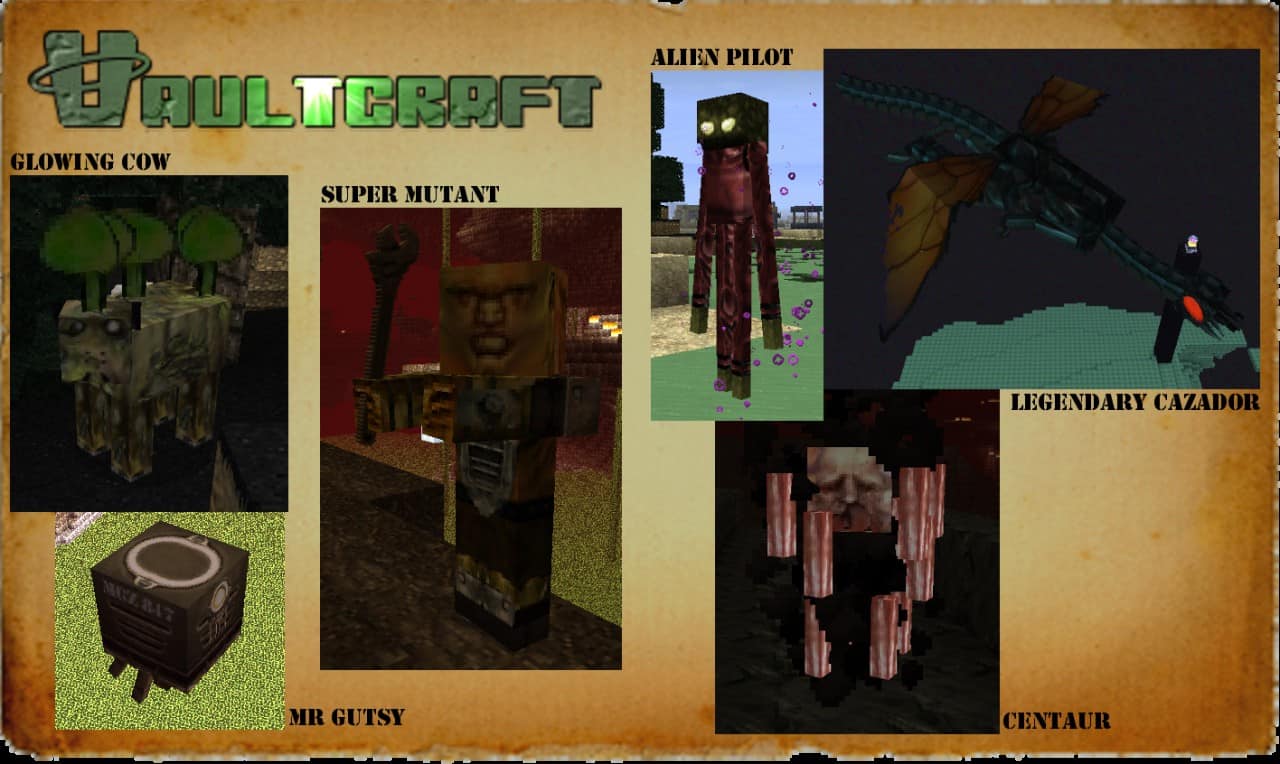
If you are a serious Minecraft player who is ready to upgrade your vanilla visuals, then I can definitely recommend checking out Vaultcraft as the resource pack for you. The Vaultcraft resource pack is also perfect if you happen to be a fan of the iconic Fallout series, as these visuals closely imitate the ones deployed in the games New Vegas and Fallout 3. I could really tell that countless hours of care and precision have gone into creating this stunning new resource pack, so you are sure to be blown away by the amazing textures just like I was. The textures are so lifelike that it is honestly kind of frightening in the best way possible. You will feel as if you can reach right into the screen and touch the quivering, realistic scenery! The lighting is a stark contrast from the bright visuals of standard vanilla Minecraft. Instead, you are treated to a dark ambiance and a sinister, post-apocalyptic world that successfully echoes the iconic Fallout style. I found the textures to be wonderfully free of noise, extremely well detailed, and full of dark shades that make the gameplay completely immersive.Die-hard Fallout fans are going to absolutely fall in love with the way Vaultcraft brings the twisted ambiance of Fallout back to your screen in a very successful replication. It will feel just like slipping back into your favorite Fallout game, except with all the great features you have come to know and love about Minecraft. The 32×32 resolution ensures you won’t encounter any annoying problems while running the resource pack. This resolution keeps your gaming experience as smooth and seamless as possible, without any of those pesky frame-rate issues getting in the way. Clunky graphics can totally hinder an otherwise immersive gaming experience, so having smooth graphics is crucial for serious players like us. If you are interested in combining the hottest features of both Fallout-style video games and your beloved Minecraft world, then I think the Vaultcraft texture pack is definitely for you. The dark atmosphere, clean graphics, and mind-boggling textures will easily keep you occupied for hours and hours of fun.
Vaultcraft should be compatible with all of these Minecraft versions: 1.8.9 – 1.8.8 – 1.8.1 – 1.8.6 – 1.8 – 1.7.10 – 1.7.9 – 1.7.4 – 1.7 – 1.6.4 – 1.6.2
Screenshots
How to Install Texture Pack (Simple 10 Steps)
- Download OptiFine: Most of the texture packs and shaders need OptiFine. That’s why, first download and install OptiFine for the version of Minecraft you want to play.
- Download the Texture Pack: Get the texture pack you want from the download section. Choose the version that works with your Minecraft and your PC’s performance.
- Open Minecraft Launcher: Start Minecraft using the official game launcher — or even TLauncher, if you use that.
- Go to Options: From the main menu, click on the “Options” button.
- Open Resource Packs: Inside Options, click on “Resource Packs…”.
- Open the Resource Pack Folder: Click on “Open Resource Pack Folder” — this will open a folder named “resourcepacks”.
- Move the Pack File: Copy or move the .zip file you downloaded into that “resourcepacks” folder. (Don’t unzip the file — Minecraft uses it as-is!)
- Go Back and Refresh: Close the folder and click “Done”, then go back into “Resource Packs…” again.
- Activate the Pack: You’ll see the pack on the left side. Hover over it and click the arrow to move it to the right (active side).
Tip: If you get a message that the pack is for a different version, just click “Yes” — it usually works fine. - Click Done and Enjoy: Click “Done” again. Now your pack is ready to use in-game. It’s that easy!
Credits
Vaultcraft is created by Mjameshayter. All rights, intellectual property, and original assets belong strictly to the original author. We do not claim ownership of this content, nor do we host modified versions of these files. We strongly encourage all users to support the creator by downloading the files exclusively through the official links provided below.
Download Instructions
Curseforge: download starts automatically after a few seconds;
Mediafire: click the big blue button with the text “DOWNLOAD”;
Google Drive: in the top right corner you will see a small download icon (down arrow), click it and the download should start;