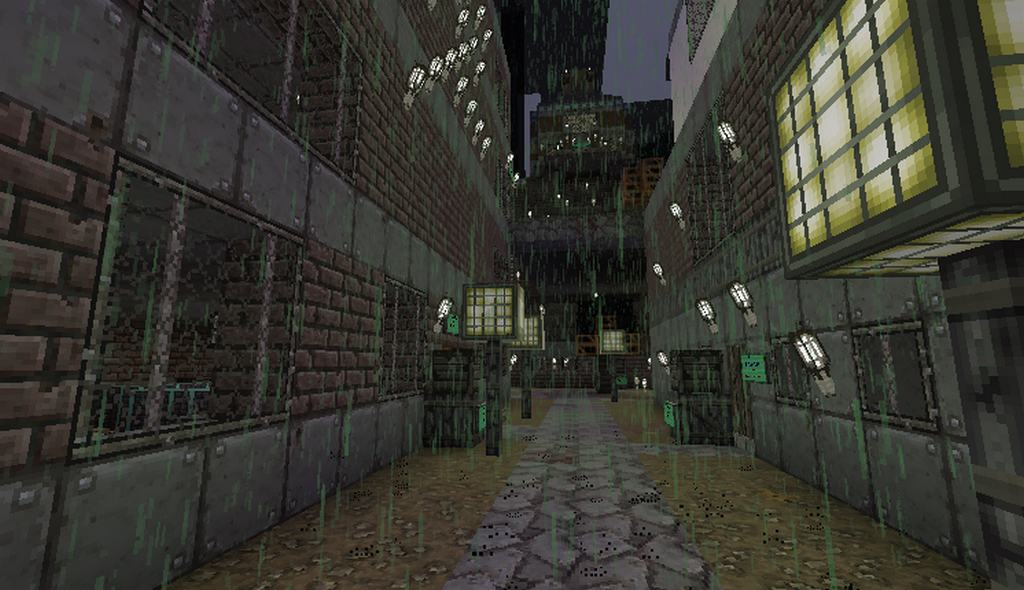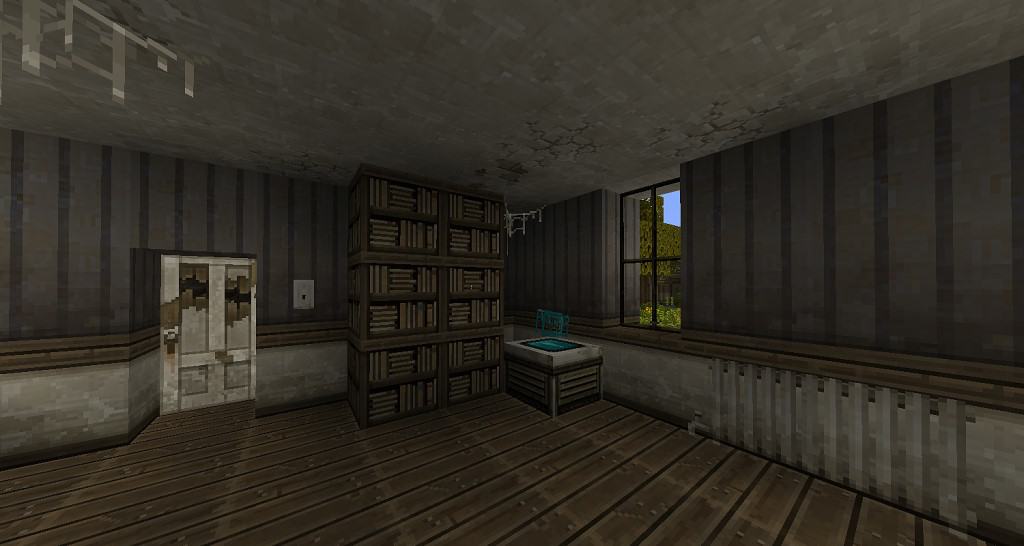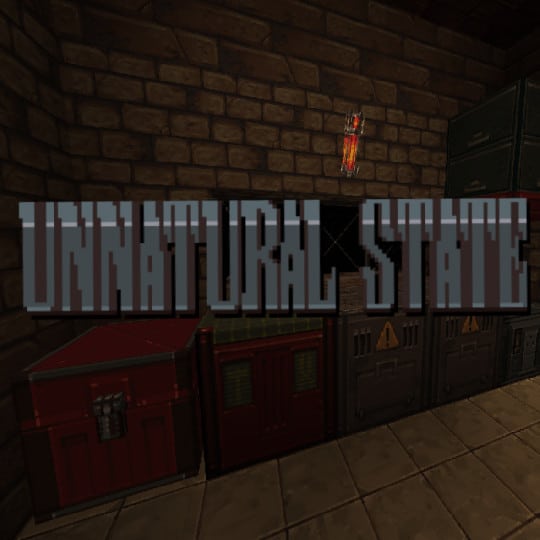
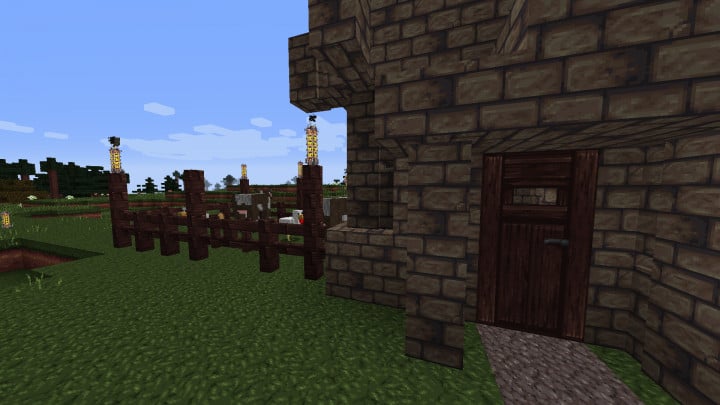
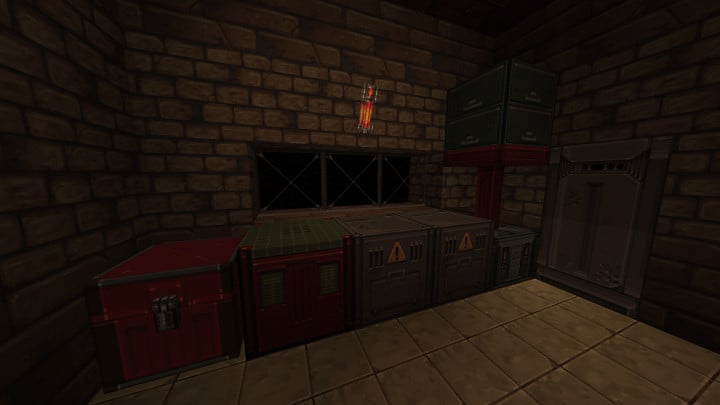
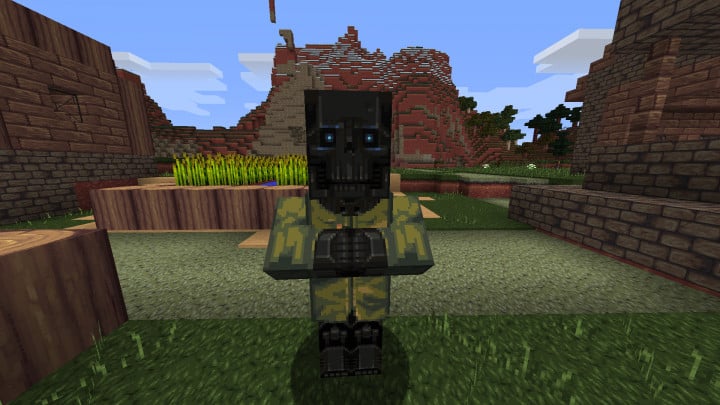
We recently had the absolute pleasure of trying out the latest resource pack for Minecraft called Unnatural State, and it is honestly fantastic! Ever since it dropped, many players in the community have been calling it the best resource pack they have ever used. It is an amazing choice if you are looking to completely step away from standard vanilla gameplay. It offers a totally fresh experience that makes the world of Minecraft feel remarkably special. Most packs released in the past simply do not include the kinds of features you find in Unnatural State. Just by reading its name, you can already imagine how the Unnatural State resource pack turns everyday textures into something truly one-of-a-kind. It gives the entire game a wonderfully uncanny and surreal appearance. Even though this resource pack stands miles apart from other releases out there, it manages to craft some of the most flawless textures we have ever seen in Minecraft’s gameplay.
The Unnatural State Resource Pack does not lack synergy at all; in fact, Unnatural State skillfully ensures every single texture works harmoniously together. As a result, it delivers a much more dynamic, deeply engaging, and visually stunning gaming experience for everyone. One of the biggest differences that sets this resource pack apart from other texture releases is its moody, darker color palette. While it is completely normal for Minecraft packs to rely on bright, bold, and vivid colors to make textures pop, Unnatural State boldly takes the exact opposite route. All in all, it results in a wonderfully distinctive art style. The most fascinating part about this incredible resource pack is how it infuses a distinctly futuristic vibe into your world. Because it introduces such original textures, it looks drastically different from any previously released resource pack. Unnatural State has already gathered a massive amount of well-deserved positive feedback from the community since its launch. Every texture is crafted with incredible detail, extreme precision, and breathtaking visual sharpness.
Unnatural State should be compatible with all of these Minecraft versions: 1.17.1 – 1.17 – 1.16.5 – 1.16.4 – 1.16.3 – 1.16.2 – 1.16.1 – 1.16 – 1.15.2 – 1.15.1 – 1.15 – 1.14.4 – 1.14.3 – 1.14.2 – 1.14 – 1.13.2 – 1.13.1 – 1.13 – 1.12.2 – 1.12
Screenshots
How to Install Texture Pack (Simple 10 Steps)
- Download OptiFine: Most of the texture packs and shaders need OptiFine. That’s why, first download and install OptiFine for the version of Minecraft you want to play.
- Download the Texture Pack: Get the texture pack you want from the download section. Choose the version that works with your Minecraft and your PC’s performance.
- Open Minecraft Launcher: Start Minecraft using the official game launcher — or even TLauncher, if you use that.
- Go to Options: From the main menu, click on the “Options” button.
- Open Resource Packs: Inside Options, click on “Resource Packs…”.
- Open the Resource Pack Folder: Click on “Open Resource Pack Folder” — this will open a folder named “resourcepacks”.
- Move the Pack File: Copy or move the .zip file you downloaded into that “resourcepacks” folder. (Don’t unzip the file — Minecraft uses it as-is!)
- Go Back and Refresh: Close the folder and click “Done”, then go back into “Resource Packs…” again.
- Activate the Pack: You’ll see the pack on the left side. Hover over it and click the arrow to move it to the right (active side).
Tip: If you get a message that the pack is for a different version, just click “Yes” — it usually works fine. - Click Done and Enjoy: Click “Done” again. Now your pack is ready to use in-game. It’s that easy!
Credits
This resource pack was originally created and developed by FishyMint. We do not own, host, or claim any rights to this modification. All intellectual property, assets, and download files belong exclusively to the original creator. We strongly encourage you to support FishyMint by visiting their official download pages and showing appreciation for their hard work.
Download Links
Java Edition
Download Instructions
Curseforge: download starts automatically after a few seconds;
Mediafire: click the big blue button with the text “DOWNLOAD”;
Google Drive: in the top right corner you will see a small download icon (down arrow), click it and the download should start;