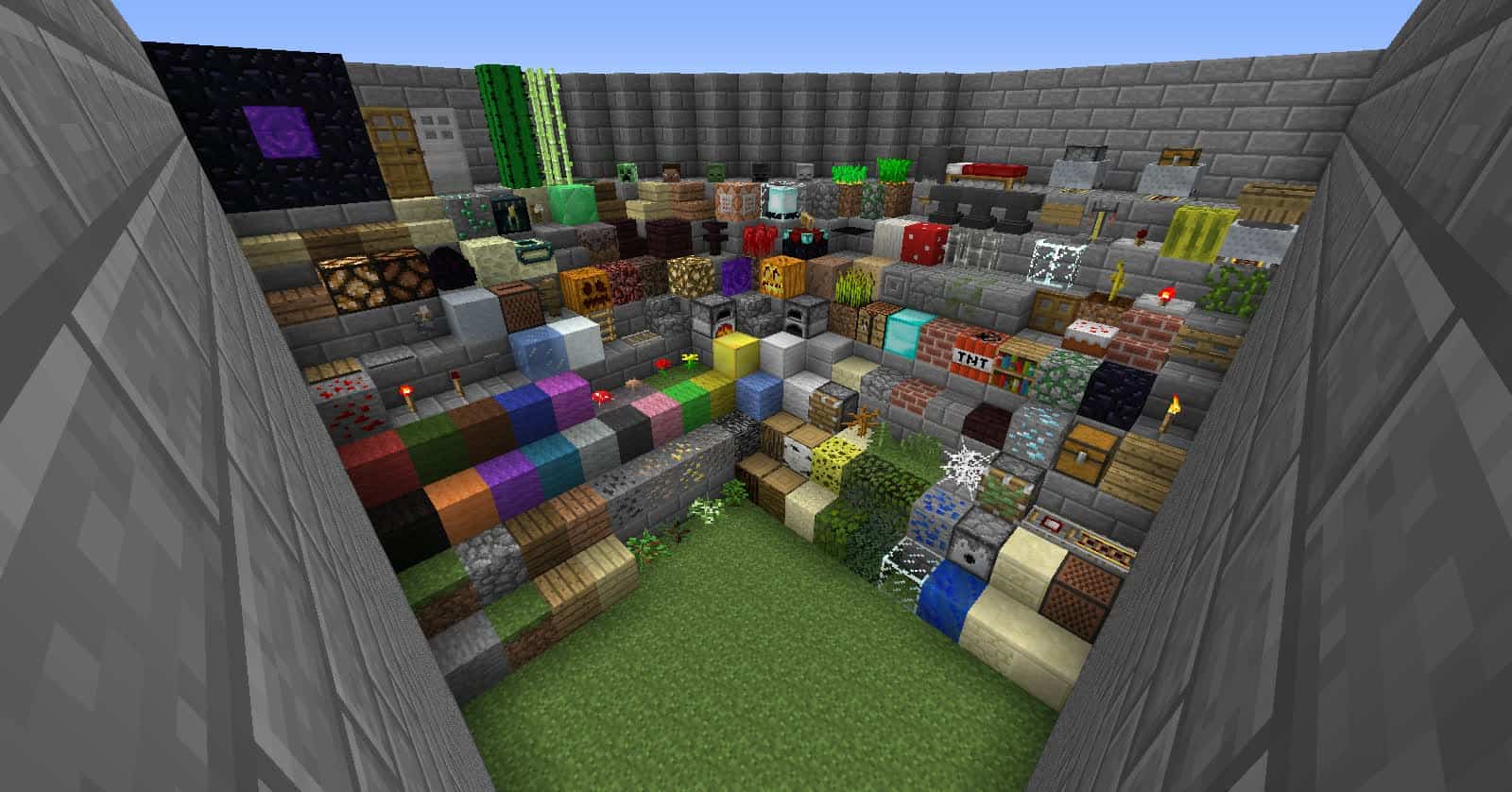
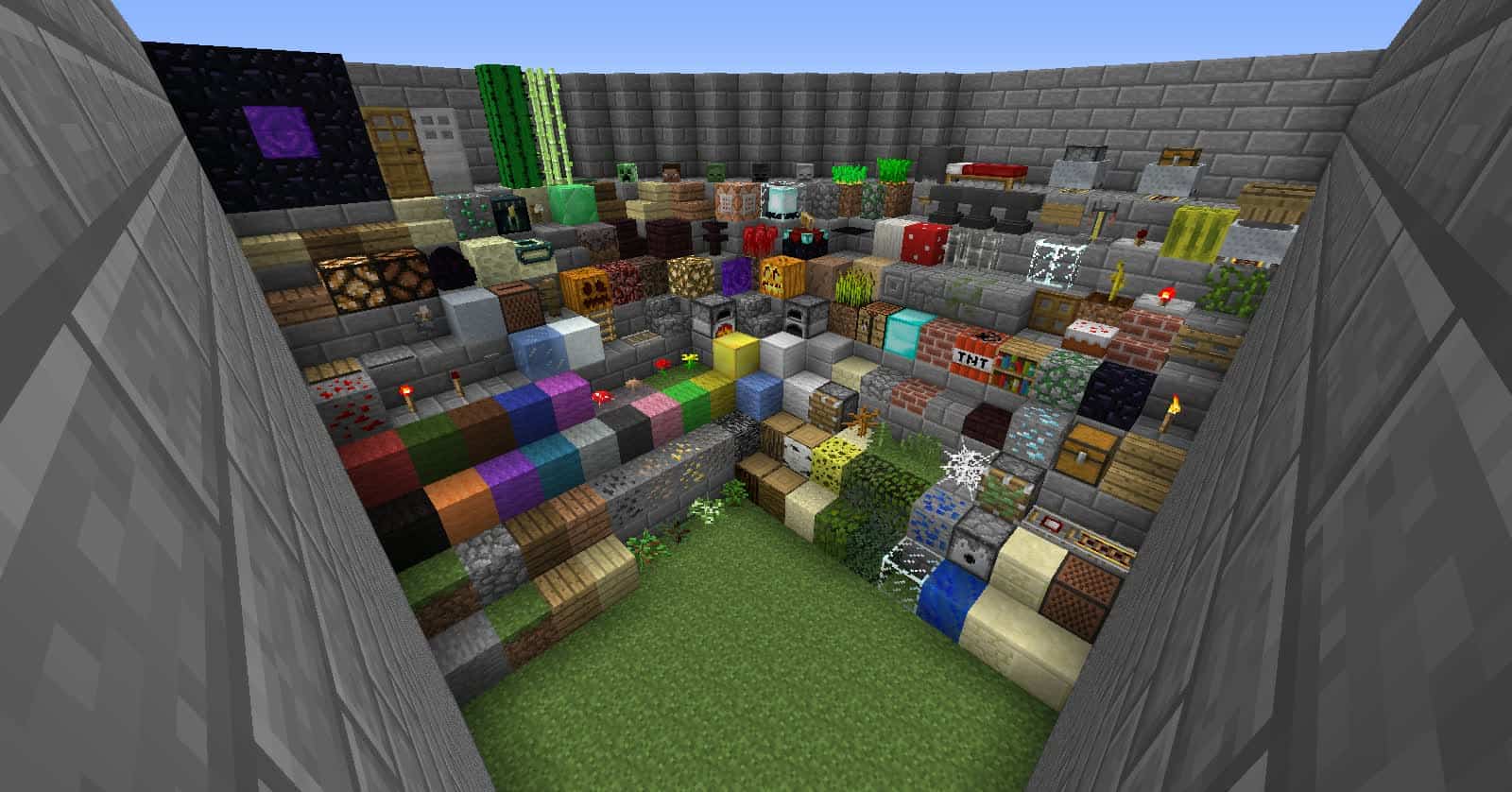
The Vanilla Animation resource pack, also fondly known as Vanimation, is definitely not a pack that completely overhauls the default block and item textures in Minecraft. Honestly, it does not even try to improve their core looks. It sticks entirely to a standard set of textures featuring a familiar resolution of 16×16. In other words, it functions just like a common Minecraft resource pack, but with one massive twist: it is completely animated! At first glance, most players will load it up and think no changes have occurred at all, but I assure you that is simply not the case once you start looking closer.
In fact, this fantastic resource pack contains one very important feature that made it so immensely popular among players—the fully animated textures! Now, almost every single item and element in the game features its own lively animation. The entire game world ends up looking much better and, I would say, noticeably more realistic in motion. The Vanimation project remains one of the most original and clever works of its era. Best of all, in terms of performance, Vanilla Animation runs exceptionally smooth, so you should be able to enjoy it without any issues whatsoever as long as your system can comfortably handle vanilla Minecraft.
Vanilla Animation (Vanimation) should be compatible with all of these Minecraft versions: 1.7.10 – 1.7.9 – 1.7.4 – 1.7 – 1.6.4 – 1.6.2 – 1.5.2
Screenshots
How to Install Texture Pack (Simple 10 Steps)
- Download OptiFine: Most of the texture packs and shaders need OptiFine. That’s why, first download and install OptiFine for the version of Minecraft you want to play.
- Download the Texture Pack: Get the texture pack you want from the download section. Choose the version that works with your Minecraft and your PC’s performance.
- Open Minecraft Launcher: Start Minecraft using the official game launcher — or even TLauncher, if you use that.
- Go to Options: From the main menu, click on the “Options” button.
- Open Resource Packs: Inside Options, click on “Resource Packs…”.
- Open the Resource Pack Folder: Click on “Open Resource Pack Folder” — this will open a folder named “resourcepacks”.
- Move the Pack File: Copy or move the .zip file you downloaded into that “resourcepacks” folder. (Don’t unzip the file — Minecraft uses it as-is!)
- Go Back and Refresh: Close the folder and click “Done”, then go back into “Resource Packs…” again.
- Activate the Pack: You’ll see the pack on the left side. Hover over it and click the arrow to move it to the right (active side).
Tip: If you get a message that the pack is for a different version, just click “Yes” — it usually works fine. - Click Done and Enjoy: Click “Done” again. Now your pack is ready to use in-game. It’s that easy!
Credits
This resource pack was created by GhostEcho. We do not claim ownership of this modification, nor do we host modified versions of the files. All rights and intellectual property belong strictly to the original author. We strongly encourage you to support GhostEcho by downloading the pack directly from their official release pages.
Download Instructions
Curseforge: download starts automatically after a few seconds;
Mediafire: click the big blue button with the text “DOWNLOAD”;
Google Drive: in the top right corner you will see a small download icon (down arrow), click it and the download should start;


