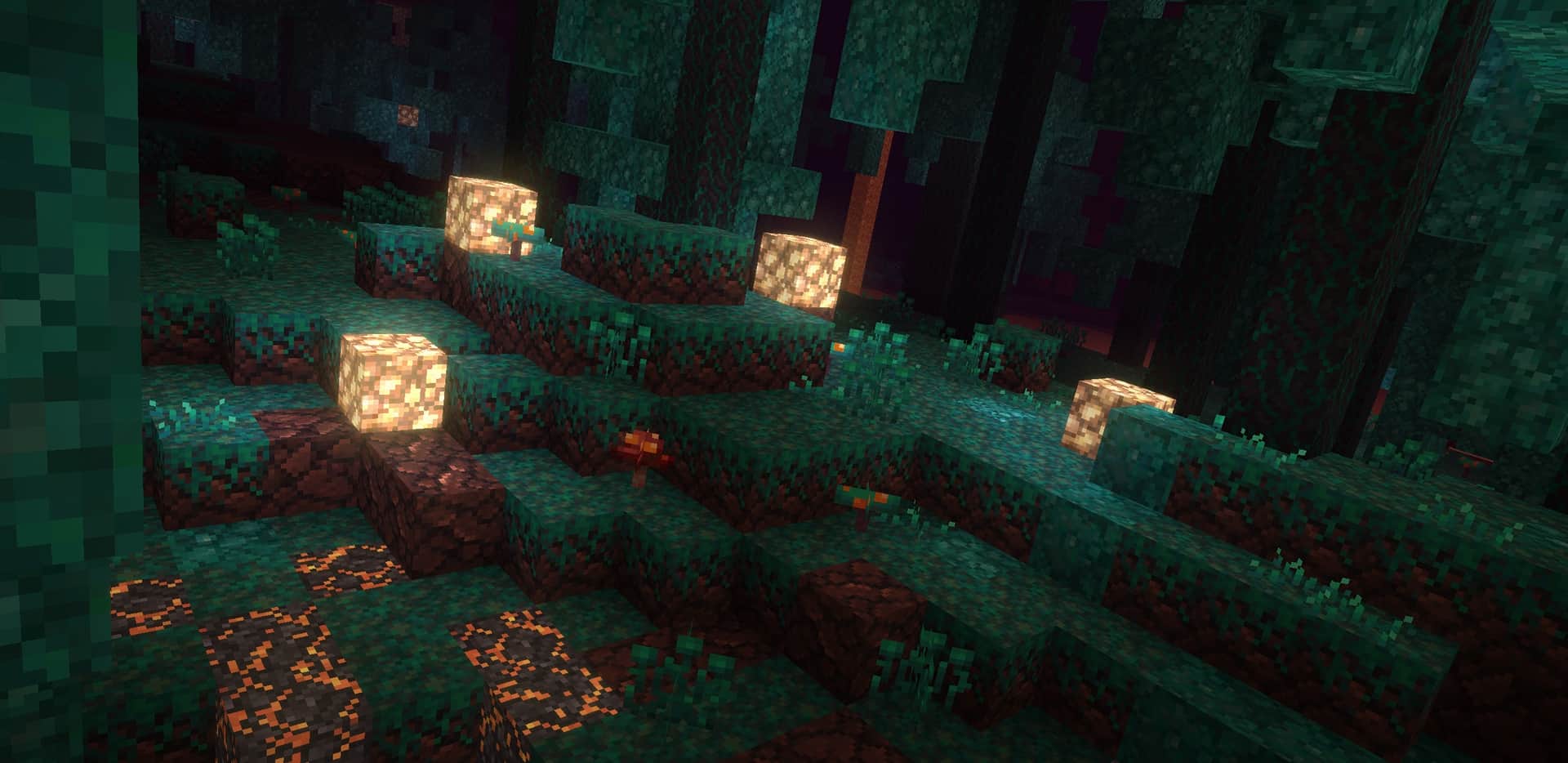
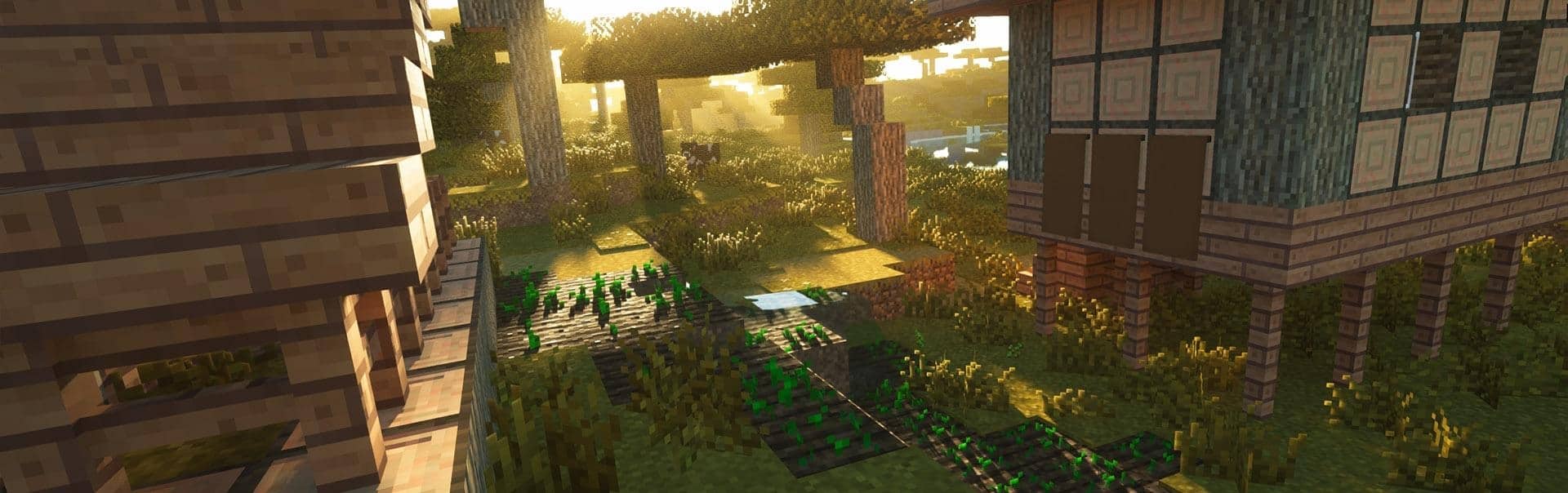
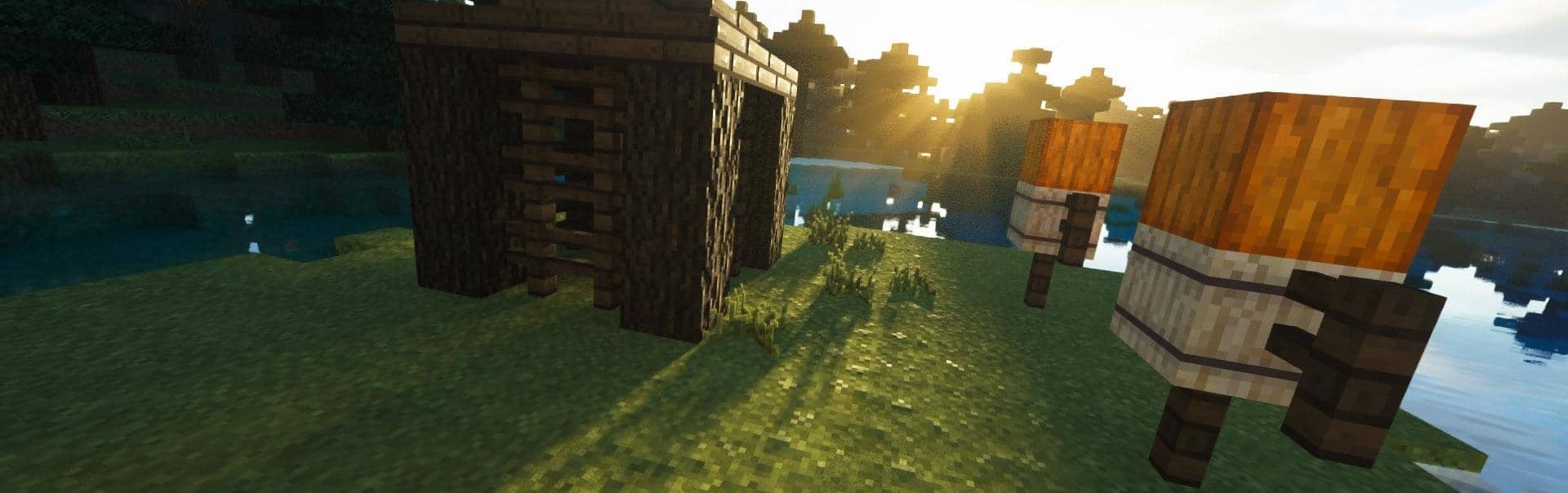
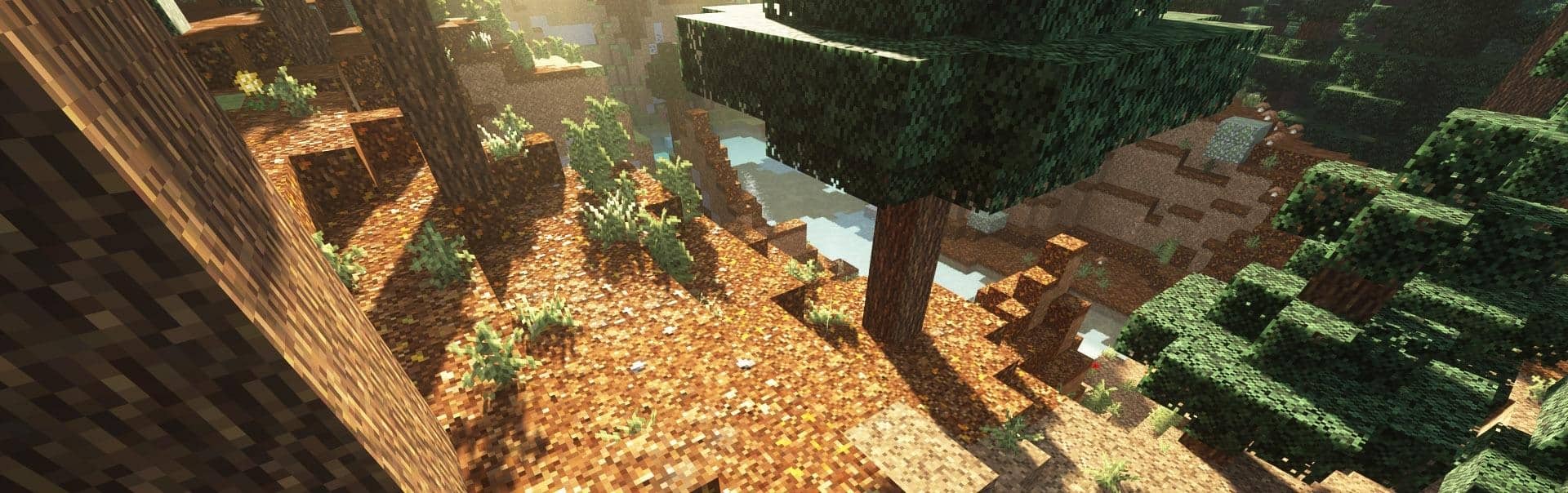
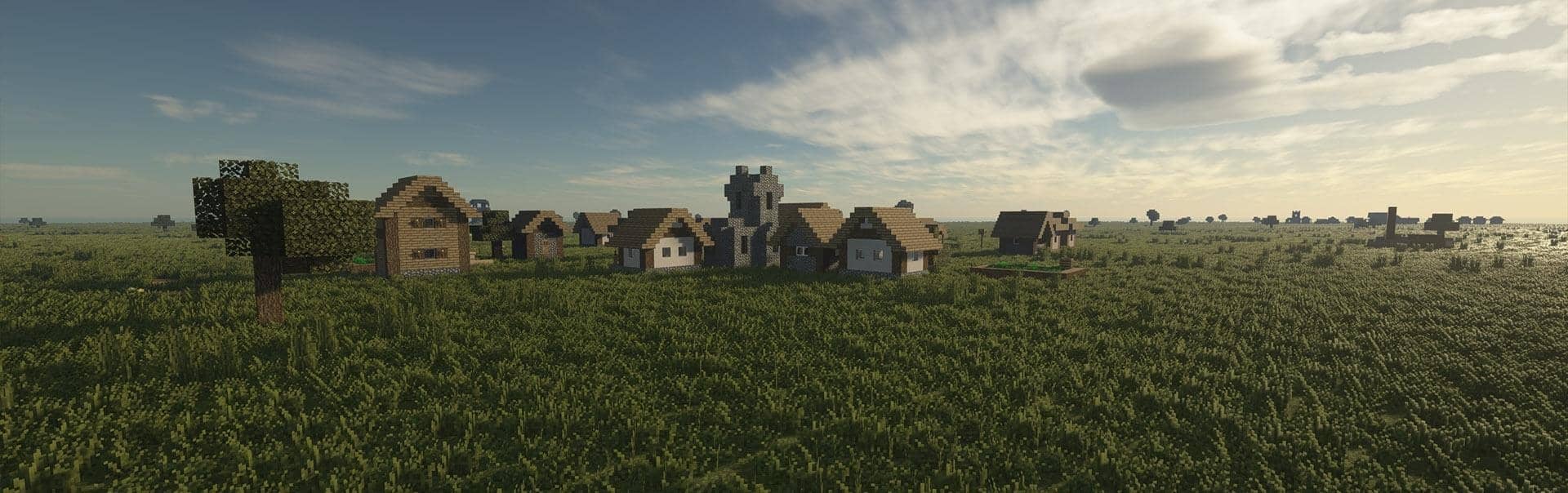
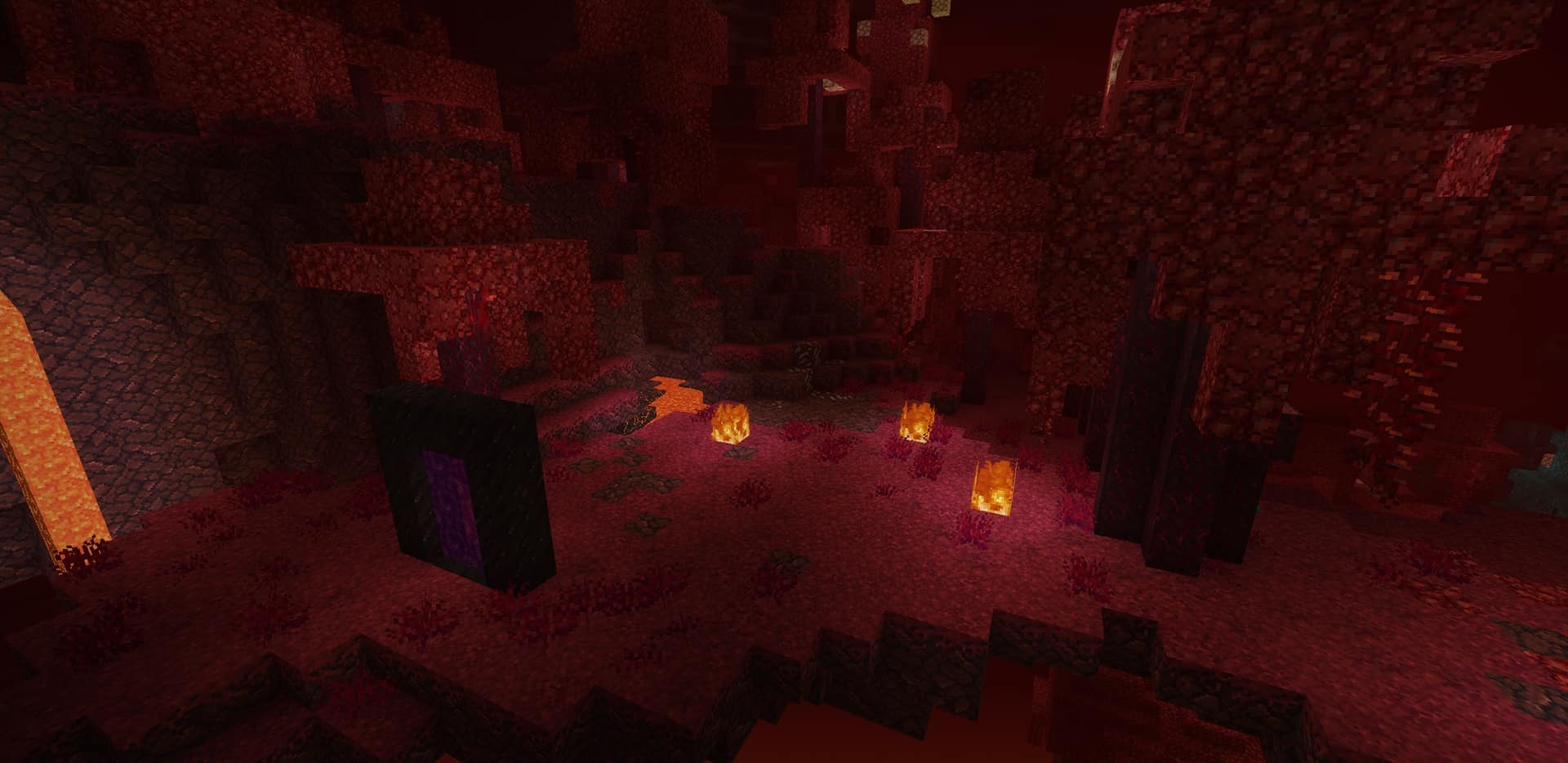
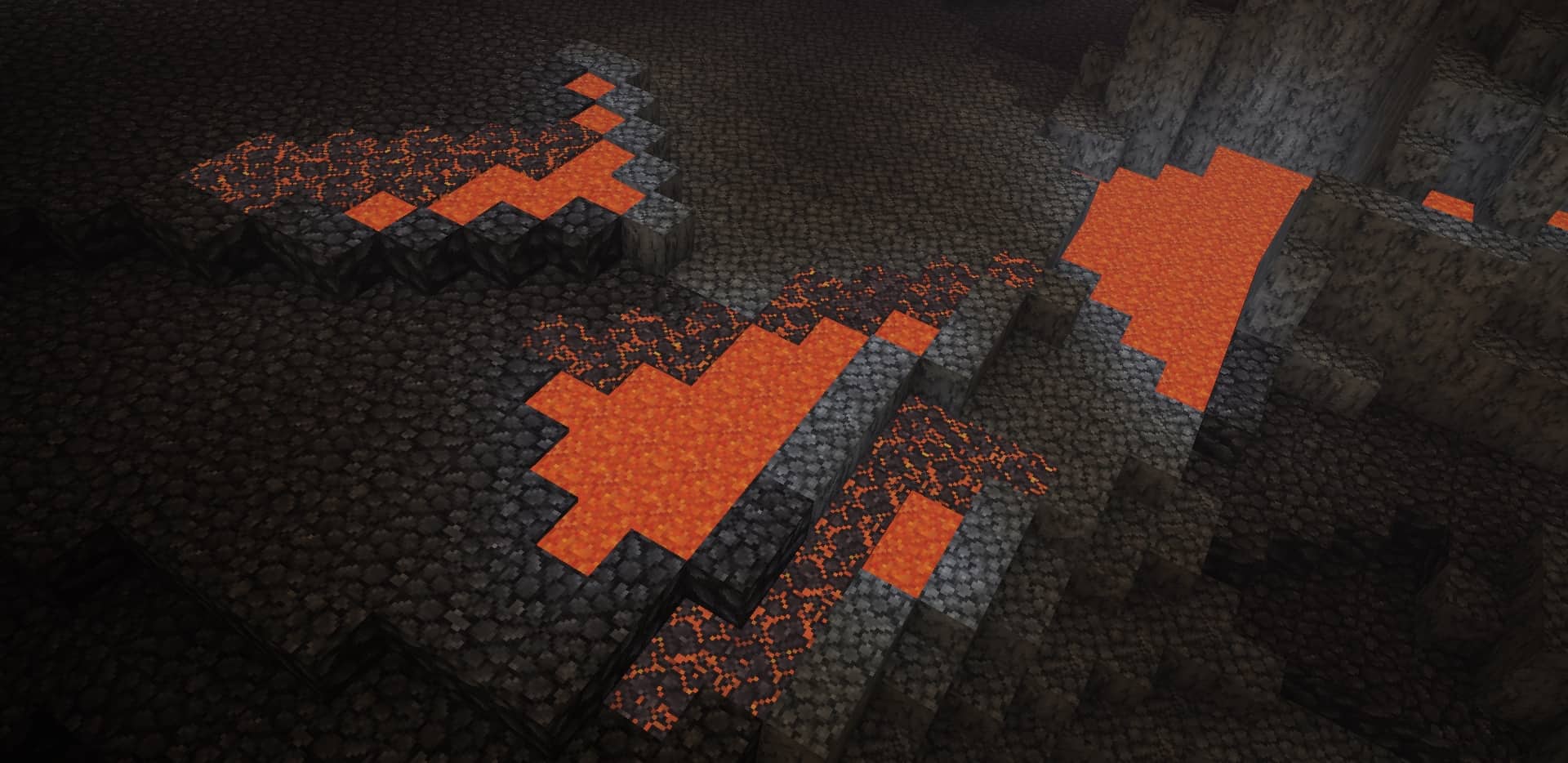
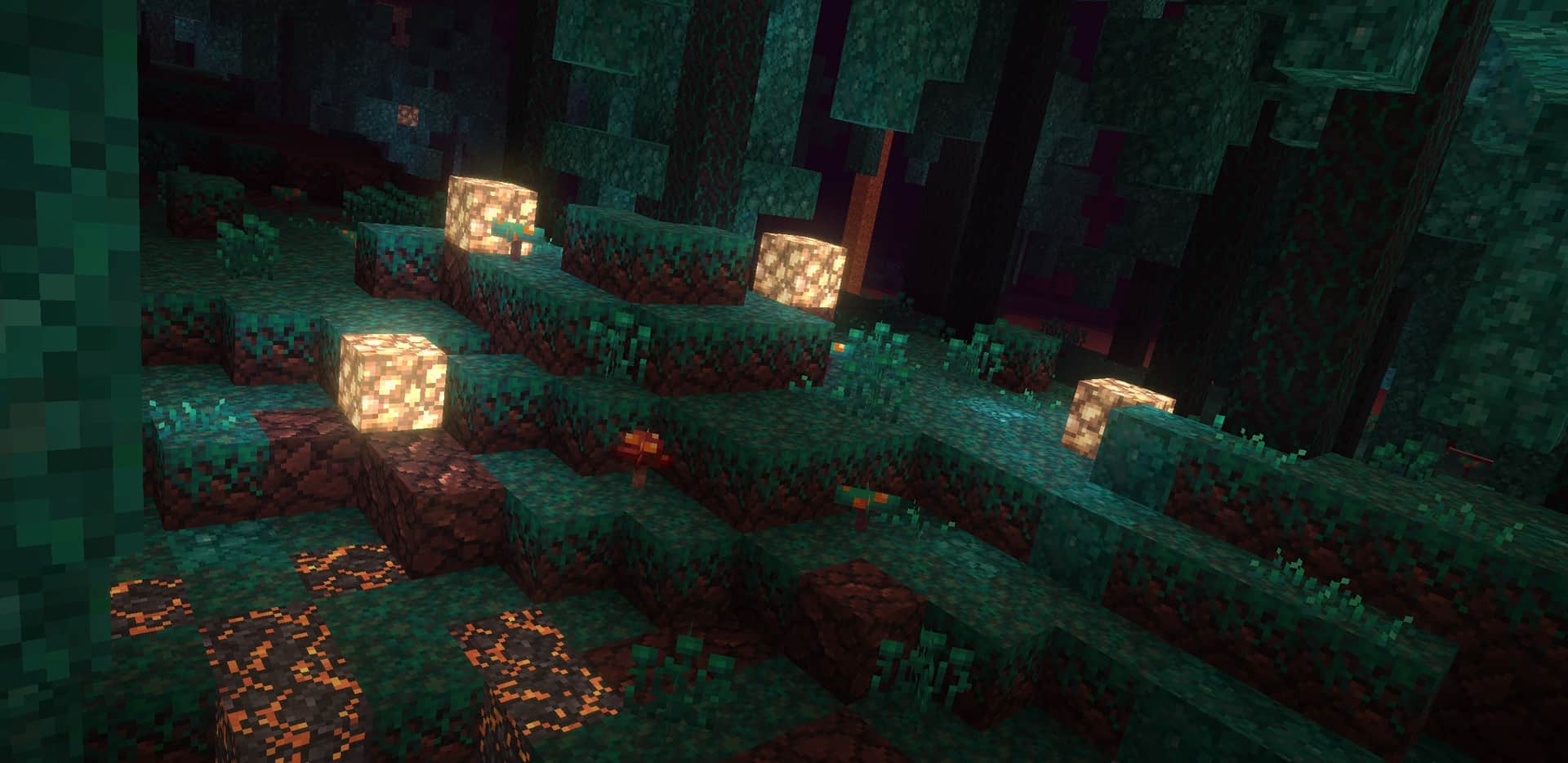
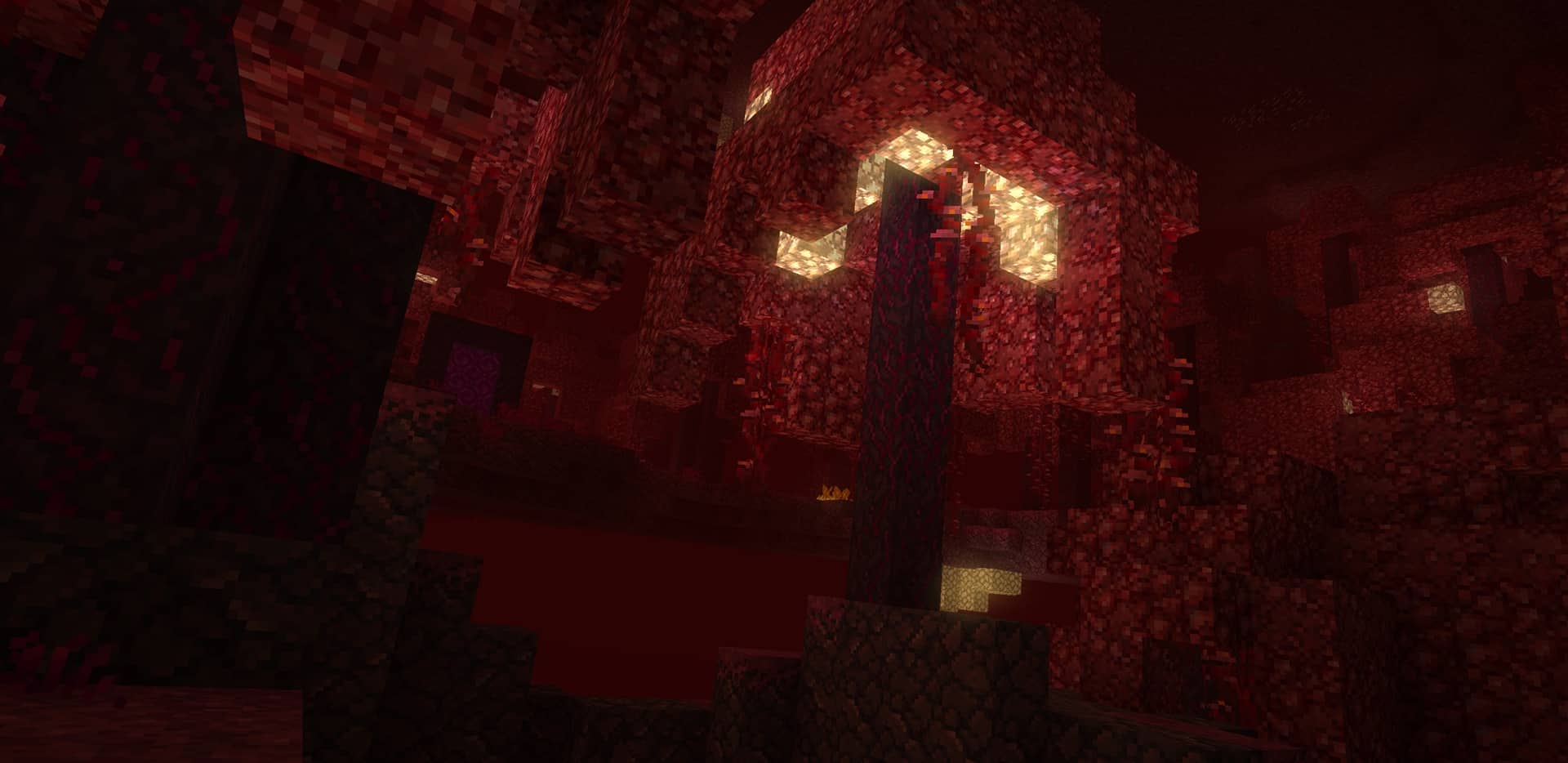
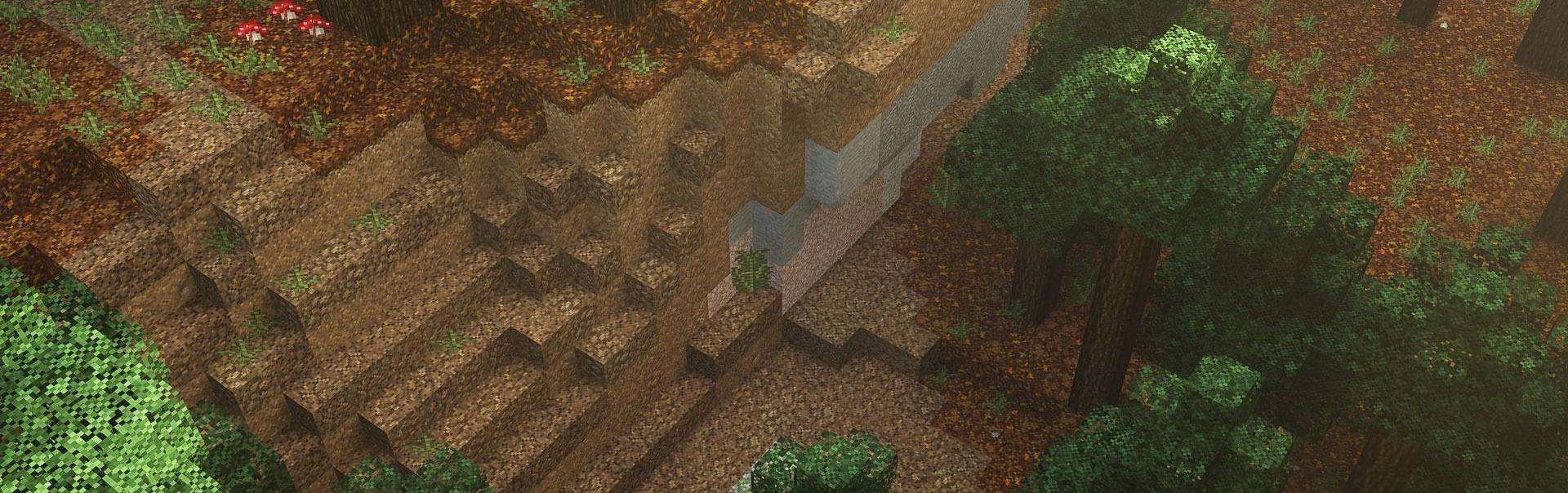
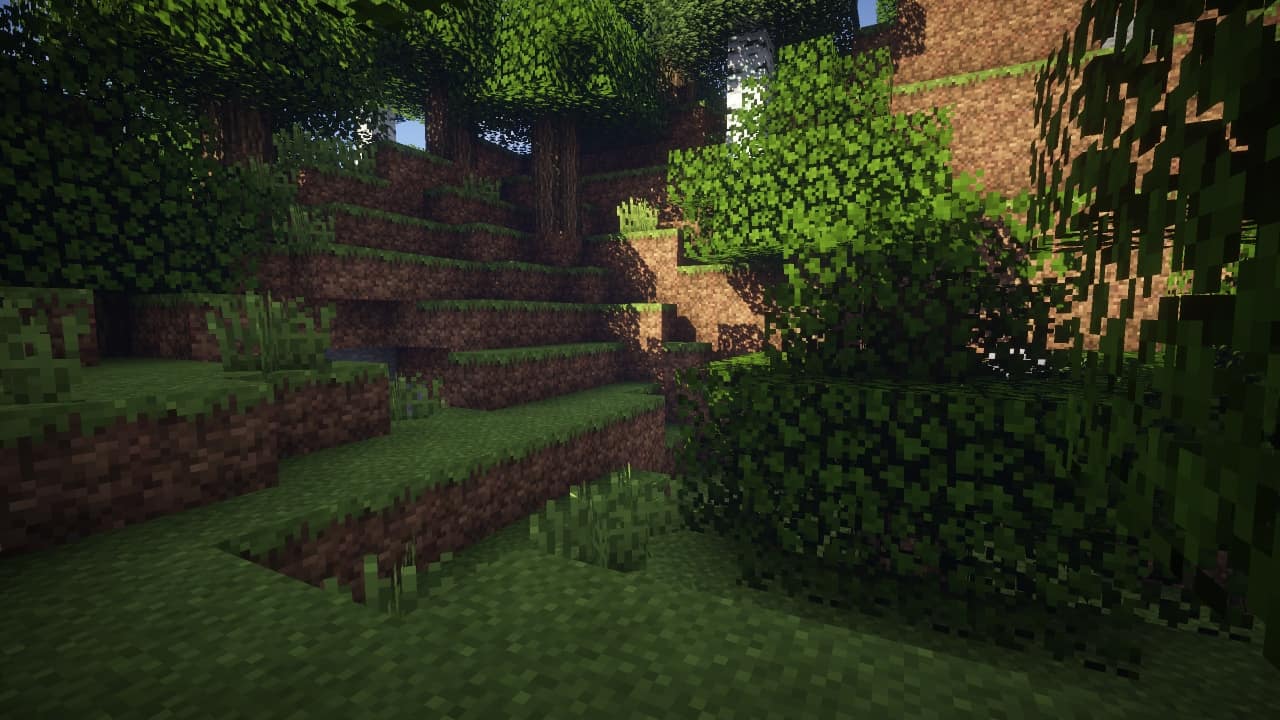
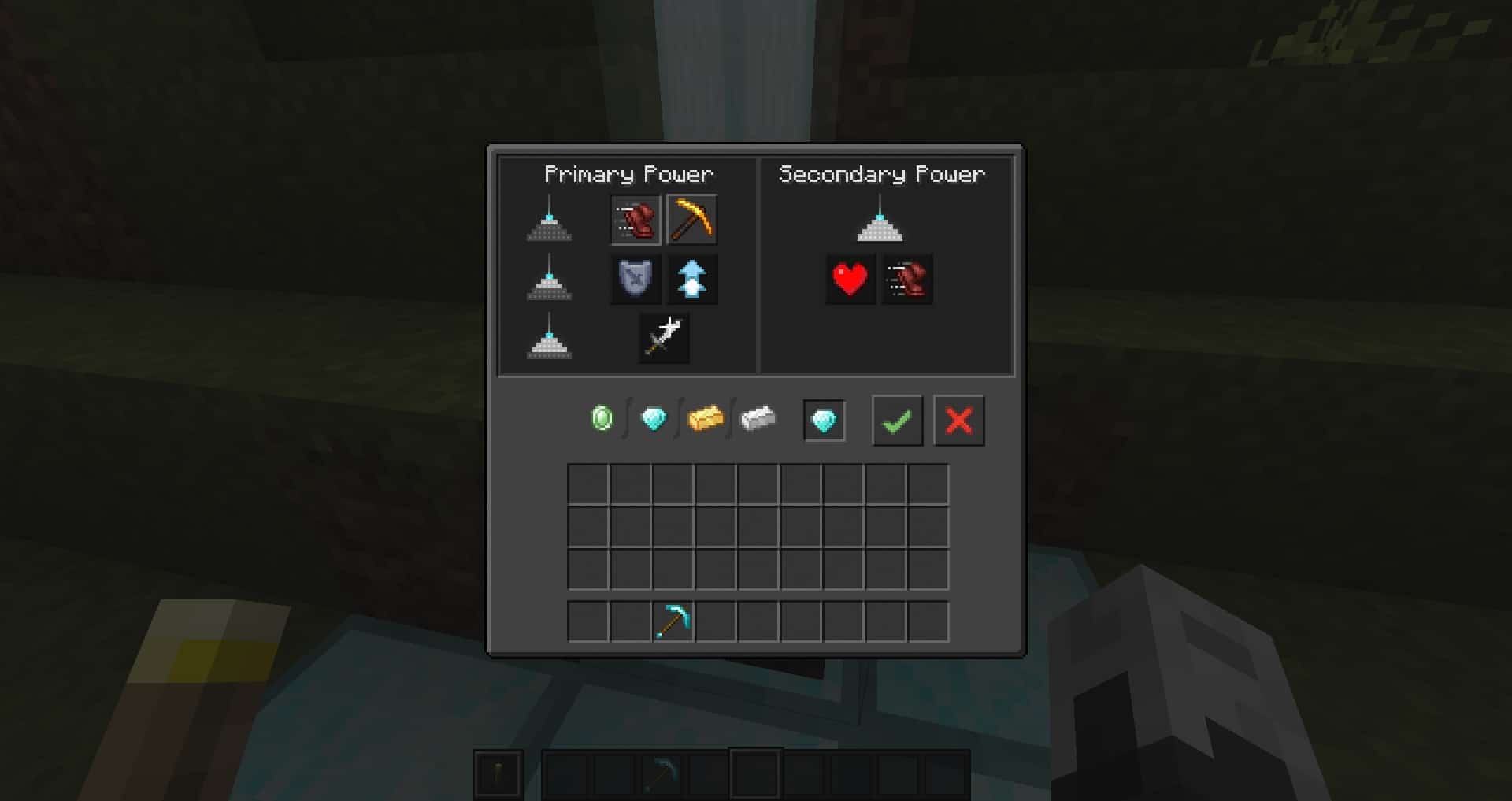
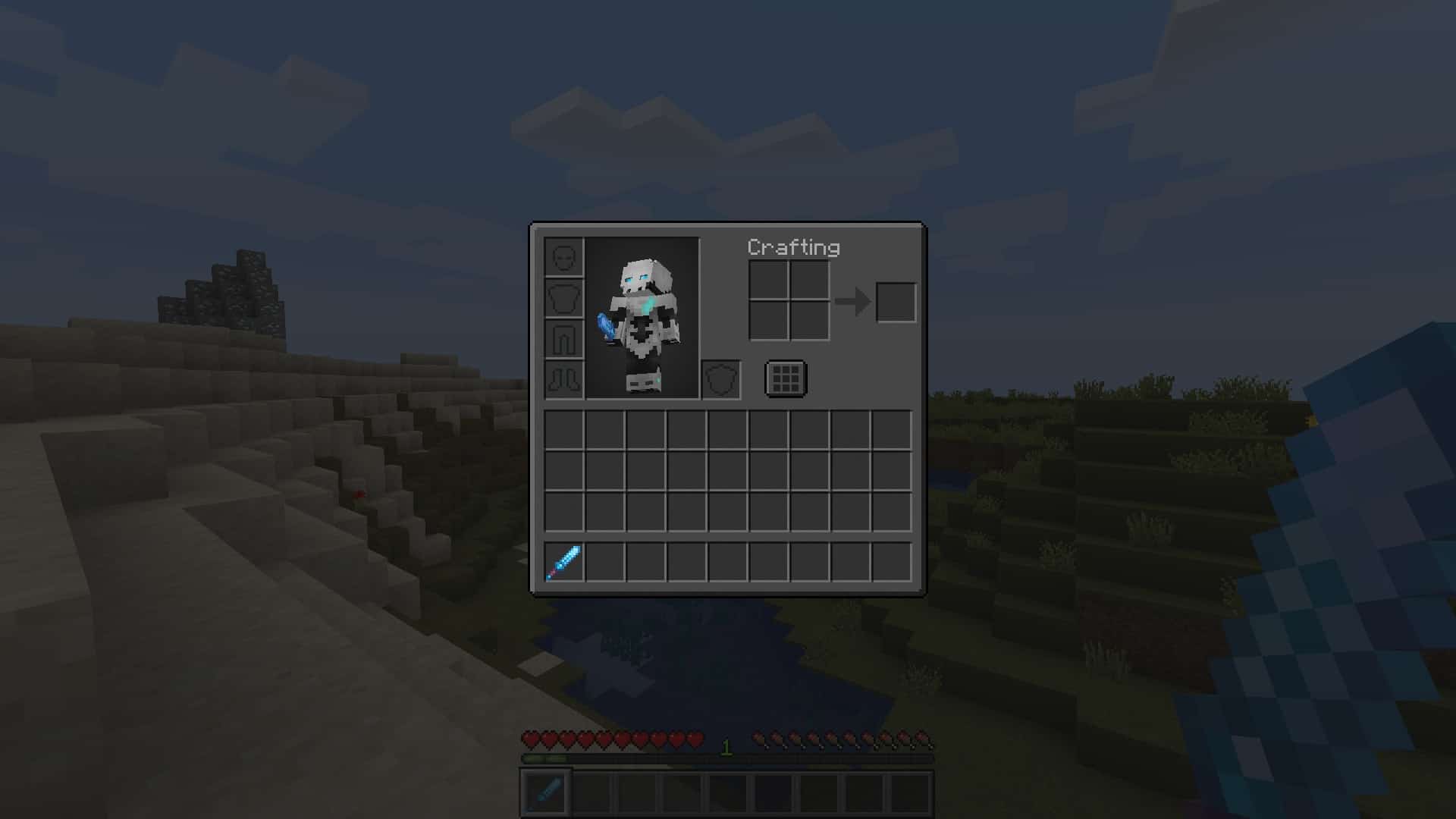
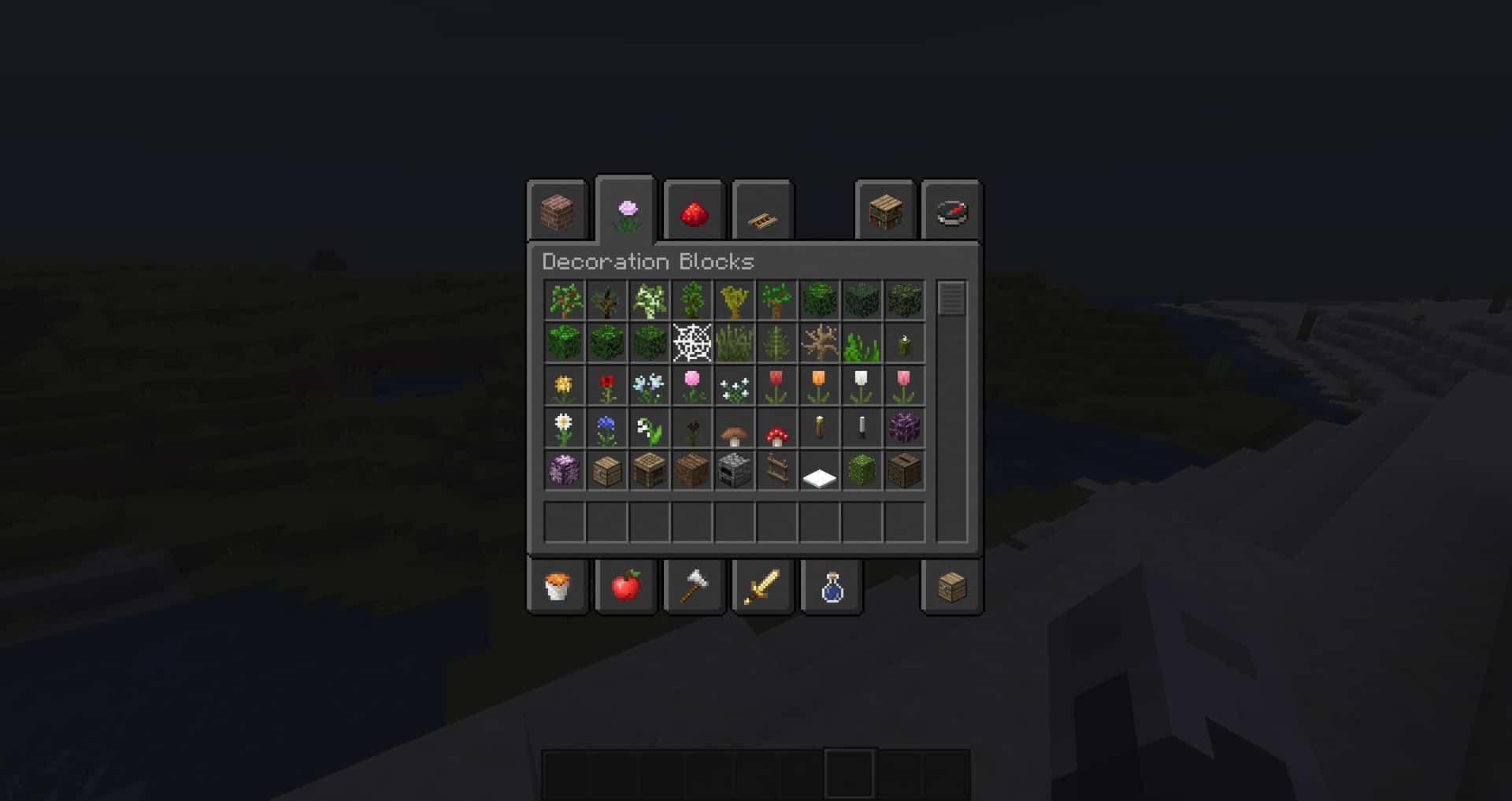
The Unity resource pack truly captures the essence of what makes Minecraft so special. I love how it avoids turning vanilla Minecraft into something it was never meant to be, steering clear of overly high-fidelity, high-resolution textures that stray from the game’s classic charm. Interestingly, even though its name echoes a popular game engine, the creators made sure to clarify that it has nothing to do with it! At first glance, installing the Unity texture pack might feel subtle because it stays true to the classic 16x resolution of the vanilla game. Honestly, you might even find it a bit deceptive since the differences can be tough to spot immediately. If it feels less flashy than other packs, that is simply because it is a masterfully crafted default edit. Every single texture in vanilla Minecraft has been lovingly tweaked and improved rather than replaced with pixel-heavy alternatives. By keeping the exact same pixel count and skillfully adjusting colors, tones, and introducing fresh patterns and shapes, the developers managed to pack an incredible amount of detail into every block. You get a noticeably more vivid world filled with brighter colors, enhanced saturation, and striking details without overloading your system. The clever use of hybrid-texturing really makes certain details pop and elevates the overall visual experience. Beyond just reworking textures, a huge win for this pack is how brilliantly it reduces visual noise and harsh shading, resulting in much crisper objects, detailed shadows, and remarkably natural colors. While Unity remains completely loyal to vanilla Minecraft’s iconic style, these enhancements make exploring and building infinitely more enjoyable. Best of all, the Unity resource pack does not stop at just improving the base game.
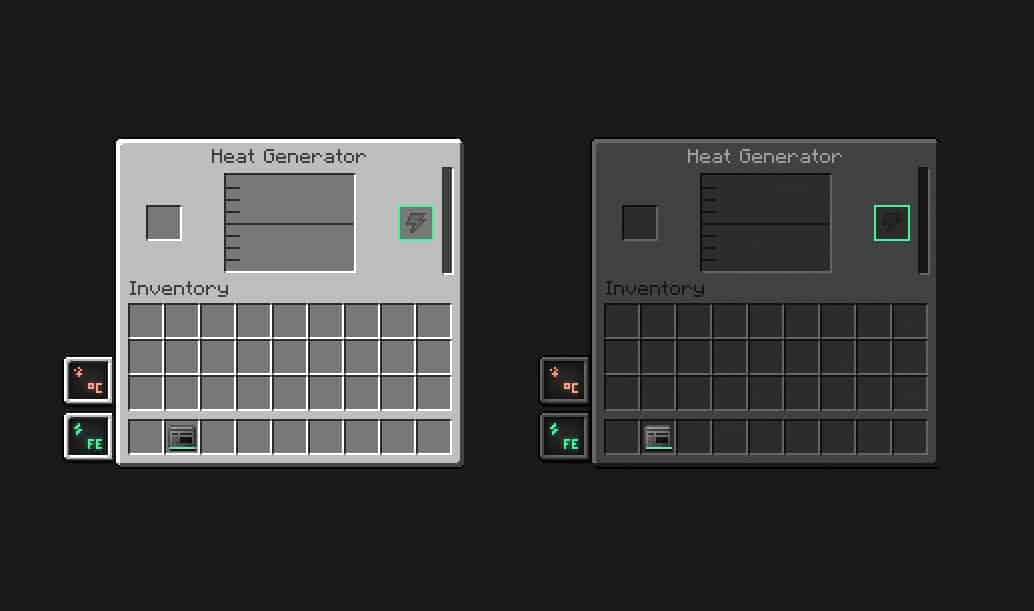
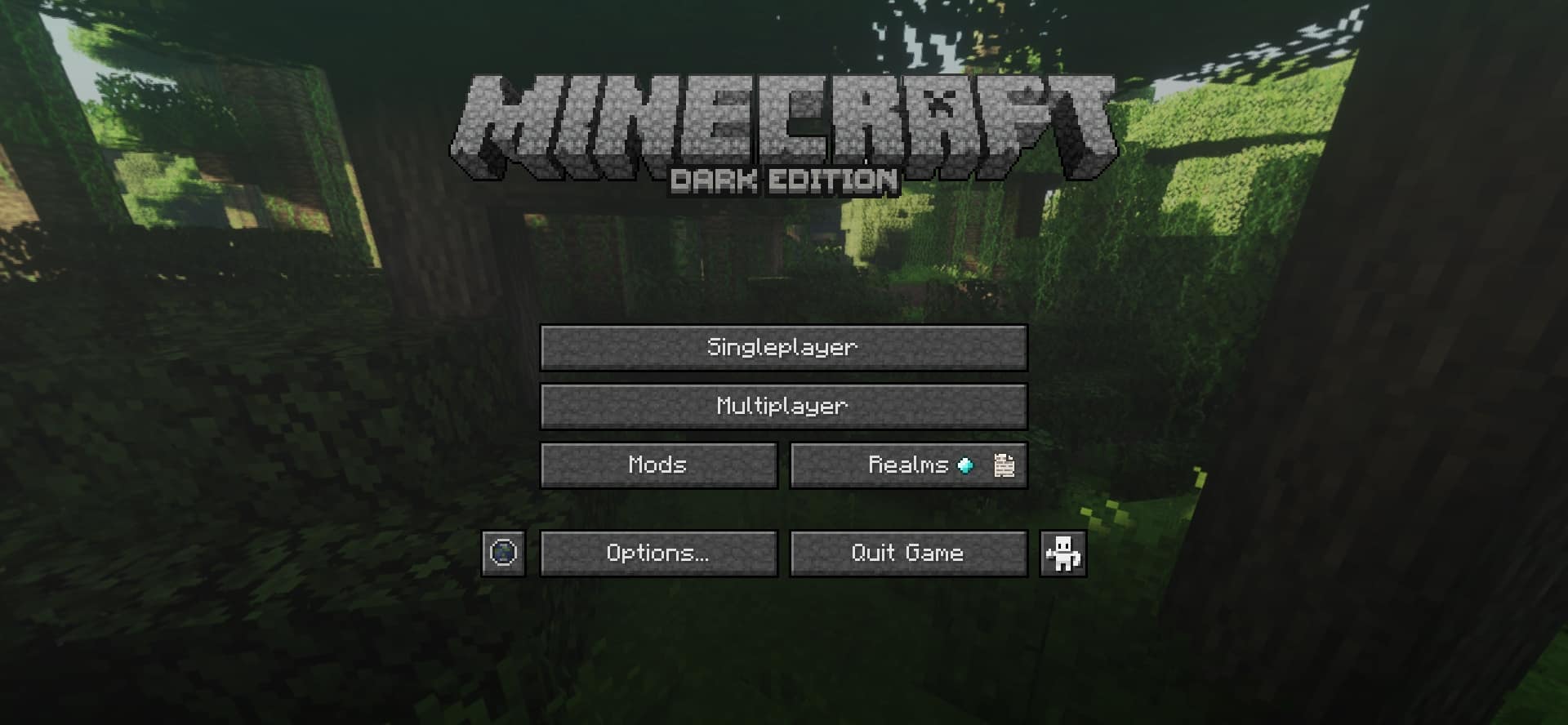
It also brings fantastic texture support to a wide variety of popular mods! Some of the supported mods that receive these gorgeous upgraded textures include Thermal Expansion, Gravestone, Ender Storage, Compact Solar, Blood Magic, The One Probe, Iron Chest, Better Crates, and many others. All these additions ensure that your modded blocks and items blend seamlessly with the enhanced vanilla textures for a wonderfully cohesive look. While the standard version leaves menus and the GUI untouched, a dedicated Dark Edition is readily available if you prefer a darker interface. The creator’s vision was to establish a brilliant common ground that elevates both vanilla and modded textures while preserving a distinct identity. Although no specific shaders are strictly required, pairing this pack with complementary shaders can dramatically improve lighting, minimize noise, and make those textures look even sharper. I personally found that it pairs wonderfully with the SEUS PTGI shader, adding stunning block reflections and incredible depth. While Sonic Ether’s Unbelievable Shaders offer breathtaking visual upgrades, keep in mind they are quite resource-intensive and might lower your framerate on weaker hardware. Since the Unity texture pack sticks to a clean 16x resolution, using it on its own will not hurt your game performance since it avoids heavy animations or moving textures. Players running vanilla Minecraft on older computers can enjoy it completely worry-free, though adding intensive shaders may still cause a dip in performance. I strongly recommend installing the Unity resource pack with Optifine enabled, as it unlocks amazing extra features like randomized mobs, custom skies, overlays, and connected textures. Once downloaded, simply drop the archived .zip file into your resource packs folder via the Minecraft launcher, select it in-game, and enjoy the breathtaking new look!
Unity should be compatible with all of these Minecraft versions: 1.21.3 – 1.21.2 – 1.21.1 – 1.21 – 1.20.6 – 1.20.5 – 1.20.4 – 1.20.3 – 1.20.2 – 1.20.1 – 1.20 – 1.19.4 – 1.19.3 – 1.19.2 – 1.19.1 – 1.19 – 1.18.2 – 1.18.1 – 1.18 – 1.17.1 – 1.17 – 1.16.5 – 1.16.4 – 1.16.3 – 1.16.2 – 1.16.1 – 1.16 – 1.15.2 – 1.15.1 – 1.15 – 1.14.4 – 1.14.3 – 1.14.2 – 1.14 – 1.13.2 – 1.13.1 – 1.13 – 1.12.2 – 1.12 – 1.11.2 – 1.11 – 1.10.2 – 1.10 – 1.9.4 – 1.9 – 1.8.9 – 1.8.8 – 1.8.1 – 1.8.6 – 1.8 – 1.7.10 – 1.7.9 – 1.7.4 – 1.7
Screenshots



How to Install Texture Pack (Simple 10 Steps)
- Download OptiFine: Most of the texture packs and shaders need OptiFine. That’s why, first download and install OptiFine for the version of Minecraft you want to play.
- Download the Texture Pack: Get the texture pack you want from the download section. Choose the version that works with your Minecraft and your PC’s performance.
- Open Minecraft Launcher: Start Minecraft using the official game launcher — or even TLauncher, if you use that.
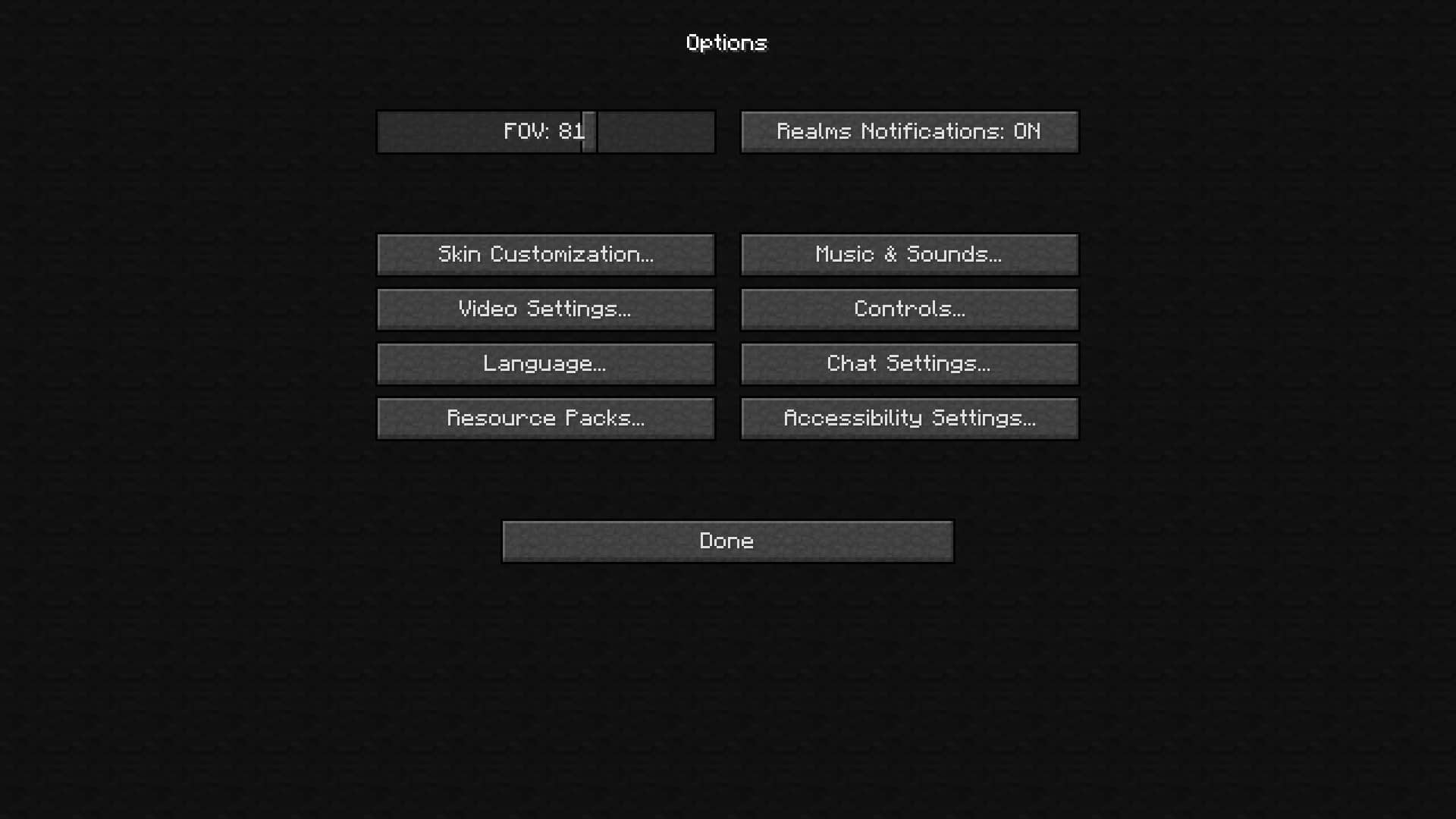
- Go to Options: From the main menu, click on the “Options” button.
- Open Resource Packs: Inside Options, click on “Resource Packs…”.
- Open the Resource Pack Folder: Click on “Open Resource Pack Folder” — this will open a folder named “resourcepacks”.
- Move the Pack File: Copy or move the .zip file you downloaded into that “resourcepacks” folder. (Don’t unzip the file — Minecraft uses it as-is!)
- Go Back and Refresh: Close the folder and click “Done”, then go back into “Resource Packs…” again.
- Activate the Pack: You’ll see the pack on the left side. Hover over it and click the arrow to move it to the right (active side).
Tip: If you get a message that the pack is for a different version, just click “Yes” — it usually works fine. - Click Done and Enjoy: Click “Done” again. Now your pack is ready to use in-game. It’s that easy!
Credits
The Unity Resource Pack was originally created by theCyanideX. We do not own or claim ownership of this resource pack, and no modified files are hosted on our servers. All rights and intellectual property belong strictly to the original creator. We highly encourage you to support the author by downloading the pack directly from their official pages.
Download Links
Java Edition
- [16x] Minecraft 1.21.x – 1.20.2 (Dark Edition)
- [16x] Minecraft 1.20.1 – 1.20 (Dark Edition)
- [16x] Minecraft 1.19.x (Dark Edition)
- [16x] Minecraft 1.18.x (Dark Edition)
- [16x] Minecraft 1.17.x (Dark Edition)
- [16x] Minecraft 1.16.x (Dark Edition)
- [16x] Minecraft 1.15.x (Dark Edition)
- [16x] Minecraft 1.14.x – 1.13.x (Dark Edition)
- [16x] Minecraft 1.12.x (Dark Edition)
- [16x] Minecraft 1.8.x (Dark Edition)
- [16x] Minecraft 1.19.x
- [16x] Minecraft 1.18.x
- [16x] Minecraft 1.17.x
- [16x] Minecraft 1.16.x
- [16x] Minecraft 1.15.x
- [16x] Minecraft 1.14.x – 1.13.x
- [16x] Minecraft 1.12.x
- [16x] Minecraft 1.11.x
- [16x] Minecraft 1.10.x
- [16x] Minecraft 1.9.x – 1.8.x
- [16x] Minecraft 1.7.x
- [16x] Minecraft 1.19.x (PBR Materials)
- [16x] Minecraft 1.18.x – 1.17.x (PBR Materials)
- [16x] Minecraft 1.16.x (PBR Materials)
- [16x] Minecraft 1.14.x (PBR Materials)
- [16x] Minecraft 1.18.x – 1.17.x (Alternative PBR Materials)
- [16x] Minecraft 1.16.x – 1.15.x (Alternative PBR Materials)
- [16x] Minecraft 1.14.x (Alternative PBR Materials)
Download Instructions
Curseforge: download starts automatically after a few seconds;
Mediafire: click the big blue button with the text “DOWNLOAD”;
Google Drive: in the top right corner you will see a small download icon (down arrow), click it and the download should start;


