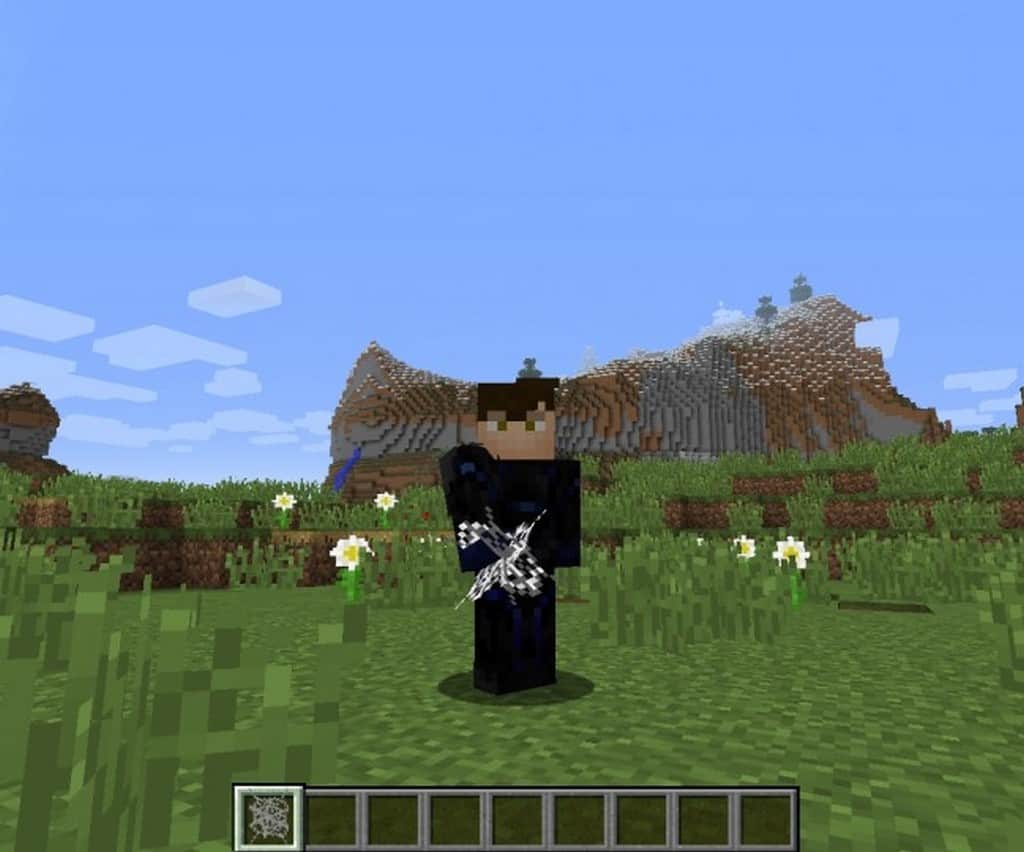
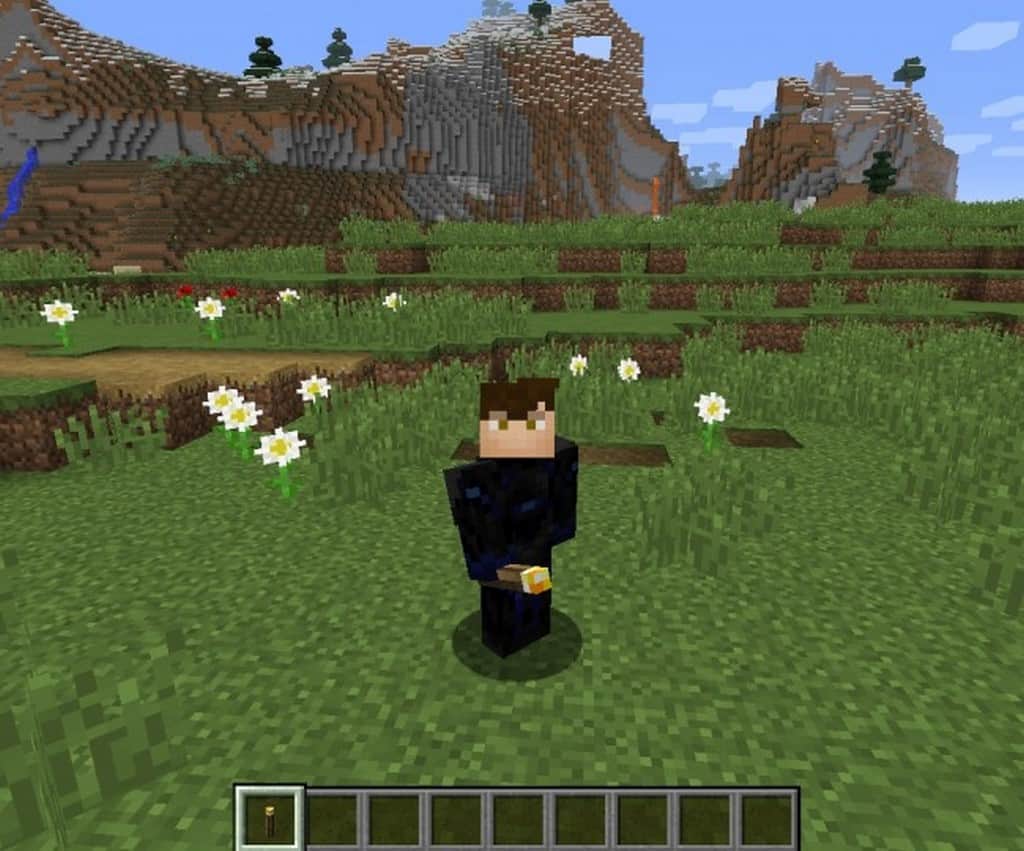
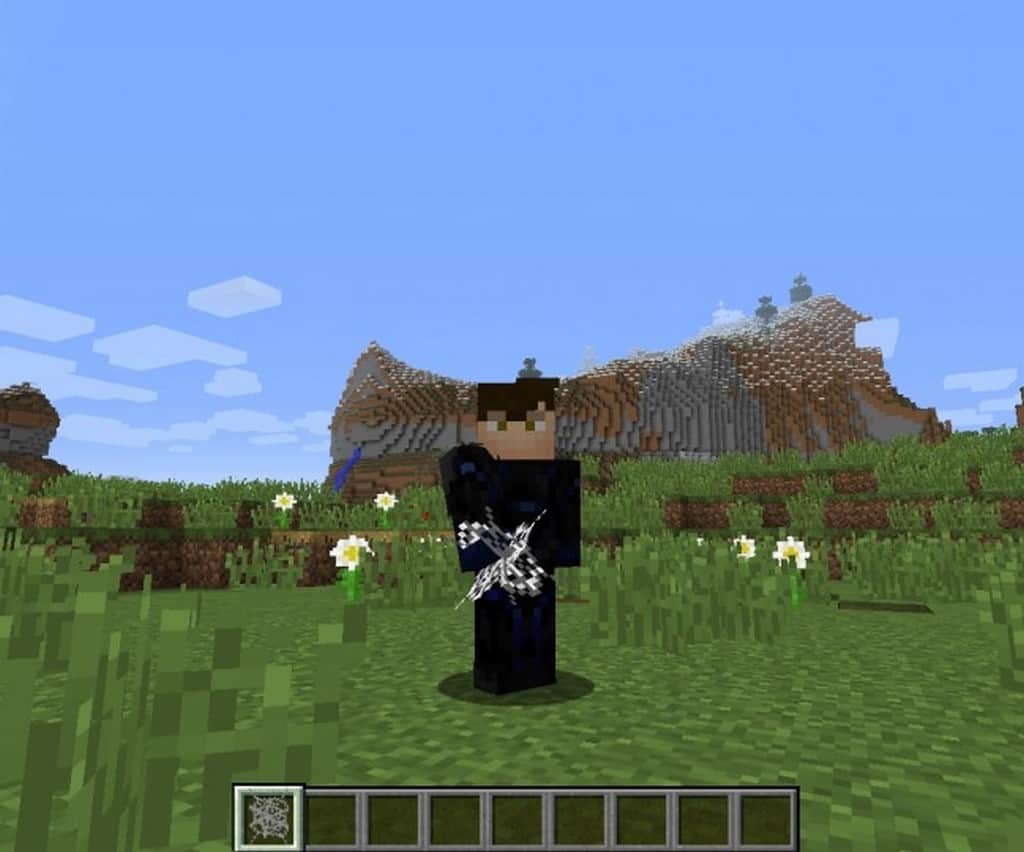
Almost all of you must have used various minecraft resource packs and have had a nice time. If you are no more satisfied having just a nice time and look forward to having a mind-blowing experience then what you need is the True 3D Items, an amazing pack created to make sure you have a super-amazing experience. This pack just focuses on the Minecraft item models and most of the in-game items have been replaced with their own perfect 3D models. There, of course, are so many other packs that too say they have the best 3D models but unfortunately most of them make mere claims. But True 3D Items resource pack is different, it offers exactly what it ensures.
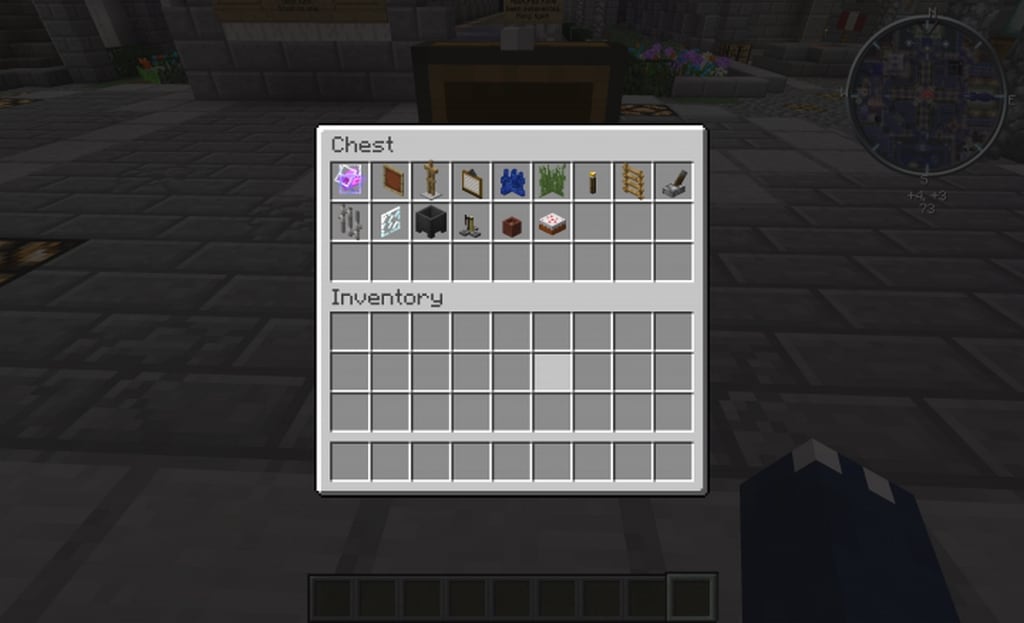
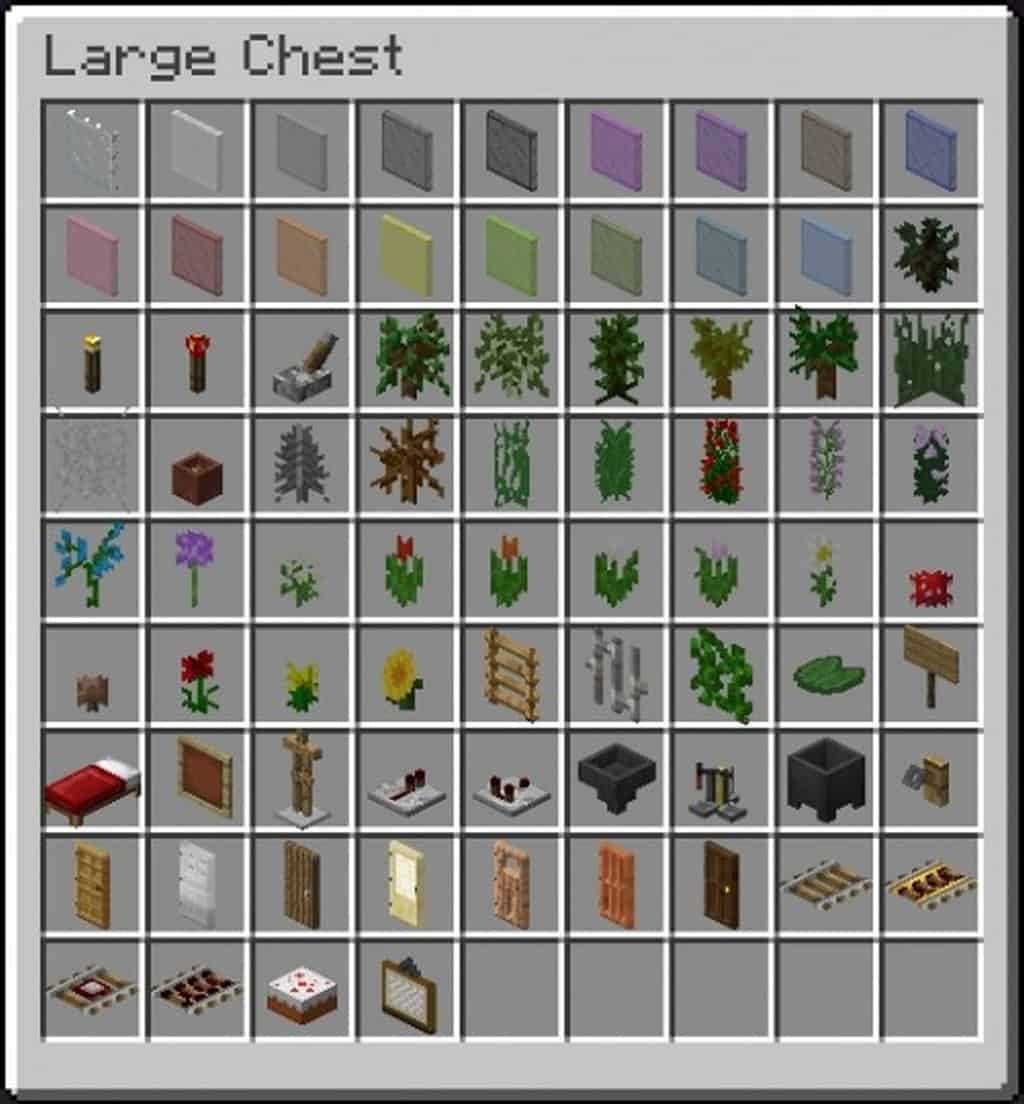
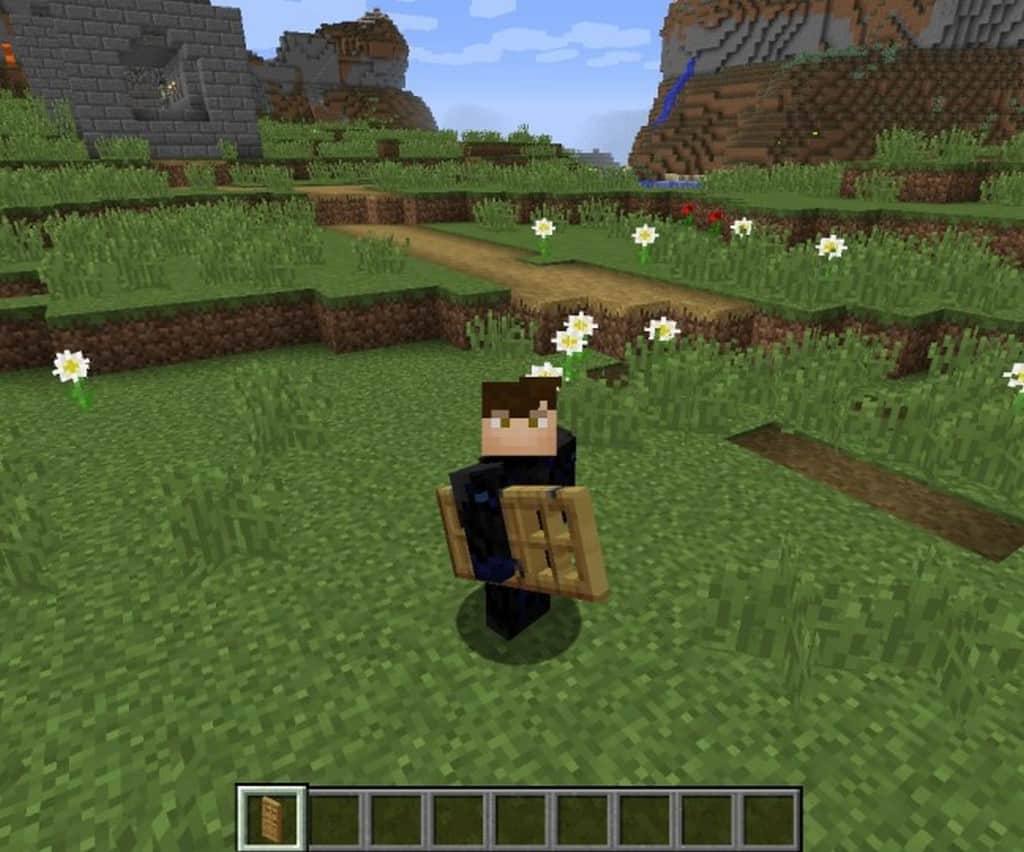
Once you start using the True 3D Items you will yourself see that most of the in-game Minecraft items are replaced and are much-attractive looking 3D versions. The new items that you will get to see are much more brilliant with great solid textures that will help make sure you have an amazing gaming experience like never before. What is really interesting about this pack is the fact that even the inventory images of the various items are replaced with images that have a perfect 3D effect. About every model that this pack offers, they are custom made and this is what offers a much fresh and pretty look to your favorite game. Yet another interesting aspect of this pack is that you can easily use it with other resource packs for a more intriguing Minecraft gaming experience. Since the True 3D Items has a resolution of 16X16 there is hardly any chance of experiencing any frame-rate problems even if you are using a very slow computer.
True 3D Items should be compatible with all of these Minecraft versions: 1.11.2 – 1.11 – 1.10.2 – 1.10 – 1.9.4 – 1.9
Screenshots
How to Install Texture Pack (Simple 10 Steps)
- Download OptiFine: Most of the texture packs and shaders need OptiFine. That’s why, first download and install OptiFine for the version of Minecraft you want to play.
- Download the Texture Pack: Get the texture pack you want from the download section. Choose the version that works with your Minecraft and your PC’s performance.
- Open Minecraft Launcher: Start Minecraft using the official game launcher — or even TLauncher, if you use that.
- Go to Options: From the main menu, click on the “Options” button.
- Open Resource Packs: Inside Options, click on “Resource Packs…”.
- Open the Resource Pack Folder: Click on “Open Resource Pack Folder” — this will open a folder named “resourcepacks”.
- Move the Pack File: Copy or move the .zip file you downloaded into that “resourcepacks” folder. (Don’t unzip the file — Minecraft uses it as-is!)
- Go Back and Refresh: Close the folder and click “Done”, then go back into “Resource Packs…” again.
- Activate the Pack: You’ll see the pack on the left side. Hover over it and click the arrow to move it to the right (active side).
Tip: If you get a message that the pack is for a different version, just click “Yes” — it usually works fine. - Click Done and Enjoy: Click “Done” again. Now your pack is ready to use in-game. It’s that easy!
Credits
This resource pack was created by Raptor__. We do not claim ownership of this content, nor do we host modified versions of the files. All rights remain with the original creator. We strongly encourage you to support Raptor__ by downloading the pack from the official source.
Download Instructions
Curseforge: download starts automatically after a few seconds;
Mediafire: click the big blue button with the text “DOWNLOAD”;
Google Drive: in the top right corner you will see a small download icon (down arrow), click it and the download should start;


