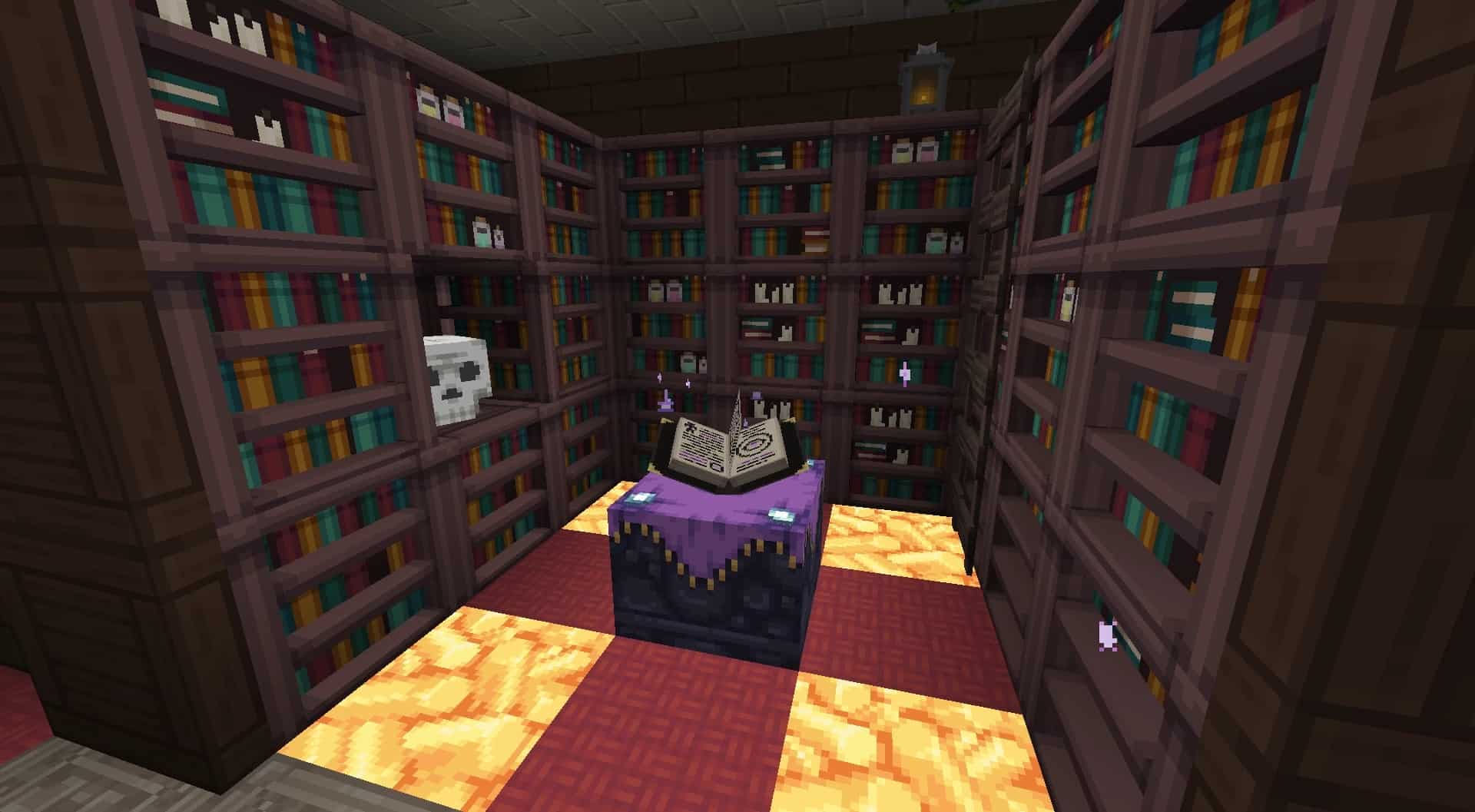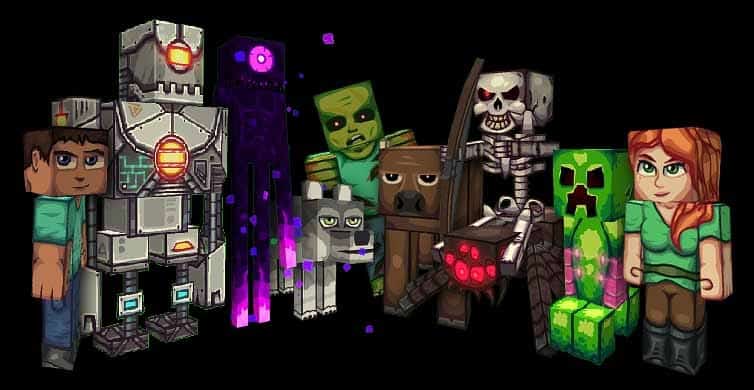
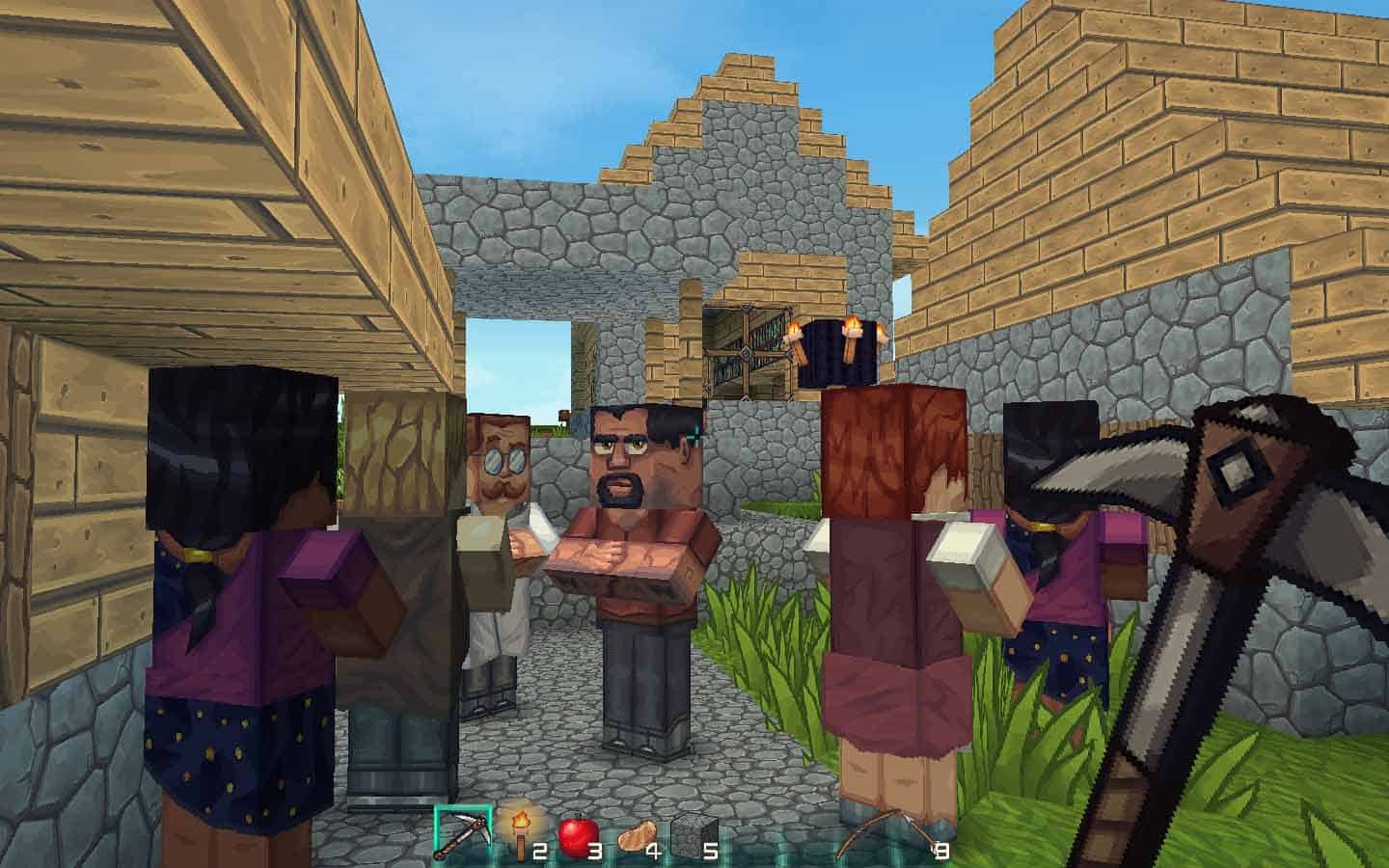
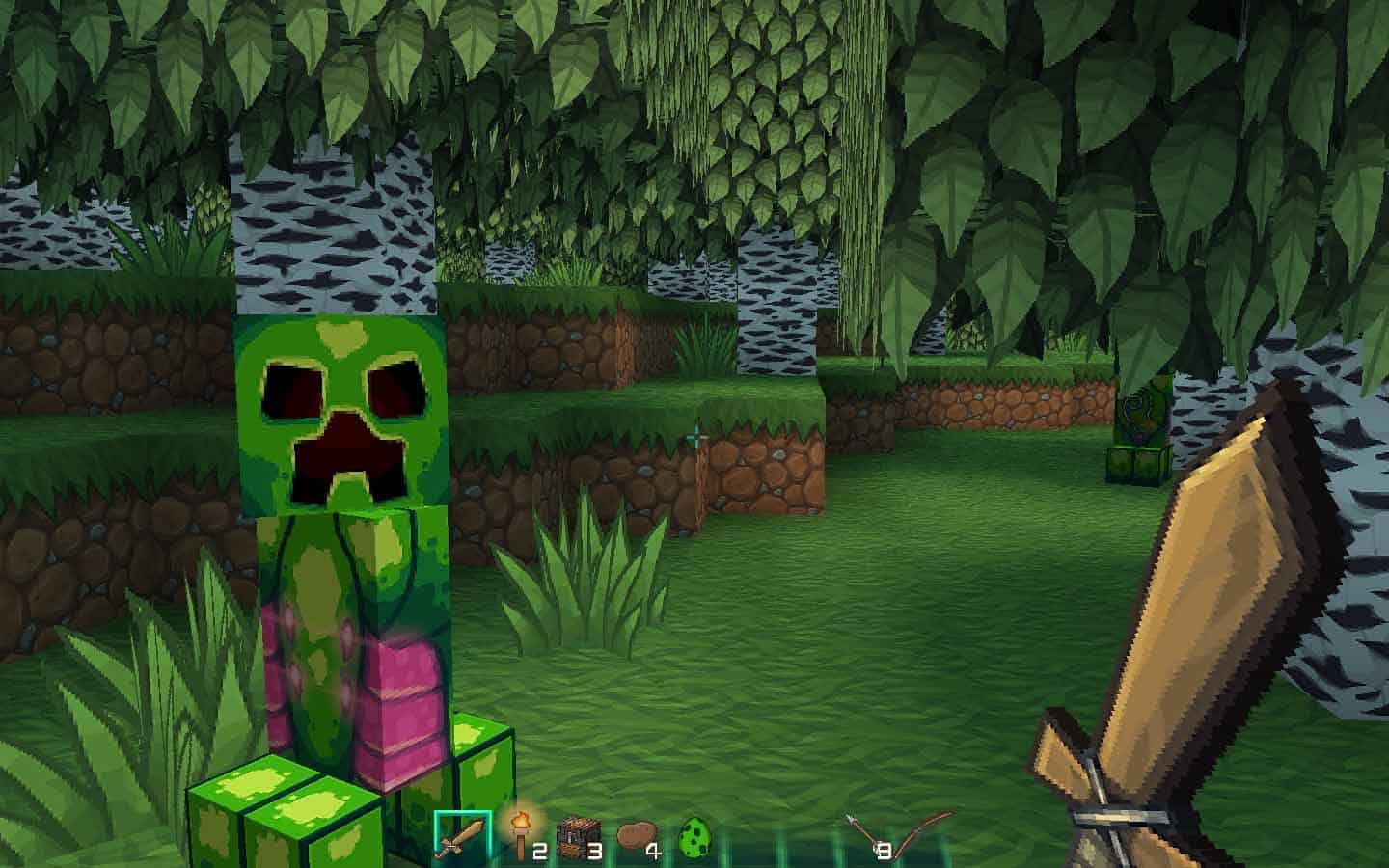
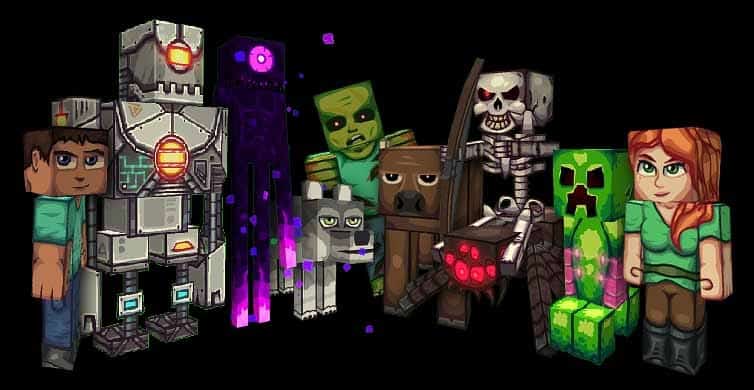
Are you a dedicated Minecraft player looking to inject some fresh color and vibrancy into your gameplay? If so, you have definitely landed on the right page because the Triton resource pack is an absolute treat for anyone wanting to make their world much more colorful, eye-catching, and lively. We tested this texture pack ourselves and loved how it is meticulously designed to bring rich color effects to nearly every object, item, and block in the game. Aside from completely transforming the theme into something stunning, it also features incredible shading graphical effects that truly stand out. It is safe to say that very few resource packs on the market manage to pull off such gorgeous cel shading graphics, but Triton pulls it off effortlessly and introduces amazing color to even the most basic blocks and items.
One of the biggest advantages we noticed while playing with this pack is that it is surprisingly gentle on your GPU compared to many other high-end alternatives. Supporting a wonderfully moderate level of resolution, it consistently delivers crisp visuals without ever introducing hazy, fuzzy, or blurry effects into your world. Interestingly, while some players with heavy 16+ GB RAM setups have occasionally reported minor lags, our lower RAM configurations ran it smoothly without a single hitch or delay, leading us to believe those isolated issues might stem from external factors. Ultimately, you will want to test this pack out on your own system to see how it handles your specific hardware configuration, and we are confident you will want to keep using it once you experience it firsthand!
Triton should be compatible with all of these Minecraft versions: 1.13.2 – 1.13.1 – 1.13 – 1.12.2 – 1.12 – 1.11.2 – 1.11 – 1.10.2 – 1.10 – 1.9.4 – 1.9 – 1.8.9 – 1.8.8 – 1.8.1 – 1.8.6 – 1.8
Screenshots
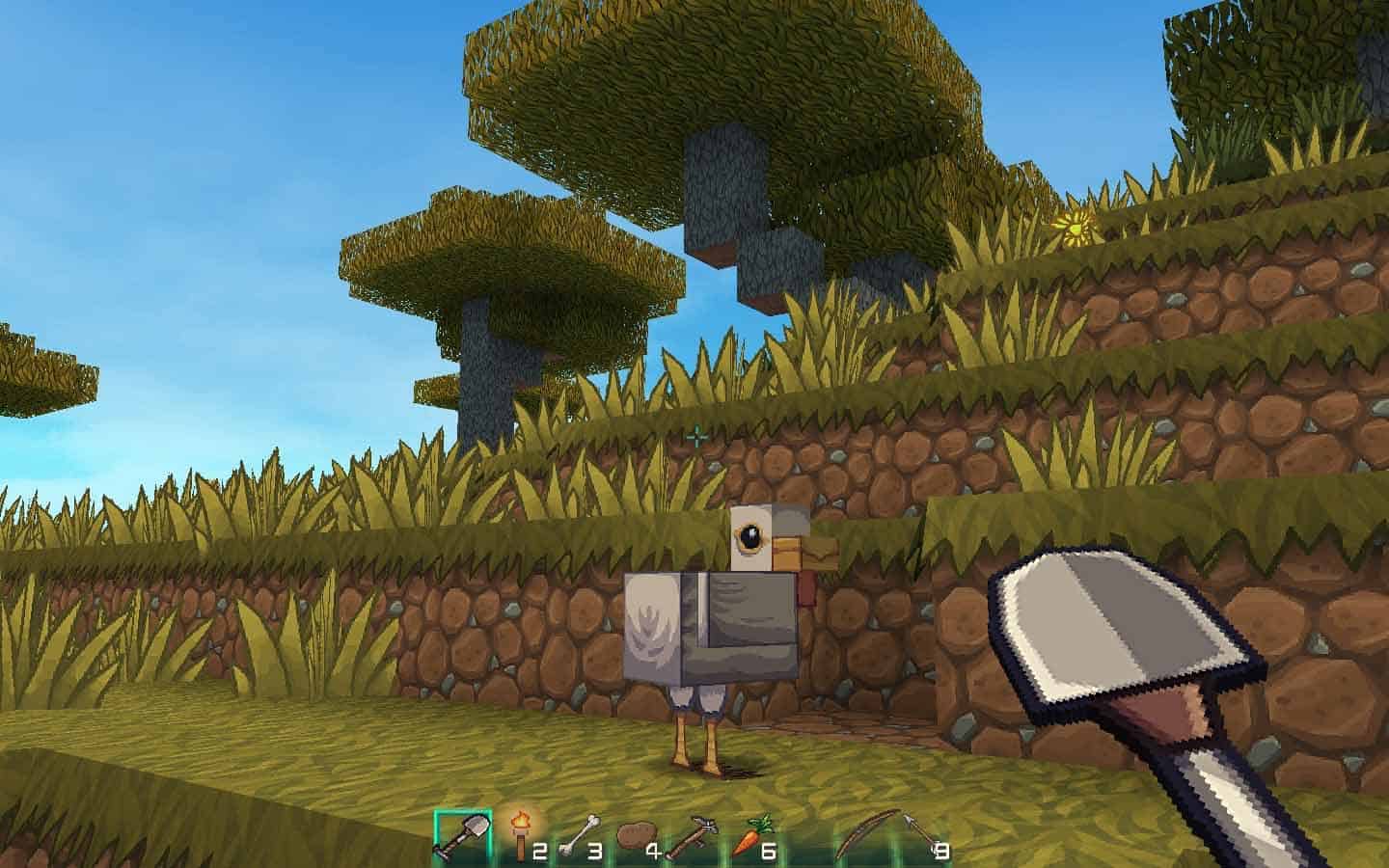
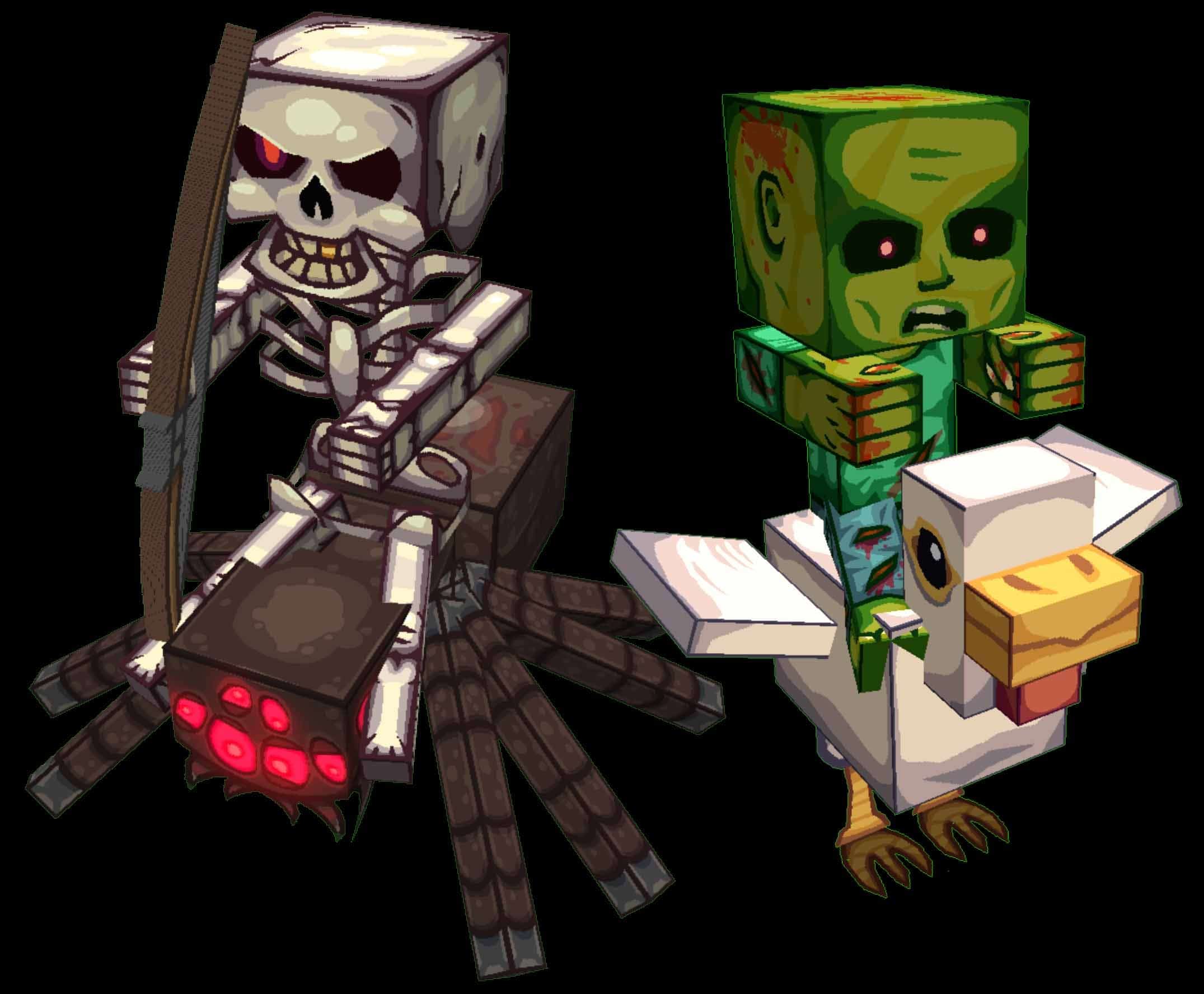
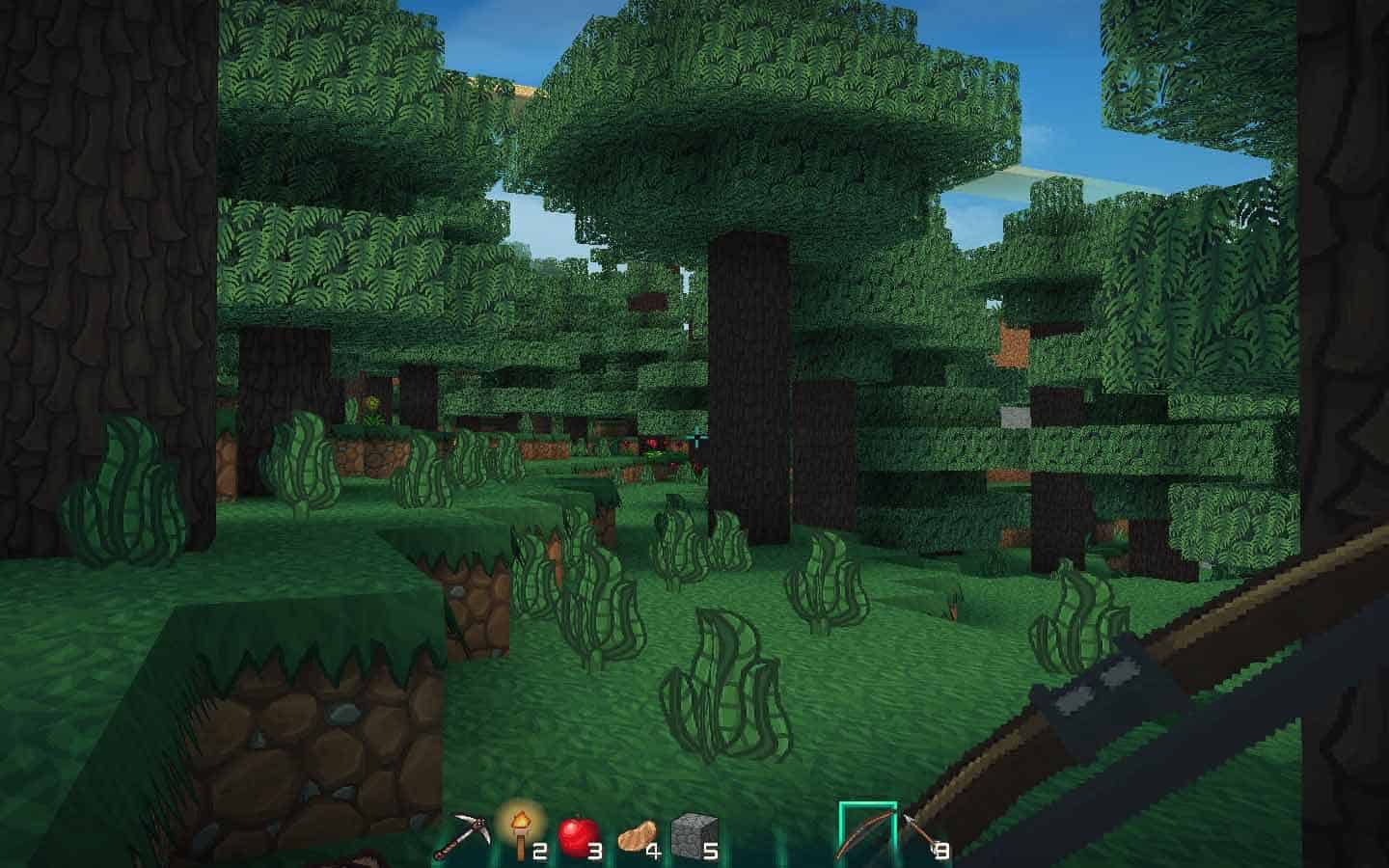
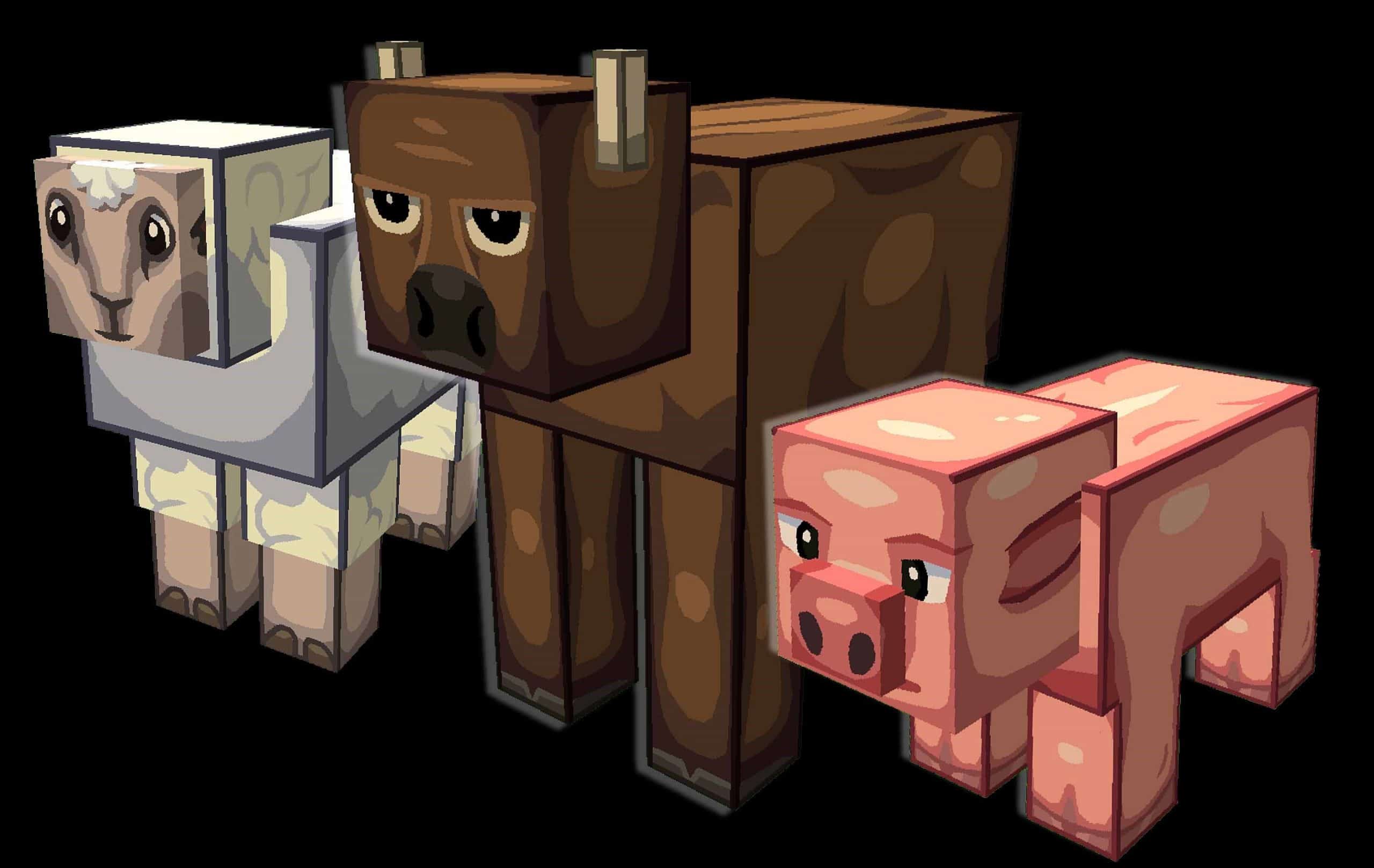

How to Install Texture Pack (Simple 10 Steps)
- Download OptiFine: Most of the texture packs and shaders need OptiFine. That’s why, first download and install OptiFine for the version of Minecraft you want to play.
- Download the Texture Pack: Get the texture pack you want from the download section. Choose the version that works with your Minecraft and your PC’s performance.
- Open Minecraft Launcher: Start Minecraft using the official game launcher — or even TLauncher, if you use that.
- Go to Options: From the main menu, click on the “Options” button.
- Open Resource Packs: Inside Options, click on “Resource Packs…”.
- Open the Resource Pack Folder: Click on “Open Resource Pack Folder” — this will open a folder named “resourcepacks”.
- Move the Pack File: Copy or move the .zip file you downloaded into that “resourcepacks” folder. (Don’t unzip the file — Minecraft uses it as-is!)
- Go Back and Refresh: Close the folder and click “Done”, then go back into “Resource Packs…” again.
- Activate the Pack: You’ll see the pack on the left side. Hover over it and click the arrow to move it to the right (active side).
Tip: If you get a message that the pack is for a different version, just click “Yes” — it usually works fine. - Click Done and Enjoy: Click “Done” again. Now your pack is ready to use in-game. It’s that easy!
Credits
This resource pack was created by Ringoster. We do not claim ownership of this creation and do not host modified files on our servers. All rights belong to the original author. We strongly encourage you to support the creator by downloading the files directly from their official sources and checking out their other work.
Download Links
Java Edition
Download Instructions
Curseforge: download starts automatically after a few seconds;
Mediafire: click the big blue button with the text “DOWNLOAD”;
Google Drive: in the top right corner you will see a small download icon (down arrow), click it and the download should start;