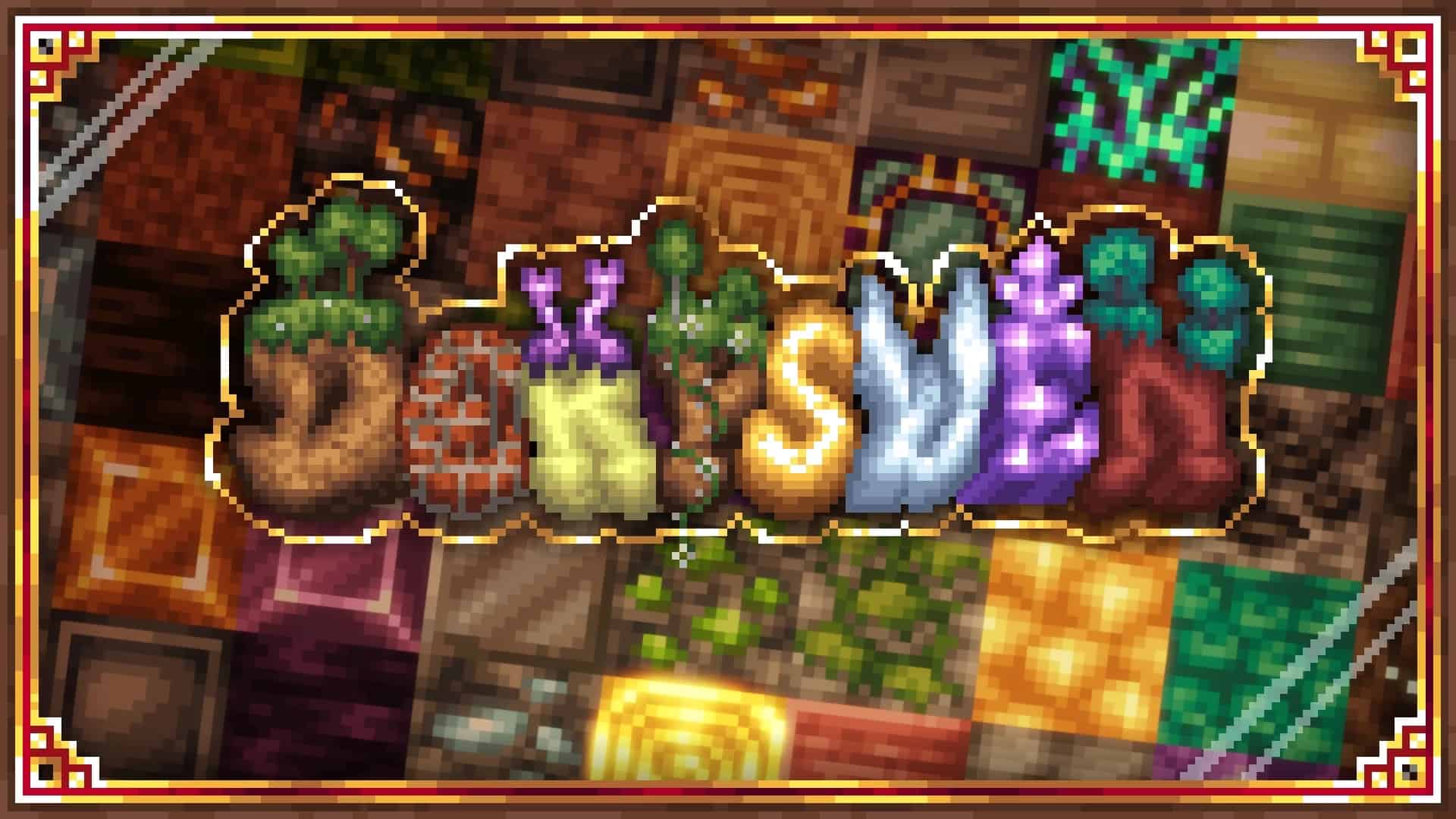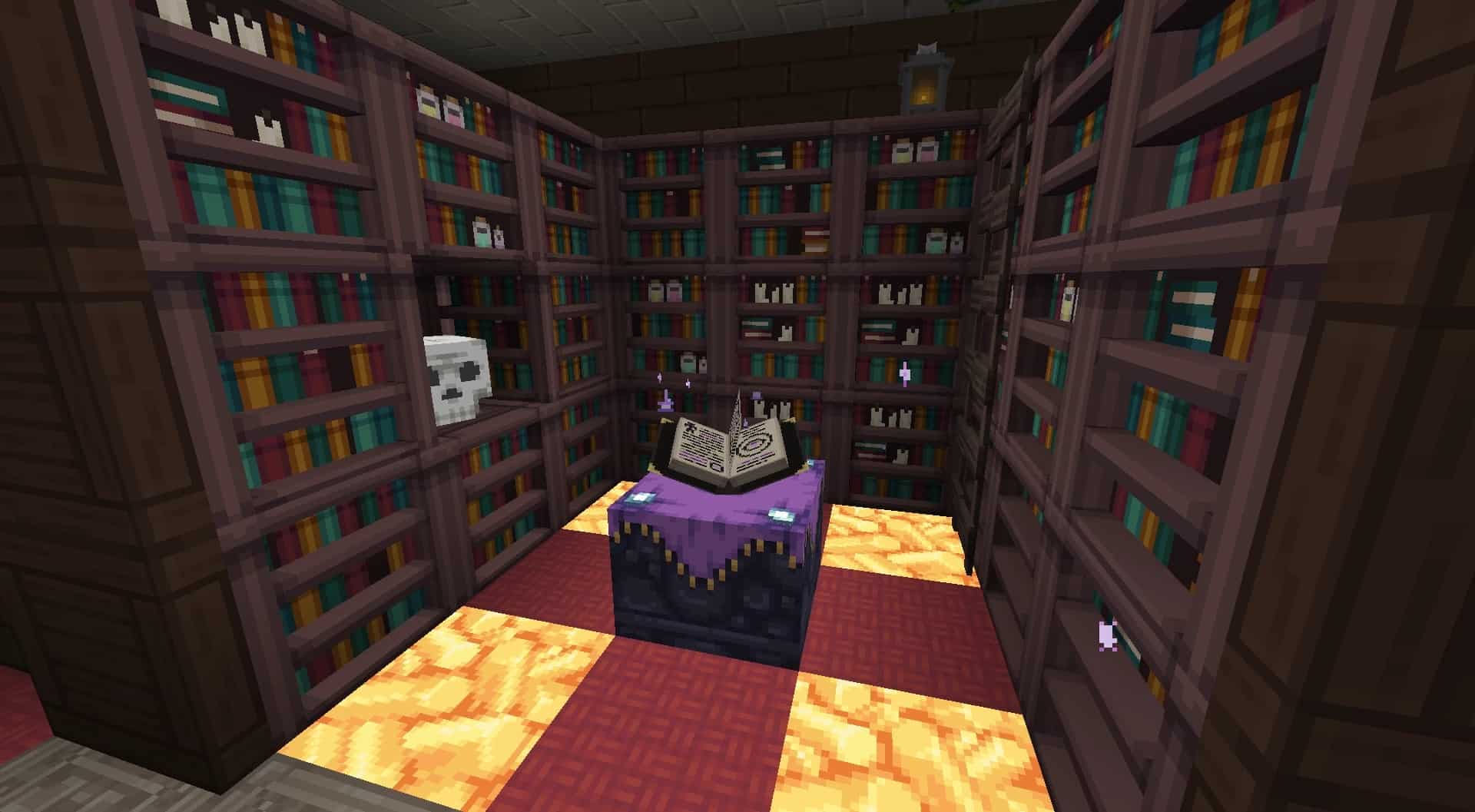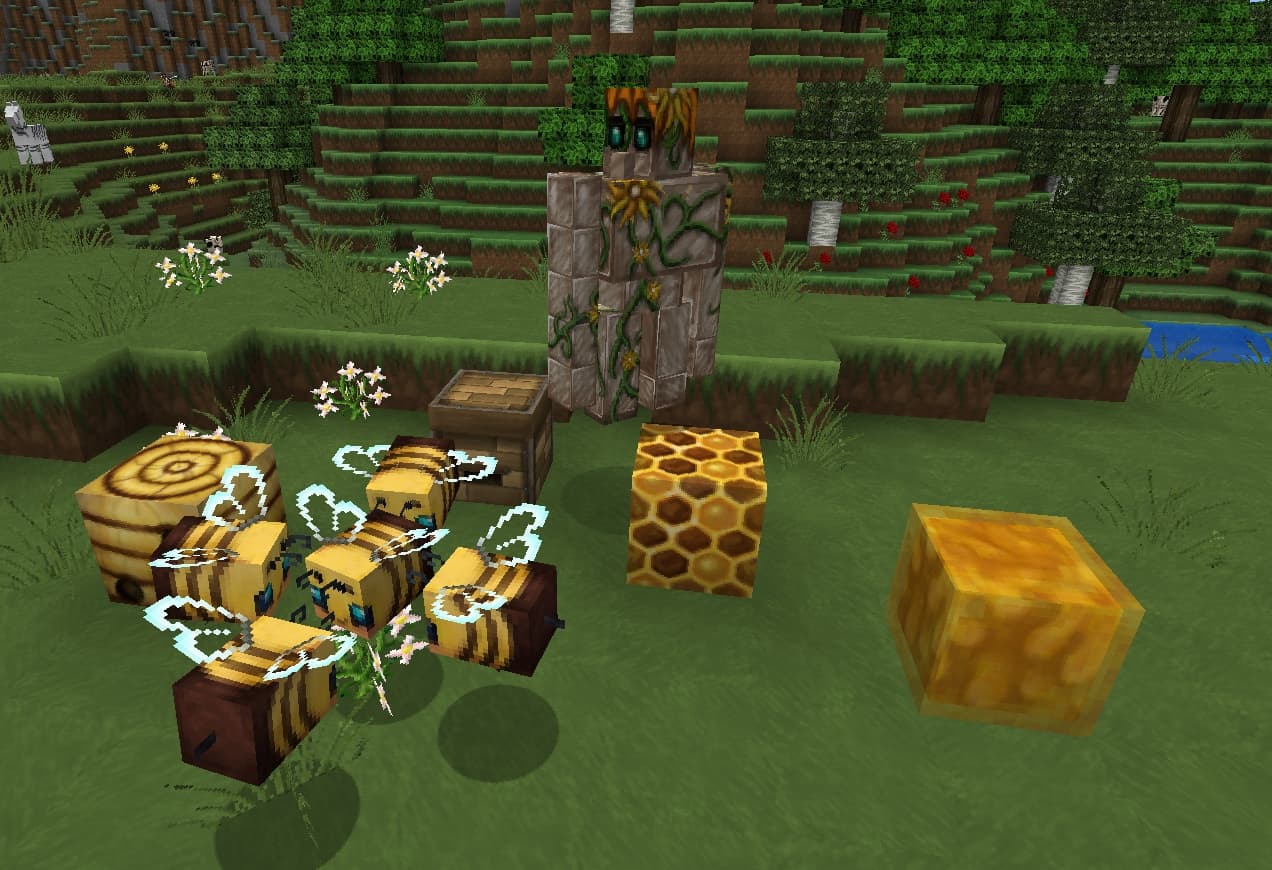
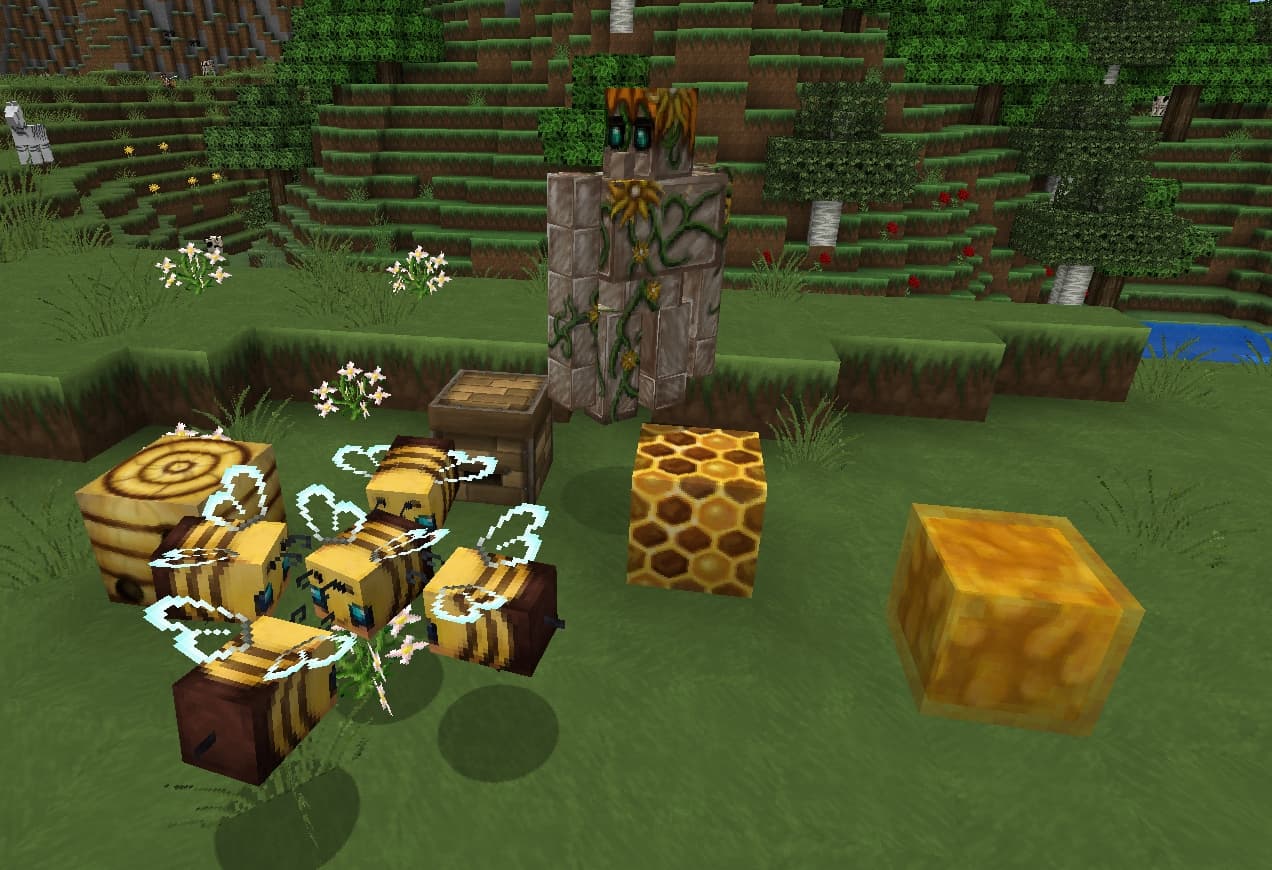
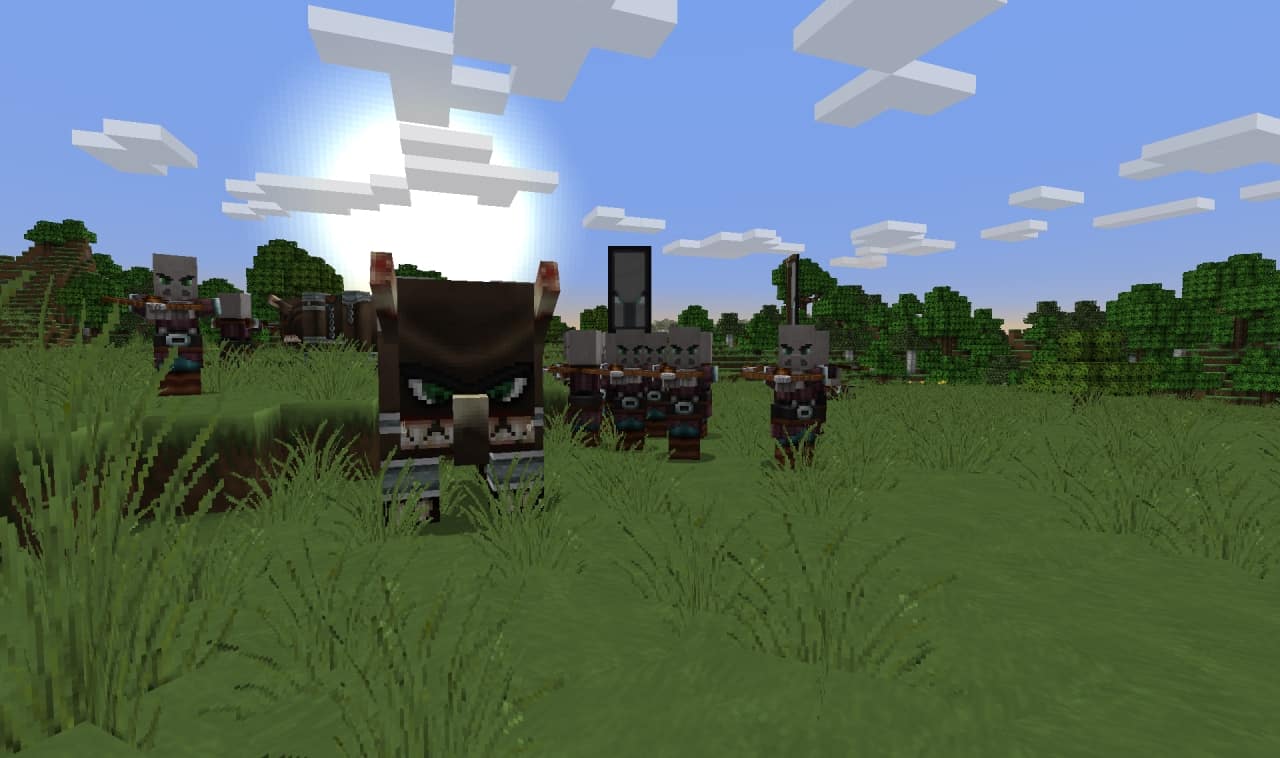
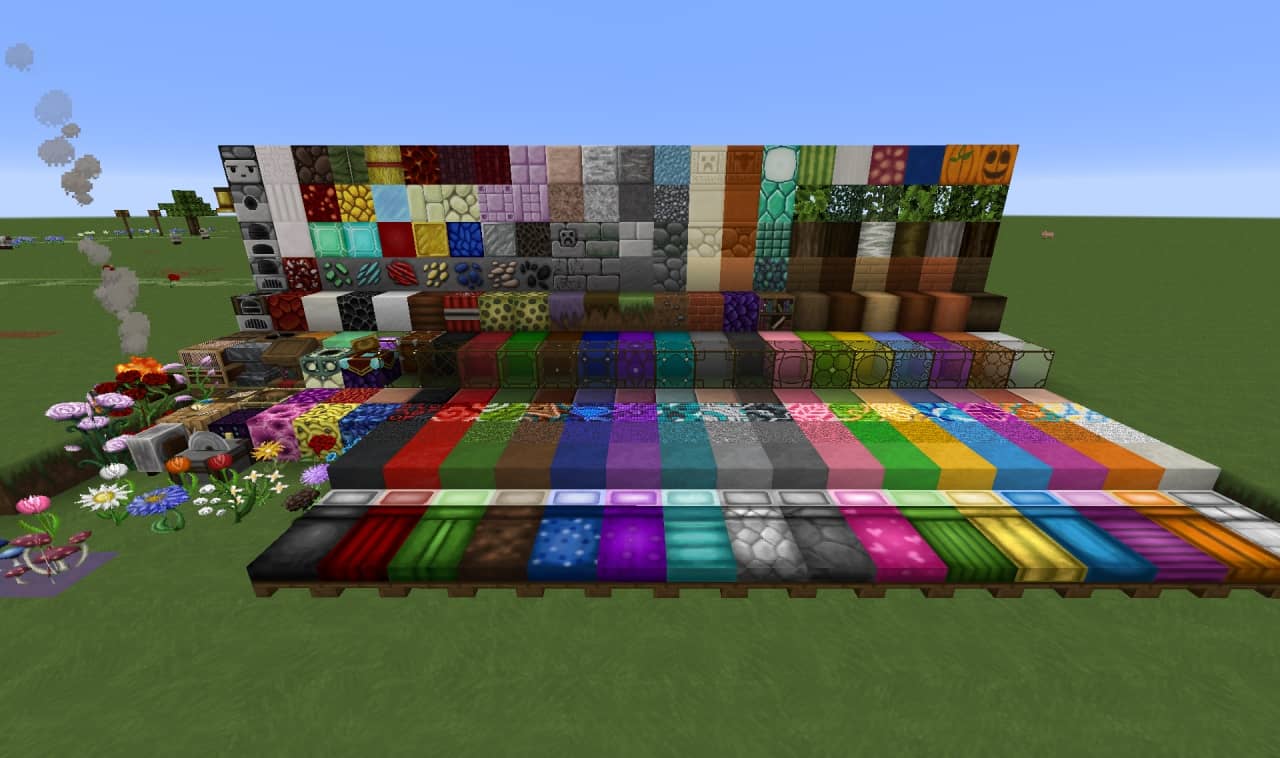
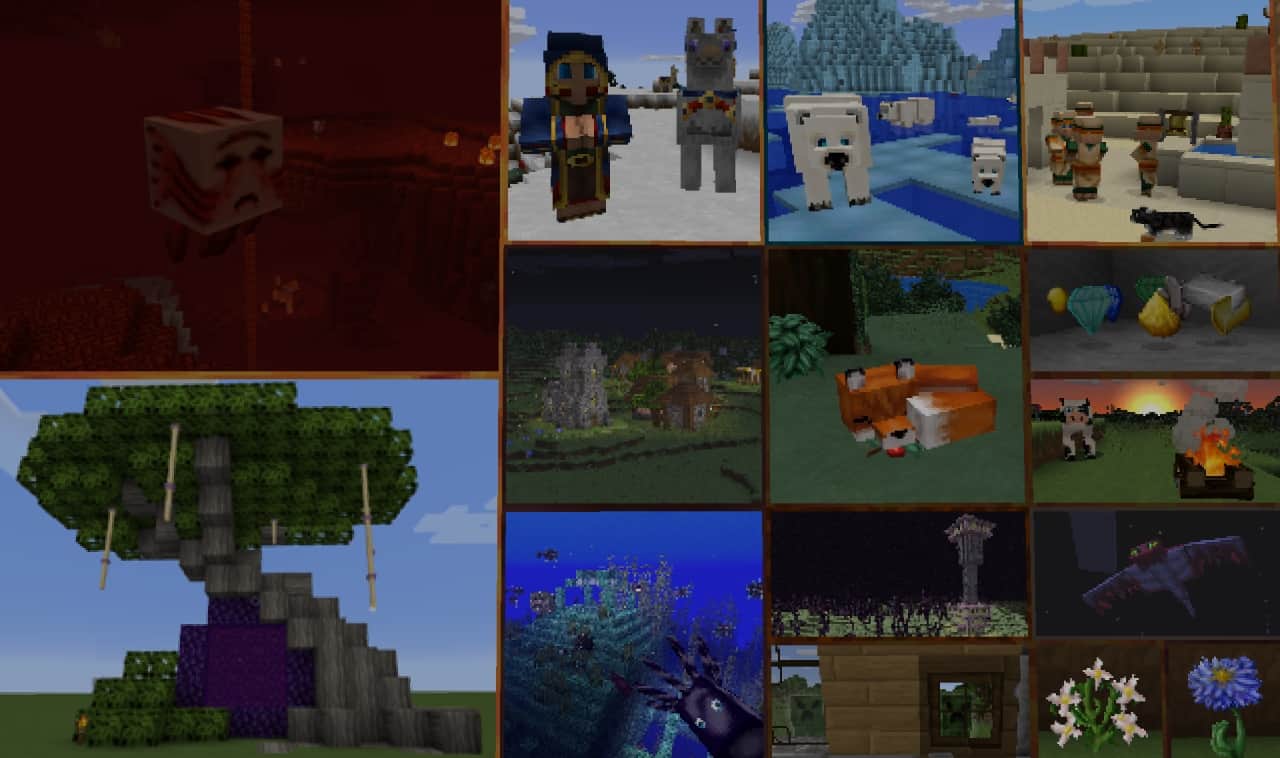
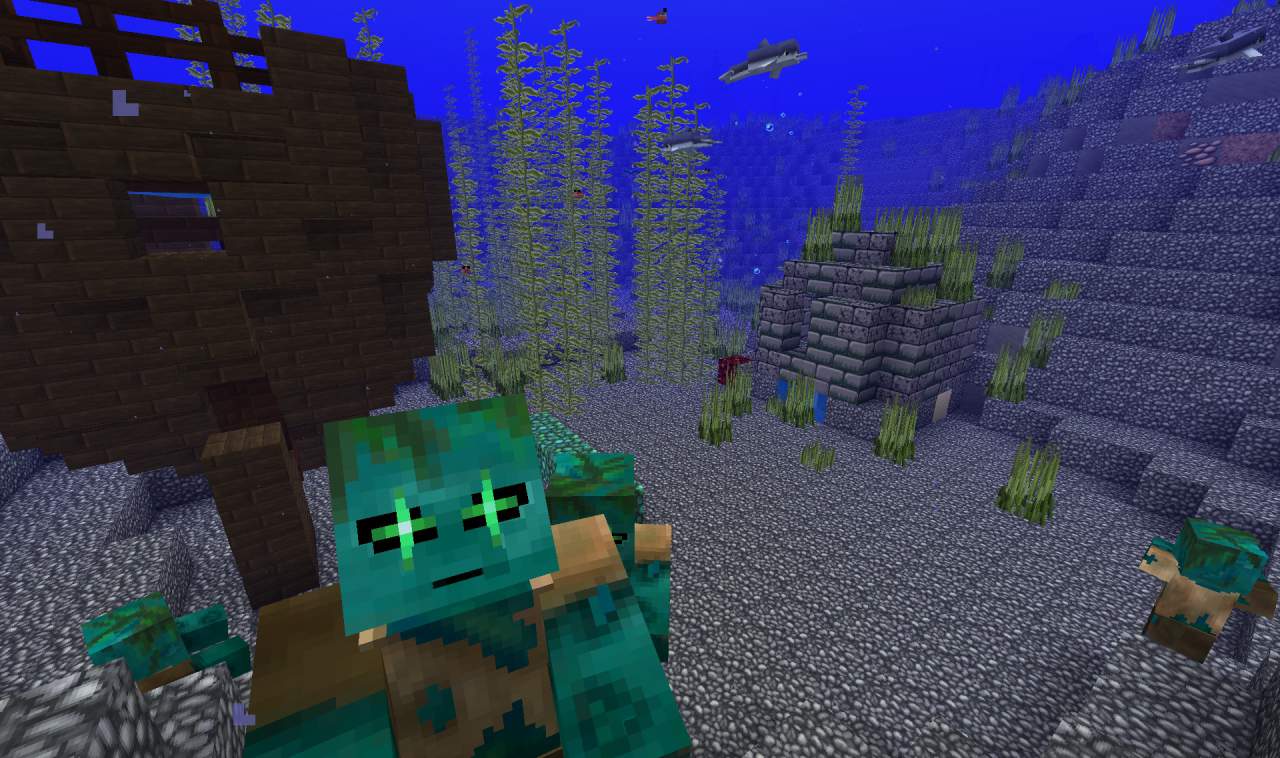
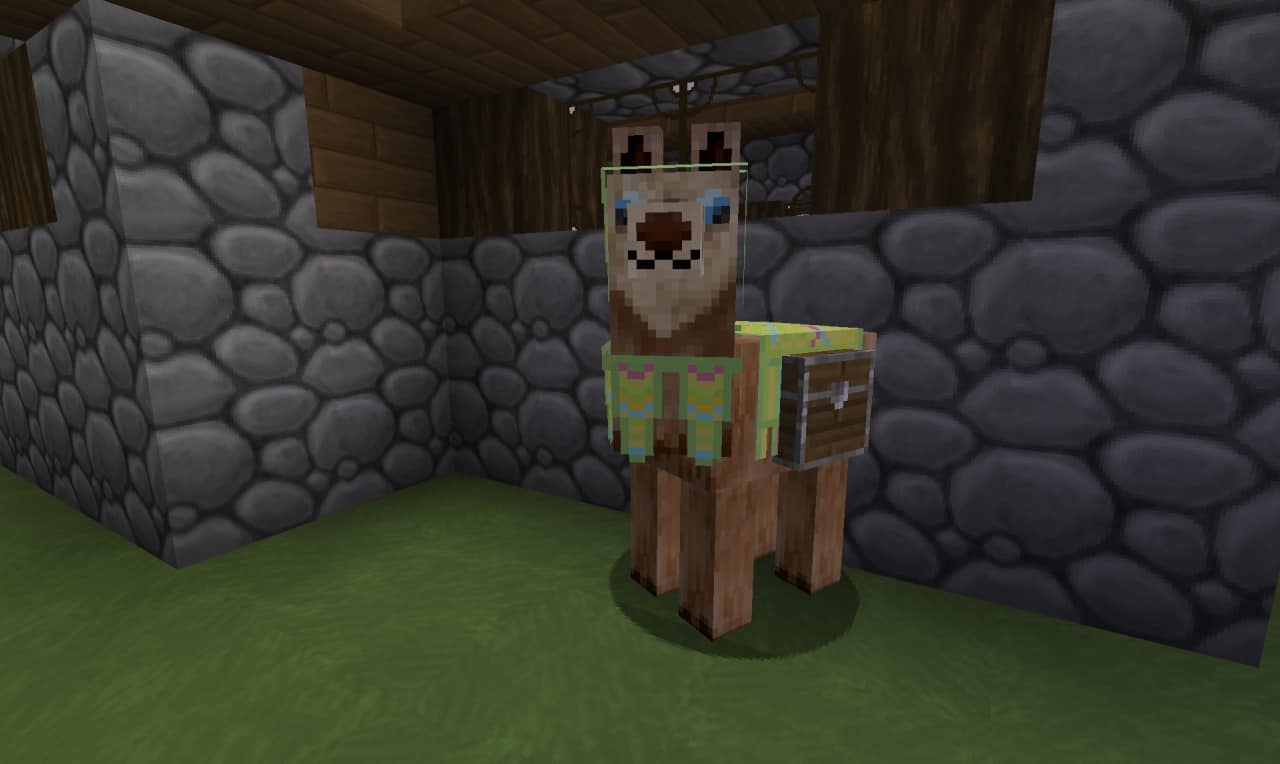
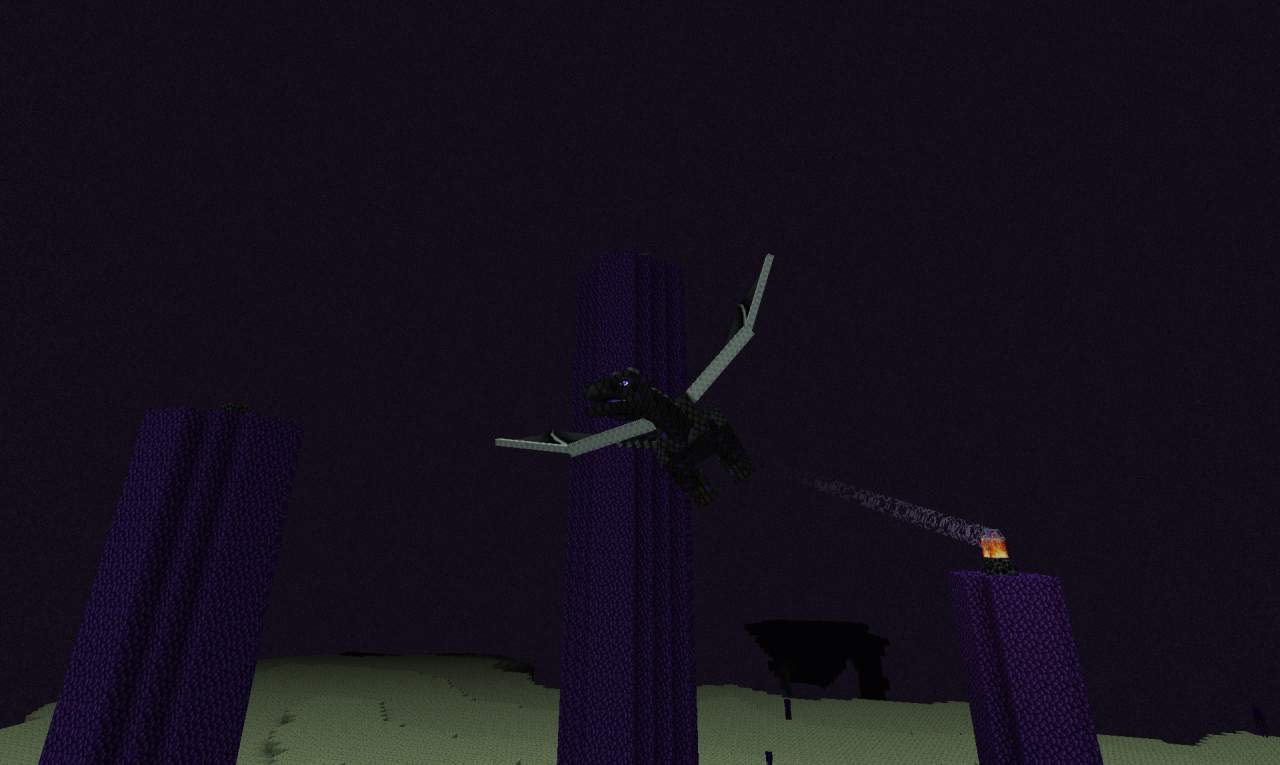
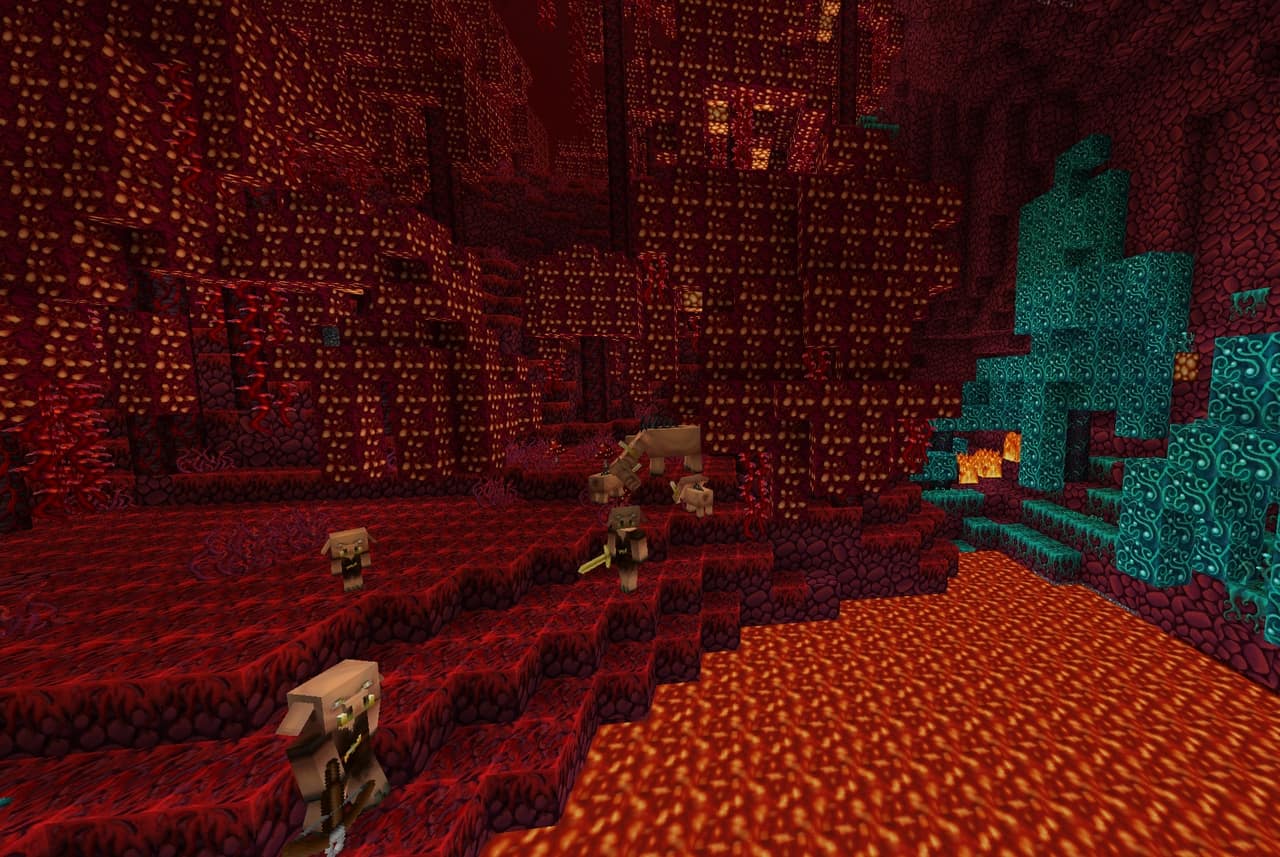
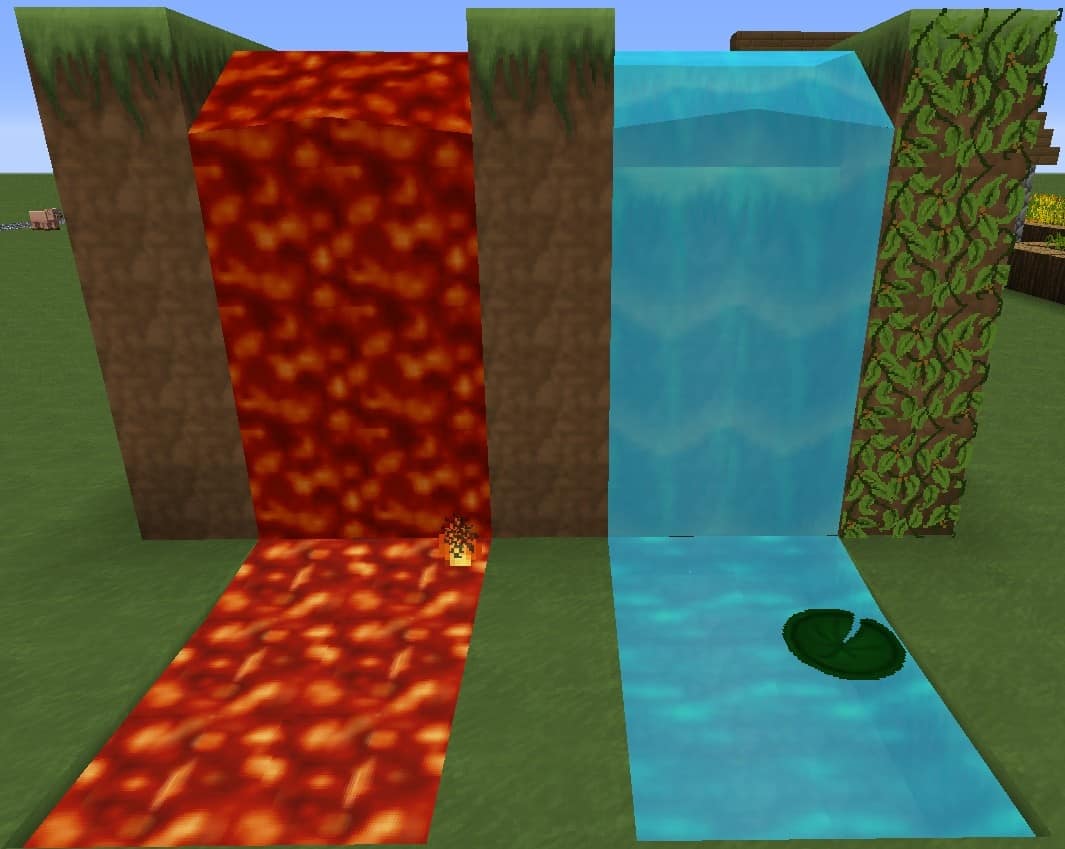
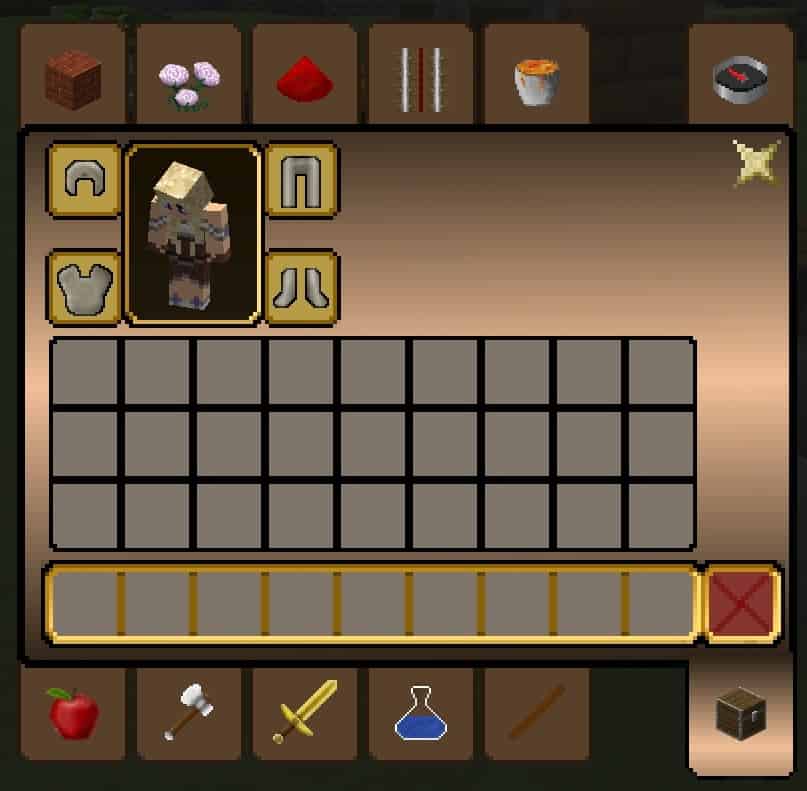
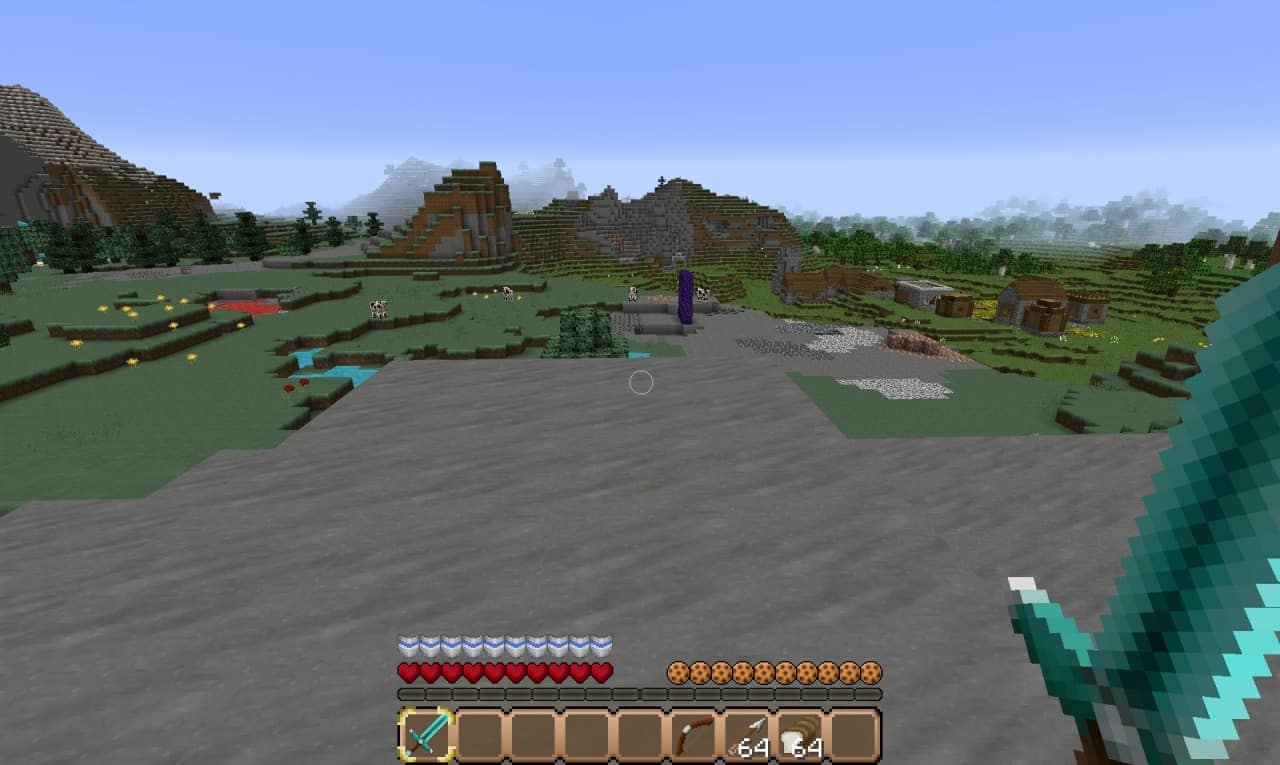
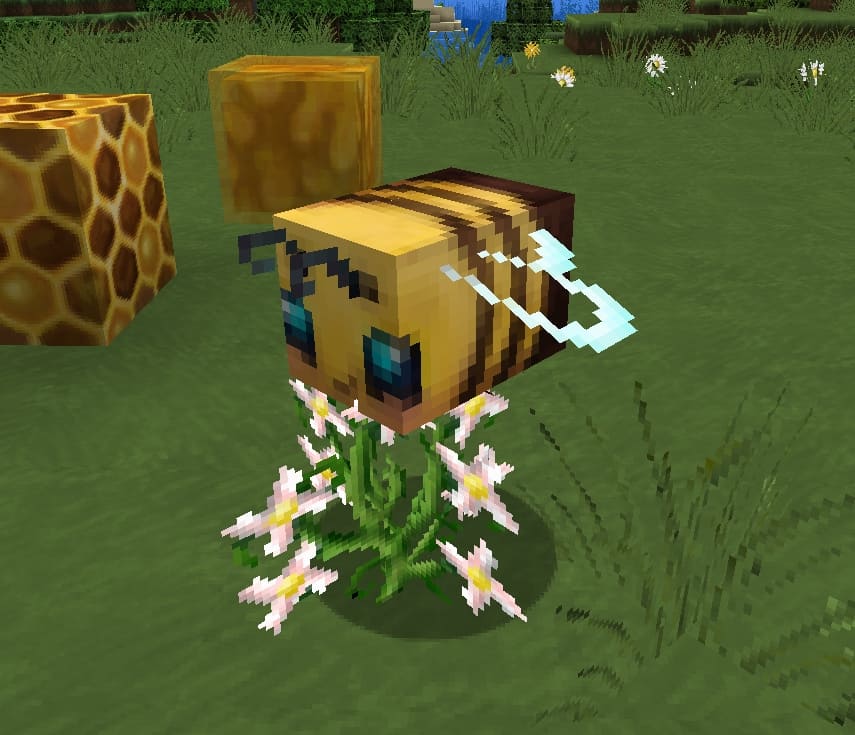
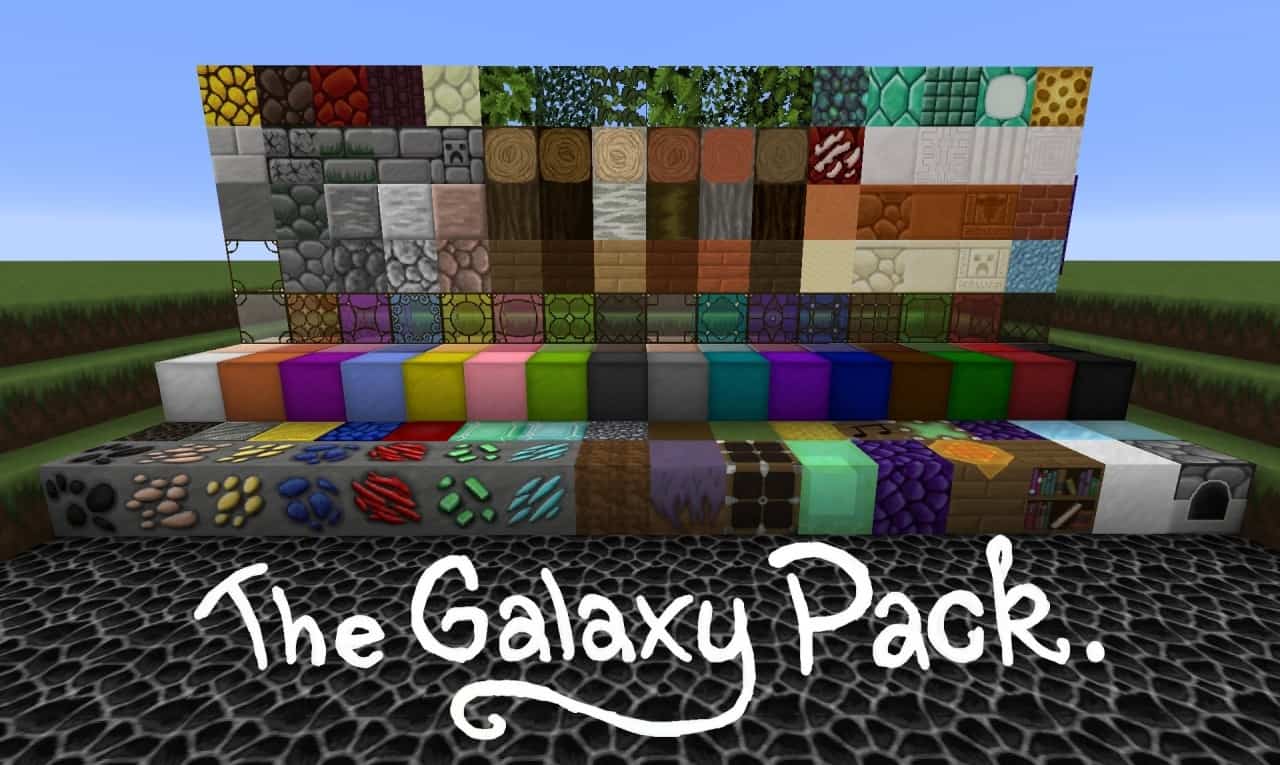
The Galaxy resource pack completely transforms your Minecraft world! Although its name might make you think otherwise, the Galaxy Resource Pack isn’t a science fiction theme at all, but it is definitely a texture pack you should seriously consider adding to your collection. This resource pack is wonderfully bright, smooth, and cartoony with almost 100% originality. Everything has been made carefully and accurately, ranging from a tiny flower model all the way to game-changing factors such as realms and dungeons. Honestly, this pack is one of the very few available in this class, and even among those few, it offers some of the highest gaming qualities you can find. The main purpose of this pack is to keep things as clean as possible: you will definitely notice this after seeing how wonderfully sharp its textures look once you install it. Actually, they are not overly cluttered, leading to a variety of elegant visual effects that players will certainly enjoy. Every single texture in the Galaxy Resource Pack was manually created, meaning they are built entirely from scratch.
This is particularly impressive when you bear in mind the endless number of textures required for a design project of this scale. The Galaxy Resource Pack features a very bright color palette and suits most areas of the game brilliantly. While it can occasionally feel a bit too bright in certain parts, this is a relatively minor issue that can be easily overlooked or fixed. Every visual element, from block textures to item appearances, looks smooth, sharp, and extremely attractive. This is further enhanced by the excellent design and the high quality 64x actual resolution of its textures. Best of all, the Galaxy Resource Pack is entirely complete, so you never have to worry about running into missing or unfinished textures while exploring your worlds. Furthermore, this resource pack is surprisingly compatible with almost all PCs, including lower-end systems. The Galaxy Resource Pack truly deserves all the praise it gets for its dedication to delivering a fresh and new experience to Minecraft players everywhere. You will genuinely be amazed upon installing it because of the incredible amount of content and features it possesses!
The Galaxy Pack should be compatible with all of these Minecraft versions: 1.16.5 – 1.16.4 – 1.16.3 – 1.16.2 – 1.16.1 – 1.16 – 1.15.2 – 1.15.1 – 1.15 – 1.14.4 – 1.14.3 – 1.14.2 – 1.14 – 1.13.2 – 1.13.1 – 1.13
Screenshots


How to Install Texture Pack (Simple 10 Steps)
- Download OptiFine: Most of the texture packs and shaders need OptiFine. That’s why, first download and install OptiFine for the version of Minecraft you want to play.
- Download the Texture Pack: Get the texture pack you want from the download section. Choose the version that works with your Minecraft and your PC’s performance.
- Open Minecraft Launcher: Start Minecraft using the official game launcher — or even TLauncher, if you use that.
- Go to Options: From the main menu, click on the “Options” button.
- Open Resource Packs: Inside Options, click on “Resource Packs…”.
- Open the Resource Pack Folder: Click on “Open Resource Pack Folder” — this will open a folder named “resourcepacks”.
- Move the Pack File: Copy or move the .zip file you downloaded into that “resourcepacks” folder. (Don’t unzip the file — Minecraft uses it as-is!)
- Go Back and Refresh: Close the folder and click “Done”, then go back into “Resource Packs…” again.
- Activate the Pack: You’ll see the pack on the left side. Hover over it and click the arrow to move it to the right (active side).
Tip: If you get a message that the pack is for a different version, just click “Yes” — it usually works fine. - Click Done and Enjoy: Click “Done” again. Now your pack is ready to use in-game. It’s that easy!
Credits
Credits to Galaxyne for creating The Galaxy Resource Pack. We do not own or modify this resource pack. All rights belong to the original author. Please support the creator by downloading from official sources.
Download Instructions
Curseforge: download starts automatically after a few seconds;
Mediafire: click the big blue button with the text “DOWNLOAD”;
Google Drive: in the top right corner you will see a small download icon (down arrow), click it and the download should start;