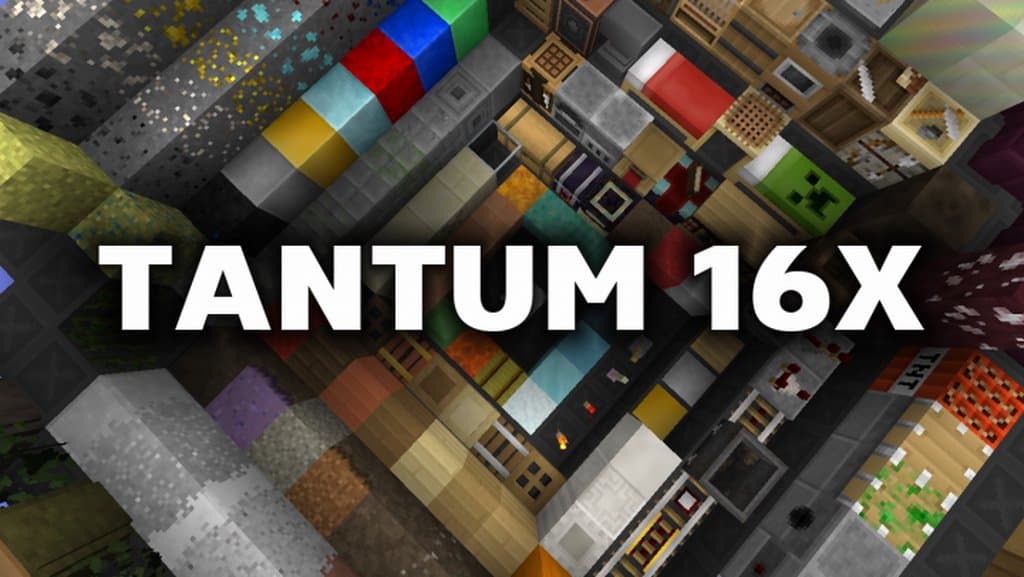
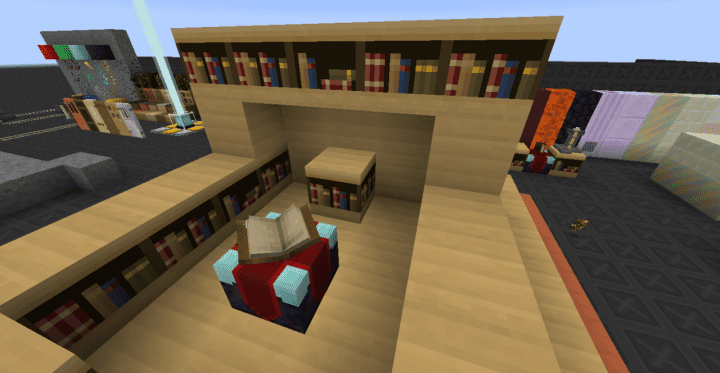
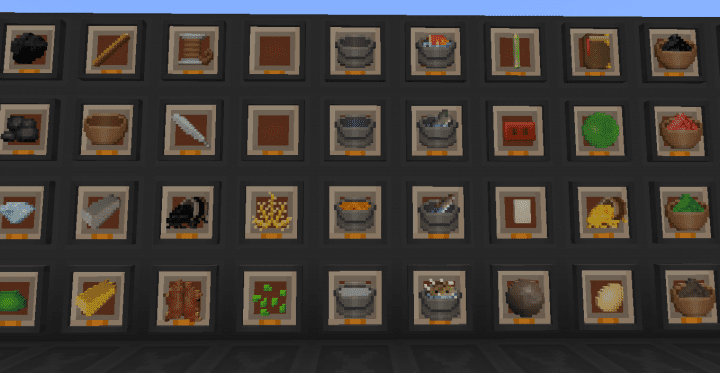
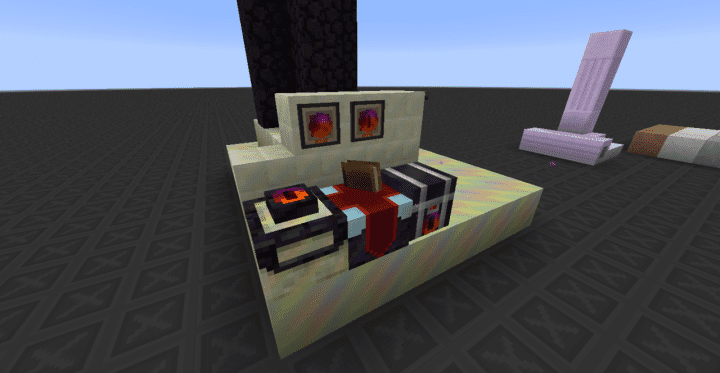
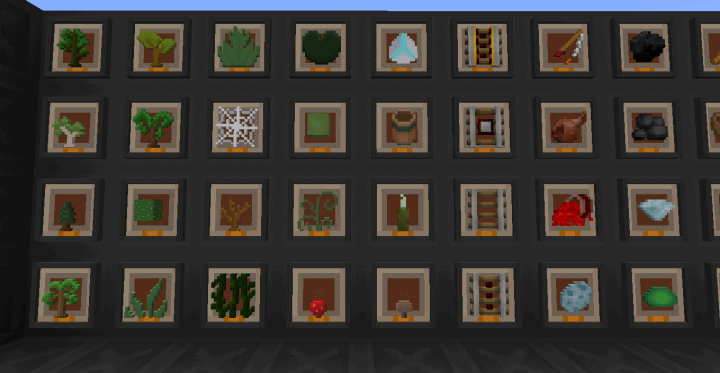
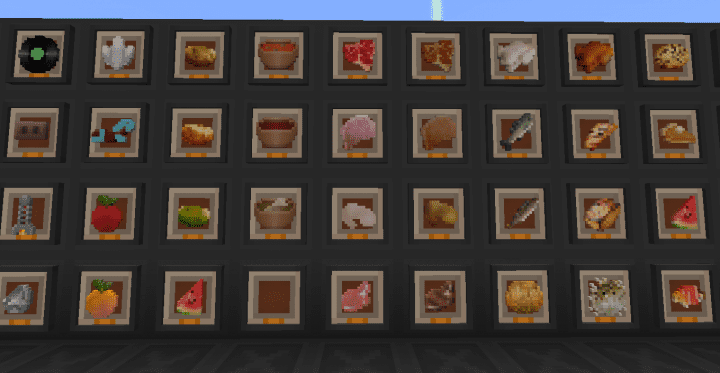
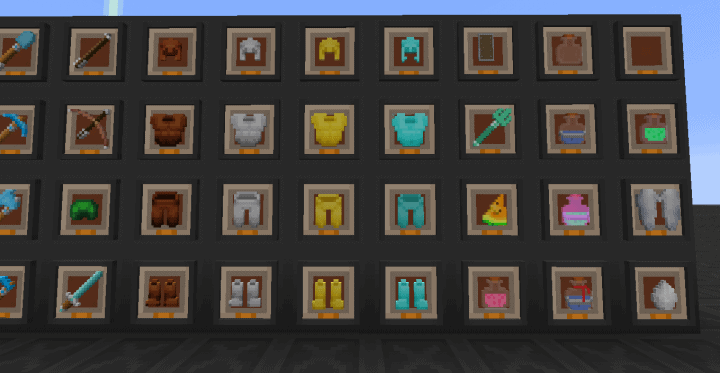
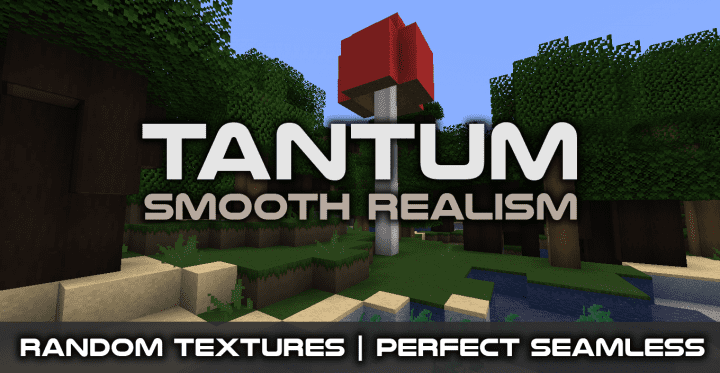
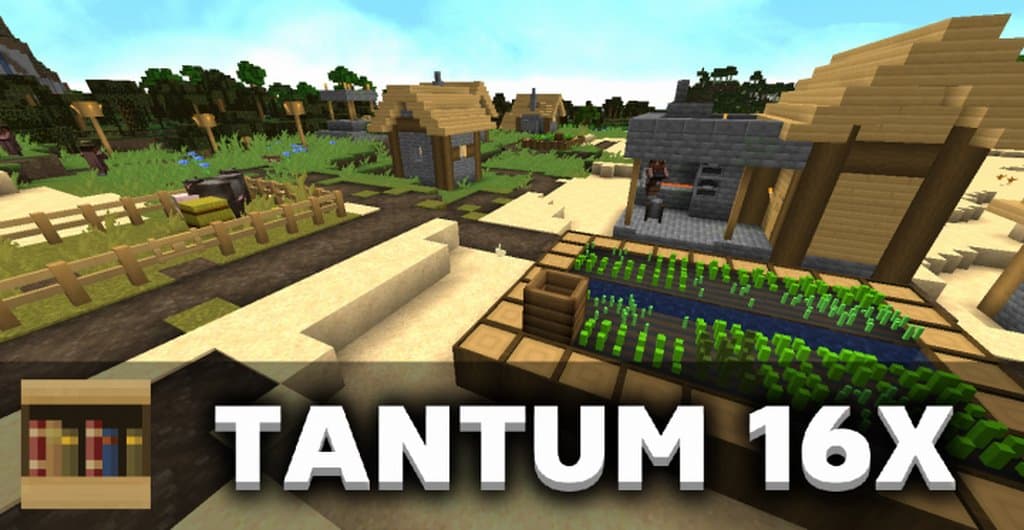
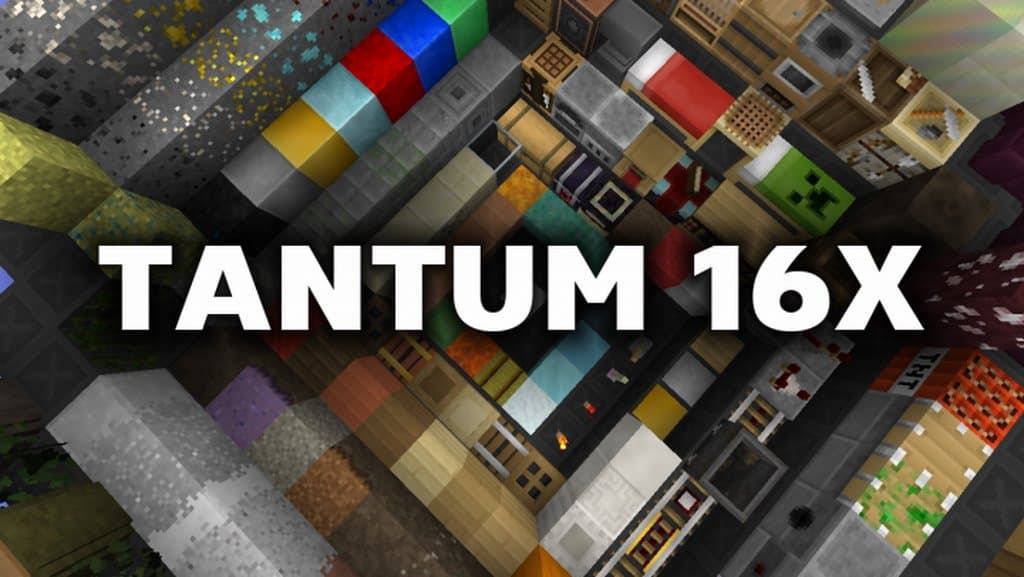
The Tantum Resource Pack is a fantastic creation that acts as a smaller sibling to the renowned Ludipak 64x textures, crafted by the wonderfully talented resource pack designer ludik. If you are curious about the Ludipak Pack, it is well-known for bringing together a diverse selection of breathtaking, high-quality textures. However, many players run into a major roadblock with Ludipak because its high resolution can cause severe frame rate drops on lower-end computers. To ensure everyone can enjoy this visual style, the Tantum Resource Pack was thoughtfully developed. It scales everything down to a lightweight 16x resolution while remaining an exceptionally amazing resource pack. I was genuinely impressed by how smooth everything feels in the Tantum Resource Pack, making every single second you spend exploring Minecraft an absolute joy. While the entire color tone palette is notably dark, it completely works to its advantage because everything fits together so incredibly well. Even though the Tantum pack is still a work in progress and far from finished, it runs stably and can be used right now without any problems. Because it shares several similar textures, this pack feels like a close relative to Ludipak. I honestly think this is the ultimate set of textures for anyone searching for a wonderfully dark-themed 16x pack.
Tantum should be compatible with all of these Minecraft versions: 1.14.4 – 1.14.3 – 1.14.2 – 1.14 – 1.13.2 – 1.13.1 – 1.13
Screenshots
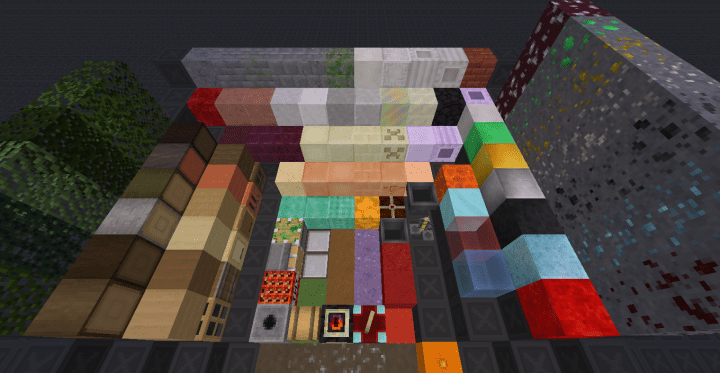
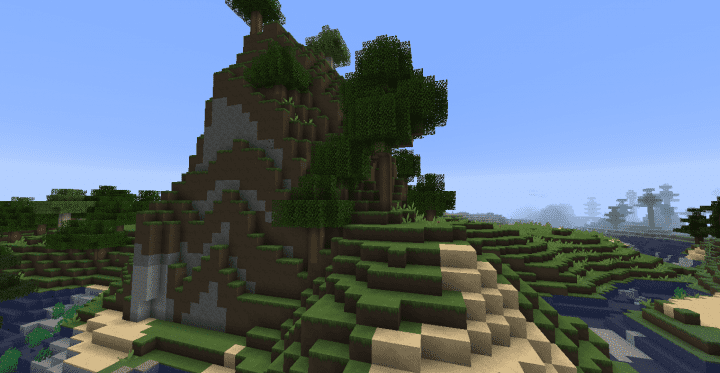

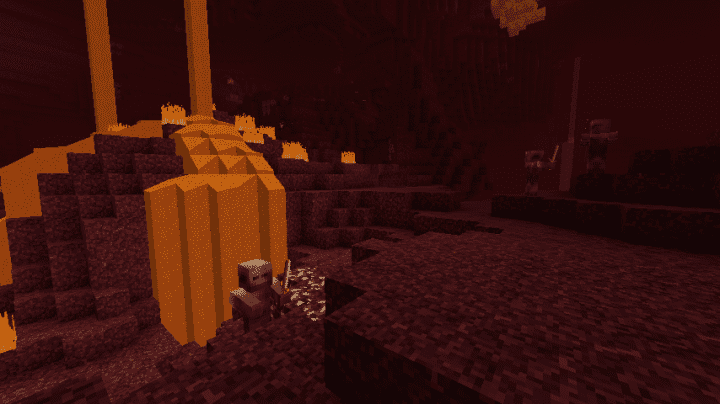

How to Install Texture Pack (Simple 10 Steps)
- Download OptiFine: Most of the texture packs and shaders need OptiFine. That’s why, first download and install OptiFine for the version of Minecraft you want to play.
- Download the Texture Pack: Get the texture pack you want from the download section. Choose the version that works with your Minecraft and your PC’s performance.
- Open Minecraft Launcher: Start Minecraft using the official game launcher — or even TLauncher, if you use that.
- Go to Options: From the main menu, click on the “Options” button.
- Open Resource Packs: Inside Options, click on “Resource Packs…”.
- Open the Resource Pack Folder: Click on “Open Resource Pack Folder” — this will open a folder named “resourcepacks”.
- Move the Pack File: Copy or move the .zip file you downloaded into that “resourcepacks” folder. (Don’t unzip the file — Minecraft uses it as-is!)
- Go Back and Refresh: Close the folder and click “Done”, then go back into “Resource Packs…” again.
- Activate the Pack: You’ll see the pack on the left side. Hover over it and click the arrow to move it to the right (active side).
Tip: If you get a message that the pack is for a different version, just click “Yes” — it usually works fine. - Click Done and Enjoy: Click “Done” again. Now your pack is ready to use in-game. It’s that easy!
Credits
This resource pack was created by ludik. We do not own or claim ownership of this content, and no modifications have been made to the original files provided by the author. All rights remain with the original creator, and we strongly encourage supporting ludik by checking out their official download links and content.
Download Instructions
Curseforge: download starts automatically after a few seconds;
Mediafire: click the big blue button with the text “DOWNLOAD”;
Google Drive: in the top right corner you will see a small download icon (down arrow), click it and the download should start;


