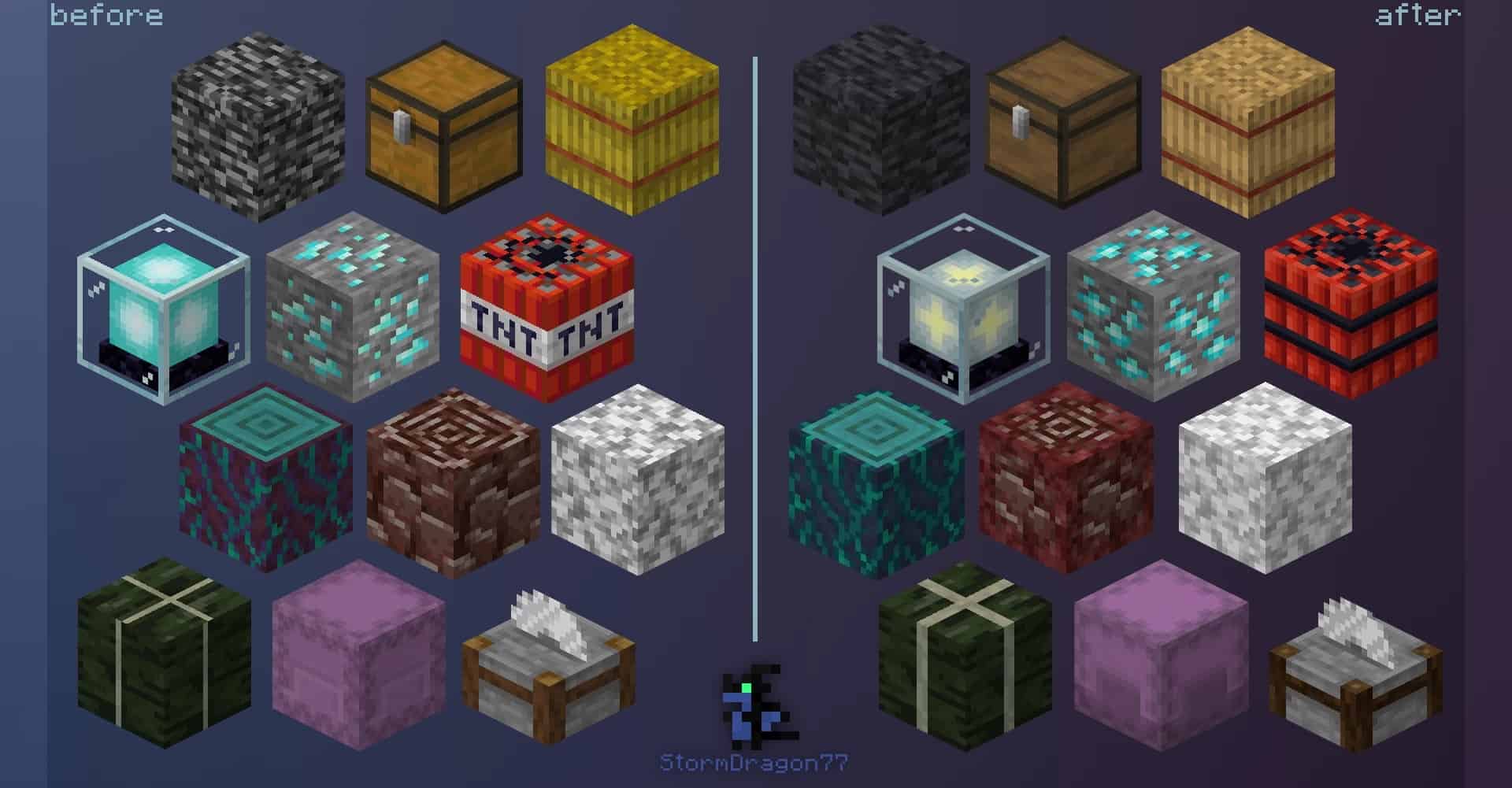
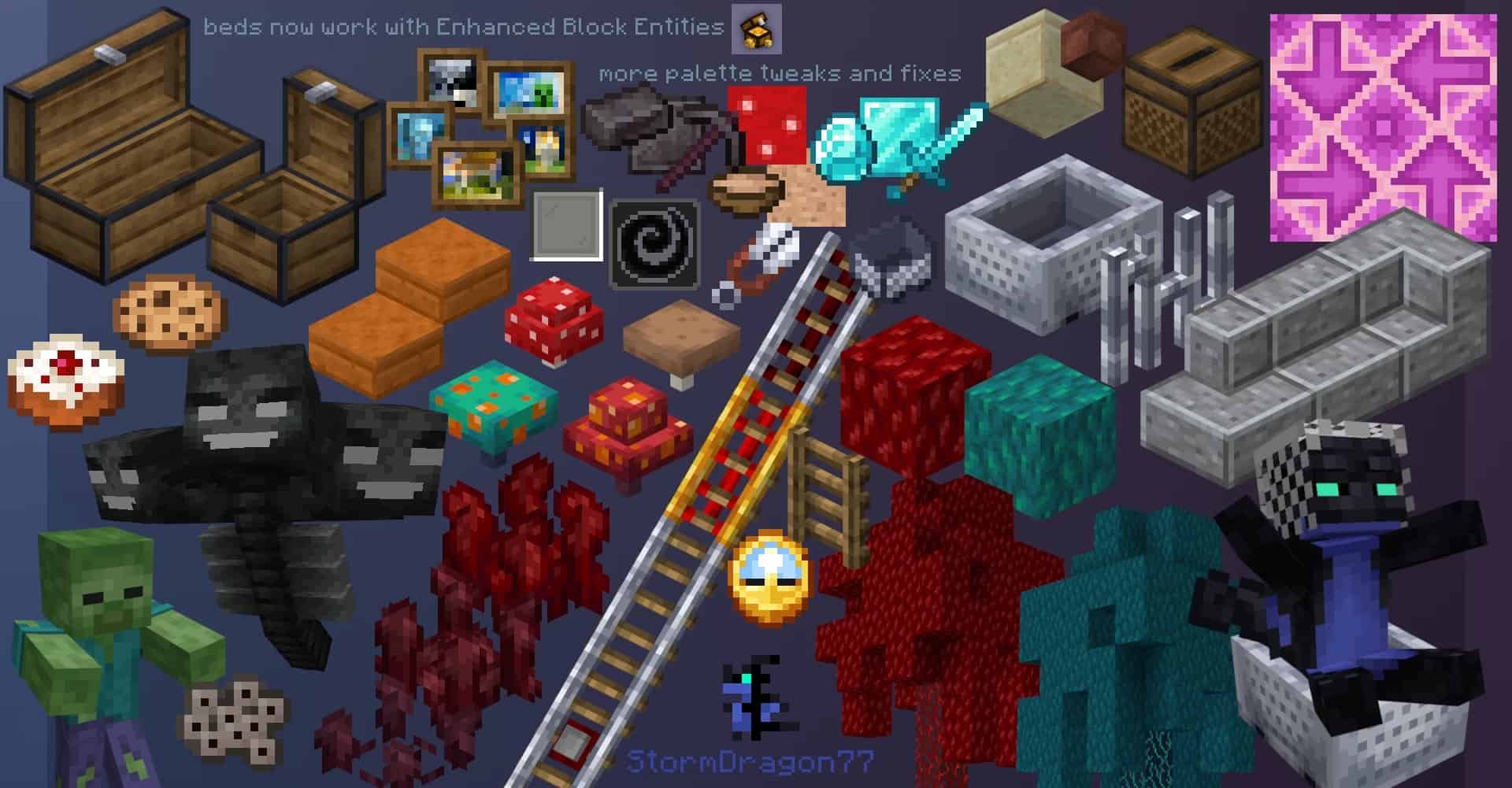
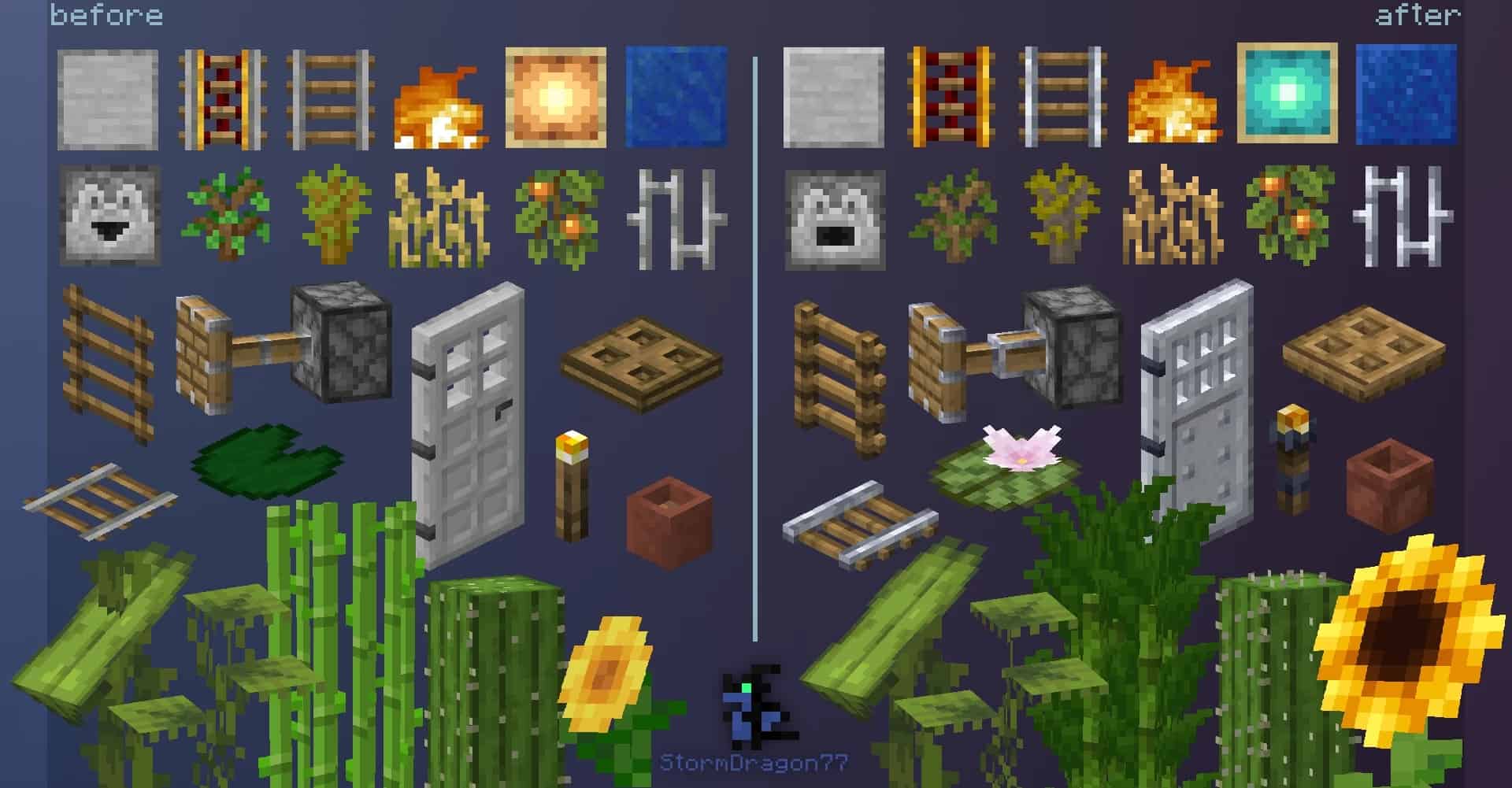
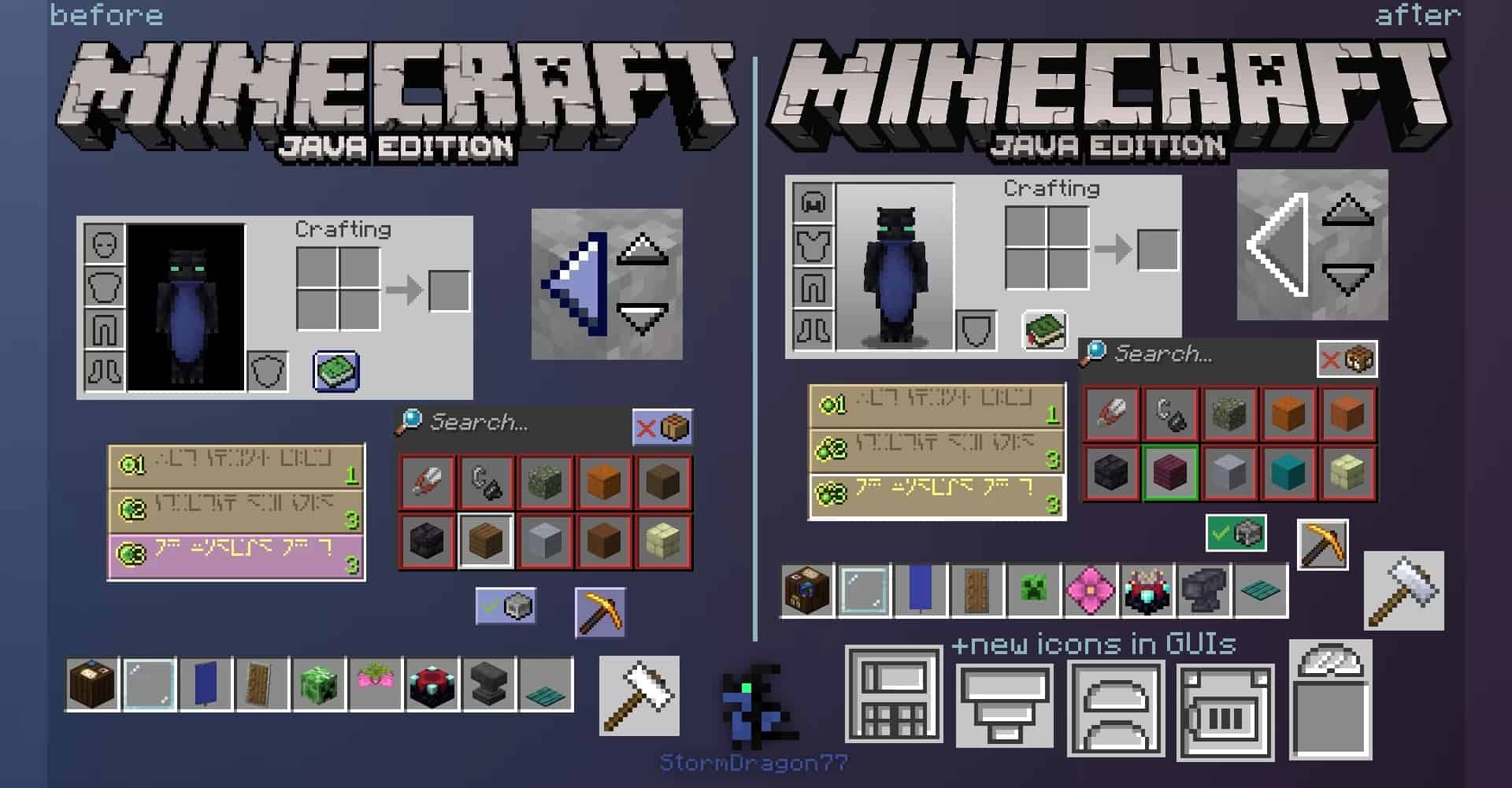
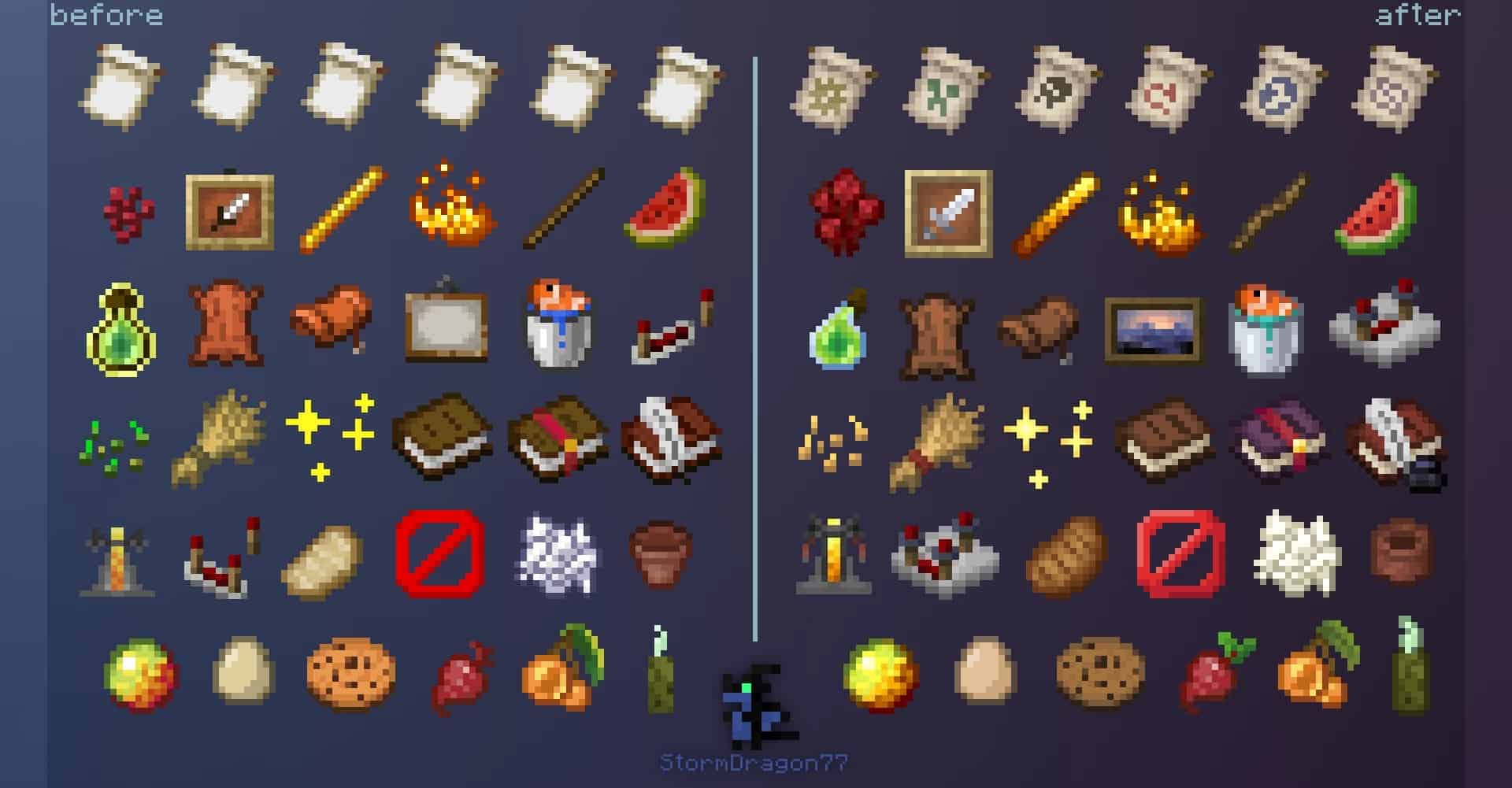
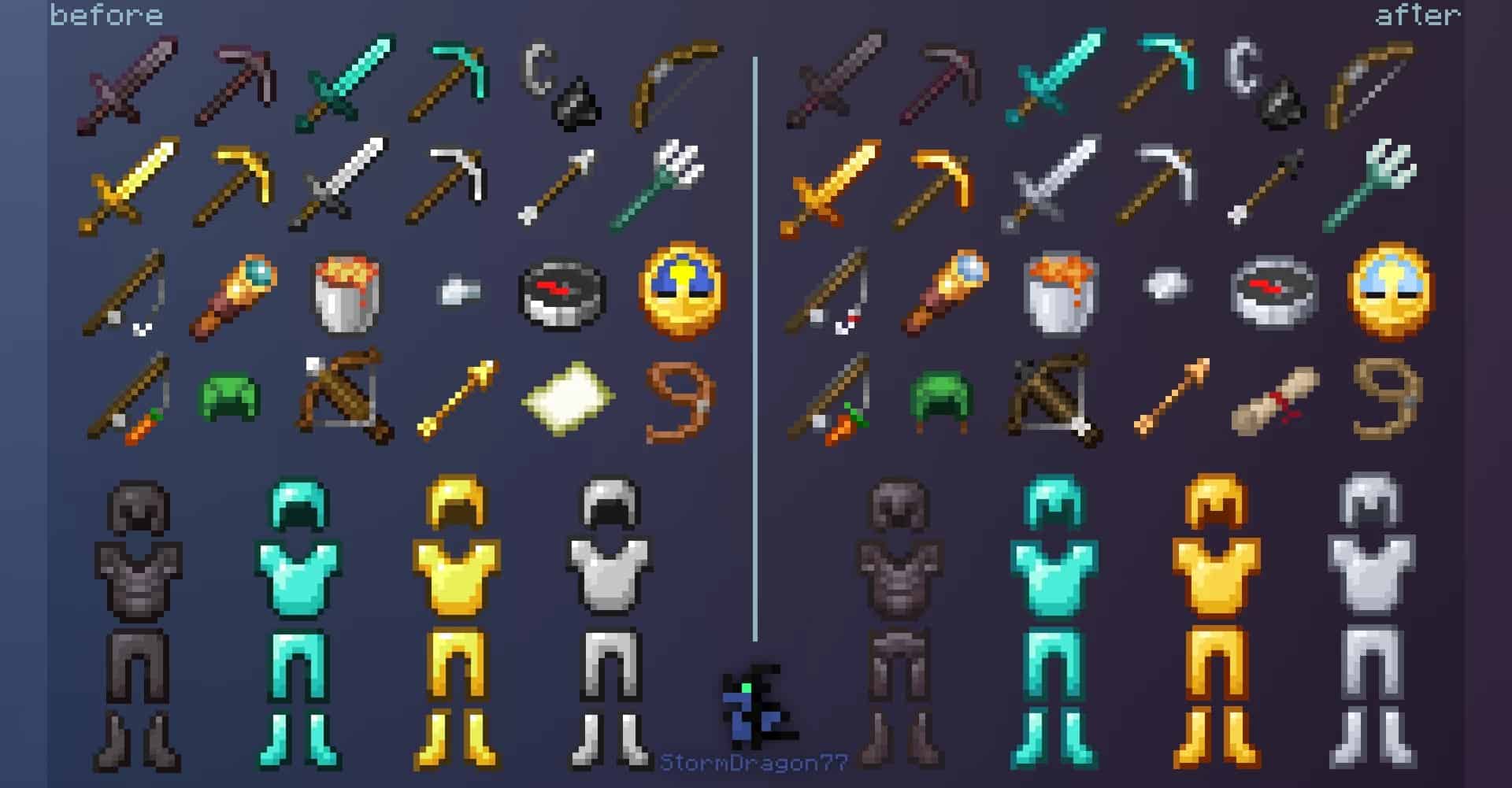
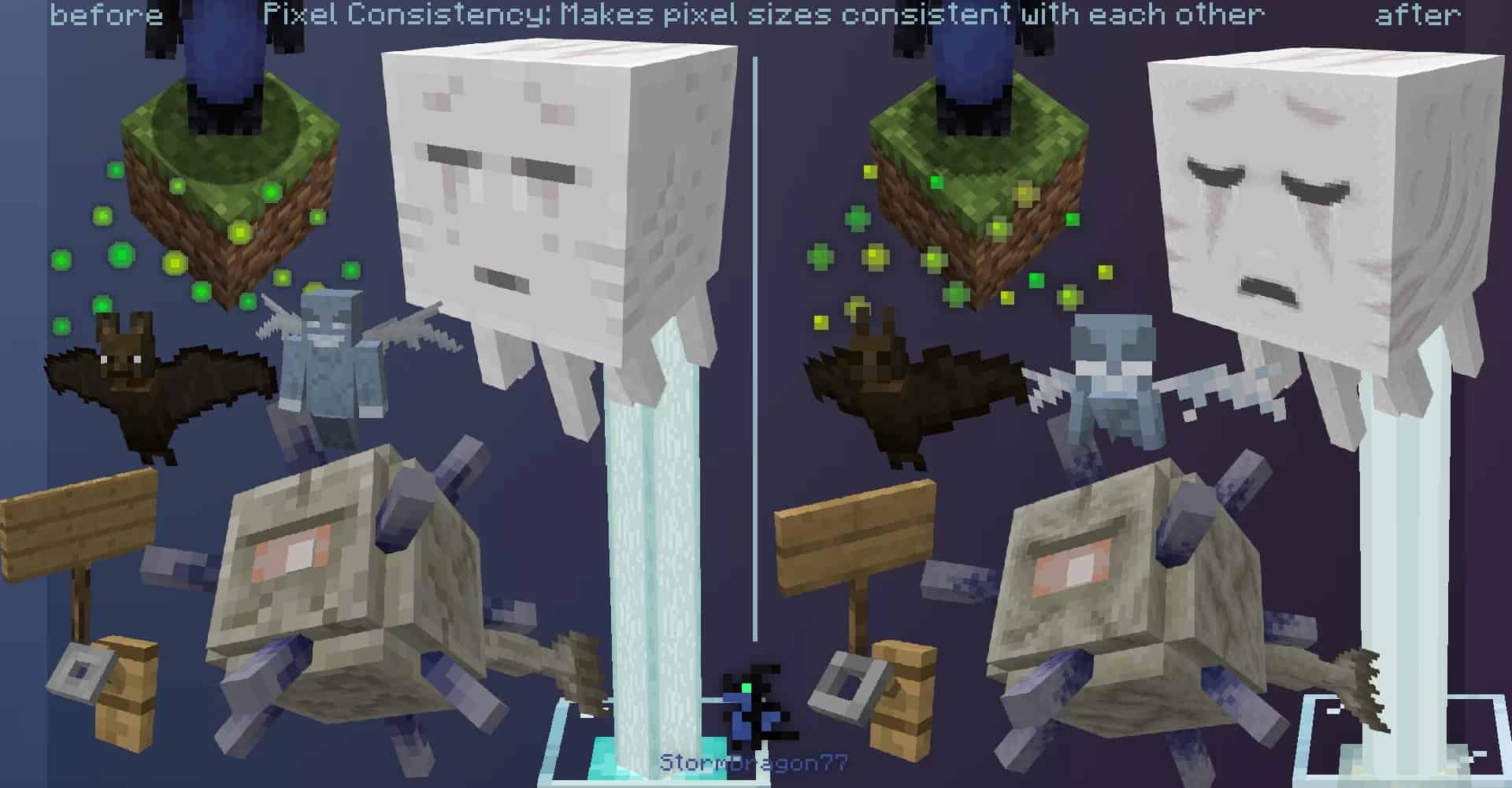
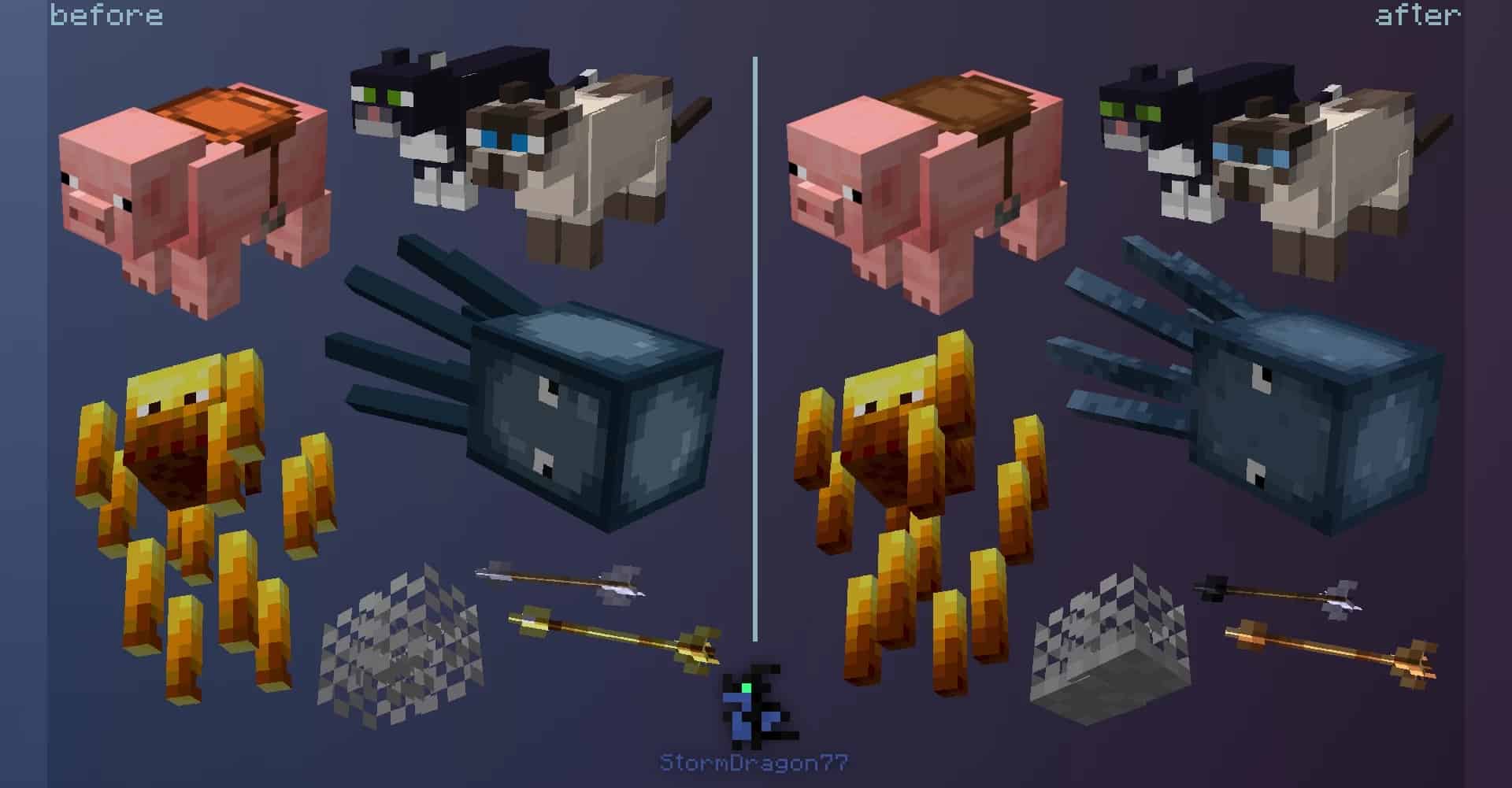
Amidst a vast sea of similar and uninspiring packs, I found that the Stormilla resource pack truly breaks the routine and stands out as one of the most ambitious projects the Minecraft community has seen in a long time. It is a more recent addition that started out just a few years ago with its initial release in 2020. Its developer, StormDragon77, began by simply fixing a few minor annoyances in the game, but after several updates, it blossomed into a much larger endeavor. Exploring the basic concepts of Stormilla, I love how everything is currently bundled into a single resource pack while being structured to eventually separate into multiple independent packs that each overhaul a single concept. This design makes the project vastly more compatible with the vanilla game while allowing players to pick and choose only the specific aspects they want to change. Although the whole pack can be loaded without Optifine, I noticed that most of the advanced features rely on it to function correctly. The primary goal of Stormilla is to fix graphical inconsistencies. There are so many textures and models in Minecraft that deviate from their original designs—for instance, the glass bottle representation inside the brewing stand GUI looks completely different from the actual item model, and the jungle door texture does not match the appearance of the dropped item on the ground. These are minor discrepancies, but the Stormilla texture pack expertly fixes every single one of them. While the developer acknowledges that some choices are traditionally intentional and iconic, he still maintains that improving them makes sense. Another major enhancement involves the color palette, where items supposed to share the exact same material previously had clashing hues, most noticeably seen when comparing iron tools to an anvil. Everything has been carefully tweaked to accurately resemble the materials they are crafted from, and flat textures under shade have been corrected back to their original variants.
This also ties nicely into how Minecraft handles its mix of 2D and 3D textures. With this pack, I noticed that all non-full blocks, except for stairs and slabs, are made exclusively 2D, keeping the world visually grounded. The Stormilla resource pack also pays incredible attention to maintaining consistency across different game editions, offering a dedicated release for Minecraft Bedrock players. While technical limitations between Java and Bedrock can restrict resource pack features, the developer successfully keeps both versions as closely aligned as possible, even though update times may vary slightly. If you are a veteran player who worries about sweeping changes ruining Minecraft’s original charm, you can rest easy. Even though Stormilla brings a massive amount of polish, it strictly builds upon the existing foundation to smooth out rough edges. It leans slightly into realism while perfectly retaining the classic game experience. Sticking to the iconic 16×16 vanilla resolution means you can enjoy all these incredible features without any performance drops, and if you use Optifine as recommended, you might even gain a few extra frames per second. If any specific features ever cause issues, you can easily disable them once the pack splits into smaller modules. Because these meticulous changes take a lot of time to implement, Stormilla remains a work in progress, and as a solo project, updates typically take over a month to finish. The developer relies heavily on community feedback through an active Discord server for announcements and previews, as well as a GitHub page for bug reports and suggestions. Even though it will take time to be fully completed, I believe Stormilla is well worth the wait for its innovative and polished vision.
Stormilla should be compatible with all of these Minecraft versions: 1.21.10 – 1.21.9 – 1.21.8 – 1.21.7 – 1.21.6 – 1.21.5 – 1.21.4 – 1.21.3 – 1.21.2 – 1.21.1 – 1.21 – 1.20.6 – 1.20.5 – 1.20.4 – 1.20.3 – 1.20.2 – 1.20.1 – 1.20 – 1.19.4 – 1.19.3 – 1.19.2 – 1.19.1 – 1.19 – 1.18.2 – 1.18.1 – 1.18 – Bedrock Edition – PE
Screenshots

How to Install Texture Pack (Simple 10 Steps)
- Download OptiFine: Most of the texture packs and shaders need OptiFine. That’s why, first download and install OptiFine for the version of Minecraft you want to play.
- Download the Texture Pack: Get the texture pack you want from the download section. Choose the version that works with your Minecraft and your PC’s performance.
- Open Minecraft Launcher: Start Minecraft using the official game launcher — or even TLauncher, if you use that.
- Go to Options: From the main menu, click on the “Options” button.
- Open Resource Packs: Inside Options, click on “Resource Packs…”.
- Open the Resource Pack Folder: Click on “Open Resource Pack Folder” — this will open a folder named “resourcepacks”.
- Move the Pack File: Copy or move the .zip file you downloaded into that “resourcepacks” folder. (Don’t unzip the file — Minecraft uses it as-is!)
- Go Back and Refresh: Close the folder and click “Done”, then go back into “Resource Packs…” again.
- Activate the Pack: You’ll see the pack on the left side. Hover over it and click the arrow to move it to the right (active side).
Tip: If you get a message that the pack is for a different version, just click “Yes” — it usually works fine. - Click Done and Enjoy: Click “Done” again. Now your pack is ready to use in-game. It’s that easy!
Credits
This resource pack was created by StormDragon77. We do not claim ownership of this content, nor do we host modified versions of the files. All rights remain with the original creator. We encourage you to support StormDragon77 by downloading the pack directly from their official sources and participating in their community channels.
Download Links
Java Edition
- [16x] Minecraft 1.21.x – 1.20.2
- [16x] Minecraft 1.20.1 – 1.20
- [16x] Minecraft 1.19.x
- [16x] Minecraft 1.18.x
- Dark Mode GUI (1.21.x – 1.20.2)
- Dark Mode GUI (1.20.1 – 1.18.x)
- Fading Enchantment Glint Addon
Bedrock Edition
Download Instructions
Curseforge: download starts automatically after a few seconds;
Mediafire: click the big blue button with the text “DOWNLOAD”;
Google Drive: in the top right corner you will see a small download icon (down arrow), click it and the download should start;


