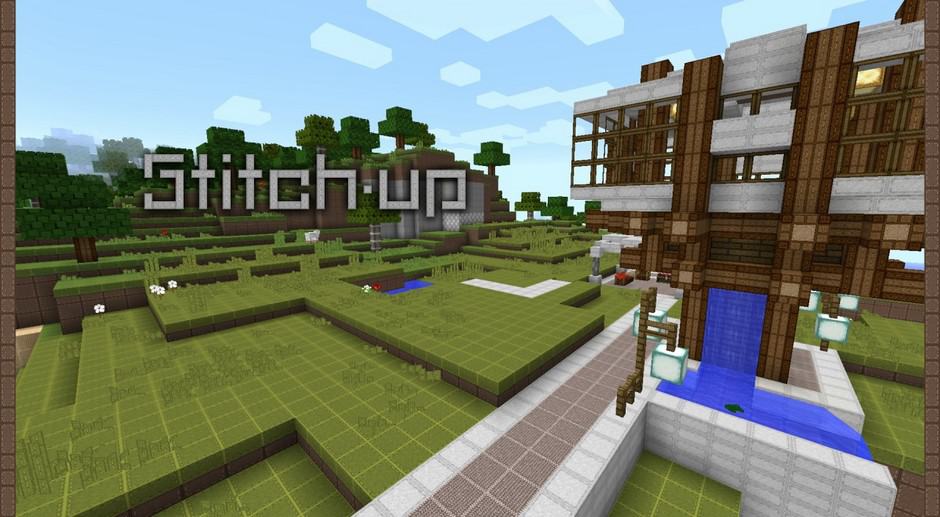
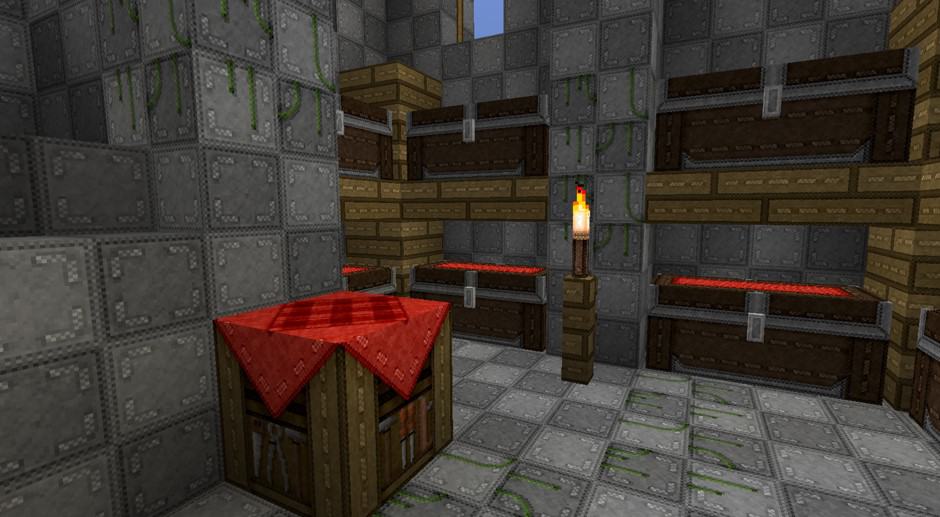
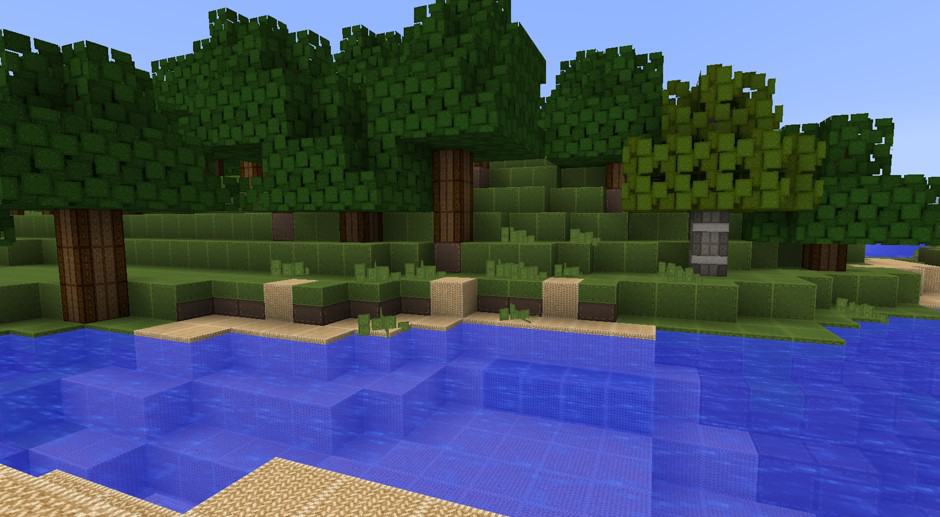
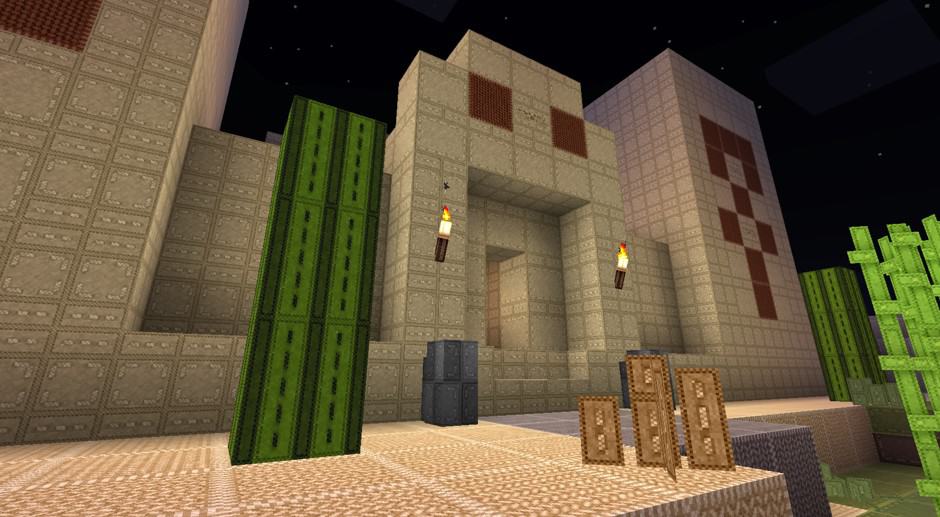
The Stitch Up resource pack takes a simple idea and applies it with care. Operating at a 64x resolution, the textures remain clean and easy on the eyes, ensuring you can still recognize Minecraft blocks at a glance during mining or building sessions.
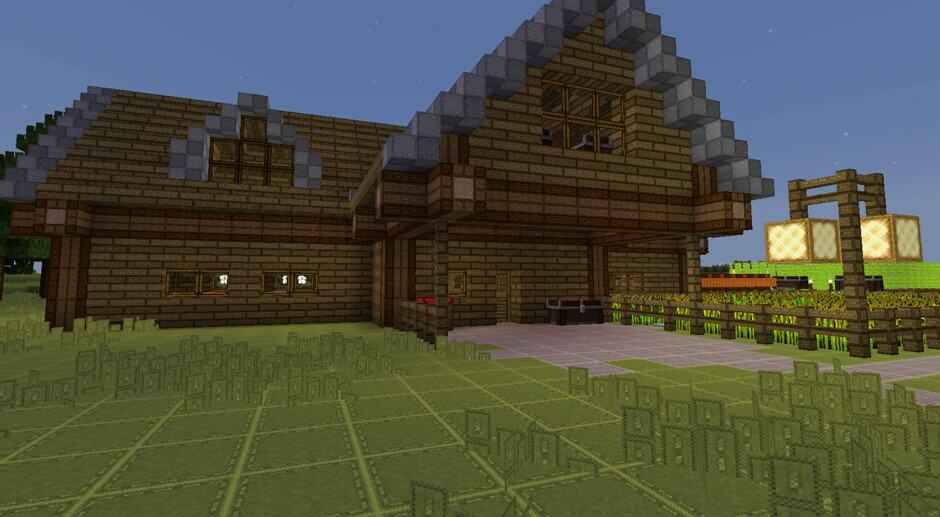
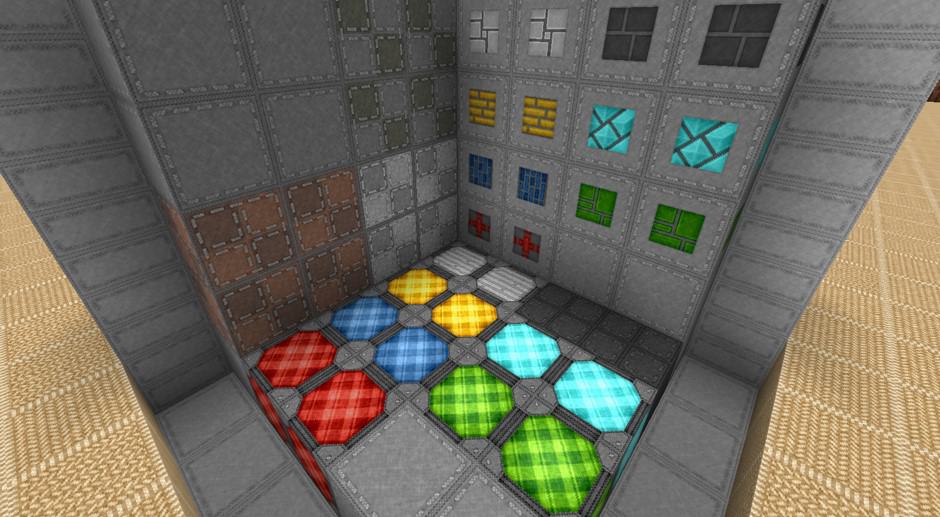
Rather than chasing realism, it gives the world a handmade look inspired by fabric, thread, and soft craft materials. Many blocks and items feature visible seams and patch patterns, making them look sewn together from pieces of cloth.
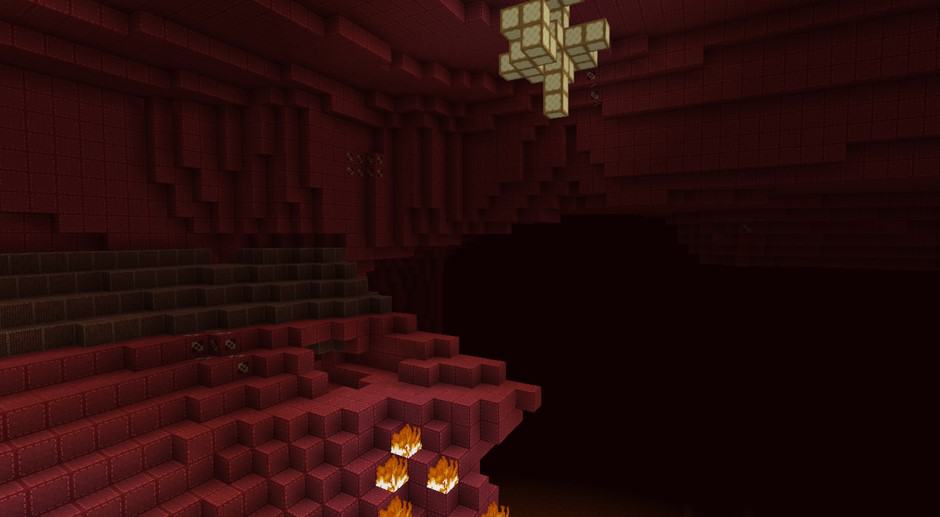
Colors lean bright and toy-like, shifting the mood of your world without altering gameplay. Forests feel less harsh, caves less grim, and villages resemble small adventure game sets. The style makes long building sessions feel lighter by replacing heavy stone aesthetics with a softer look.
If you are tired of ultra-realistic packs, this option resets your world’s appearance while respecting Minecraft’s original shapes. It also pairs well with simple shaders if you want to enhance the visuals further.
Stitch Up should be compatible with all of these Minecraft versions: 1.8.9 – 1.8.8 – 1.8.1 – 1.8.6 – 1.8 – 1.7.10 – 1.7.9 – 1.7.4 – 1.7 – 1.6.4 – 1.6.2
Screenshots
How to Install Texture Pack (Simple 10 Steps)
- Download OptiFine: Most of the texture packs and shaders need OptiFine. That’s why, first download and install OptiFine for the version of Minecraft you want to play.
- Download the Texture Pack: Get the texture pack you want from the download section. Choose the version that works with your Minecraft and your PC’s performance.
- Open Minecraft Launcher: Start Minecraft using the official game launcher — or even TLauncher, if you use that.
- Go to Options: From the main menu, click on the “Options” button.
- Open Resource Packs: Inside Options, click on “Resource Packs…”.
- Open the Resource Pack Folder: Click on “Open Resource Pack Folder” — this will open a folder named “resourcepacks”.
- Move the Pack File: Copy or move the .zip file you downloaded into that “resourcepacks” folder. (Don’t unzip the file — Minecraft uses it as-is!)
- Go Back and Refresh: Close the folder and click “Done”, then go back into “Resource Packs…” again.
- Activate the Pack: You’ll see the pack on the left side. Hover over it and click the arrow to move it to the right (active side).
Tip: If you get a message that the pack is for a different version, just click “Yes” — it usually works fine. - Click Done and Enjoy: Click “Done” again. Now your pack is ready to use in-game. It’s that easy!
Credits
This resource pack was originally created by Ignaf. We do not own or modify these files, and all rights remain with the original creator. We strongly recommend supporting Ignaf by downloading the pack through the official links provided.
Download Instructions
Curseforge: download starts automatically after a few seconds;
Mediafire: click the big blue button with the text “DOWNLOAD”;
Google Drive: in the top right corner you will see a small download icon (down arrow), click it and the download should start;


