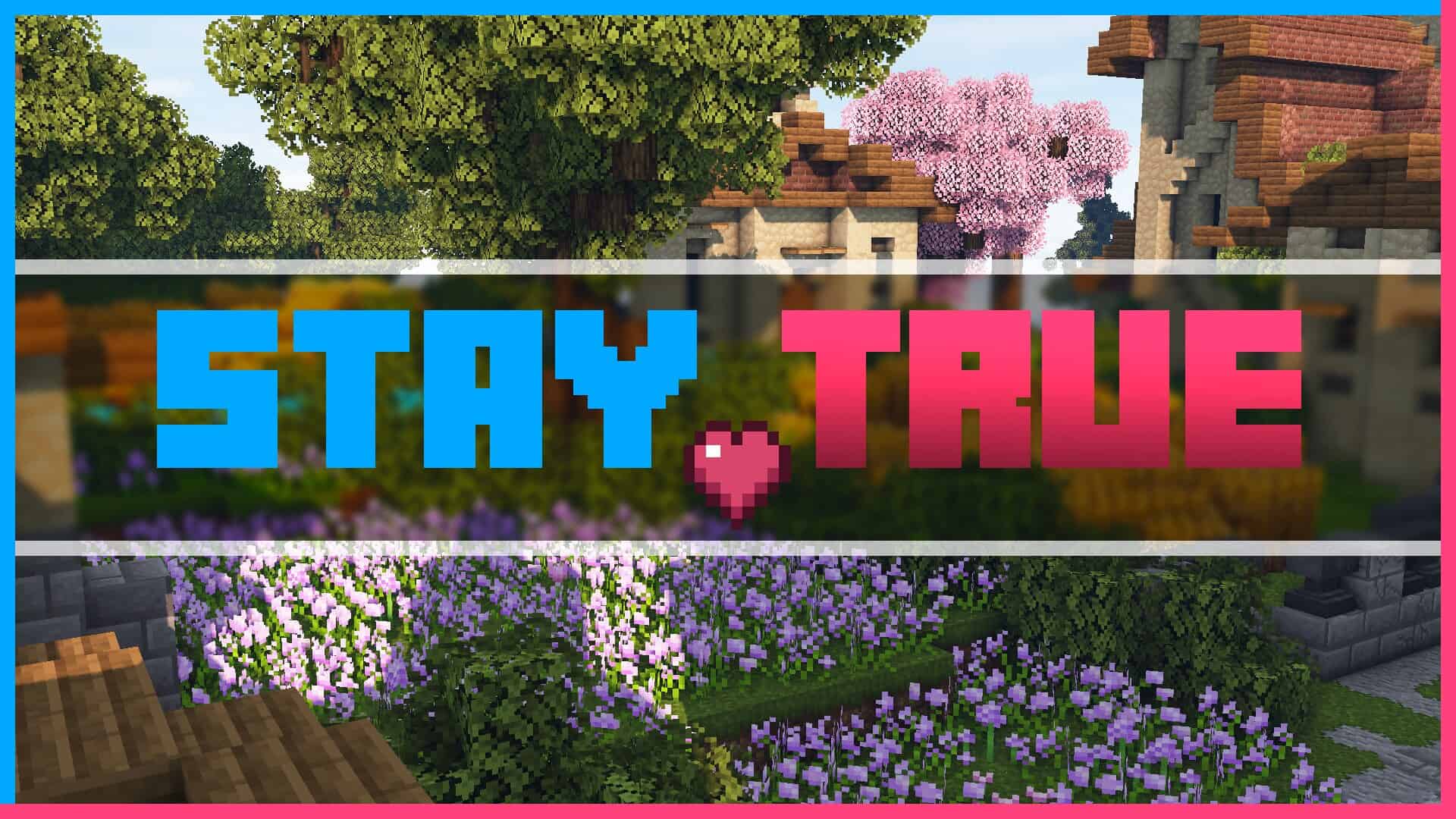
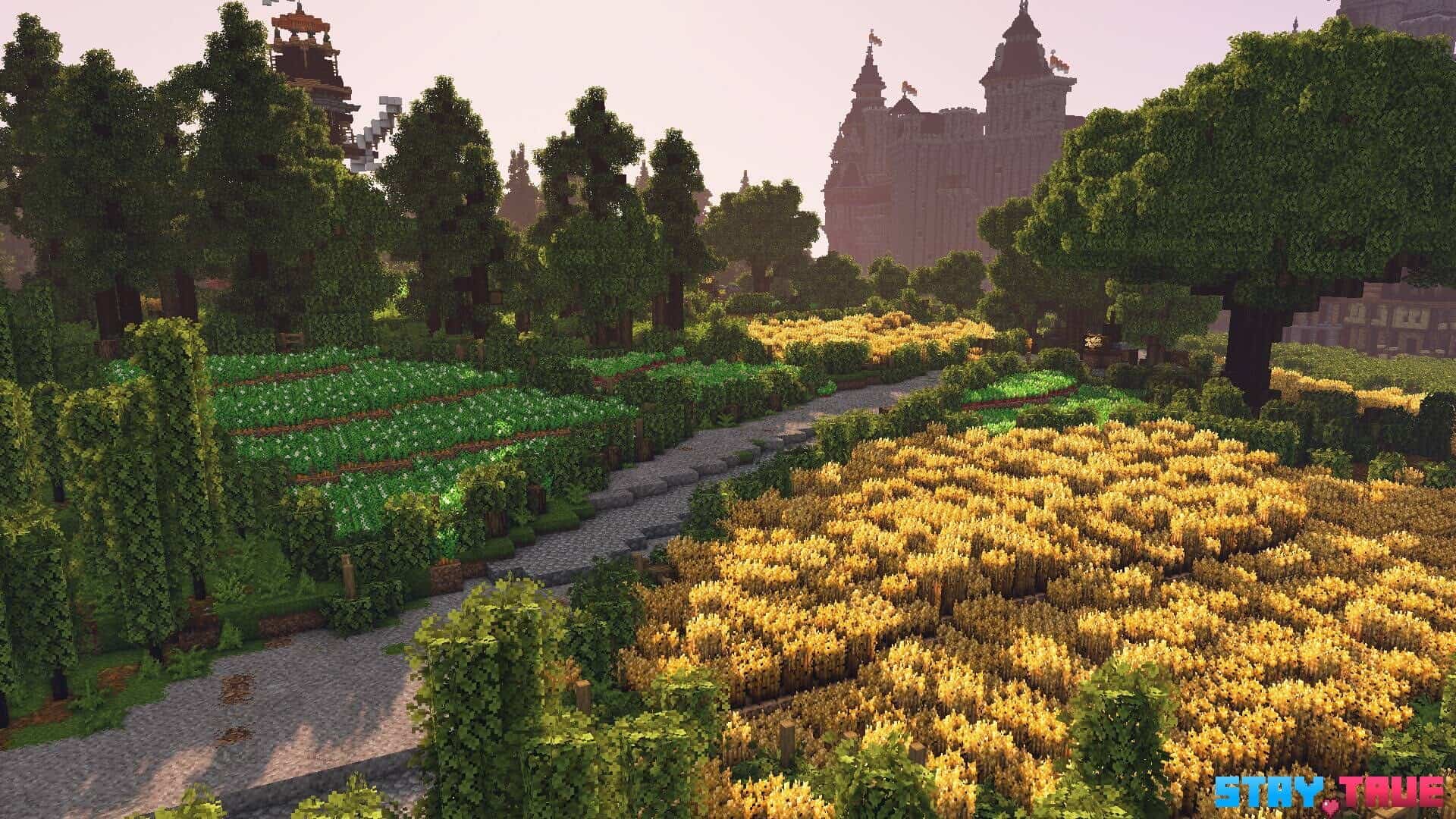
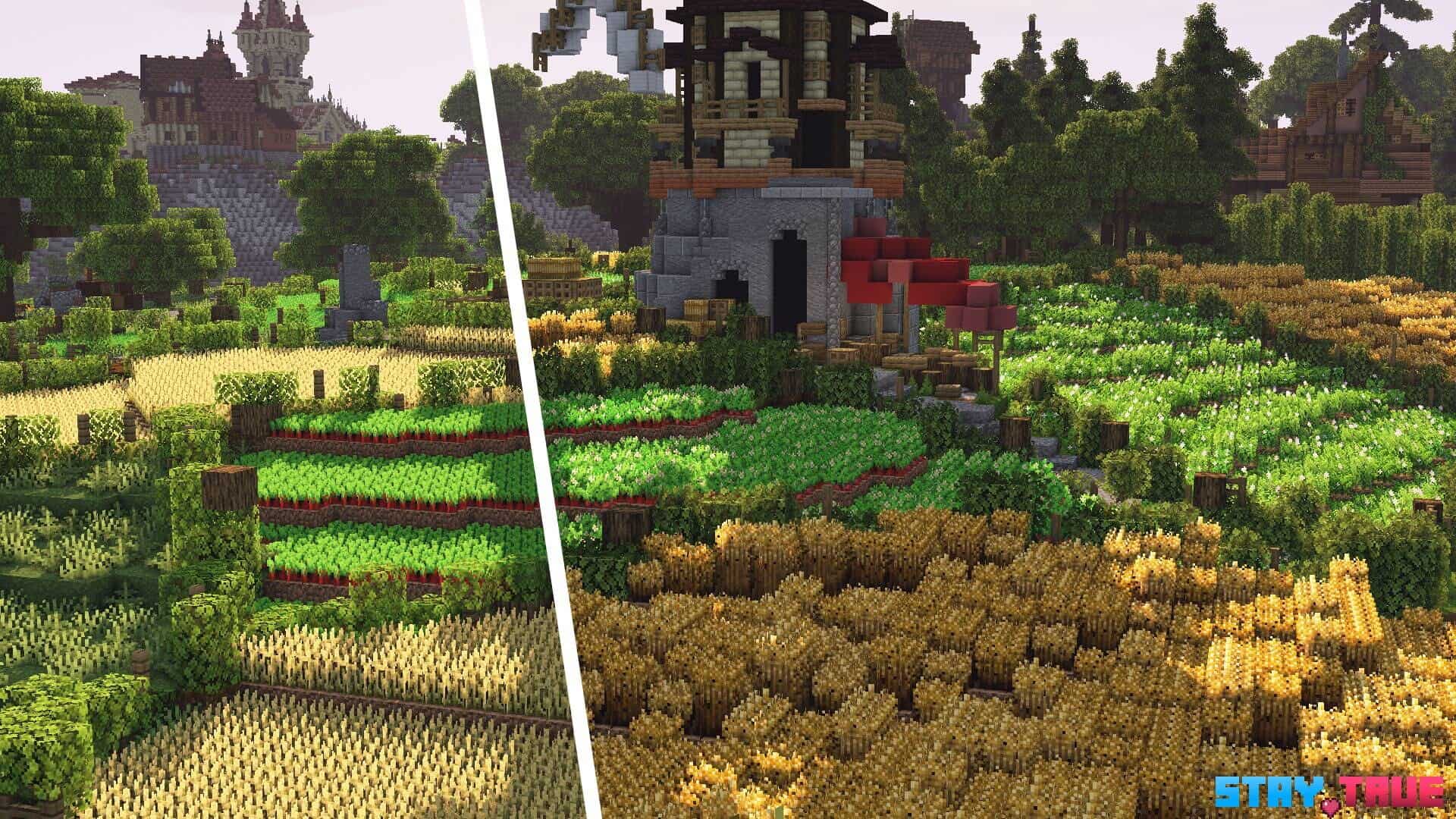
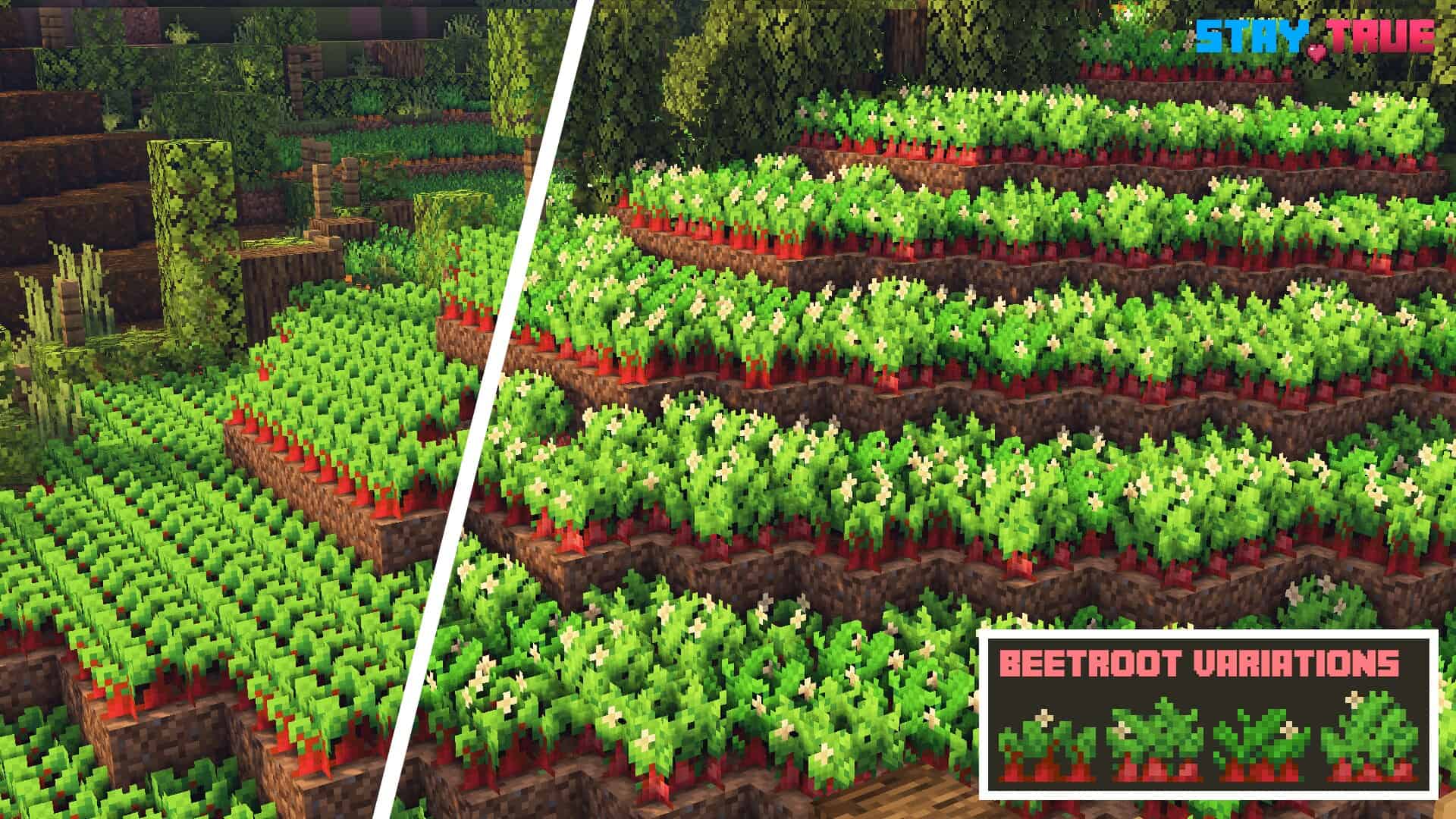
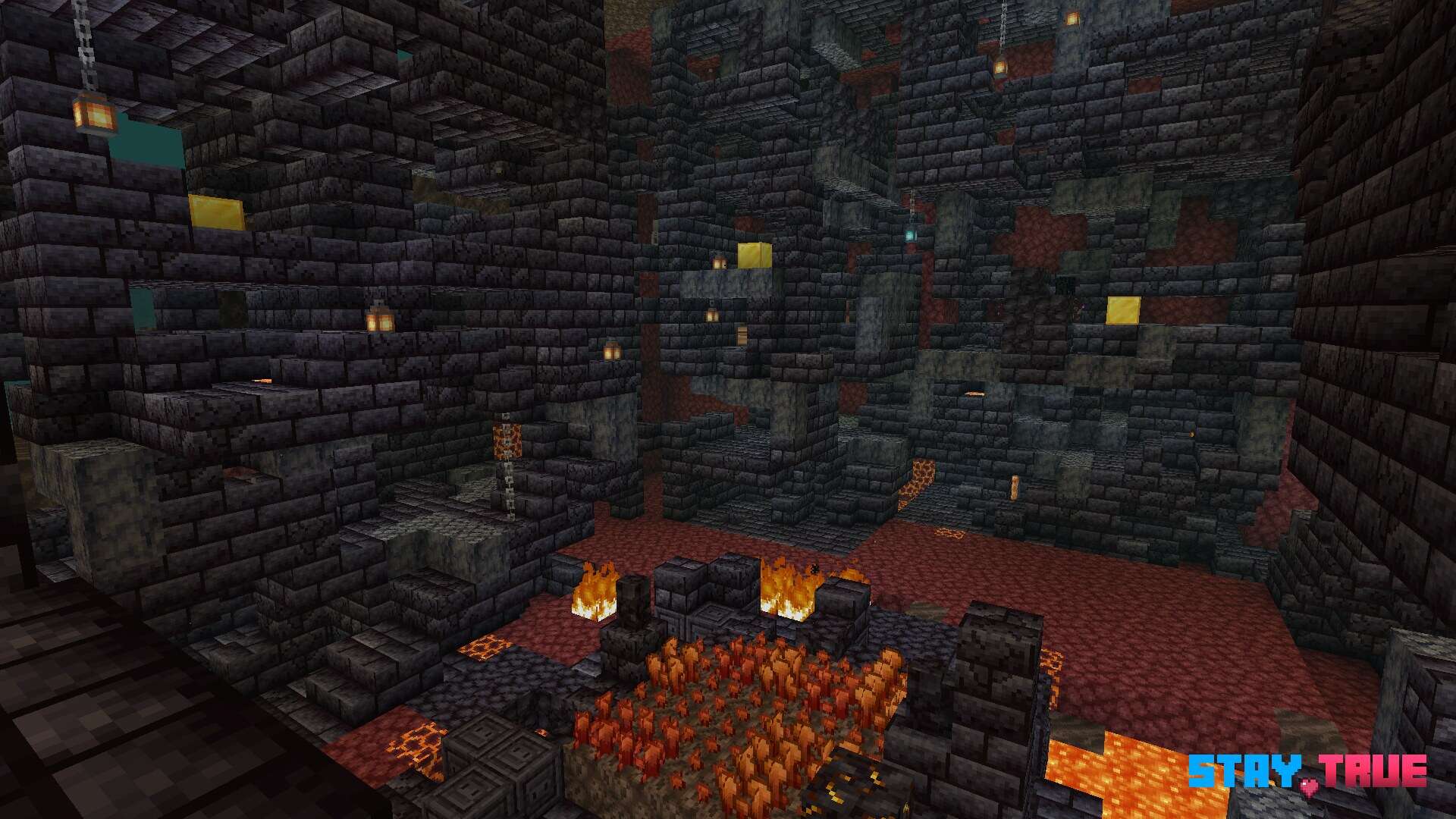
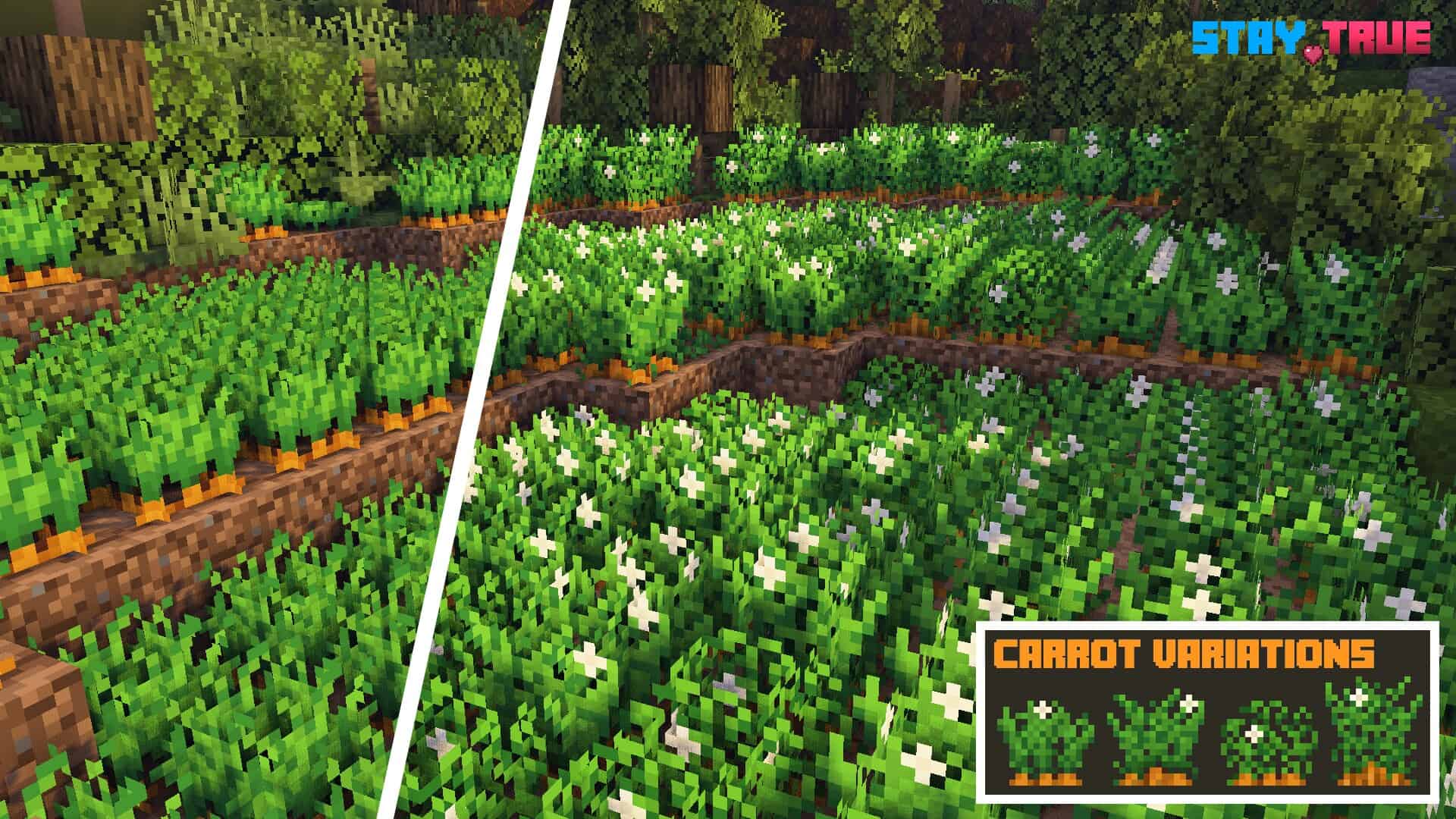
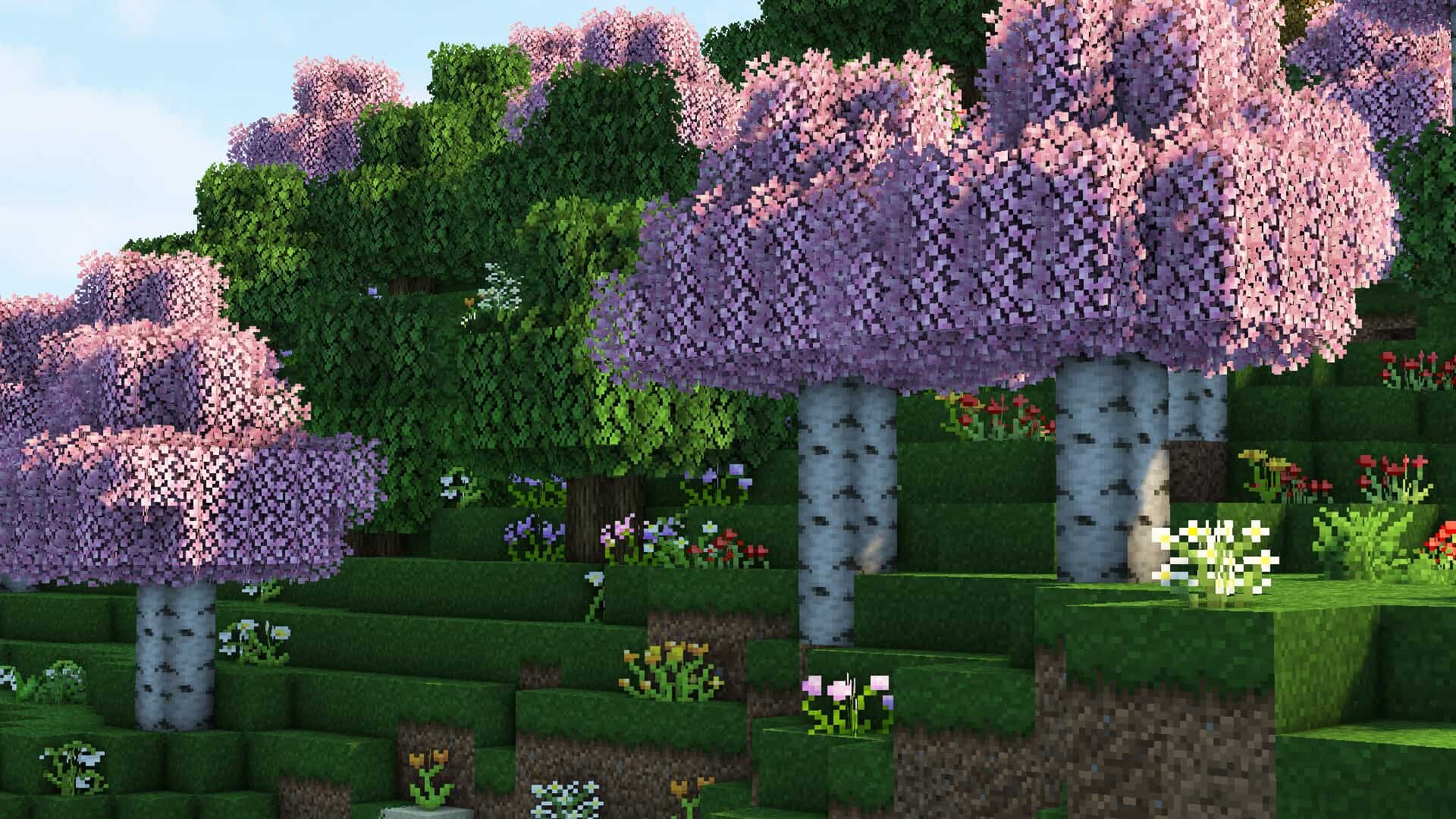
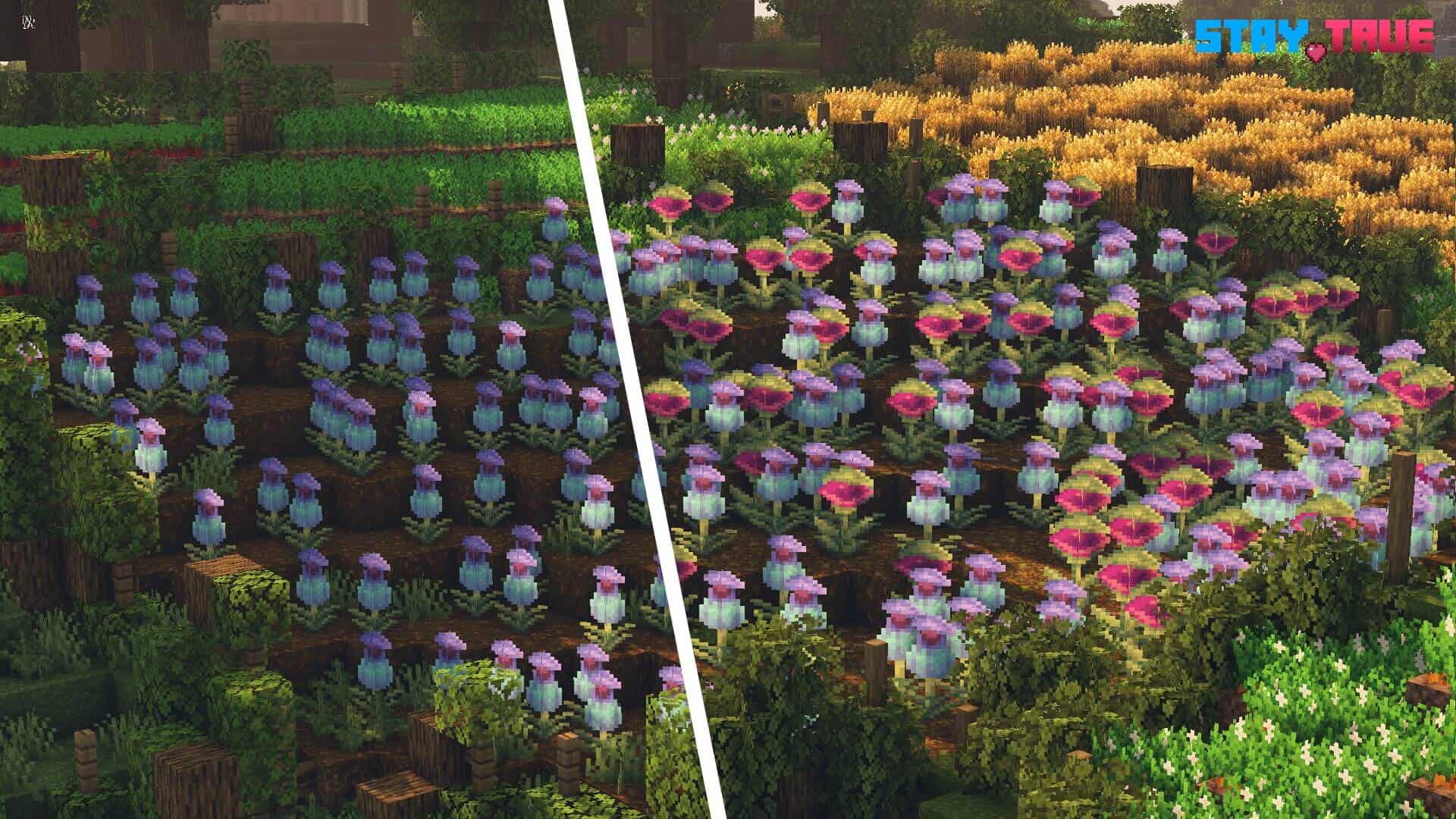
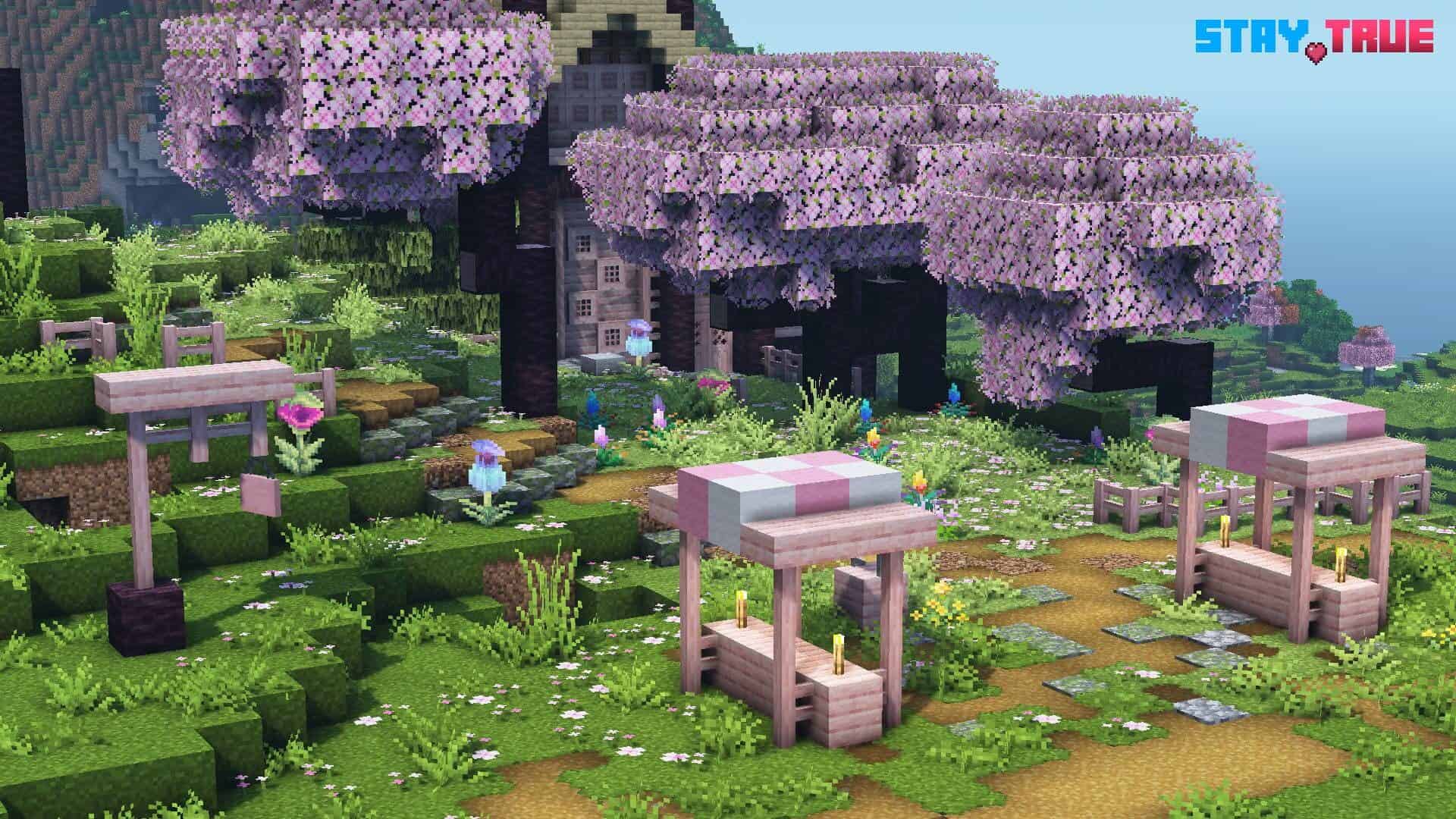
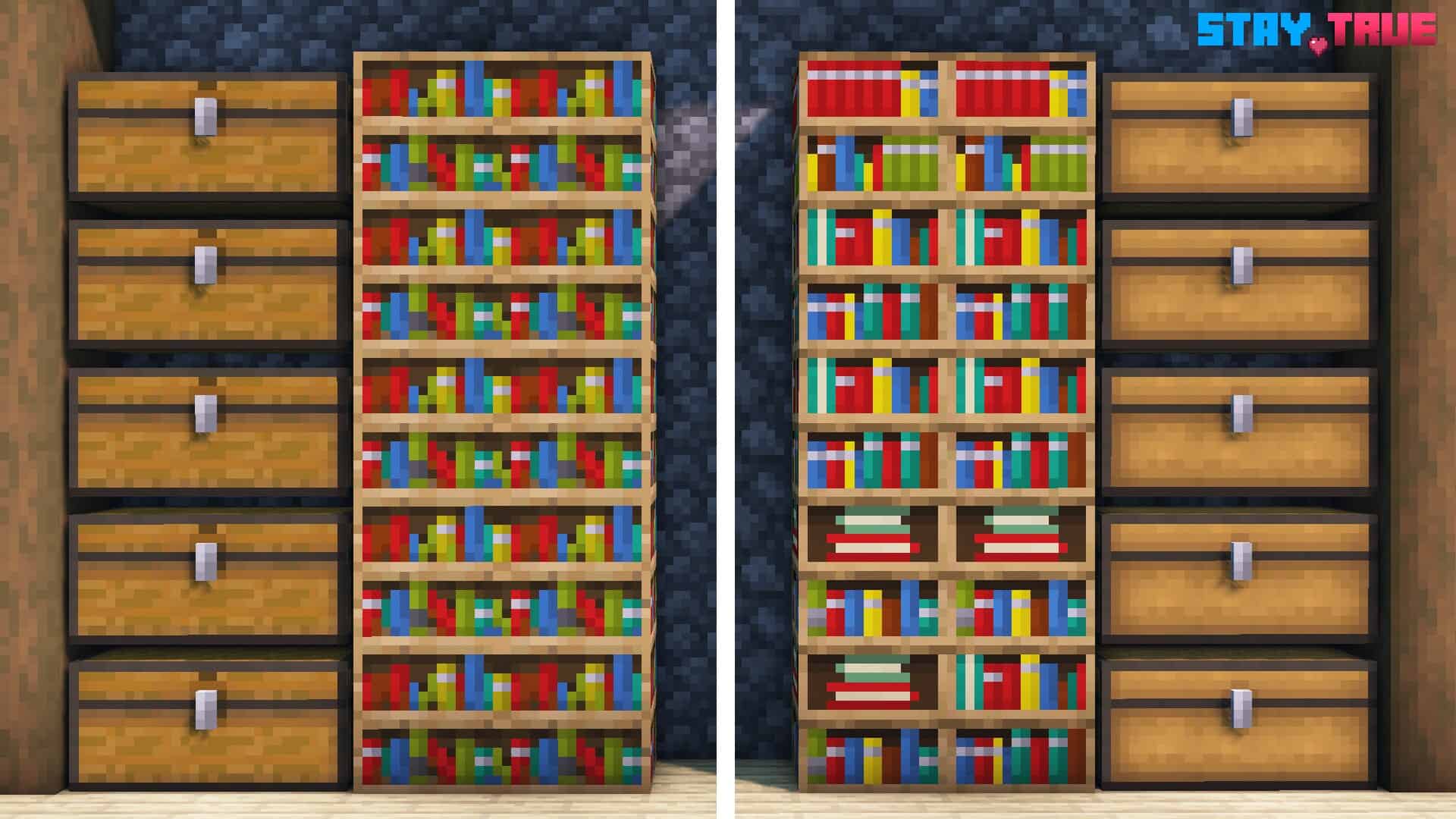
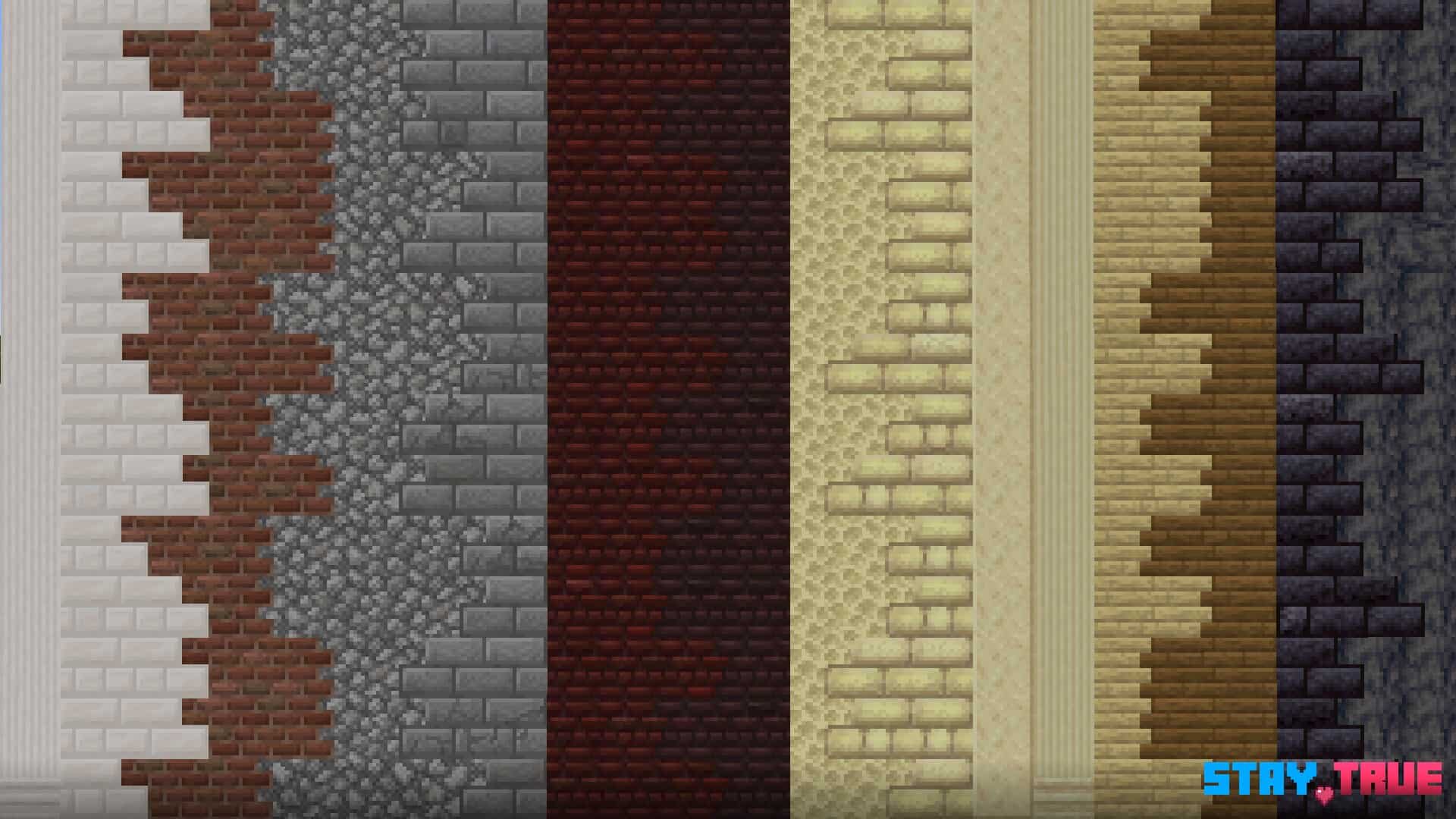
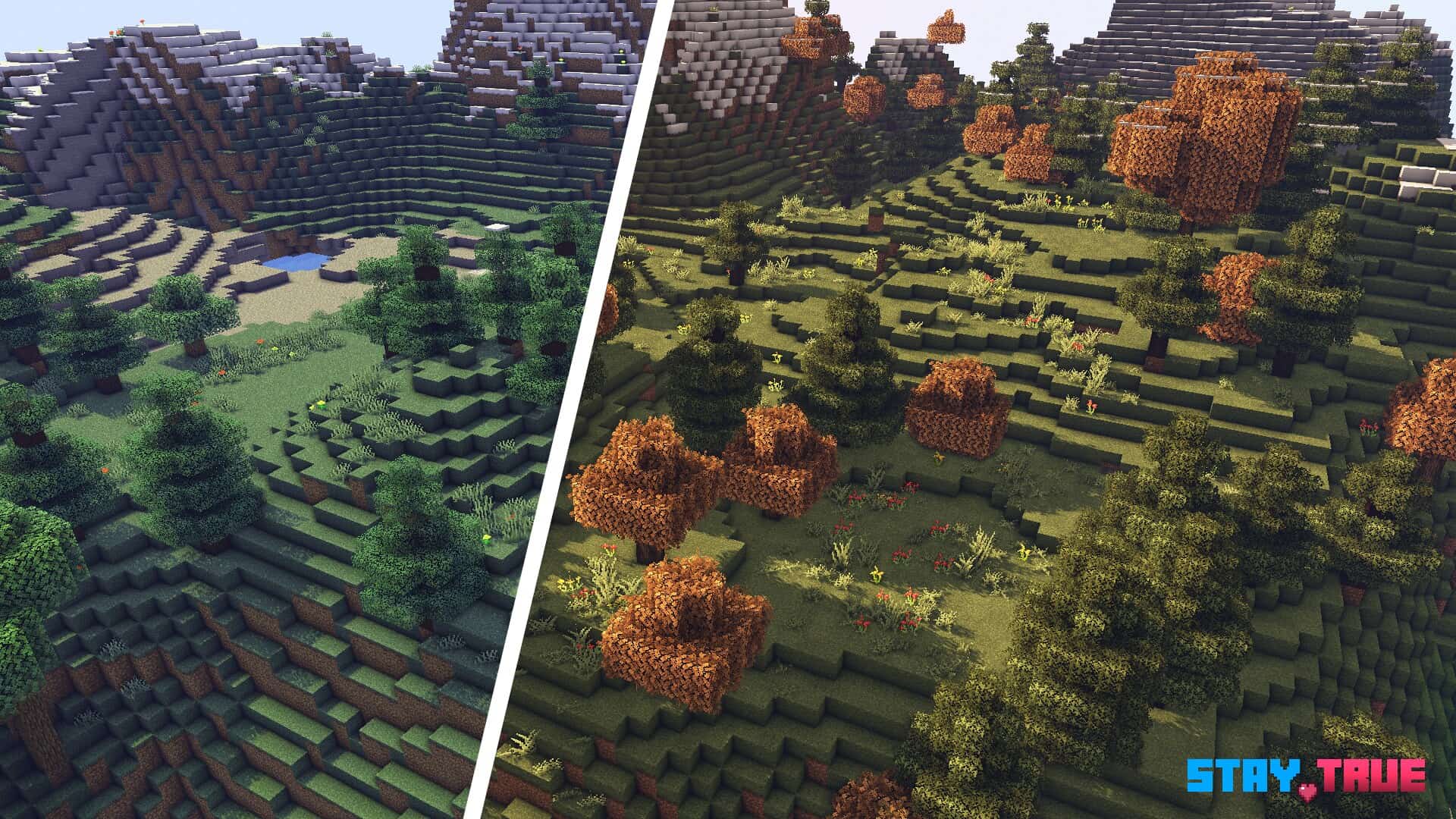
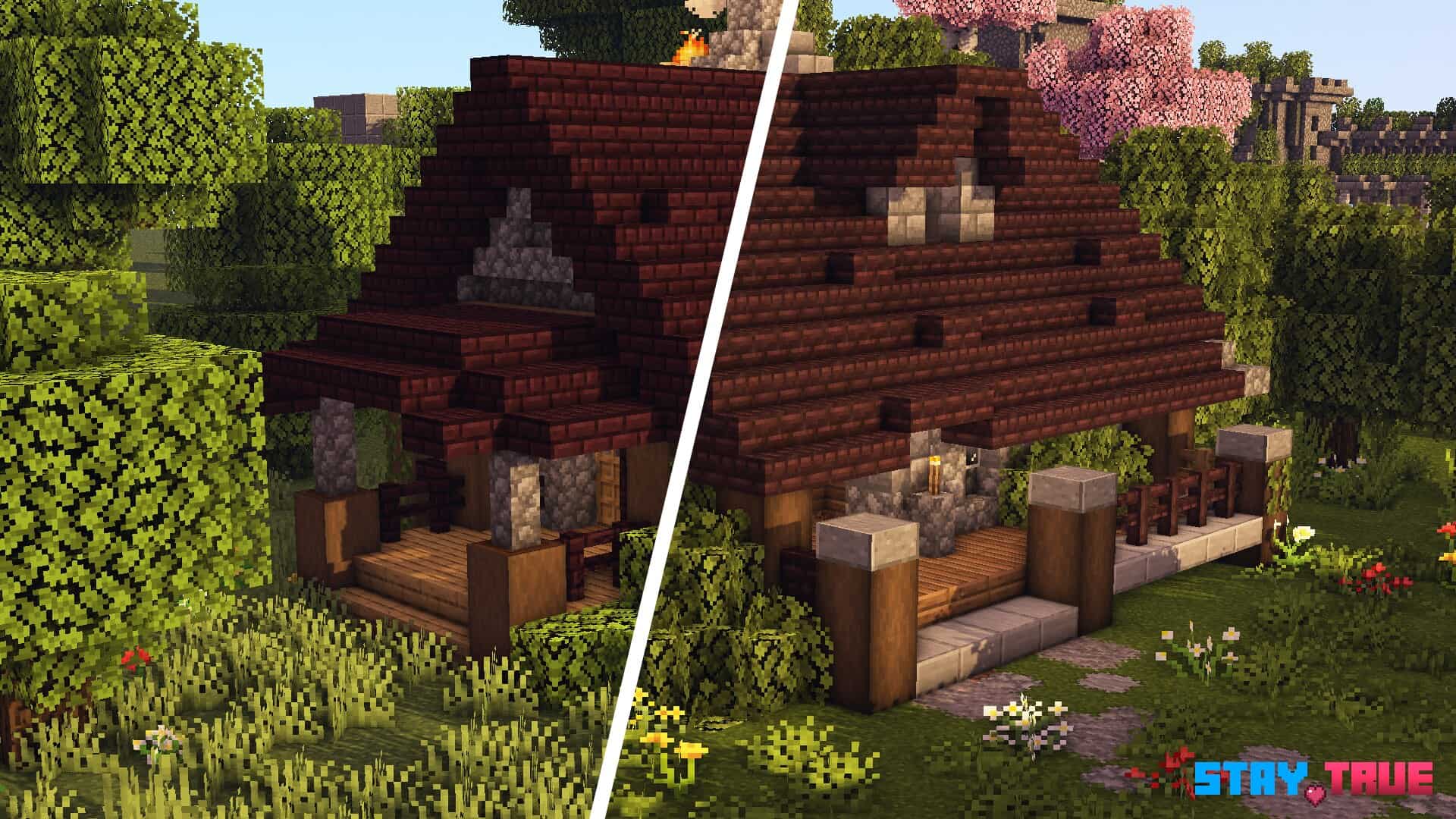
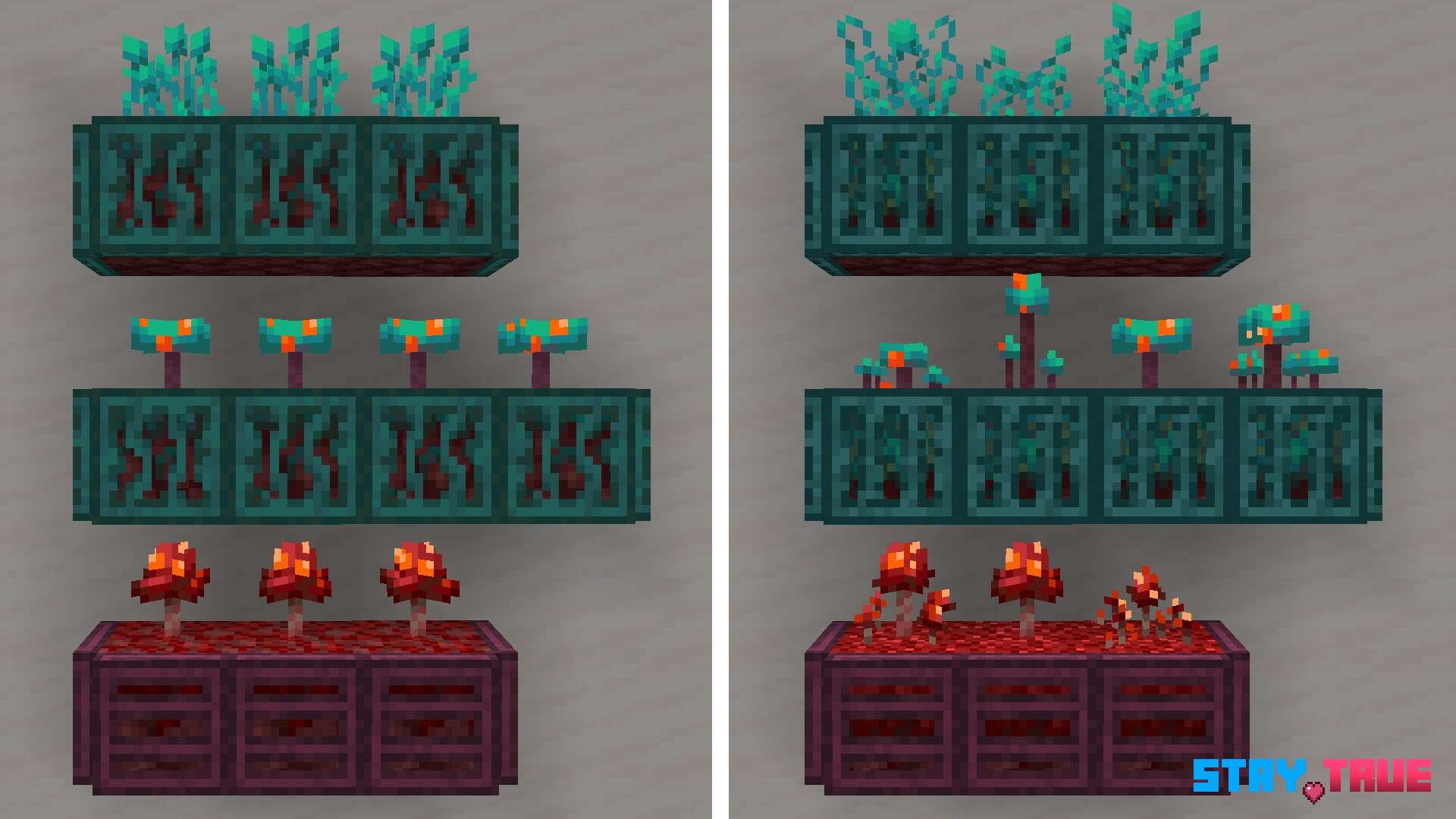
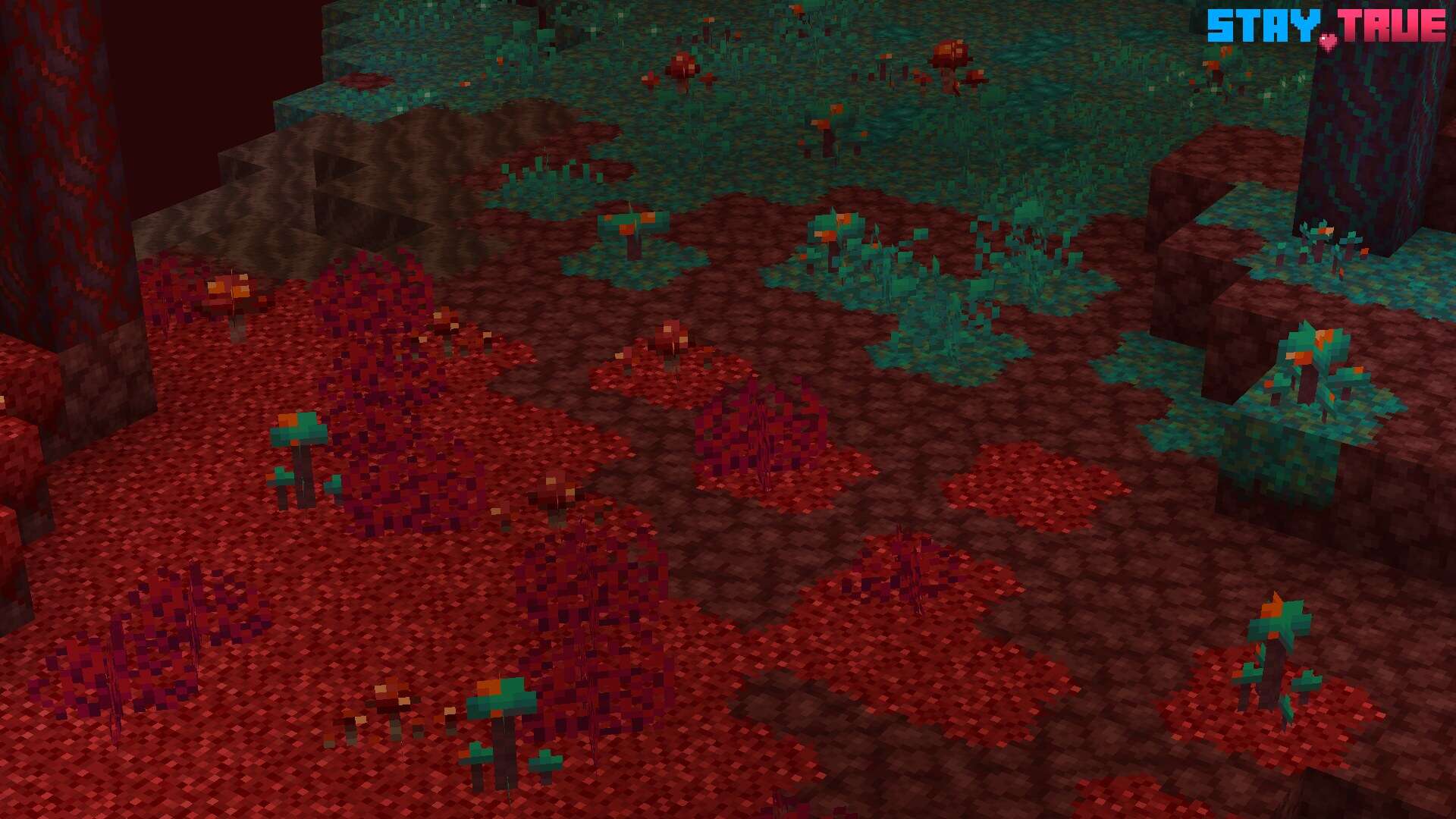
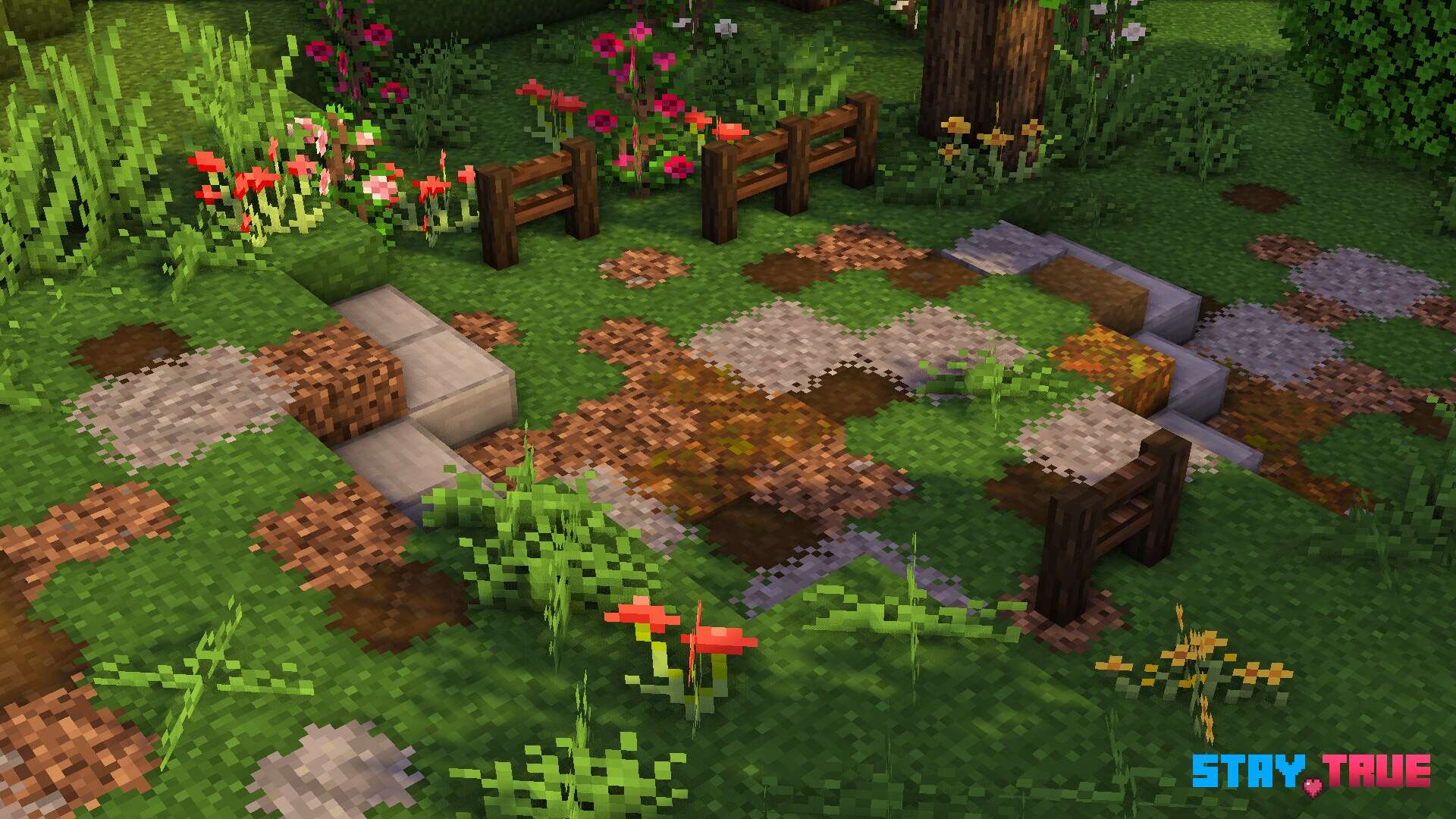
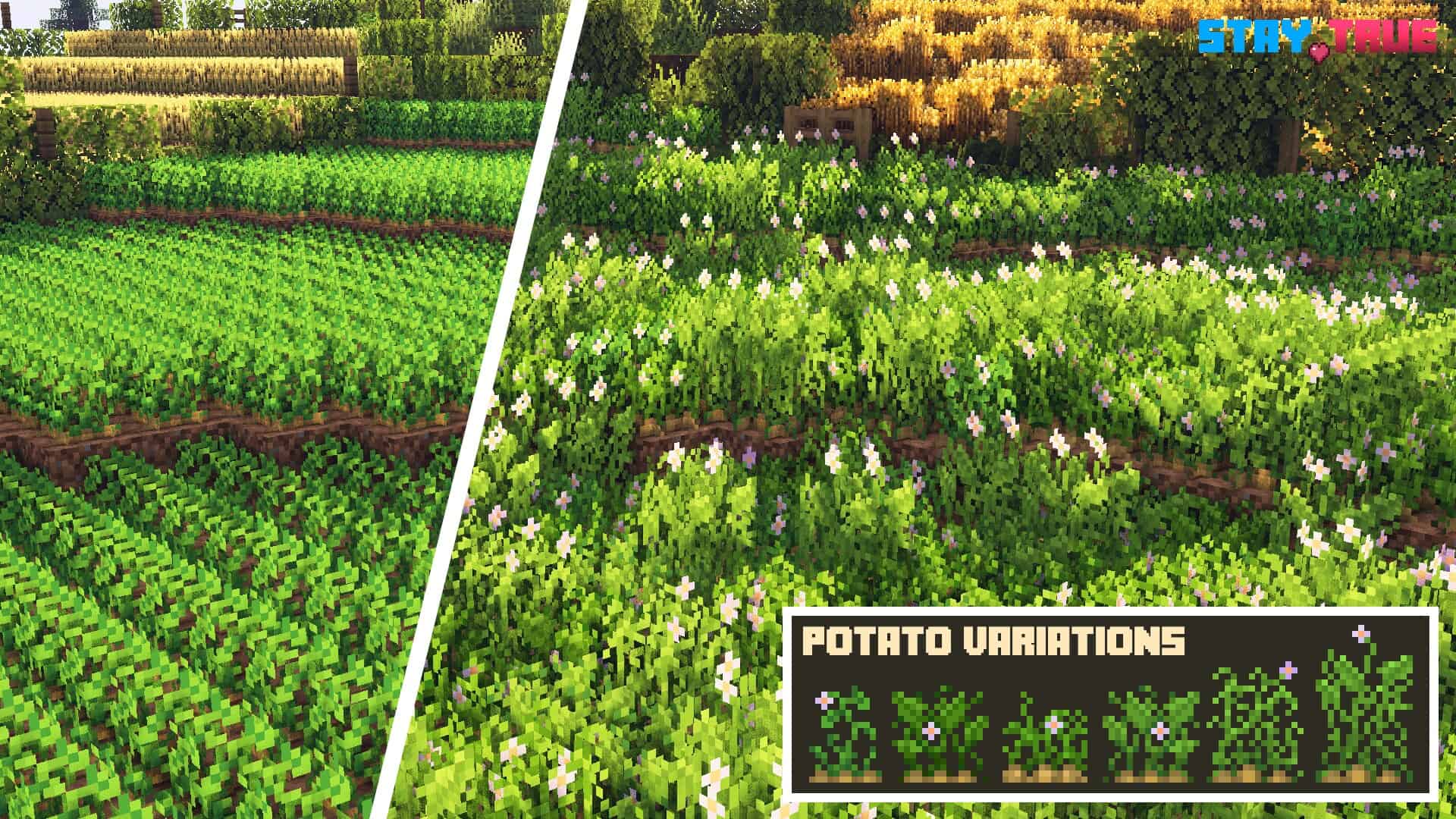
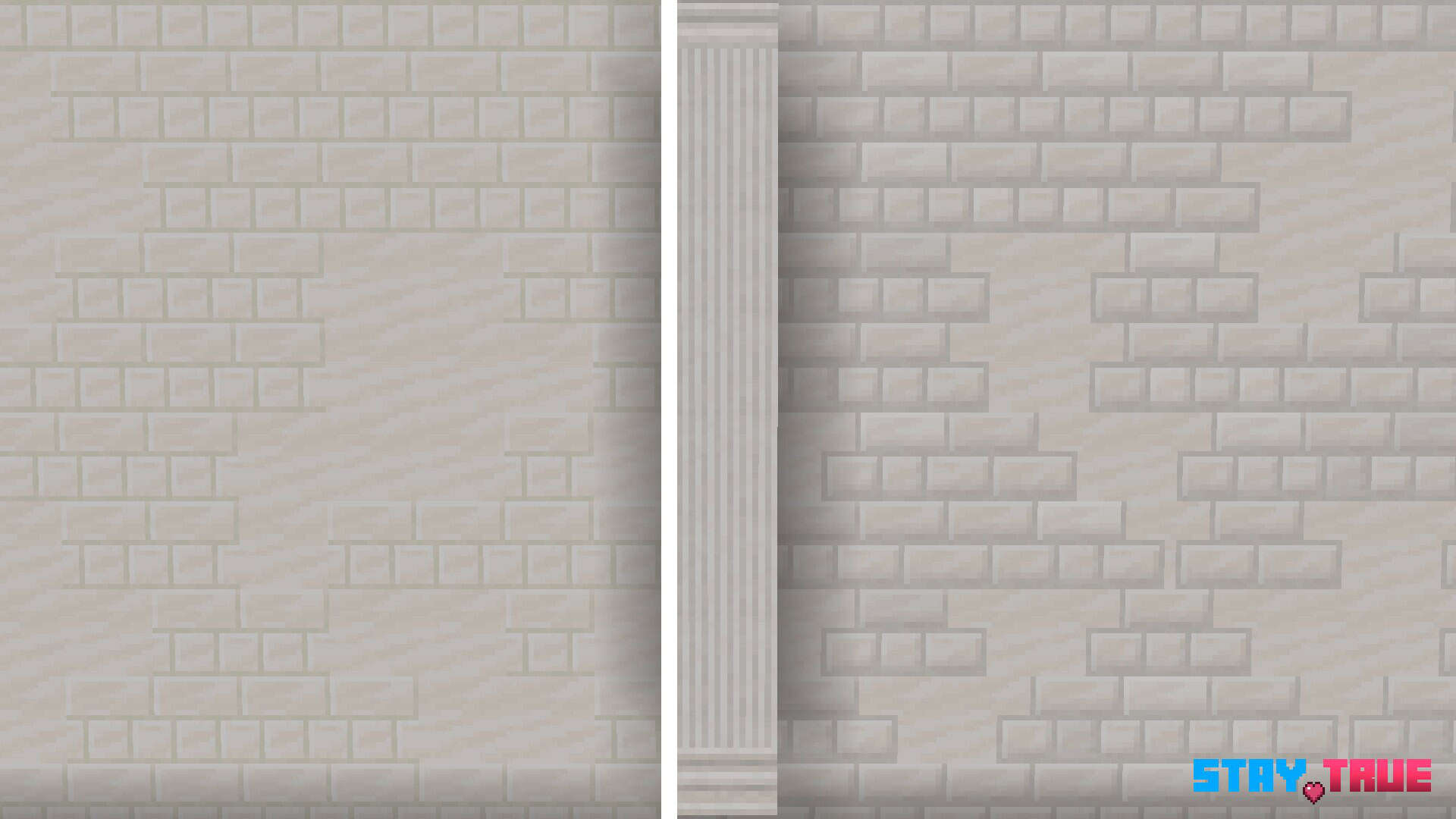
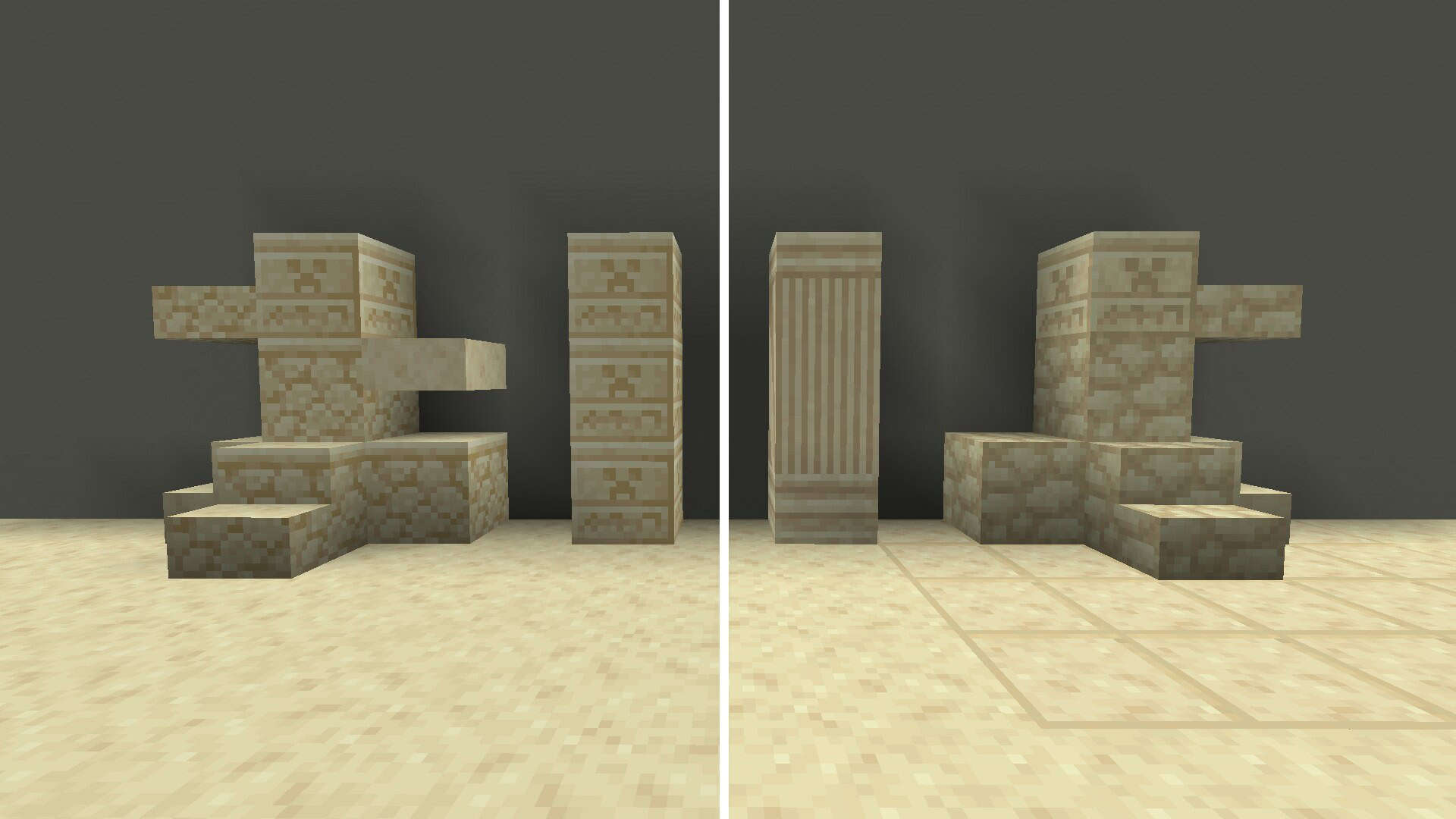
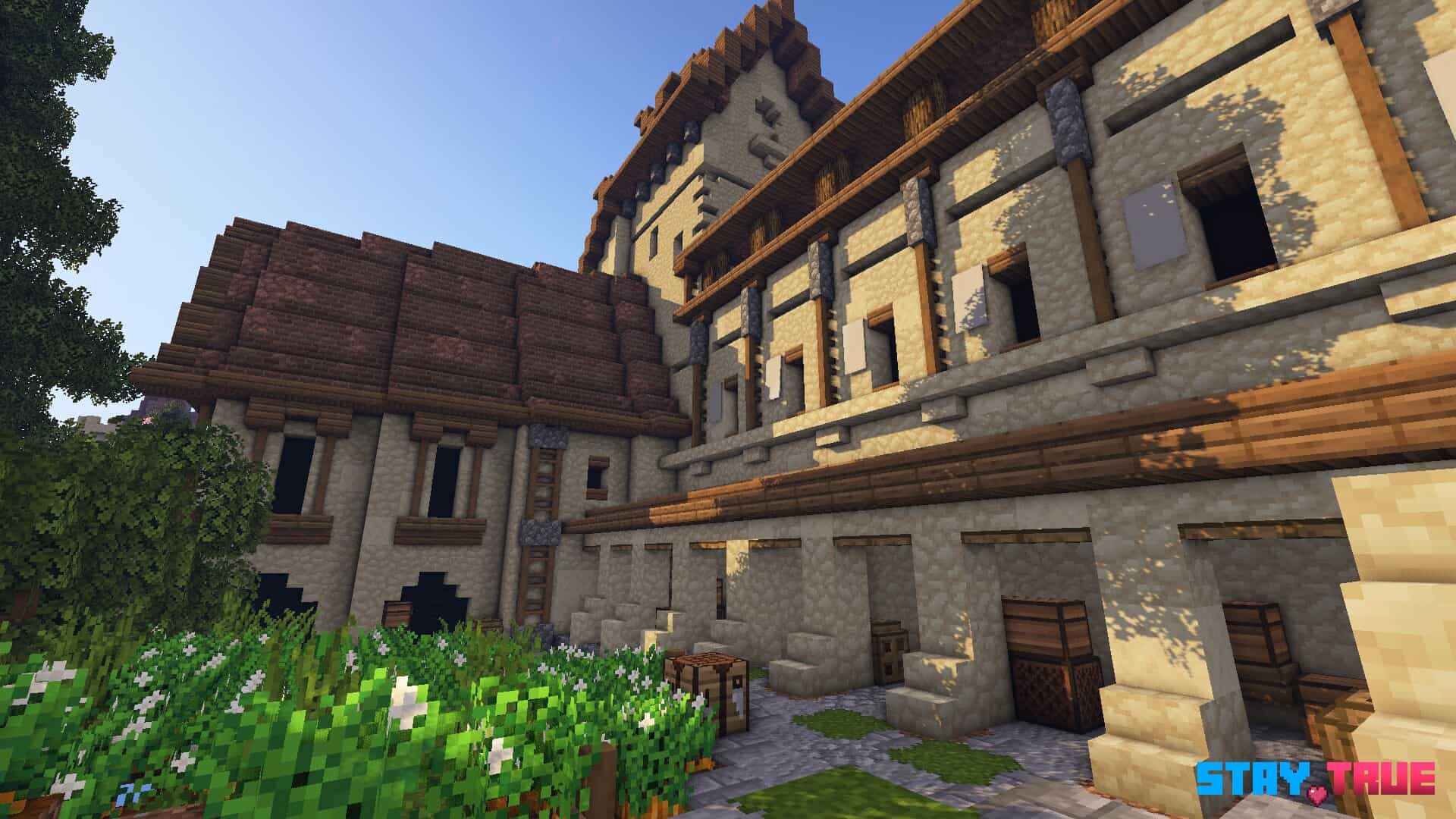
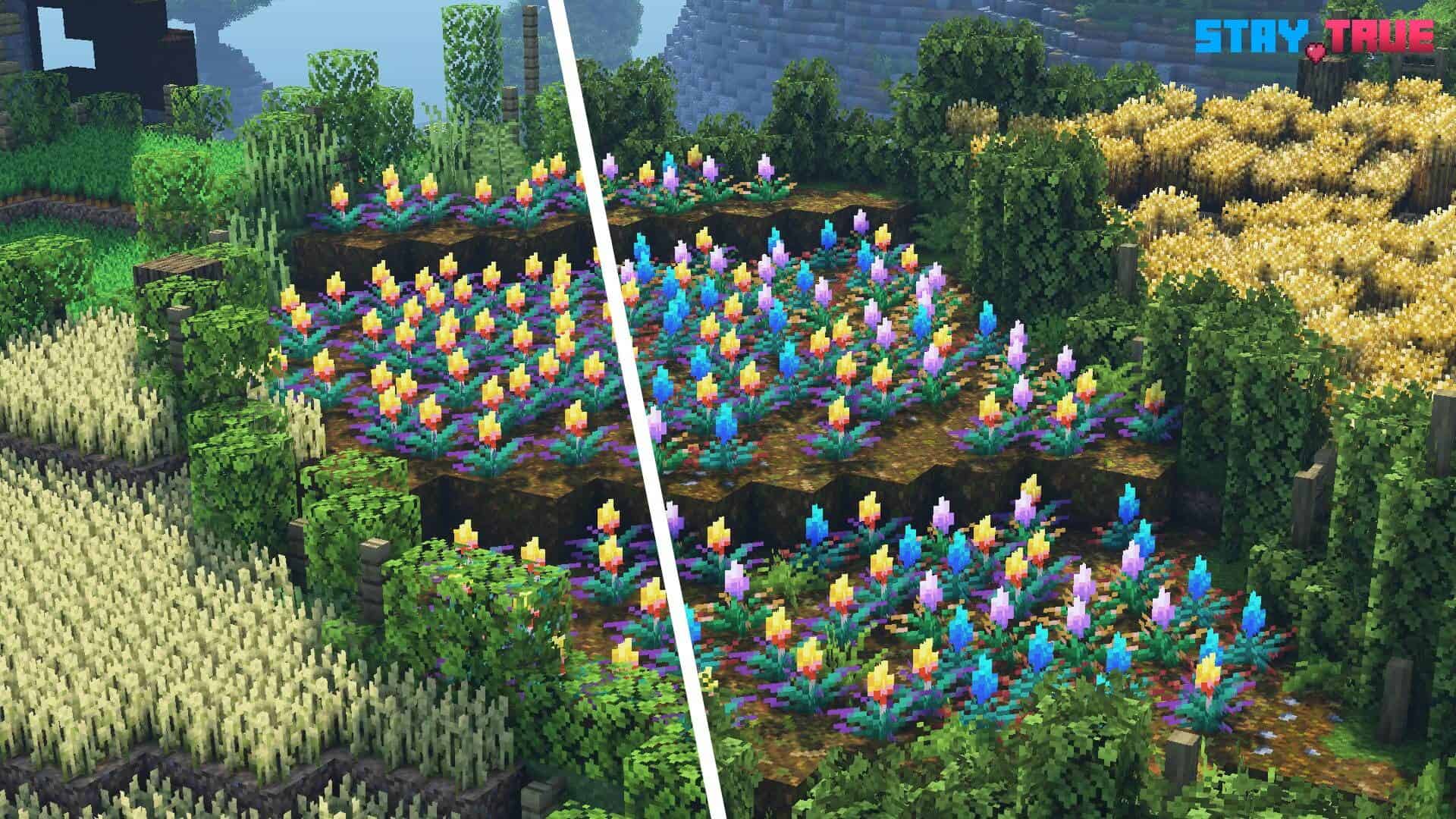
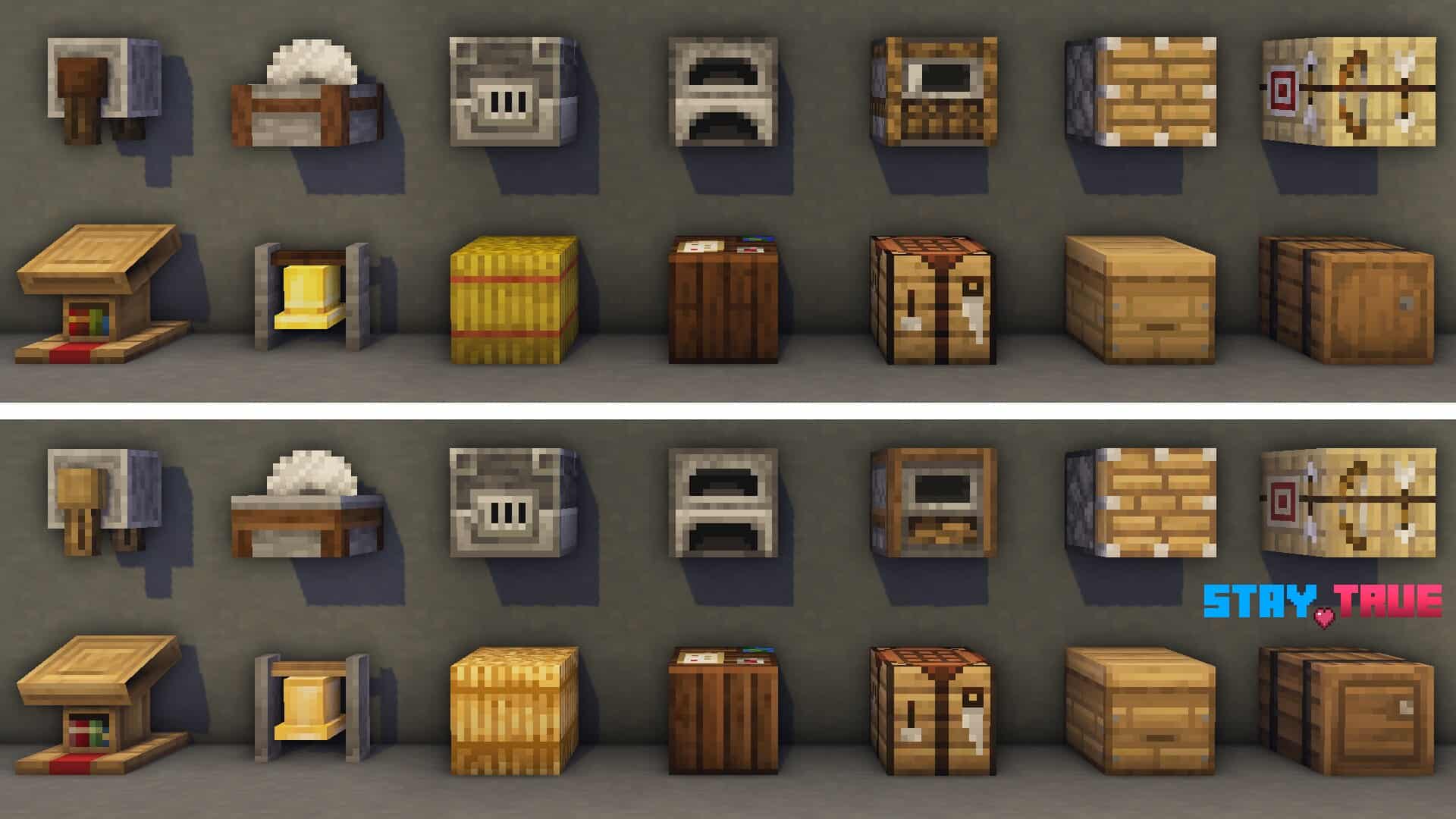
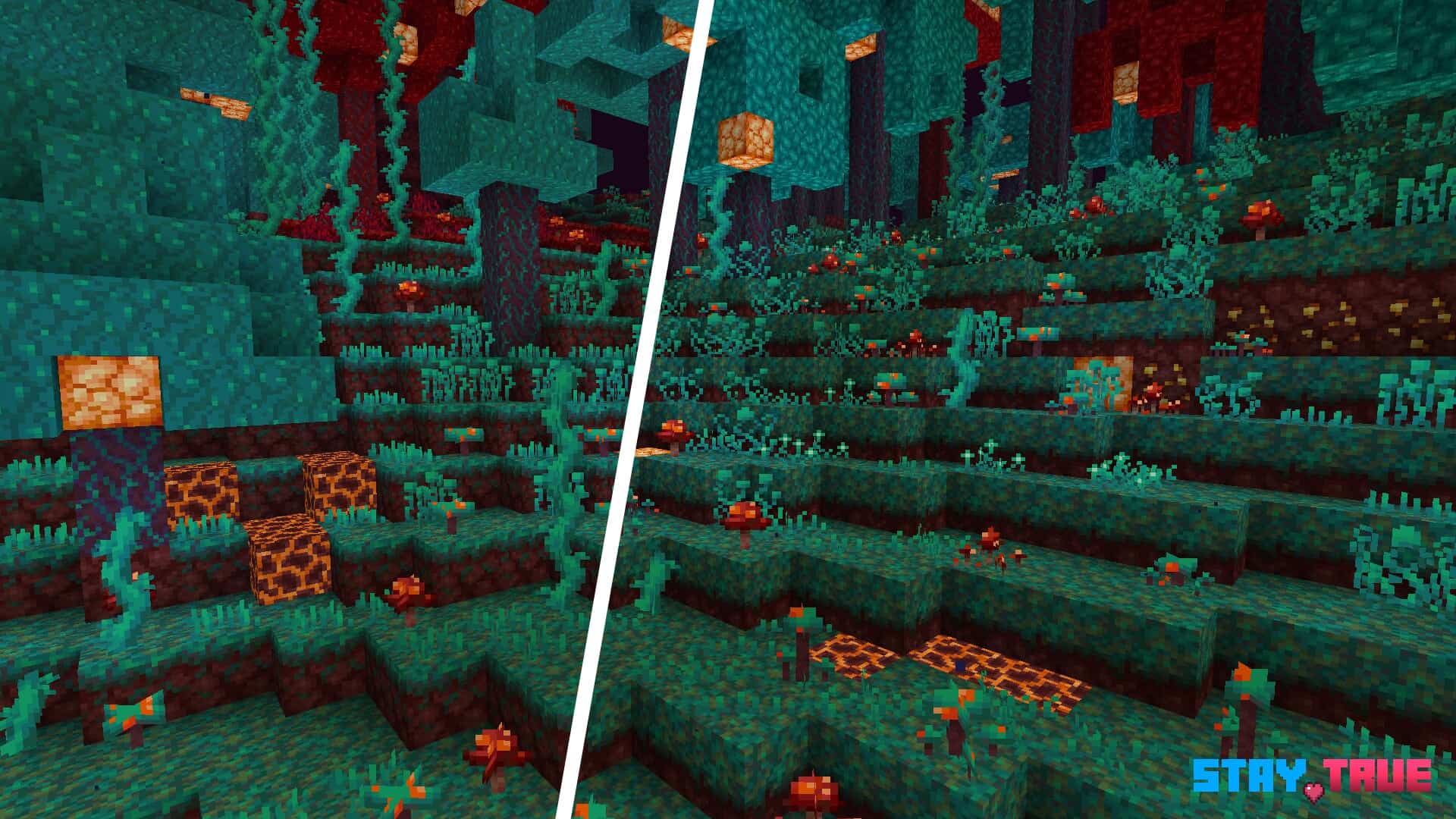
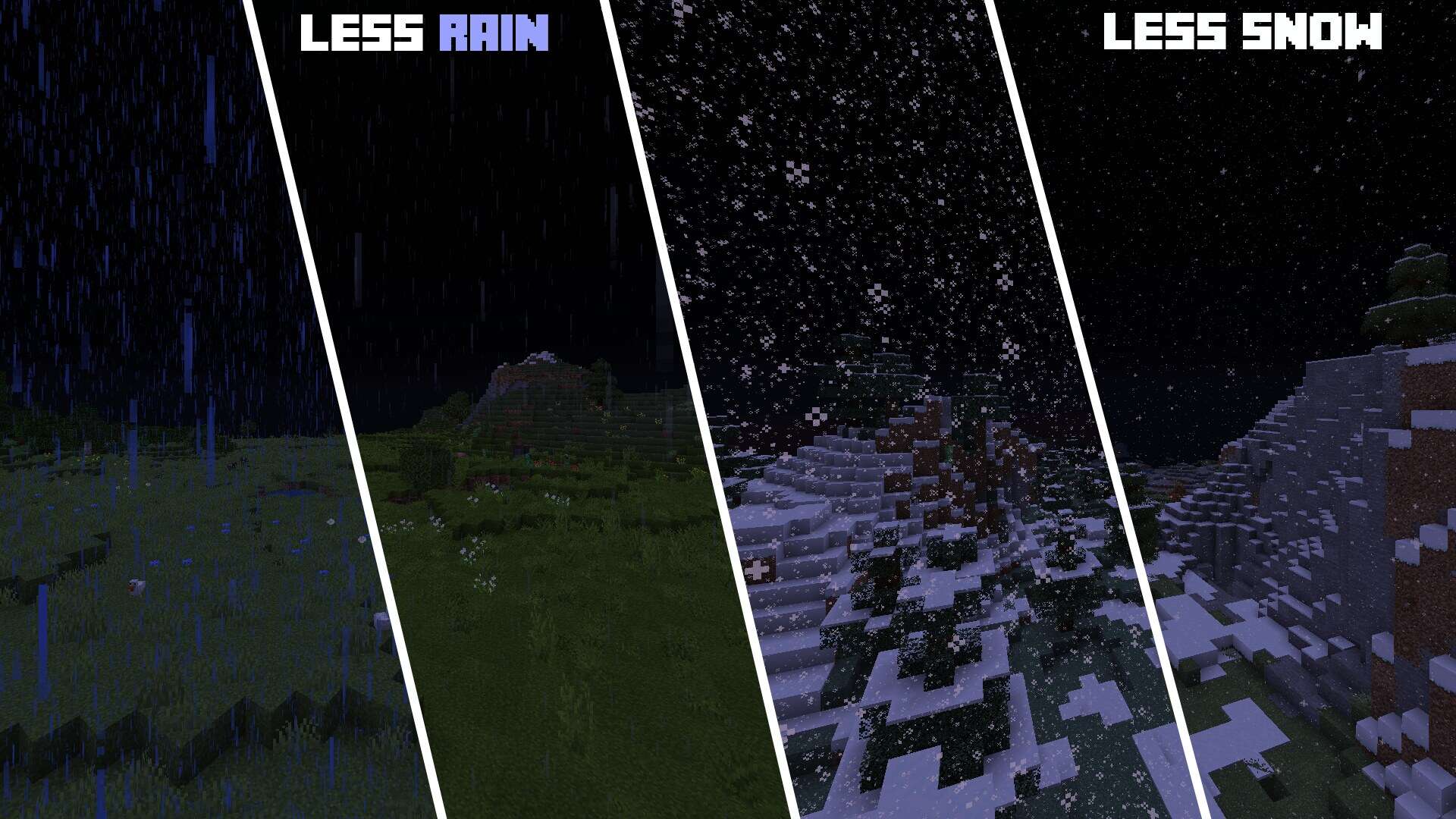
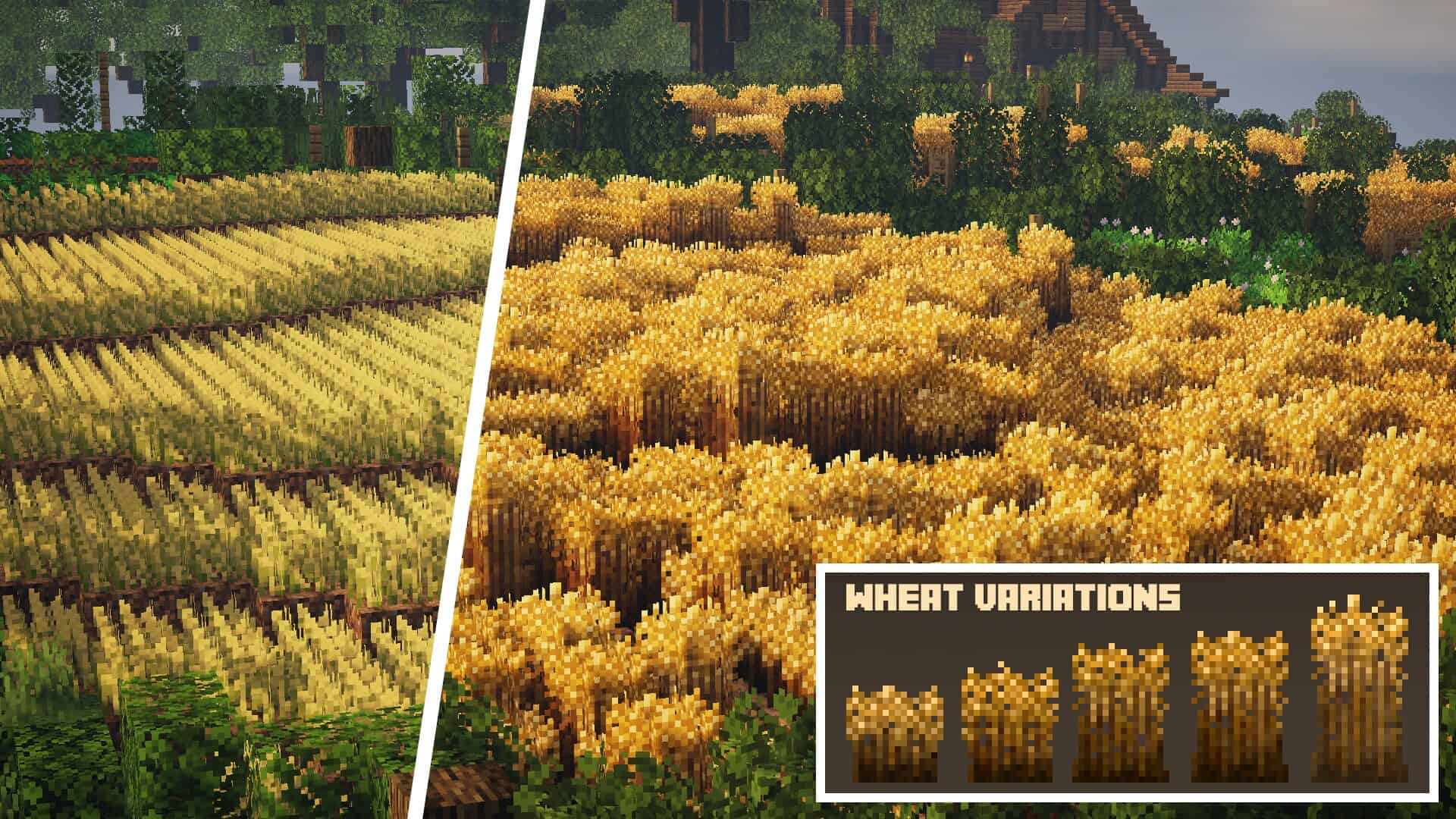
Stay True is an incredible and popular Minecraft resource pack that I tested, which significantly enhances the visuals of the game to an entirely new level while lovingly keeping the classic art style that gamers of all ages adore. The Stay True resource pack updates a wide range of the game’s textures to increase the visual appeal without disrupting the default iconic look and feel of Minecraft. Stay True isn’t the first resource pack to dramatically change the appearance of Minecraft, as other packs are also available that offer these features and much more. However, I found that Stay True stands distinctly above the rest of the resource packs due to its exceptionally high-quality design while also featuring an extensive list of changes that positively impact the overall visual experience. This resource pack is especially popular with long-time users like me who are looking to freshen up the game.
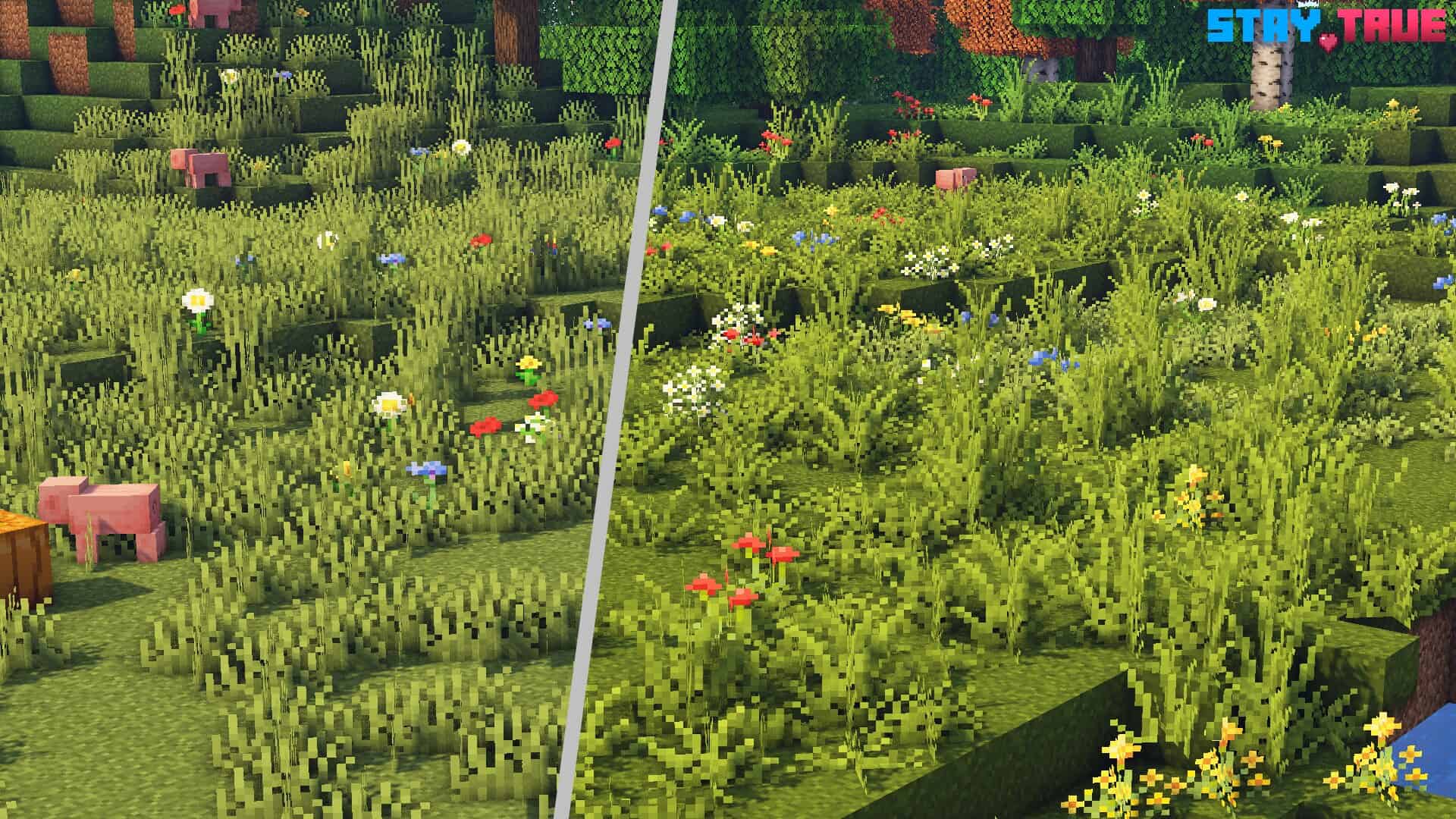
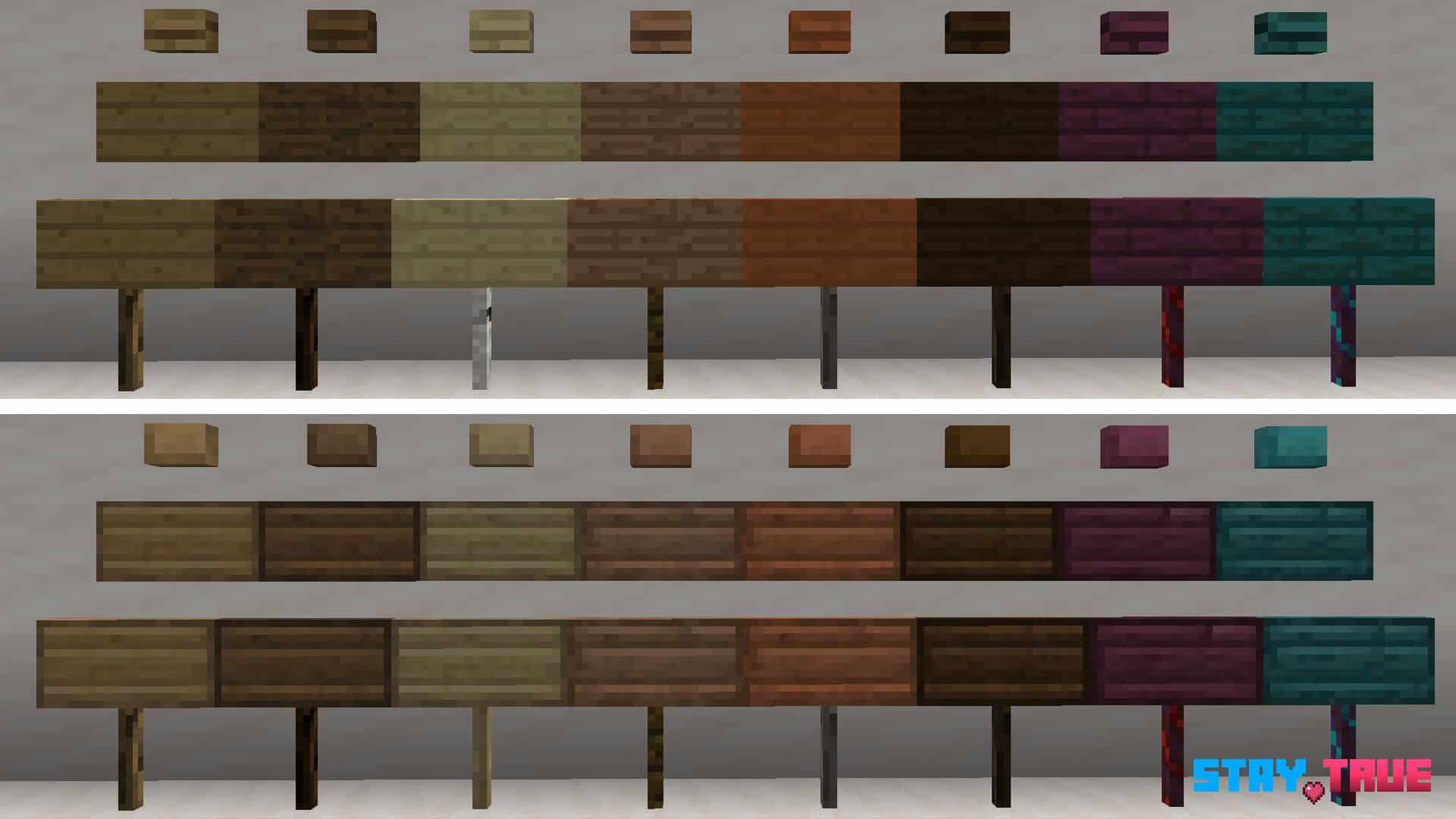
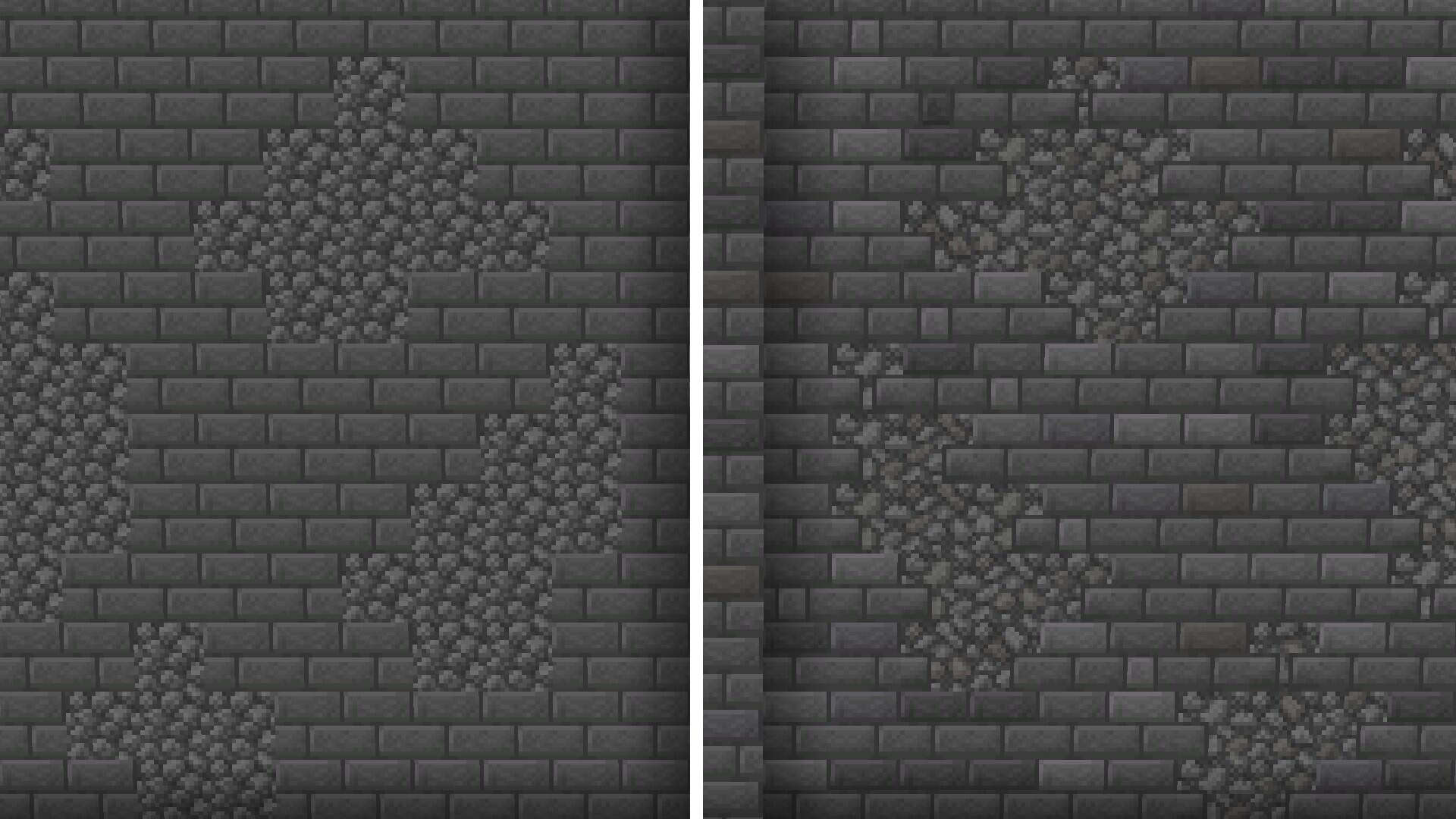
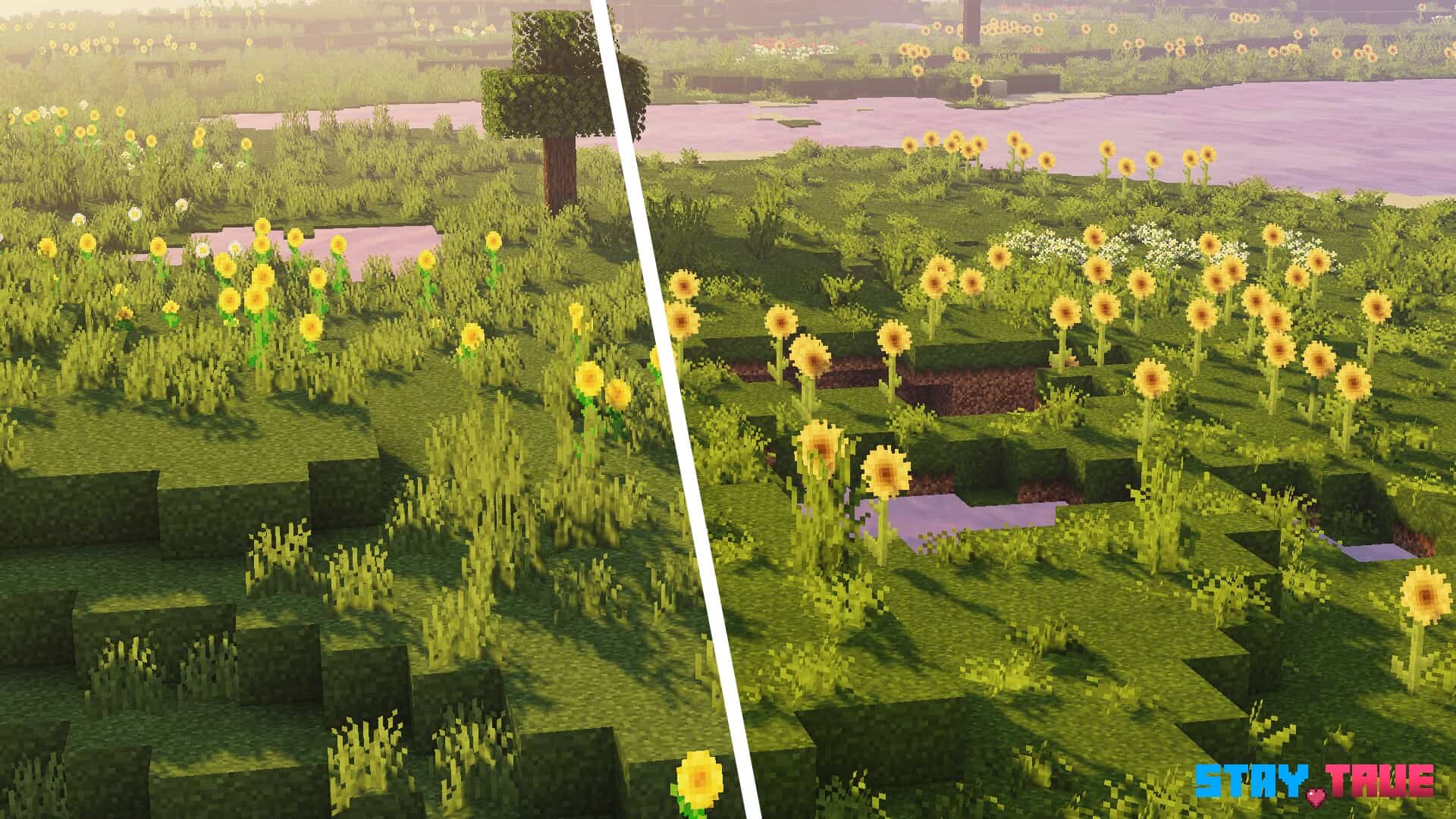
The Stay True resource pack is the absolute perfect addition for anyone looking to change the appearance of Minecraft without disrupting the classic gameplay that gamers continue to enjoy after so many years. I was amazed to see how the Stay True resource pack significantly alters many items in the game, such as grass, flowers, logs, planks, doors, and much more. The visual appearance of Stay True also cleverly impacts connected textures to help the entire world feel much more immersive and realistic for anyone that plays Minecraft. Best of all, the standard resolution of the textures in the Stay True resource pack remains at 16×16, which completely prevents frame-rate drops for anyone that has a computer system capable of running the vanilla version of Minecraft without any issues. The pack successfully provides a much more immersive and realistic appearance for gamers without ever hurting the classic charm of Minecraft.
Stay True should be compatible with all of these Minecraft versions: 1.21.10 – 1.21.9 – 1.21.8 – 1.21.7 – 1.21.6 – 1.21.5 – 1.21.4 – 1.21.3 – 1.21.2 – 1.21.1 – 1.21 – 1.20.6 – 1.20.5 – 1.20.4 – 1.20.3 – 1.20.2 – 1.20.1 – 1.20 – 1.19.4 – 1.19.3 – 1.19.2 – 1.19.1 – 1.19 – 1.18.2 – 1.18.1 – 1.18 – 1.17.1 – 1.17 – 1.16.5 – 1.16.4 – 1.16.3 – 1.16.2 – 1.16.1 – 1.16 – 1.15.2 – 1.15.1 – 1.15 – 1.14.4 – 1.14.3 – 1.14.2 – 1.14
Screenshots
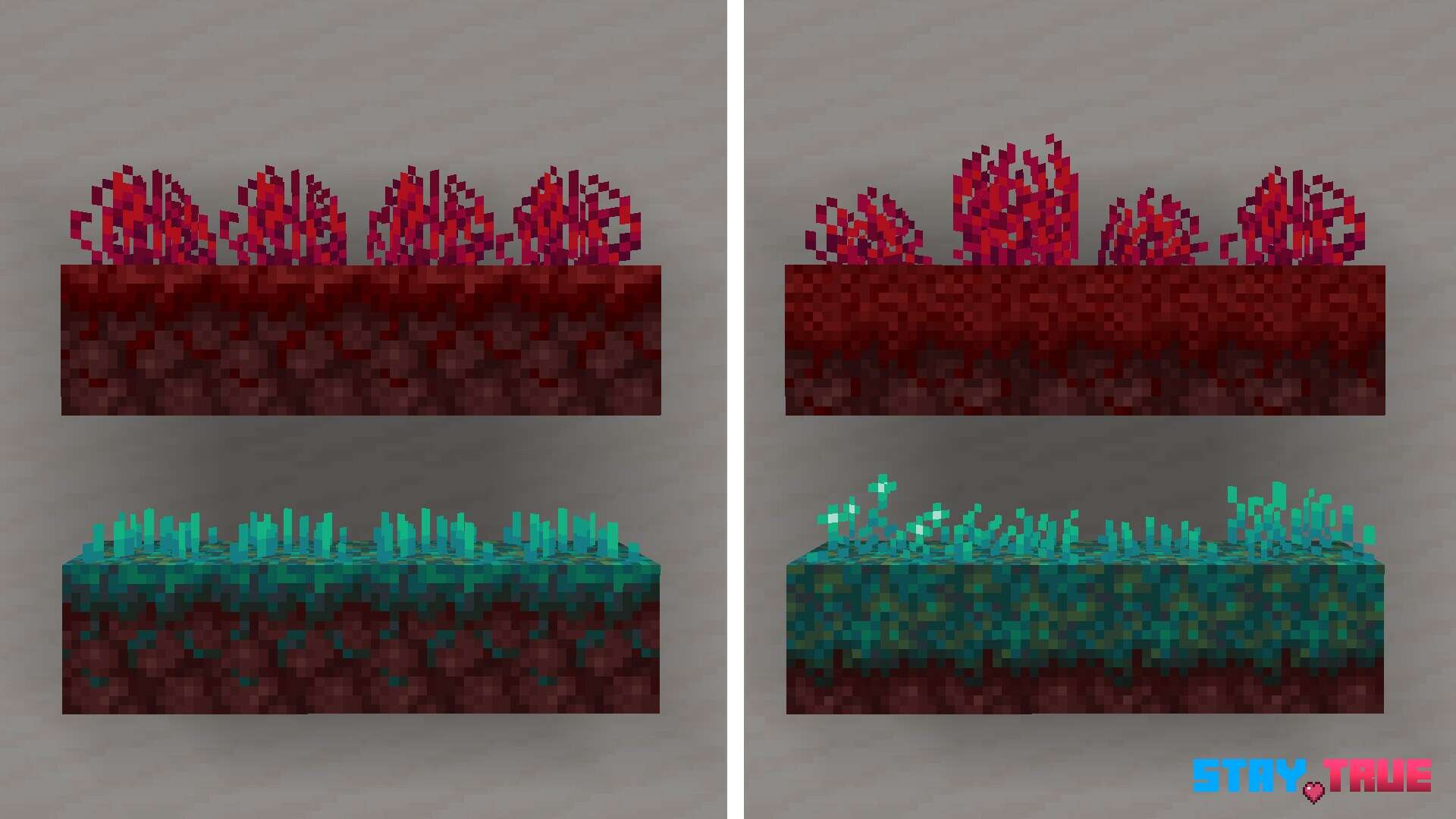
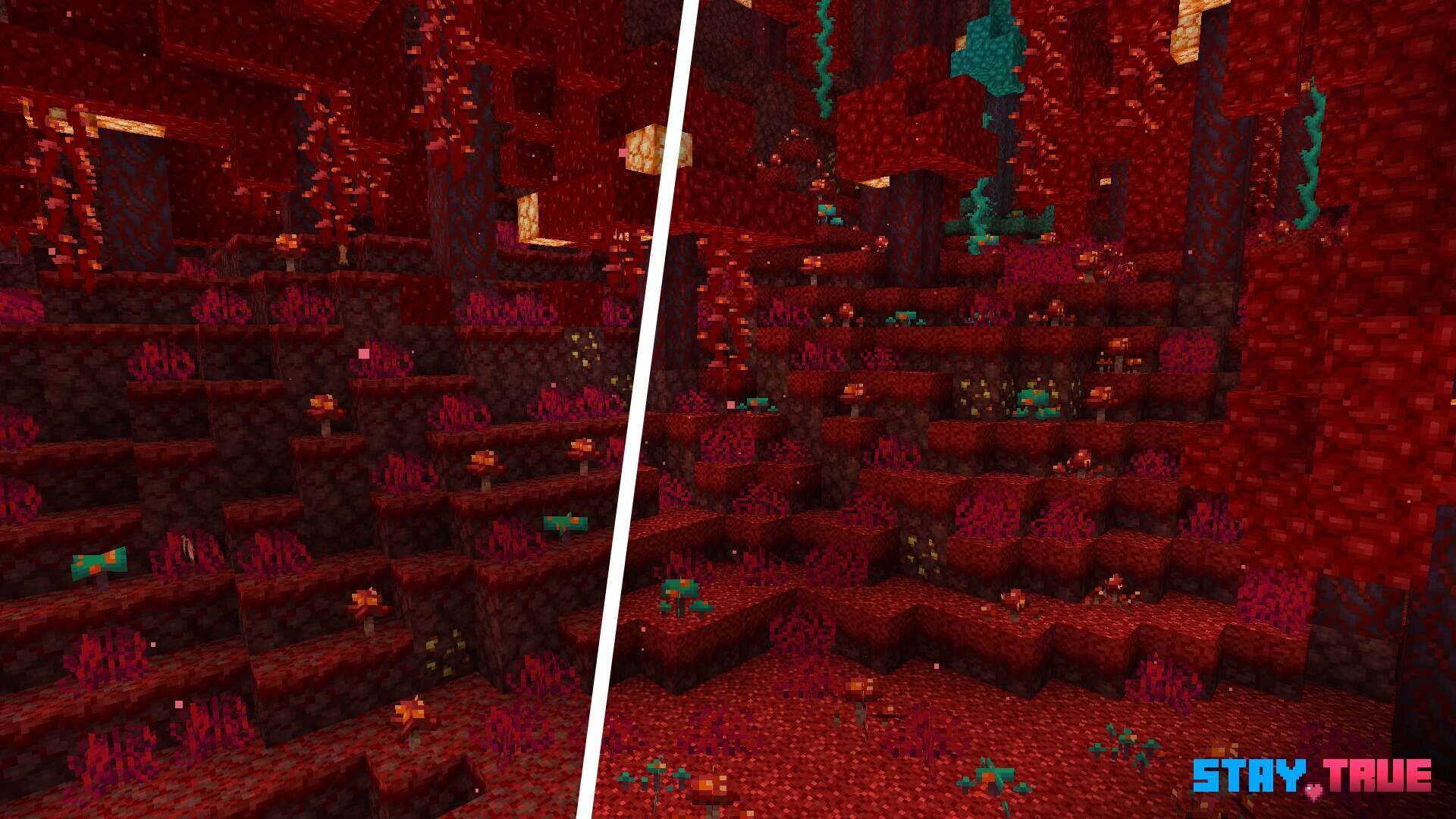
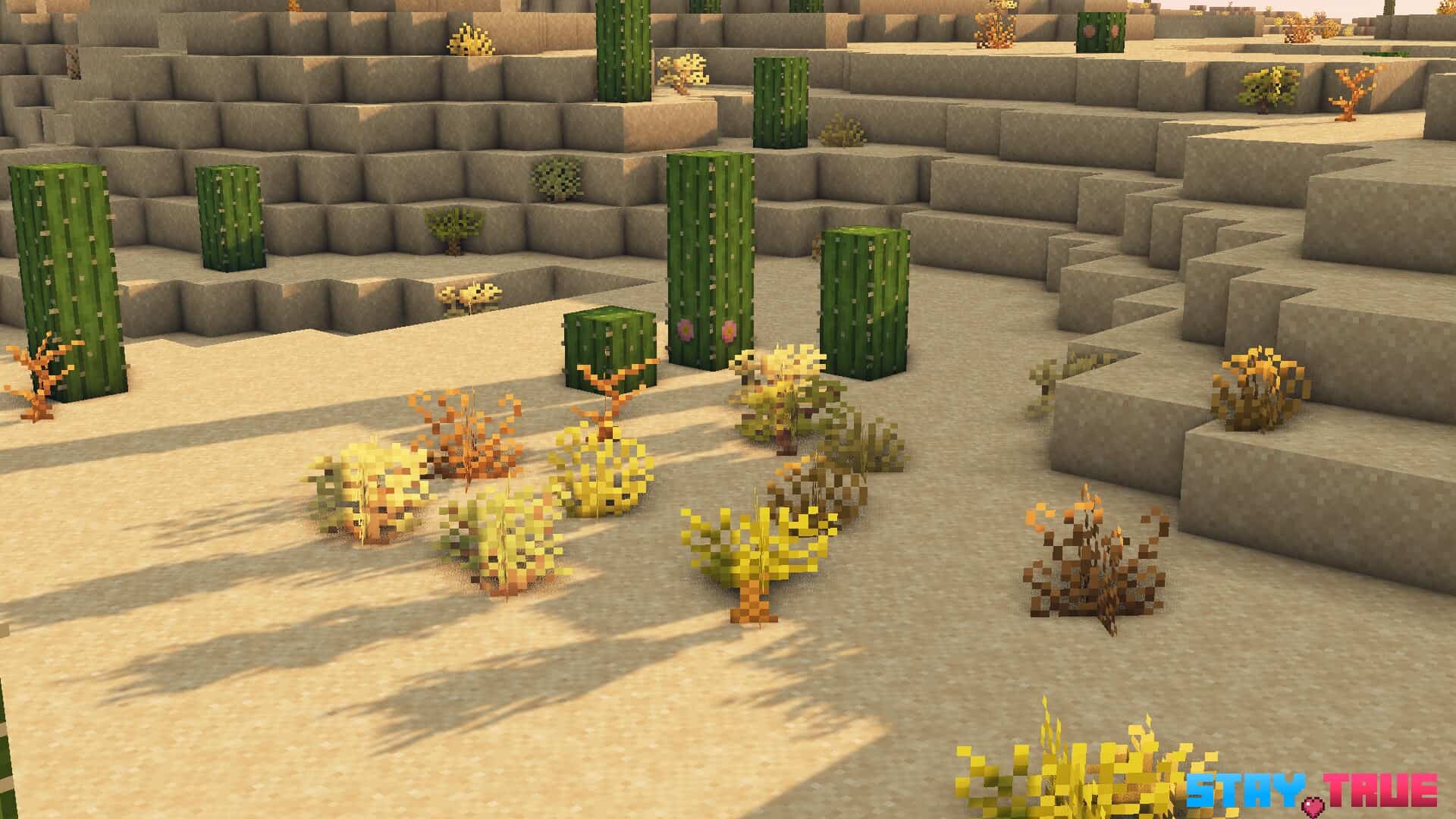
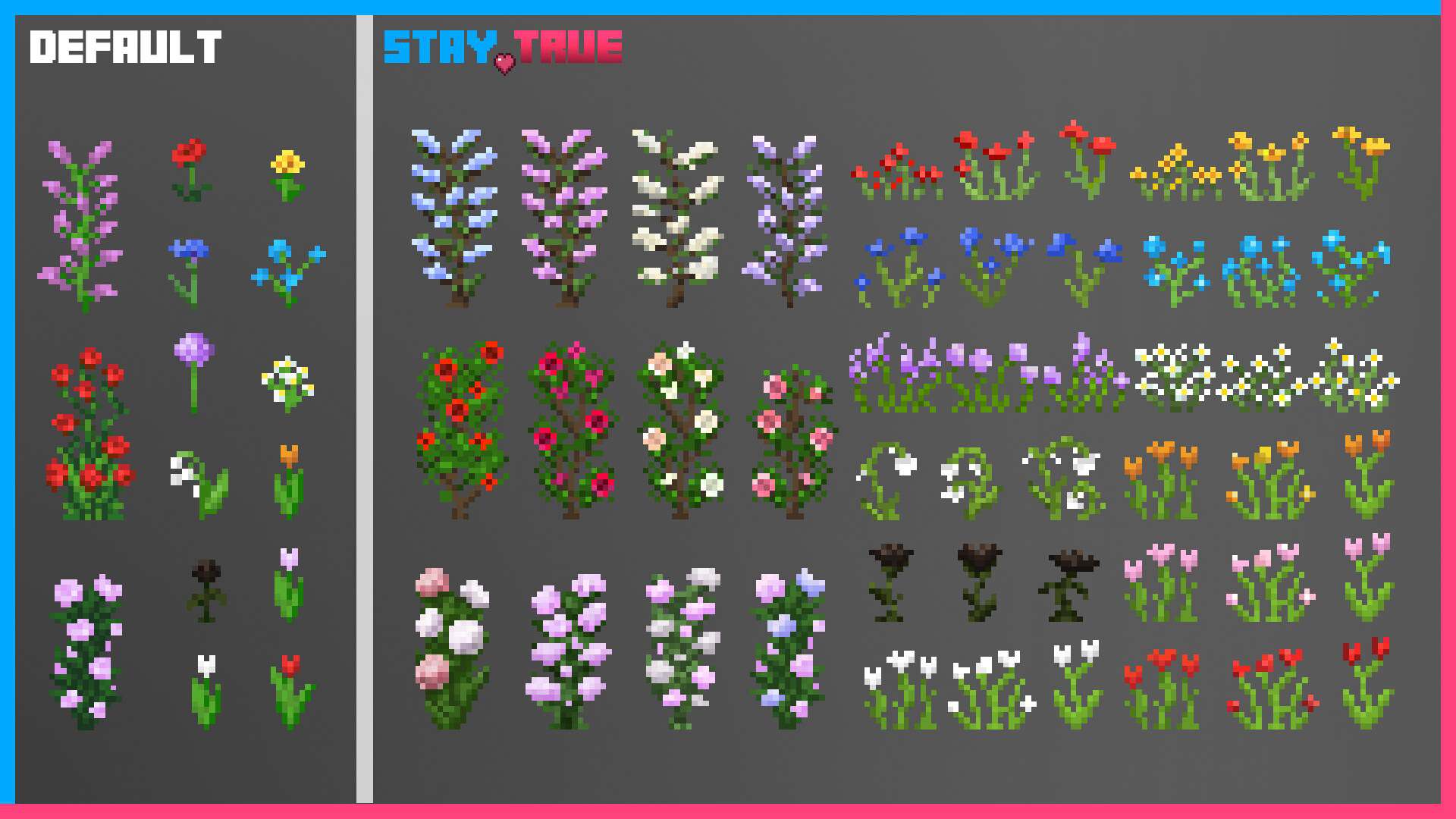
How to Install Texture Pack (Simple 10 Steps)
- Download OptiFine: Most of the texture packs and shaders need OptiFine. That’s why, first download and install OptiFine for the version of Minecraft you want to play.
- Download the Texture Pack: Get the texture pack you want from the download section. Choose the version that works with your Minecraft and your PC’s performance.
- Open Minecraft Launcher: Start Minecraft using the official game launcher — or even TLauncher, if you use that.
- Go to Options: From the main menu, click on the “Options” button.
- Open Resource Packs: Inside Options, click on “Resource Packs…”.
- Open the Resource Pack Folder: Click on “Open Resource Pack Folder” — this will open a folder named “resourcepacks”.
- Move the Pack File: Copy or move the .zip file you downloaded into that “resourcepacks” folder. (Don’t unzip the file — Minecraft uses it as-is!)
- Go Back and Refresh: Close the folder and click “Done”, then go back into “Resource Packs…” again.
- Activate the Pack: You’ll see the pack on the left side. Hover over it and click the arrow to move it to the right (active side).
Tip: If you get a message that the pack is for a different version, just click “Yes” — it usually works fine. - Click Done and Enjoy: Click “Done” again. Now your pack is ready to use in-game. It’s that easy!
Credits
This resource pack was created by haimcyfly. We do not claim ownership of this content, nor do we host or modify the download files on our servers. All rights and intellectual property belong strictly to the original creator. We highly encourage you to support haimcyfly by downloading the pack through the official links provided below.
Download Links
Java Edition
Download Instructions
Curseforge: download starts automatically after a few seconds;
Mediafire: click the big blue button with the text “DOWNLOAD”;
Google Drive: in the top right corner you will see a small download icon (down arrow), click it and the download should start;


