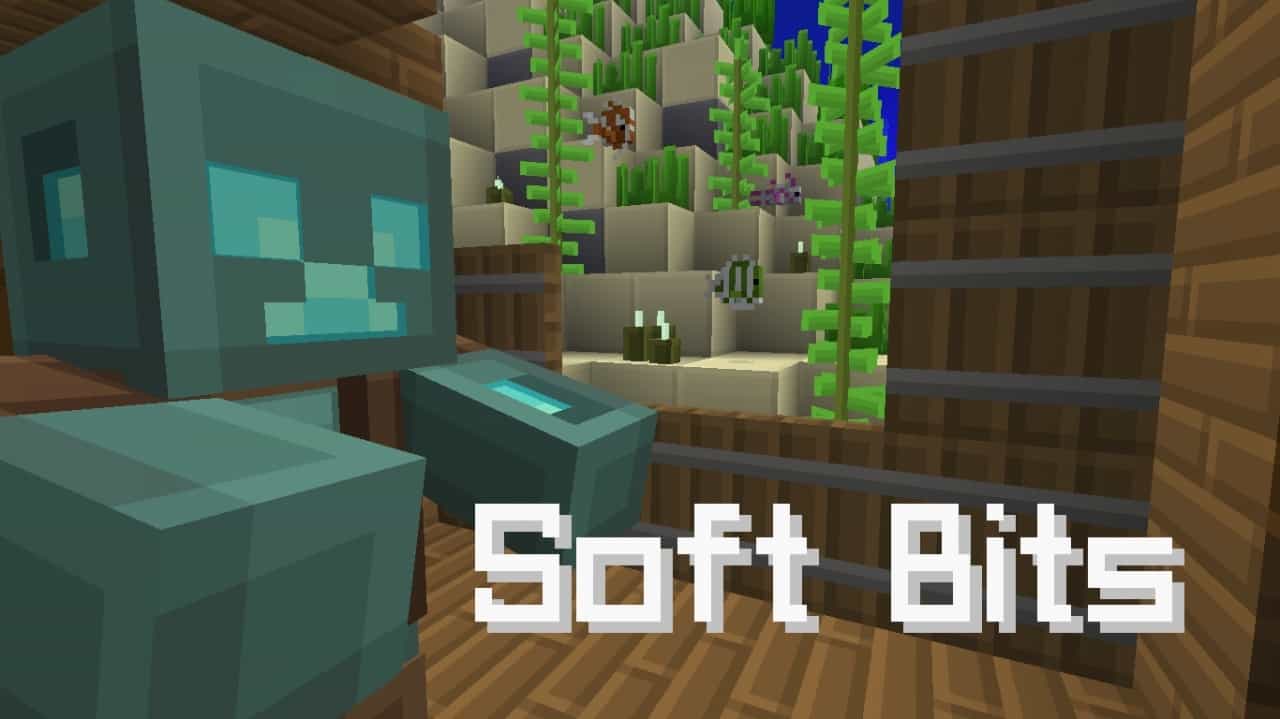
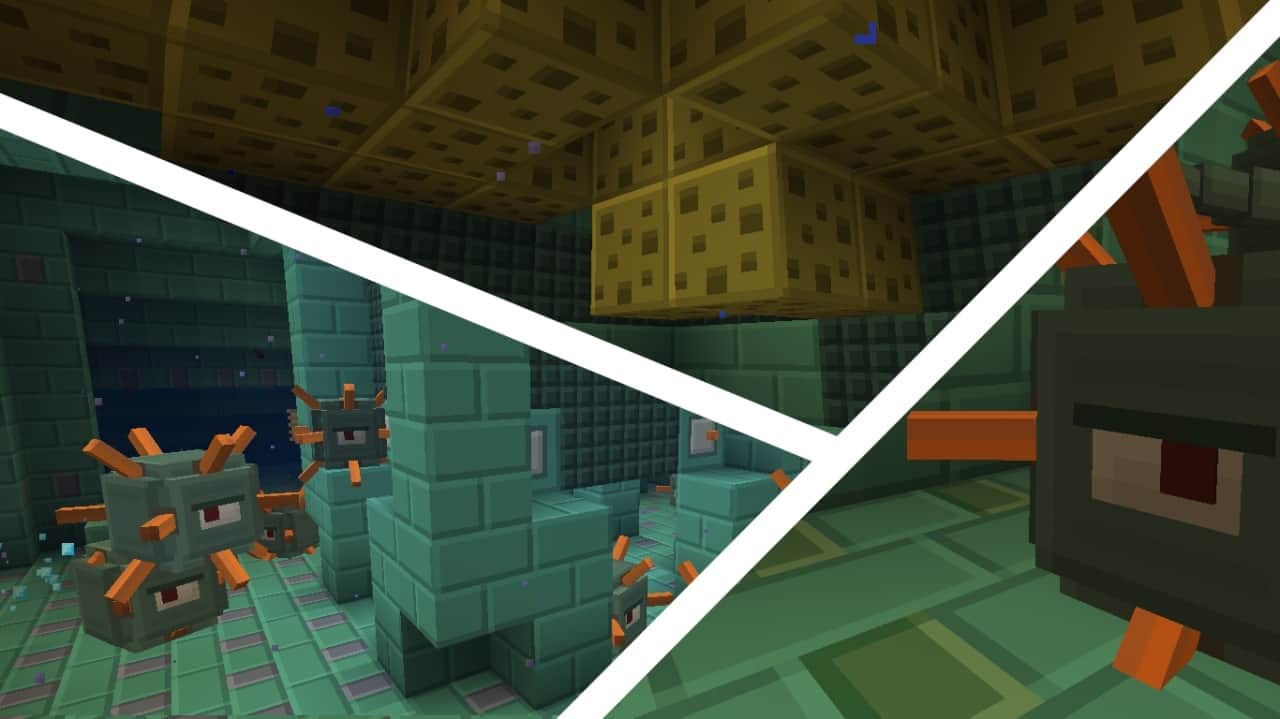
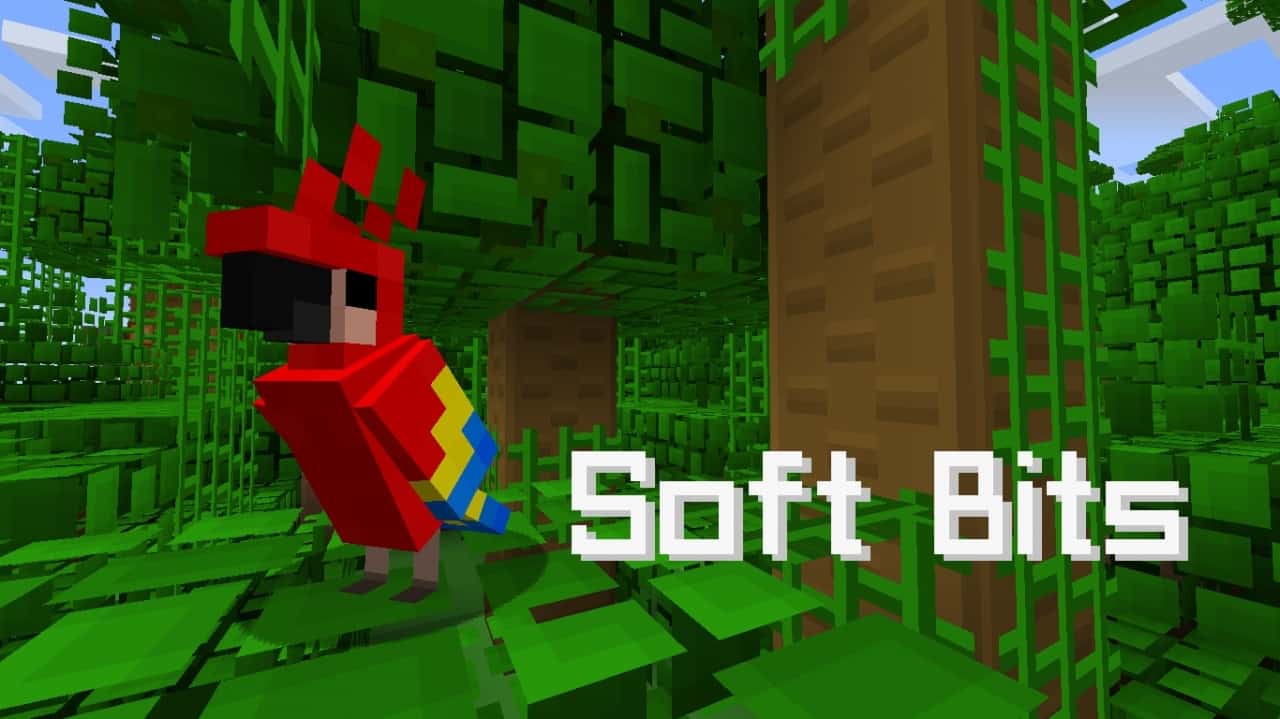
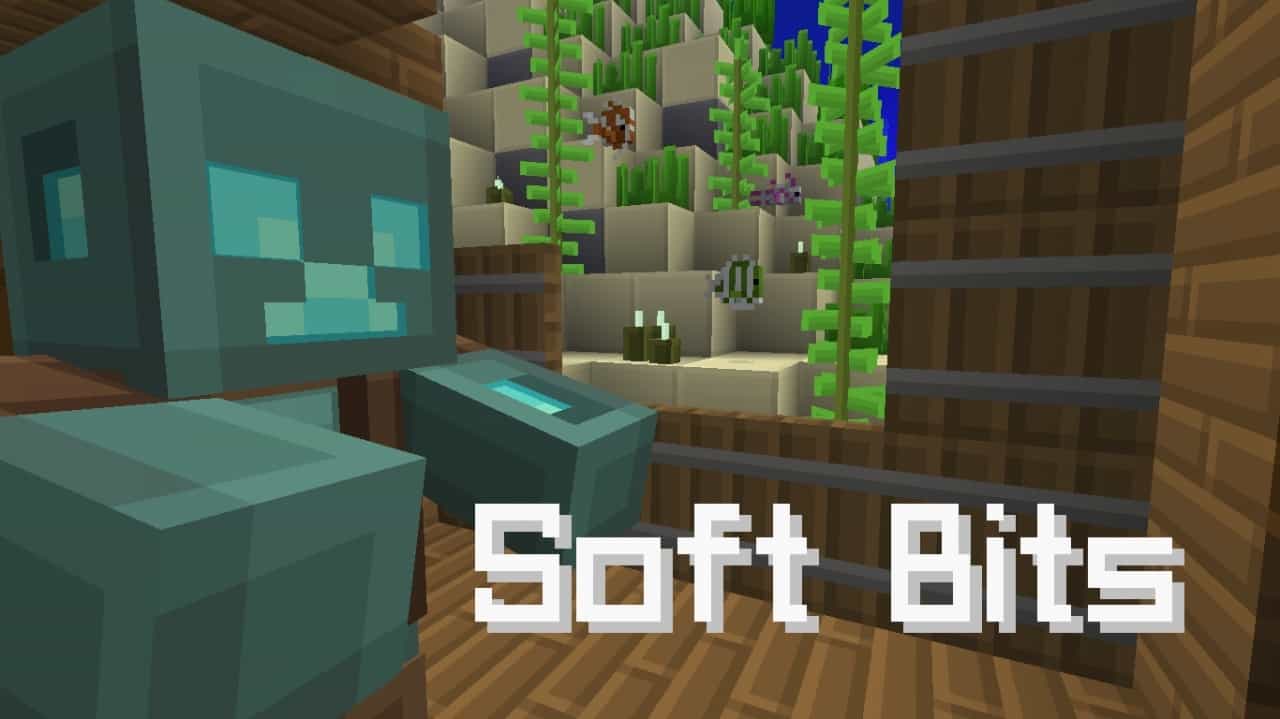
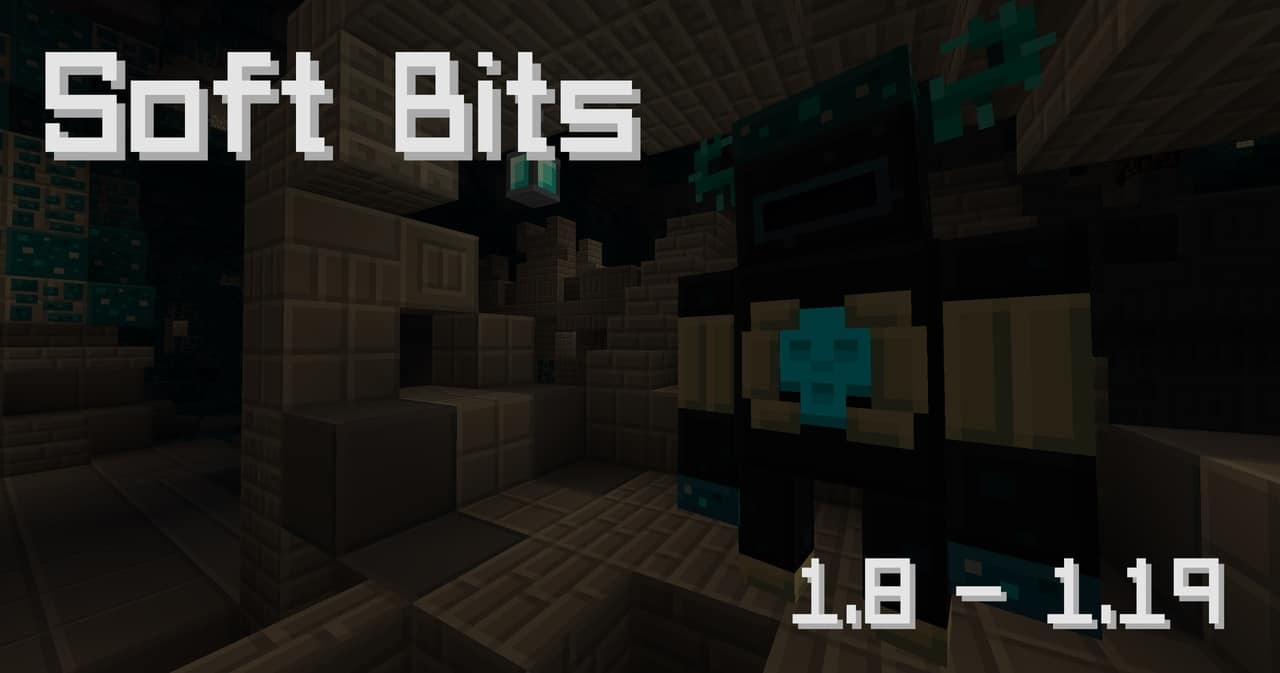
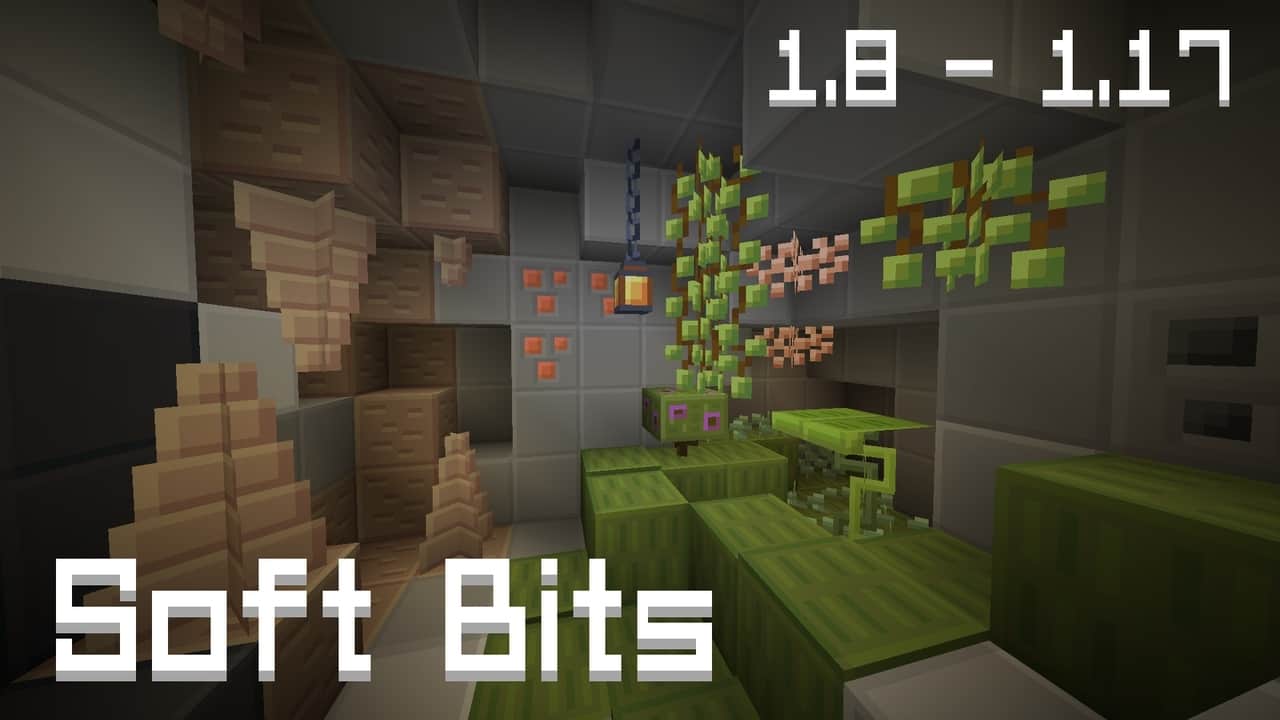
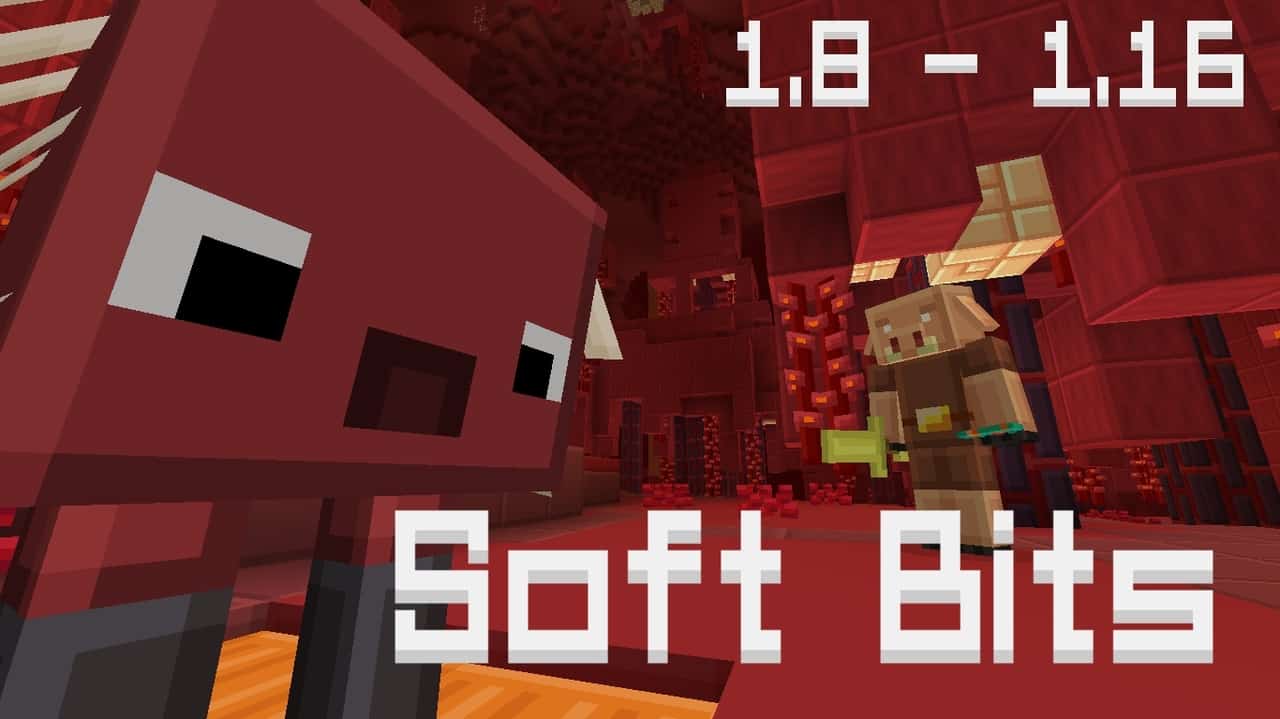
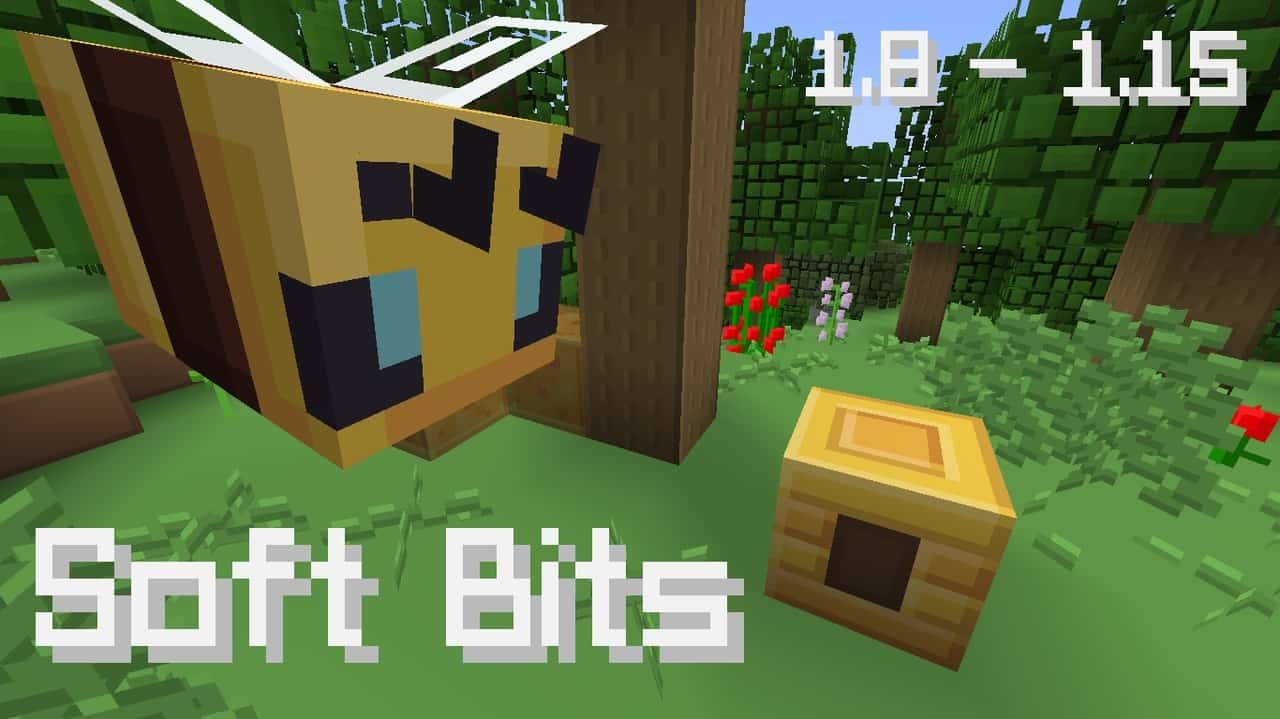
Soft Bits is an incredible resource pack designed by Wolfie Tundra that I really enjoyed testing out! This resource pack is built upon the classic PlasticCraft resource pack which was produced some time back, and using its foundational features, Wolfie Tundra has crafted a much better resource pack. The Soft Bits resource pack comes with a myriad of changes to make the entire experience better. One characteristic of the original PlasticCraft pack is that it is designed for smooth visualization, which is in itself good to help players enjoy the game, but with the intensity of that smoothness, the images could sometimes feel a bit too flashy. The Soft Bits pack is not necessarily focused on that overwhelming flashiness. The main point to take away is that the Soft Bits version works hard to improve upon the PlasticCraft version by picking up the details of Plastic Craft and softening them up to give players a much more bearable and enjoyable experience. I really appreciate how the developers of the Soft Bits resource pack made their main focus creating textures that are genuinely friendly to the player’s eyes!
First and foremost, the color palette of the Soft Bits resource pack has been made so much easier on the eyes than the prototype, meaning that players can comfortably concentrate on the textures for quite some time without hurting their vision. Furthermore, you will notice a significant reduction in the level of detail within the textures as compared to the Plastic Craft resource pack, but trust me, this is not a big deal at all because visualization is kept wonderfully easy on the eyes. Best of all, this resource pack offers a standard 16×16 resolution, which is fantastic news for most players who want to run it on a stable frame rate without any performance drops. It simply requires computer hardware that is capable of running vanilla Minecraft smoothly. If you are thinking of getting a new resource pack, Soft Bits is definitely the way to go because it is much more user-friendly, custom-designed to suit your eyes, and available for most PCs. There is truly no reason why you should not give it a try!
Soft Bits! should be compatible with all of these Minecraft versions: 1.21.10 – 1.21.9 – 1.21.8 – 1.21.7 – 1.21.6 – 1.21.5 – 1.21.4 – 1.21.3 – 1.21.2 – 1.21.1 – 1.21 – 1.20.6 – 1.20.5 – 1.20.4 – 1.20.3 – 1.20.2 – 1.20.1 – 1.20 – 1.19.4 – 1.19.3 – 1.19.2 – 1.19.1 – 1.19 – 1.18.2 – 1.18.1 – 1.18 – 1.17.1 – 1.17 – 1.16.5 – 1.16.4 – 1.16.3 – 1.16.2 – 1.16.1 – 1.16 – 1.15.2 – 1.15.1 – 1.15 – 1.14.4 – 1.14.3 – 1.14.2 – 1.14 – 1.13.2 – 1.13.1 – 1.13 – 1.12.2 – 1.12 – 1.11.2 – 1.11 – 1.8.8 – 1.8.1 – 1.8.6 – 1.8 – Bedrock Edition – PE
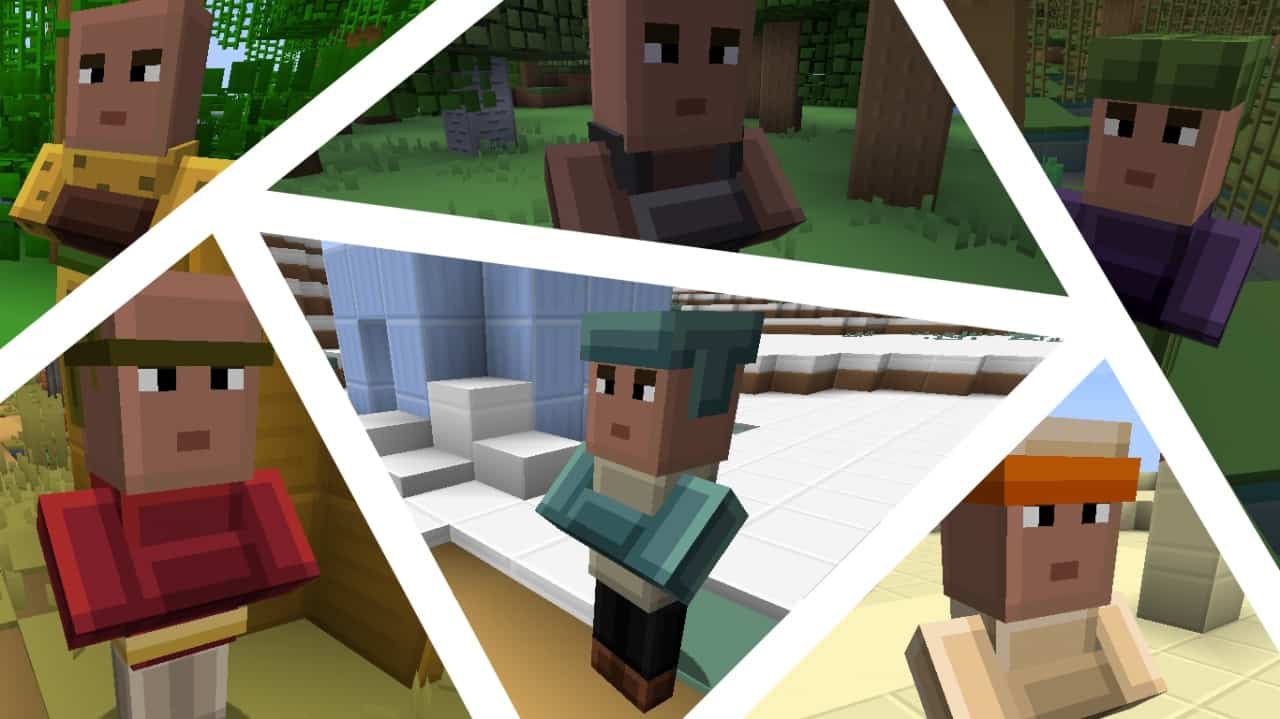
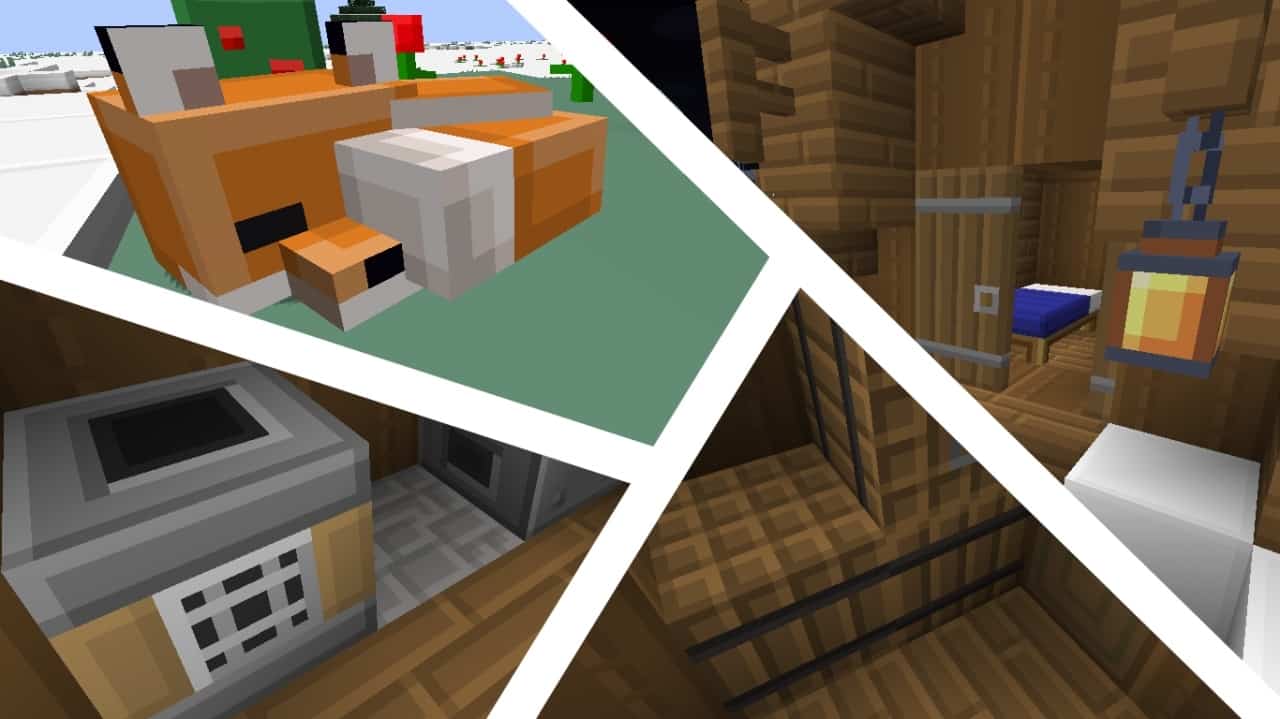
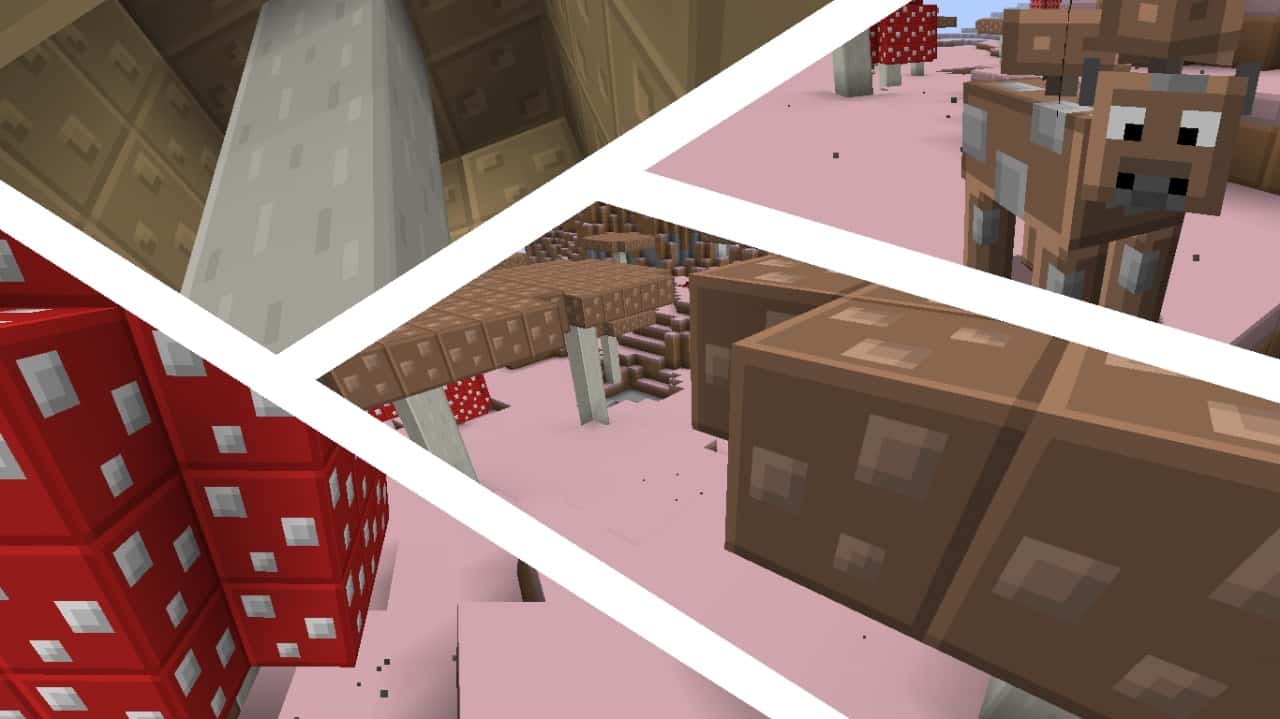
Screenshots
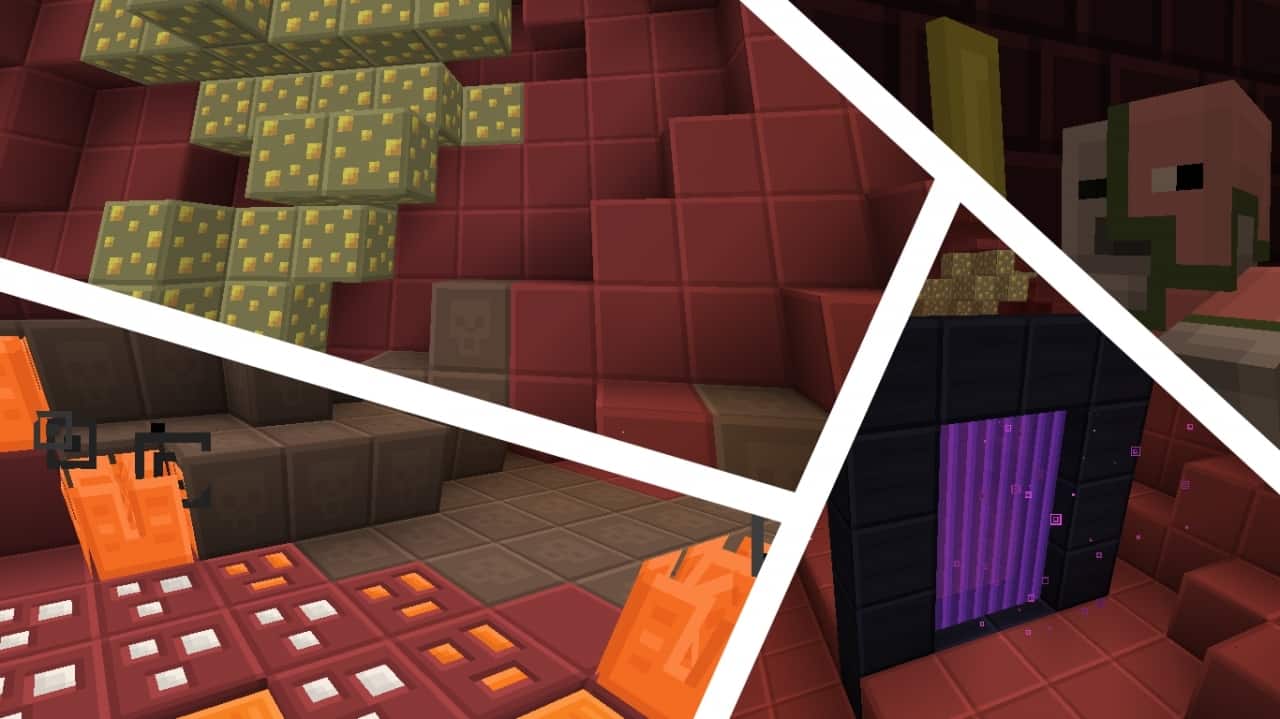
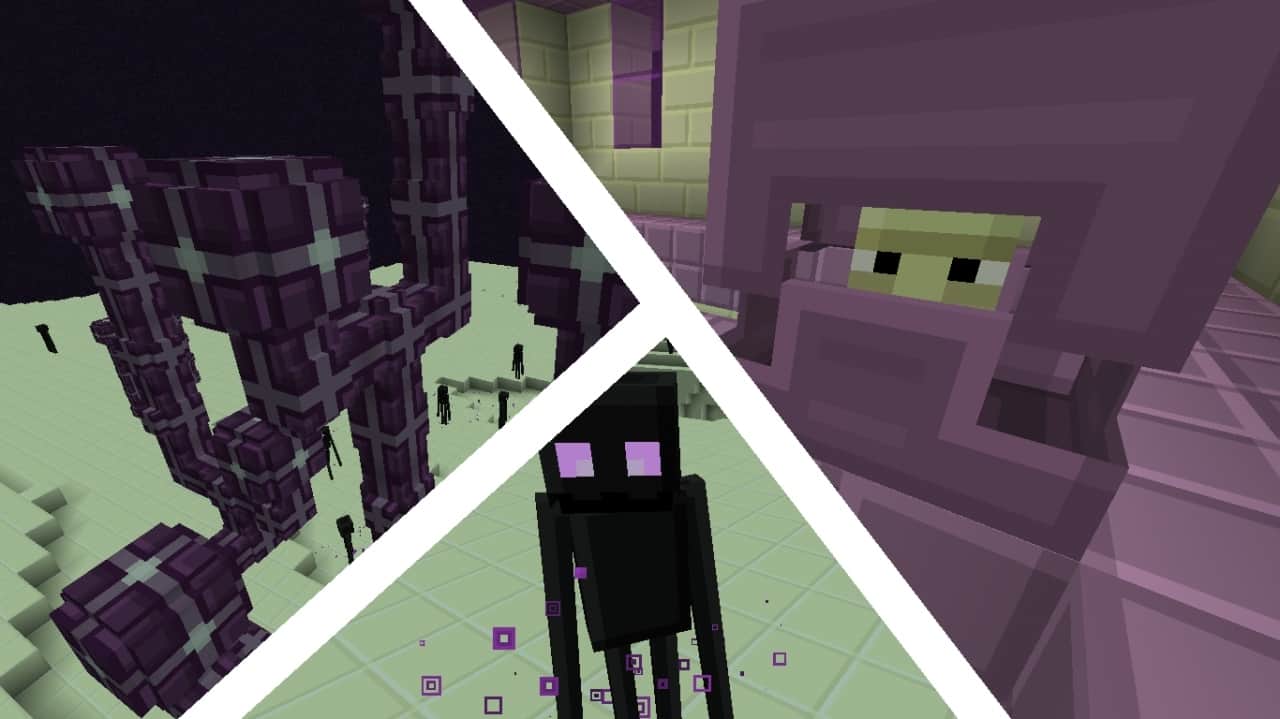
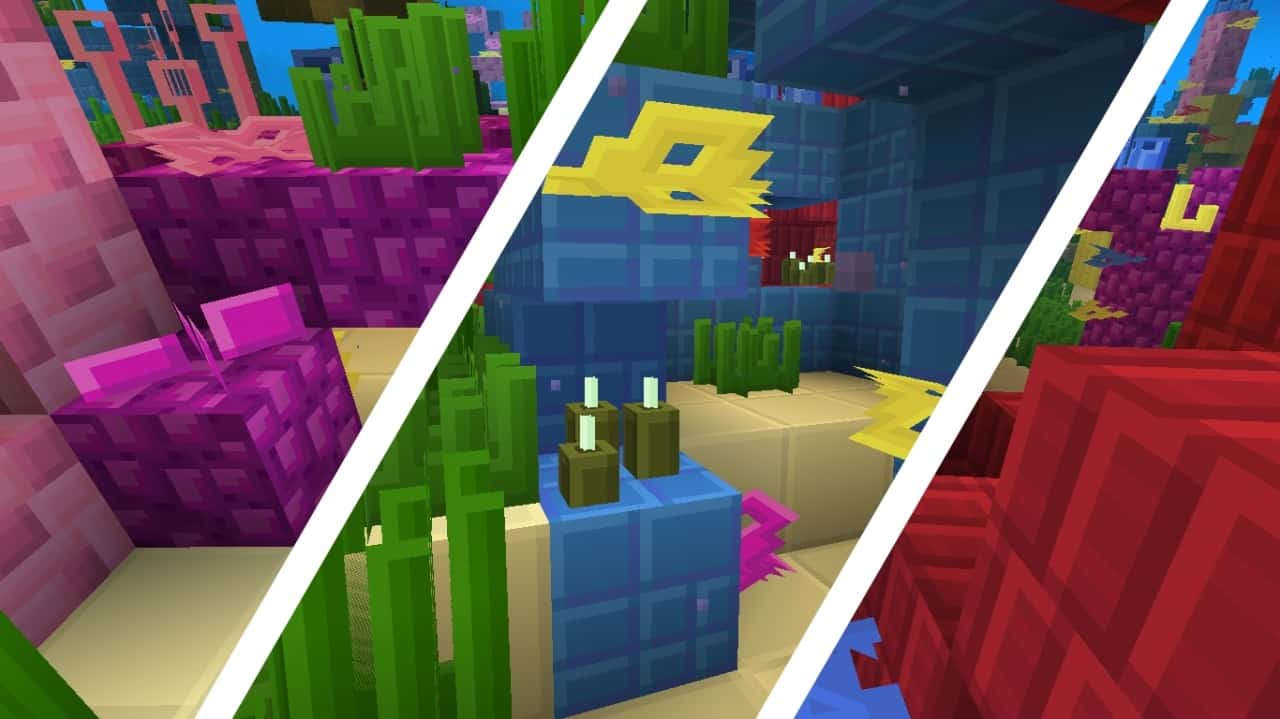
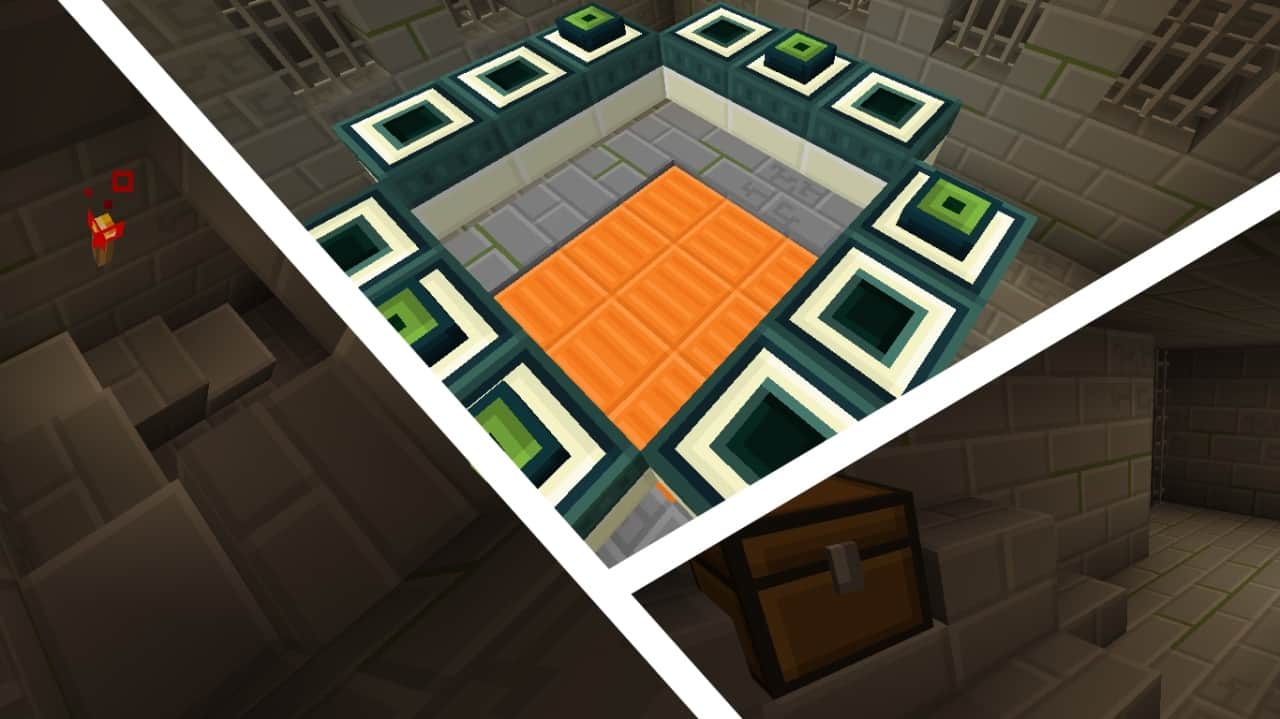

How to Install Texture Pack (Simple 10 Steps)
- Download OptiFine: Most of the texture packs and shaders need OptiFine. That’s why, first download and install OptiFine for the version of Minecraft you want to play.
- Download the Texture Pack: Get the texture pack you want from the download section. Choose the version that works with your Minecraft and your PC’s performance.
- Open Minecraft Launcher: Start Minecraft using the official game launcher — or even TLauncher, if you use that.
- Go to Options: From the main menu, click on the “Options” button.
- Open Resource Packs: Inside Options, click on “Resource Packs…”.
- Open the Resource Pack Folder: Click on “Open Resource Pack Folder” — this will open a folder named “resourcepacks”.
- Move the Pack File: Copy or move the .zip file you downloaded into that “resourcepacks” folder. (Don’t unzip the file — Minecraft uses it as-is!)
- Go Back and Refresh: Close the folder and click “Done”, then go back into “Resource Packs…” again.
- Activate the Pack: You’ll see the pack on the left side. Hover over it and click the arrow to move it to the right (active side).
Tip: If you get a message that the pack is for a different version, just click “Yes” — it usually works fine. - Click Done and Enjoy: Click “Done” again. Now your pack is ready to use in-game. It’s that easy!
Credits
Soft Bits was created by WolfieTundra, drawing inspiration from the original PlasticCraft resource pack. We do not own or claim ownership of this resource pack, nor have we modified the official files. All rights and credits belong entirely to WolfieTundra. We strongly encourage you to support the original creator by downloading the pack from their official links and checking out their other projects.
Download Links
Java Edition
- [16x] Minecraft 1.21.x
- [16x] Minecraft 1.20.x
- [16x] Minecraft 1.19.x – 1.17.x
- [16x] Minecraft 1.16.x – 1.15.x
- [16x] Minecraft 1.14.x
- [16x] Minecraft 1.13.x
- [16x] Minecraft 1.12.x – 1.11.x
- [16x] Minecraft 1.8.x
Bedrock Edition
Download Instructions
Curseforge: download starts automatically after a few seconds;
Mediafire: click the big blue button with the text “DOWNLOAD”;
Google Drive: in the top right corner you will see a small download icon (down arrow), click it and the download should start;


