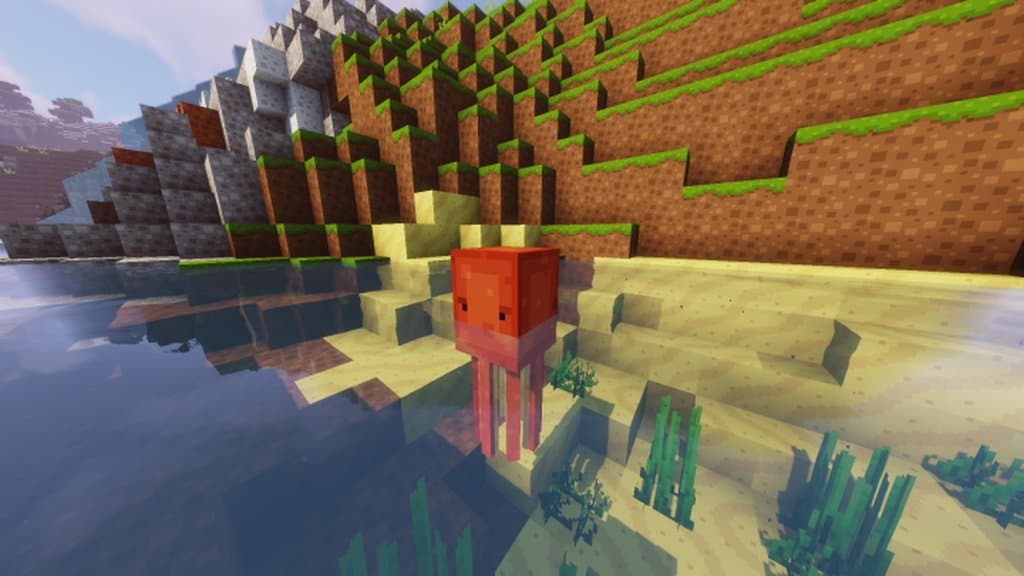
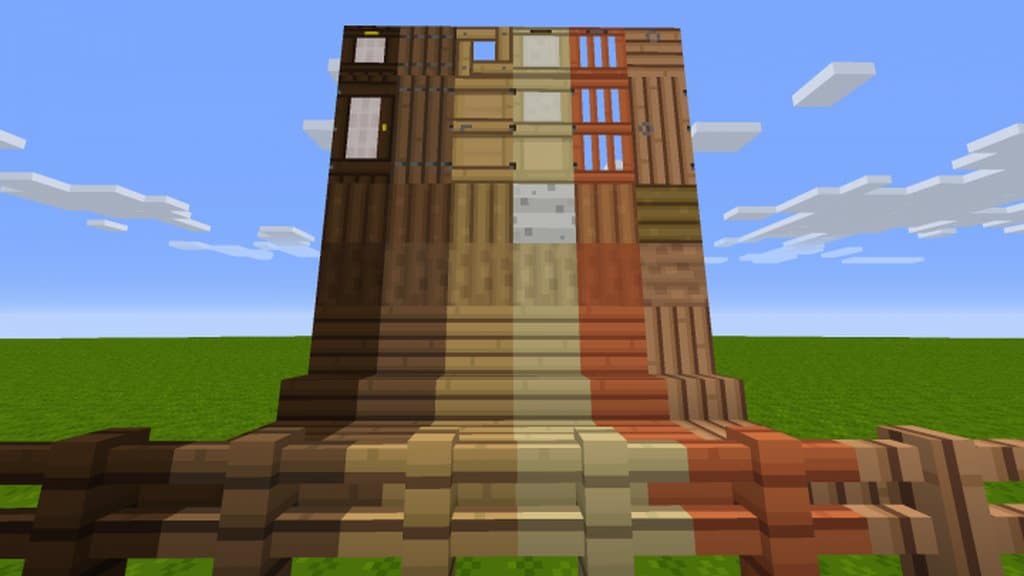
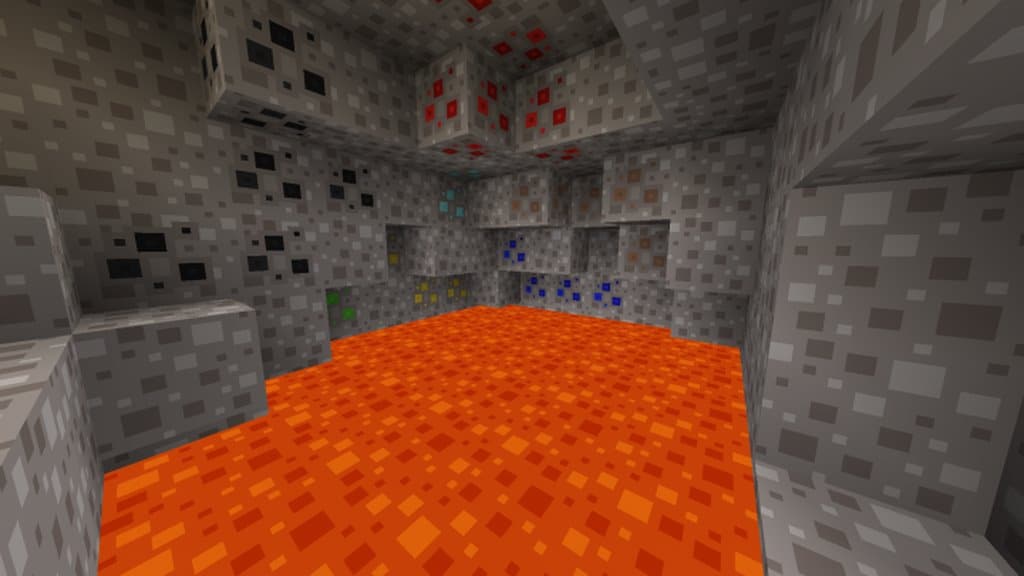
Smuthy’s Daytime resource pack is an absolute must-try newest addition that brings a vibrant new feel to the game. When I tested the resource pack, I was thrilled to find a fun and exciting twist to the games visuals featuring bright colors and many other unique features. The Minecraft community is very good with adding new resource packs to enhance your gaming experience, and with Smuthy’s Daytime, they truly raised the bar. While exploring, you can definitely see the exceptional attention to detail put into creating this resource pack. With its unique angular designs and cartoon-like features blended with some amazing simple structures, this pack really stands out from others. The default color palette itself is truly special, and when you mix that with the added textures in the pack, you’ve got yourself a remarkably solid resource pack. Being a relatively brand new pack, Smuthy’s Daytime is getting a lot of attention from the Minecraft community, and rightfully so!
I was amazed to see people raving about the look and simply unable to stop talking about the items and blocks with special animations that add so much life to the Minecraft world. The creators are still working to complement the pack and fine-tune details to continuously improve the pack for future support. This means that Smuthy’s Daytime will always receive updates for the resource pack to ensure that the pack is running smoothly and efficiently for the best experience possible. Best of all, Smuthy’s Daytime texture pack uses a standard 16×16 resolution so that everyone can easily enjoy the resource pack, knowing it runs perfectly for whatever gaming system you happen to use. These resource packs are a great way to enhance and enrich your Minecraft gaming experience, giving individuals new content to keep the game fresh and exciting. If you want something new and genuinely exciting to add to your game, I definitely recommend checking out Smuthy’s Daytime resource pack today!
Smuthy’s Daytime should be compatible with all of these Minecraft versions: 1.16.5 – 1.16.4 – 1.16.3 – 1.16.2 – 1.16.1 – 1.16 – 1.15.2 – 1.15.1 – 1.15 – 1.14.4 – 1.14.3 – 1.14.2 – 1.14 – 1.13.2 – 1.13.1 – 1.13
Screenshots
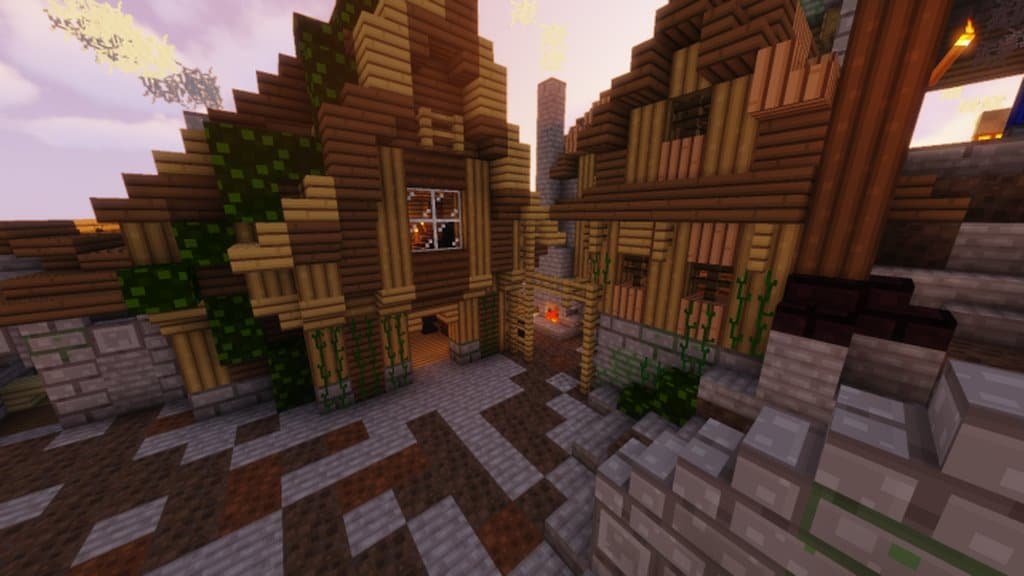
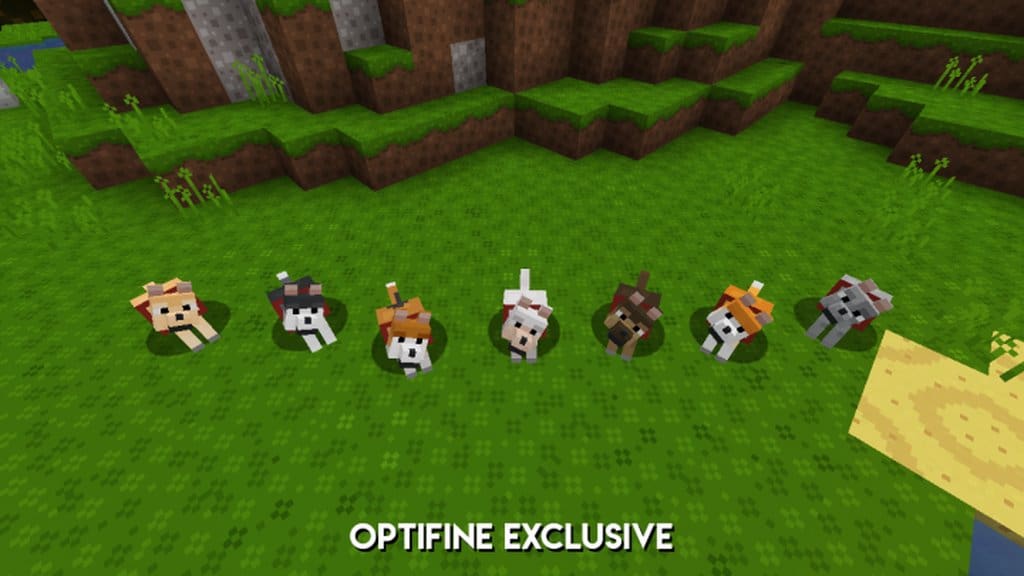
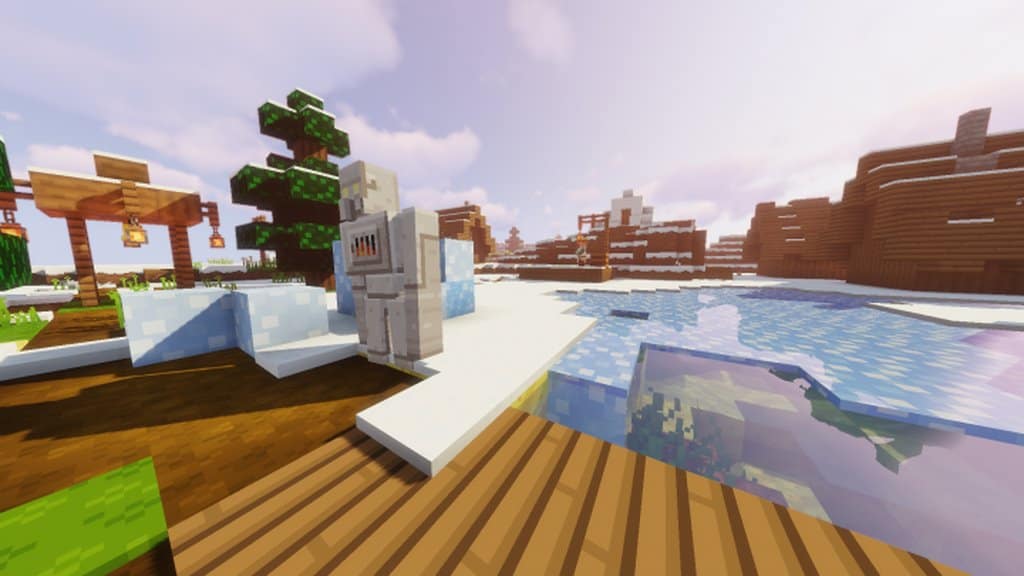
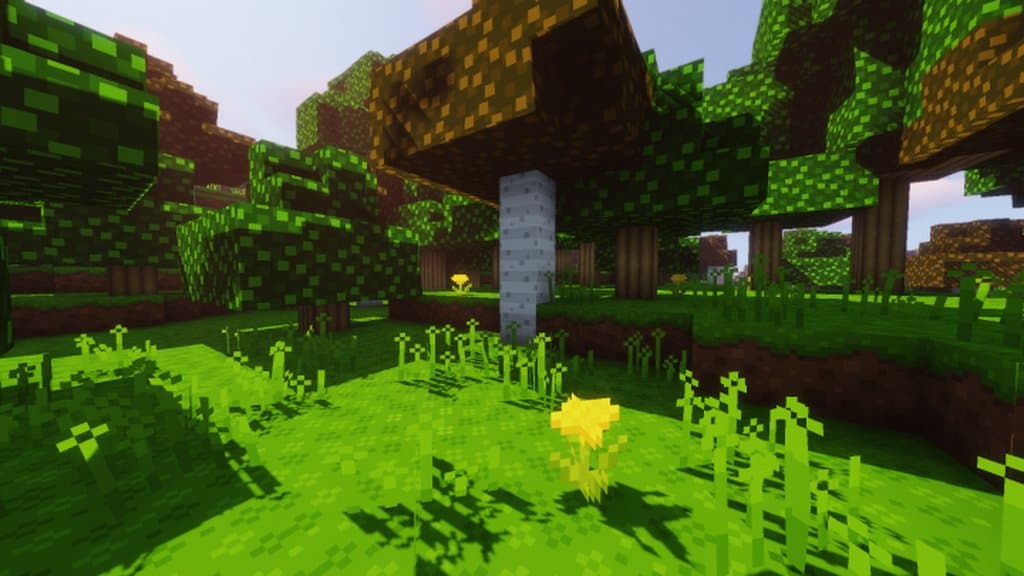
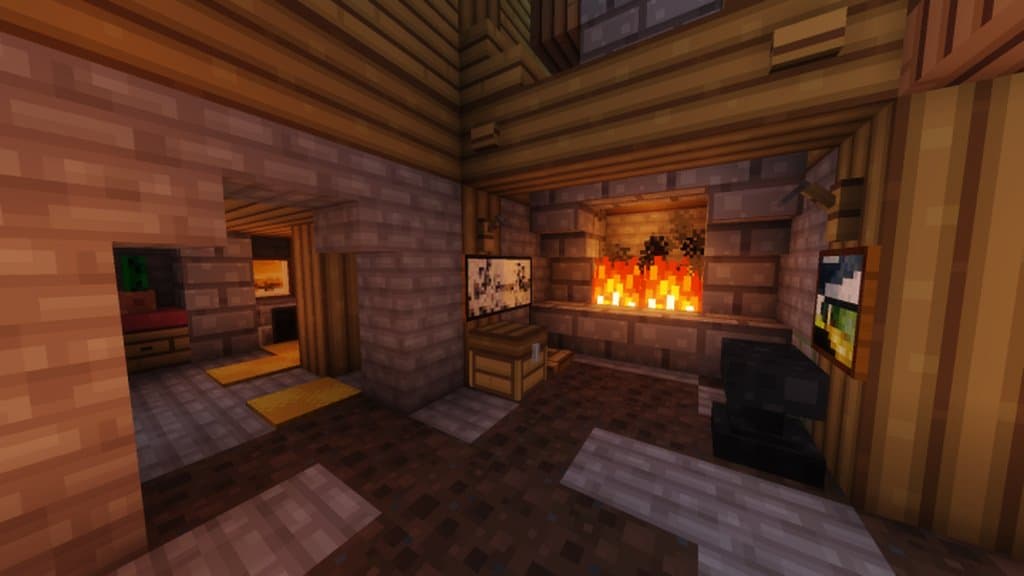
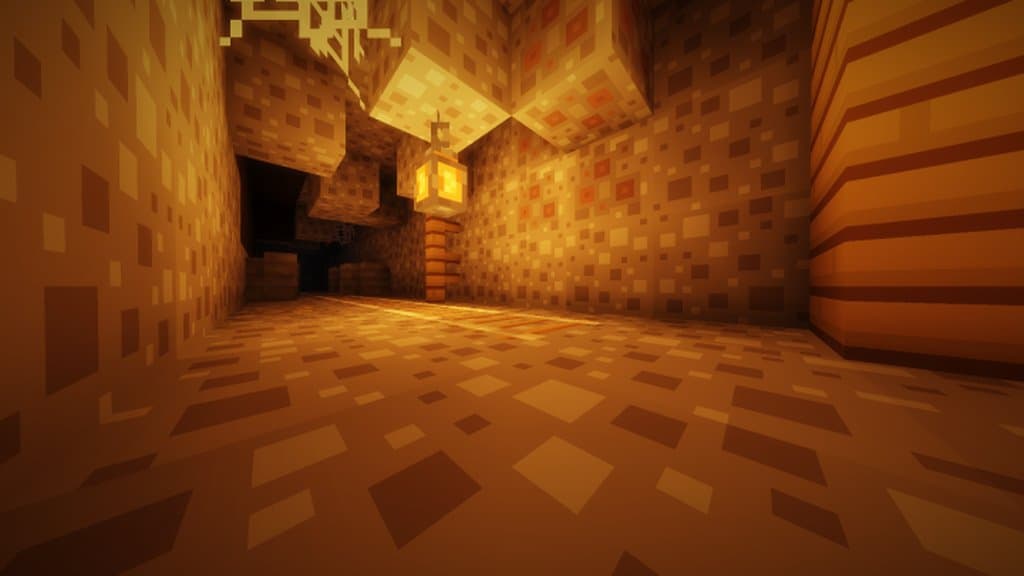
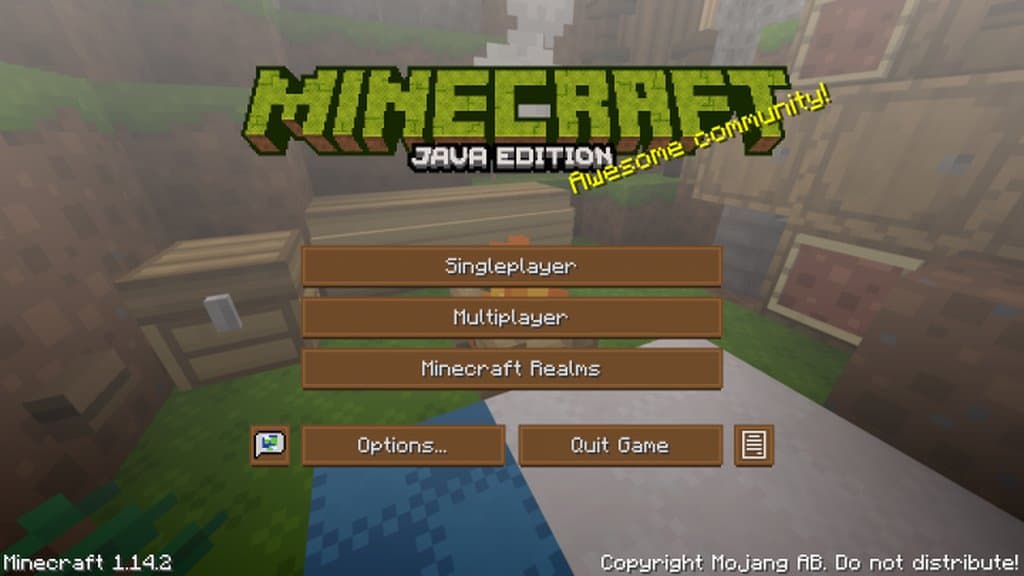
How to Install Texture Pack (Simple 10 Steps)
- Download OptiFine: Most of the texture packs and shaders need OptiFine. That’s why, first download and install OptiFine for the version of Minecraft you want to play.
- Download the Texture Pack: Get the texture pack you want from the download section. Choose the version that works with your Minecraft and your PC’s performance.
- Open Minecraft Launcher: Start Minecraft using the official game launcher — or even TLauncher, if you use that.
- Go to Options: From the main menu, click on the “Options” button.
- Open Resource Packs: Inside Options, click on “Resource Packs…”.
- Open the Resource Pack Folder: Click on “Open Resource Pack Folder” — this will open a folder named “resourcepacks”.
- Move the Pack File: Copy or move the .zip file you downloaded into that “resourcepacks” folder. (Don’t unzip the file — Minecraft uses it as-is!)
- Go Back and Refresh: Close the folder and click “Done”, then go back into “Resource Packs…” again.
- Activate the Pack: You’ll see the pack on the left side. Hover over it and click the arrow to move it to the right (active side).
Tip: If you get a message that the pack is for a different version, just click “Yes” — it usually works fine. - Click Done and Enjoy: Click “Done” again. Now your pack is ready to use in-game. It’s that easy!
Credits
This resource pack was created by Smuthy. All rights, ownership, and intellectual property belong strictly to the original creator. We do not own, host, or modify these files and share them strictly as-is. We strongly encourage you to support the creator by visiting their official links and downloading directly from them.
Download Links
Java Edition
Download Instructions
Curseforge: download starts automatically after a few seconds;
Mediafire: click the big blue button with the text “DOWNLOAD”;
Google Drive: in the top right corner you will see a small download icon (down arrow), click it and the download should start;


