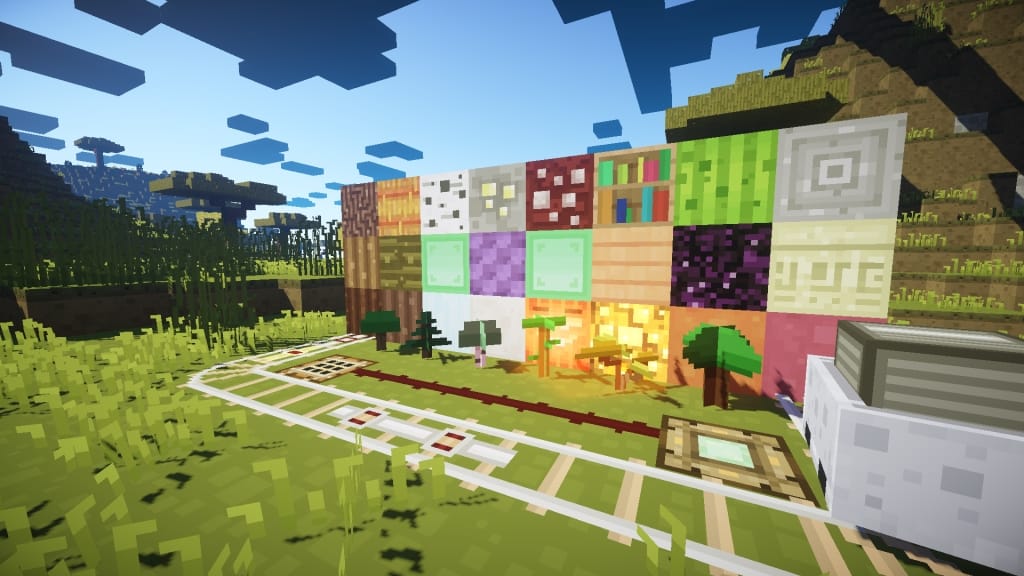
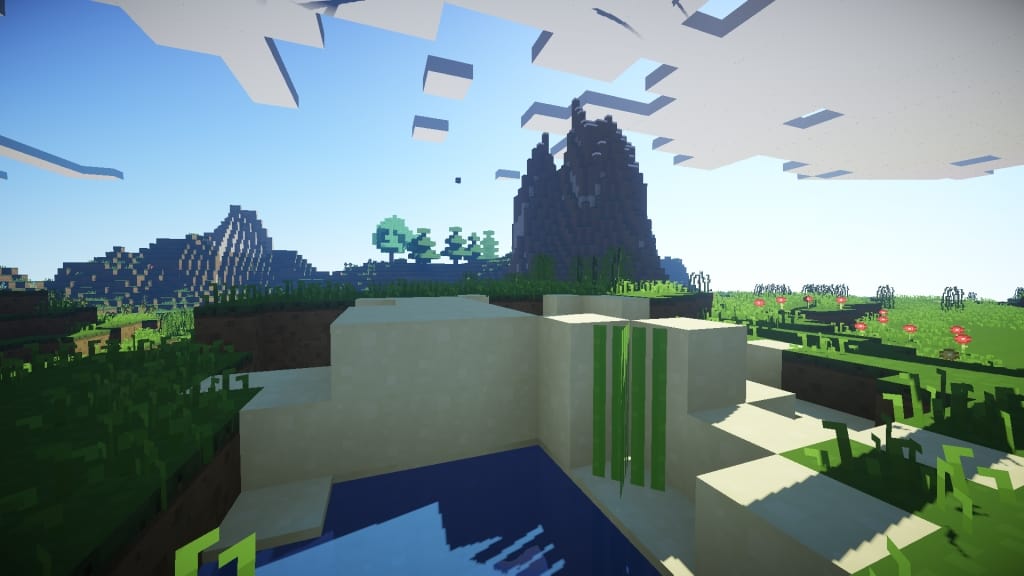
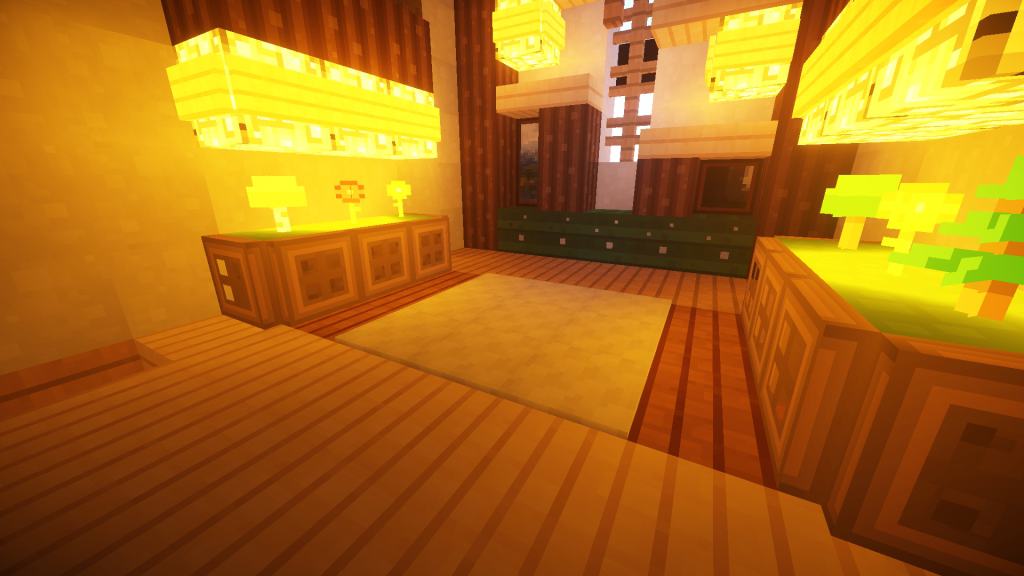
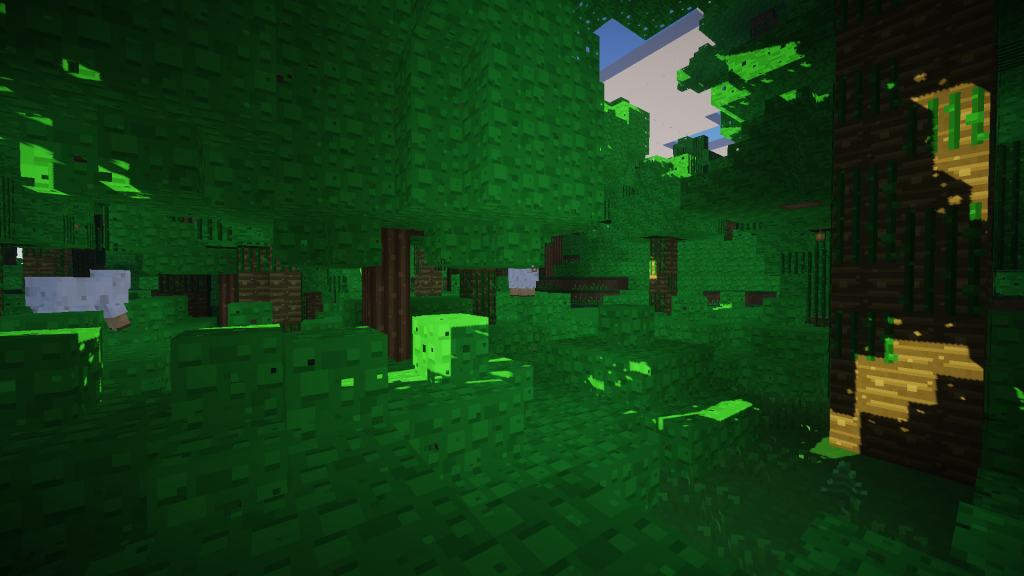
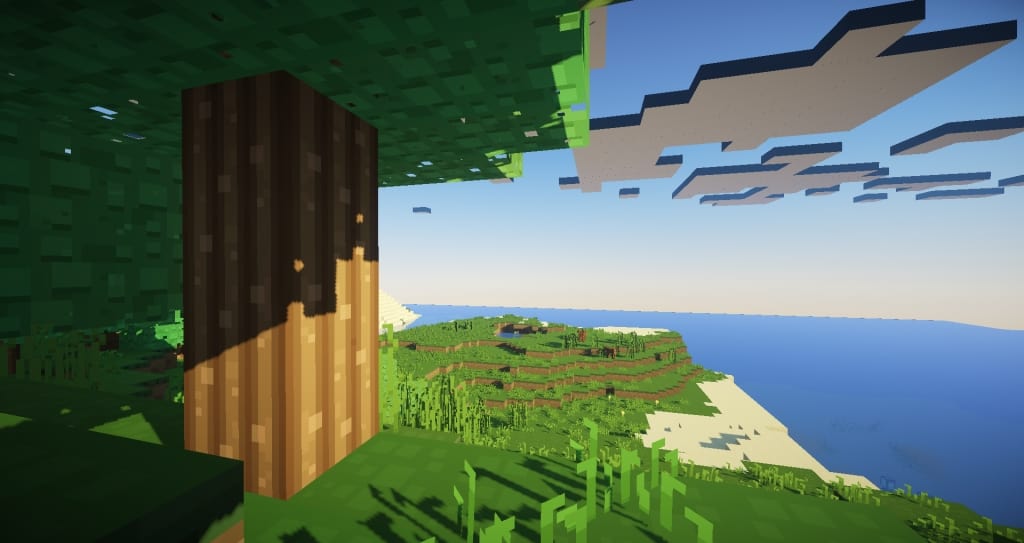
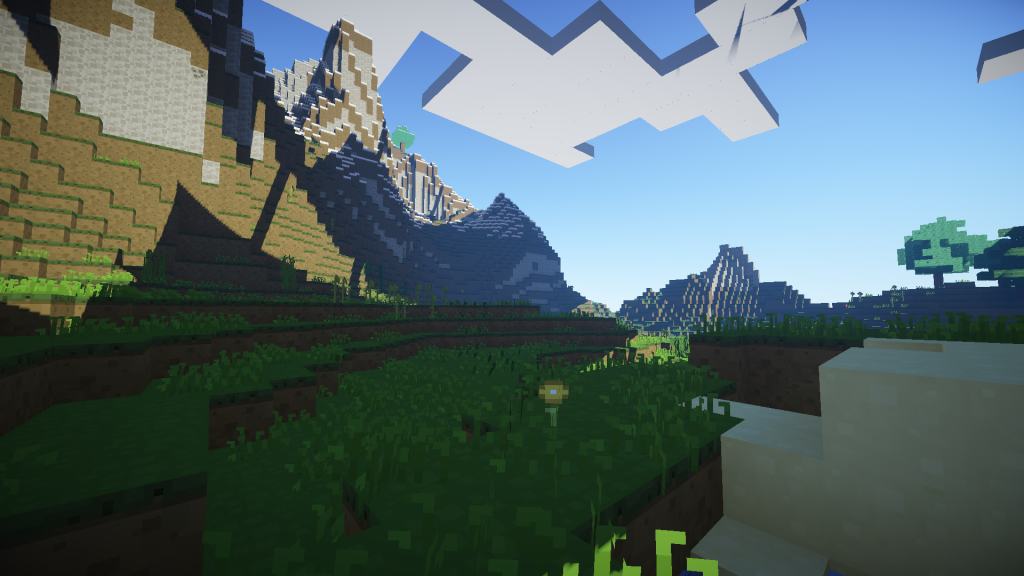
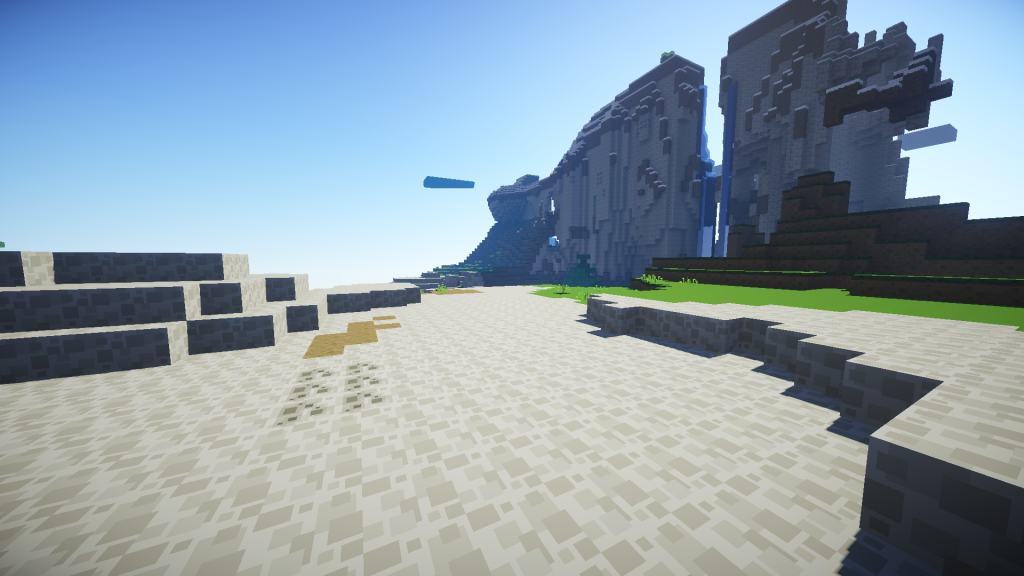
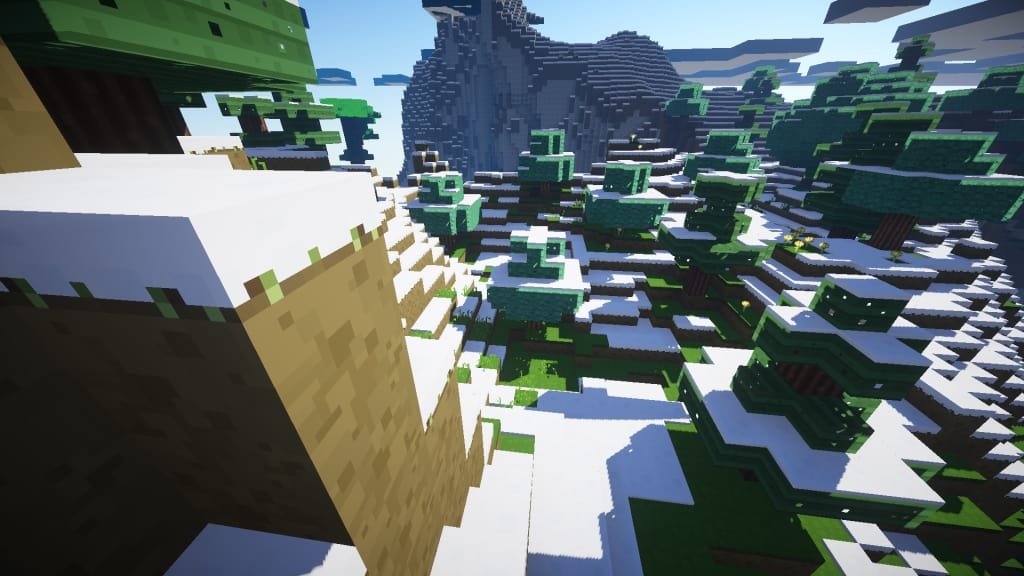
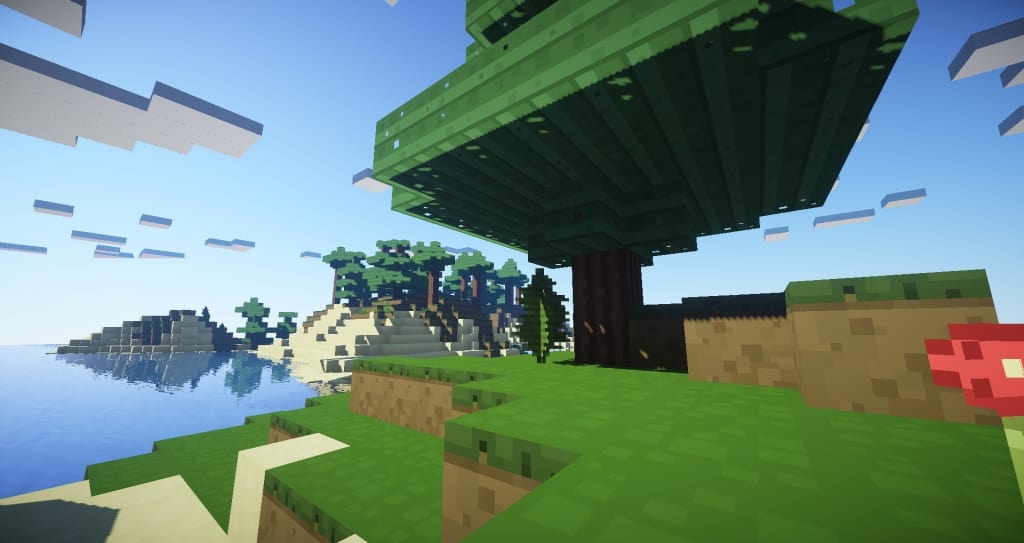
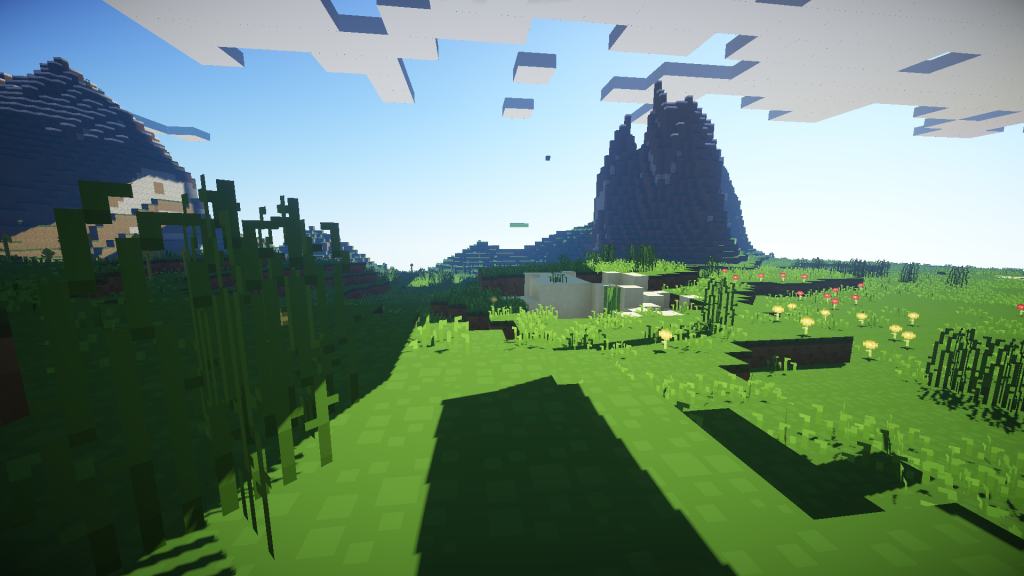
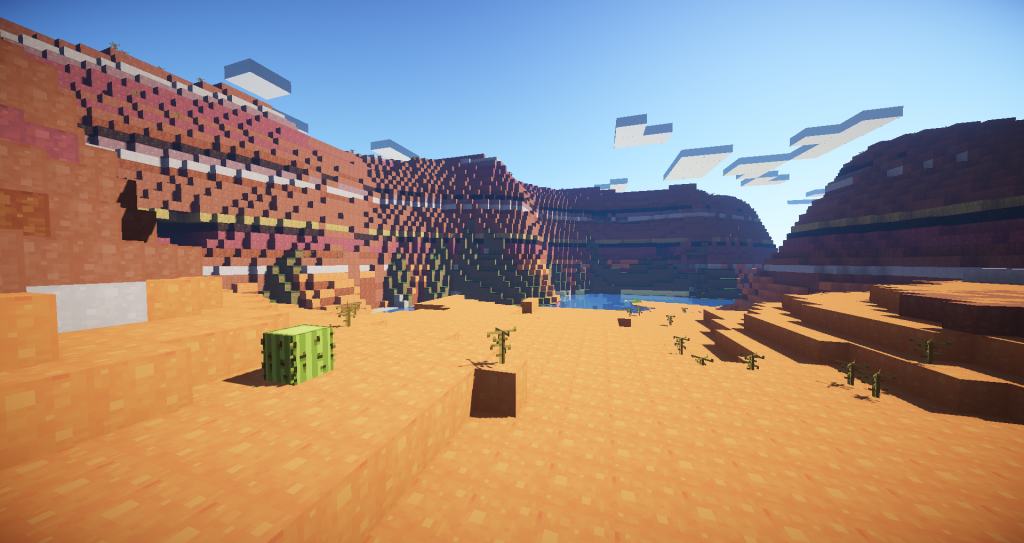
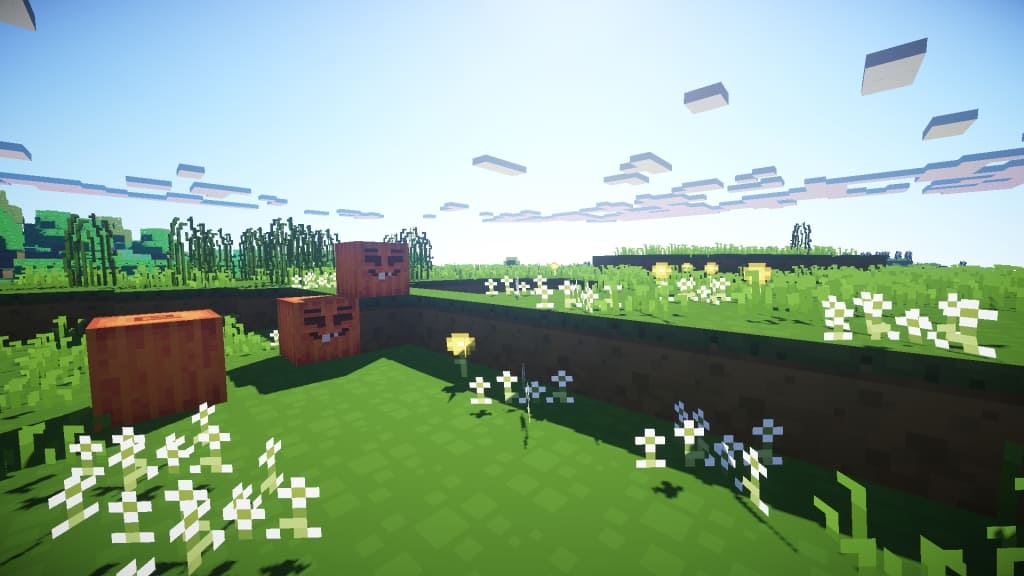
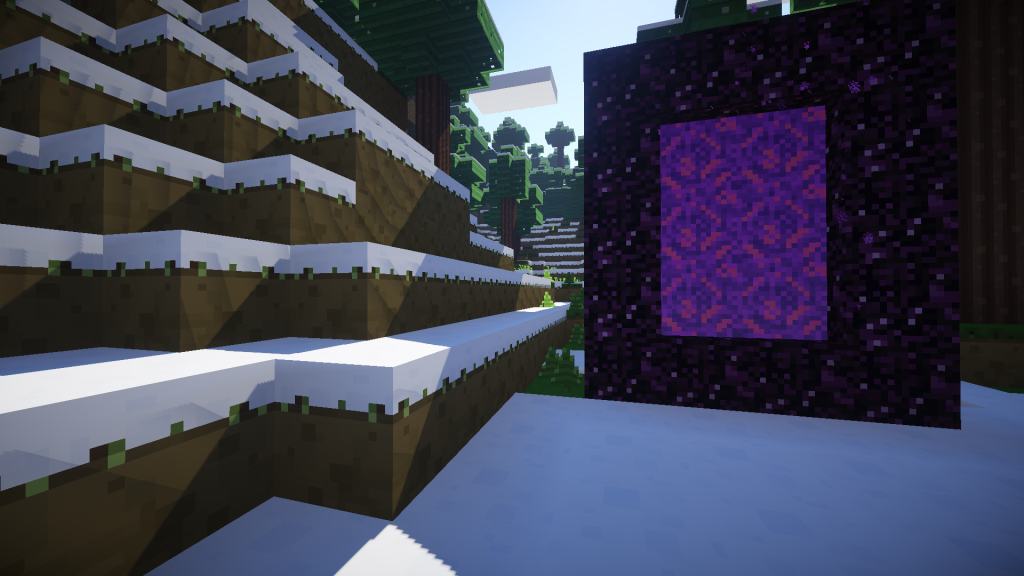
The Smoothic resource pack does exactly what it says on the tin: it flattens out and smoothens all of your game textures, making that open world actually feel and look smooth and inviting. Thanks to Smoothic, every texture and every frame can now feel smooth and simple enough to touch, from its characters to its landscape features, everything from the pumpkins to the volcanic lava, to every pebble, every leaf. It solely manages to make your foes look all the more dangerous, as each of them suddenly gains far more detailed, far more frightening features. Keep in mind that a final installation of Smoothic would requires a quality shader pack to be installed simultaneously, preferably a shader which would allow for smooth lighting and ambient occlusion, something that would allow for the clear waters to reflect the surface that surrounds them, as many peoples genuinely enjoy staring out into the water. So far, resource packs have failed at truly capturing nature in all its beauty, which is why game elements such as dirt and grass and trees have all stayed the same. The arrival of Smoothic changes all that.
It’s time to give the outdated depictions as neighborly villager and farm animals such as pigs and cows a hard reboot, something which resource packs have all to accomplish thus far. Smoothic is highly reminiscent of cell shading, with lots of bold and bright pastel, mostly, it makes it difficult to stumble upon a single texture that either looks grainy or darkened. Although this resource pack may be perfect for the creation of magical, fantasy worlds, it is far less suitable for players looking to create something with a slightly darker and edgier tone, like say an underground escape route or a spooky mansion. Every biome, regardless of its size has something to gain from Smoothic. It won’t even matter how old it is. Even though it’s a fairly straightforward resource pack, it still entails a number of fairly specific details necessary for its download. Its otherwise low texture resolution of only 16×16 still manages to impress. You will also be pleasantly surprised by the sheer number of frames per second, which as long your hardware is able to run classic version minecraft, then you’ll definitely be able to run it just the same.
Smoothic should be compatible with all of these Minecraft versions: 1.11.2 – 1.11 – 1.10.2 – 1.10 – 1.9.4 – 1.9 – 1.8.9 – 1.8.8 – 1.8.1 – 1.8.6 – 1.8 – 1.7.10 – 1.7.9 – 1.7.4 – 1.7
Screenshots
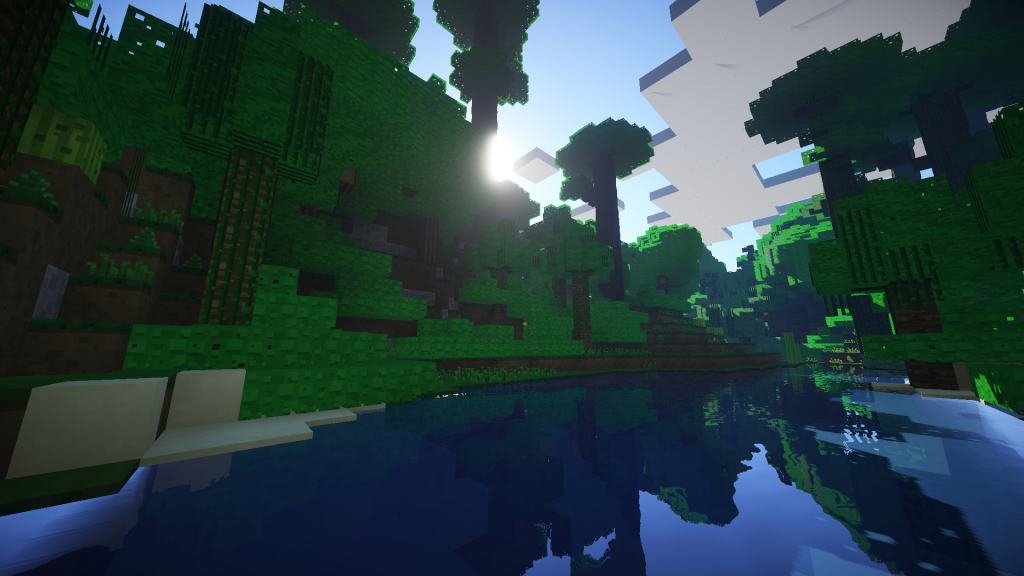
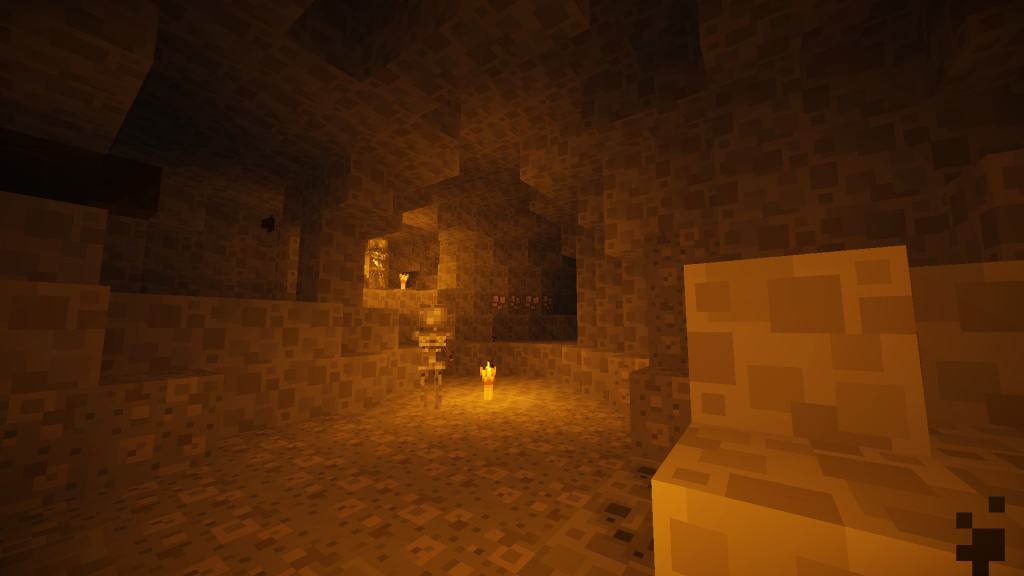
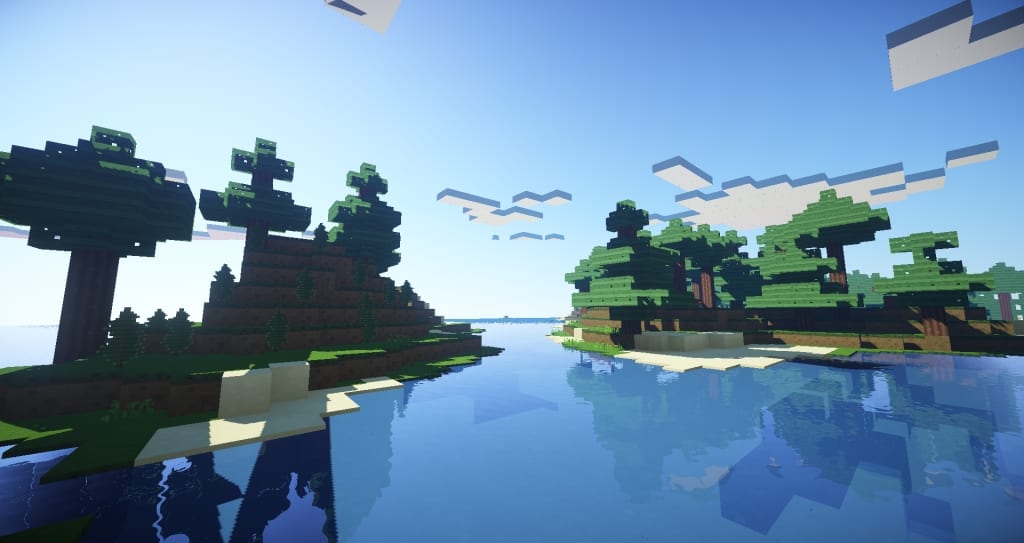
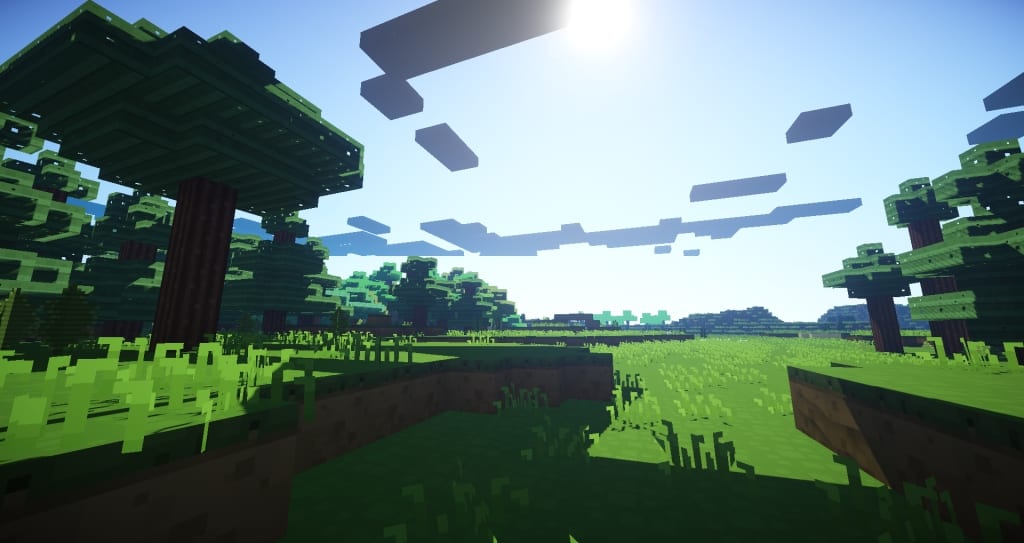
How to Install Texture Pack (Simple 10 Steps)
- Download OptiFine: Most of the texture packs and shaders need OptiFine. That’s why, first download and install OptiFine for the version of Minecraft you want to play.
- Download the Texture Pack: Get the texture pack you want from the download section. Choose the version that works with your Minecraft and your PC’s performance.
- Open Minecraft Launcher: Start Minecraft using the official game launcher — or even TLauncher, if you use that.
- Go to Options: From the main menu, click on the “Options” button.
- Open Resource Packs: Inside Options, click on “Resource Packs…”.
- Open the Resource Pack Folder: Click on “Open Resource Pack Folder” — this will open a folder named “resourcepacks”.
- Move the Pack File: Copy or move the .zip file you downloaded into that “resourcepacks” folder. (Don’t unzip the file — Minecraft uses it as-is!)
- Go Back and Refresh: Close the folder and click “Done”, then go back into “Resource Packs…” again.
- Activate the Pack: You’ll see the pack on the left side. Hover over it and click the arrow to move it to the right (active side).
Tip: If you get a message that the pack is for a different version, just click “Yes” — it usually works fine. - Click Done and Enjoy: Click “Done” again. Now your pack is ready to use in-game. It’s that easy!
Credits
This project was created by Leozy. We do not claim ownership of this content, nor have we modified the files. All rights remain with the original author. We encourage you to support Leozy by visiting their official release channels.
Download Links
Java Edition
Download Instructions
Curseforge: download starts automatically after a few seconds;
Mediafire: click the big blue button with the text “DOWNLOAD”;
Google Drive: in the top right corner you will see a small download icon (down arrow), click it and the download should start;


