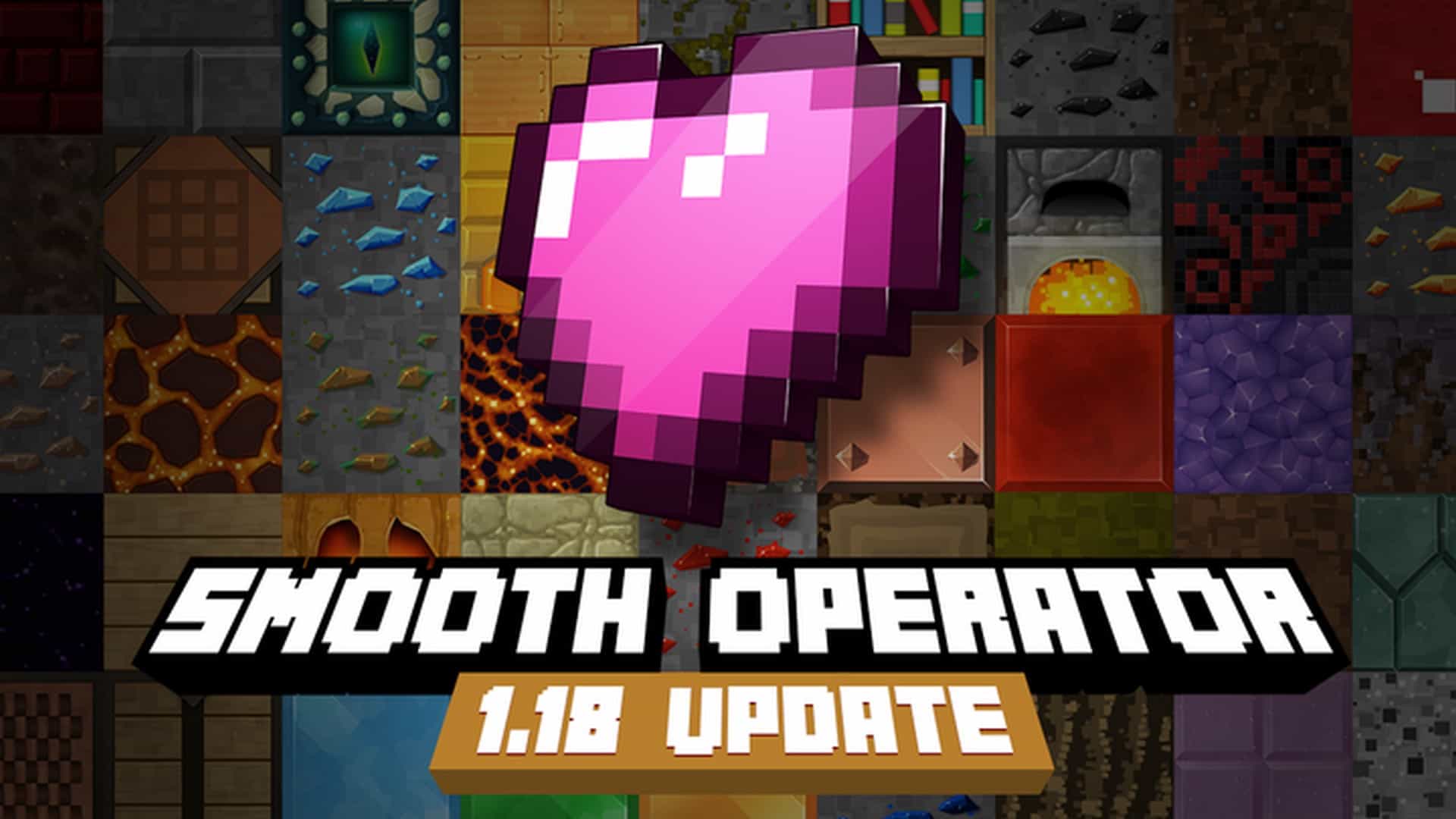
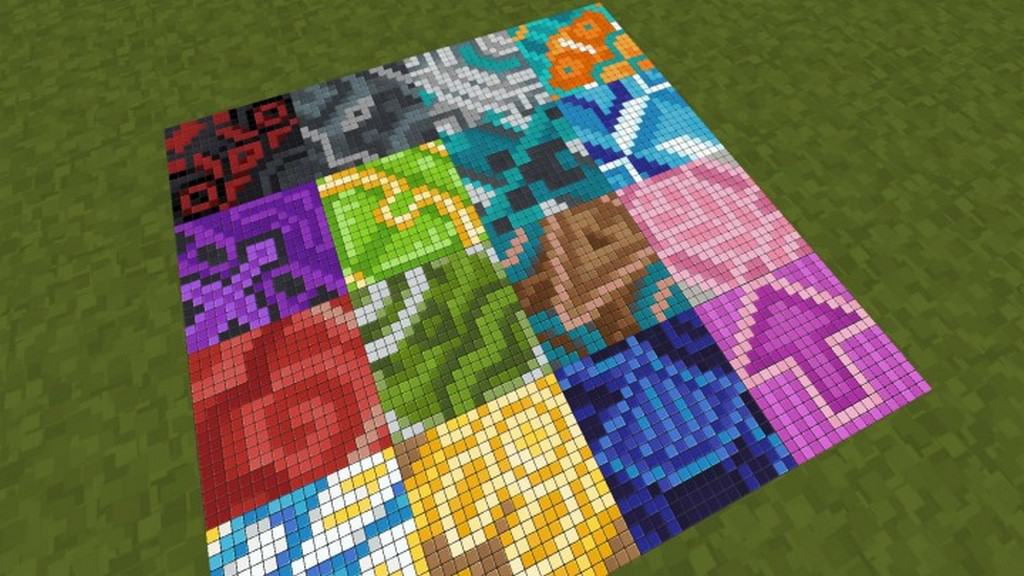
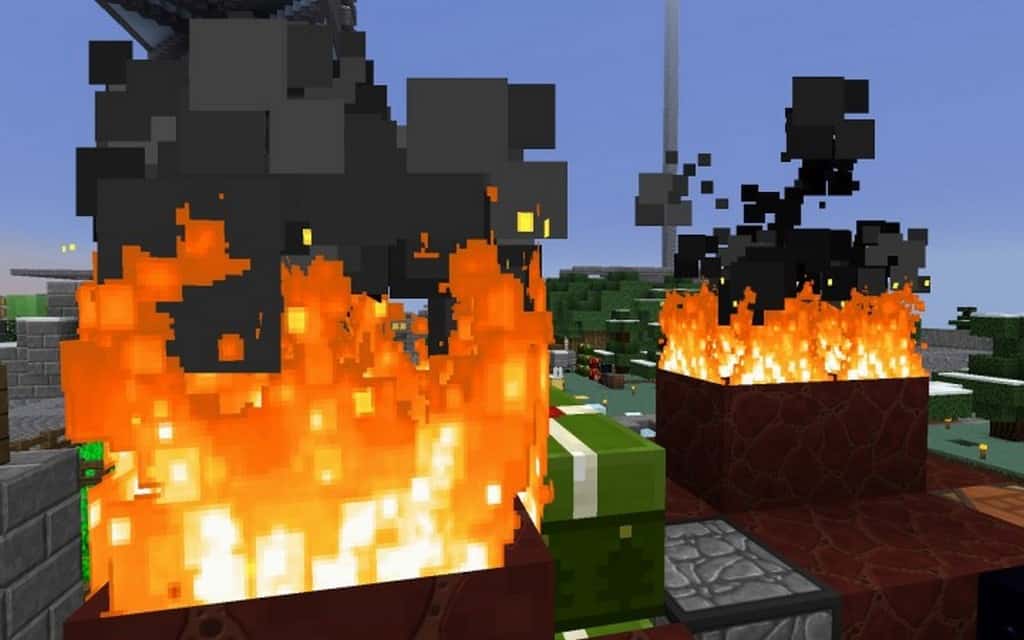
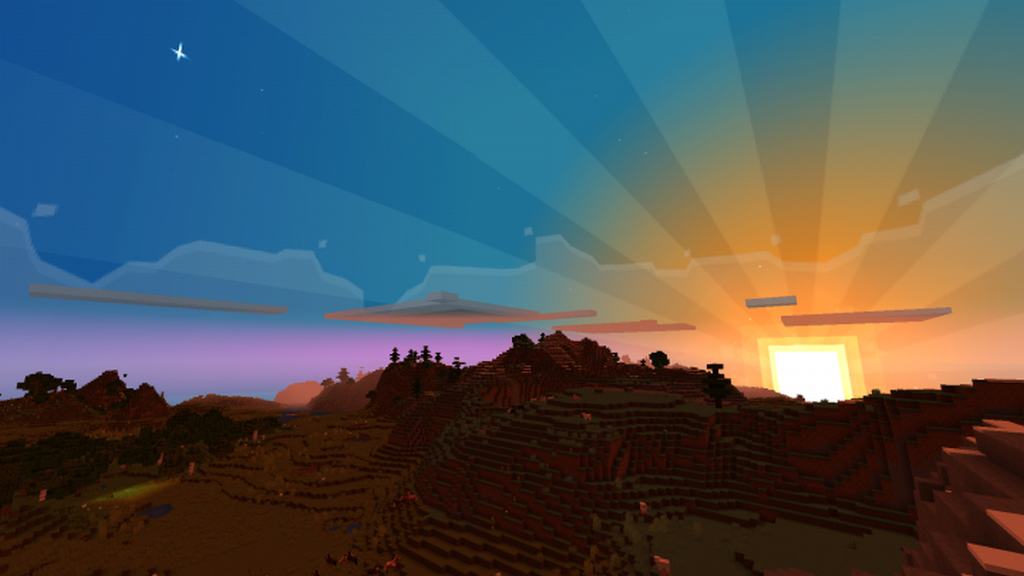
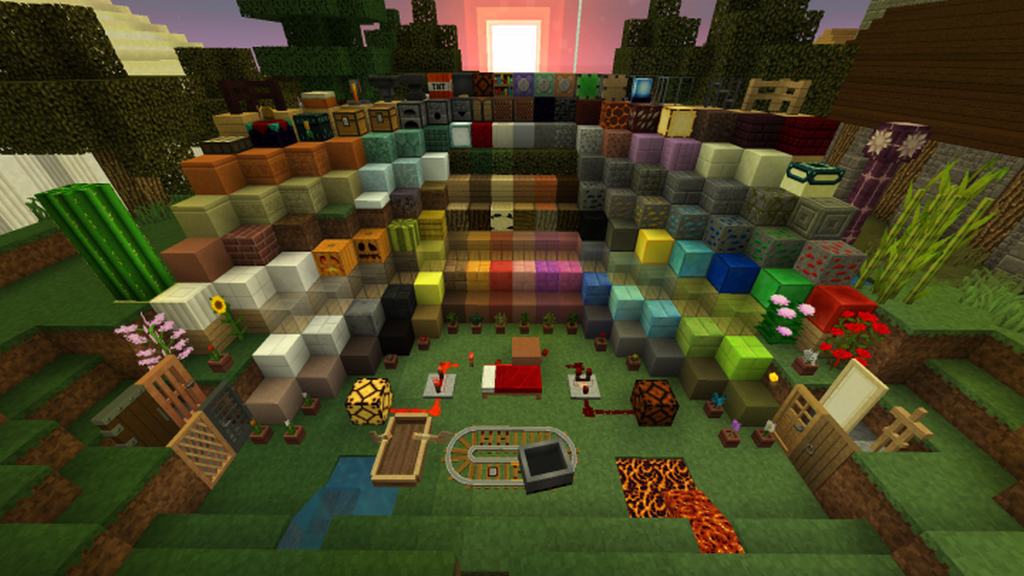
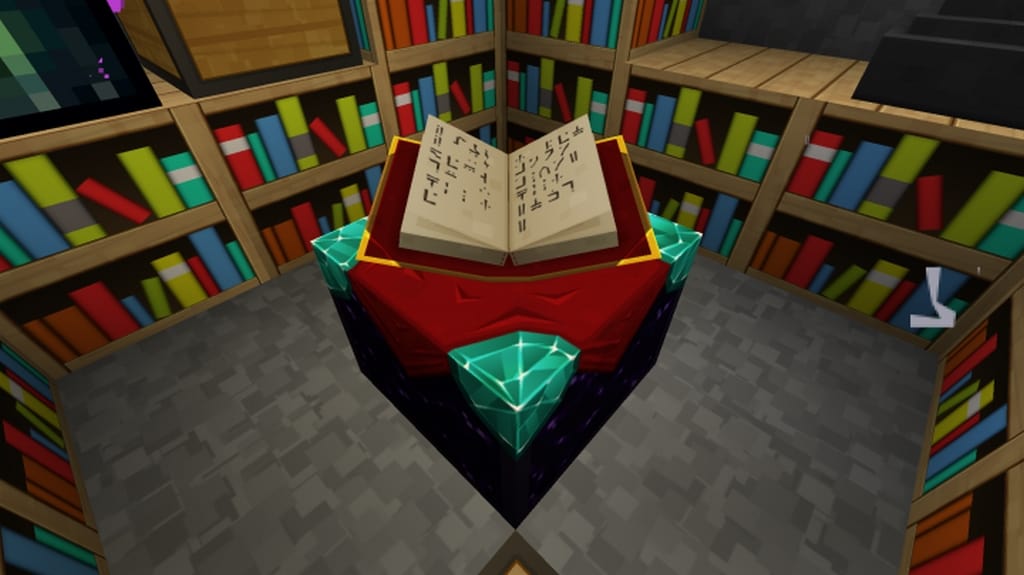
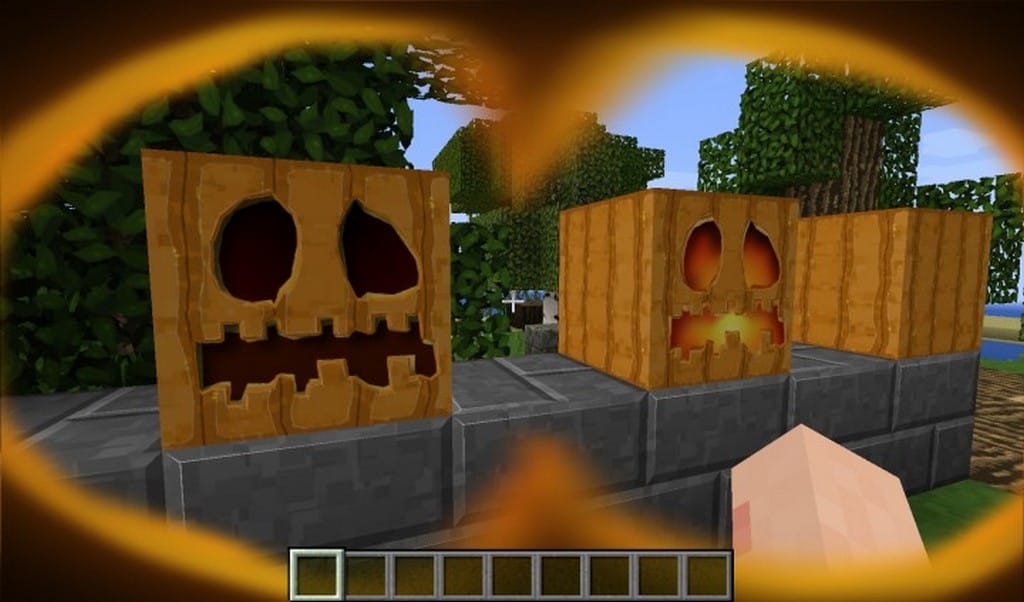
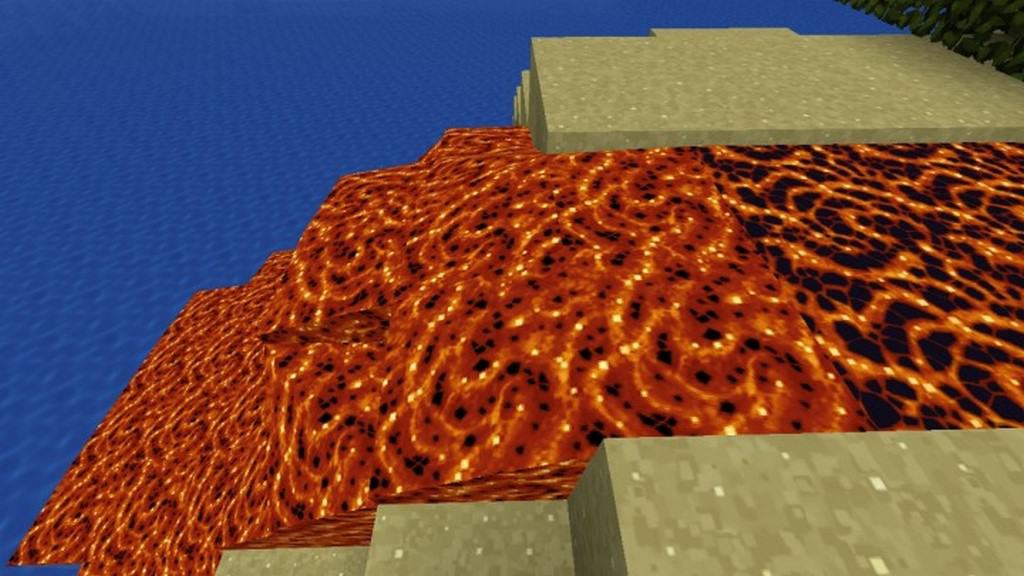
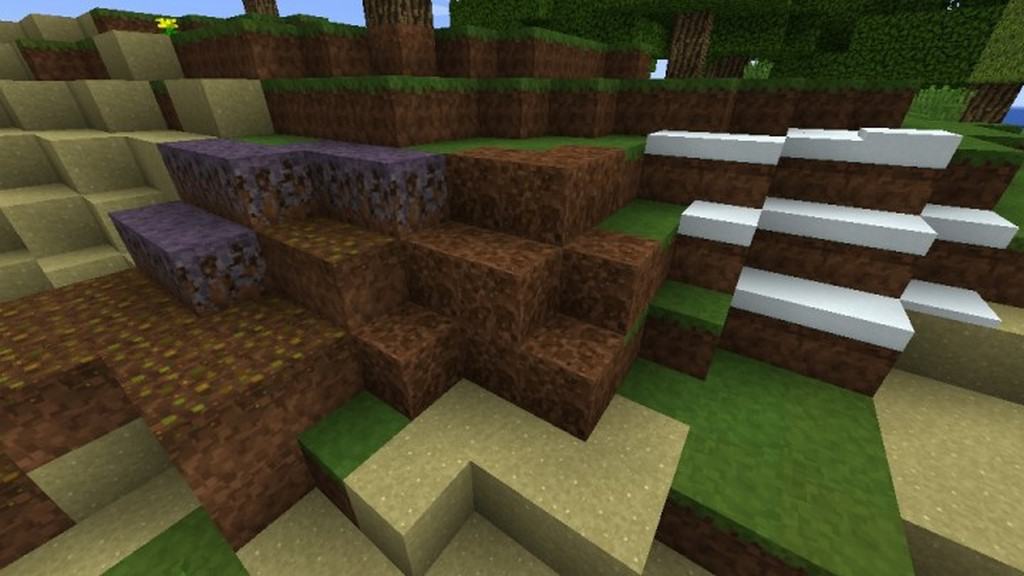
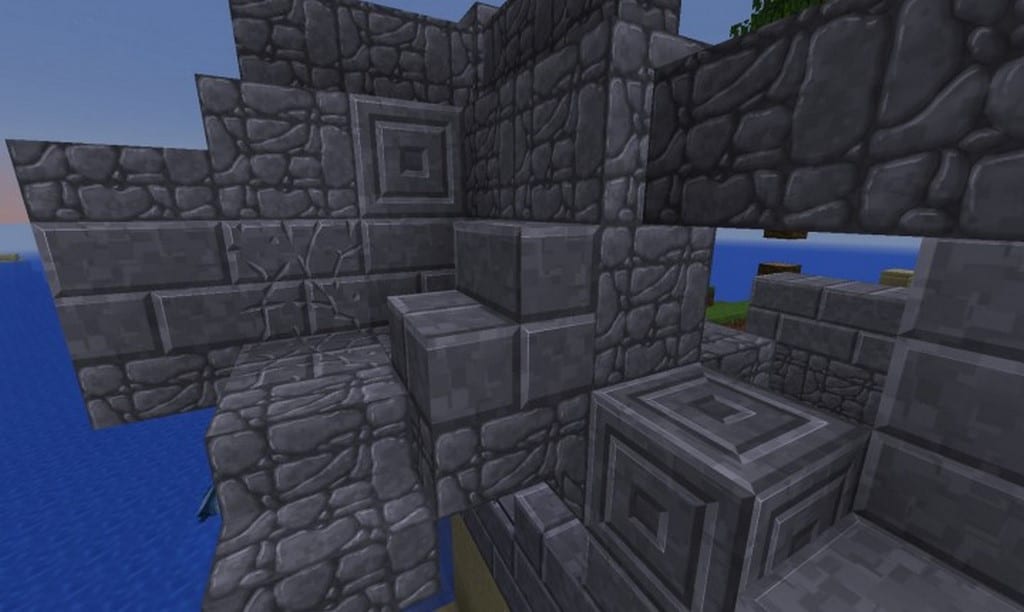
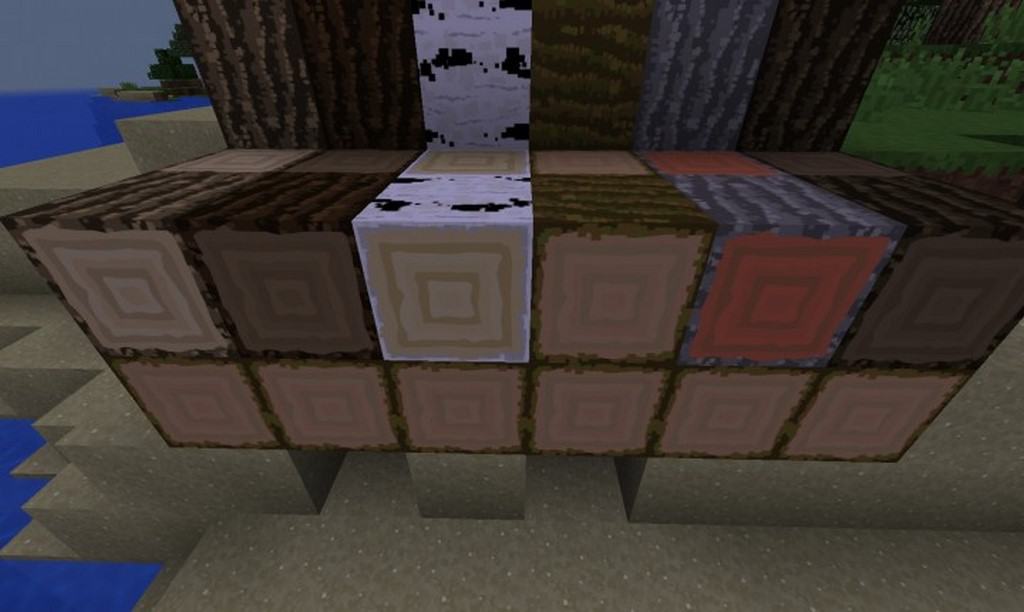
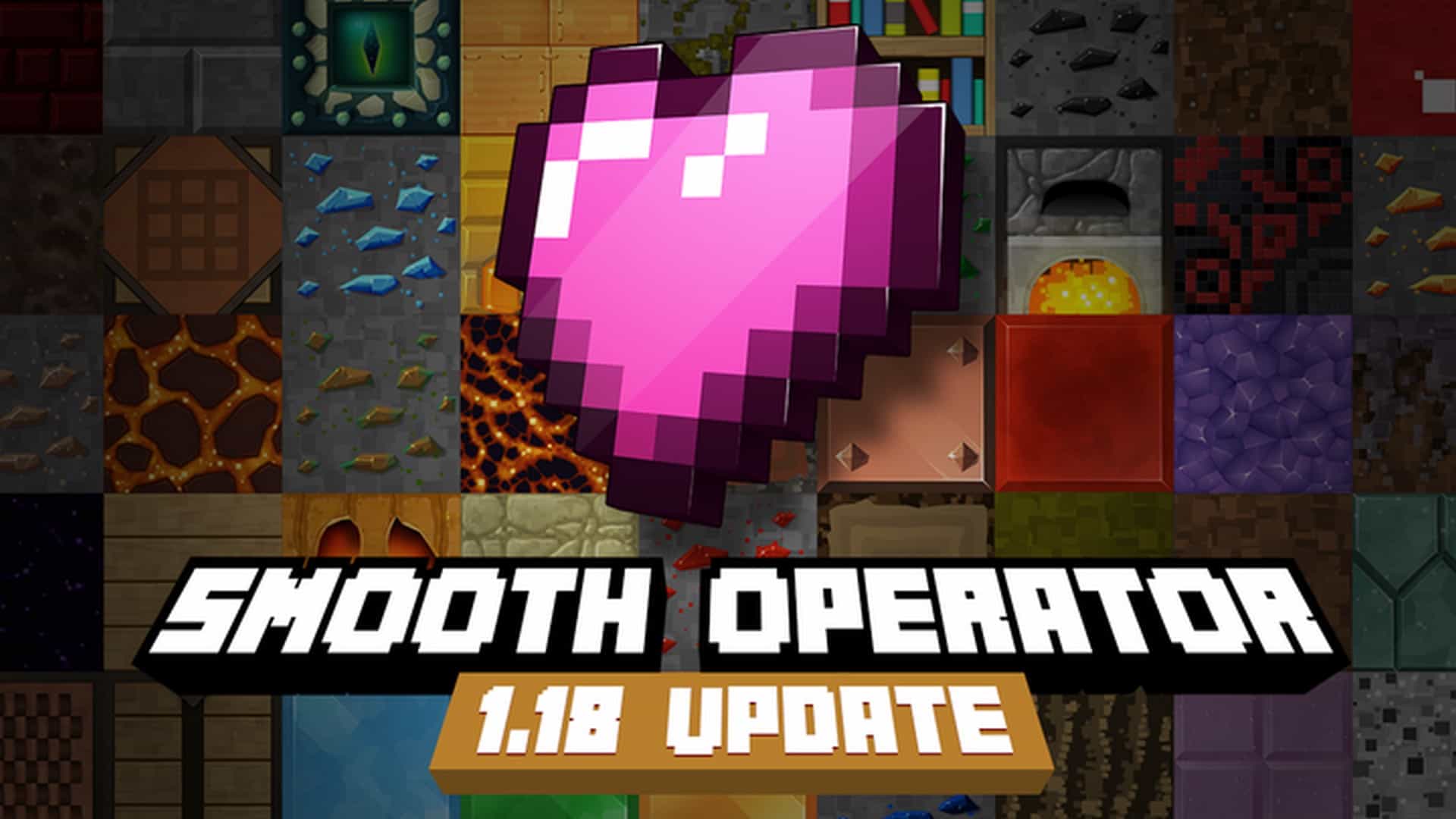
I had an absolute blast testing out the Smooth Operator resource pack, which cleverly blends elements from several existing packs while carving out a totally unique identity. It offers an incredible opportunity to enjoy features and styles not yet available in vanilla Minecraft. By borrowing brilliant concepts from here and there alongside its own original ideas, it completely transforms the visual landscape. Not only do you get a stunning lineup of brand new textures, but you will also experience wonderful variety, such as different textures for the exact same object. For instance, many blocks and rocks feature more than one distinct face to look at. Instead of playing the same old Minecraft that tends to look repetitive over time, you are treated to a fresh, vibrant game packed with delightful texture-related surprises. Of course, this comes with a catch: your computer might be taxed more heavily than usual due to the heavy graphics rendered in a gorgeous 256x resolution.
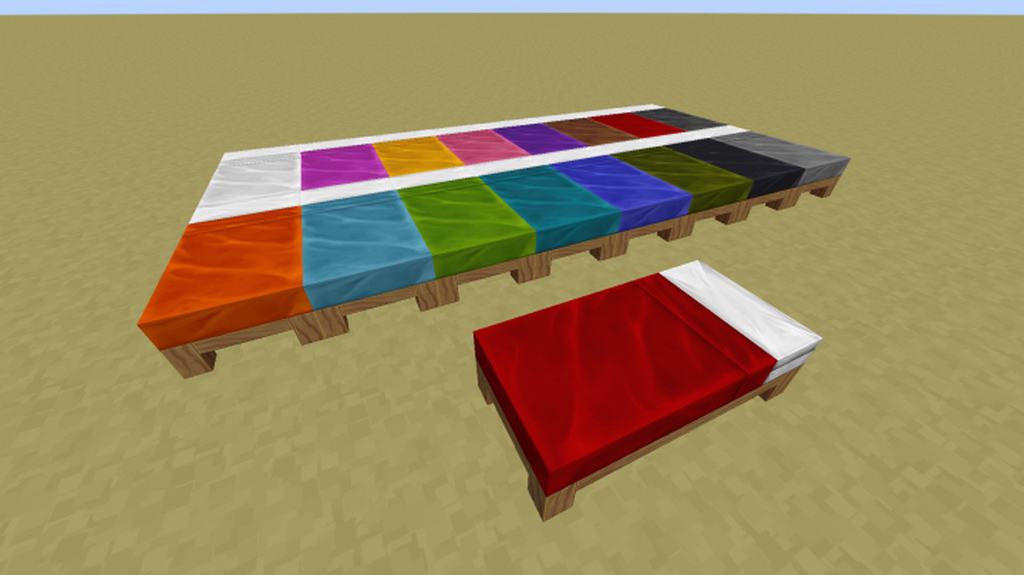
If your rig can handle the workload, I genuinely feel that the Smooth Operator resource pack will change the way you see and play Minecraft forever. On the other hand, if you are worried that installing such a resource-consuming pack will tank your frame rate, you might want to skip this one for now. This pack demands serious hardware power, but trust me, it is well worth the effort. There are countless amazing features to experience once you get it running. For example, in vanilla Minecraft, stacking beds results in awkward floating frames, but with this pack, stacking them neatly turns them into proper, realistic bunk beds. Everything is smoothed out beautifully on the texture front, offering softer-on-the-eyes visuals that are a genuine pleasure to explore. If your computer is up to the task, I definitely recommend giving it a try!
Smooth Operator should be compatible with all of these Minecraft versions: 1.19.1 – 1.19 – 1.18.2 – 1.18.1 – 1.18 – 1.17.1 – 1.17 – 1.16.5 – 1.16.4 – 1.16.3 – 1.16.2 – 1.16.1 – 1.16 – 1.15.2 – 1.15.1 – 1.15 – 1.14.4 – 1.14.3 – 1.14.2 – 1.14 – 1.13.2 – 1.13.1 – 1.13 – 1.12.2 – 1.12 – 1.11.2 – 1.11 – 1.10.2 – 1.10 – 1.9.4 – 1.9 – 1.8.9 – 1.8.8 – 1.8.1 – 1.8.6 – 1.8
Screenshots



How to Install Texture Pack (Simple 10 Steps)
- Download OptiFine: Most of the texture packs and shaders need OptiFine. That’s why, first download and install OptiFine for the version of Minecraft you want to play.
- Download the Texture Pack: Get the texture pack you want from the download section. Choose the version that works with your Minecraft and your PC’s performance.
- Open Minecraft Launcher: Start Minecraft using the official game launcher — or even TLauncher, if you use that.
- Go to Options: From the main menu, click on the “Options” button.
- Open Resource Packs: Inside Options, click on “Resource Packs…”.
- Open the Resource Pack Folder: Click on “Open Resource Pack Folder” — this will open a folder named “resourcepacks”.
- Move the Pack File: Copy or move the .zip file you downloaded into that “resourcepacks” folder. (Don’t unzip the file — Minecraft uses it as-is!)
- Go Back and Refresh: Close the folder and click “Done”, then go back into “Resource Packs…” again.
- Activate the Pack: You’ll see the pack on the left side. Hover over it and click the arrow to move it to the right (active side).
Tip: If you get a message that the pack is for a different version, just click “Yes” — it usually works fine. - Click Done and Enjoy: Click “Done” again. Now your pack is ready to use in-game. It’s that easy!
Credits
The Smooth Operator resource pack was created by FiftyWalrus. We do not own or modify any files, and all rights belong to the original creator. We strongly encourage you to support FiftyWalrus by visiting their official release channels.
Download Links
Java Edition
- [256x] Minecraft 1.19.x
- [256x] Minecraft 1.18.x
- [256x] Minecraft 1.17.x
- [256x] Minecraft 1.16.x – 1.15.x
- [256x] Minecraft 1.14.x
- [256x] Minecraft 1.12.x
- [256x] Minecraft 1.13.x
- [256x] Minecraft 1.12.x
- [256x] Minecraft 1.11.x – 1.10.x
- [256x] Minecraft 1.9.x
- [256x] Minecraft 1.8.x
- Official Source Page
Download Instructions
Curseforge: download starts automatically after a few seconds;
Mediafire: click the big blue button with the text “DOWNLOAD”;
Google Drive: in the top right corner you will see a small download icon (down arrow), click it and the download should start;


