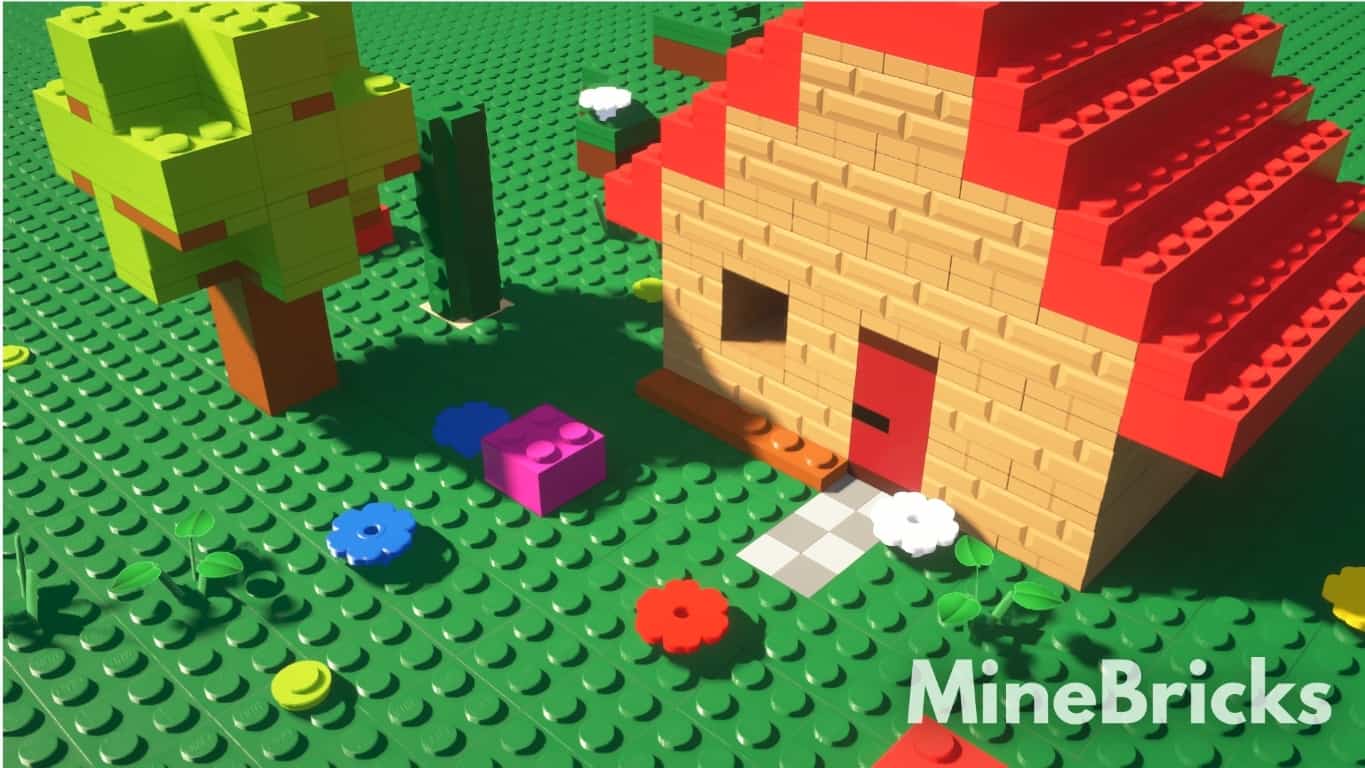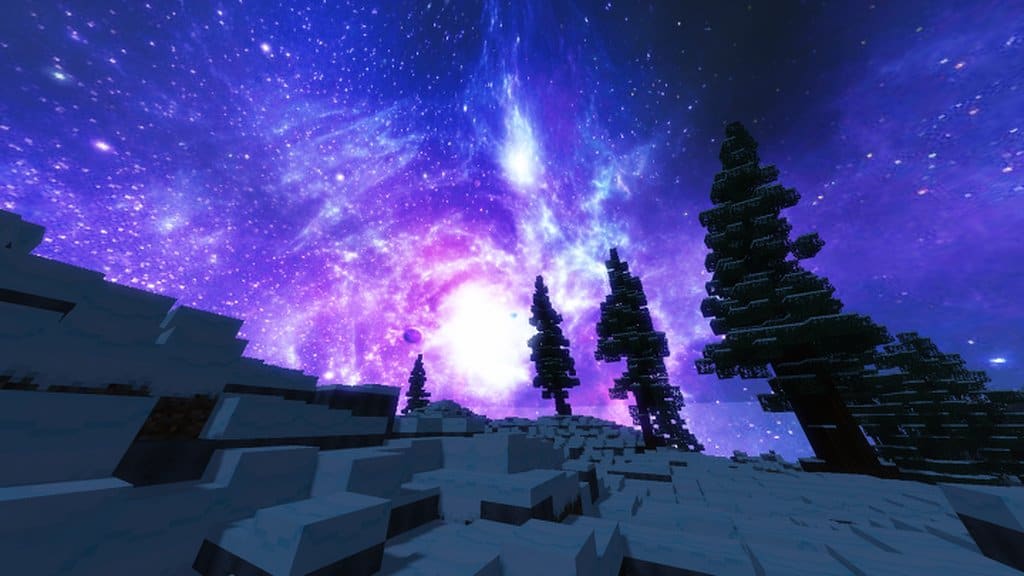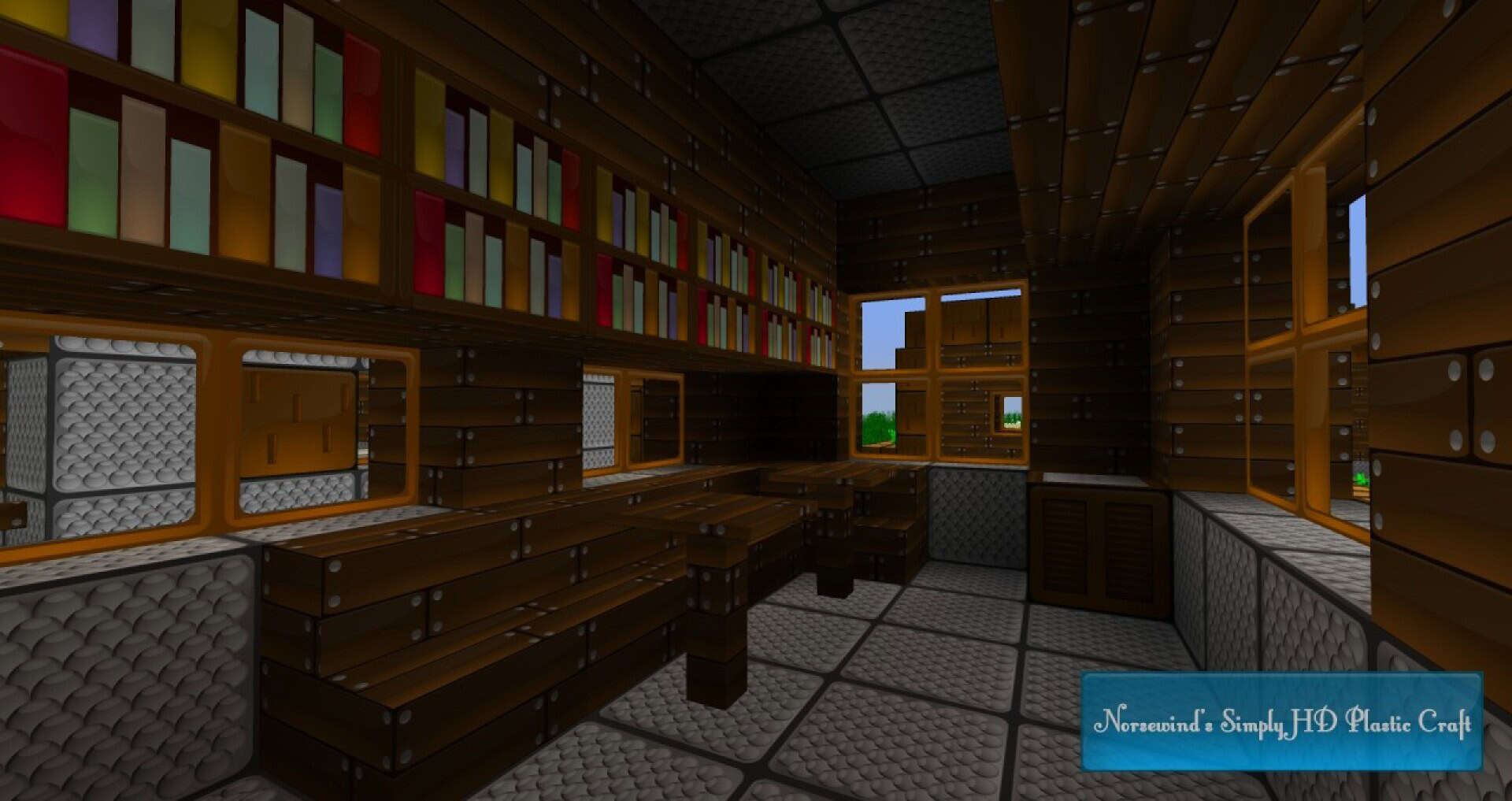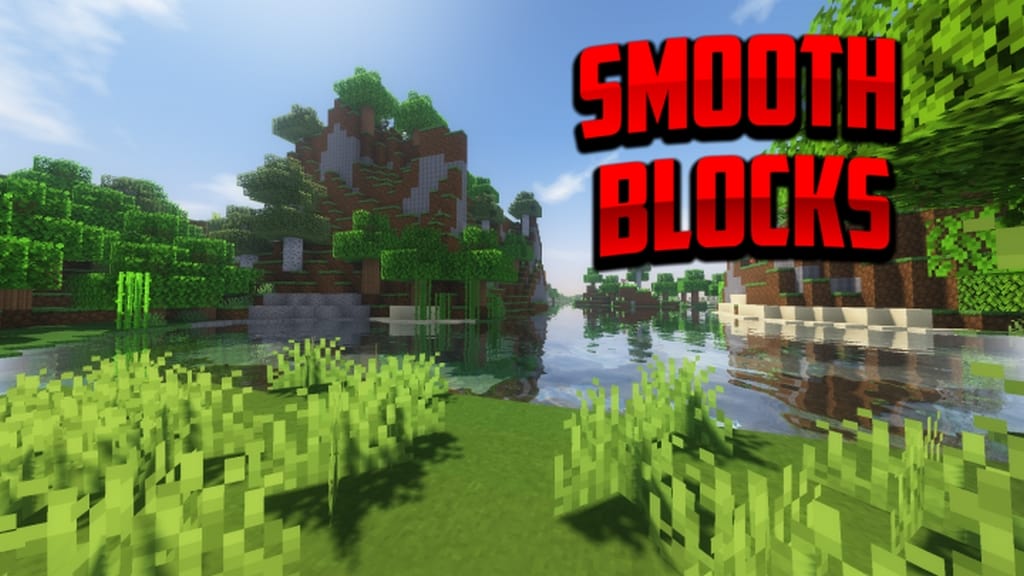
The Smooth Blocks and more is an incredible, recently released Minecraft resource pack that I found myself instantly loving after trying it out in my own survival world. It really strays away from traditional Minecraft texture packs by not trying to cram in extra details, but instead cleverly stripping away any unneeded visual clutter from every single texture. By taking this approach, the Smooth Blocks and more resource pack totally refreshes the game’s feel without ever compromising on the essential details you rely on. While it might not be the most complex pack out there, I completely understand why it has racked up such a massive download count thanks to its delightfully smooth and energetic colors that make every biome pop. The clean detailing of all the blocks gives you an wonderfully clear vision of your surroundings, making for a truly joyous and seamless gaming session every time you log in.
Whether you are fighting it out with the Ender Dragon in a tense boss battle or merely harvesting some crops around your base, this texture pack ensures you get a buttery smooth experience no matter where you are in the Minecraft world. Best of all, it achieves this performance boost without skipping out on the important stuff! Another great reason to try out the Smooth Blocks and more resource pack is that it operates on the classic 16×16 texture resolution, meaning it runs with incredible efficiency and can even help vanilla Minecraft run faster on your setup. If your PC can handle standard vanilla Minecraft, you will have zero issues running this pack. It has already surpassed over 5,000 downloads in just a few short days, which is a mammoth achievement that proves how much the community adores it. PVP players and general explorers alike have welcomed it with open arms for its pure simplicity. Overall, if you are looking for a fantastic addition to your game, I highly recommend checking out this pack for its brilliant design and outstanding visuals.
Smooth Blocks should be compatible with all of these Minecraft versions: 1.16.5 – 1.16.4 – 1.16.3 – 1.16.2 – 1.16.1 – 1.16 – 1.15.2 – 1.15.1 – 1.15 – 1.14.4 – 1.14.3 – 1.14.2 – 1.14
Screenshots
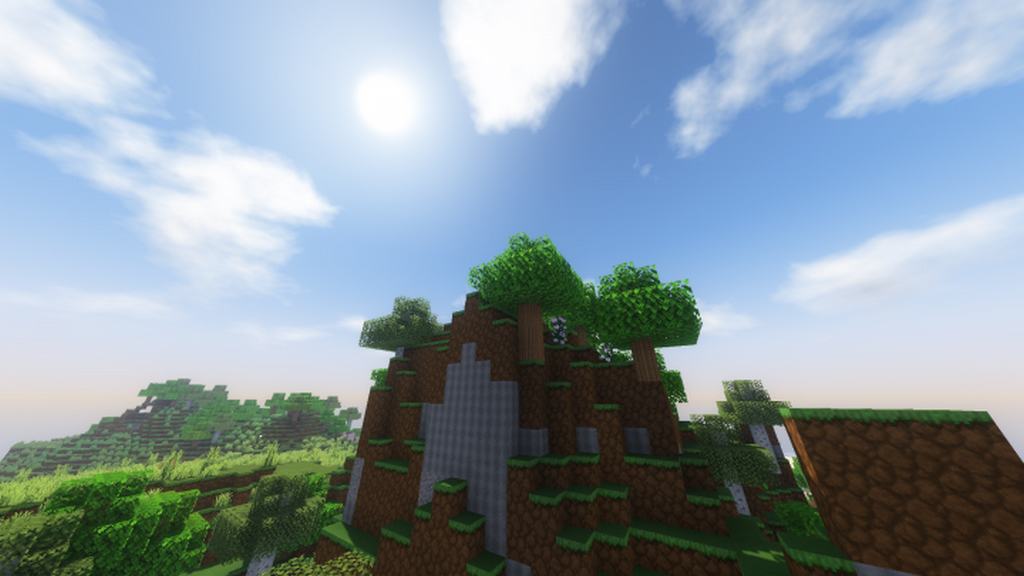

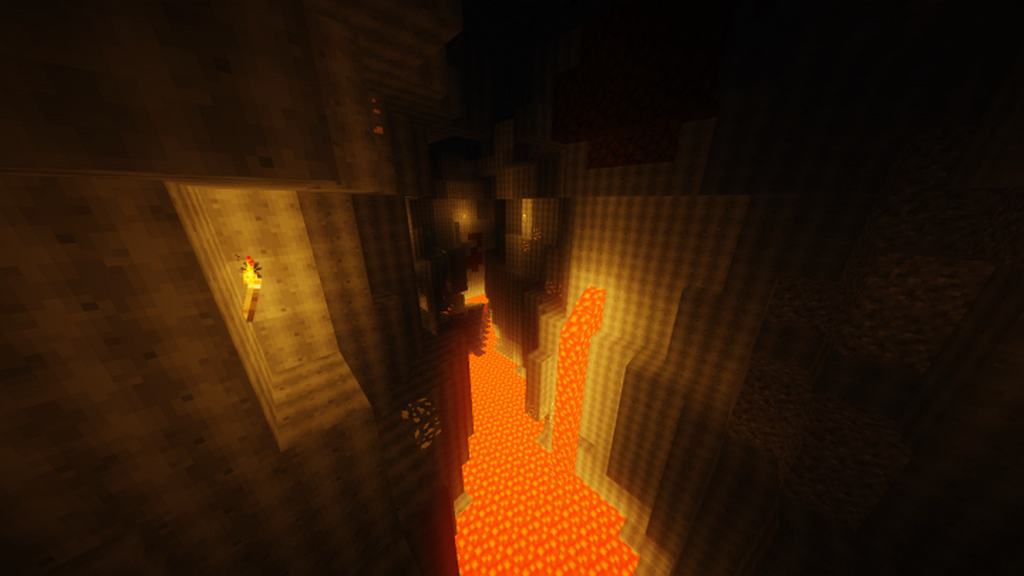
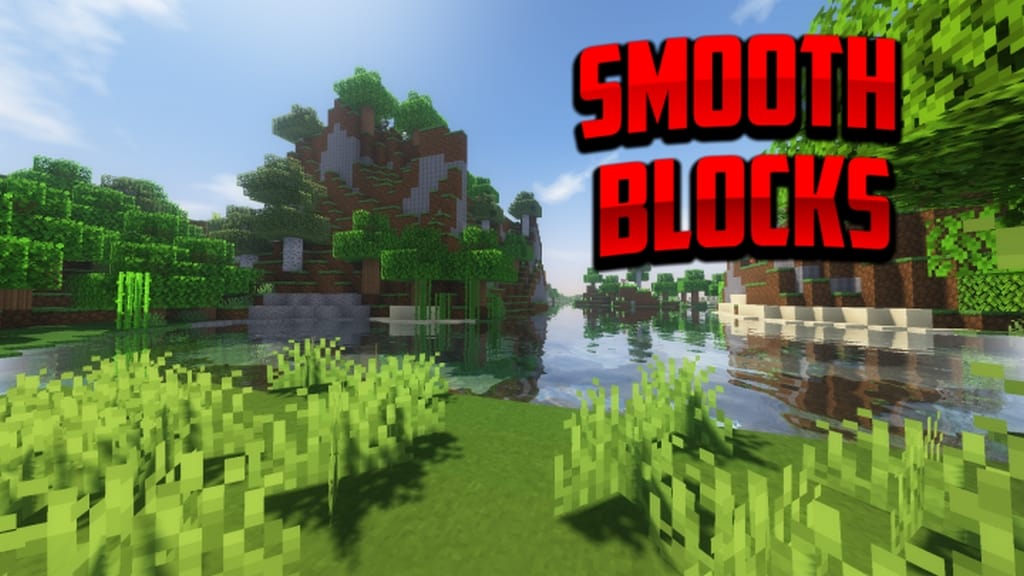
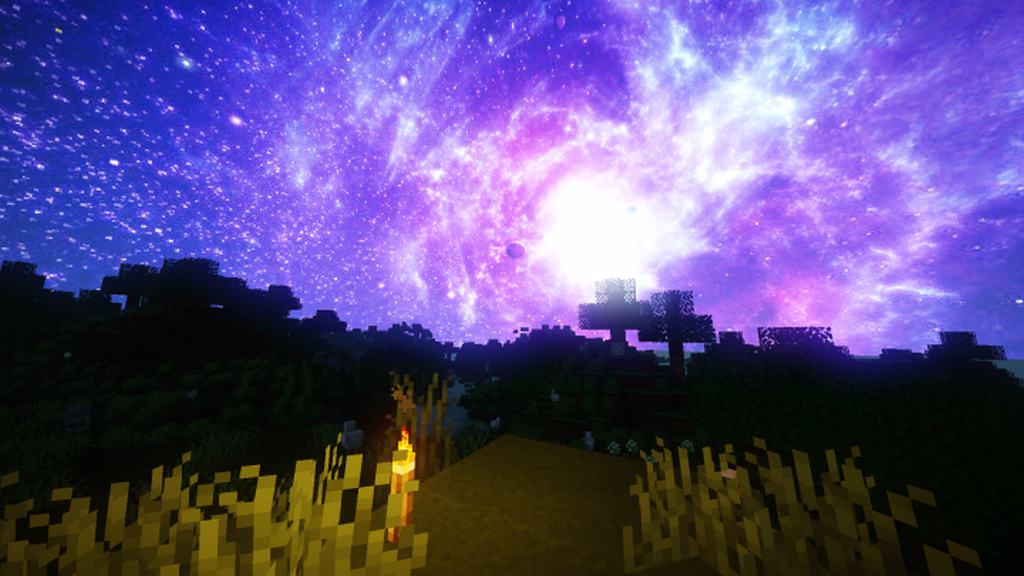
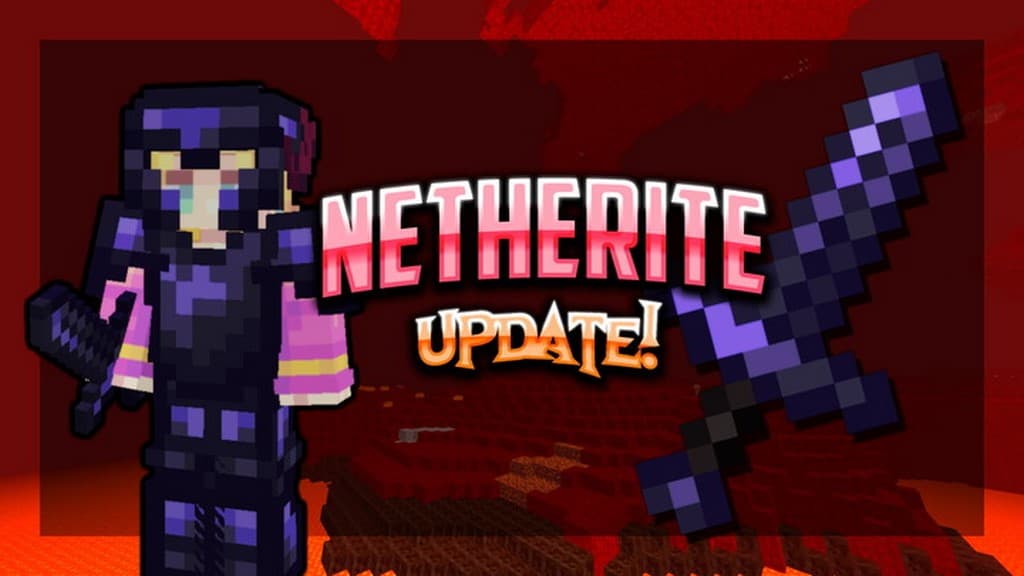
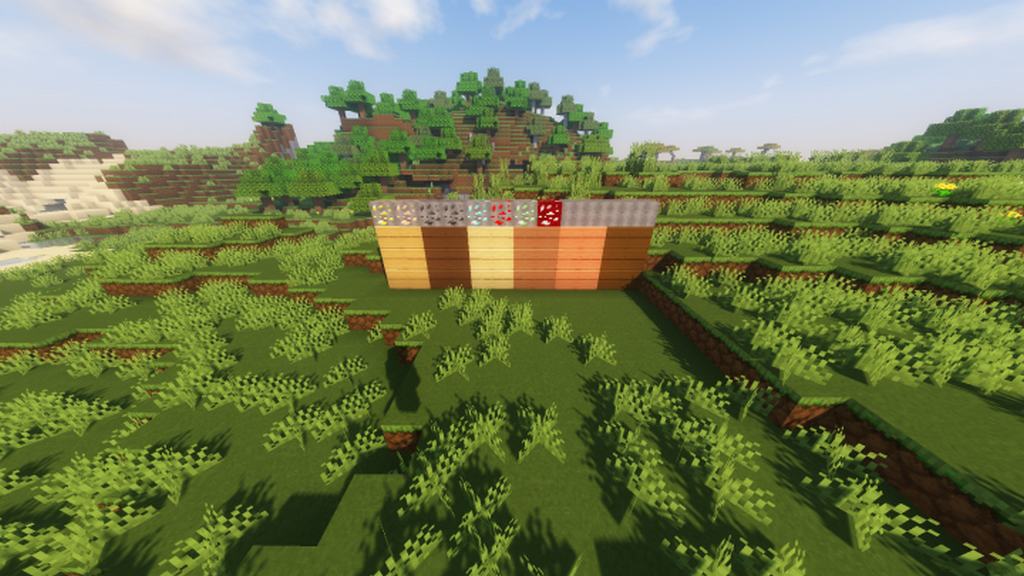
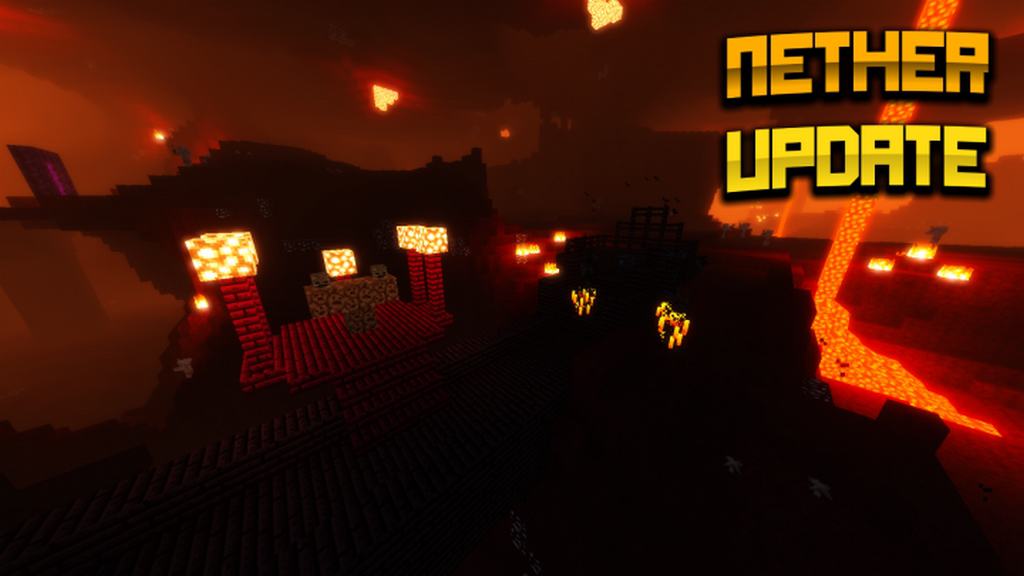
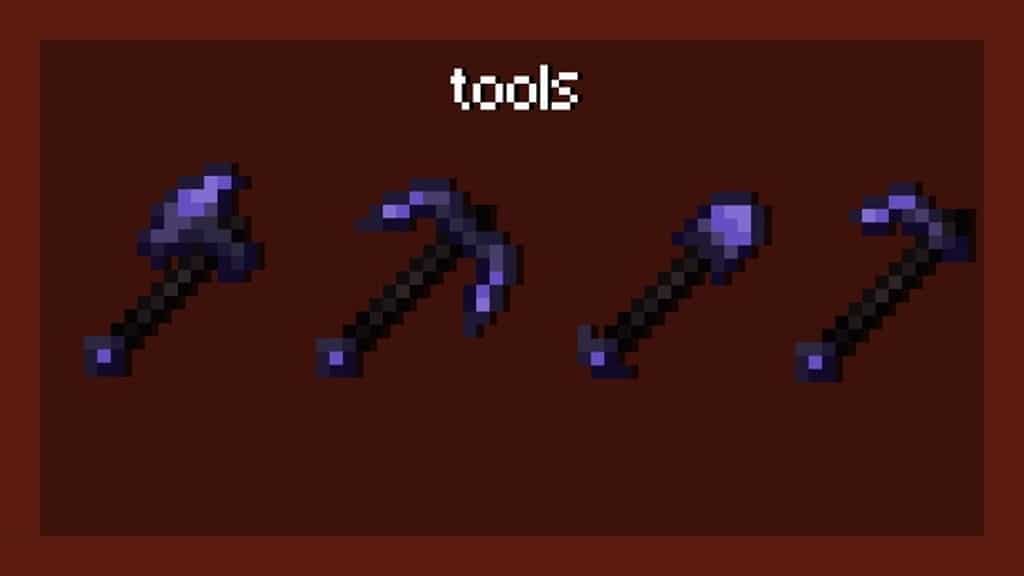
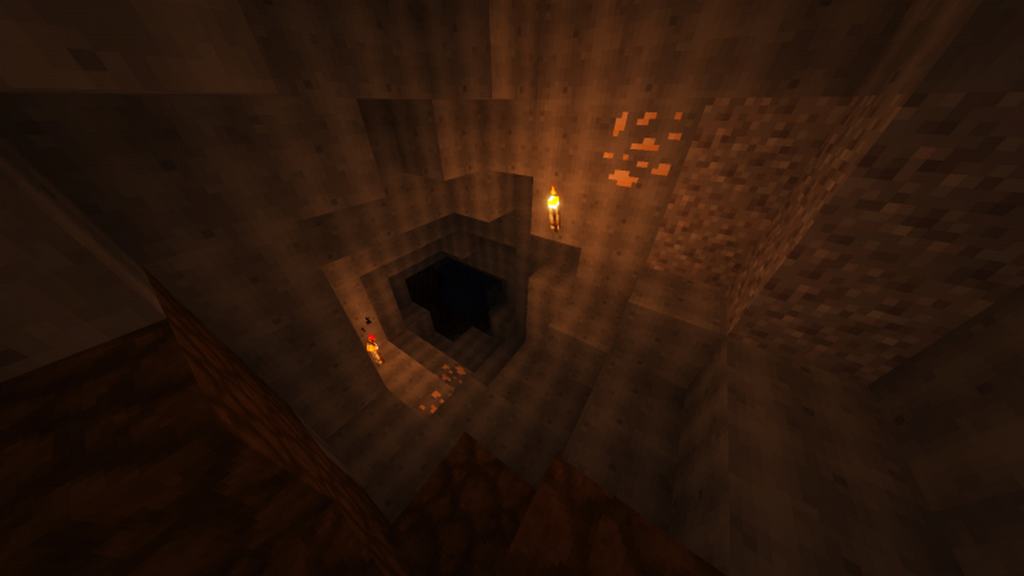
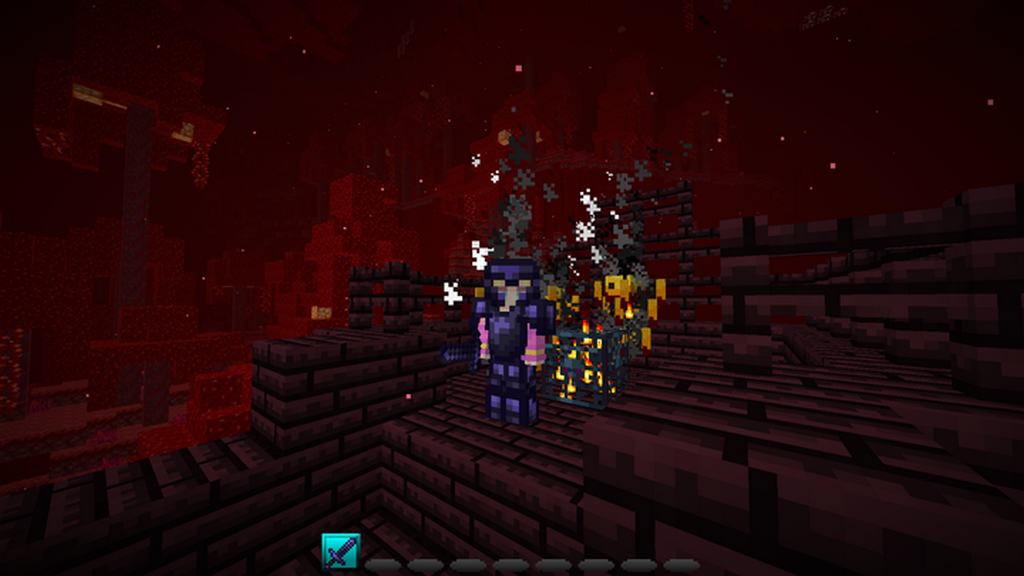
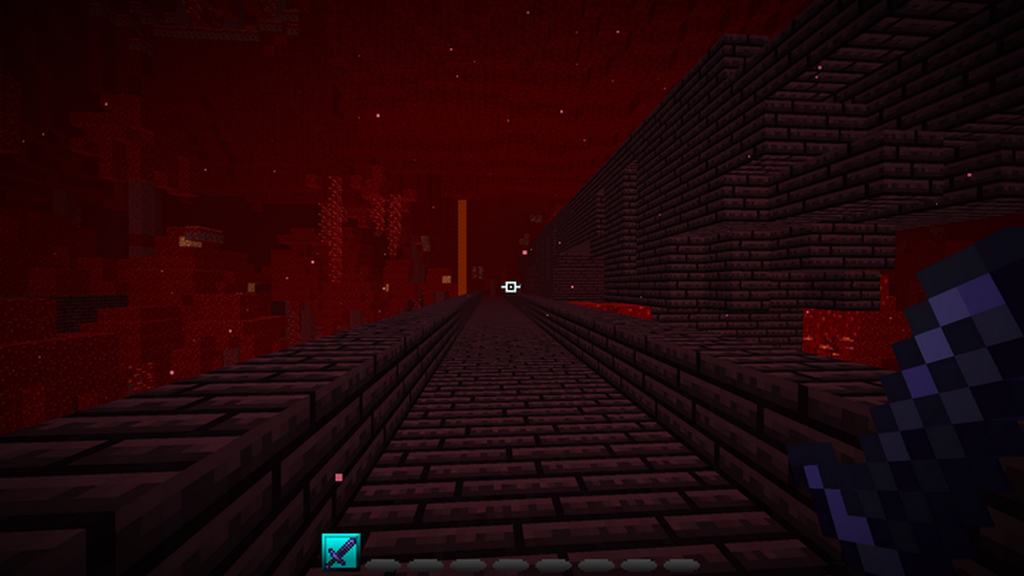
How to Install Texture Pack (Simple 10 Steps)
- Download OptiFine: Most of the texture packs and shaders need OptiFine. That’s why, first download and install OptiFine for the version of Minecraft you want to play.
- Download the Texture Pack: Get the texture pack you want from the download section. Choose the version that works with your Minecraft and your PC’s performance.
- Open Minecraft Launcher: Start Minecraft using the official game launcher — or even TLauncher, if you use that.
- Go to Options: From the main menu, click on the “Options” button.
- Open Resource Packs: Inside Options, click on “Resource Packs…”.
- Open the Resource Pack Folder: Click on “Open Resource Pack Folder” — this will open a folder named “resourcepacks”.
- Move the Pack File: Copy or move the .zip file you downloaded into that “resourcepacks” folder. (Don’t unzip the file — Minecraft uses it as-is!)
- Go Back and Refresh: Close the folder and click “Done”, then go back into “Resource Packs…” again.
- Activate the Pack: You’ll see the pack on the left side. Hover over it and click the arrow to move it to the right (active side).
Tip: If you get a message that the pack is for a different version, just click “Yes” — it usually works fine. - Click Done and Enjoy: Click “Done” again. Now your pack is ready to use in-game. It’s that easy!
Credits
This resource pack was created by Yuruze. We do not claim ownership of this content, and all rights belong to the original creator. We encourage you to support Yuruze by downloading the pack from the official sources.
Download Links
Java Edition
Download Instructions
Curseforge: download starts automatically after a few seconds;
Mediafire: click the big blue button with the text “DOWNLOAD”;
Google Drive: in the top right corner you will see a small download icon (down arrow), click it and the download should start;