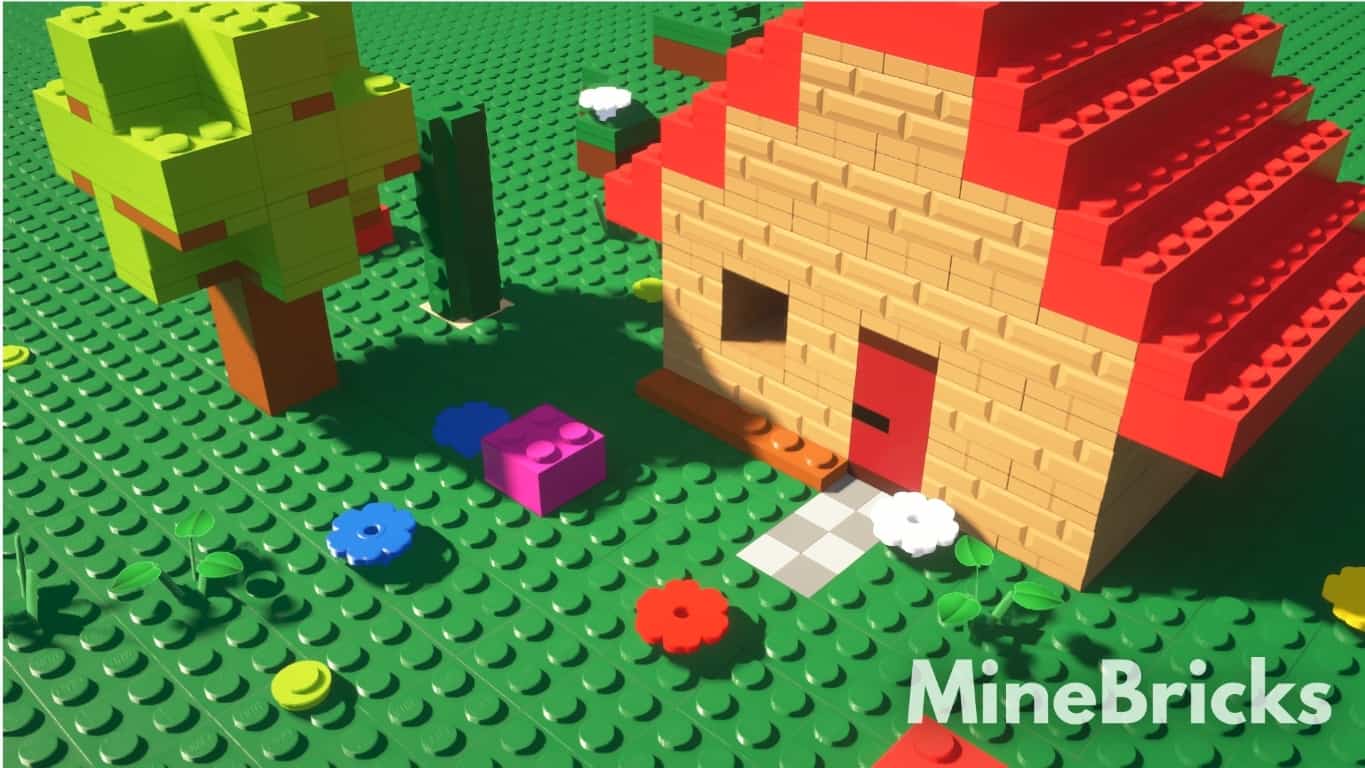
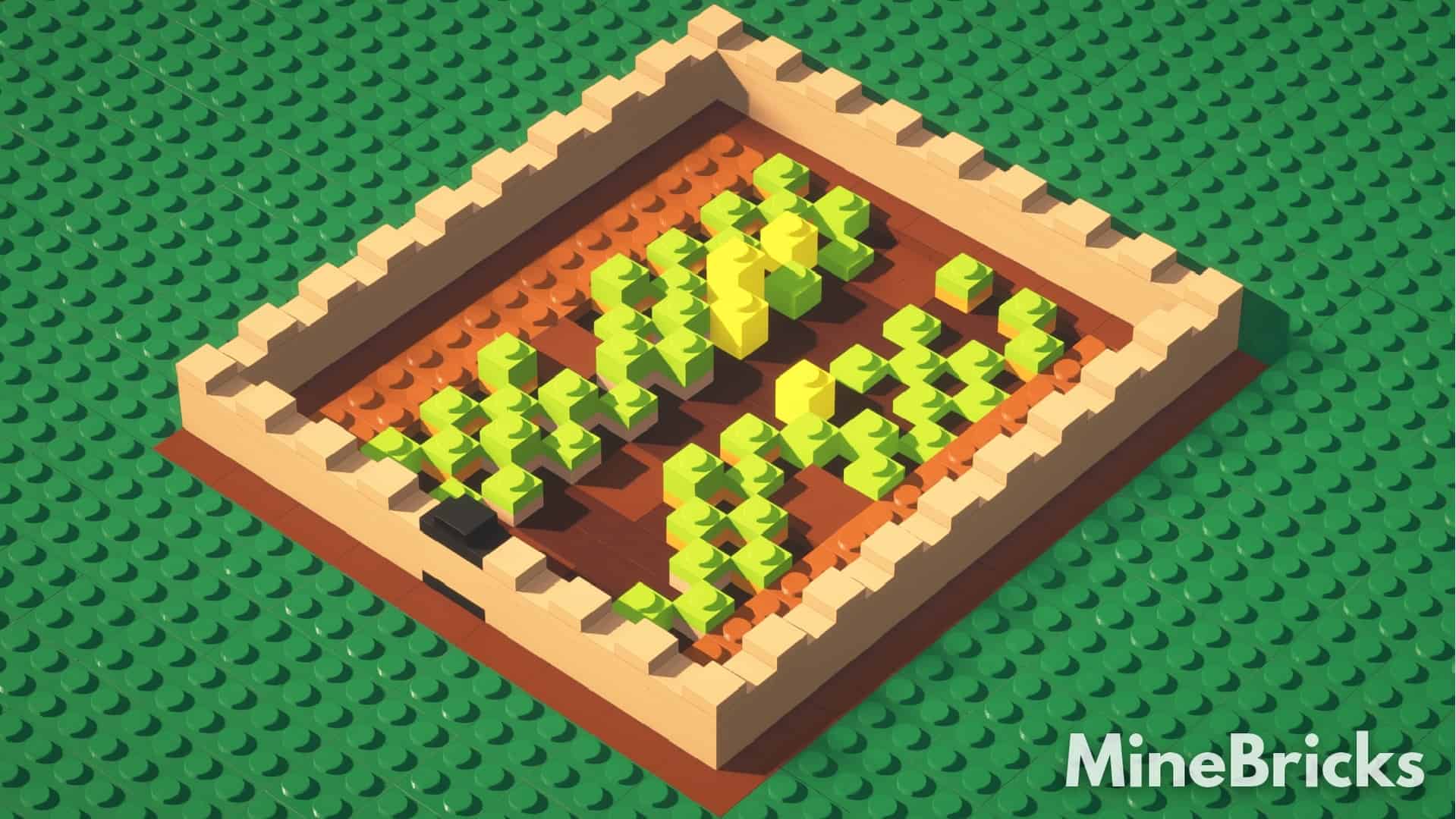
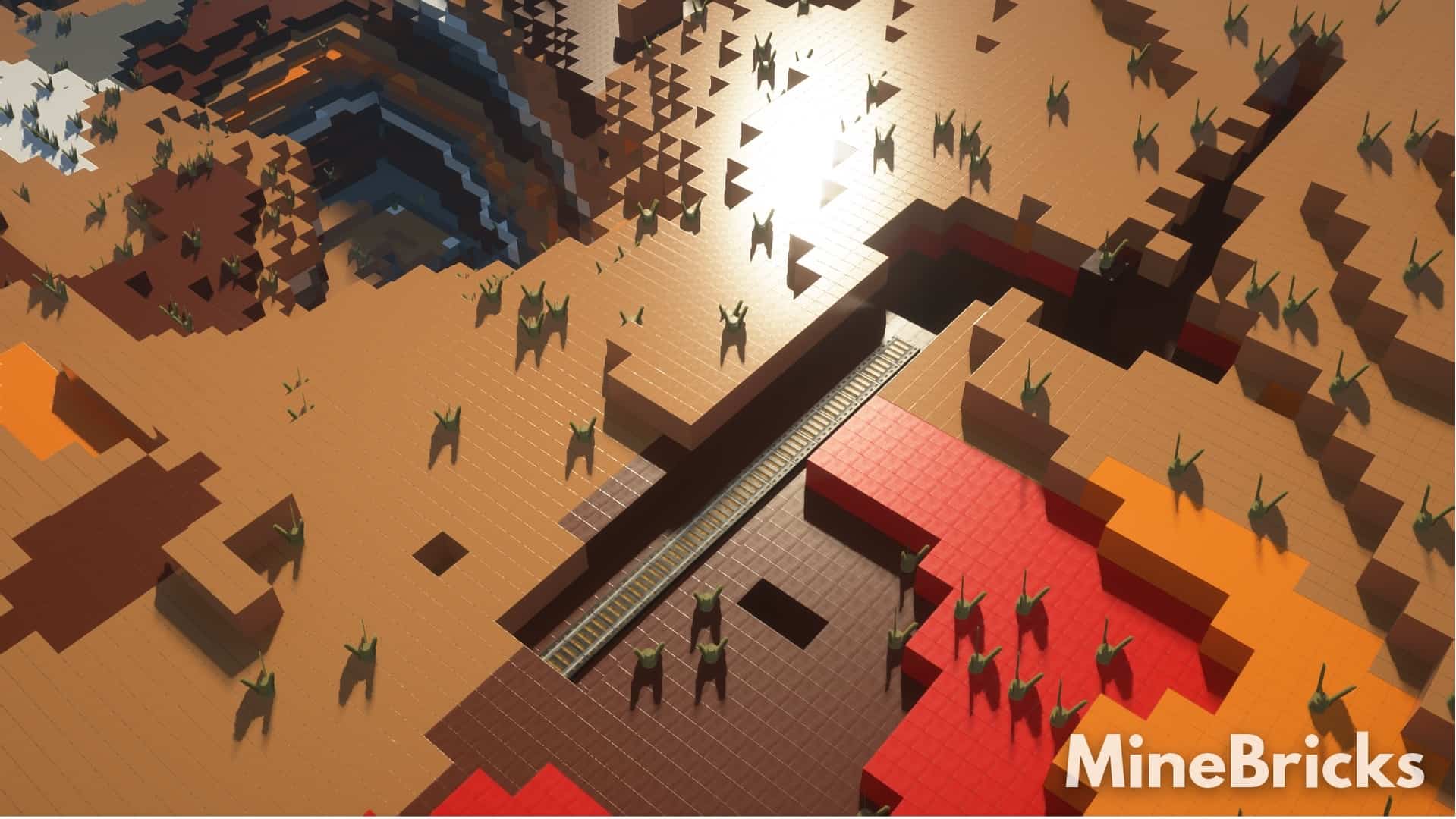
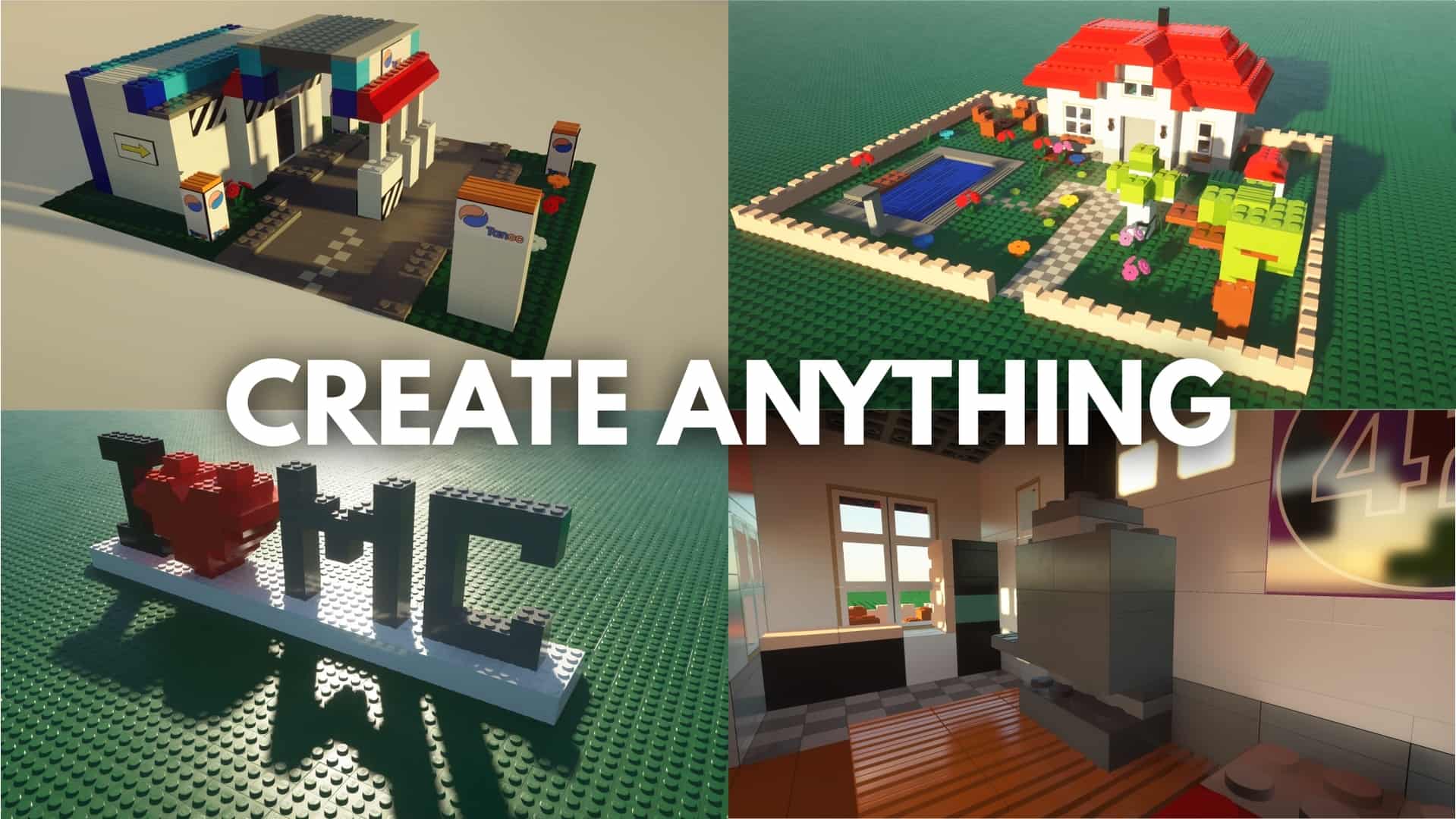
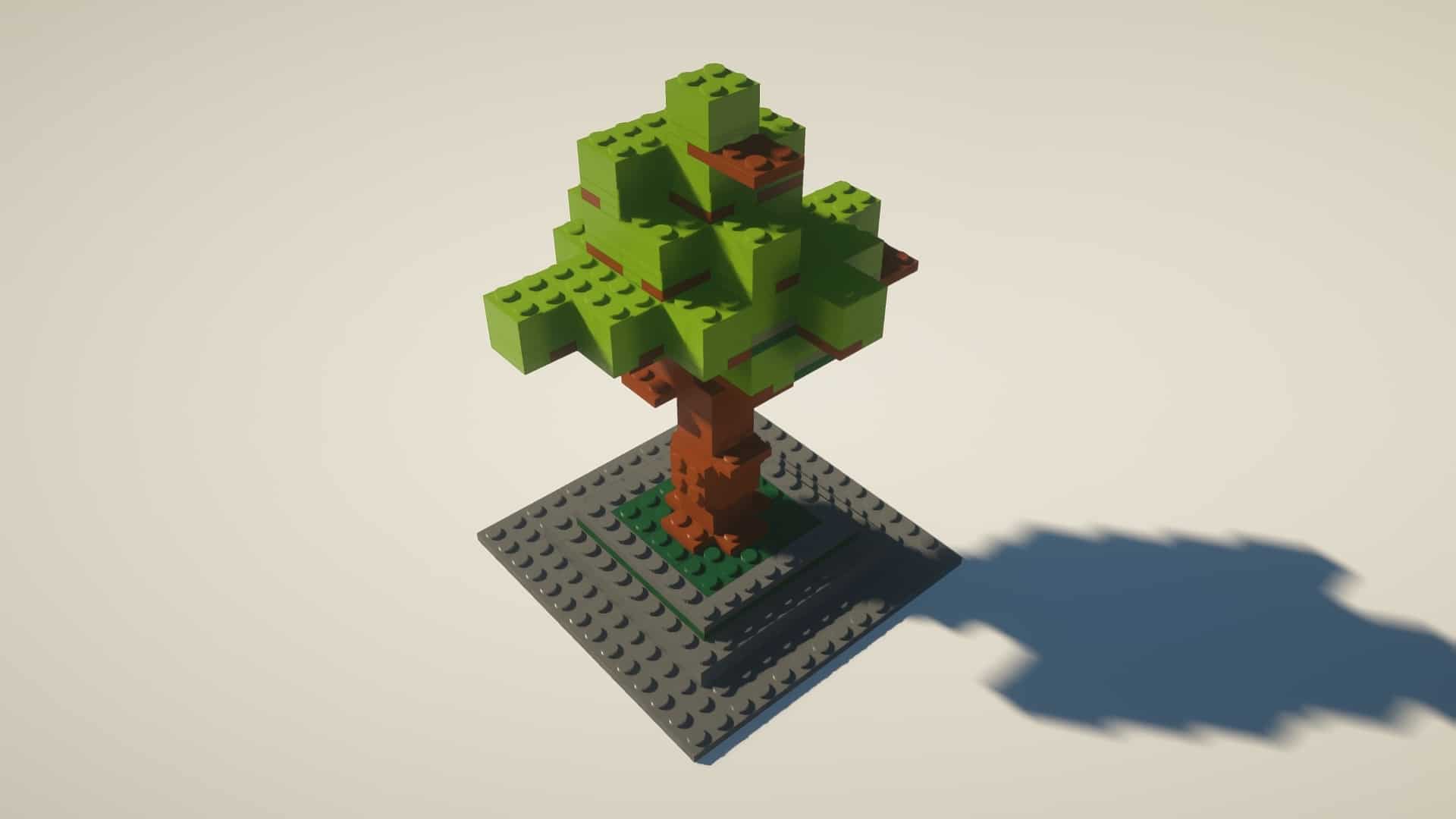
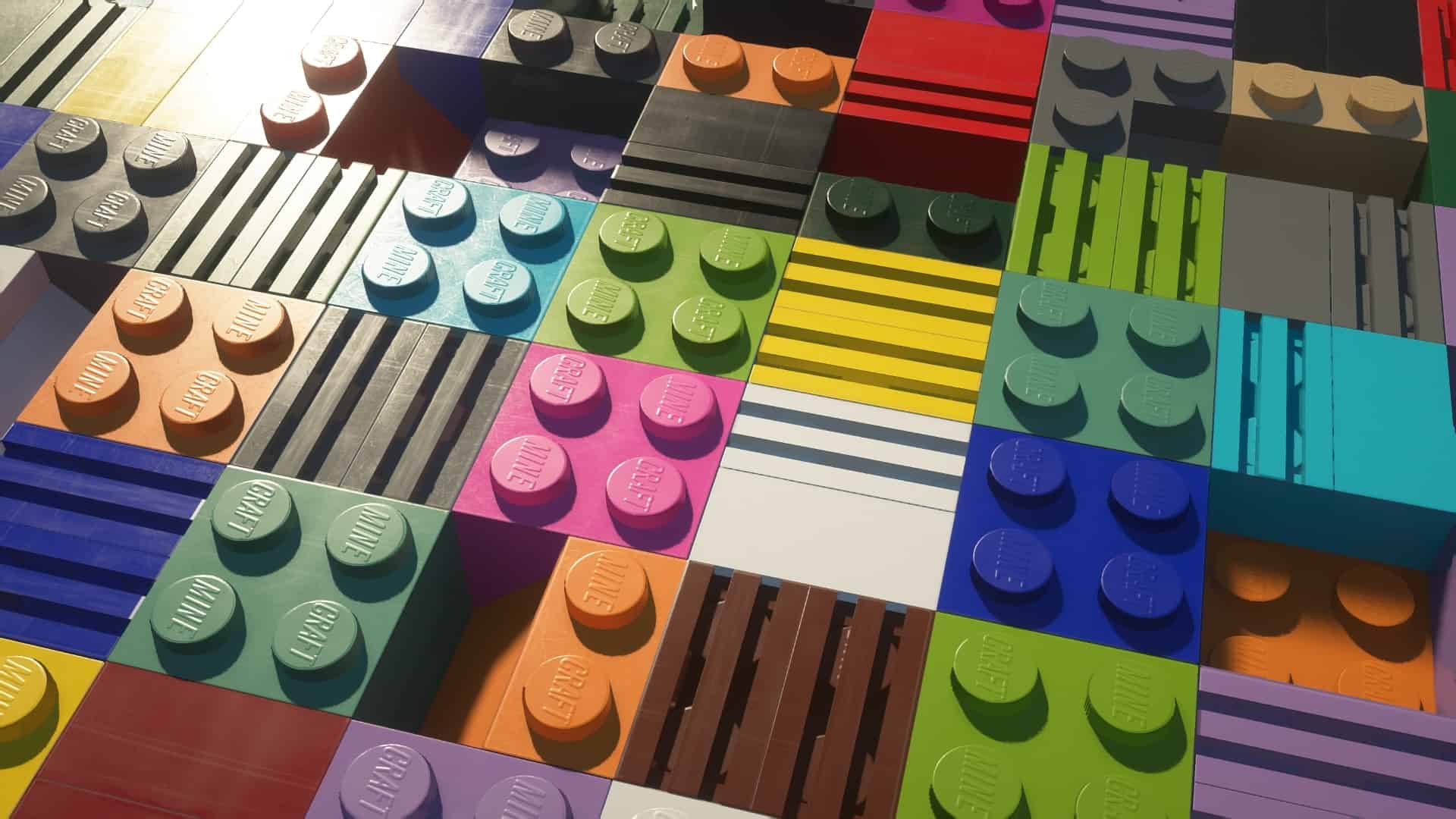
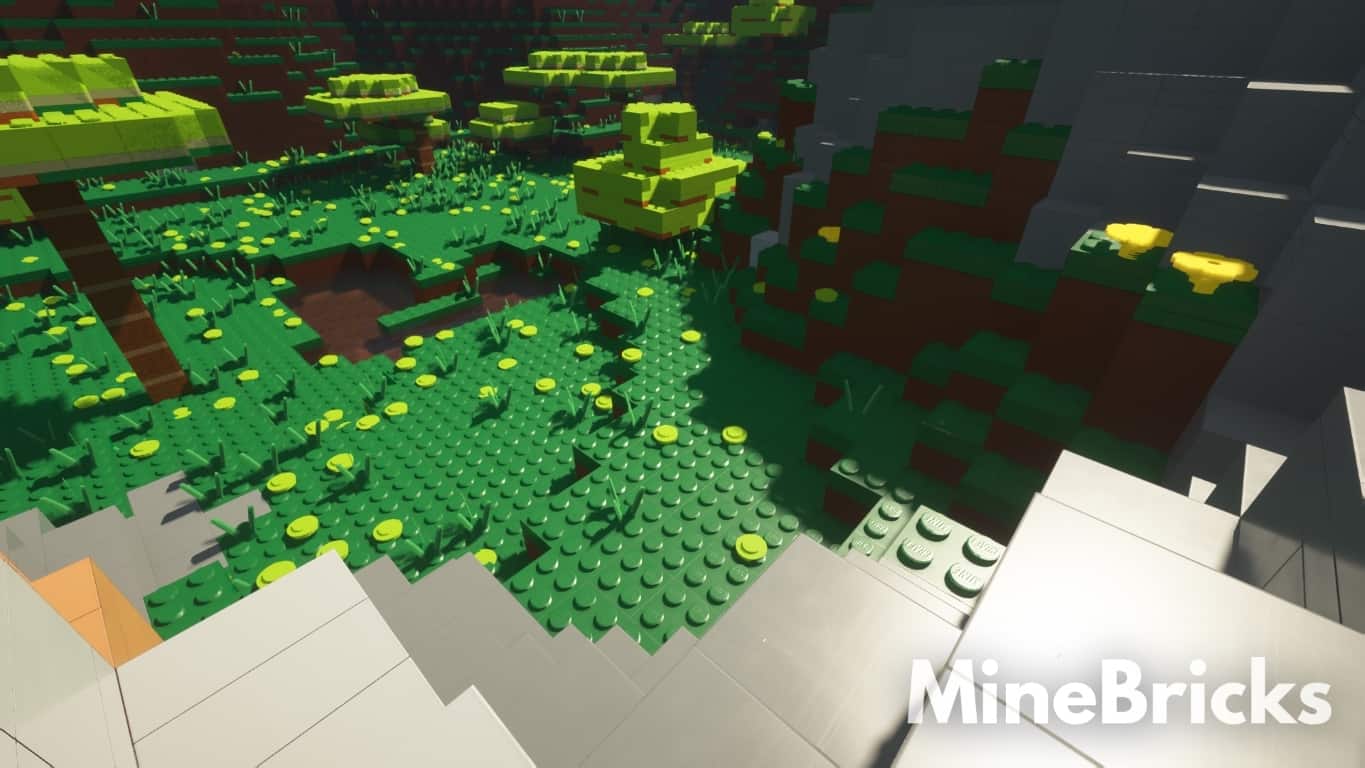
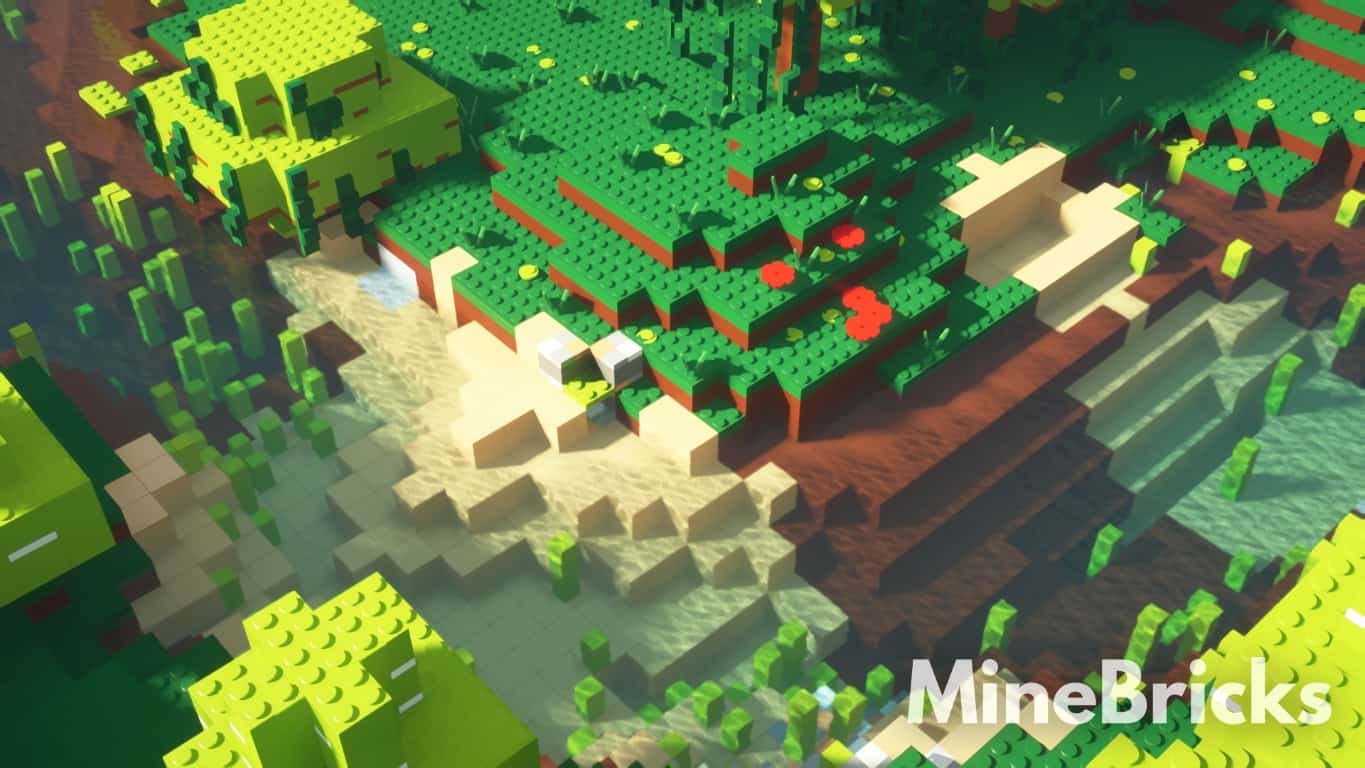
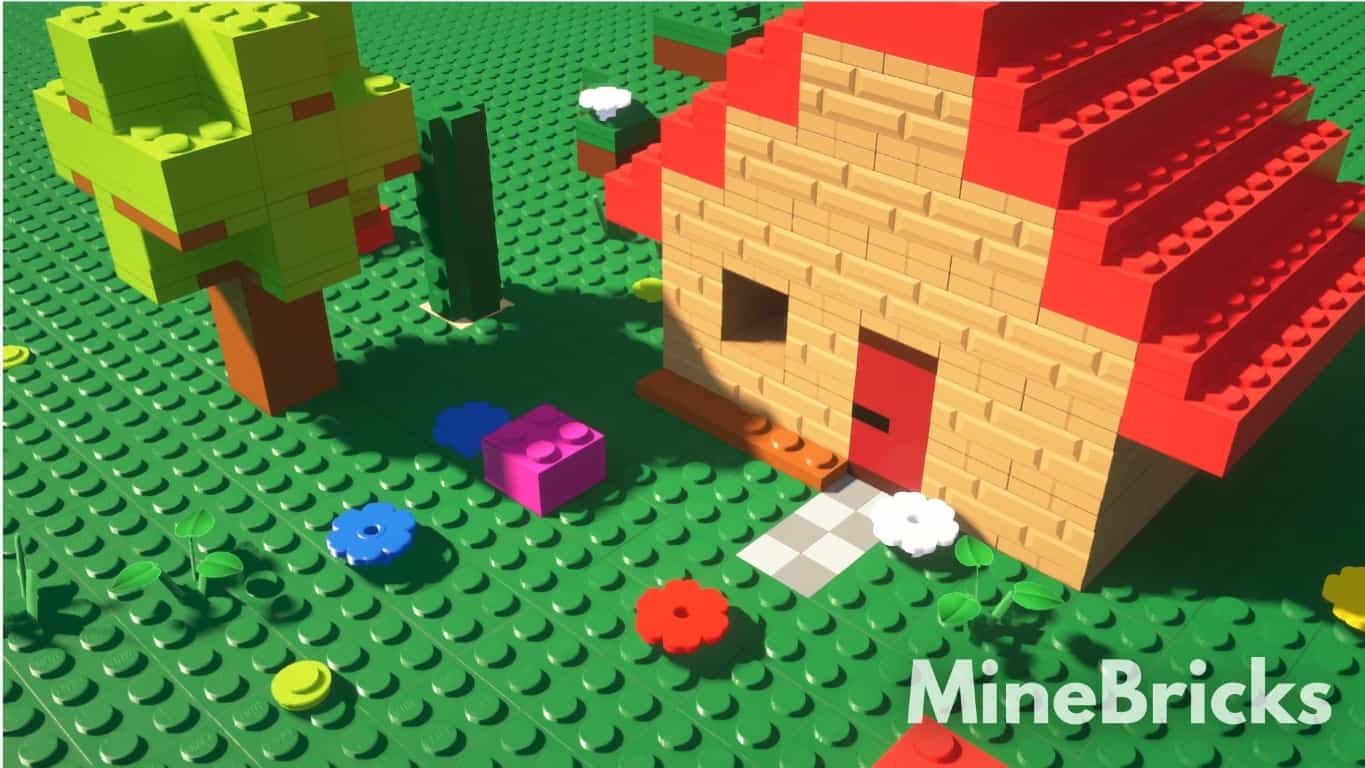
With so many resource packs being released daily, I found it surprisingly difficult to find something truly original or refreshing until I stumbled upon the MineBricks resource pack, which is the absolute exception to the rule. It is genuinely the resource pack that many Minecraft players have hoped for to be created. What makes it so spectacularly refreshing is the fact that it is deeply inspired by LEGOs. Even though it is not an officially licensed resource pack, it remains very loyal to the way LEGO bricks look while successfully being adapted and integrated into the blocky Minecraft world. To make the world of Minecraft look as if it is truly made of LEGO bricks, MineBricks cleverly fiddles around with textures, colors, and lighting effects. The most considerable amount of work was definitely invested into textures, and you can really see the passion. Textures for almost all the blocks in the game have been completely changed, and they are now made of solid colors that are considerably more vibrant. The brilliant removal of the details in textures also successfully removes unnecessary scatter and noise. It changes the textures for coal, gold, iron, diorite, gravel, snow, sand, stone, dirt, and many more types of blocks. It also brilliantly changes the textures for trees, leaves, grass, and different types of flowers. All these fantastic changes make the surrounding environment look like it is wonderfully made from LEGO bricks, right alongside the trees and plants. The MineBricks texture pack goes far beyond standard textures for blocks by introducing exciting new textures for mobs and critters as well, plus lovely new textures for windows, paintings, and various other objects scattered across the game.
I was also amazed to see that sky and water textures were changed to be more in line with the overall visuals of the resource pack. Despite the existence of 3 versions for the MineBricks resource pack, V3 is definitely the most popular and the most recent one to try out. It includes most of the changes that are present in the other versions as well as some smart tweaks that are meant to improve game performance and add more textures and extras. There is noticeably less noise and scatter in textures, making them much clearer even for objects that are far away from the player camera. To truly complement these brand-new visuals, I noticed that a shader is definitely required. The MineBricks resource pack was explicitly made for the SEUS PTGI shader, though it is worth noting that SEUS PTGI does reduce game performance and requires a powerful system to maintain Minecraft fully playable. The resource pack is fortunately available in several different resolution options, with the free version being the 128x one which is still more than good enough to offer a massive improvement to vanilla Minecraft visuals. There is also a free 256x version available which does require a more powerful system to run smoothly, while the 512x and 1024x versions are paid options with the most expensive one being just $5. All four versions, including the generous free ones, consistently receive regular updates from the developer. Installing these resource packs can be smoothly done with Optifine HD as it makes use of special features, and do remember it also requires the SEUS PTGI shader to look its absolute best.
MineBricks (LEGO in Minecraft) should be compatible with all of these Minecraft versions: 1.21.4 – 1.21.3 – 1.21.2 – 1.21.1 – 1.21 – 1.20.6 – 1.20.5 – 1.20.4 – 1.20.3 – 1.20.2 – 1.20.1 – 1.20 – 1.19.4 – 1.19.3 – 1.19.2 – 1.19.1 – 1.19 – 1.18.2 – 1.18.1 – 1.18 – 1.17.1 – 1.17 – 1.16.5 – 1.16.4 – 1.16.3 – 1.16.2 – 1.16.1 – 1.16 – 1.15.2 – 1.15.1 – 1.15
Screenshots
How to Install Texture Pack (Simple 10 Steps)
- Download OptiFine: Most of the texture packs and shaders need OptiFine. That’s why, first download and install OptiFine for the version of Minecraft you want to play.
- Download the Texture Pack: Get the texture pack you want from the download section. Choose the version that works with your Minecraft and your PC’s performance.
- Open Minecraft Launcher: Start Minecraft using the official game launcher — or even TLauncher, if you use that.
- Go to Options: From the main menu, click on the “Options” button.
- Open Resource Packs: Inside Options, click on “Resource Packs…”.
- Open the Resource Pack Folder: Click on “Open Resource Pack Folder” — this will open a folder named “resourcepacks”.
- Move the Pack File: Copy or move the .zip file you downloaded into that “resourcepacks” folder. (Don’t unzip the file — Minecraft uses it as-is!)
- Go Back and Refresh: Close the folder and click “Done”, then go back into “Resource Packs…” again.
- Activate the Pack: You’ll see the pack on the left side. Hover over it and click the arrow to move it to the right (active side).
Tip: If you get a message that the pack is for a different version, just click “Yes” — it usually works fine. - Click Done and Enjoy: Click “Done” again. Now your pack is ready to use in-game. It’s that easy!
Credits
This project was created by macio6. We do not claim ownership of this content and do not host or modify the original files. All rights belong to the original creator. We highly encourage supporting macio6 by visiting their official download pages and contributing to their work.
Download Links
Java Edition
Download Instructions
Curseforge: download starts automatically after a few seconds;
Mediafire: click the big blue button with the text “DOWNLOAD”;
Google Drive: in the top right corner you will see a small download icon (down arrow), click it and the download should start;