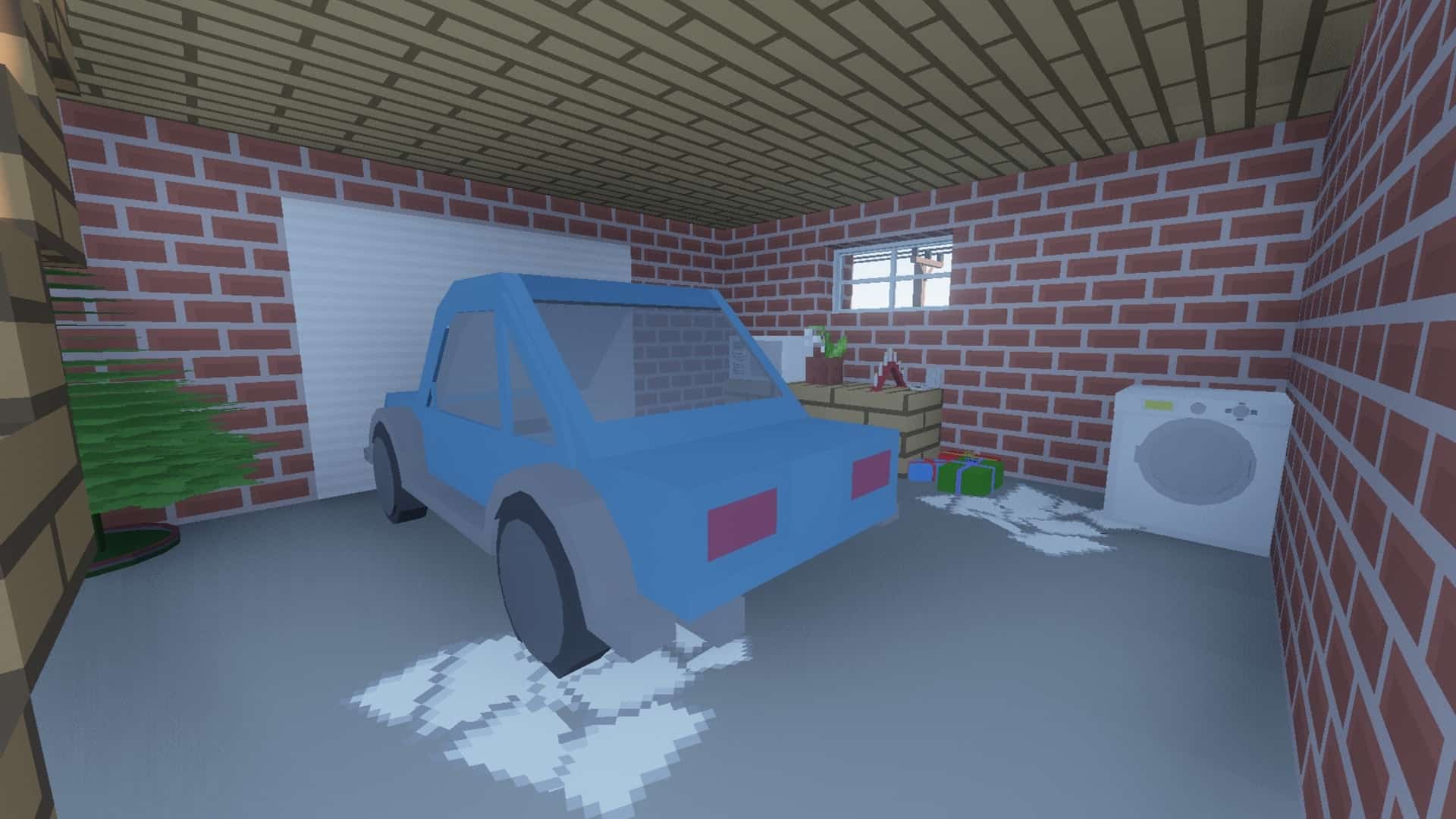
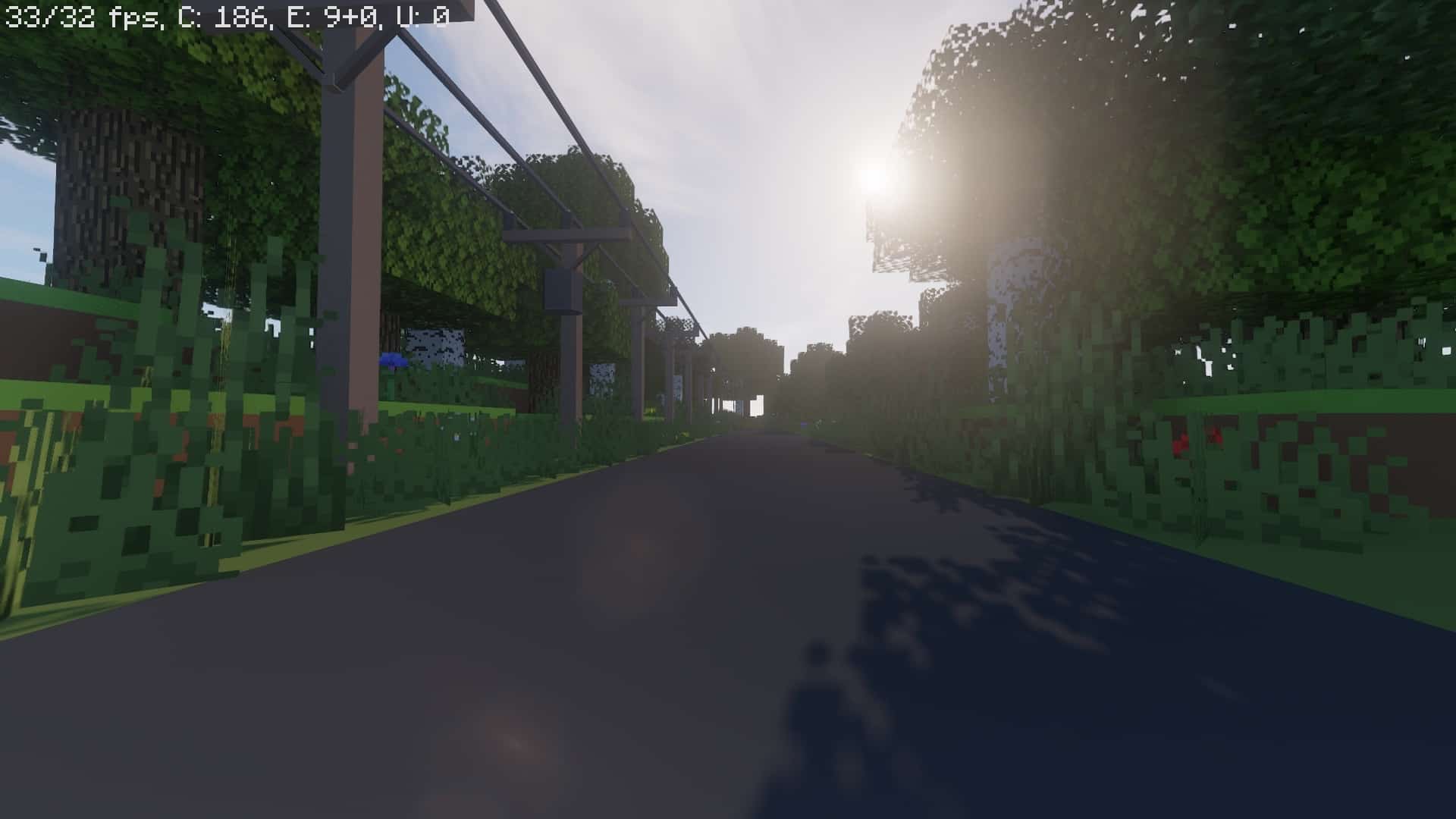
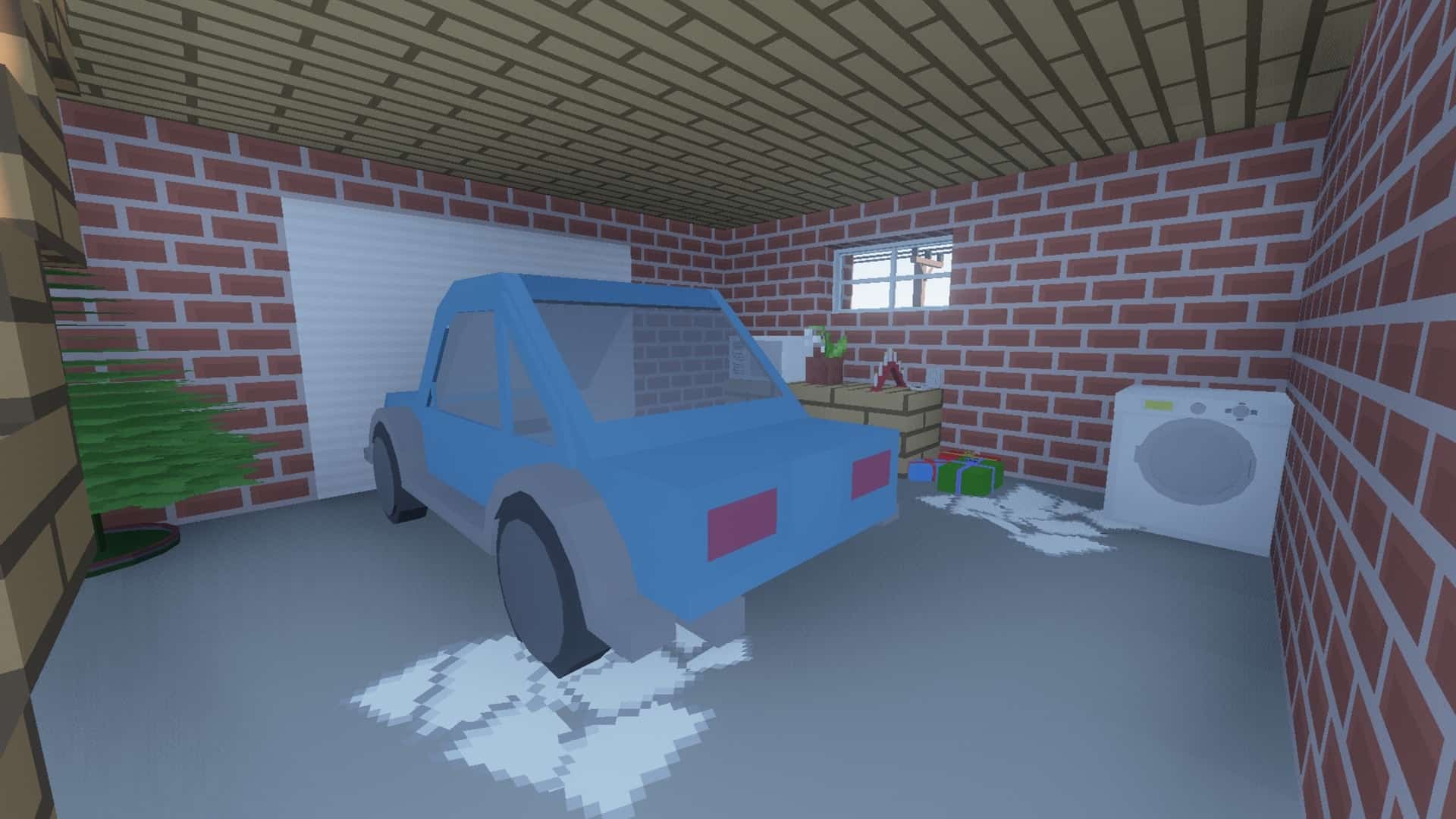
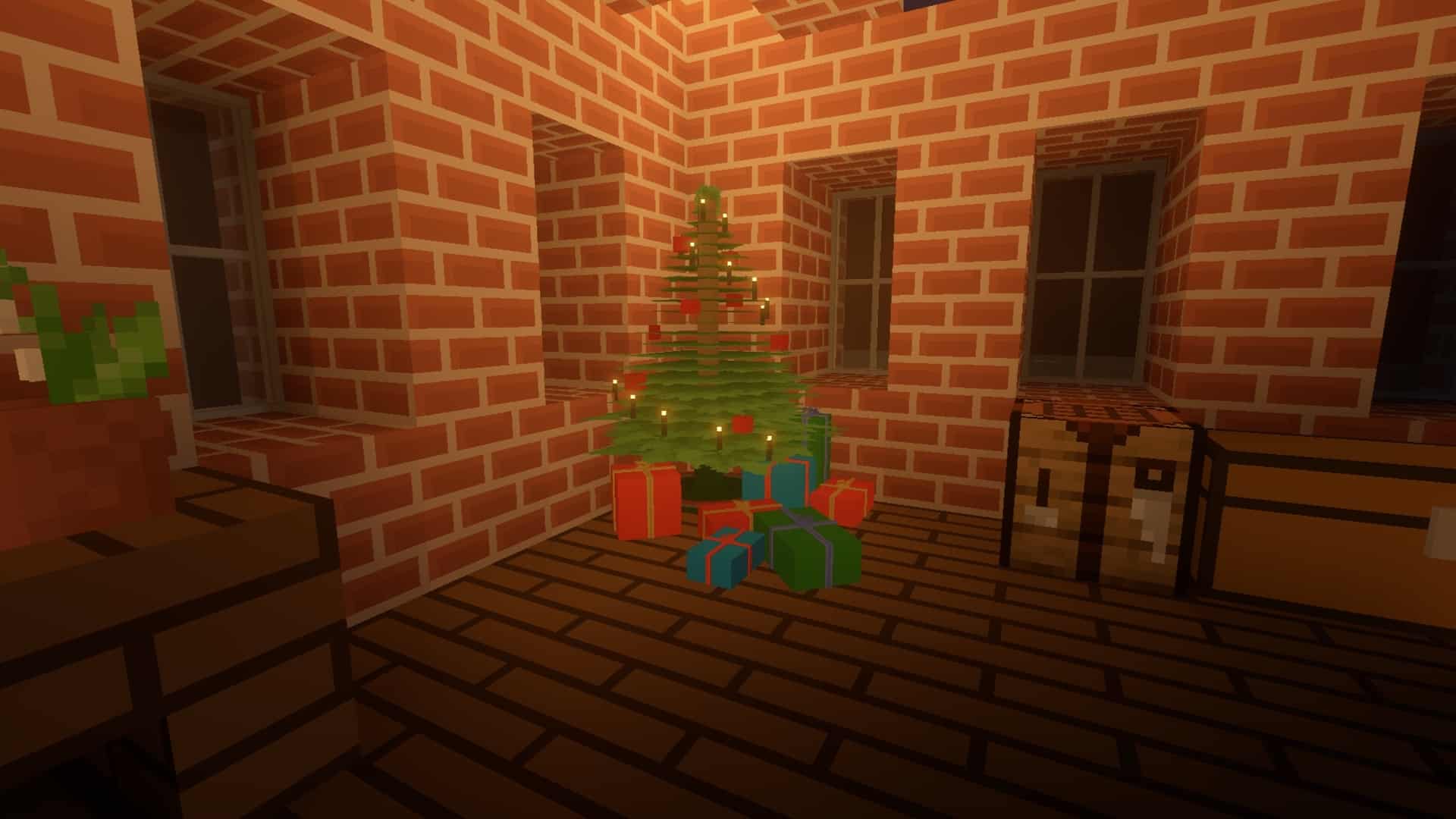
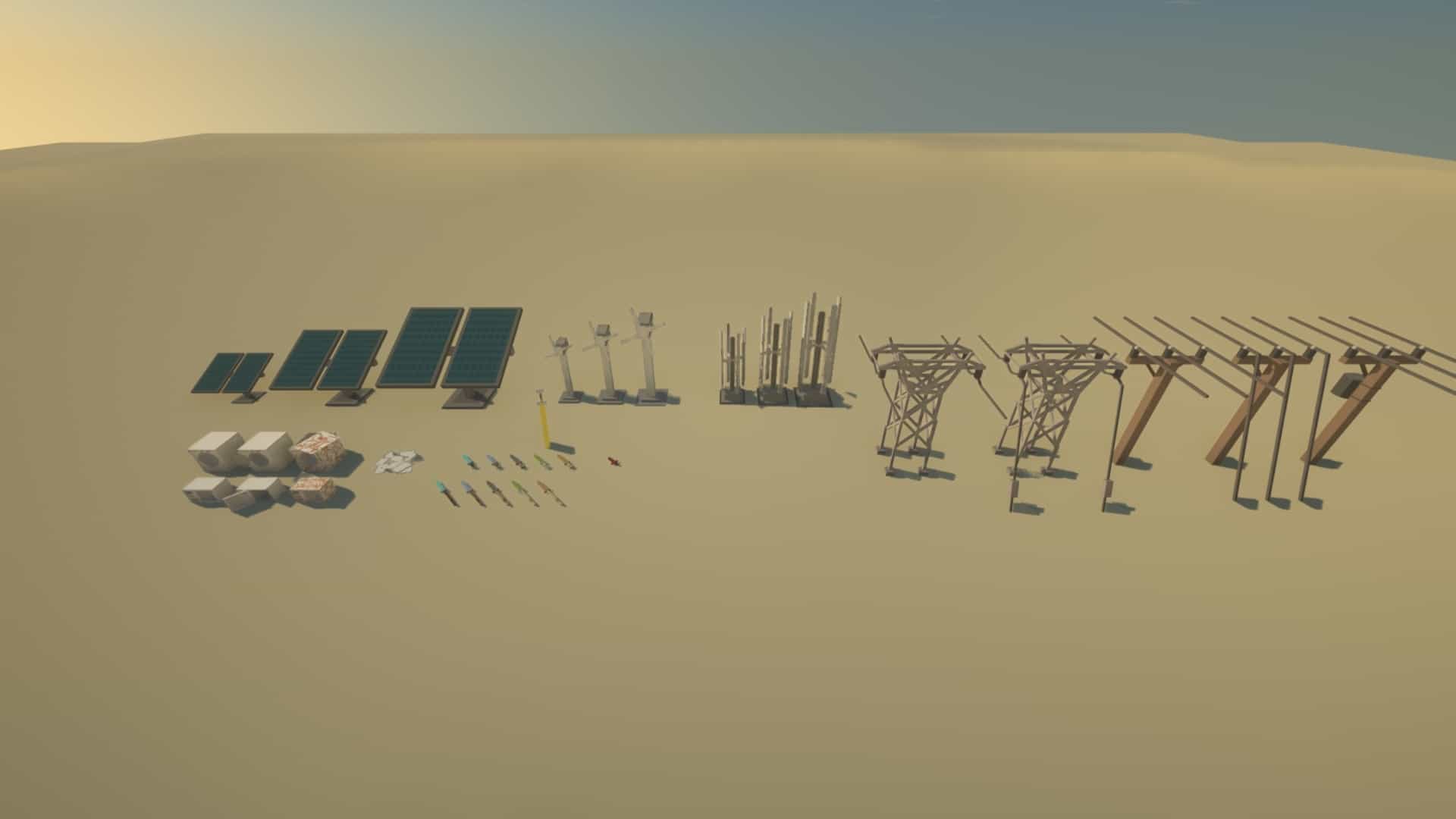
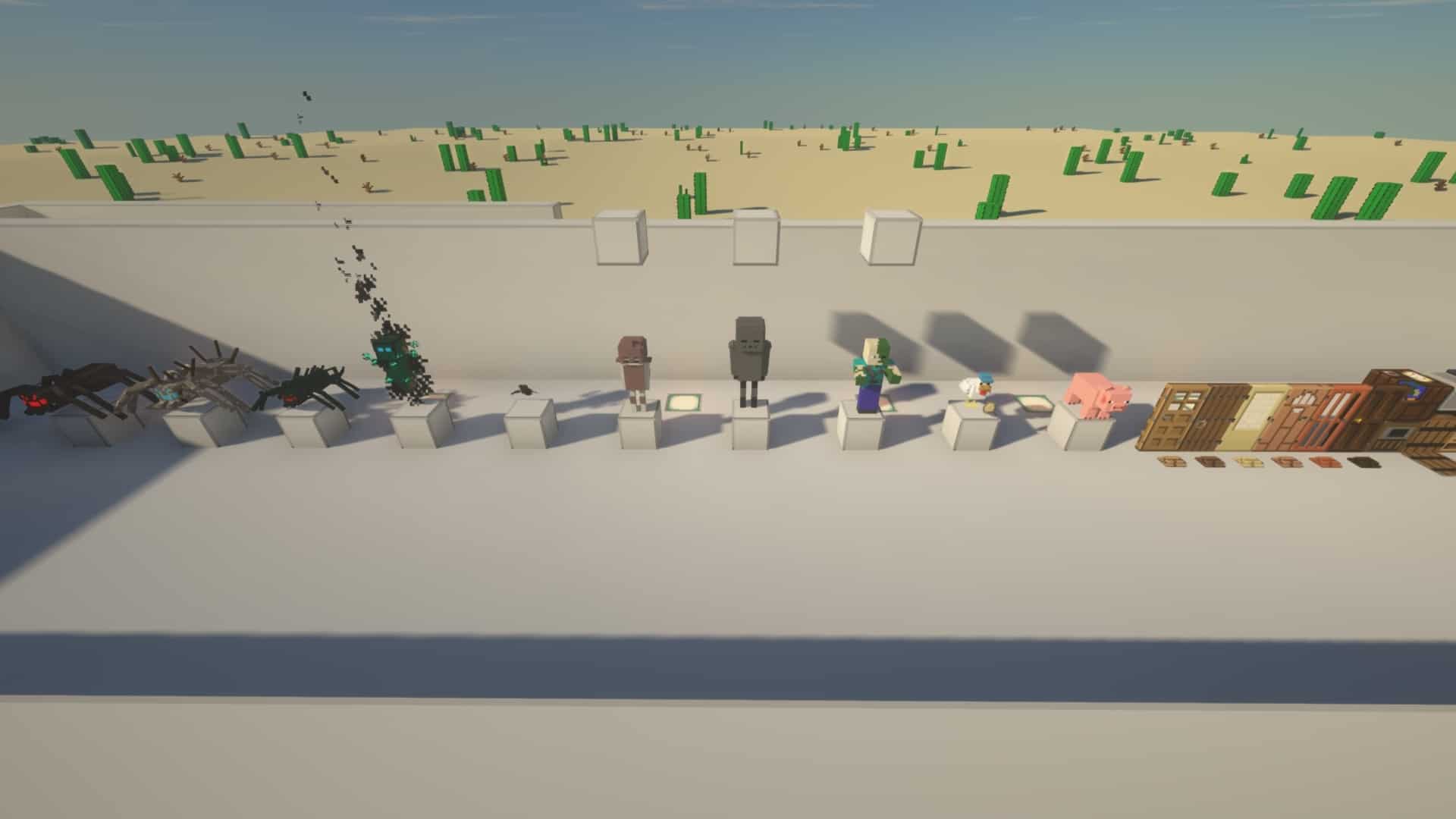
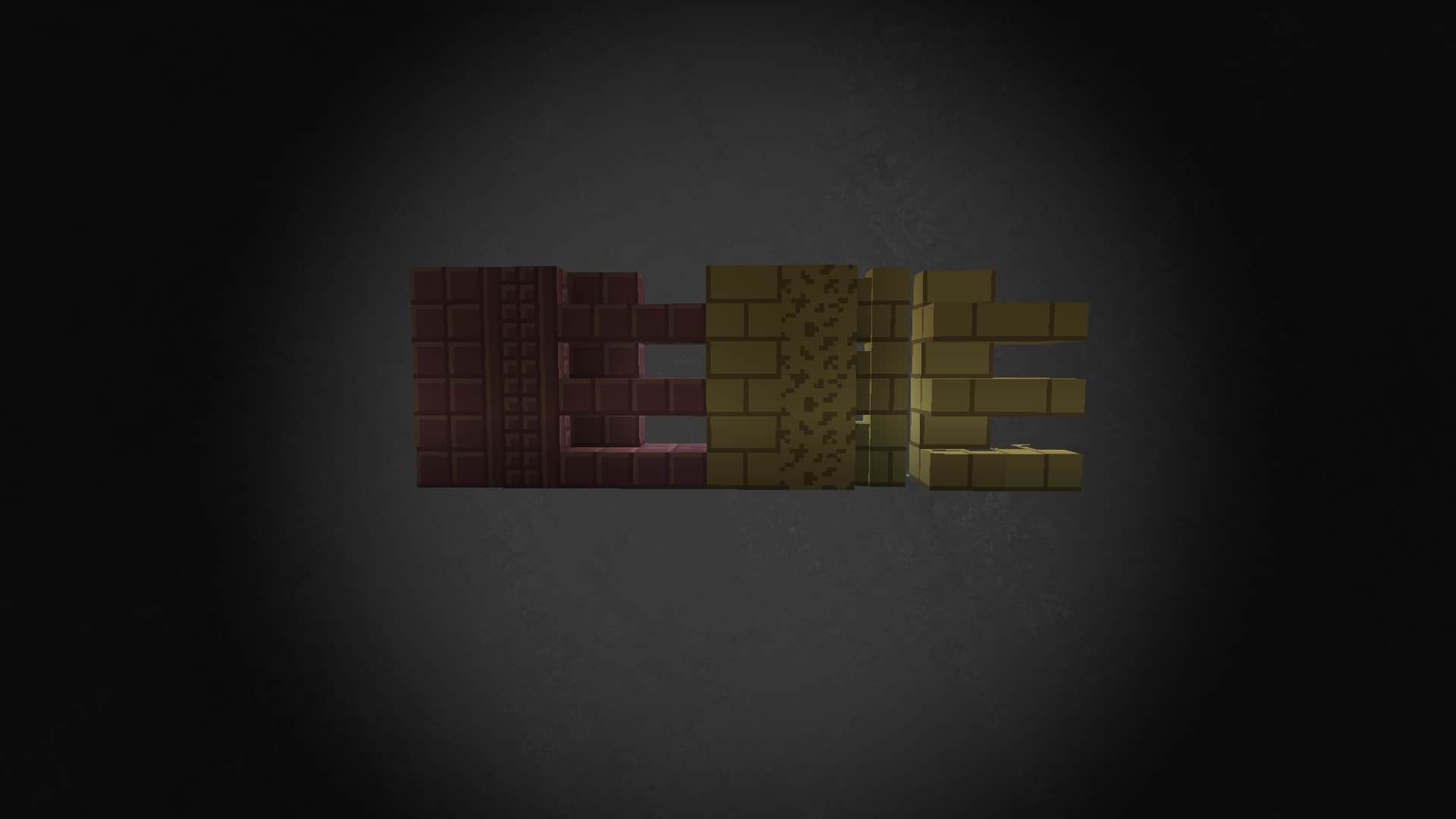
Minecraft’s visuals are designed to be simple, but true to its name, the SimpleCraft resource pack aims to make the textures as clean and stripped-back as possible. Despite its humble intentions, I found this texture pack to be an absolute hidden gem. It’s wonderfully developed, yet it hasn’t received the same massive spotlight other projects enjoy, which is precisely why I am so excited to bring attention to it now. The pack receives occasional updates, maintaining a steady pace since it is intentionally simplistic by design. Even with the slower update schedule, I simply cannot ignore this pack due to its incredible uniqueness and high quality. While most resource packs try to enhance Minecraft’s environment by adding complexity, higher resolutions, or customizable blocks, SimpleCraft is a rare find that elevates the game by brilliantly removing unnecessary details. If you are looking for a fantastic, minimalist-themed texture pack, you really should check out SimpleCraft. There are very few packs in this category, and honestly, it might just be the absolute best of its kind. Most resource packs designed for Minecraft focus on revamping visuals, but introducing gorgeous scenery or vibrant skies often triggers a frustrating side effect: frame drops and lag. Many packs are packed with intricate details that run fine on high-end rigs, but they can completely ruin the experience for lower-end devices. On top of that, an overload of details can sometimes feel visually exhausting. Fortunately, I noticed that both of these issues are completely solved by the SimpleCraft texture pack, which delivers a refreshing and wholesome experience through clean, simplified textures. Installing Simplecraft truly opens up a brand-new world of visuals. As soon as you apply the resource pack and jump into a world, you will immediately notice that the textures are less cluttered yet remarkably appealing. The art style is immaculate and an absolute joy to look at, utilizing a bright, vibrant color palette that really makes the blocks and scenery shine.
The lack of heavy details is a fantastic feature, especially if your device struggles to run demanding, high-end resource packs. It gives the world a pristine finish that is an absolute treat to explore. However, these clean visual changes are not the only perks SimpleCraft offers. The 16x resolution perfectly matches the goal of simplifying vanilla Minecraft without needing any heavy processing power. Contrary to what you might expect, this low resolution is a massive gameplay benefit because it genuinely improves frame rates and reduces lag. Even older or low-end PCs can run the game smoothly with SimpleCraft enabled, which is an absolute lifesaver for players on a tight budget. Of course, it is just as enjoyable for Minecrafters who simply love minimalism. The sheer visual appeal alone makes it worth installing. My overall verdict on the Simplecraft resource pack is that, in this case, less is definitely more. If you are growing tired of overly complicated textures, ultra-modern designs, or hyper-realistic looks, you owe it to yourself to try SimpleCraft. It stays faithful to the classic feel of vanilla Minecraft while stripping away extra pixels to make the world look neat and orderly. While other faithful packs often increase the resolution and drag down your FPS, SimpleCraft preserves what makes Minecraft great while remaining completely friendly to low-end systems. It might not magically double your frame rate, but gaining even a few extra frames makes a huge difference. If you prefer ultra-realistic, highly detailed packs, this might not be for you, but that is never what SimpleCraft sets out to be. If you love playing with clean, simple textures as much as I do, you are guaranteed to enjoy this pack. It offers a fresh way to experience your favorite game without changing the core mechanics, all while protecting your frame rate.
Simplecraft should be compatible with all of these Minecraft versions: 26.2 – 26.1.2 – 26.1.1 – 26.1 – 1.21.11 – 1.21.10 – 1.21.9 – 1.21.8 – 1.21.7 – 1.21.6 – 1.21.5 – 1.21.4 – 1.21.3 – 1.21.2 – 1.21.1 – 1.21 – 1.20.6 – 1.20.5 – 1.20.4 – 1.20.3 – 1.20.2 – 1.20.1 – 1.20 – 1.19.4 – 1.19.3 – 1.19.2 – 1.19.1 – 1.19 – 1.18.2 – 1.18.1 – 1.18 – 1.17.1 – 1.17 – 1.16.5 – 1.16.4 – 1.16.3 – 1.16.2 – 1.16.1 – 1.16 – 1.15.2 – 1.15.1 – 1.15 – 1.14.4 – 1.14.3 – 1.14.2 – 1.14
Screenshots

How to Install Texture Pack (Simple 10 Steps)
- Download OptiFine: Most of the texture packs and shaders need OptiFine. That’s why, first download and install OptiFine for the version of Minecraft you want to play.
- Download the Texture Pack: Get the texture pack you want from the download section. Choose the version that works with your Minecraft and your PC’s performance.
- Open Minecraft Launcher: Start Minecraft using the official game launcher — or even TLauncher, if you use that.
- Go to Options: From the main menu, click on the “Options” button.
- Open Resource Packs: Inside Options, click on “Resource Packs…”.
- Open the Resource Pack Folder: Click on “Open Resource Pack Folder” — this will open a folder named “resourcepacks”.
- Move the Pack File: Copy or move the .zip file you downloaded into that “resourcepacks” folder. (Don’t unzip the file — Minecraft uses it as-is!)
- Go Back and Refresh: Close the folder and click “Done”, then go back into “Resource Packs…” again.
- Activate the Pack: You’ll see the pack on the left side. Hover over it and click the arrow to move it to the right (active side).
Tip: If you get a message that the pack is for a different version, just click “Yes” — it usually works fine. - Click Done and Enjoy: Click “Done” again. Now your pack is ready to use in-game. It’s that easy!
Credits
Simplecraft was originally created and developed by survivalcrafter_official. We do not claim ownership of this content, nor have we modified the original files. All rights, intellectual property, and updates belong exclusively to the original creator. We strongly encourage you to support survivalcrafter_official by downloading the resource pack from their official distribution pages and following their continued work.
Download Links
Java Edition
Download Instructions
Curseforge: download starts automatically after a few seconds;
Mediafire: click the big blue button with the text “DOWNLOAD”;
Google Drive: in the top right corner you will see a small download icon (down arrow), click it and the download should start;


