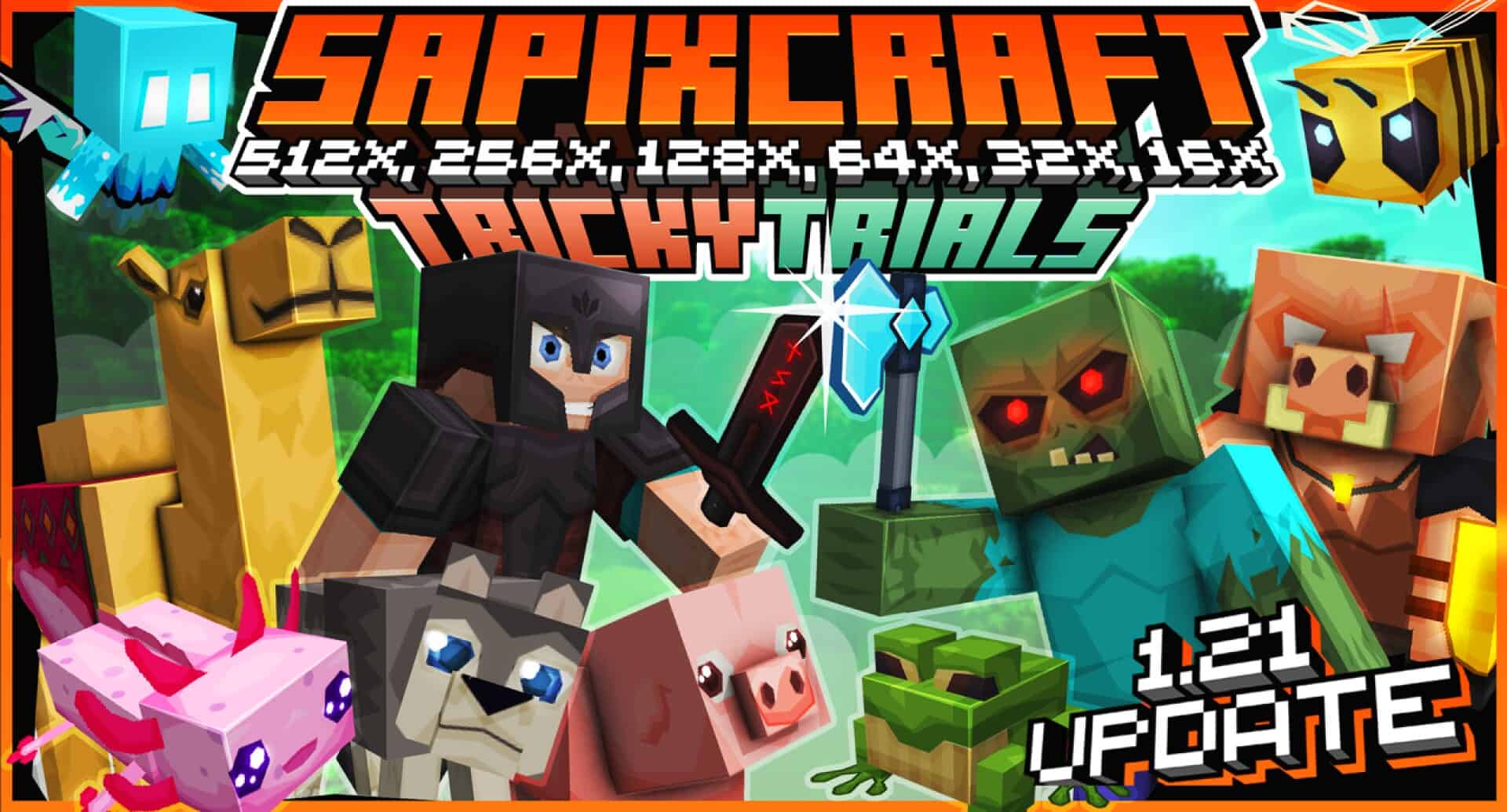
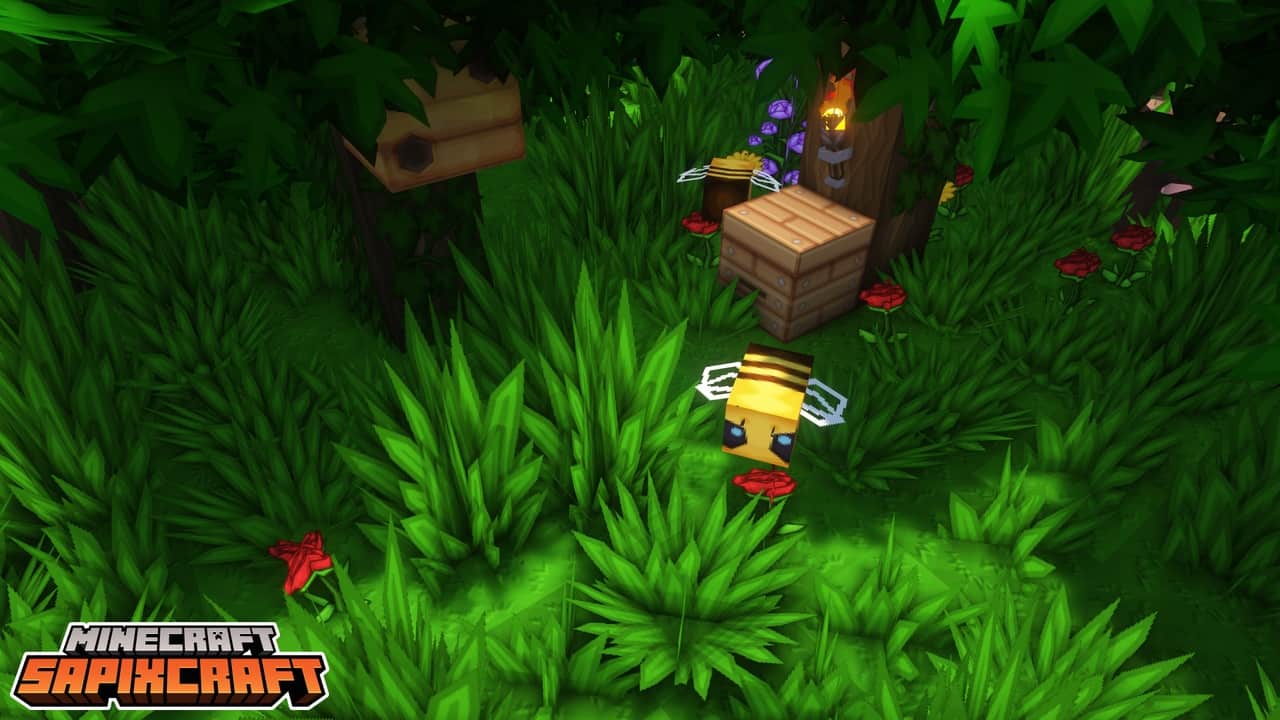
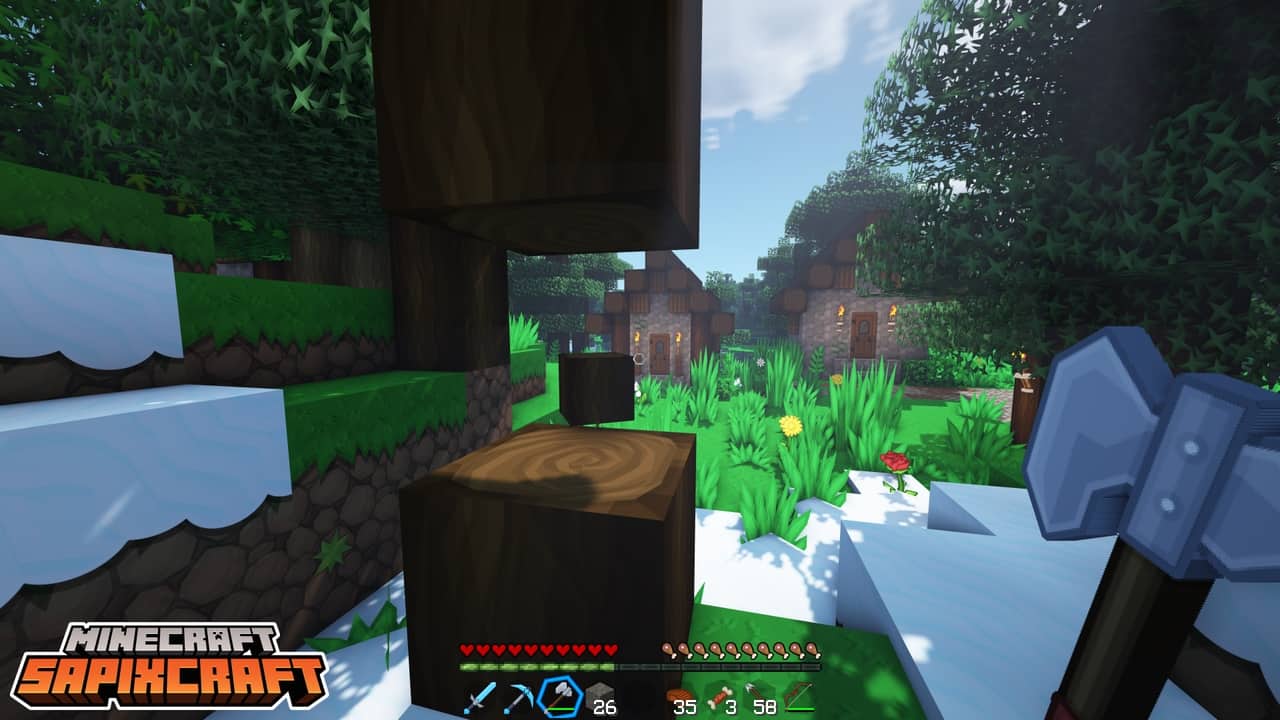
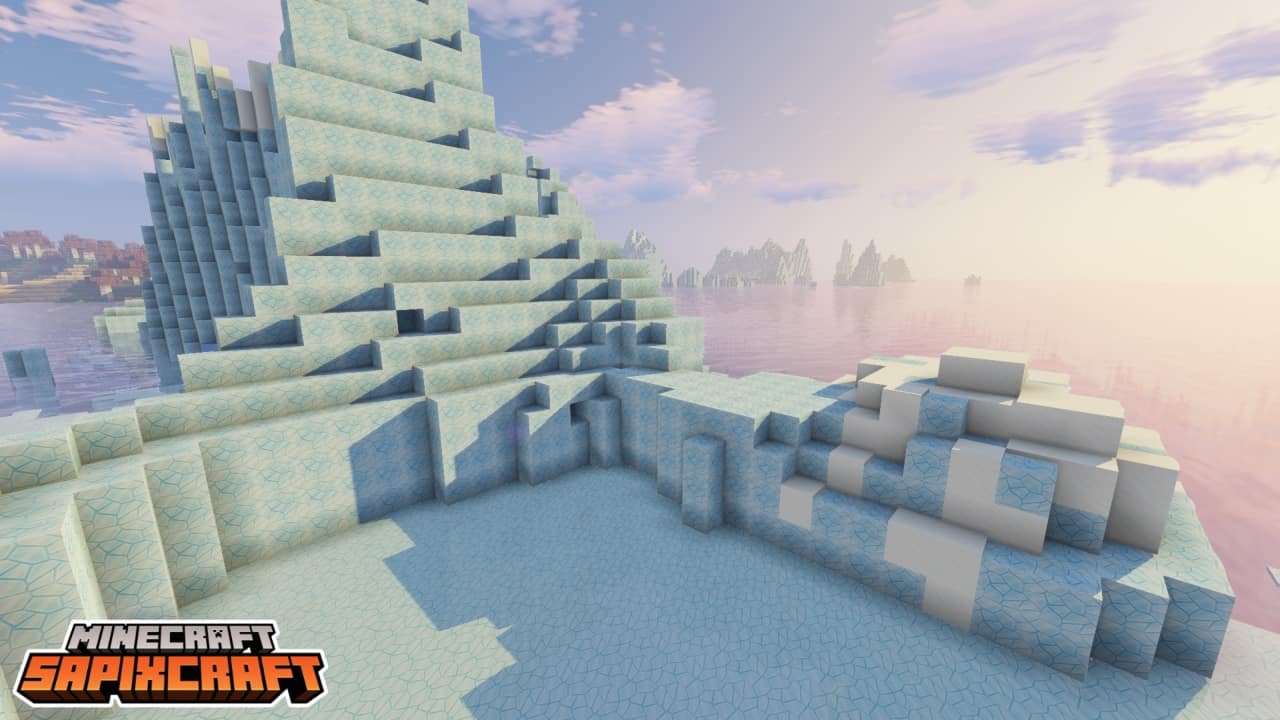
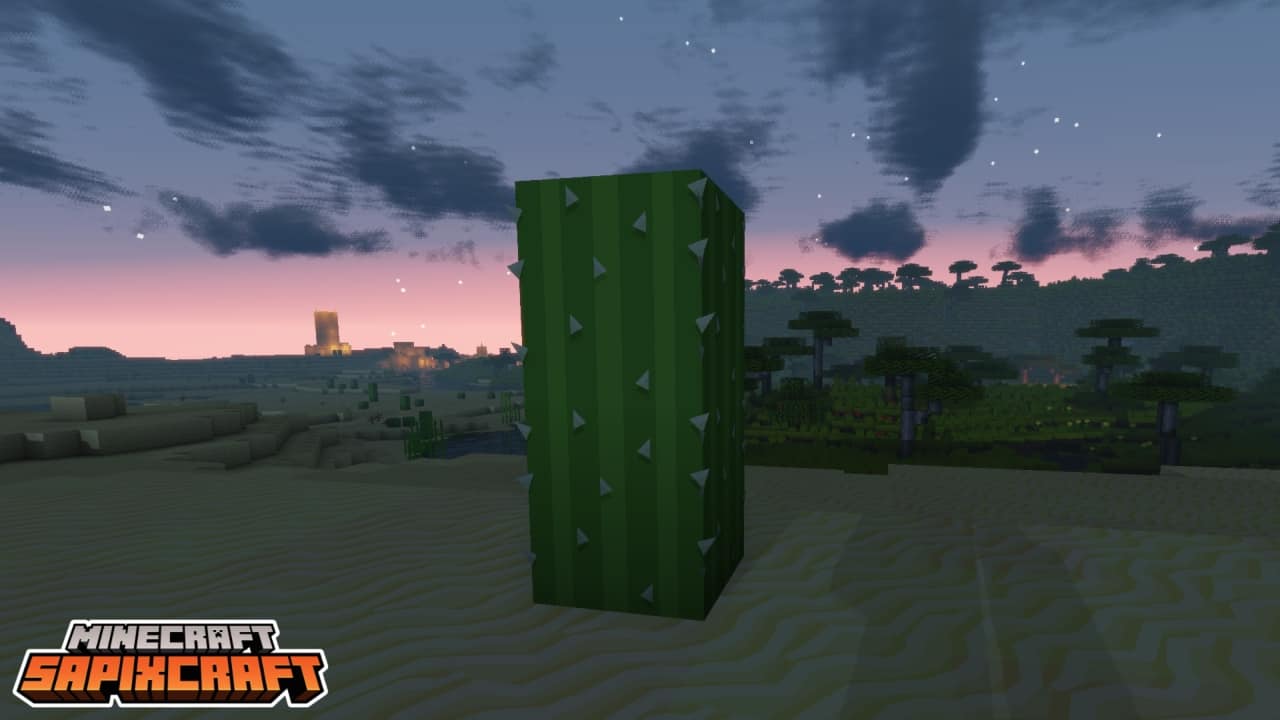
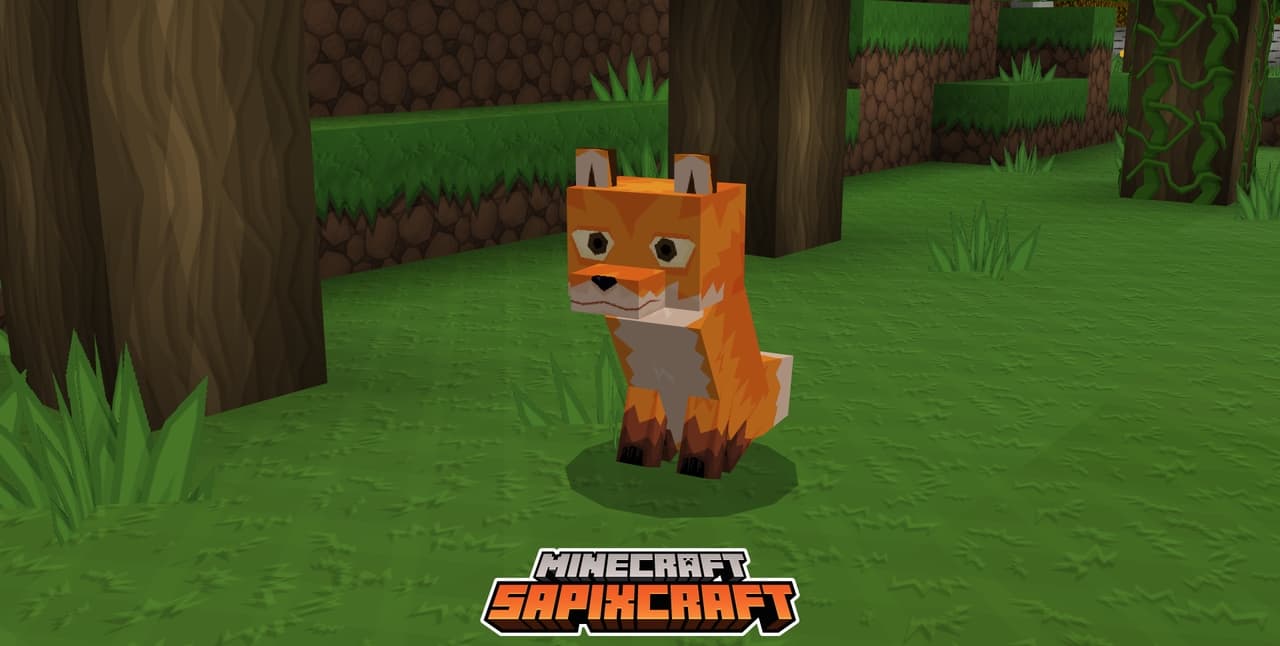
SapixCraft is an absolute must-try resource pack crafted by the talented Sapix, and honestly, it is the ultimate way to experience Minecraft like never before! It is a pack that the community has genuinely been waiting for a long time, and once you load it up, the reasons become instantly clear. The best part is that it is still actively in development and consistently updated for all the newest versions of Minecraft, making your worlds look simply breathtaking. When it comes to the actual textures, you are looking at a gorgeous minimalist style, meaning it stays true to the regular vanilla feel of Minecraft without any jarring changes. But don’t let that fool you into thinking it’s basic—the textures possess an incredible polish and cleanliness that genuinely sets them apart from anything else out there. Everything sounds fantastic so far, right? Well, there is just one catch you should know about.
SapixCraft is famously available in a mind-blowing 512x resolution! When you compare that to the default 16x Minecraft textures, you realize just how massive and detailed these graphics really are, delivering one of the most stunning visual overhauls ever created. Just imagine how gorgeous your builds are going to look! Of course, running something this detailed means you will definitely need a pretty beefy PC to handle it smoothly. But do not get discouraged just yet, because Sapix has brilliant news for everyone: he thoughtfully created multiple lower-resolution options so that players with any hardware can still enjoy this masterpiece. Looking ahead, future updates might even bring connected textures, which will elevate the beauty of SapixCraft to an entirely new level. Best of all, bugs and glitches are practically non-existent, meaning you can dive right in without a single worry and just enjoy the scenery!
SapixCraft should be compatible with all of these Minecraft versions: 26.2 – 26.1.2 – 26.1.1 – 26.1 – 1.21.11 – 1.21.10 – 1.21.9 – 1.21.8 – 1.21.7 – 1.21.6 – 1.21.5 – 1.21.4 – 1.21.3 – 1.21.2 – 1.21.1 – 1.21 – 1.20.6 – 1.20.5 – 1.20.4 – 1.20.3 – 1.20.2 – 1.20.1 – 1.20 – 1.19.4 – 1.19.3 – 1.19.2 – 1.19.1 – 1.19 – 1.18.2 – 1.18.1 – 1.18 – 1.17.1 – 1.17 – 1.16.5 – 1.16.4 – 1.16.3 – 1.16.2 – 1.16.1 – 1.16 – 1.15.2 – 1.15.1 – 1.15 – 1.14.4 – 1.14.3 – 1.14.2 – 1.14 – 1.13.2 – 1.13.1 – 1.13 – 1.12.2 – 1.12 – 1.11.2 – 1.11 – 1.10.2 – 1.10 – 1.9.4 – 1.9 – 1.8.9 – 1.8.8 – 1.8.1 – 1.8.6 – 1.8 – Bedrock Edition – PE
Screenshots
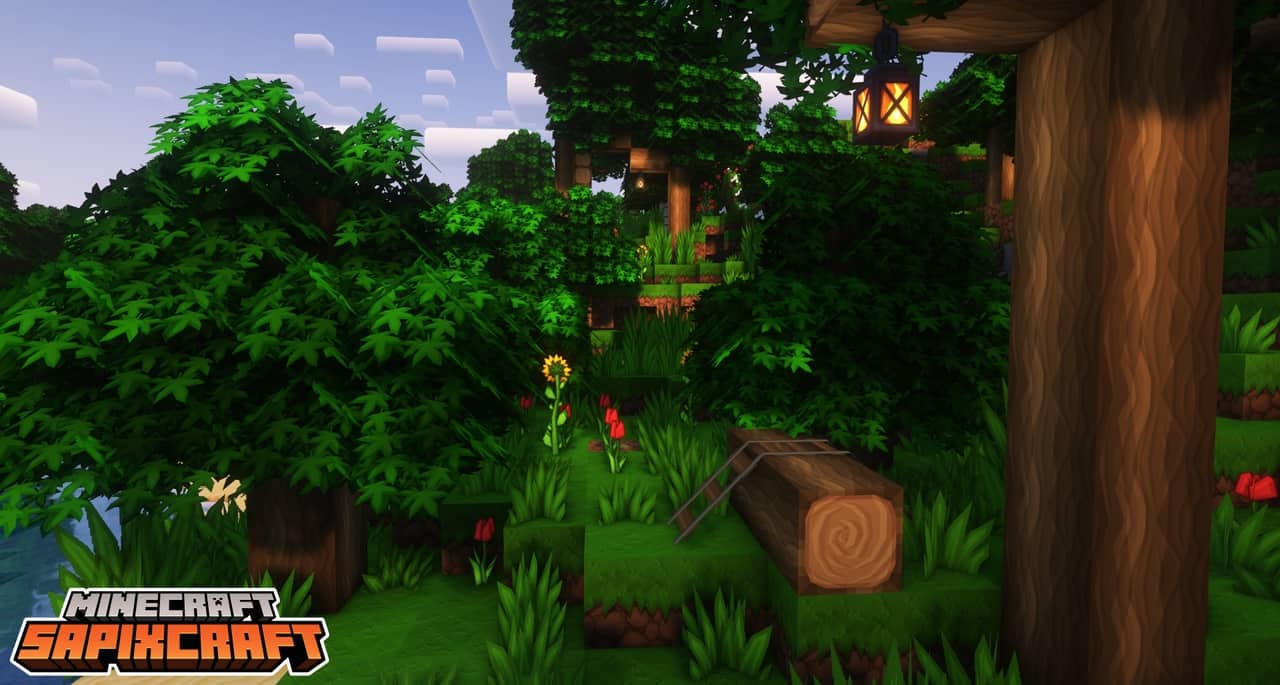
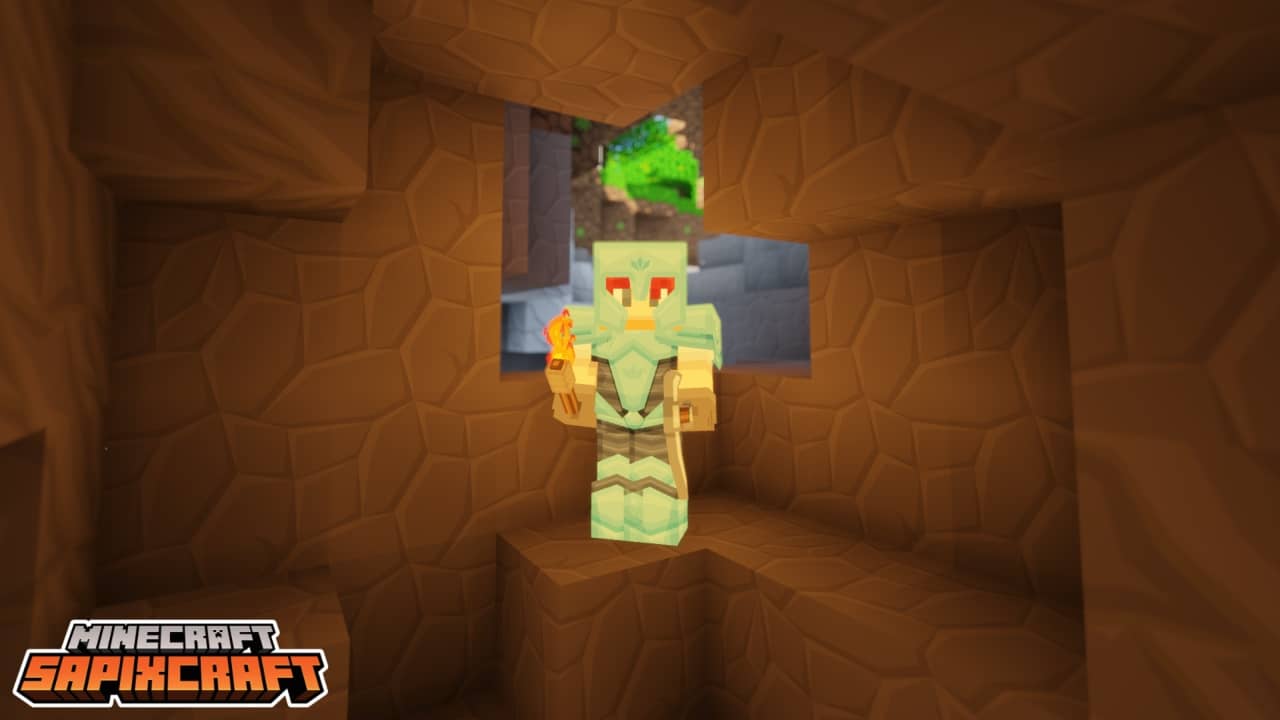
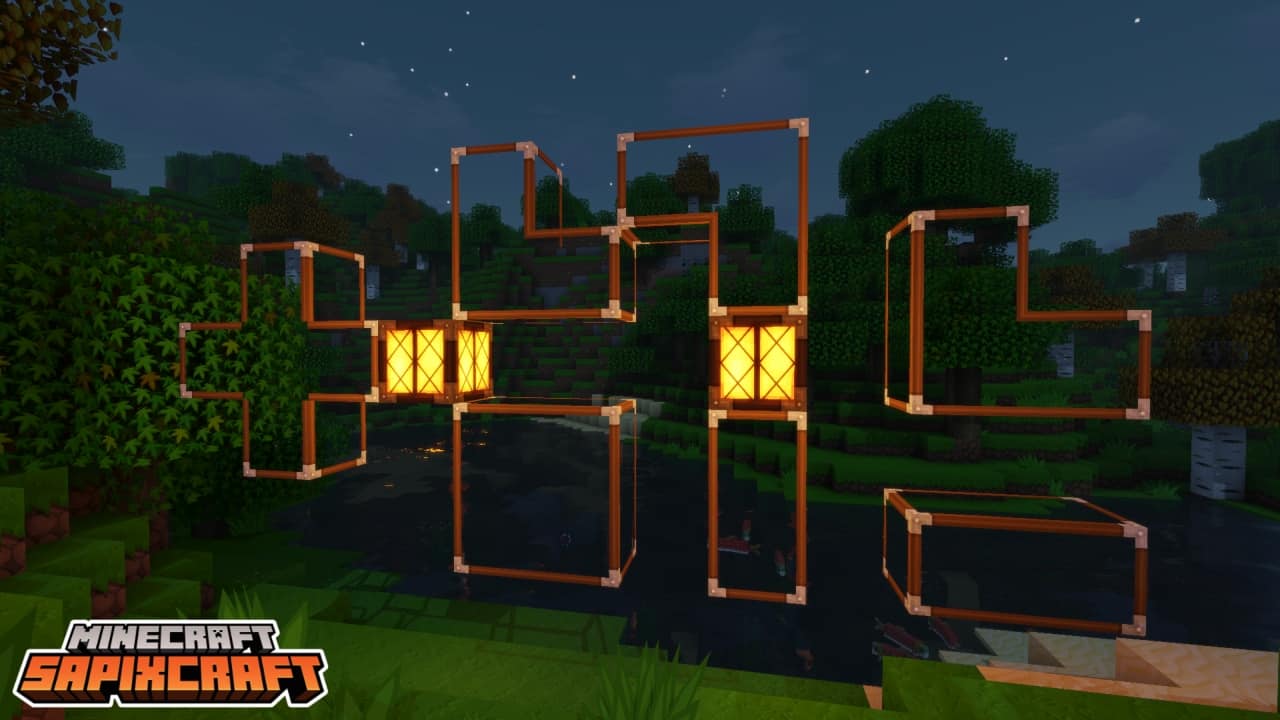
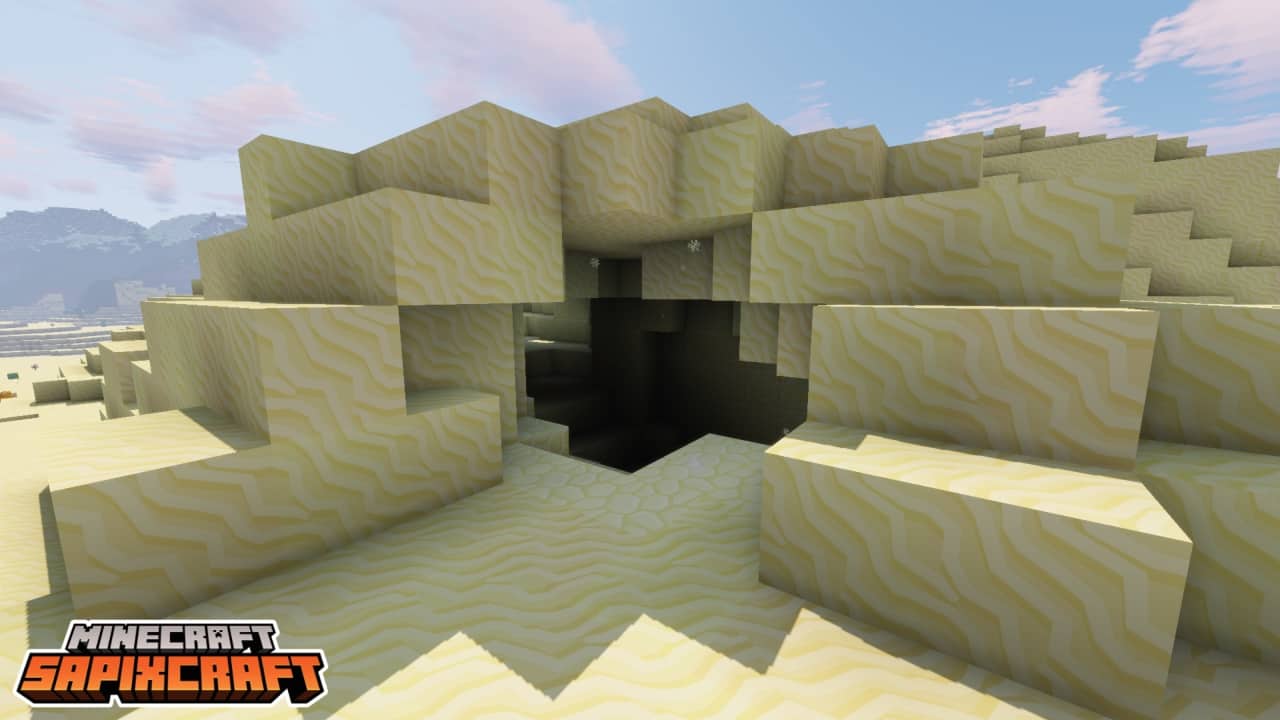
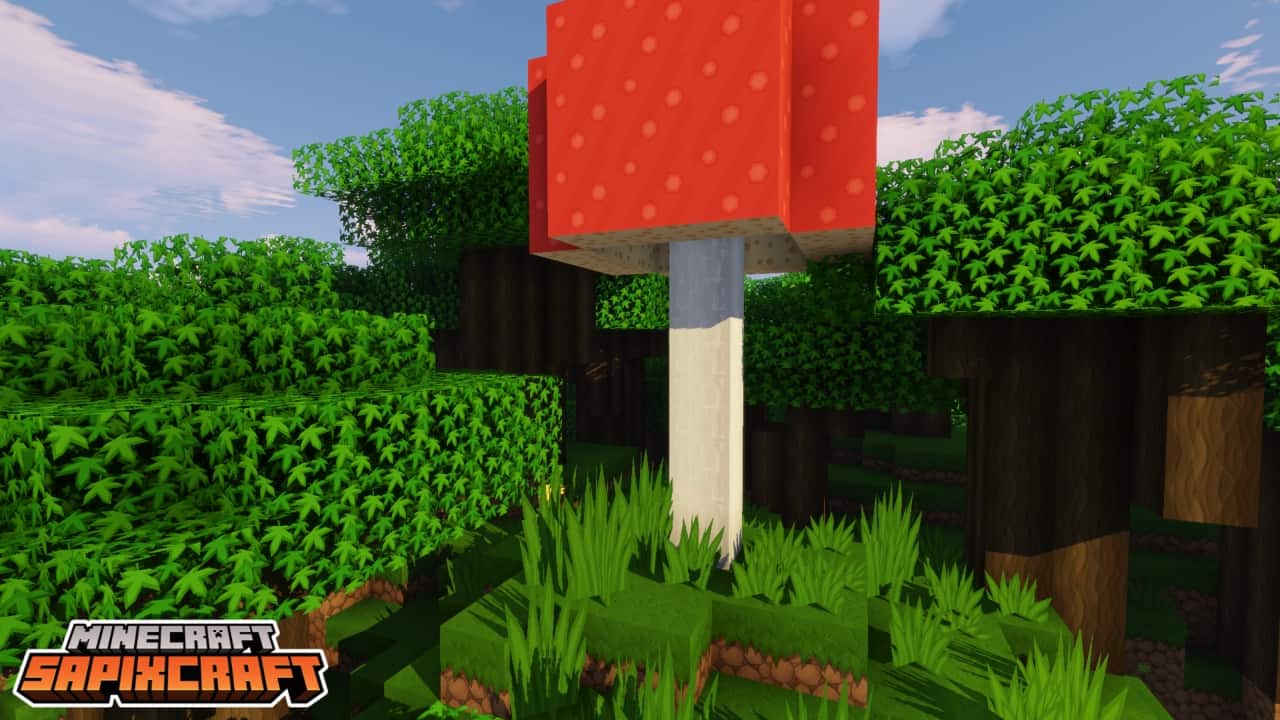
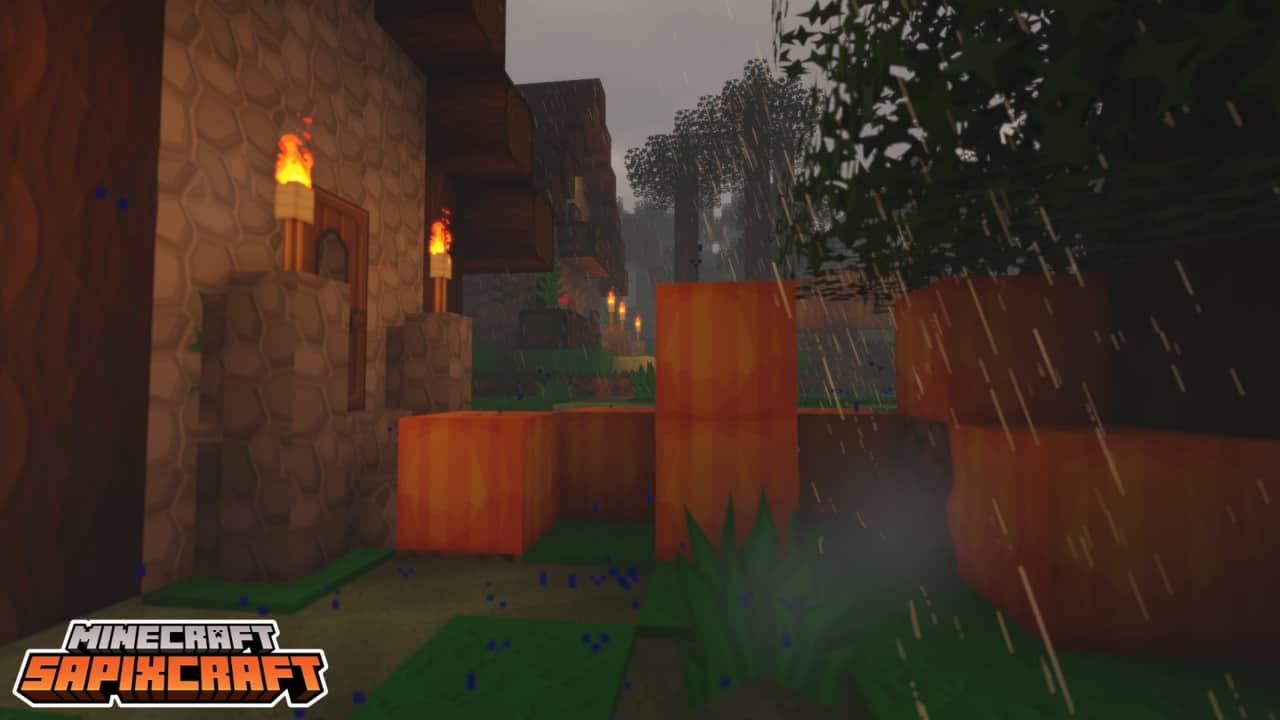
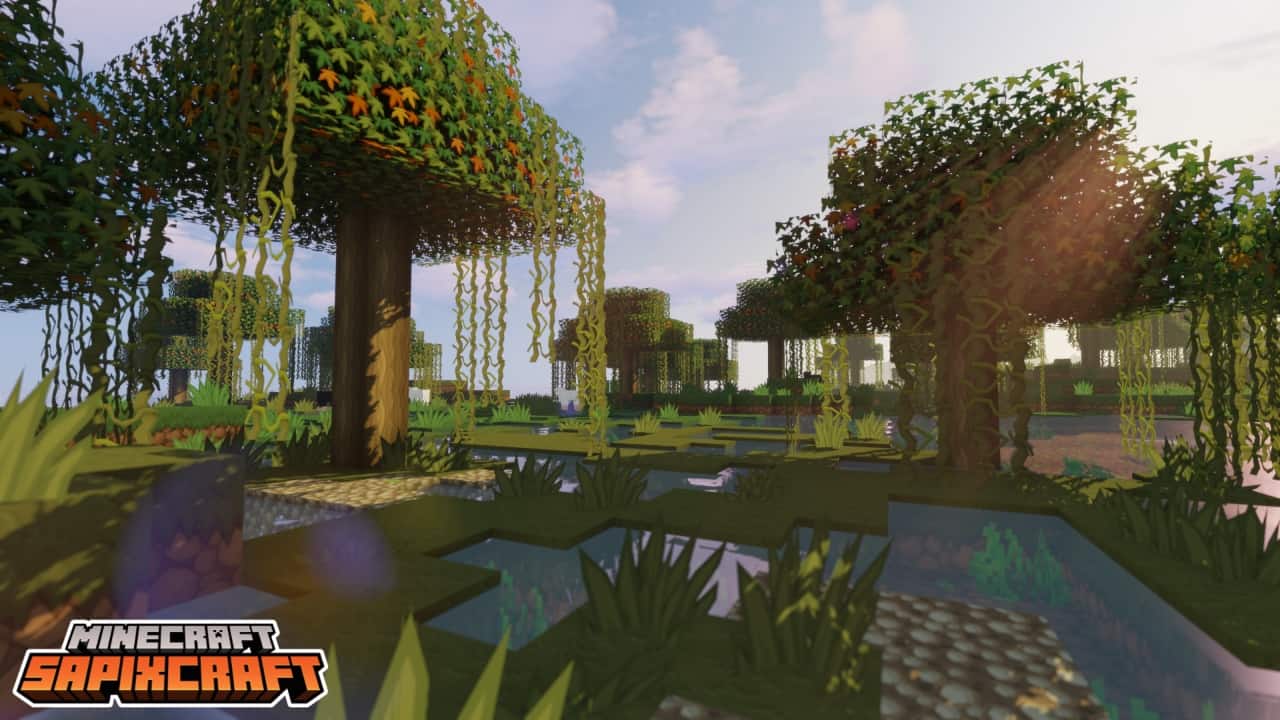

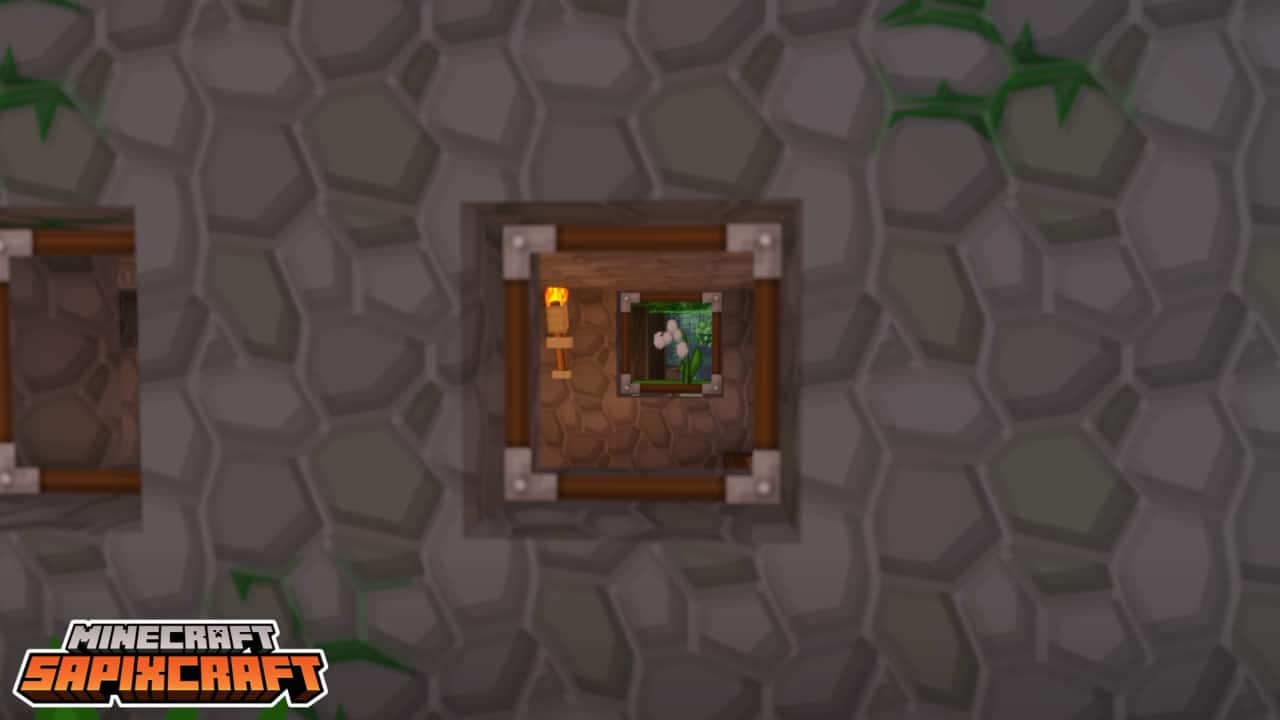

How to Install Texture Pack (Simple 10 Steps)
- Download OptiFine: Most of the texture packs and shaders need OptiFine. That’s why, first download and install OptiFine for the version of Minecraft you want to play.
- Download the Texture Pack: Get the texture pack you want from the download section. Choose the version that works with your Minecraft and your PC’s performance.
- Open Minecraft Launcher: Start Minecraft using the official game launcher — or even TLauncher, if you use that.
- Go to Options: From the main menu, click on the “Options” button.
- Open Resource Packs: Inside Options, click on “Resource Packs…”.
- Open the Resource Pack Folder: Click on “Open Resource Pack Folder” — this will open a folder named “resourcepacks”.
- Move the Pack File: Copy or move the .zip file you downloaded into that “resourcepacks” folder. (Don’t unzip the file — Minecraft uses it as-is!)
- Go Back and Refresh: Close the folder and click “Done”, then go back into “Resource Packs…” again.
- Activate the Pack: You’ll see the pack on the left side. Hover over it and click the arrow to move it to the right (active side).
Tip: If you get a message that the pack is for a different version, just click “Yes” — it usually works fine. - Click Done and Enjoy: Click “Done” again. Now your pack is ready to use in-game. It’s that easy!
Credits
SapixCraft is created and owned by Sapix. We do not claim ownership of this content, nor do we host modified versions of these files. We strongly encourage all players to support the original creator by visiting their official platforms and downloading directly from authorized sources.
Download Links
Java Edition
- Download SapixCraft Resource Pack from Official Website
- SapixCraft PvP Add-on
- SapixCraft Colossal items Add-on
- SapixCraft Christmas Add-on
Bedrock Edition
Download Instructions
Curseforge: download starts automatically after a few seconds;
Mediafire: click the big blue button with the text “DOWNLOAD”;
Google Drive: in the top right corner you will see a small download icon (down arrow), click it and the download should start;


