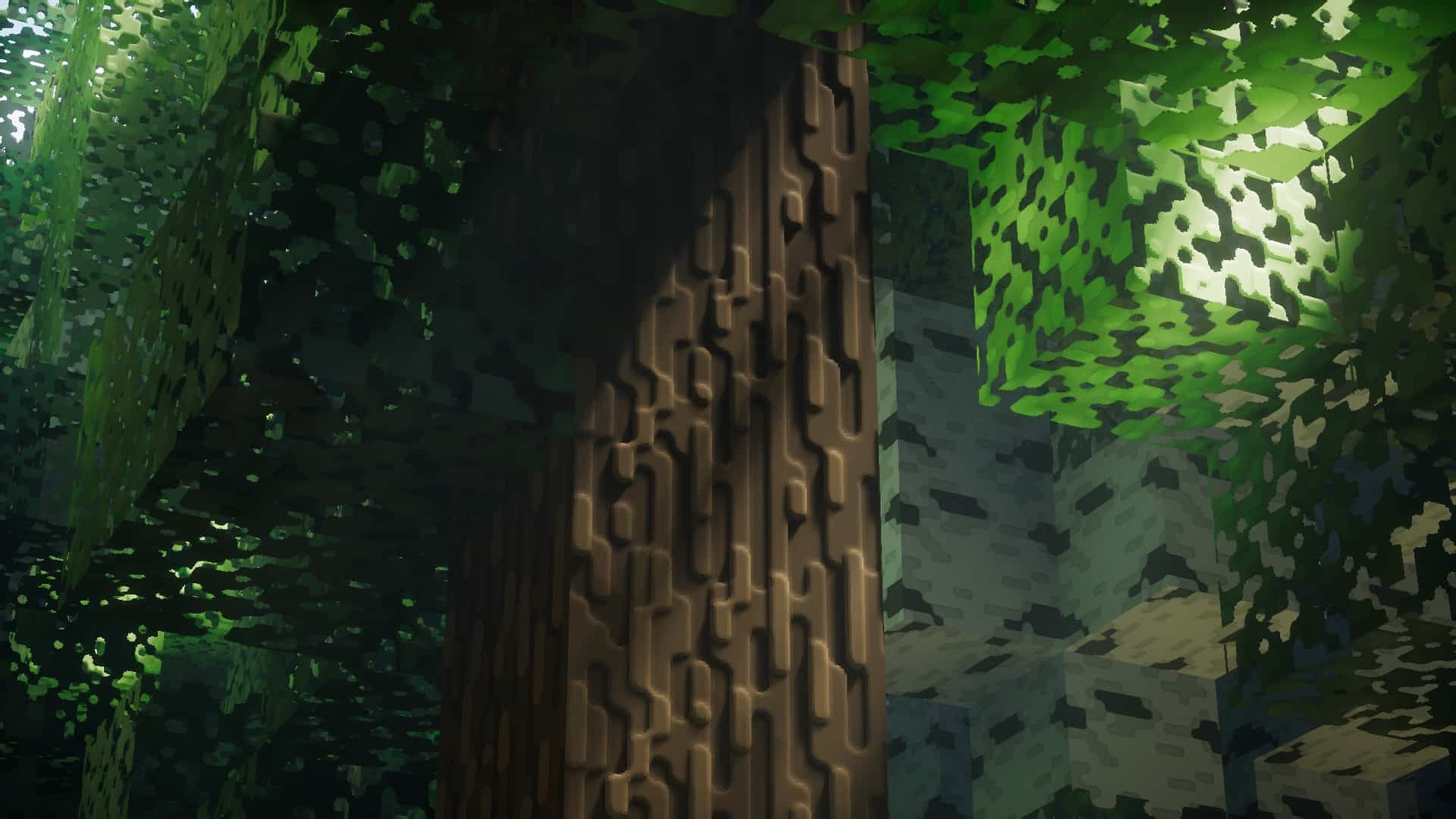
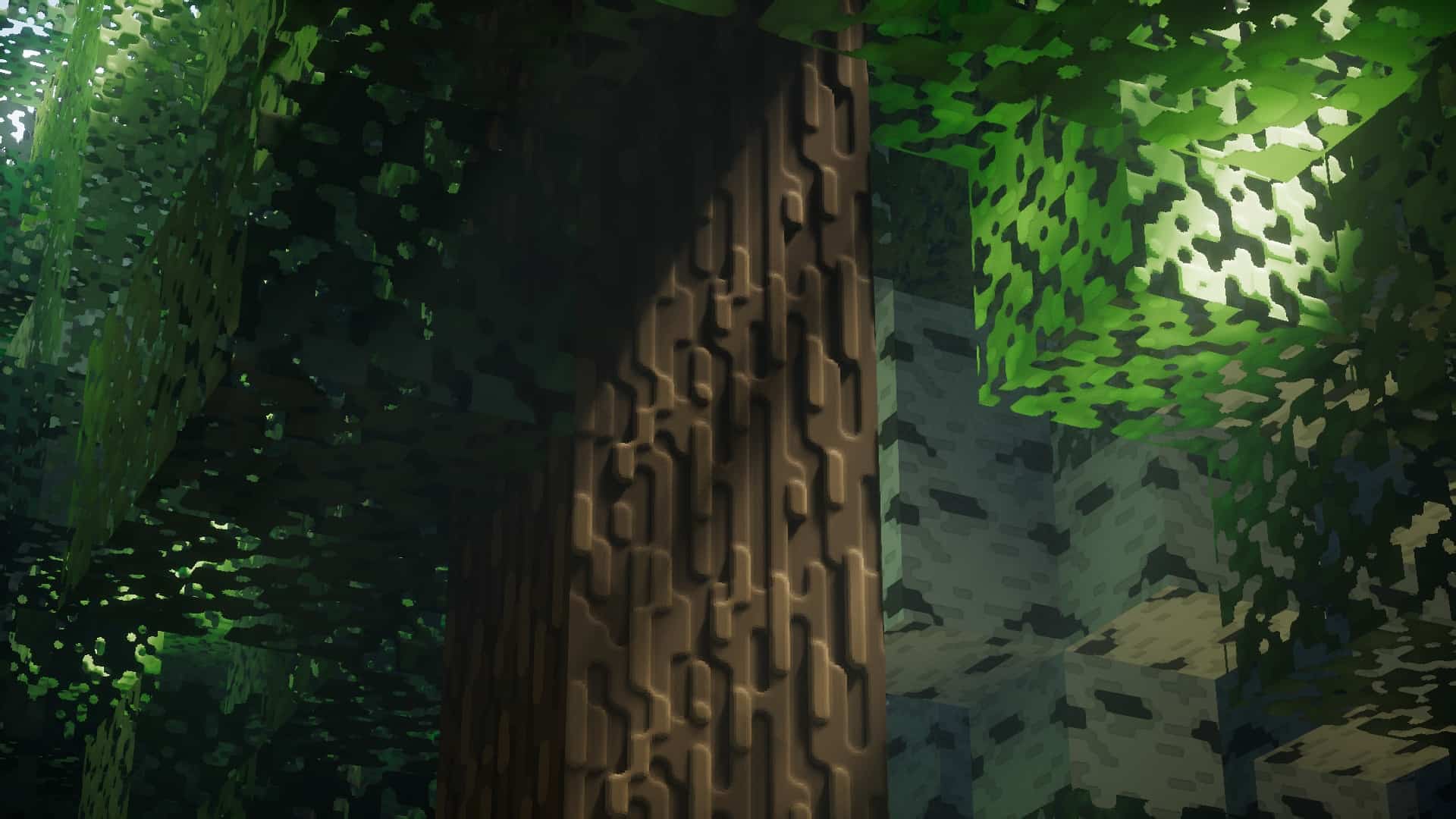
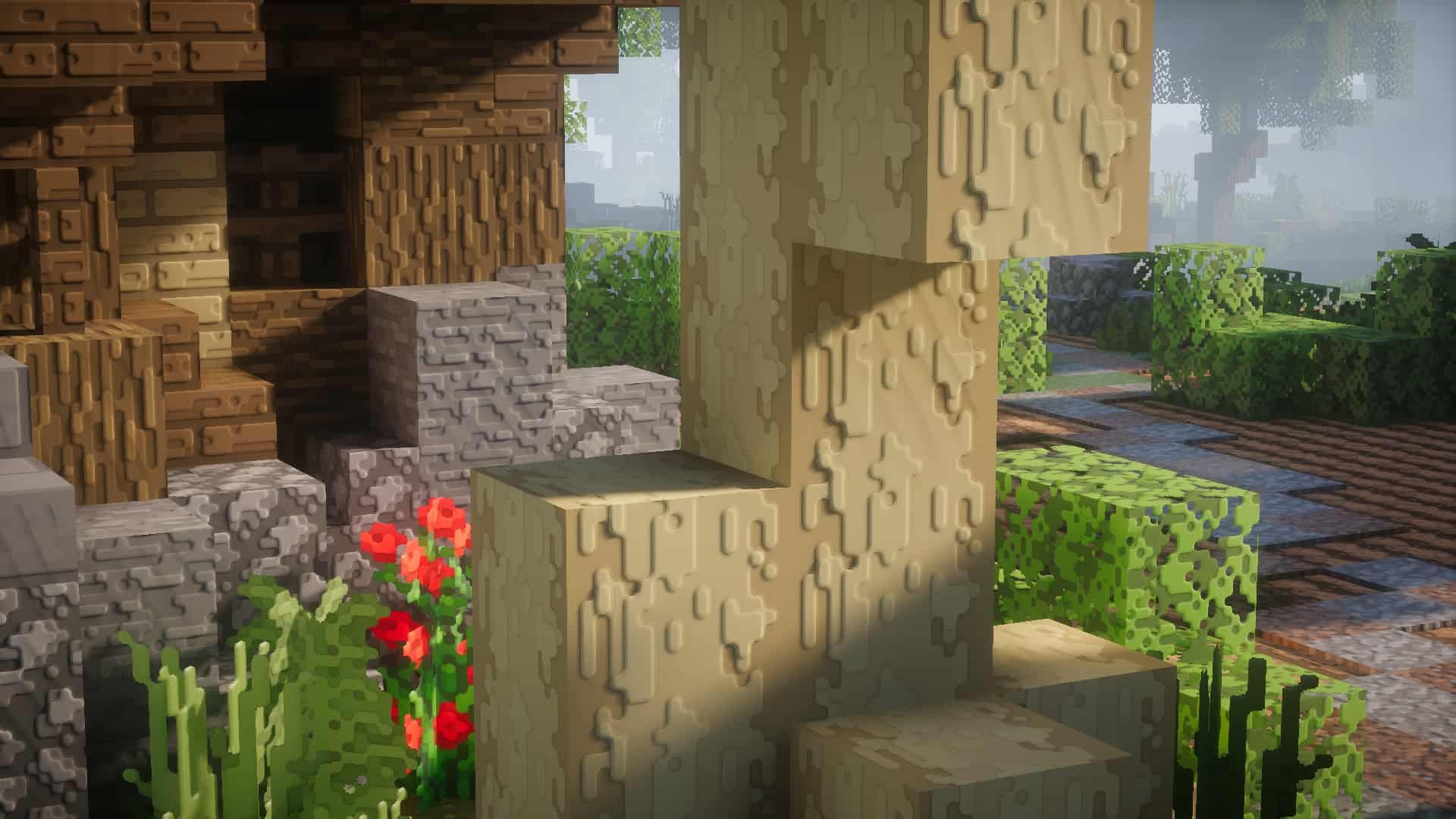
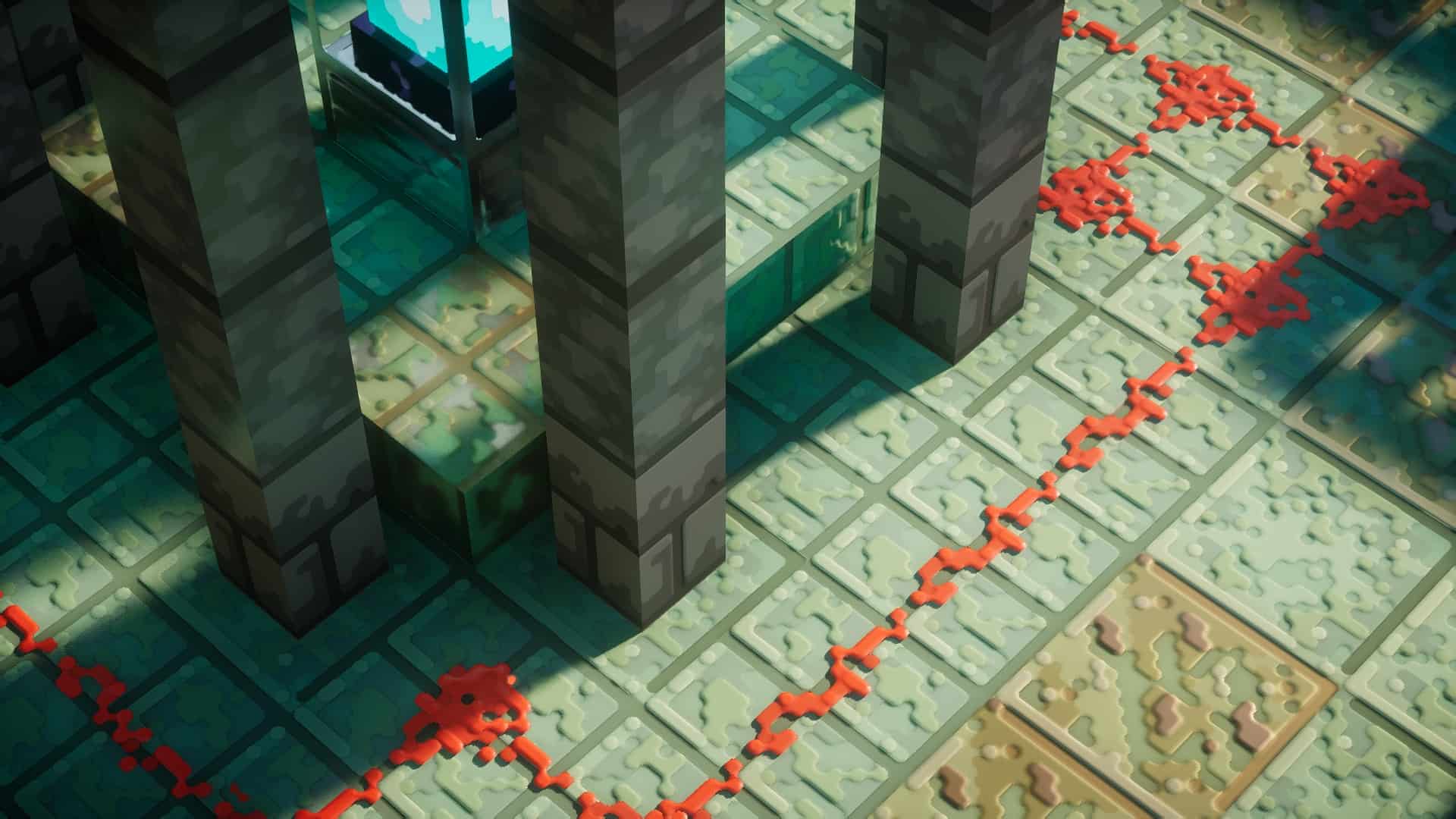
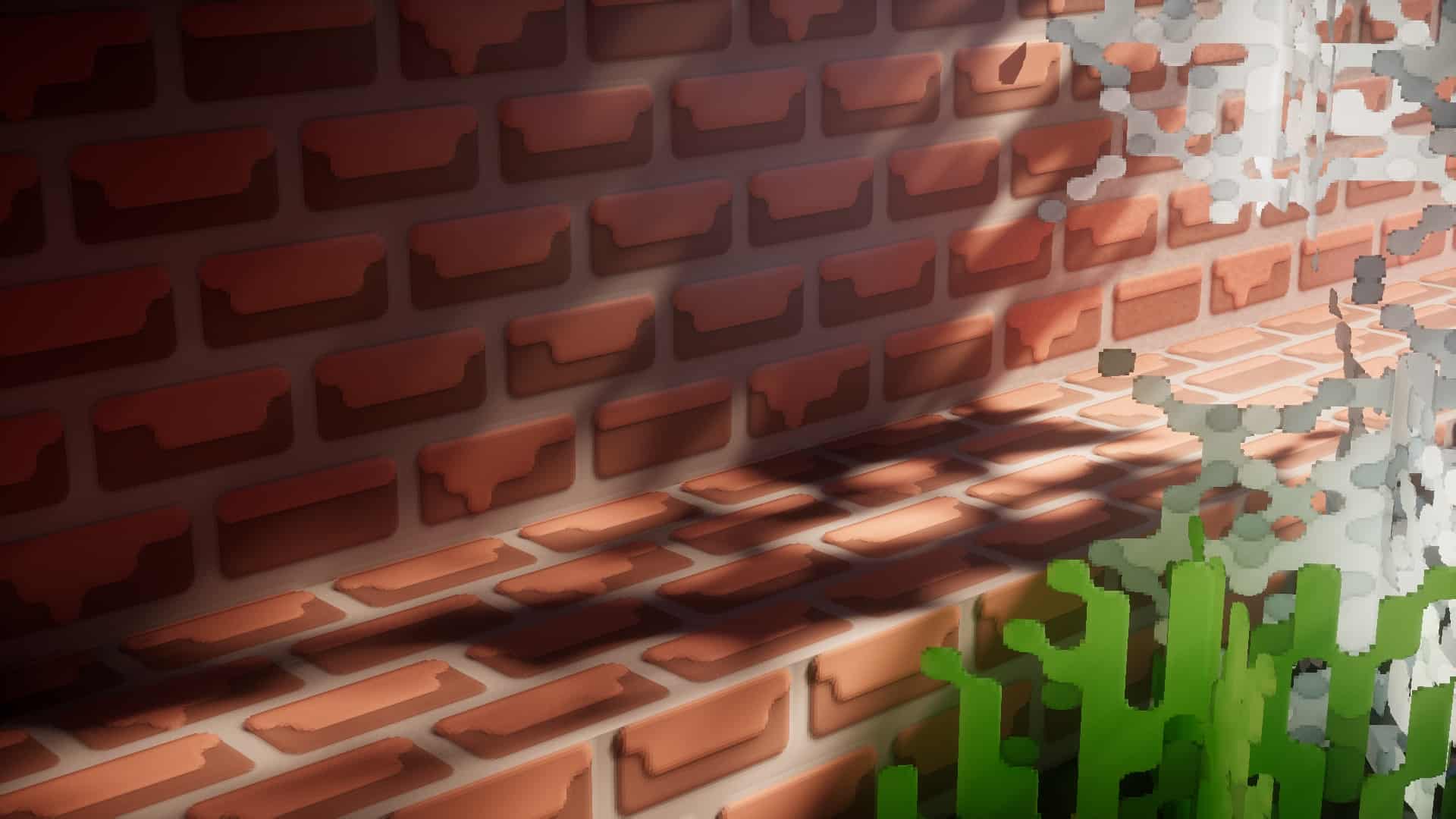
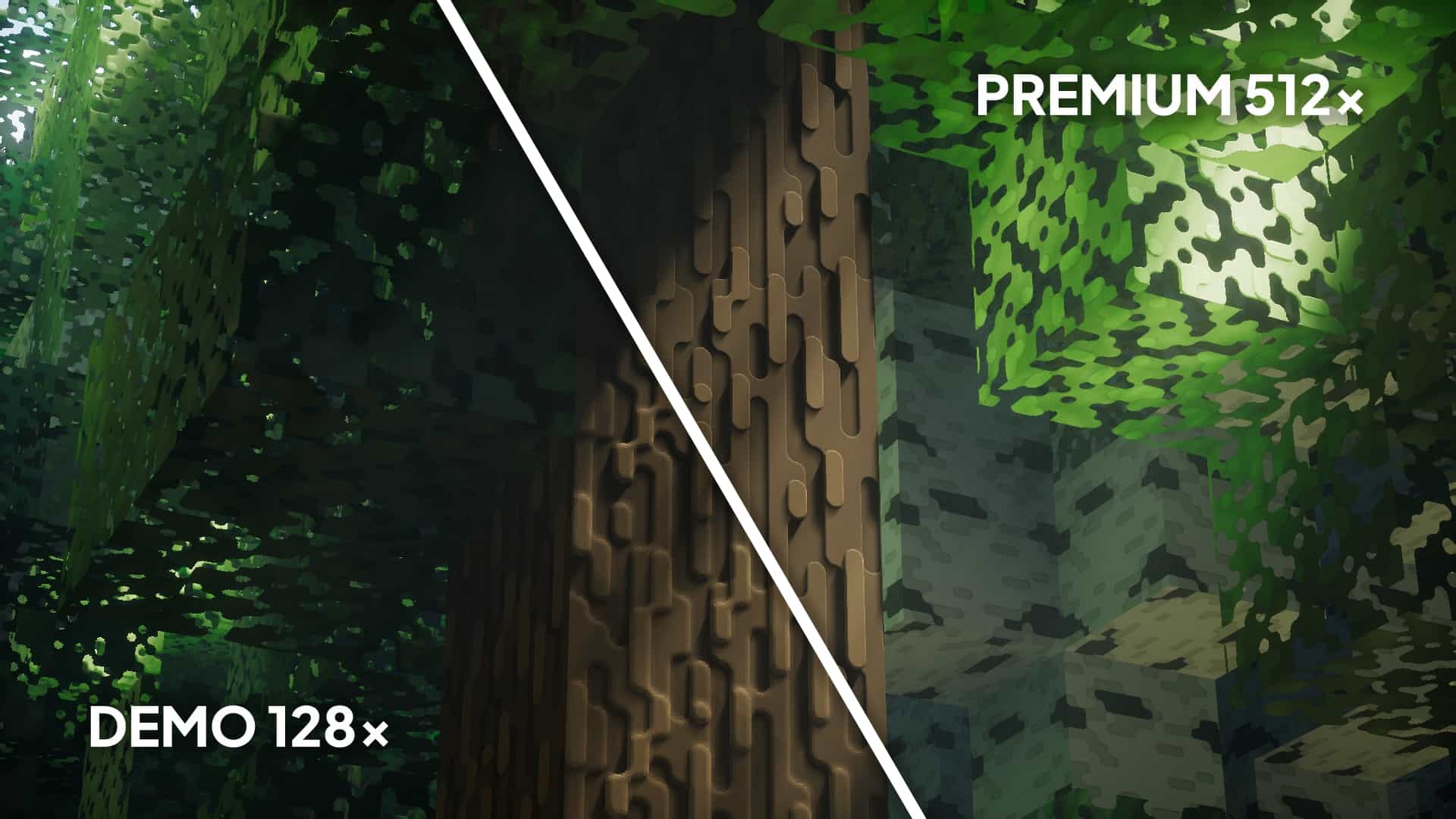
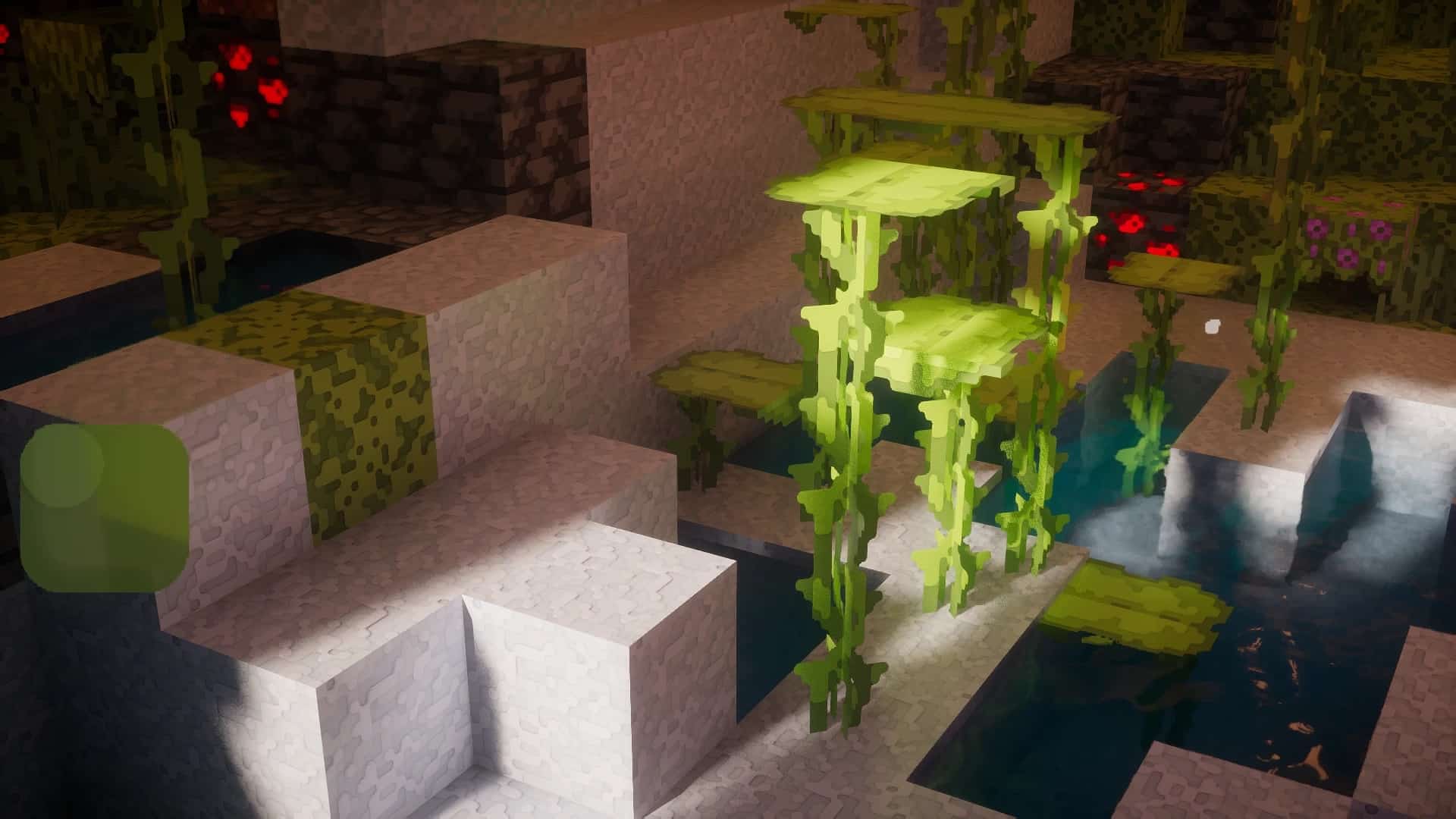
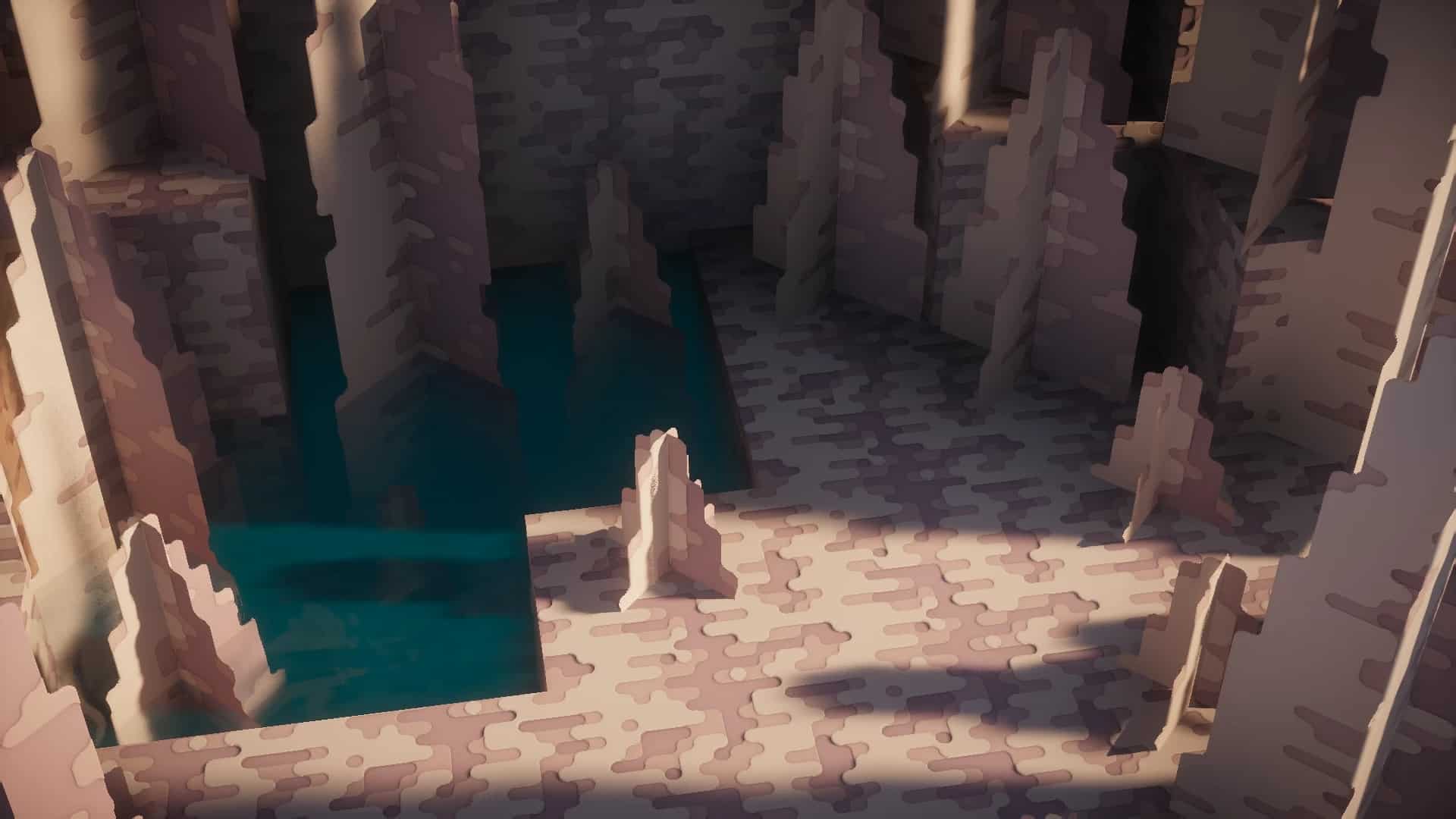
If you have ever wondered how Minecraft would look without those sharp, jagged edges and with AAA-tier game graphics, you are in for a treat because the Roundista resource pack gets amazingly close to that vision! Released in March of 2022, it is one of those wonderfully fresh packs that instantly caught the attention of the entire Minecraft community thanks to an ambitious style utilizing cutting-edge rendering techniques. The creator, Shivamzter, already brings plenty of solid experience to resource pack development, and honestly, Roundista is shaping up to be an absolute masterpiece and easily his most successful project yet. While there are countless HD packs out there, Roundista really stands out due to its specific compatibility with various shader packs. It was purposefully designed to comply with the LabPBR standard, letting resource pack developers encode precise information for every single texture to make the game look astonishingly life-like. When you first load into your world with Roundista turned on, you will immediately spot the incredible increased depth in literally every texture. This is achieved using Normal Maps, a clever computer graphics technique that simulates 3D objects, meaning you can actually see bumps, scratches, and grooves on blocks like oak logs, cobblestone, and bricks. While you will notice these lovely details out in nature biomes, they become even more breathtaking once you venture deep into mines and caves to explore. Another massive highlight is the lighting system, where full metal blocks like copper and iron boast a highly reflective, shiny finish, while other blocks feature their own distinct matte, glossy, or metallic looks. Roundista pulls this off beautifully with Specular Maps, Subsurface Scattering, and Porosity, meaning a single build can shift entirely depending on the lighting conditions.
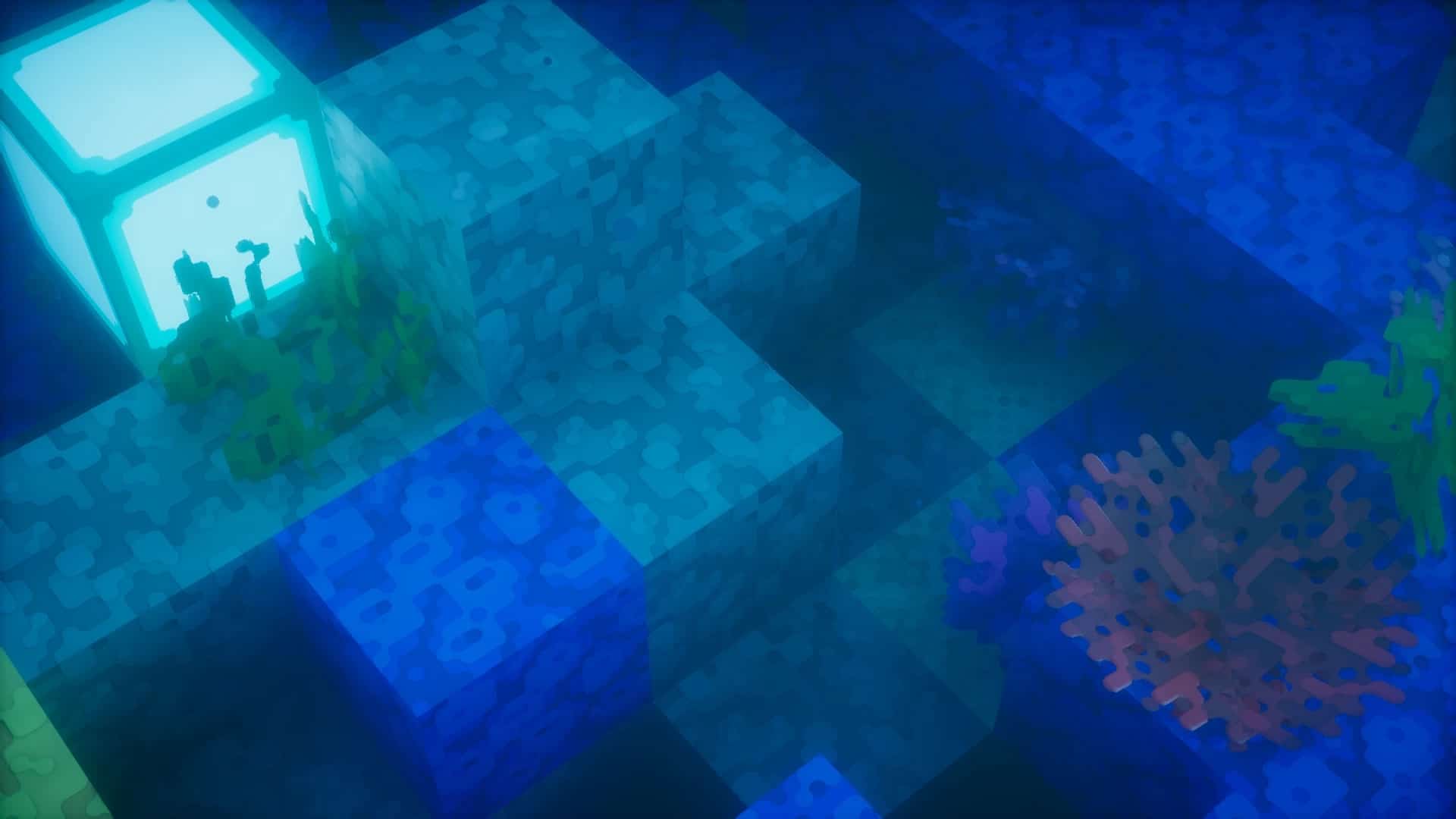
This gives you an insane amount of freedom for your creativity because just a single Glowstone block or torch can completely transform the vibe of your Minecraft home. Solid blocks are not the only things getting a massive glow-up either, as water has been completely reinvented with a stunning new ripple effect that you simply have to see to believe. The dynamic water reflections are gorgeous, making surrounding blocks look like they are about to sink right in, and even simple single-block water sources look realistic, making your farm look simply fantastic once you put the pack to use. Even with all these amazing features, keep in mind that Roundista is still a work in progress and sits at roughly 50% completion. This means certain blocks won’t display these enhancements just yet, but updates drop on a regular weekly basis to keep things fresh. Right now, the pack is available for Minecraft Java with built-in support for Optifine and Iris, and it comes in three resolutions: 128x, 256x, and 512x, though only the lowest one is offered for free as a demo. The higher-resolution versions require a one-time fee or subscription, which also grants access to older resource packs, premium add-ons, and Discord perks. Performance-wise, you will definitely want a high-end PC to make Roundista truly shine, and the developer strongly recommends LabPBR-compliant shaders to get the absolute most out of it. Without shaders, the textures are nice, but the 3D terrain depth relies heavily on lighting processing, so make sure you follow the installation steps closely to avoid any hiccups. All things considered, this is hands down one of the most promising resource packs available today, often outshining fully finished projects, and I genuinely recommend giving it a shot if you have a modern rig!
Roundista should be compatible with all of these Minecraft versions: 26.2 – 26.1.2 – 26.1.1 – 26.1 – 1.21.11 – 1.21.10 – 1.21.9 – 1.21.8 – 1.21.7 – 1.21.6 – 1.21.5 – 1.21.4 – 1.21.3 – 1.21.2 – 1.21.1 – 1.21 – 1.20.6 – 1.20.5 – 1.20.4 – 1.20.3 – 1.20.2 – 1.20.1 – 1.20 – 1.19.4 – 1.19.3 – 1.19.2 – 1.19.1 – 1.19 – 1.18.2 – 1.18.1 – 1.18 – 1.17.1 – 1.17 – 1.16.5 – 1.16.4 – 1.16.3 – 1.16.2 – 1.16.1 – 1.16 – Bedrock Edition – PE
Screenshots
How to Install Texture Pack (Simple 10 Steps)
- Download OptiFine: Most of the texture packs and shaders need OptiFine. That’s why, first download and install OptiFine for the version of Minecraft you want to play.
- Download the Texture Pack: Get the texture pack you want from the download section. Choose the version that works with your Minecraft and your PC’s performance.
- Open Minecraft Launcher: Start Minecraft using the official game launcher — or even TLauncher, if you use that.
- Go to Options: From the main menu, click on the “Options” button.
- Open Resource Packs: Inside Options, click on “Resource Packs…”.
- Open the Resource Pack Folder: Click on “Open Resource Pack Folder” — this will open a folder named “resourcepacks”.
- Move the Pack File: Copy or move the .zip file you downloaded into that “resourcepacks” folder. (Don’t unzip the file — Minecraft uses it as-is!)
- Go Back and Refresh: Close the folder and click “Done”, then go back into “Resource Packs…” again.
- Activate the Pack: You’ll see the pack on the left side. Hover over it and click the arrow to move it to the right (active side).
Tip: If you get a message that the pack is for a different version, just click “Yes” — it usually works fine. - Click Done and Enjoy: Click “Done” again. Now your pack is ready to use in-game. It’s that easy!
Credits
This resource pack was created by Shivamzter. All rights and original ownership belong entirely to the original author. We do not claim ownership of this content and do not modify the original files. We encourage you to support the creator by visiting their official pages and checking out their premium offerings.
Download Links
Java Edition
- [128x] Minecraft 26.2.x – 1.16.x Java Edition
- [256x] Minecraft 26.2.x – 1.16.x Java Edition
- [512x] Minecraft 26.2.x – 1.16.x Java Edition
Bedrock Edition
Download Instructions
Curseforge: download starts automatically after a few seconds;
Mediafire: click the big blue button with the text “DOWNLOAD”;
Google Drive: in the top right corner you will see a small download icon (down arrow), click it and the download should start;


