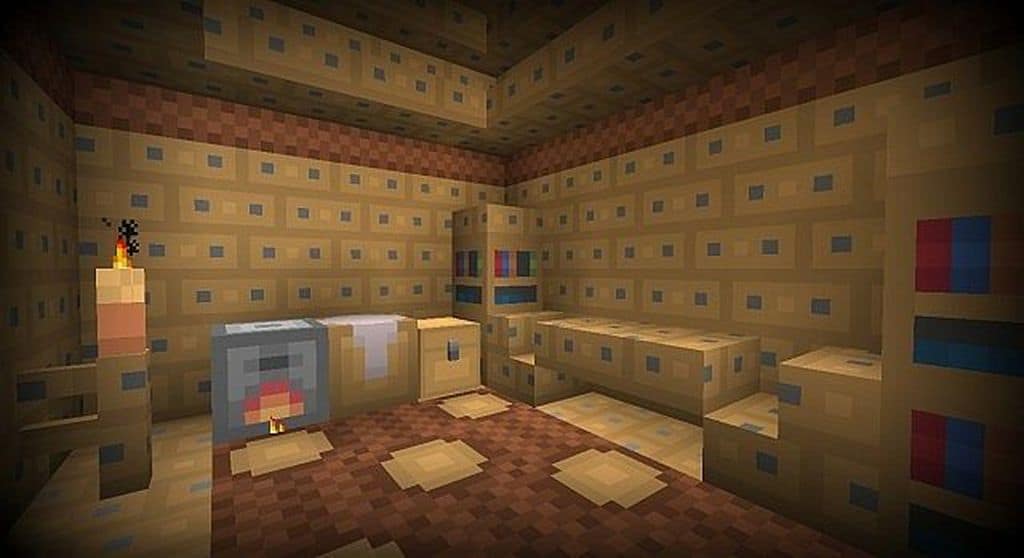
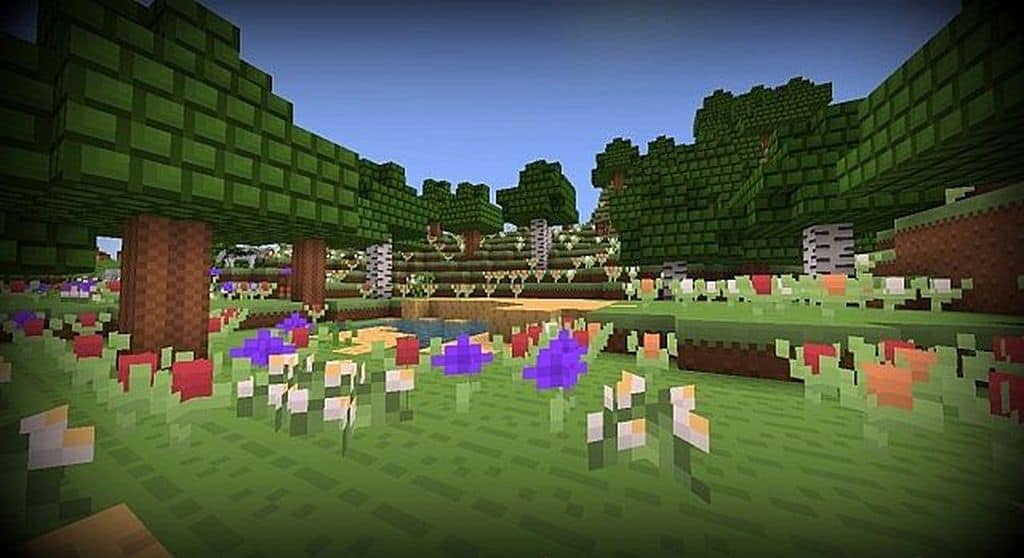
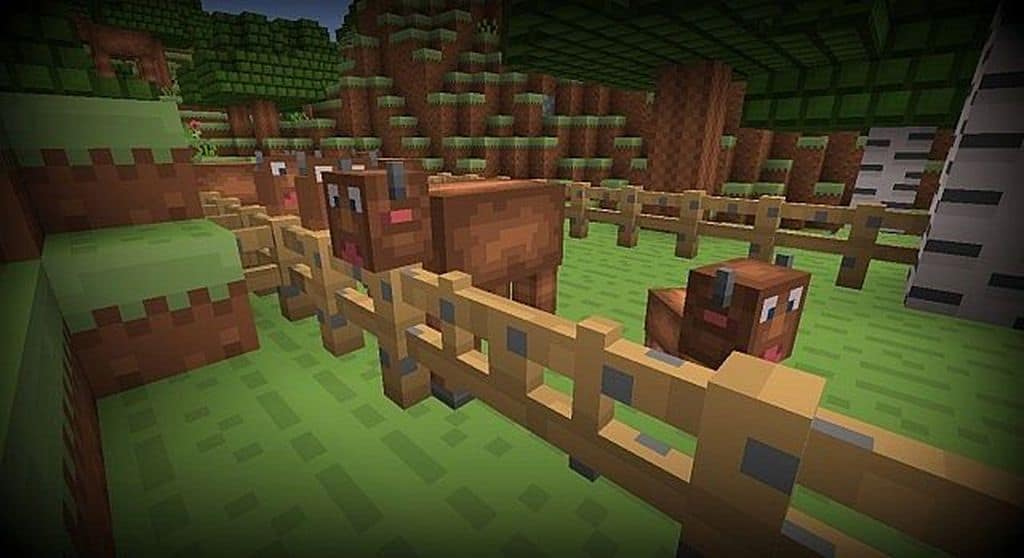
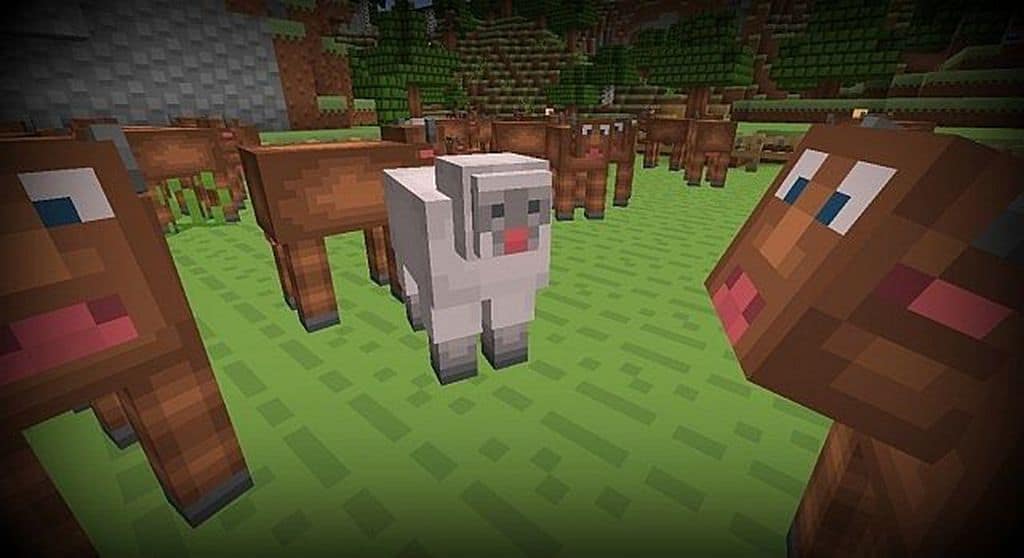
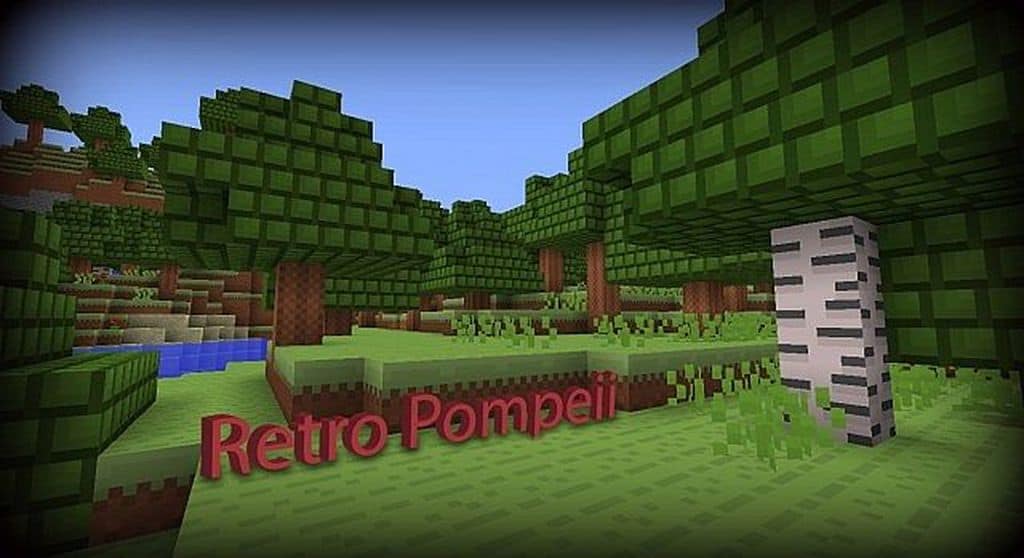
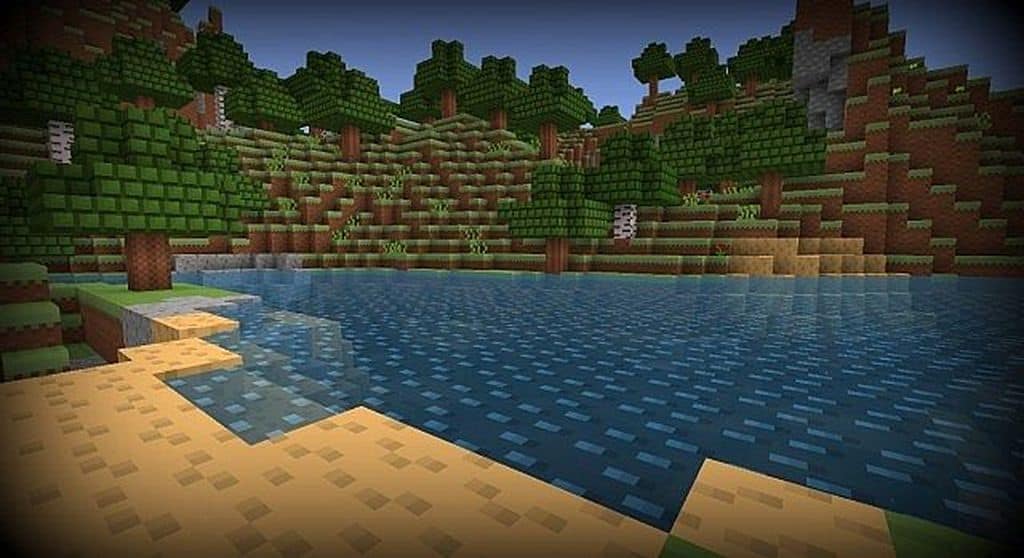
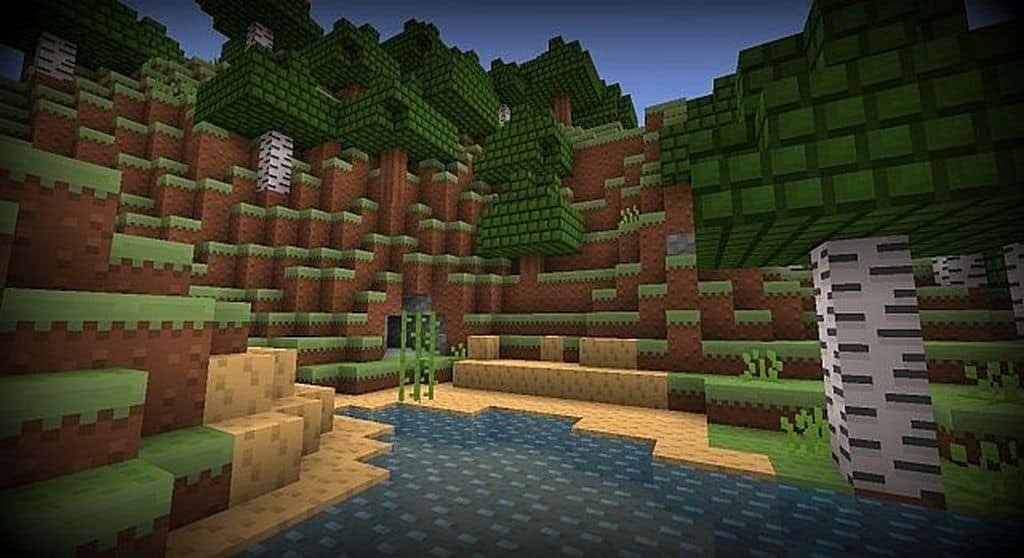
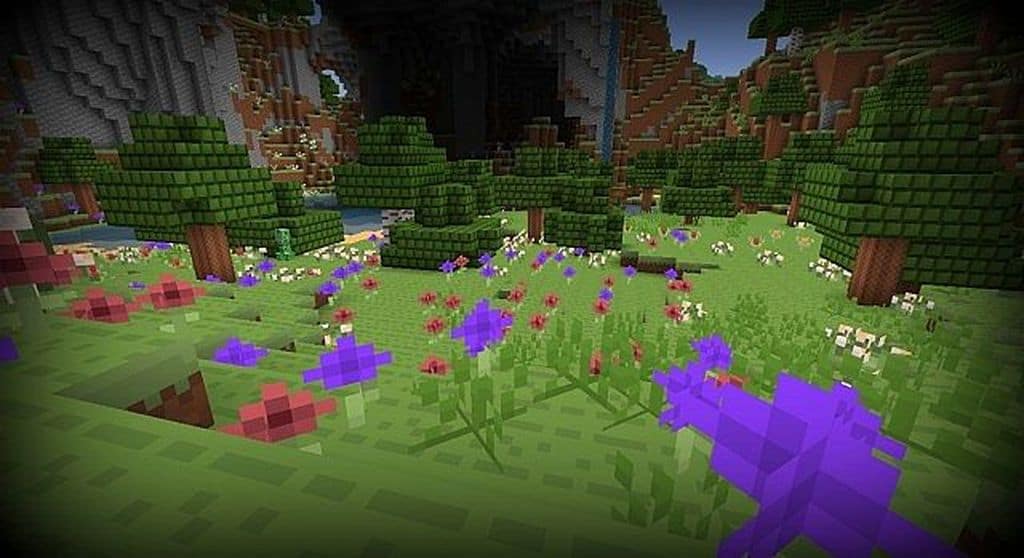
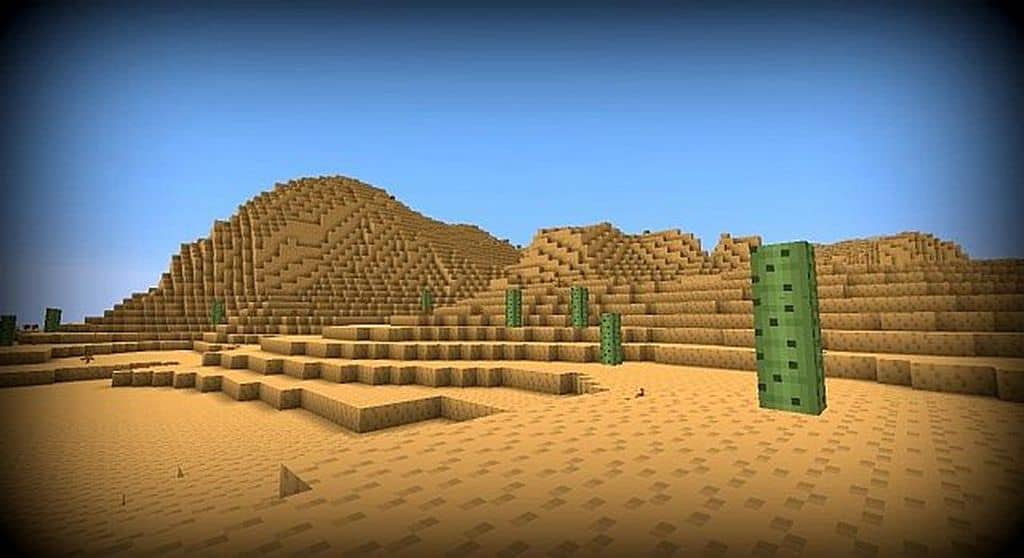
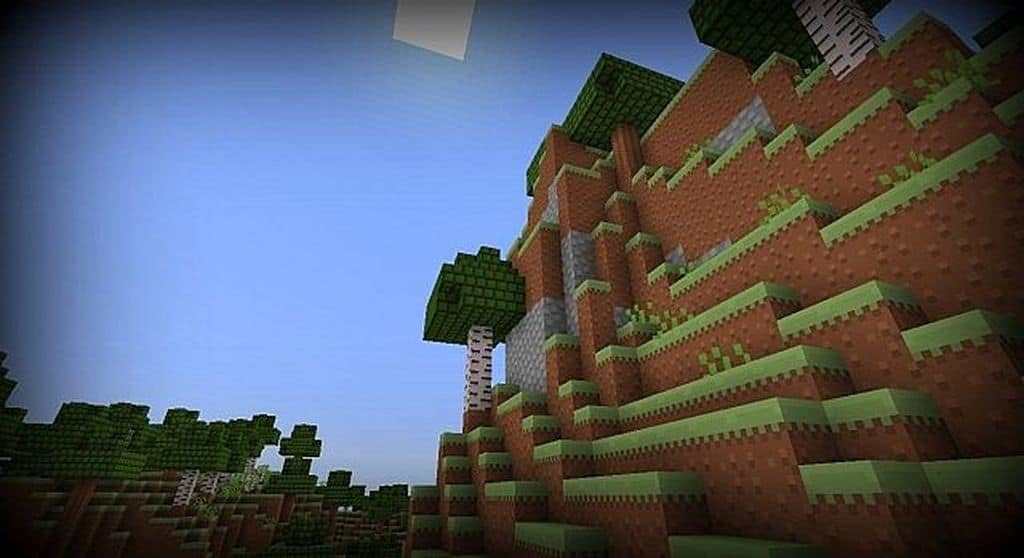
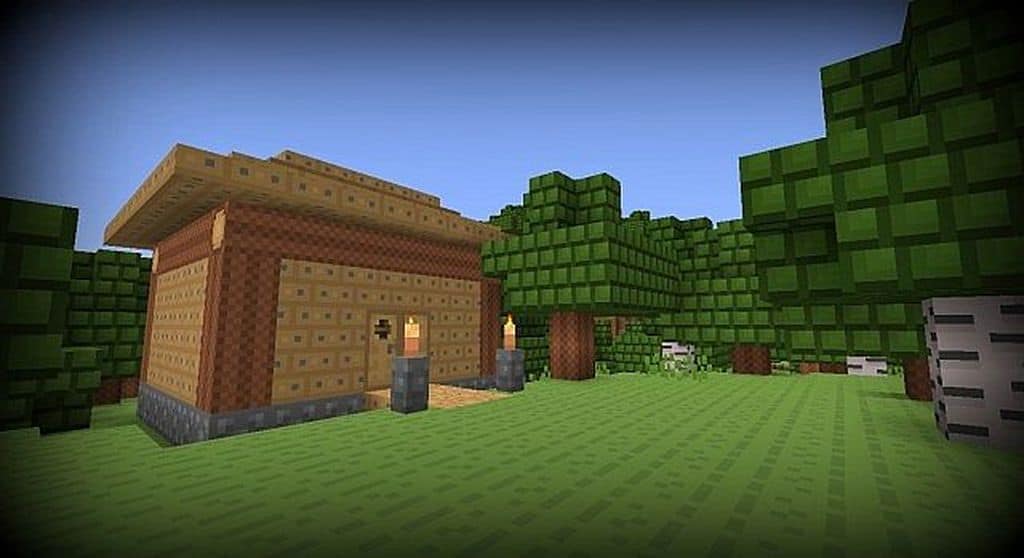
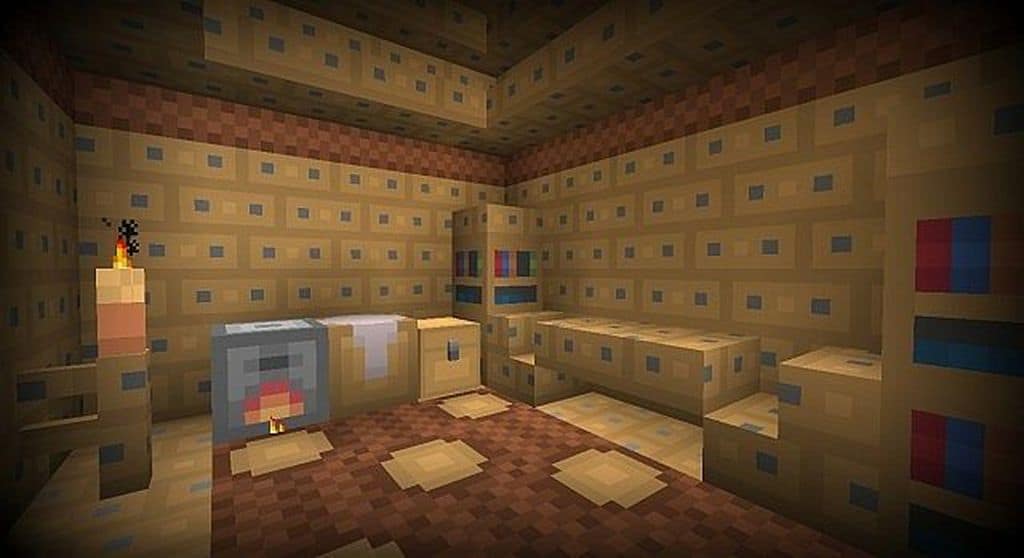
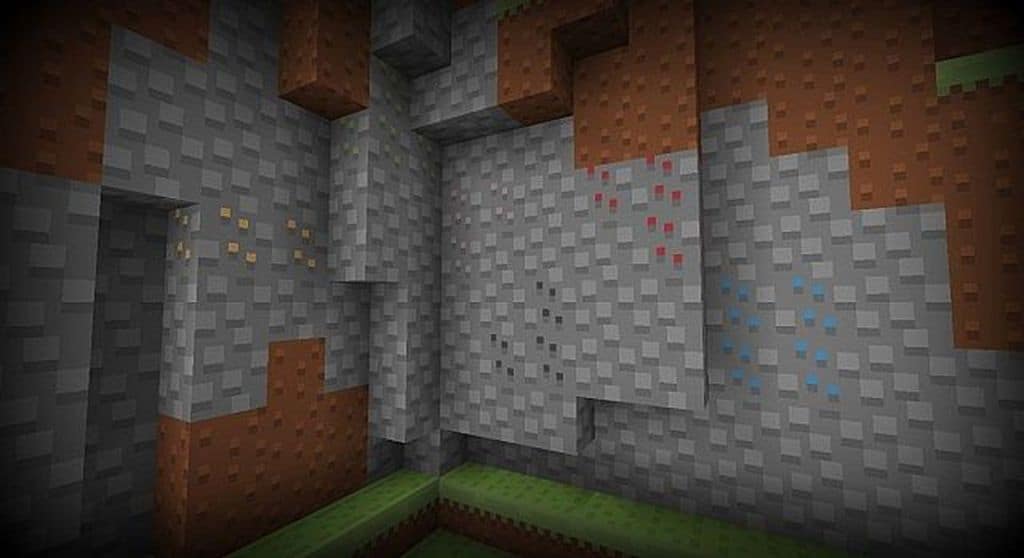
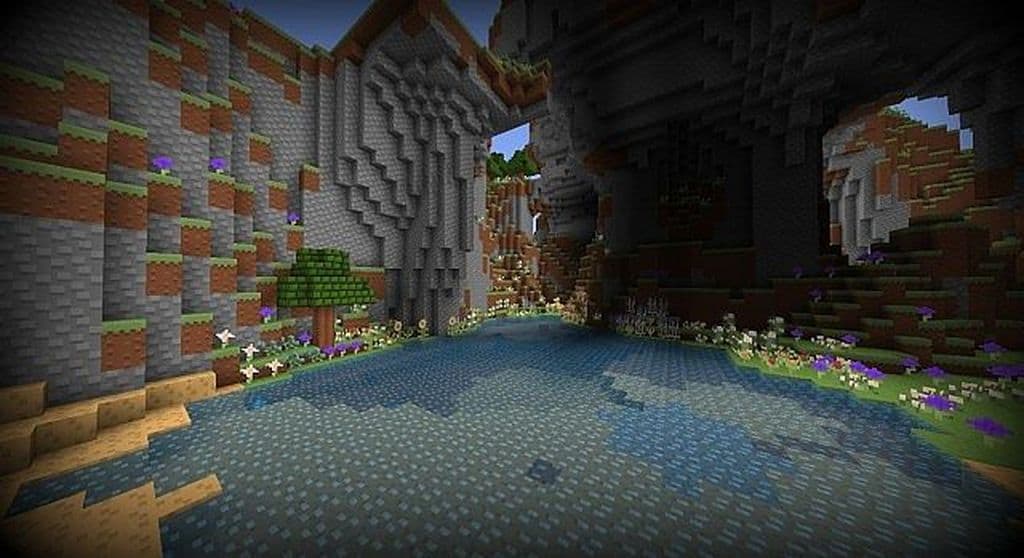
While most resource packs attempt to increase texture resolutions to deliver better visuals, I found that the Retro Pompeii resource pack uses a genuinely refreshing approach. It reduces the texture resolution to 8×8 from the default 16×16, and honestly, it completely surprised me because it does not make the game feel any more blocky than vanilla Minecraft, even though the level of detail on each individual texture has been thoughtfully reduced. Through a clever use of colors and completely redesigned textures, this resource pack offers an incredible new experience for purists who are looking for something that took deep inspiration from the ancient city of Pompeii. To make it genuinely possible to build worlds and structures that faithfully resemble the architecture of the old Roman Empire cities, many textures were fundamentally changed. The Retro Pompeii texture pack does not just blindly downscale the resolution of textures, as I noticed that some of them were entirely remade from the ground up.
Blocks that used to have just one solid color as a texture now boast significantly more detail, which I really appreciated during my building sessions. There are brand new colors introduced for existing blocks alongside entirely new blocks, which is clearly visible in the sheer variety of rock and brick blocks that you can use to construct stunning structures. The textures that were not altered too much still had their colors carefully tweaked, offering a much wider palette to help build vibrant structures and worlds. I instantly noticed new textures for grass, trees, leaves, flowers, water, decorative elements, and so much more. Retro Pompeii also injects a few new items into the game such as paper, potatoes, poisonous potatoes, primaries crystals, pumpkin pie, cooked and raw pork chops, and plenty of others. Because it is an 8x resolution texture pack, Retro Pompeii also makes Minecraft noticeably less resource demanding, meaning the game runs extremely smoothly with it installed, and having those stable, high framerates also makes it wonderfully PVP friendly.
Retro Pompeii should be compatible with all of these Minecraft versions: 1.8.9 – 1.8.8 – 1.8.1 – 1.8.6 – 1.8 – 1.7.10 – 1.7.9 – 1.7.4 – 1.7
Screenshots
How to Install Texture Pack (Simple 10 Steps)
- Download OptiFine: Most of the texture packs and shaders need OptiFine. That’s why, first download and install OptiFine for the version of Minecraft you want to play.
- Download the Texture Pack: Get the texture pack you want from the download section. Choose the version that works with your Minecraft and your PC’s performance.
- Open Minecraft Launcher: Start Minecraft using the official game launcher — or even TLauncher, if you use that.
- Go to Options: From the main menu, click on the “Options” button.
- Open Resource Packs: Inside Options, click on “Resource Packs…”.
- Open the Resource Pack Folder: Click on “Open Resource Pack Folder” — this will open a folder named “resourcepacks”.
- Move the Pack File: Copy or move the .zip file you downloaded into that “resourcepacks” folder. (Don’t unzip the file — Minecraft uses it as-is!)
- Go Back and Refresh: Close the folder and click “Done”, then go back into “Resource Packs…” again.
- Activate the Pack: You’ll see the pack on the left side. Hover over it and click the arrow to move it to the right (active side).
Tip: If you get a message that the pack is for a different version, just click “Yes” — it usually works fine. - Click Done and Enjoy: Click “Done” again. Now your pack is ready to use in-game. It’s that easy!
Credits
This project was originally created by Zitzabis. We do not claim ownership of this content, nor have we modified the original files. All rights remain with the original creator, and we strongly encourage you to support their work through official channels.
Download Instructions
Curseforge: download starts automatically after a few seconds;
Mediafire: click the big blue button with the text “DOWNLOAD”;
Google Drive: in the top right corner you will see a small download icon (down arrow), click it and the download should start;


