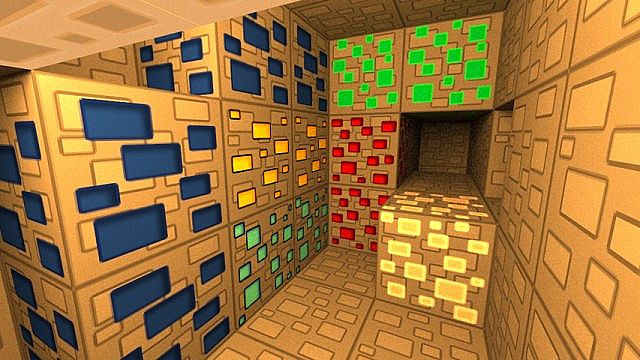
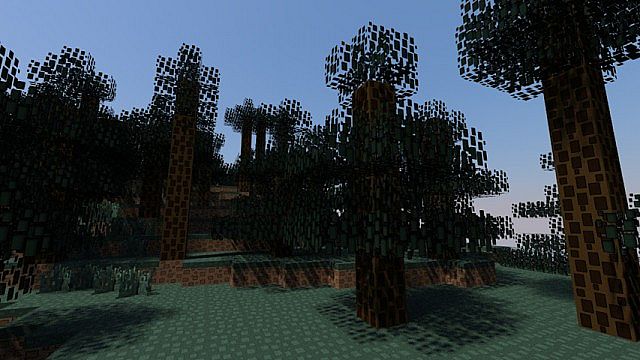
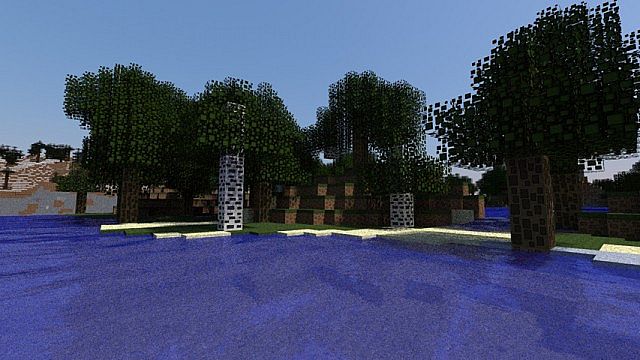
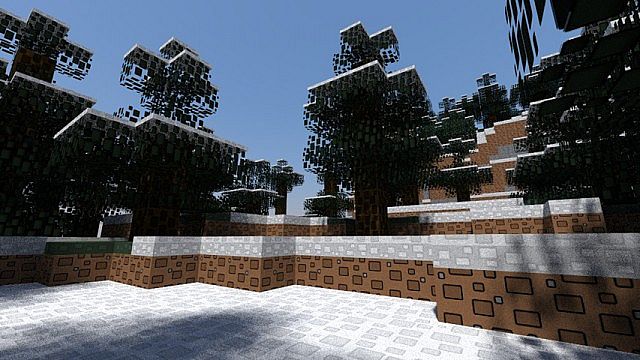
If you are looking for a unique visual overhaul, the Rectangular Resource Pack delivers a brilliant tile-based aesthetic that completely transforms your worlds. It adds small rectangular chips across every side of most blocks, creating a distinct look built from tiles and cutouts while keeping colors flat and outlines bold. You will notice the theme immediately on the blocks you break and place constantly.
Dirt features a warm brown base with darker outlined rectangles, while grass combines this pattern with a bright green band on top so every block edge stands out clearly during gameplay. Bedrock transforms into a dark slate tile made of larger rectangular plates with subtle tone variations for added depth. Everything shares one cohesive visual language.
Performance is surprisingly manageable. Operating at 64x resolution, it uses more memory than vanilla 16x but remains lighter than dense photo-realistic packs because it avoids heavy texture noise. If your hardware struggles, simply lower your view distance and disable heavy shaders for a smooth experience.
Rectangular Pack should be compatible with all of these Minecraft versions: 1.8.9 – 1.8.8 – 1.8.1 – 1.8.6 – 1.8 – 1.7.10 – 1.7.9 – 1.7.4 – 1.7 – 1.6.4 – 1.6.2
Screenshots
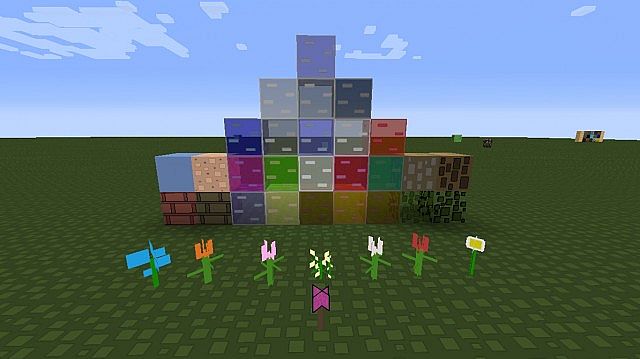
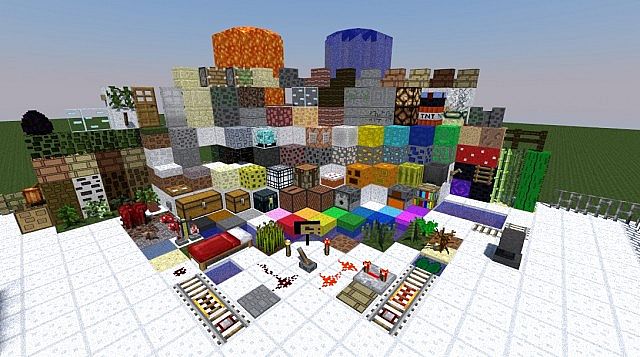
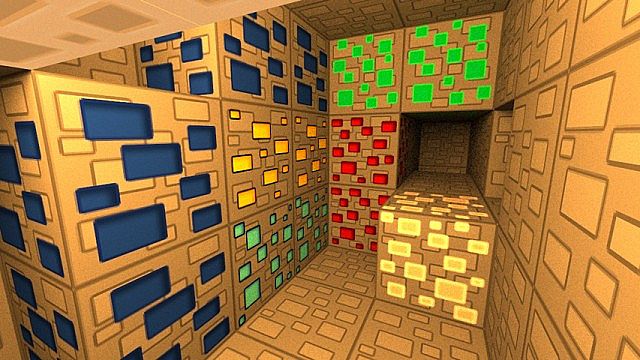
How to Install Texture Pack (Simple 10 Steps)
- Download OptiFine: Most of the texture packs and shaders need OptiFine. That’s why, first download and install OptiFine for the version of Minecraft you want to play.
- Download the Texture Pack: Get the texture pack you want from the download section. Choose the version that works with your Minecraft and your PC’s performance.
- Open Minecraft Launcher: Start Minecraft using the official game launcher — or even TLauncher, if you use that.
- Go to Options: From the main menu, click on the “Options” button.
- Open Resource Packs: Inside Options, click on “Resource Packs…”.
- Open the Resource Pack Folder: Click on “Open Resource Pack Folder” — this will open a folder named “resourcepacks”.
- Move the Pack File: Copy or move the .zip file you downloaded into that “resourcepacks” folder. (Don’t unzip the file — Minecraft uses it as-is!)
- Go Back and Refresh: Close the folder and click “Done”, then go back into “Resource Packs…” again.
- Activate the Pack: You’ll see the pack on the left side. Hover over it and click the arrow to move it to the right (active side).
Tip: If you get a message that the pack is for a different version, just click “Yes” — it usually works fine. - Click Done and Enjoy: Click “Done” again. Now your pack is ready to use in-game. It’s that easy!
Credits
Created by Nicky_Troll 123. All rights belong to the original creator. We do not own or modify this file. Please support the creator by using their official download links.
Download Instructions
Curseforge: download starts automatically after a few seconds;
Mediafire: click the big blue button with the text “DOWNLOAD”;
Google Drive: in the top right corner you will see a small download icon (down arrow), click it and the download should start;


