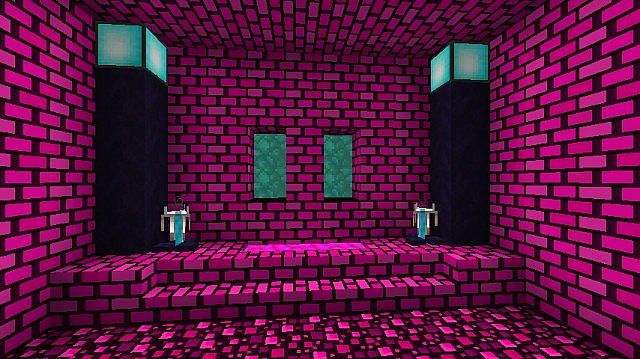
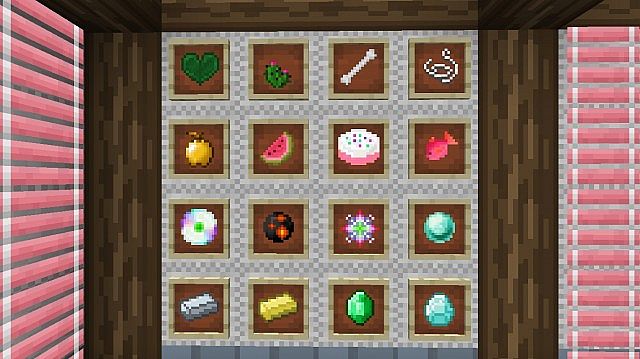
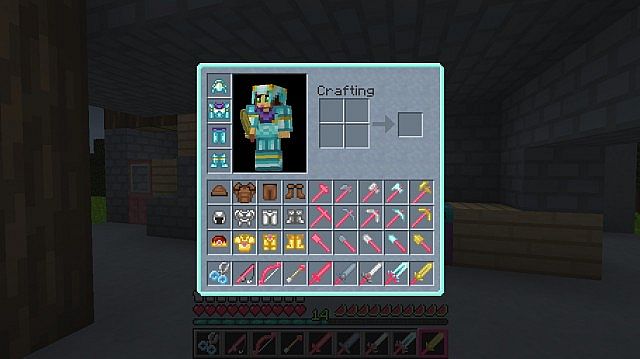
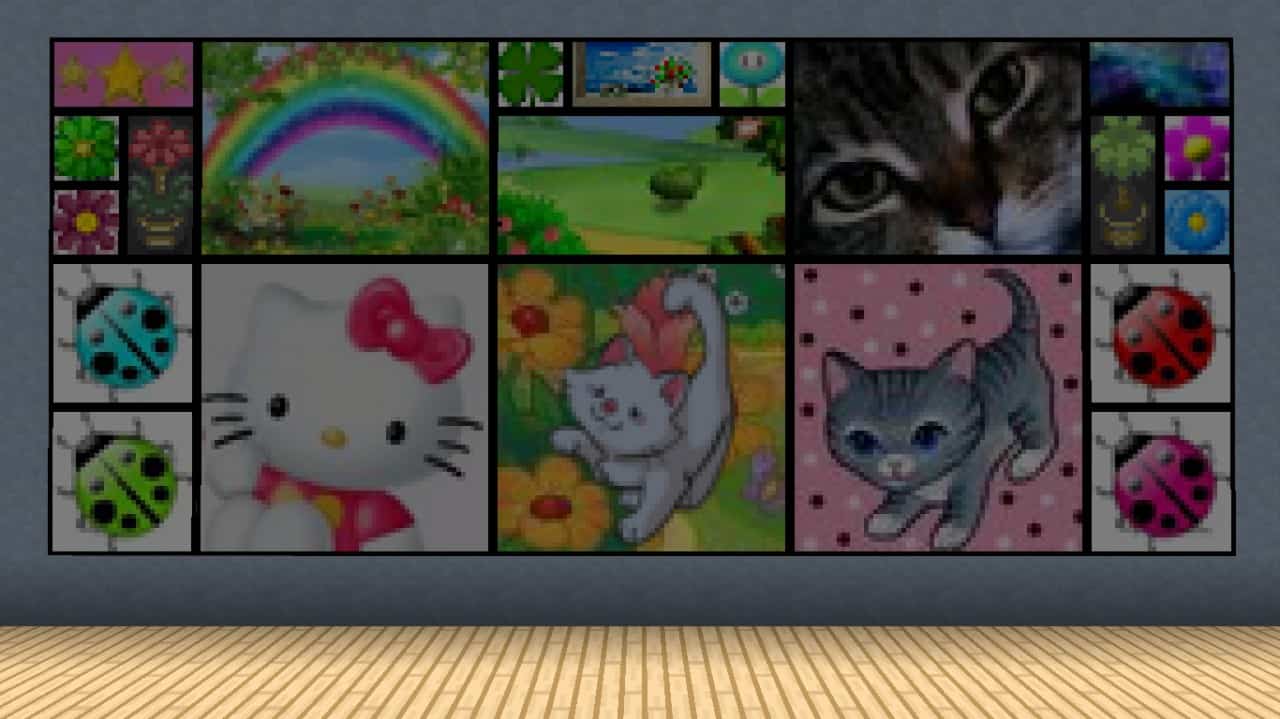
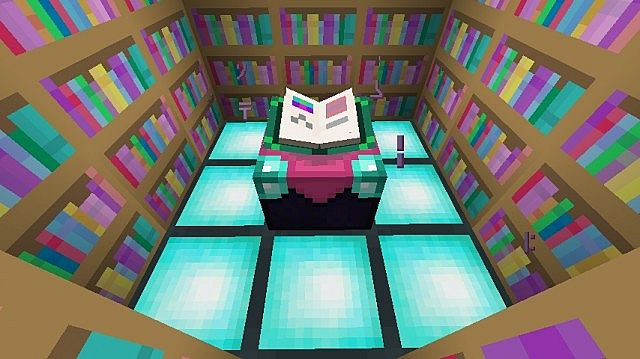
Qtpie’s Cheerful resource pack brings an absolutely refreshing and lively twist to Minecraft, completely transforming your game into a vibrant and whimsical experience that you will adore. Brought to life through the collaborative efforts of Mythra13 and his wife, this pack truly excels at delivering a joyful and visually captivating environment to explore. While Mythra13 expertly handles the technical aspects behind the scenes, his wife plays a vital role in shaping the pack’s uniquely charming design. Their shared vision for this delightful 16×16 texture pack emerged from a mutual desire to craft a fun and engaging aesthetic that constantly radiates positivity. One of the most distinctive aspects of Qtpie’s Cheerful Pack is its wonderful reliance on pink tones, which brilliantly helps establish a friendly and enchanting atmosphere all around you.
The textures are purposefully designed to be wonderfully bright and cheerful, featuring a fantastic cartoon-like style that happily breaks away from Minecraft’s typical appearance. This imaginative approach perfectly caters to players like us who enjoy a much more playful and lighthearted visual experience within the game. Ever since its debut on September 8, 2011, Qtpie’s Cheerful Pack has continuously evolved to remain fully compatible with newer Minecraft versions while significantly enhancing its features. The most recent update, released on April 19, 2018, introduced amazing improvements to file names, textures, graphical user interfaces, shulkers, horses, and beds, providing a much more refined and modern experience overall. Designed with great accessibility in mind, the classic 16×16 resolution ensures smooth performance across various devices, making it wonderfully suitable for a broad audience. To achieve the absolute best visual results, the creators strongly recommend using OptiFine, which really helps optimize the pack’s overall appearance and performance.
Qtpie’s Cheerful Pack should be compatible with all of these Minecraft versions: 1.12.2 – 1.12 – 1.11.2 – 1.11 – 1.10.2 – 1.10 – 1.9.4 – 1.9 – 1.8.9 – 1.8.8 – 1.8.1 – 1.8.6 – 1.8
Screenshots



How to Install Texture Pack (Simple 10 Steps)
- Download OptiFine: Most of the texture packs and shaders need OptiFine. That’s why, first download and install OptiFine for the version of Minecraft you want to play.
- Download the Texture Pack: Get the texture pack you want from the download section. Choose the version that works with your Minecraft and your PC’s performance.
- Open Minecraft Launcher: Start Minecraft using the official game launcher — or even TLauncher, if you use that.
- Go to Options: From the main menu, click on the “Options” button.
- Open Resource Packs: Inside Options, click on “Resource Packs…”.
- Open the Resource Pack Folder: Click on “Open Resource Pack Folder” — this will open a folder named “resourcepacks”.
- Move the Pack File: Copy or move the .zip file you downloaded into that “resourcepacks” folder. (Don’t unzip the file — Minecraft uses it as-is!)
- Go Back and Refresh: Close the folder and click “Done”, then go back into “Resource Packs…” again.
- Activate the Pack: You’ll see the pack on the left side. Hover over it and click the arrow to move it to the right (active side).
Tip: If you get a message that the pack is for a different version, just click “Yes” — it usually works fine. - Click Done and Enjoy: Click “Done” again. Now your pack is ready to use in-game. It’s that easy!
Credits
This Resource Pack was originally created by Mythra13 & Qtpie. We do not claim ownership of this content, nor have we modified the files. All rights and credits belong to the original creators. We encourage you to support them through their official download links.
Download Links
Java Edition
Download Instructions
Curseforge: download starts automatically after a few seconds;
Mediafire: click the big blue button with the text “DOWNLOAD”;
Google Drive: in the top right corner you will see a small download icon (down arrow), click it and the download should start;


