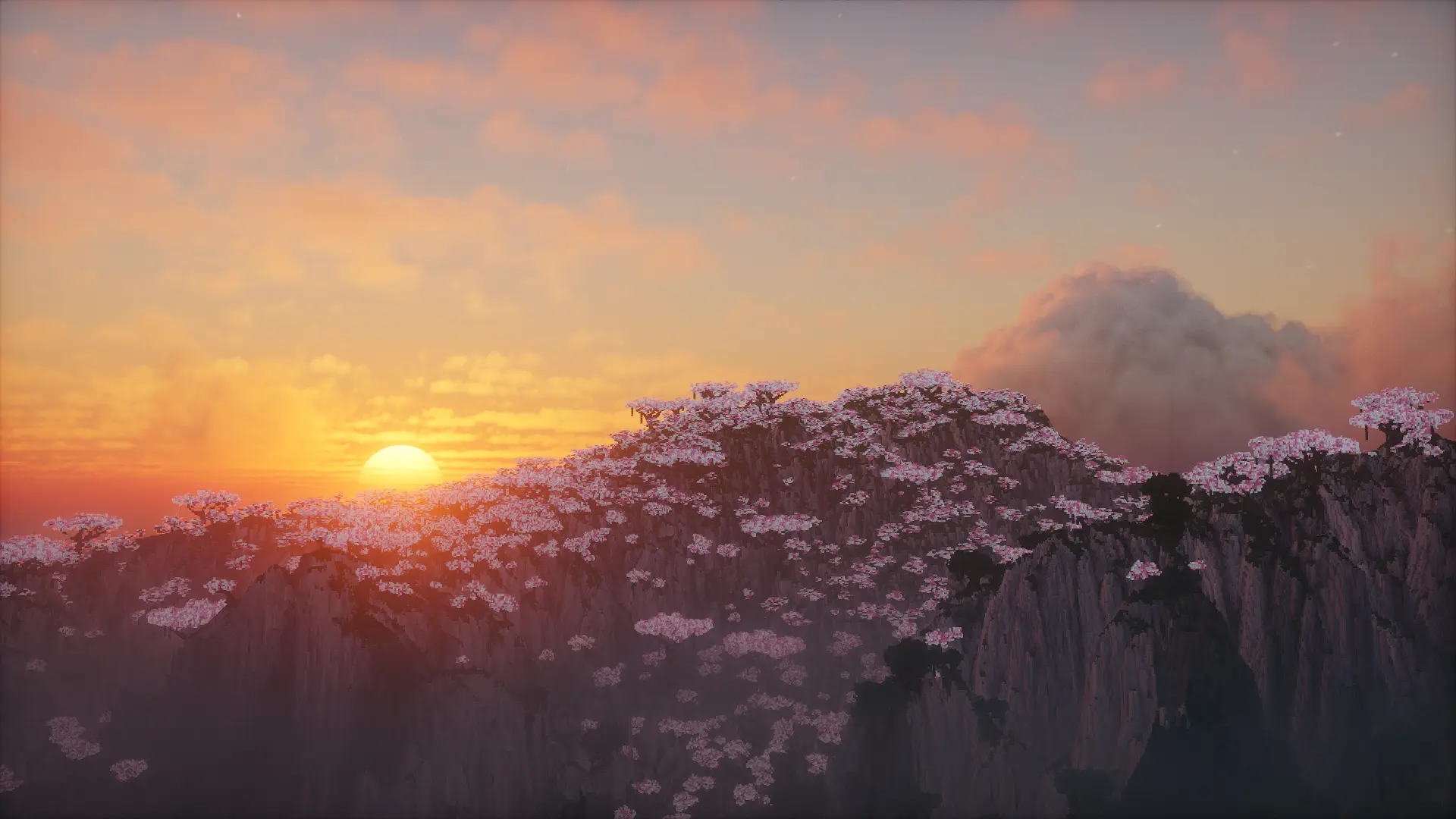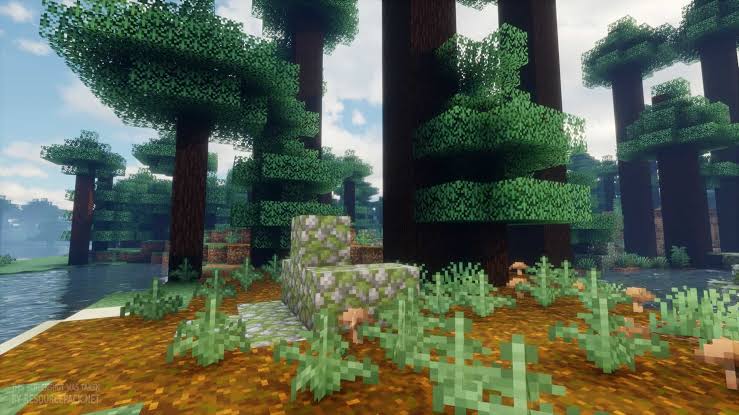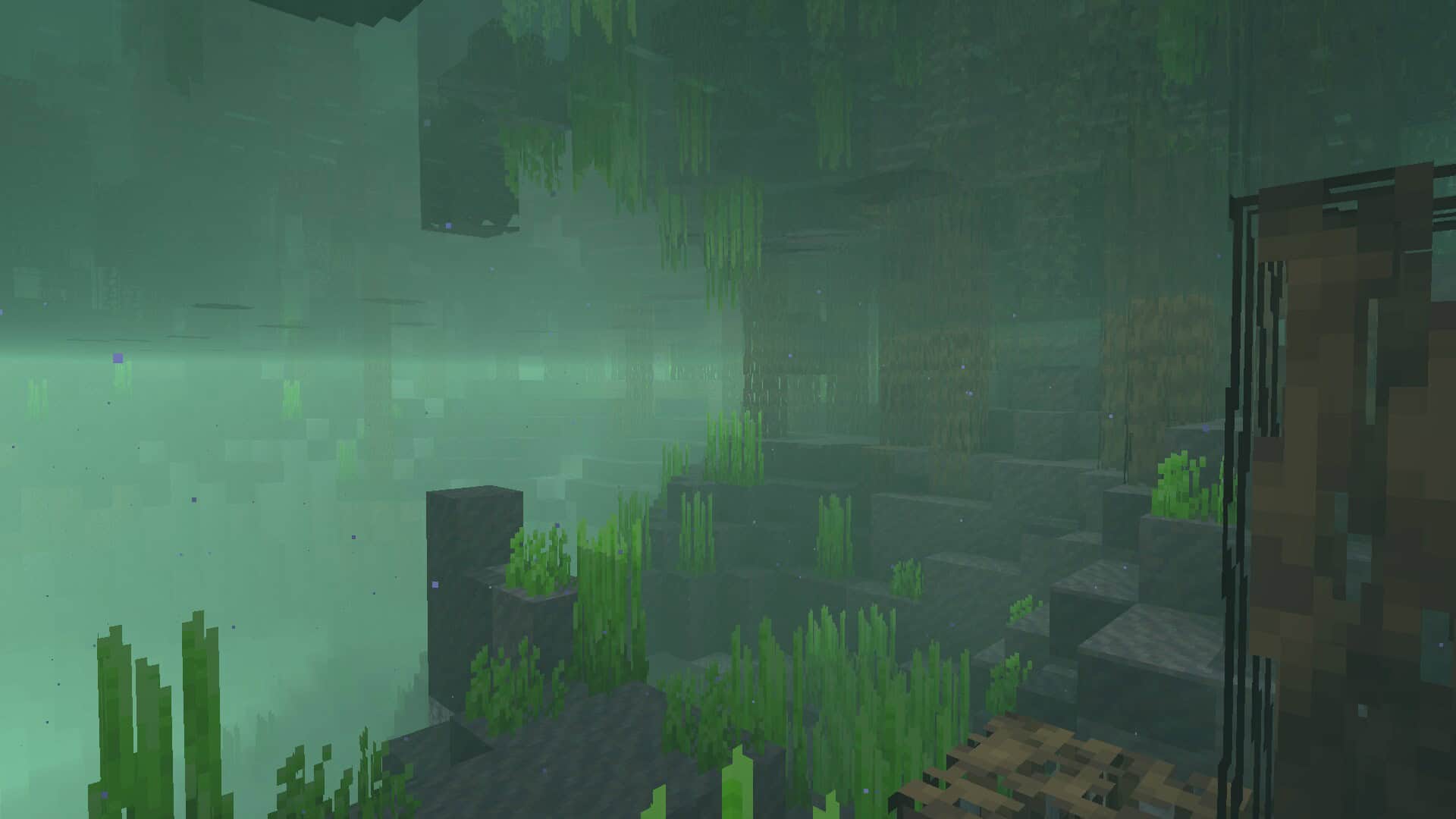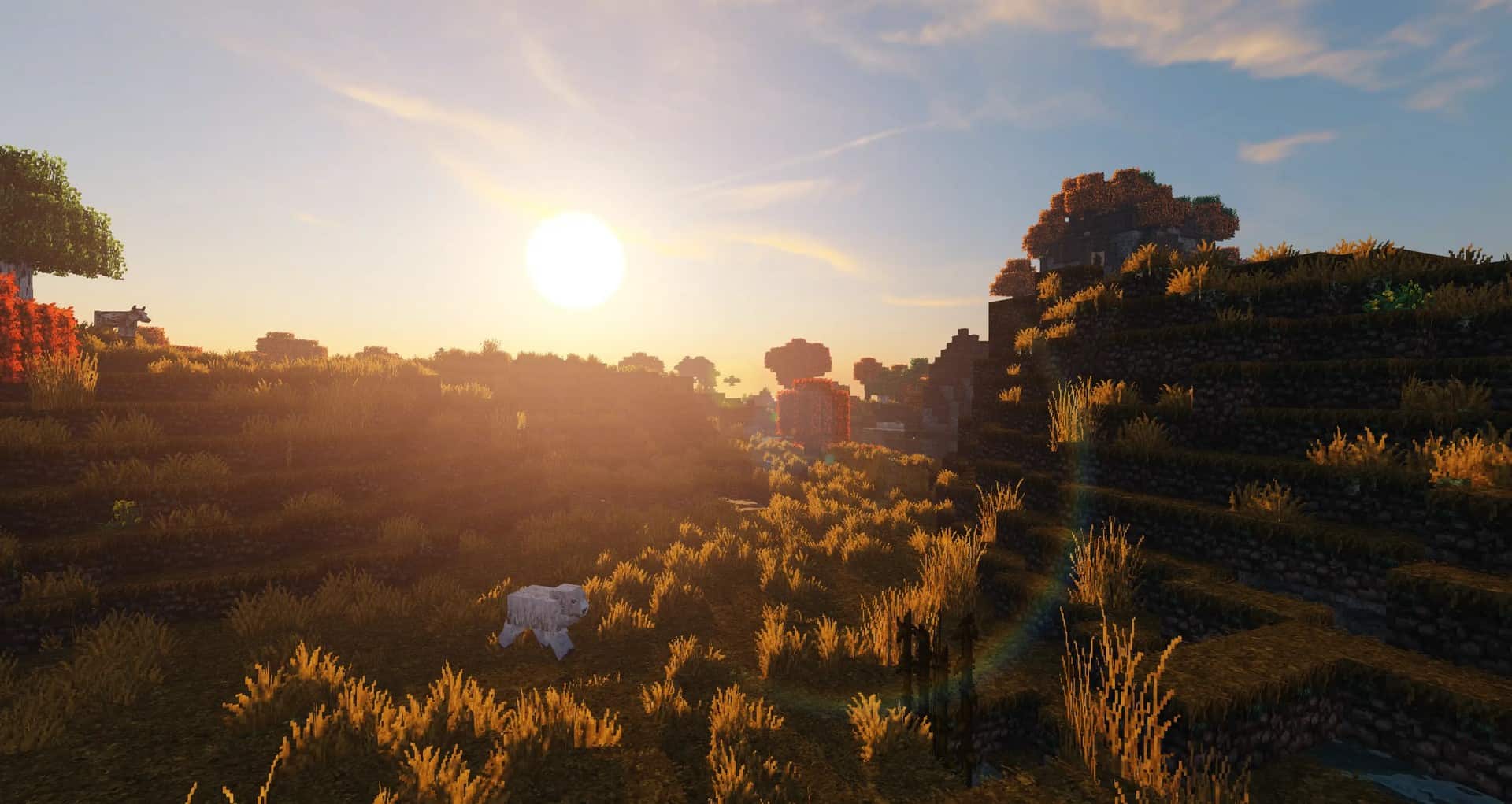
When you look at photos or videos of different resource packs, you simply cannot ignore how gorgeous they look. These promotional materials are deliberately crafted to impress, but the moment you install the resource pack on your own, you might notice that it does not quite look as pretty. This happens because all those stunning visuals are achieved by having something extra on top, and shader packs are truly the missing element that makes Minecraft look incredible. One such notable example is ProjectLUMA. The ProjectLUMA shader pack can easily be seen as a passionate labor of love. The development team behind it took direct inspiration from KUDA shaders and set out to create a worthy spiritual successor. Built entirely from scratch using brand new and original code, this shader pack aims to tackle several core problems that most other shader packs notoriously struggle with. A primary focus for the team behind ProjectLUMA is performance. Shader packs are widely known to be resource hogs, and if you are running Minecraft on an older system, the moment you install some new shaders you will usually see a drastic performance drop. Thankfully, this does not happen with ProjectLUMA, or at the very least, the performance drop is nowhere near as severe. The ProjectLUMA shader pack was officially released in late 2019, and since then it has not received any free updates. By the time of its release, the developers had already completed their work on the base version and made it available for multiple versions of Minecraft, though you can still grab newer versions of this shader pack by supporting the authors directly on their official Patreon page.
Being a true spiritual successor to KUDA shaders, ProjectLUMA follows a very similar and pleasing visual style while introducing numerous improvements that considerably upgrade Minecraft. It works wonderfully with most resource packs, but even when installed on vanilla Minecraft, it makes a massive impact. The shader pack brings several fantastic new features to the table, introducing new reflections that you will easily notice when looking at the water. It also wonderfully improves ambient occlusion and adds smooth motion blur. Furthermore, the shader pack alters the way water looks by adding realistic water waves that look simply amazing in motion. Additionally, the developers included a dirty lens effect, auto bump, POM, and a few other great features. One of the absolute most noteworthy improvements is made to the way the sky looks in Minecraft. The Godrays feature in ProjectLUMA adds incredible lighting effects, gorgeous light rays, and completely changes the way the Sun looks. It also profoundly affects how shadows are projected on the ground. At the same time, the clouds look remarkably photorealistic, and these breathtaking improvements can also be wonderfully observed during the nighttime. All the improvements and features present in the ProjectLUMA shaders also noticeably affect the textures in the game. Even when using it with a standard 16x or 32x resource pack, ProjectLUMA makes textures look significantly cleaner. Details are much easier to observe, and the colors pop out with much brighter vibrancy. The ProjectLUMA shader pack does need to be installed with a tool such as OptiFine because it alters the sky and water, requiring access to the special rendering features that this tool offers. Because ProjectLUMA adds many advanced features and effects to Minecraft, it may occasionally impact your framerate depending on your hardware, and sadly, there is no direct in-game menu to toggle certain individual features on or off. For the most optimal performance experience, it is highly recommended to install the shader pack alongside resource packs that use texture resolutions no higher than 64x.
projectLUMA should be compatible with all of these Minecraft versions: 26.2 – 26.1.2 – 26.1.1 – 26.1 – 1.21.11 – 1.21.10 – 1.21.9 – 1.21.8 – 1.21.7 – 1.21.6 – 1.21.5 – 1.21.4 – 1.21.3 – 1.21.2 – 1.21.1 – 1.21 – 1.20.6 – 1.20.5 – 1.20.4 – 1.20.3 – 1.20.2 – 1.20.1 – 1.20 – 1.19.4 – 1.19.3 – 1.19.2 – 1.19.1 – 1.19 – 1.18.2 – 1.18.1 – 1.18 – 1.17.1 – 1.17 – 1.16.5 – 1.16.4 – 1.16.3 – 1.16.2 – 1.16.1 – 1.16 – 1.15.2 – 1.15.1 – 1.15 – 1.14.4 – 1.14.3 – 1.14.2 – 1.14
Screenshots
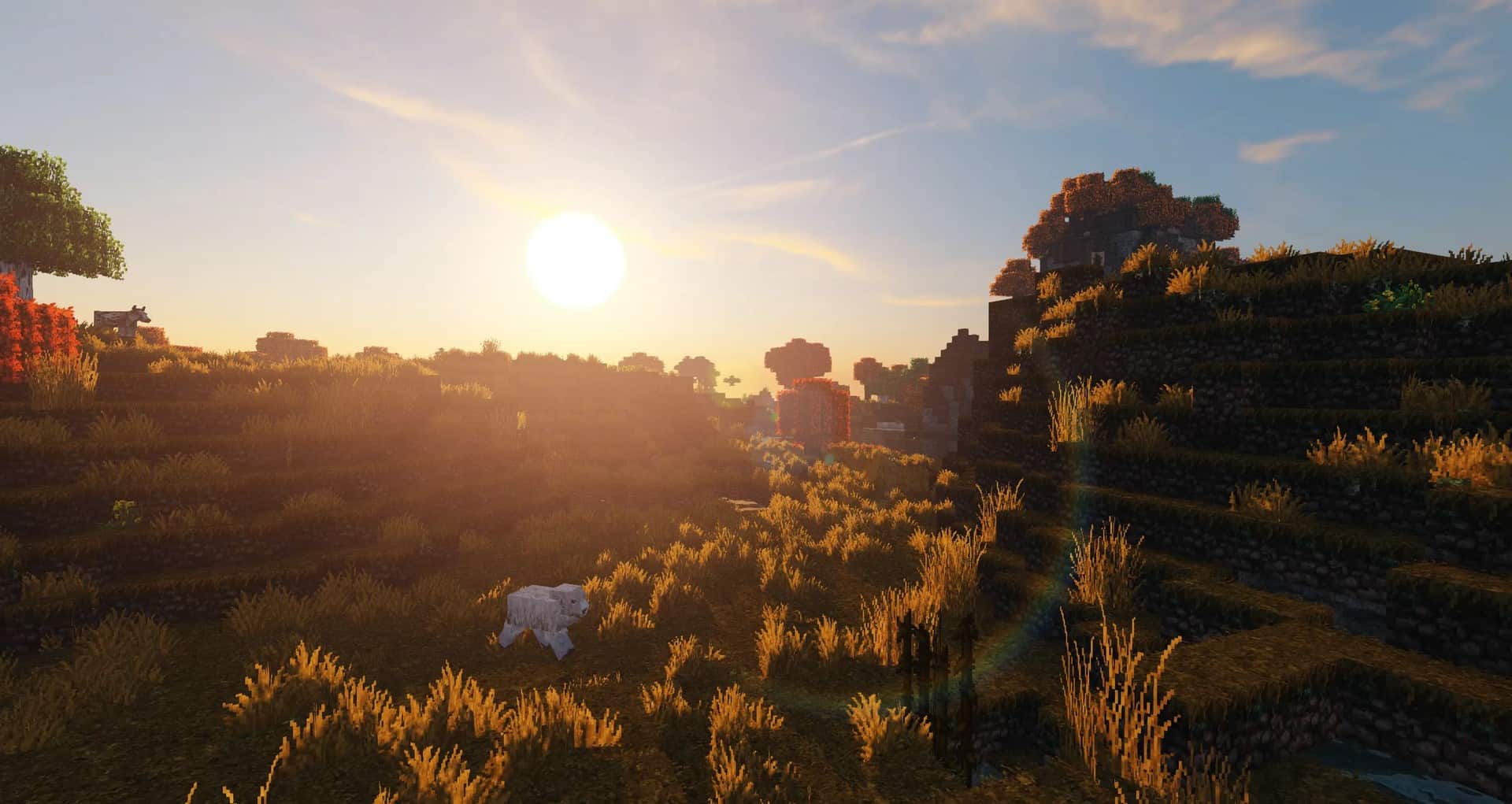
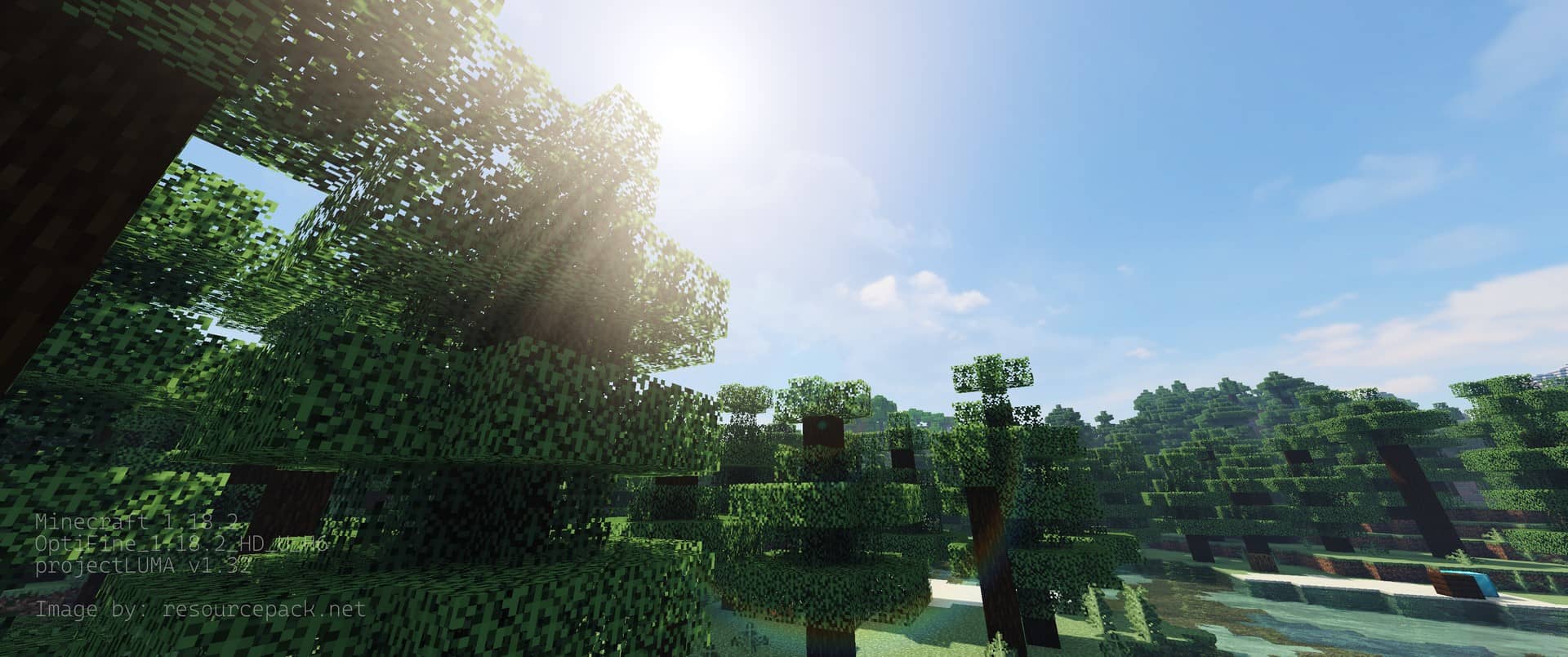
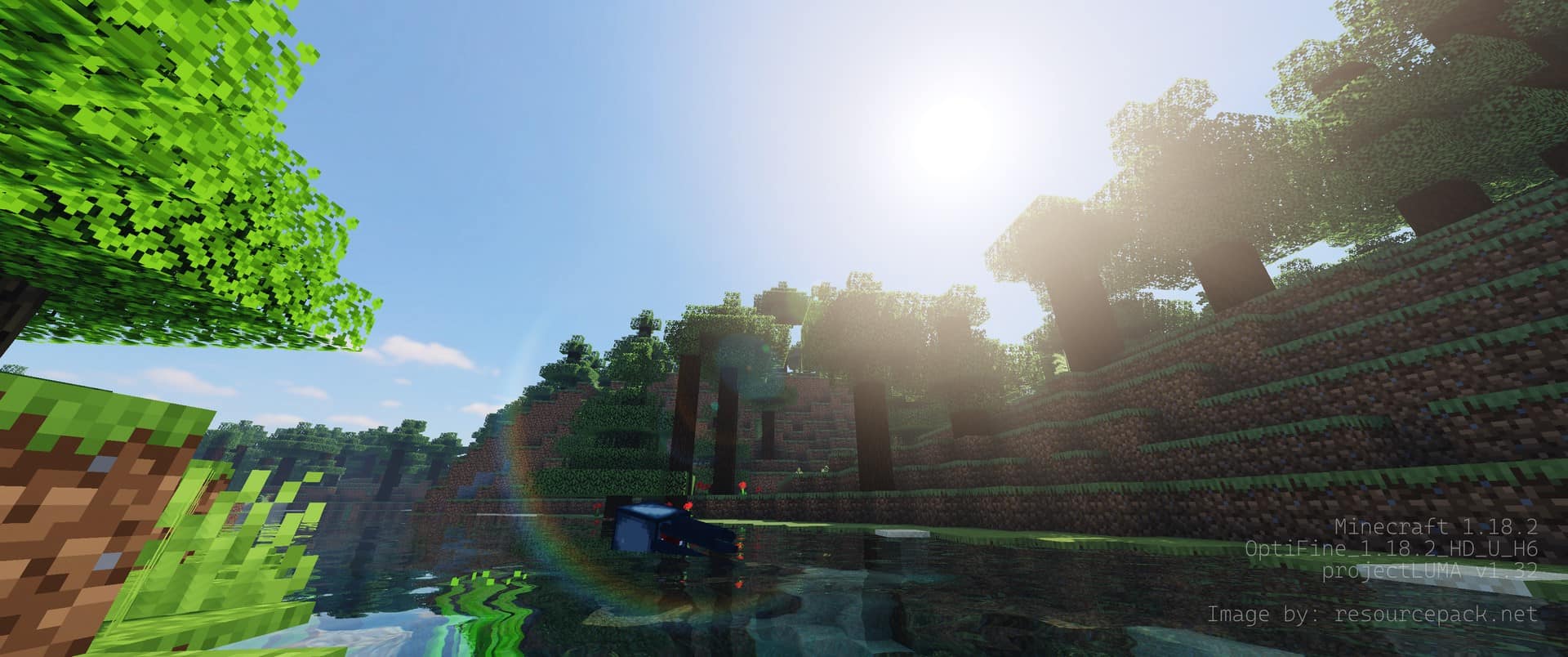
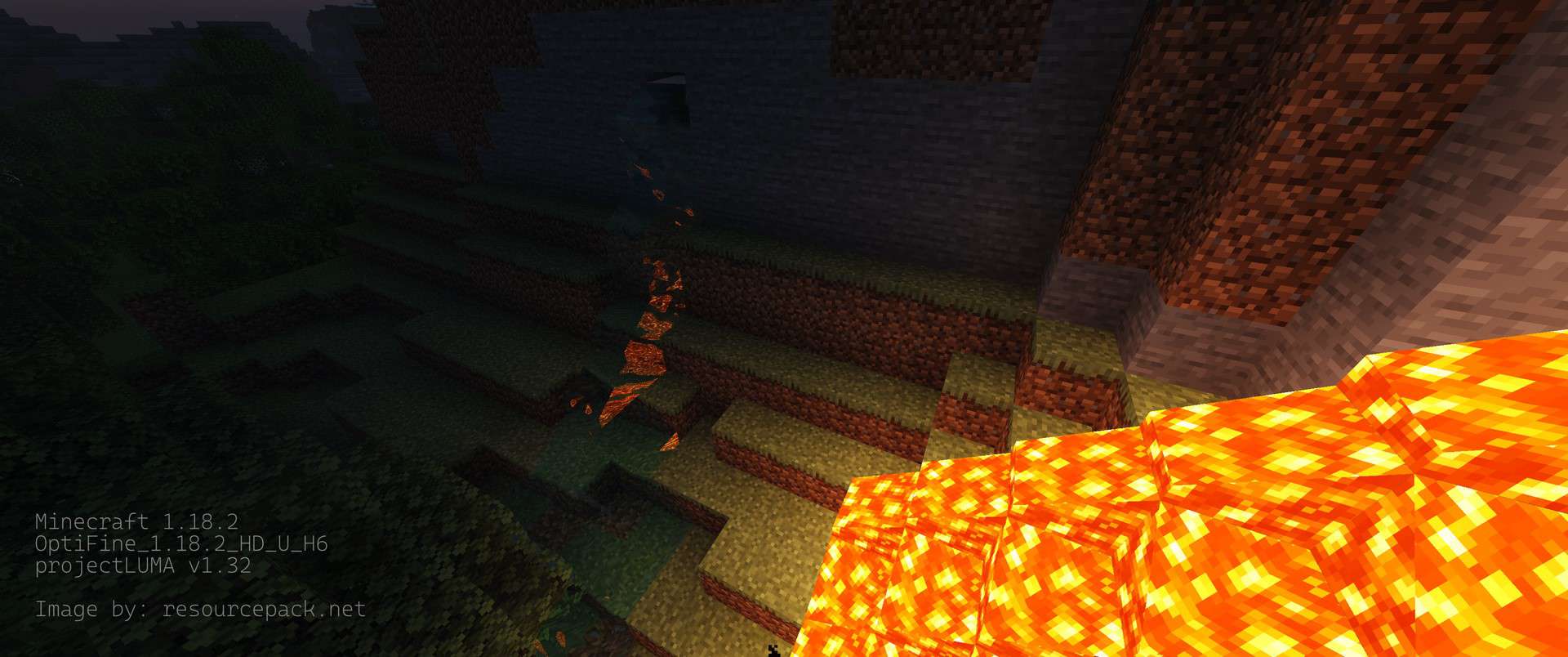
How to Install Shader Pack (Simple and Easy 7 Steps)
- Install Minecraft: Make sure to have Minecraft on your PC.
- Set the Game Version: Open the Minecraft Launcher, go to the “Installations” tab, click “New Installation”, choose the version you want to play, and click “Create”.
- Install OptiFine or Iris: Download and install OptiFine or Iris (we recommend Iris for better performance).
- To download Iris, click here.
- To download OptiFine, click here.
- Launch with the Shader Mod: Open the Minecraft Launcher again and select the OptiFine or Iris profile you installed.
- Download the Shader Pack: Download the shader pack (.zip file) from the download section below. (Don’t unzip it!)
- Open the Shaderpacks Folder:
- For OptiFine: Go to Options > Video Settings > Shaders > Shaders Folder
- For Iris: Go to Options > Video Settings > Shader Packs > Open Shader Pack Folder
- Add and Activate the Shader Pack: Move the downloaded .zip file into the shaderpacks folder. Then go back to the game, select the shader pack from the list, and click “Done” to activate it.
Credits
ProjectLUMA Shaders was originally created and developed by dedelner. We do not claim ownership of this content, nor do we host or modify any files on our servers. All rights remain with the original creator. We strongly recommend supporting dedelner through their official channels and Patreon page to encourage future updates and continued creative work.
Download Instructions
Curseforge: download starts automatically after a few seconds;
Mediafire: click the big blue button with the text “DOWNLOAD”;
Google Drive: in the top right corner you will see a small download icon (down arrow), click it and the download should start;