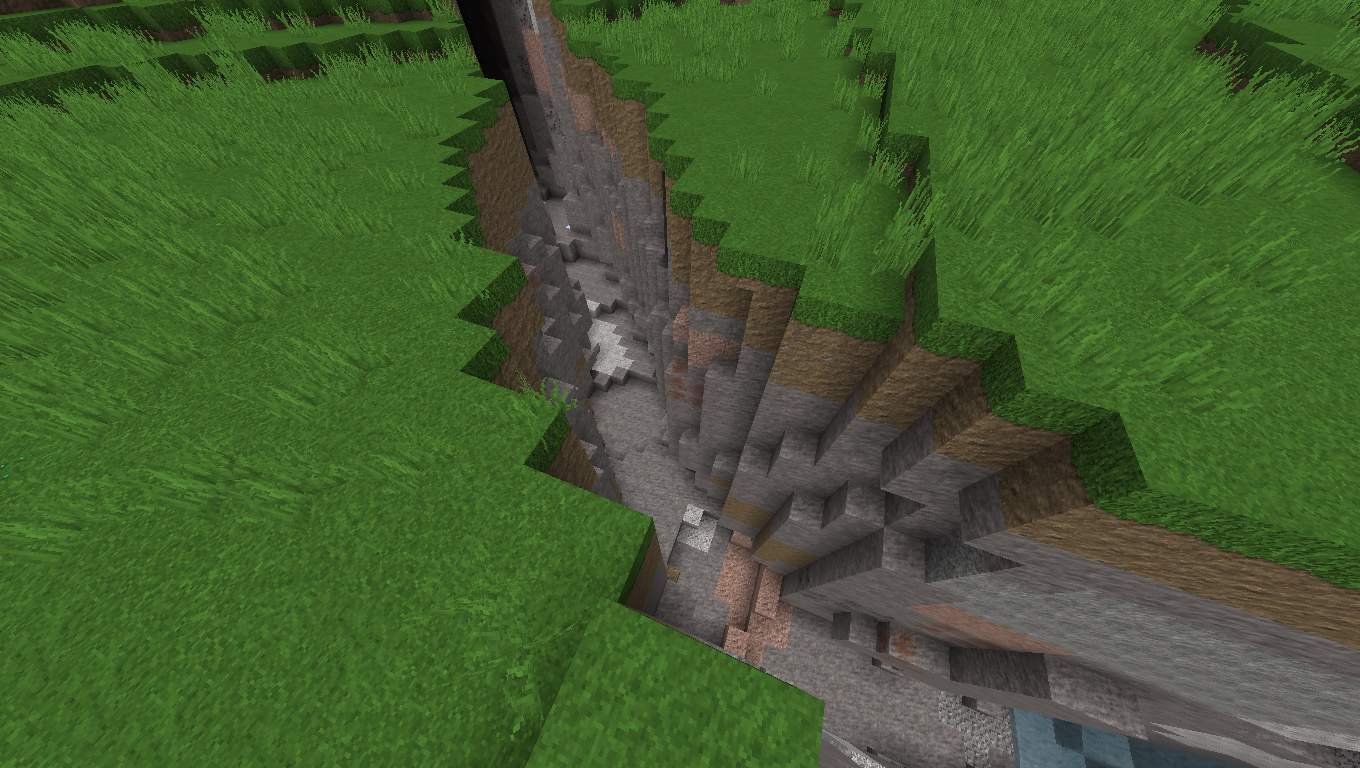
If you are a true lover of Minecraft, you definitely need to try the Polychromata resource pack to completely revolutionize your gaming experience! Polychromata is an incredible new resource pack that is quickly gaining popularity due to its amazing ability to customize the textures of the game. In fact, it is an absolute game-changer that will elevate your Minecraft adventures for the better. If you have progressed far in this game, you know exactly what changing the textures means — it breathes a whole new life into your gameplay. It can certainly get a bit irritating to look at the exact same vanilla visuals over and over, which is why Polychromata is a must-have resource pack. The primary goal of Polychromata is to provide every player with a much more appealing and defined visual experience. These enhanced visuals let you enjoy the game so much more by giving you the freedom to transform your world’s look into something you are truly comfortable with.
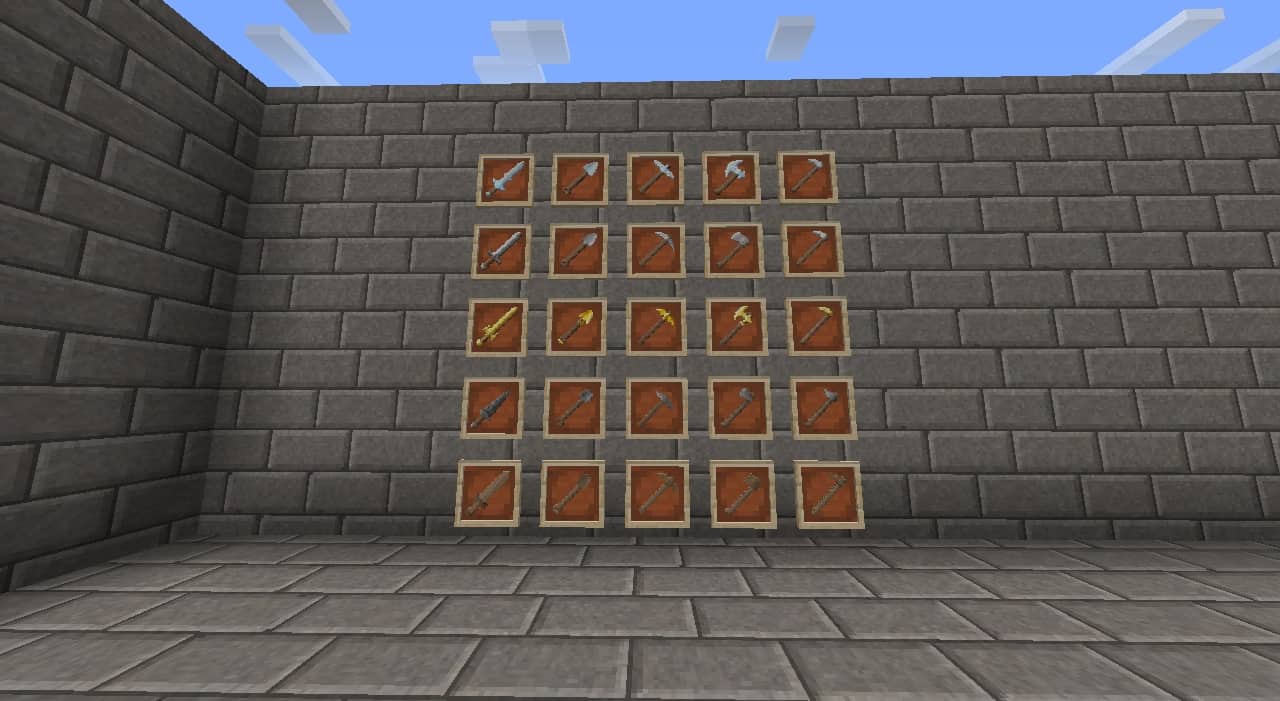
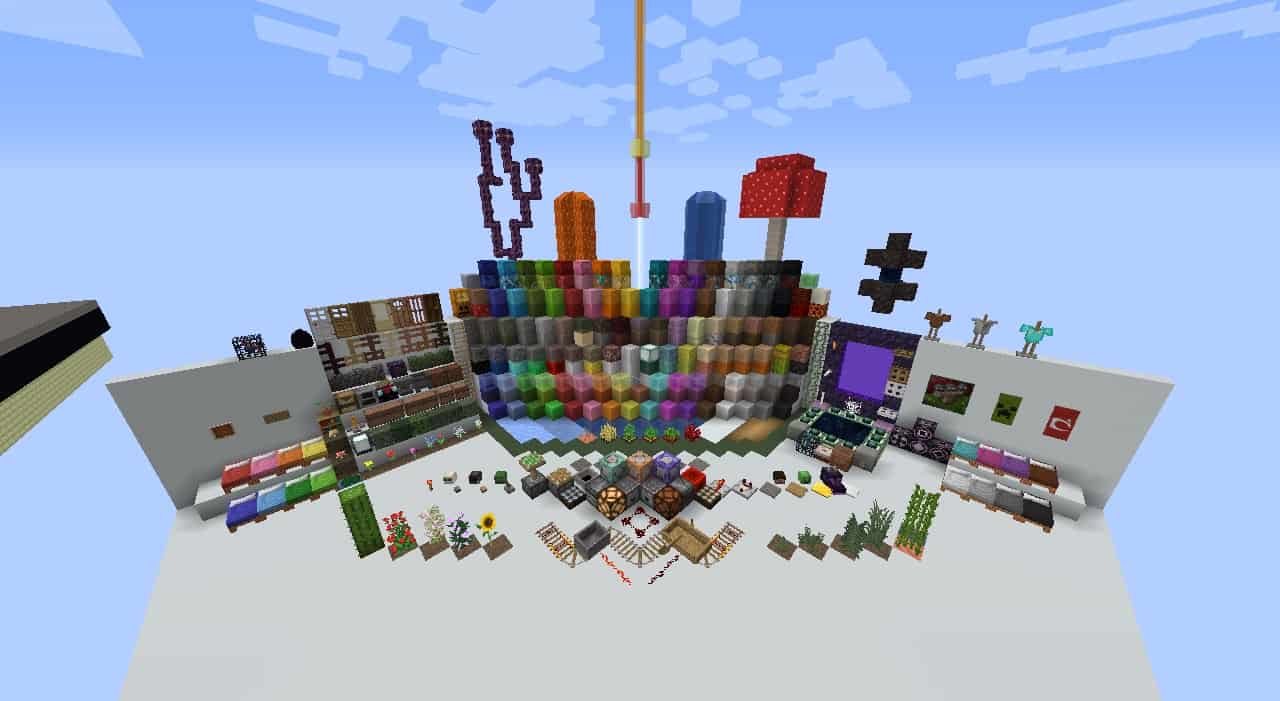
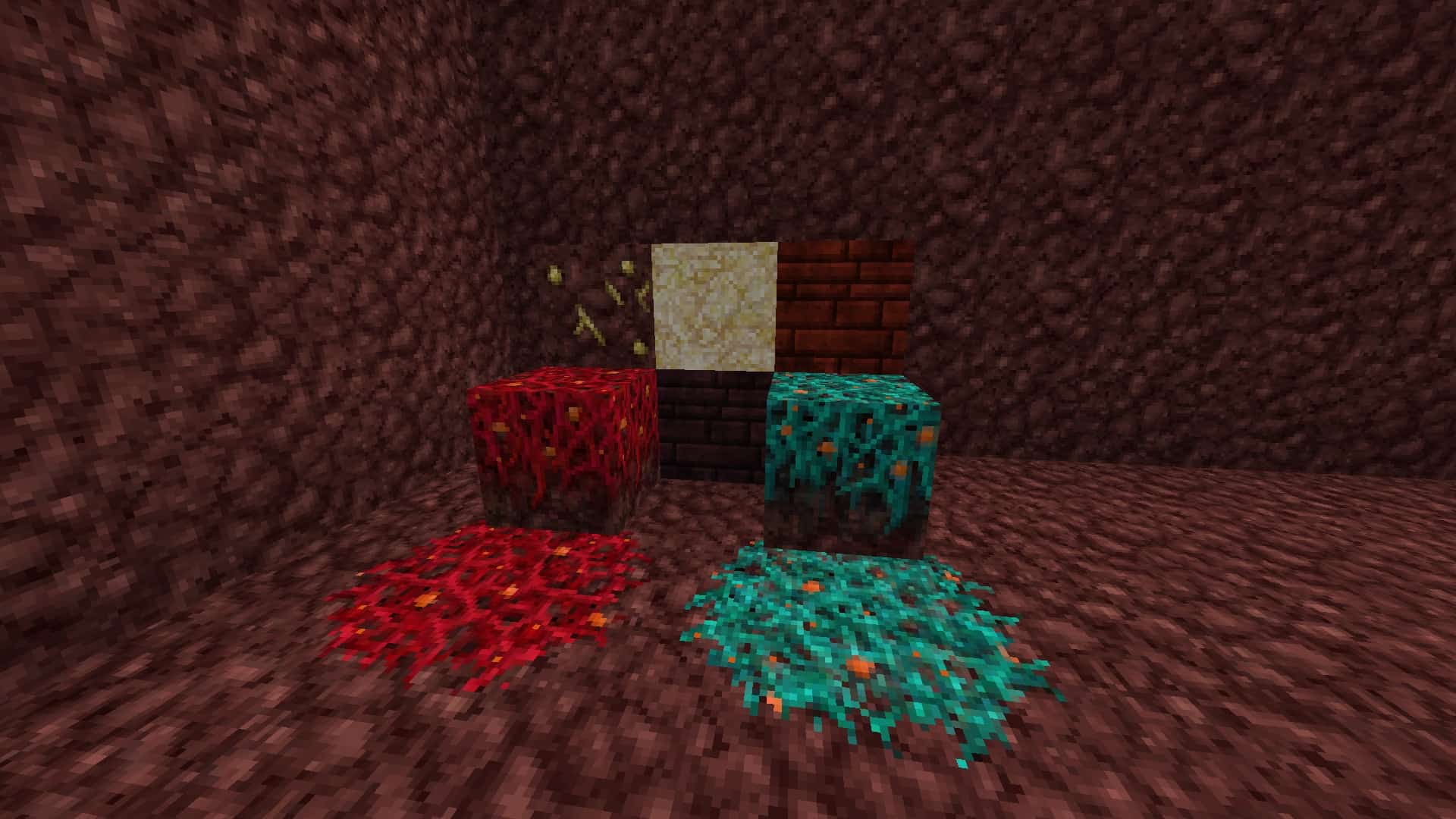
We were thrilled to discover that this resource pack brilliantly retains the game’s classic pixel-art aesthetic while simultaneously offering an adequate resolution to completely eliminate any shortage of pixel definition. The crisp 32x resolution definitely takes this game to a whole new level! The pack ensures that the quality of every image and visual produced is top-tier, making your time in Minecraft an absolute joy. You are also provided with a broad range of visual styles to select from. Beyond just delivering appealing visuals, the resource pack thoroughly enhances the very nature of the textures themselves. The texture palette becomes wonderfully brighter, which significantly elevates how everything appears in the world. Furthermore, the pack makes every texture look exceptionally smooth and clean, making the game so much more enjoyable to explore. There is zero unwanted noise in these textures, and that is precisely why we rate it as one of the highest quality options currently available in the semi-faithful category. If you have not tried the Polychromata resource pack yet, we strongly recommend giving it a try to see how much it improves your gaming experience for the better!
Polychromata should be compatible with all of these Minecraft versions: 1.19.4 – 1.19.3 – 1.19.2 – 1.19.1 – 1.19 – 1.18.2 – 1.18.1 – 1.18 – 1.14.4 – 1.14.3 – 1.14.2 – 1.14 – 1.13.2 – 1.13.1 – 1.13
Screenshots



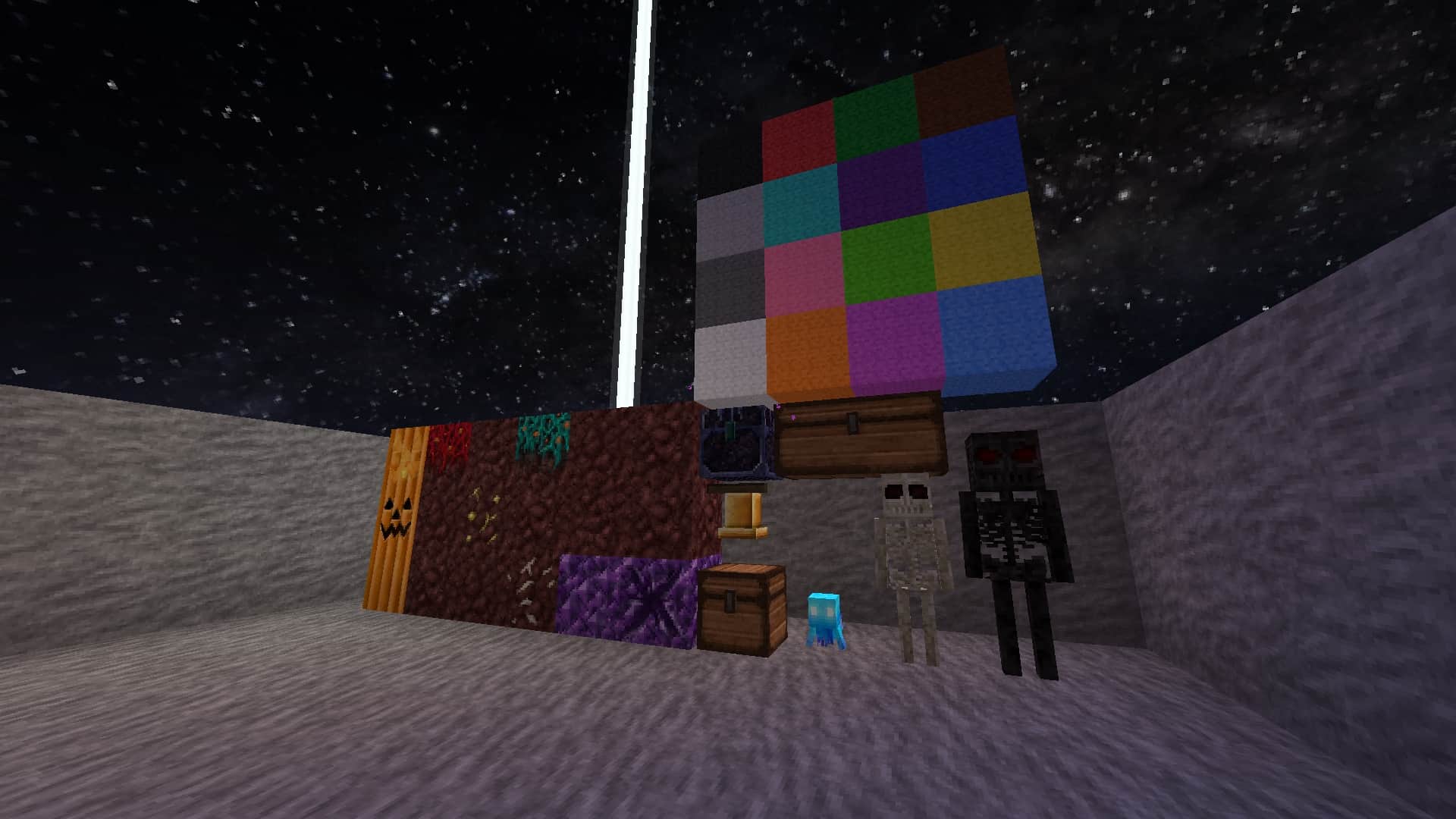
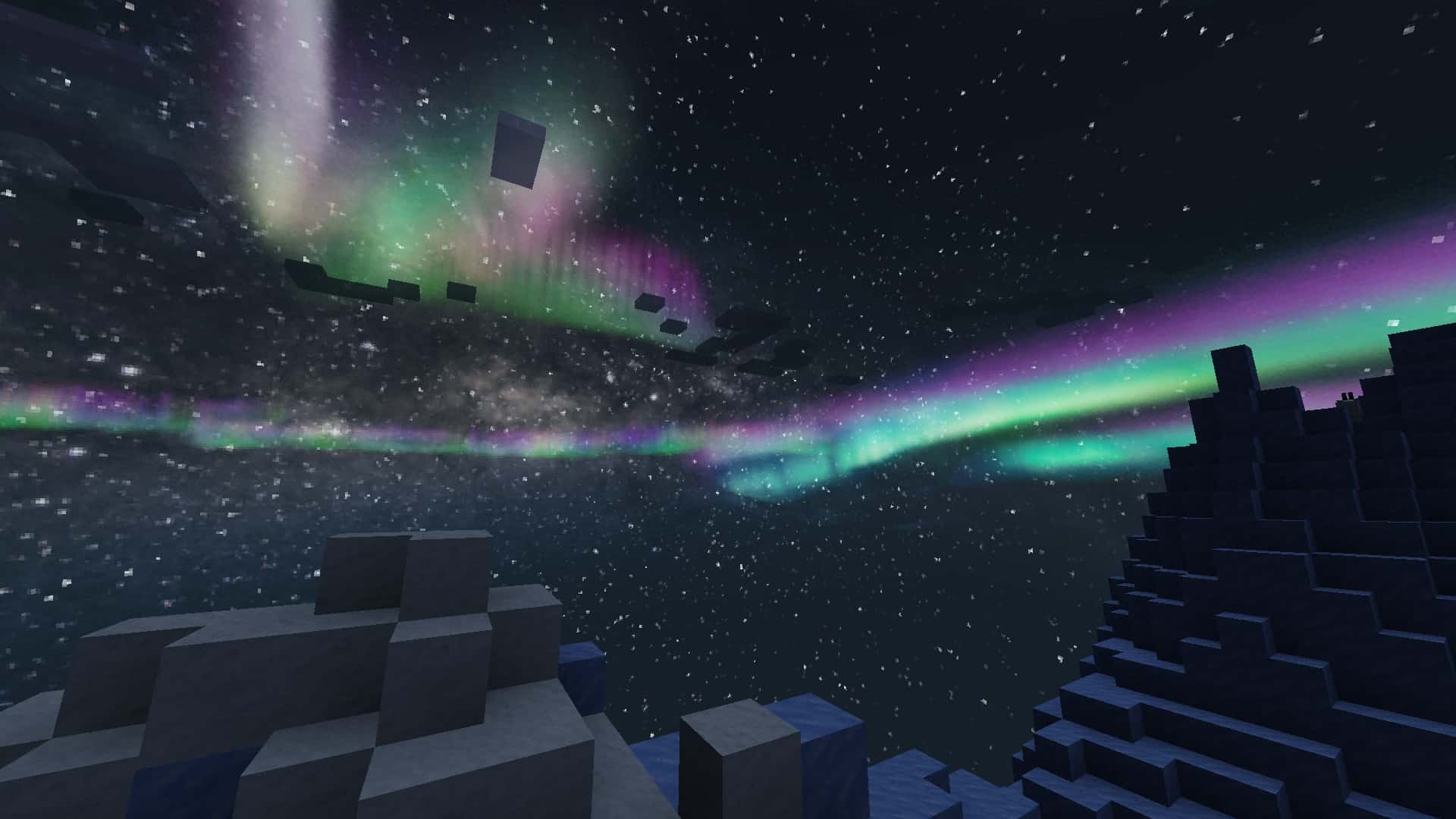
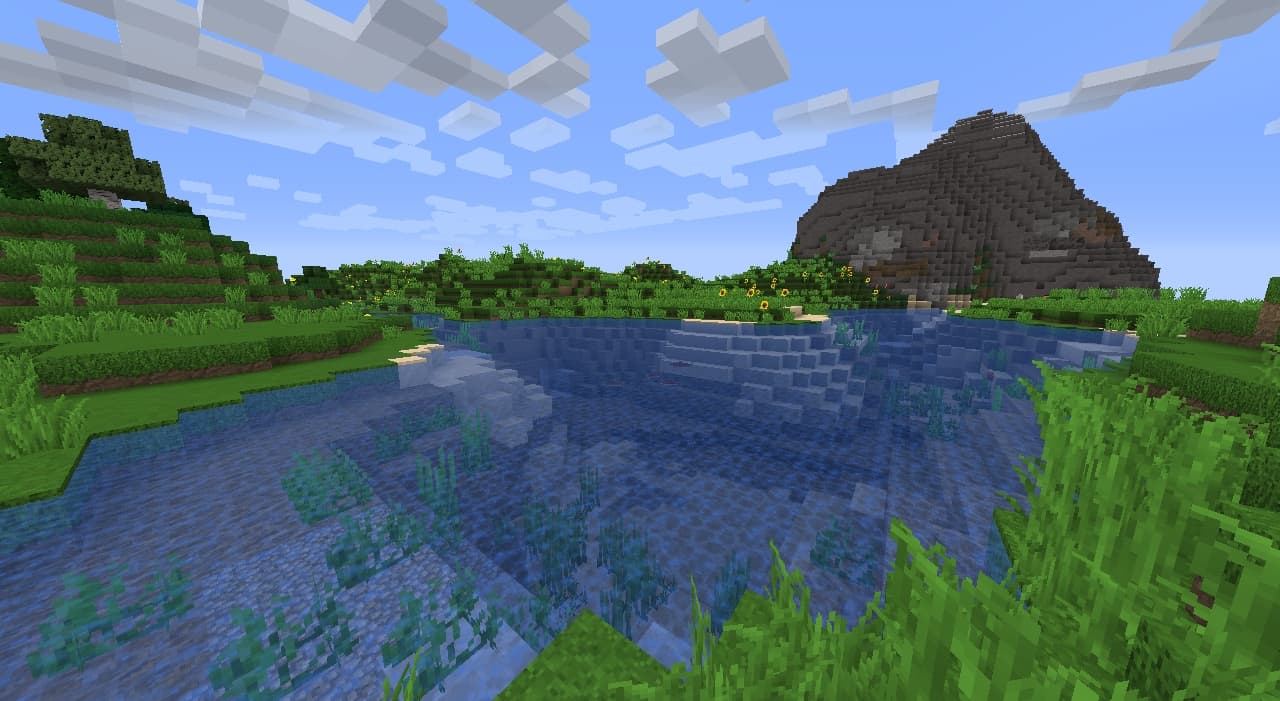

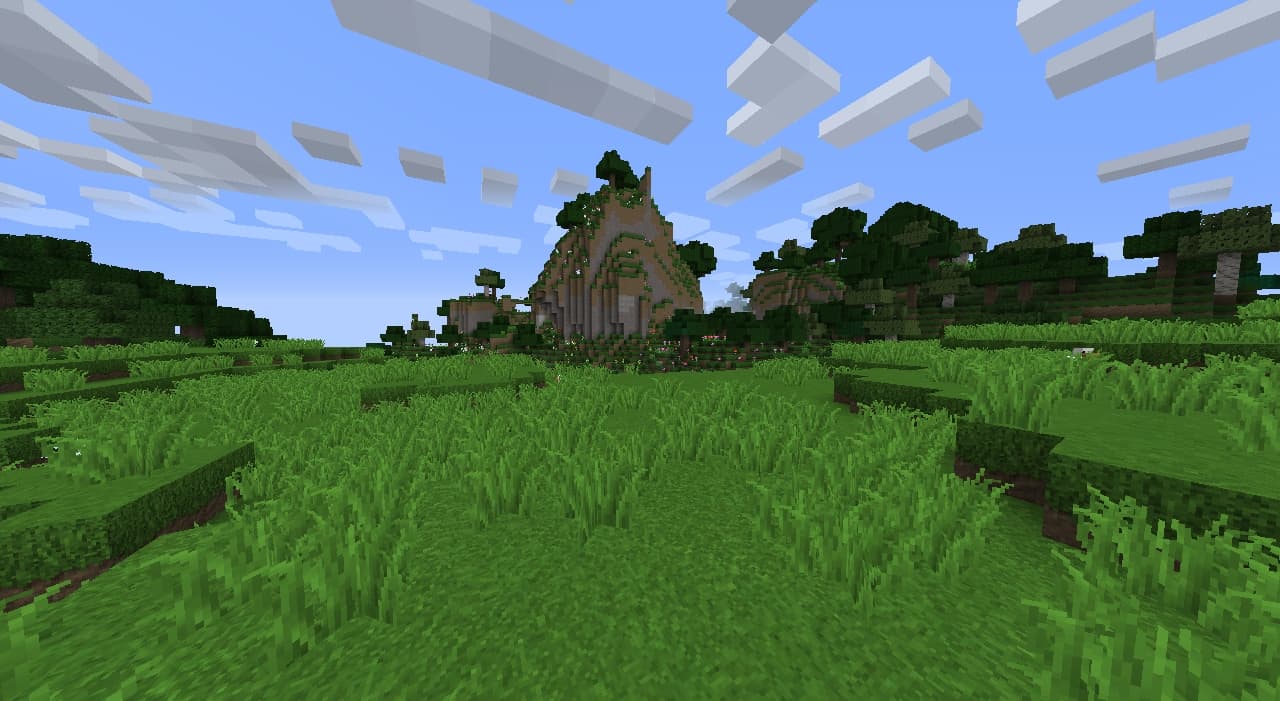
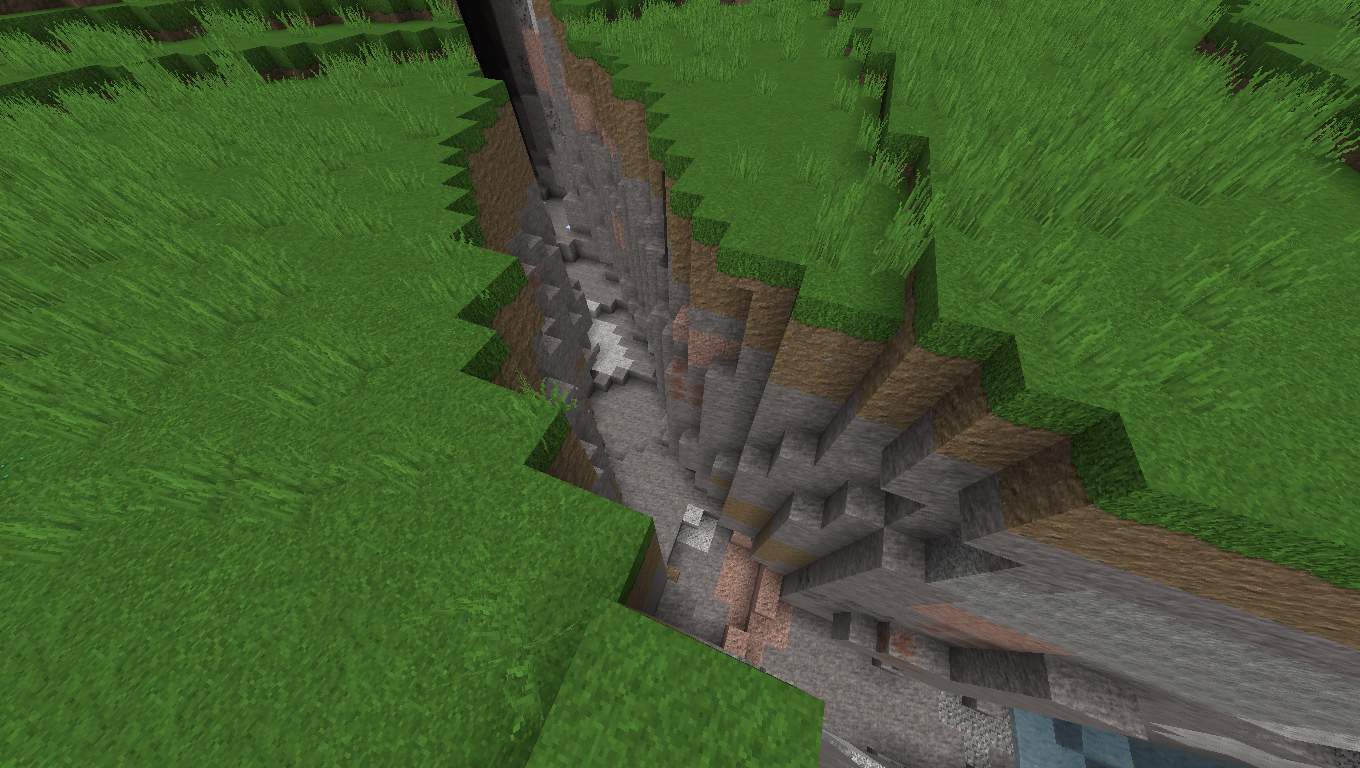
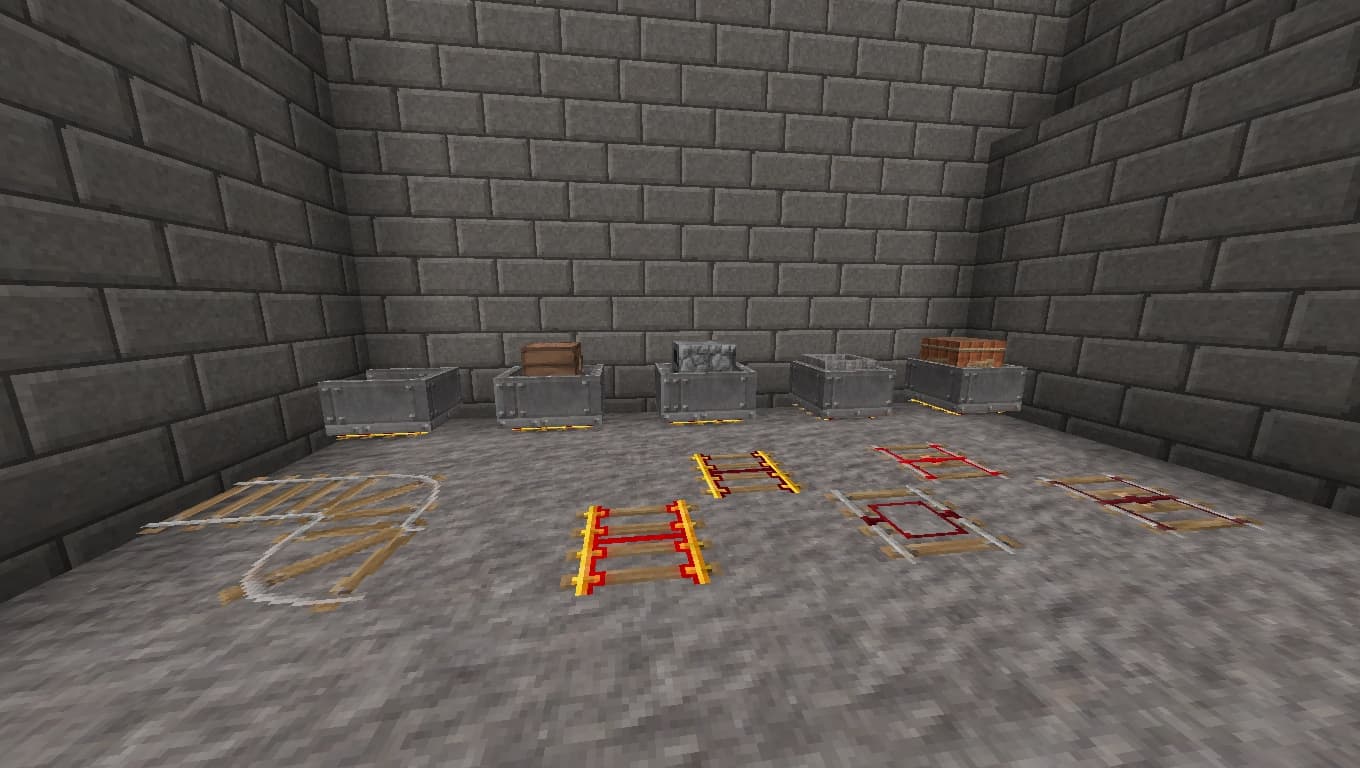

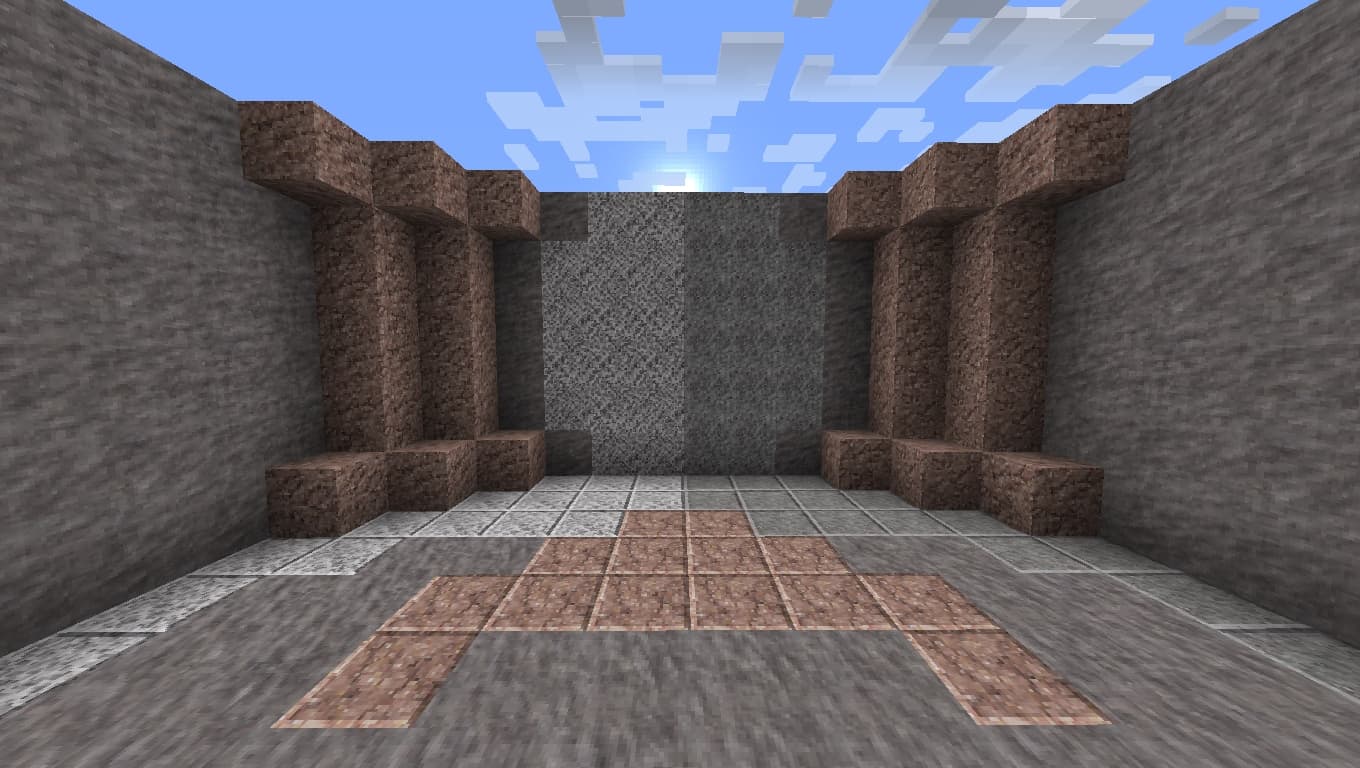
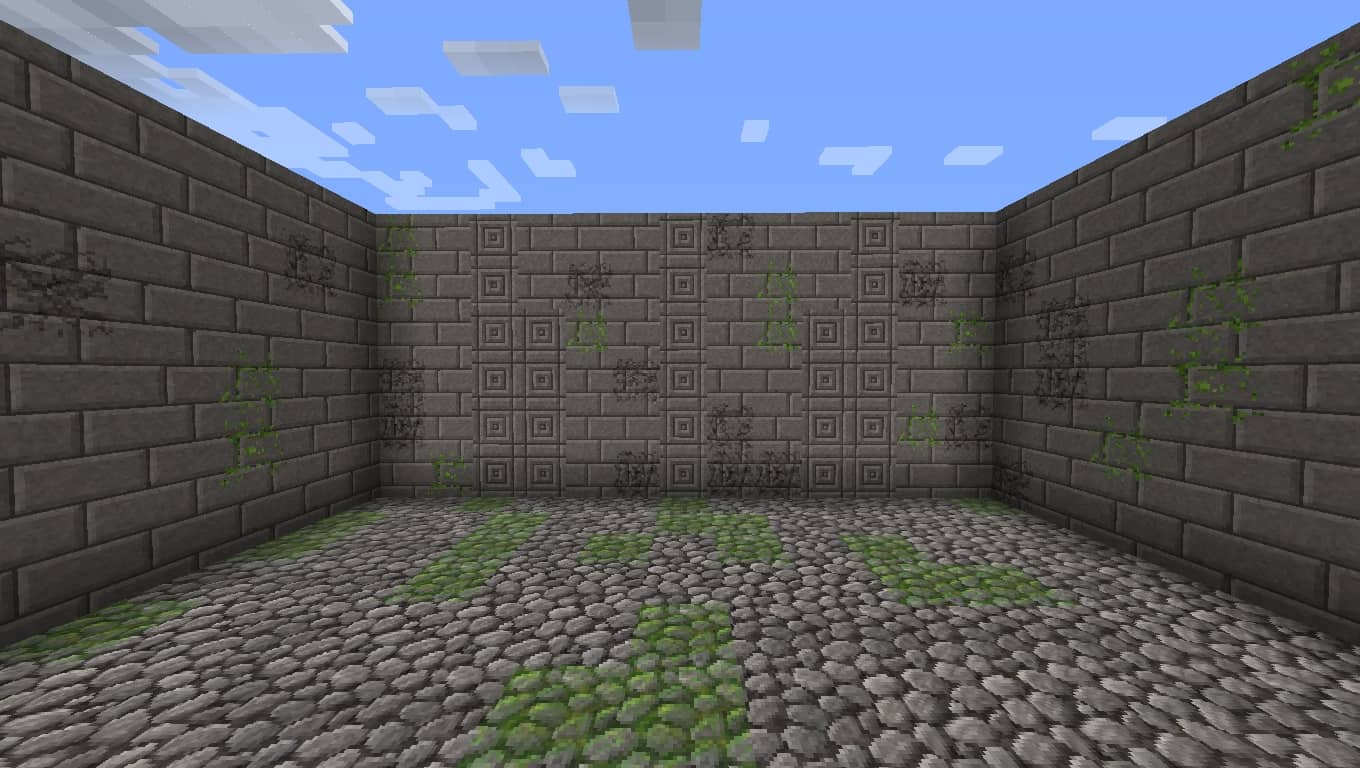
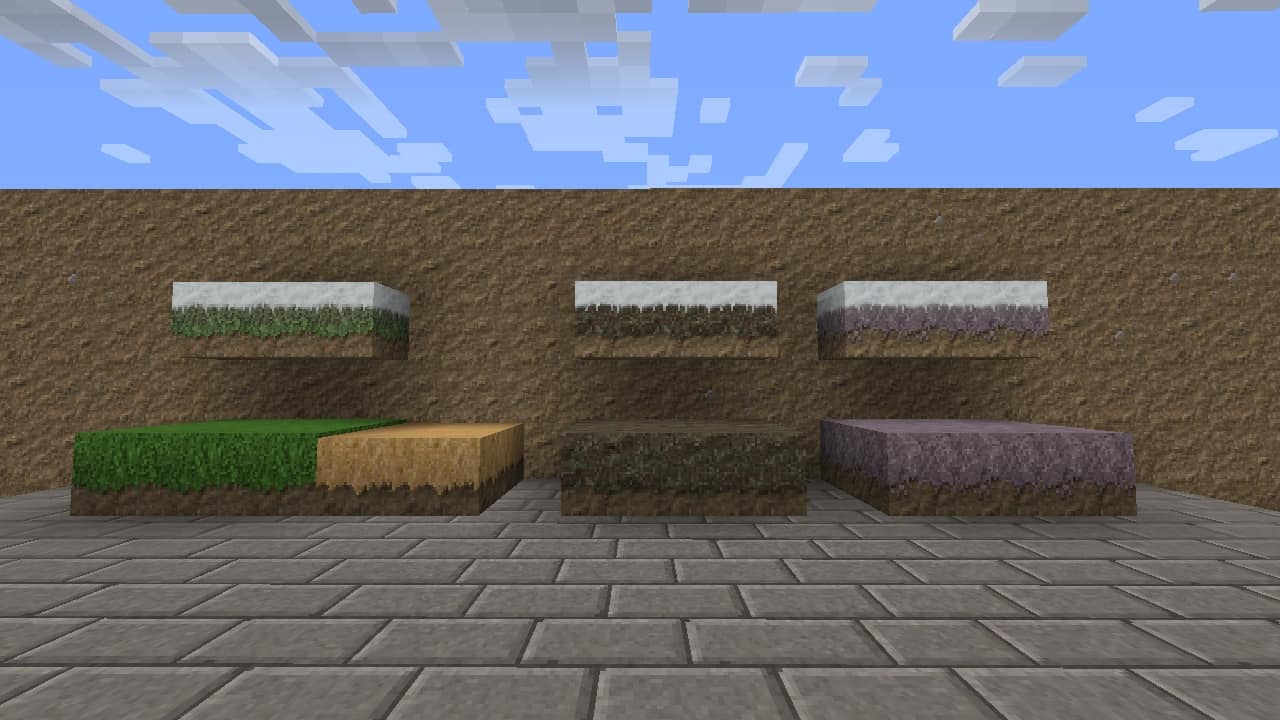
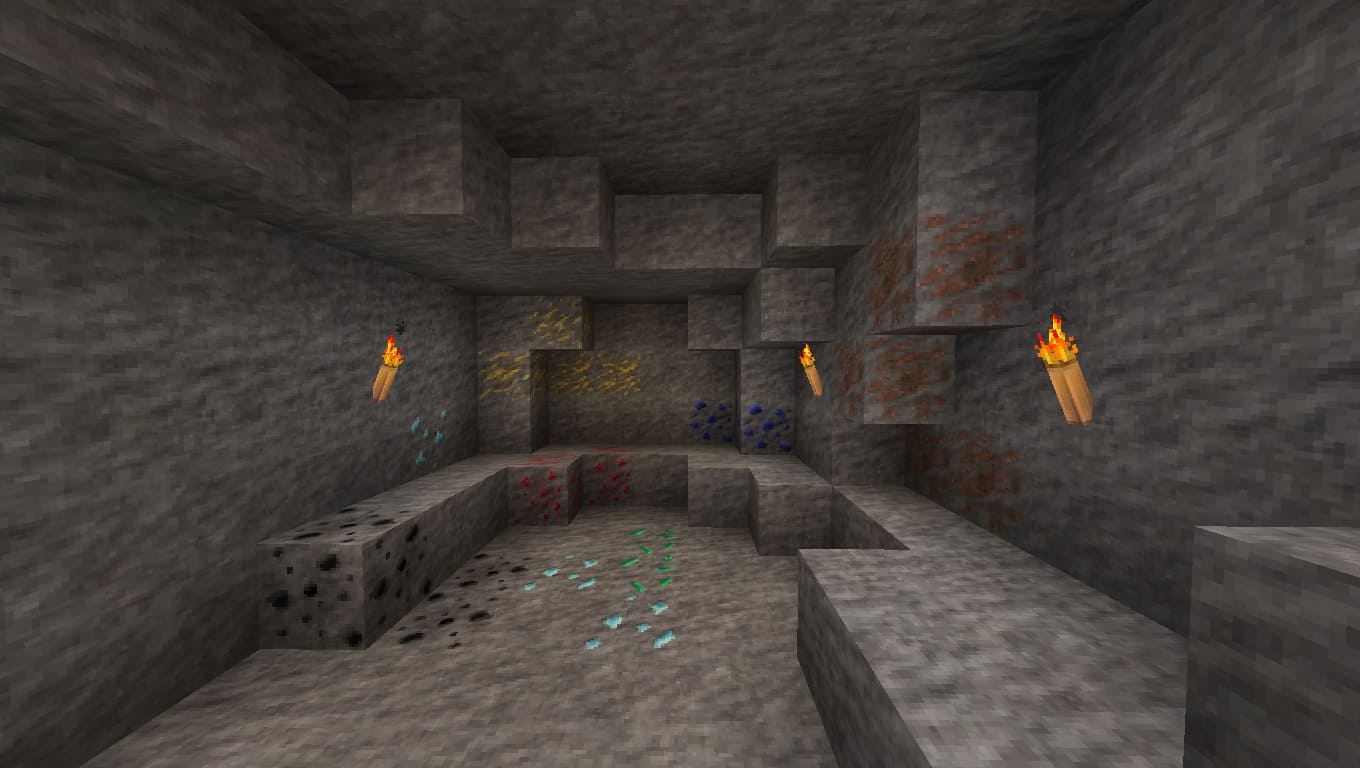
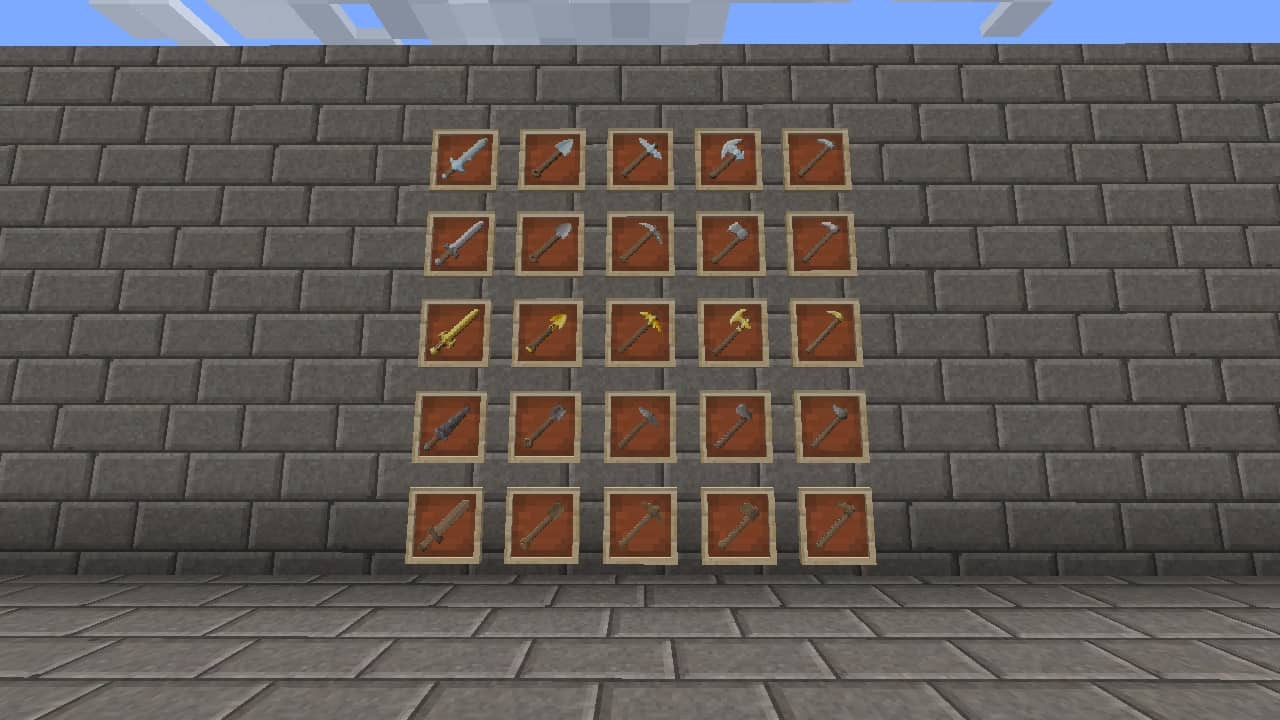
How to Install Texture Pack (Simple 10 Steps)
- Download OptiFine: Most of the texture packs and shaders need OptiFine. That’s why, first download and install OptiFine for the version of Minecraft you want to play.
- Download the Texture Pack: Get the texture pack you want from the download section. Choose the version that works with your Minecraft and your PC’s performance.
- Open Minecraft Launcher: Start Minecraft using the official game launcher — or even TLauncher, if you use that.
- Go to Options: From the main menu, click on the “Options” button.
- Open Resource Packs: Inside Options, click on “Resource Packs…”.
- Open the Resource Pack Folder: Click on “Open Resource Pack Folder” — this will open a folder named “resourcepacks”.
- Move the Pack File: Copy or move the .zip file you downloaded into that “resourcepacks” folder. (Don’t unzip the file — Minecraft uses it as-is!)
- Go Back and Refresh: Close the folder and click “Done”, then go back into “Resource Packs…” again.
- Activate the Pack: You’ll see the pack on the left side. Hover over it and click the arrow to move it to the right (active side).
Tip: If you get a message that the pack is for a different version, just click “Yes” — it usually works fine. - Click Done and Enjoy: Click “Done” again. Now your pack is ready to use in-game. It’s that easy!
Credits
This resource pack was created by Ithronyar. We do not claim ownership of this content, nor do we host modified versions of these files. All rights belong to the original creator. We encourage you to support Ithronyar by downloading the pack through the official links provided.
Download Instructions
Curseforge: download starts automatically after a few seconds;
Mediafire: click the big blue button with the text “DOWNLOAD”;
Google Drive: in the top right corner you will see a small download icon (down arrow), click it and the download should start;


