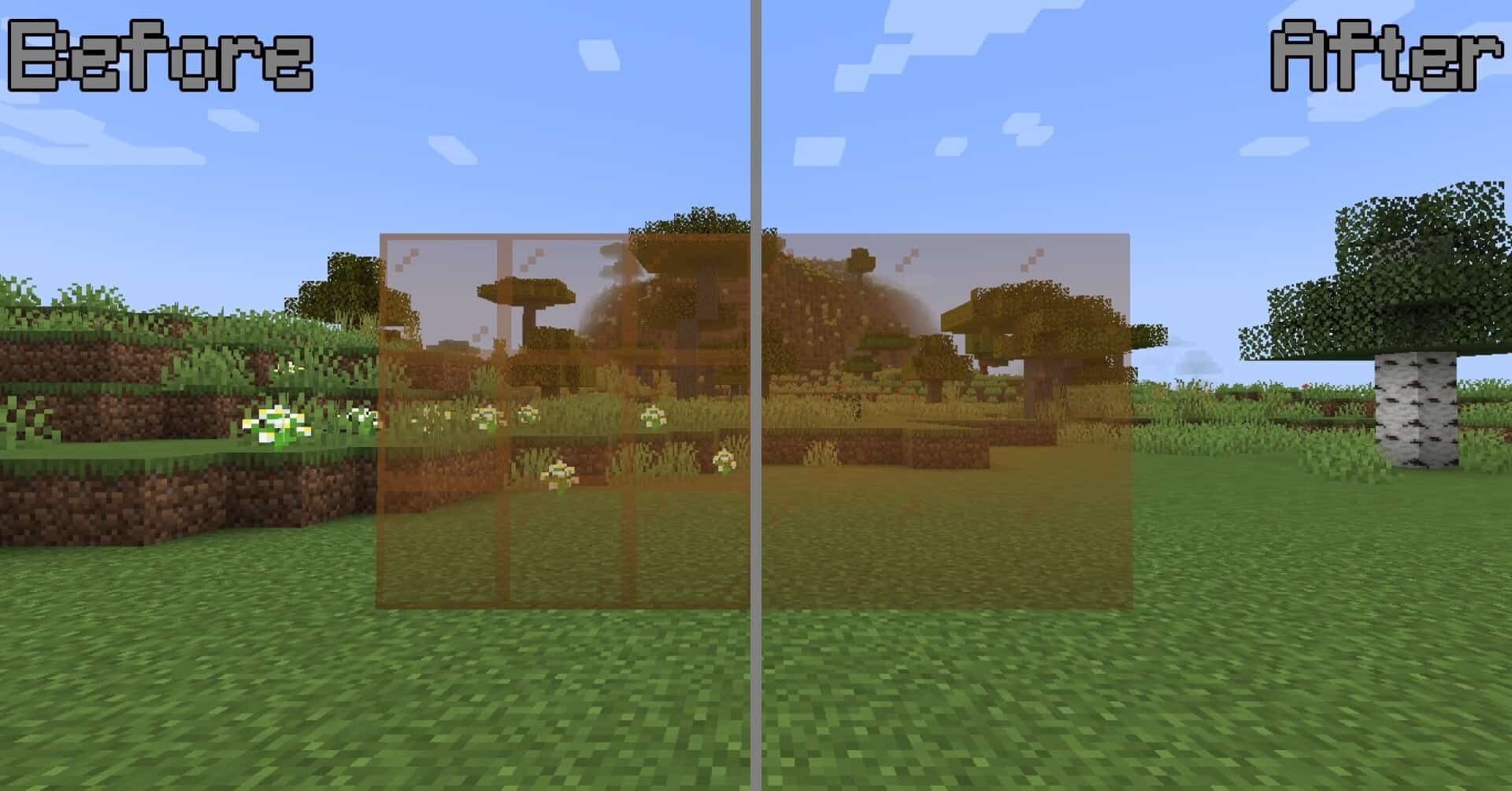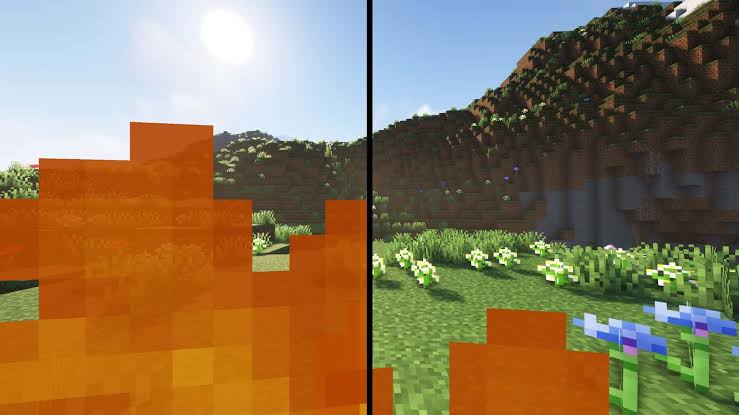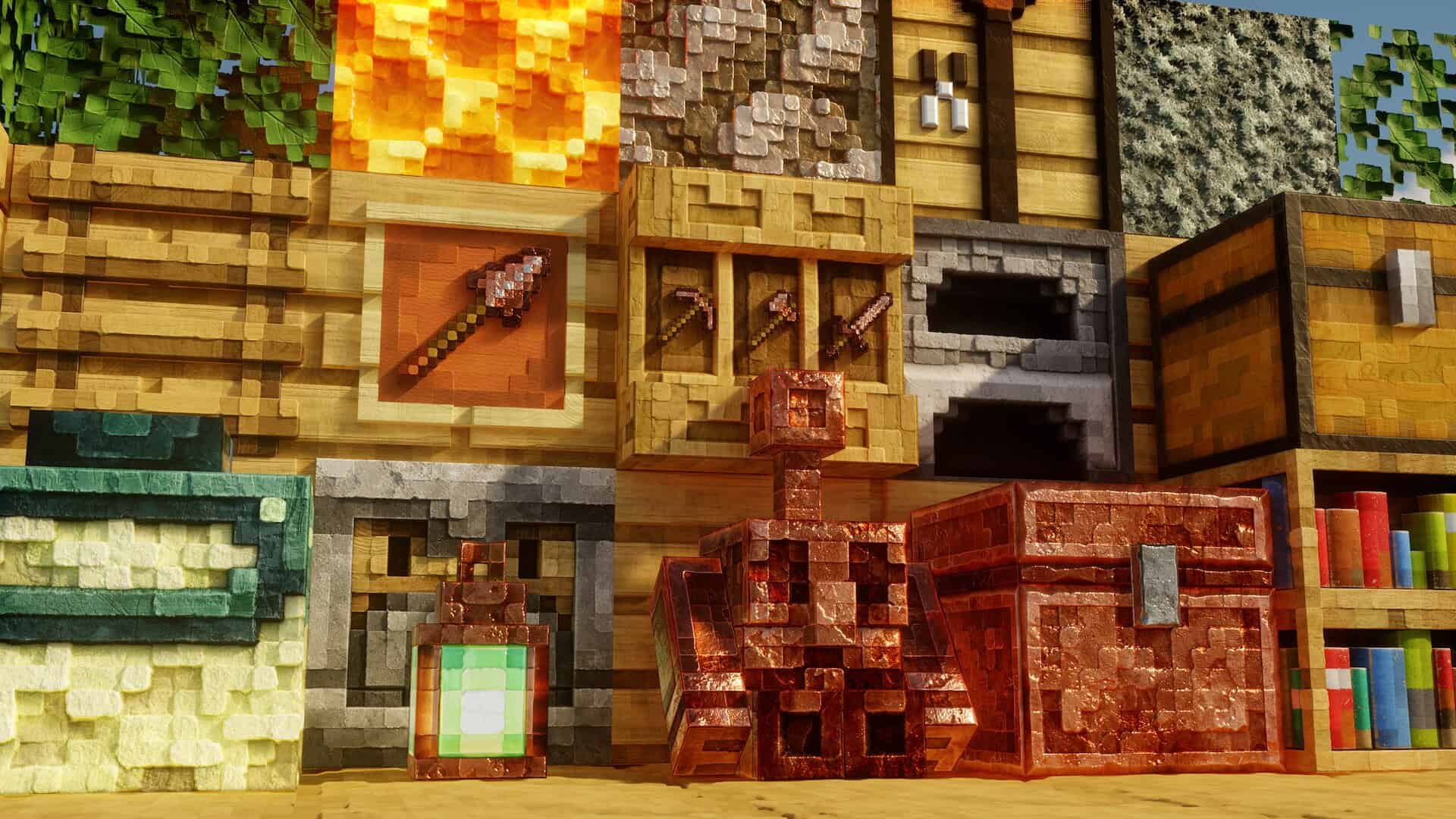
The Pixlli resource pack is an incredible work of art that truly breathes new life into Minecraft by completely refining its textures. Illystray, the brilliant creator behind the Pixlli resource pack, has honestly crafted one of the absolute best resource packs to date. While personal preferences always vary and deciding on the definitive best resource pack remains subjective, in our opinion, this stands tall as one of the highest-quality texture packs out there. You will instantly understand what we mean the moment you see it in action. Most resource packs simply aim to tweak preexisting textures and improve upon them, but that is definitely not the case for Pixlli. Illystray completely scraps the core of Minecraft’s visuals and builds them up brand new. This extra attention to detail makes the Pixlli resource pack stunning and wholly unique. It somehow captures the incredible beauty and awe-inspiring details that most AAA games invoke, yet it still faithfully keeps the core essence of Minecraft’s original textures. It achieves this by drawing deep inspiration from Minecraft’s classic aesthetics while layering on enough meticulous detail to create something entirely fresh. You can certainly look at screenshots, but we strongly recommend giving this pack a try yourself, as an immersive experience like this really needs to be witnessed in the first person to get its full effect. The Pixlli texture pack sets itself wonderfully apart from others by totally rebuilding everything in the game. It thoughtfully changes every single item and block, ensuring that your entire world matches cohesively no matter where you travel or which blocks you decide to use. Some packs fail to offer this level of comprehensive work, which can easily lead to a very disjointed experience because many blocks or items end up clashing with the world around them. Furthermore, it takes amazing advantage of POM/PBR, which stands for parallax occlusion mapping, to make everything appear truly hyper-realistic. This fantastic system causes blocks to look genuinely 3D, greatly helping to immerse the player. You will notice this effect especially when encountering foliage, which boasts more depth than ever before. Pixlli also utilizes specular and bump maps that make the textures look so wonderfully real you can easily imagine reaching out to touch them, especially when combined with proper shader functions. To top it all off, the textures can seamlessly alternate and connect, effectively eliminating the annoying tiled appearance that other texture packs frequently create.
You will definitely need to install Optifine to experience everything Pixlli has to offer, and please note that this pack exclusively works on Minecraft’s Java edition. Illystray’s texture pack is made available for download on Boosty, which serves as a great alternative to Patreon. The 128x resolution version of Pixlli is completely free, featuring all the core elements, updates, and styles found in their high-resolution option. However, if you are willing to chip in, you can also download the stunning high-resolution version of Pixlli. It functions very similarly to the free version, just with significantly higher resolution. Considering that prices start at a mere $1, you are practically getting it for free anyway while supporting the talented creator! It is generally recommended that you download the 128x version first to test the waters and get a feel for the resource pack, then purchase the high-resolution option if you love what you see. Keep in mind that the upgraded version is much more resource-heavy and will certainly require a high-end PC to run properly, so you might want to stick with the 128x resolution option to completely avoid frustrating FPS drops and game crashes. Illystray highly recommends using Kappa Shaders alongside their Pixlli resource pack, as it wasn’t originally built to function entirely on its own. If your device unfortunately cannot handle shaders that intense, you can technically combine the texture pack with a different one instead. The main drawback is that Pixlli was never made to be used completely without shaders, meaning several textures won’t look entirely complete when it runs by itself. These include sand, snow, water, and a few other elements. To wrap everything up, the Pixlli resource pack successfully delivers on everything it promises and so much more. It goes far above and beyond to rebuild Minecraft’s visuals from the ground up. It brilliantly harkens back to Faithful, a well-known and beloved pack that has been a cherished part of the Minecraft community for a very long time. Both packs take the simple textures from vanilla Minecraft and elevate them to new heights. The high resolution is gorgeously supported by POM/PBR, making everything look remarkably realistic. Despite all these advanced technical enhancements, the improved textures still stay wonderfully true to Minecraft’s original aesthetics and cozy vibe. This concept is elegantly executed and will broadly appeal to all sorts of passionate Minecrafters. All that is left for you to do now is download the Pixlli resource pack, set it up properly, and enjoy your breathtakingly enhanced game.
Pixlli should be compatible with all of these Minecraft versions: 26.2 – 26.1.2 – 26.1.1 – 26.1 – 1.21.11 – 1.21.10 – 1.21.9 – 1.21.8 – 1.21.7 – 1.21.6 – 1.21.5 – 1.21.4 – 1.21.3 – 1.21.2 – 1.21.1 – 1.21 – 1.20.6 – 1.20.5 – 1.20.4 – 1.20.3 – 1.20.2 – 1.20.1 – 1.20 – 1.19.4 – 1.19.3 – 1.19.2 – 1.19.1 – 1.19 – 1.18.2 – 1.18.1 – 1.18 – 1.17.1 – 1.17 – 1.16.5 – 1.16.4 – 1.16.3 – 1.16.2 – 1.16.1 – 1.16 – 1.15.2 – 1.15.1 – 1.15 – 1.14.4 – 1.14.3 – 1.14.2 – 1.14 – 1.13.2 – 1.13.1 – 1.13 – 1.12.2 – 1.12 – 1.11.2 – 1.11
Screenshots
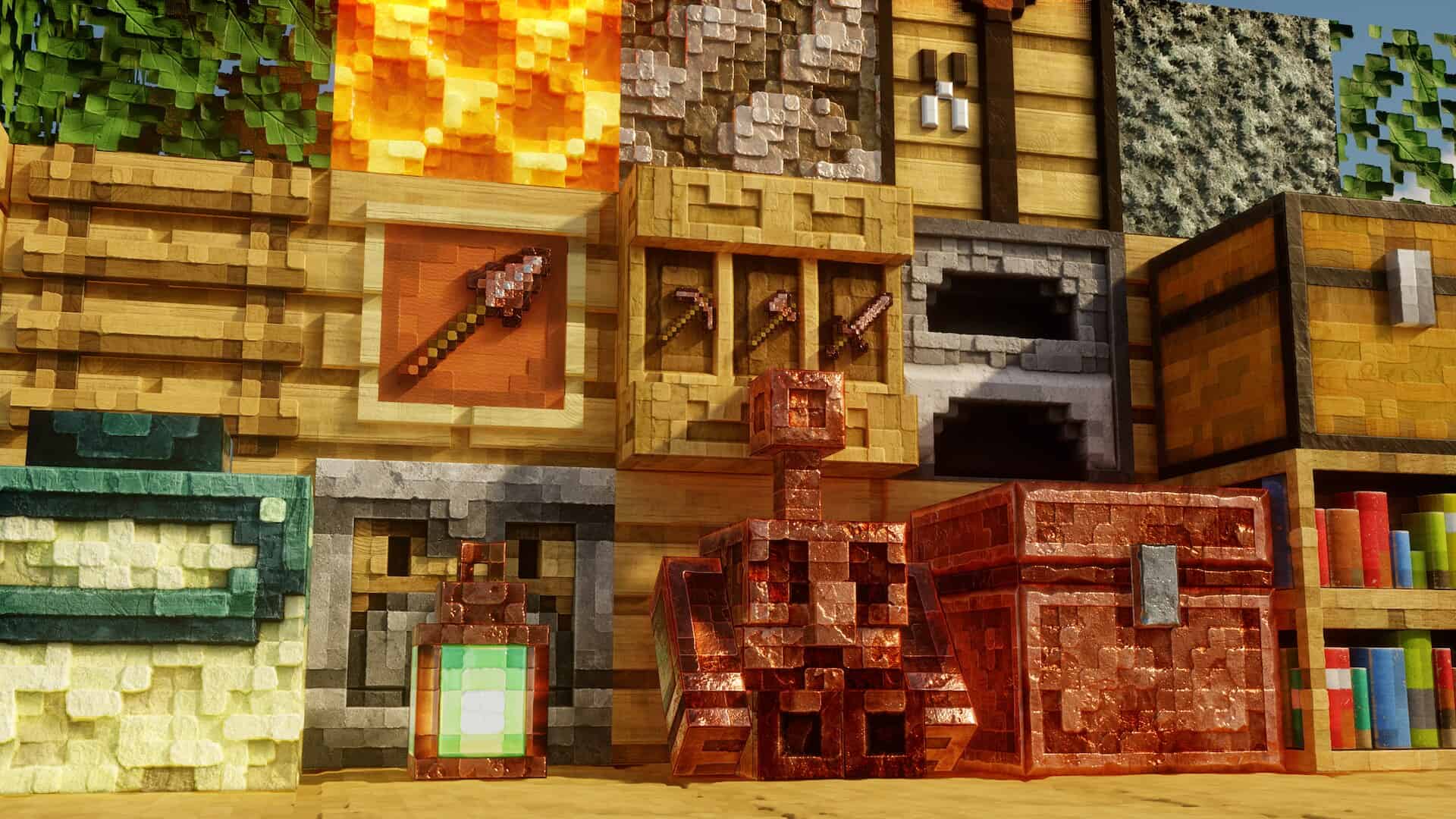
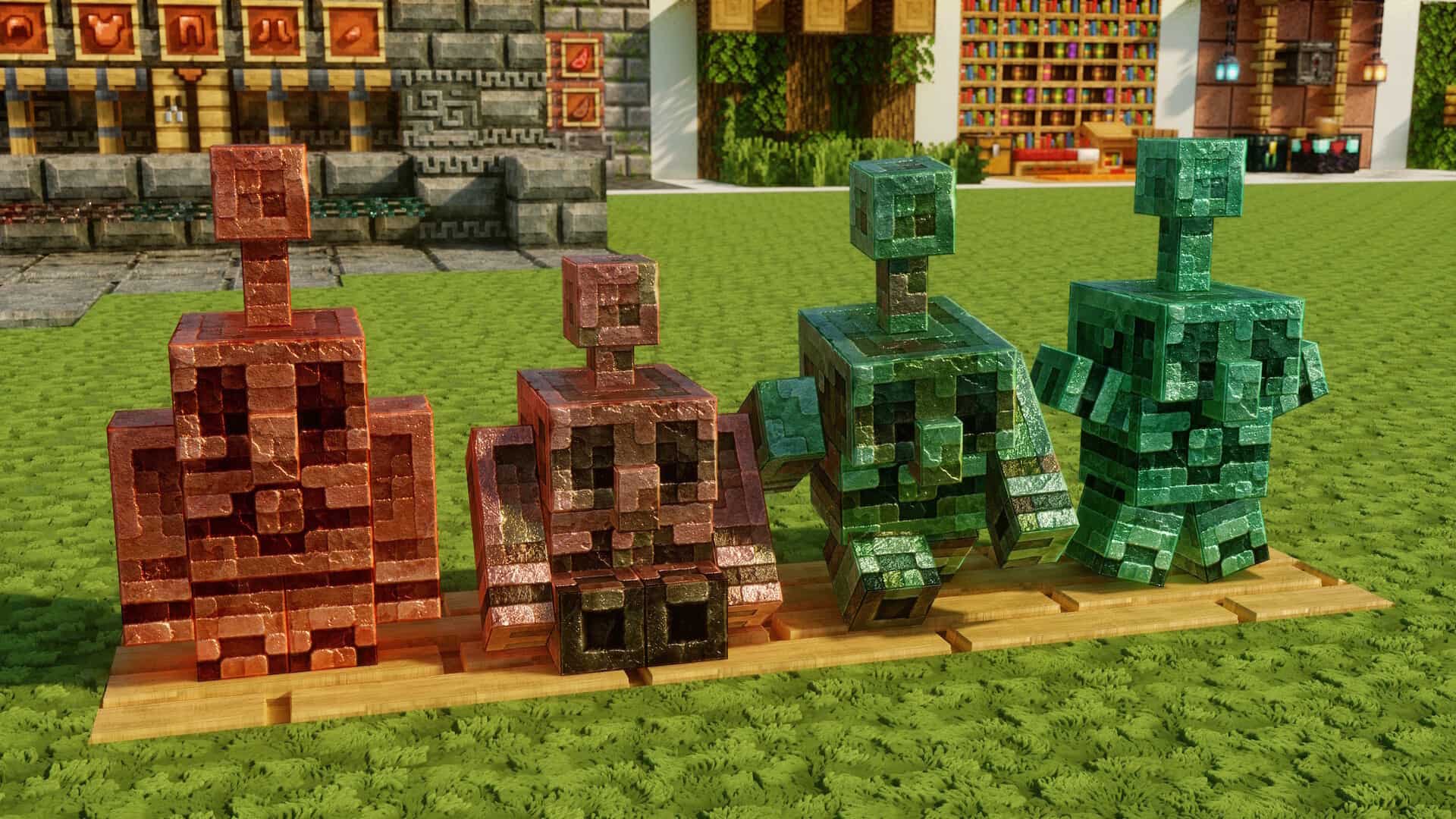
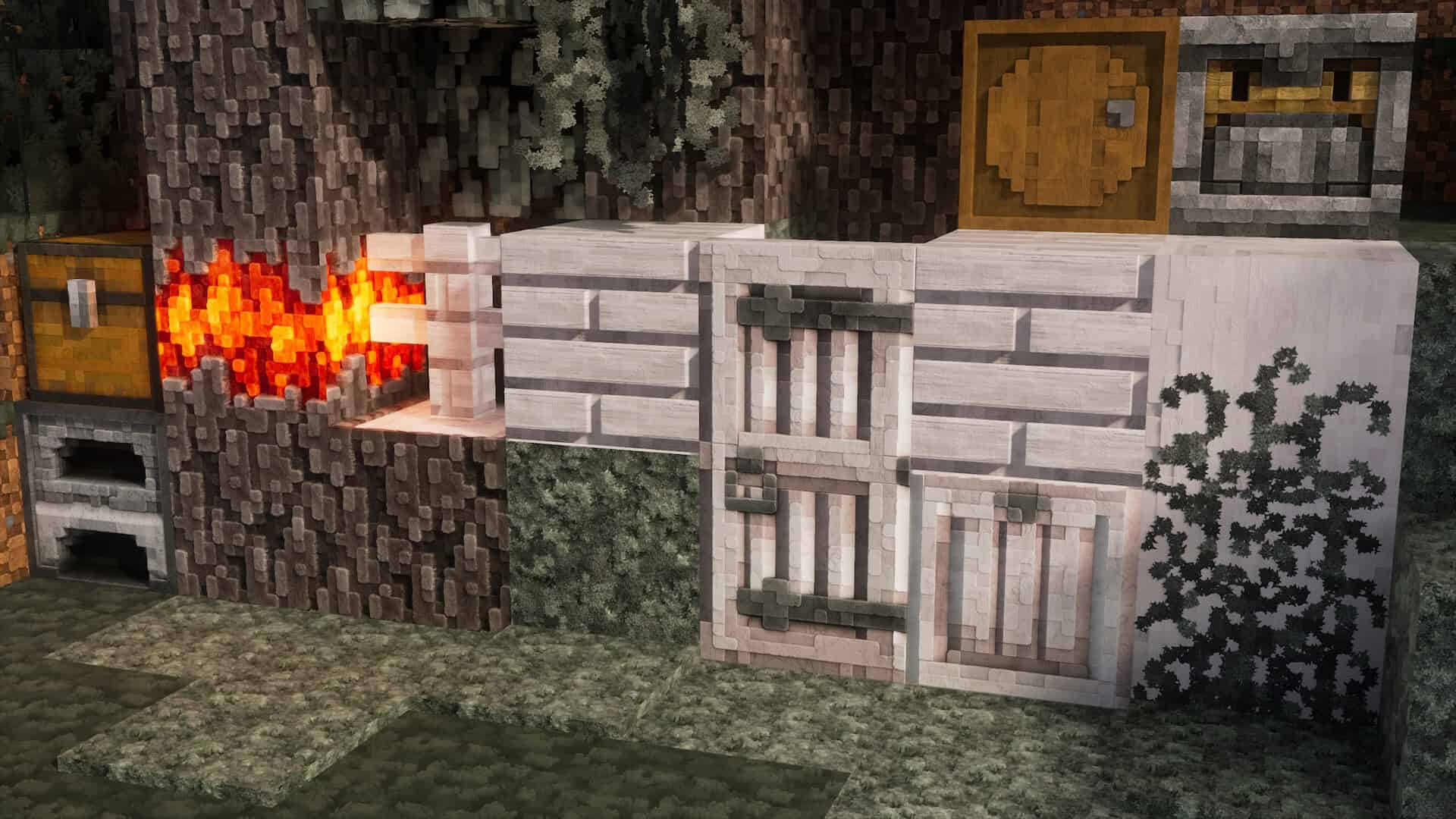
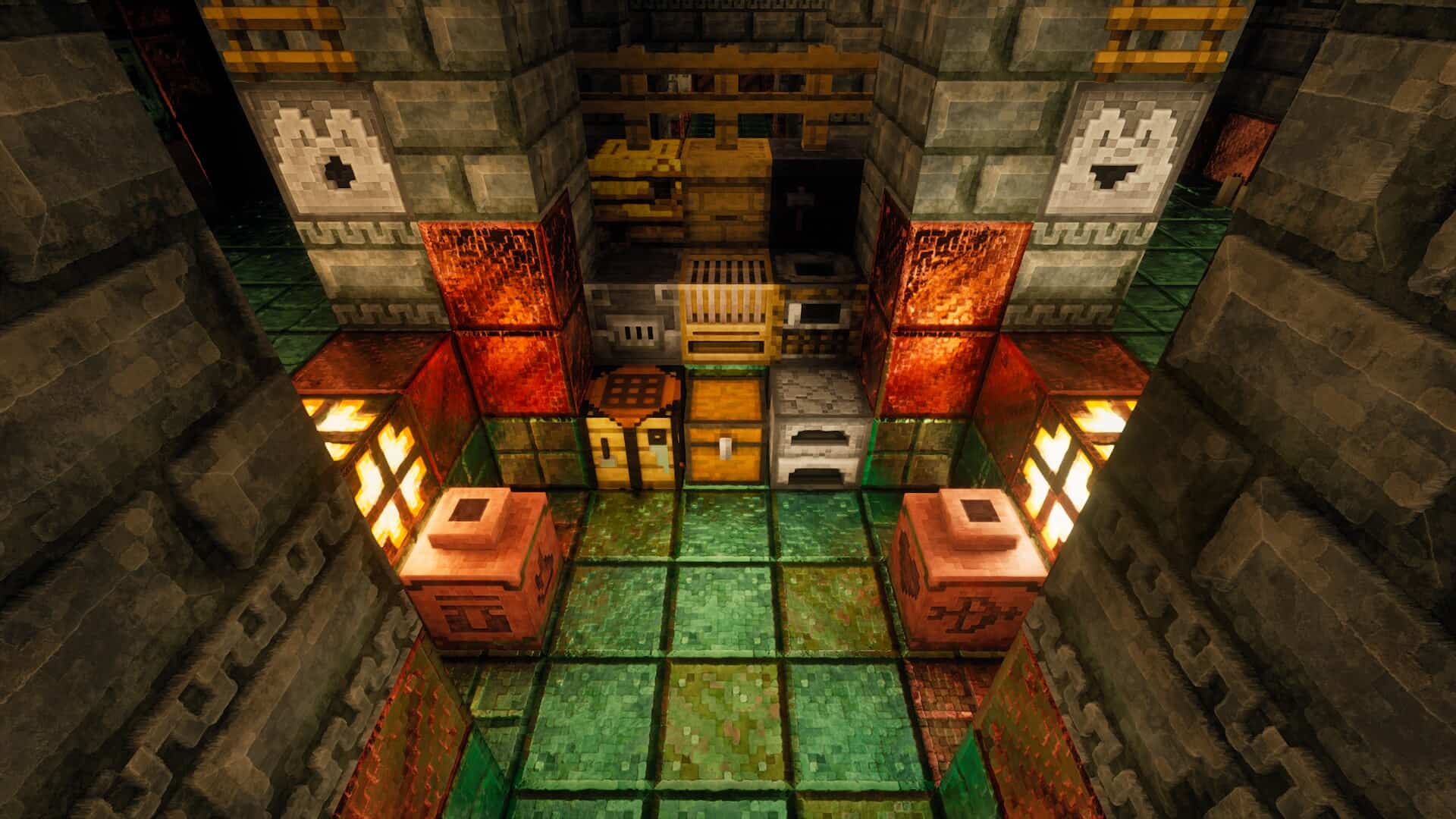
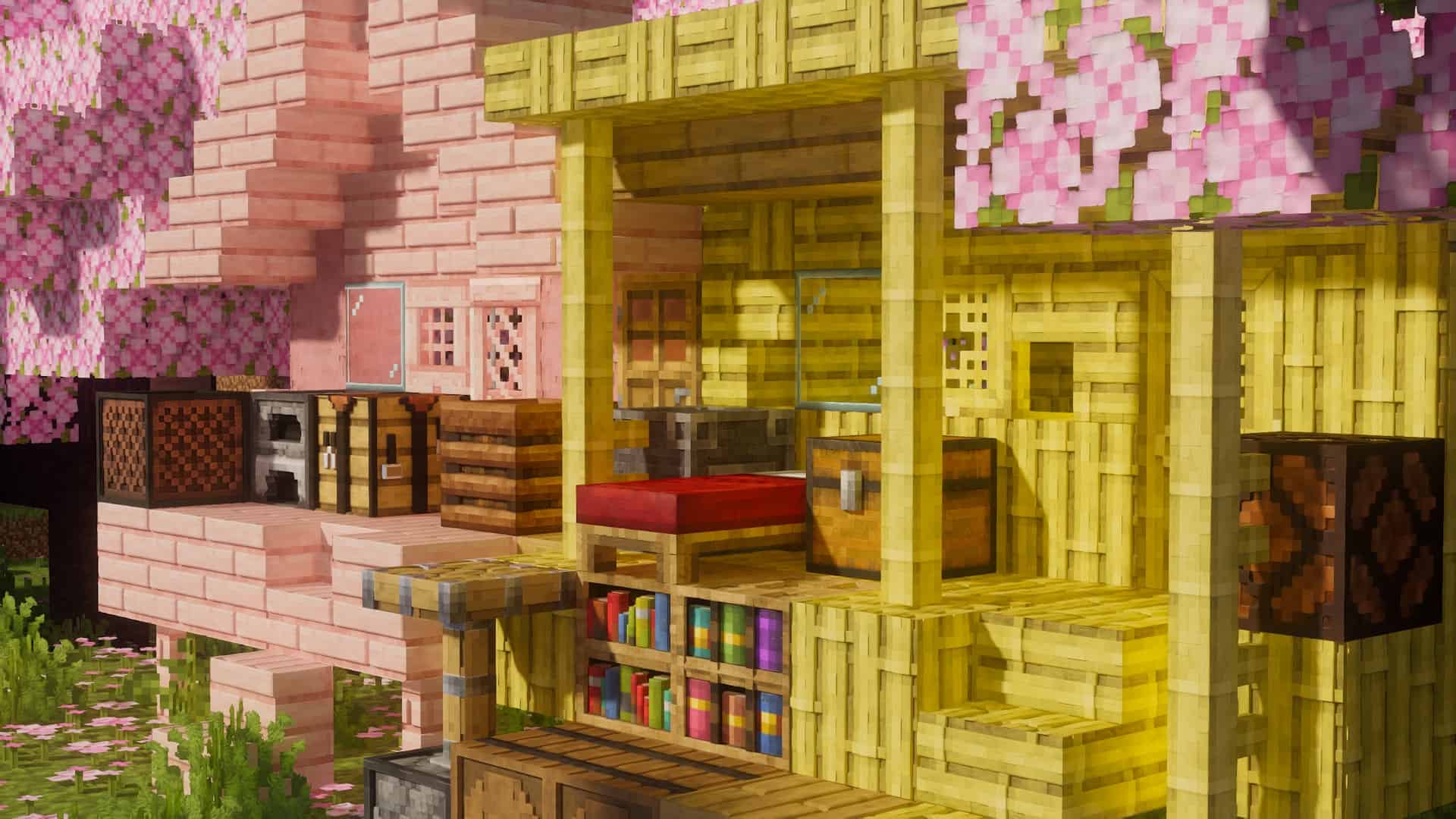
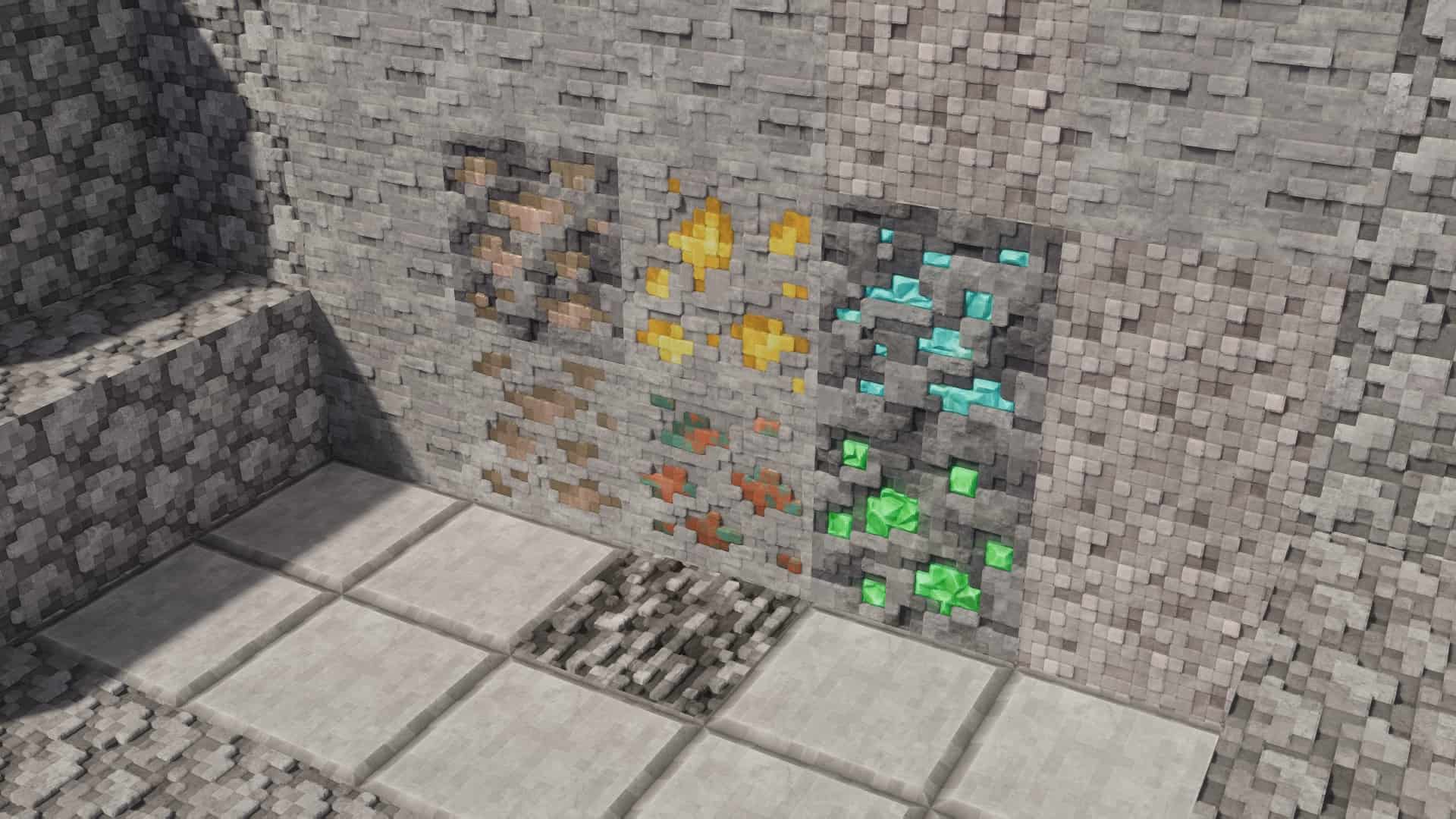
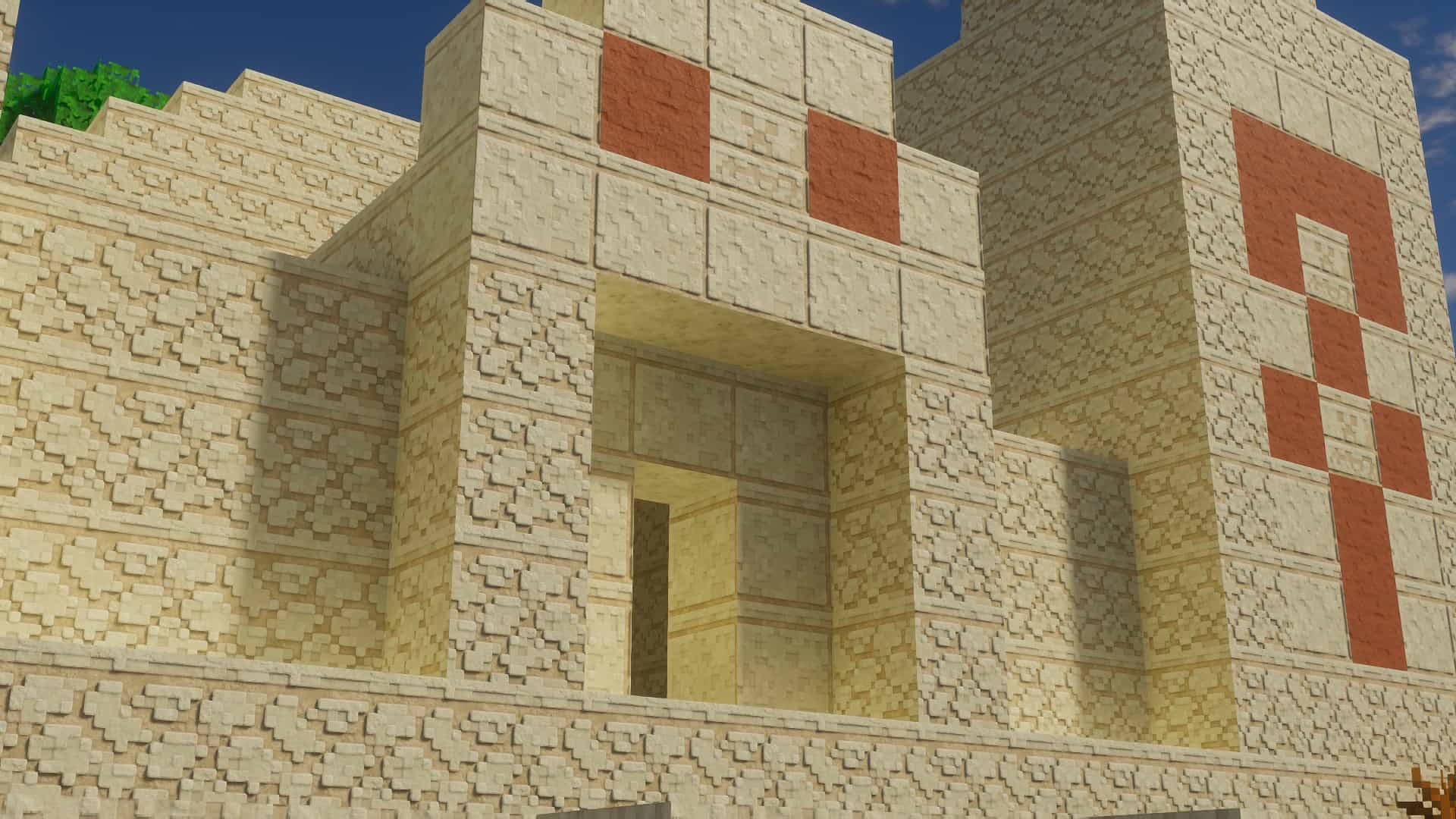
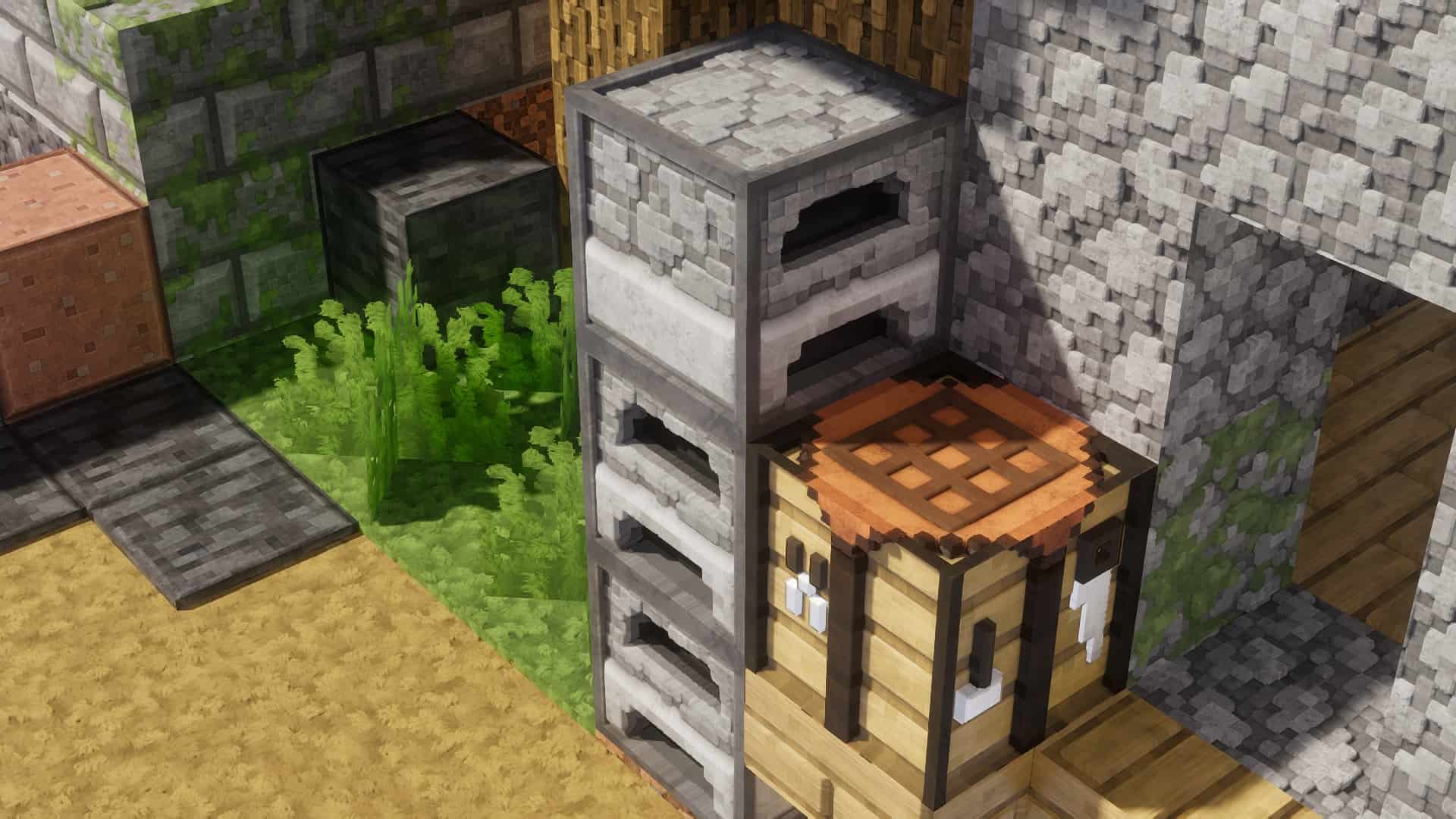
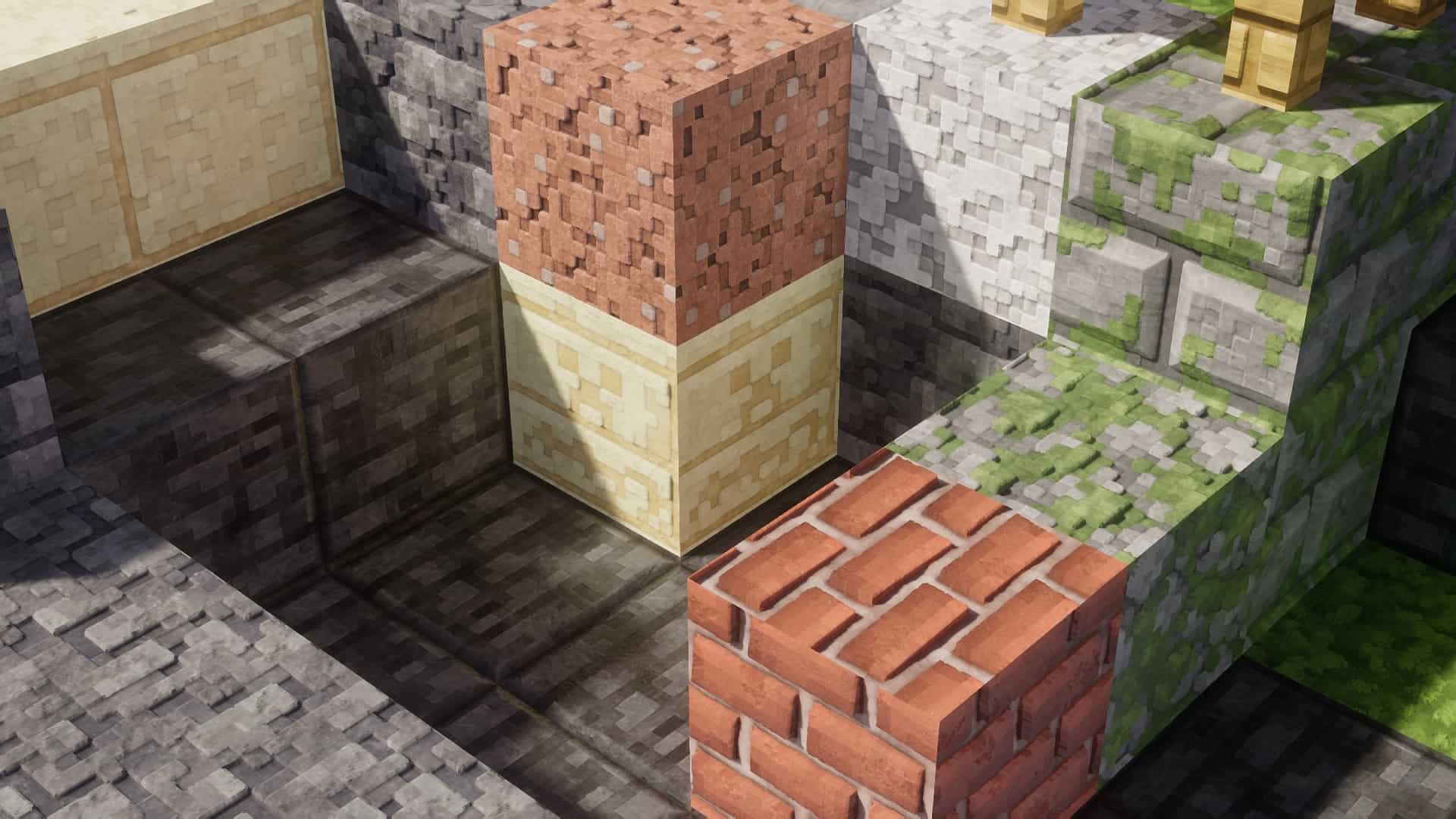
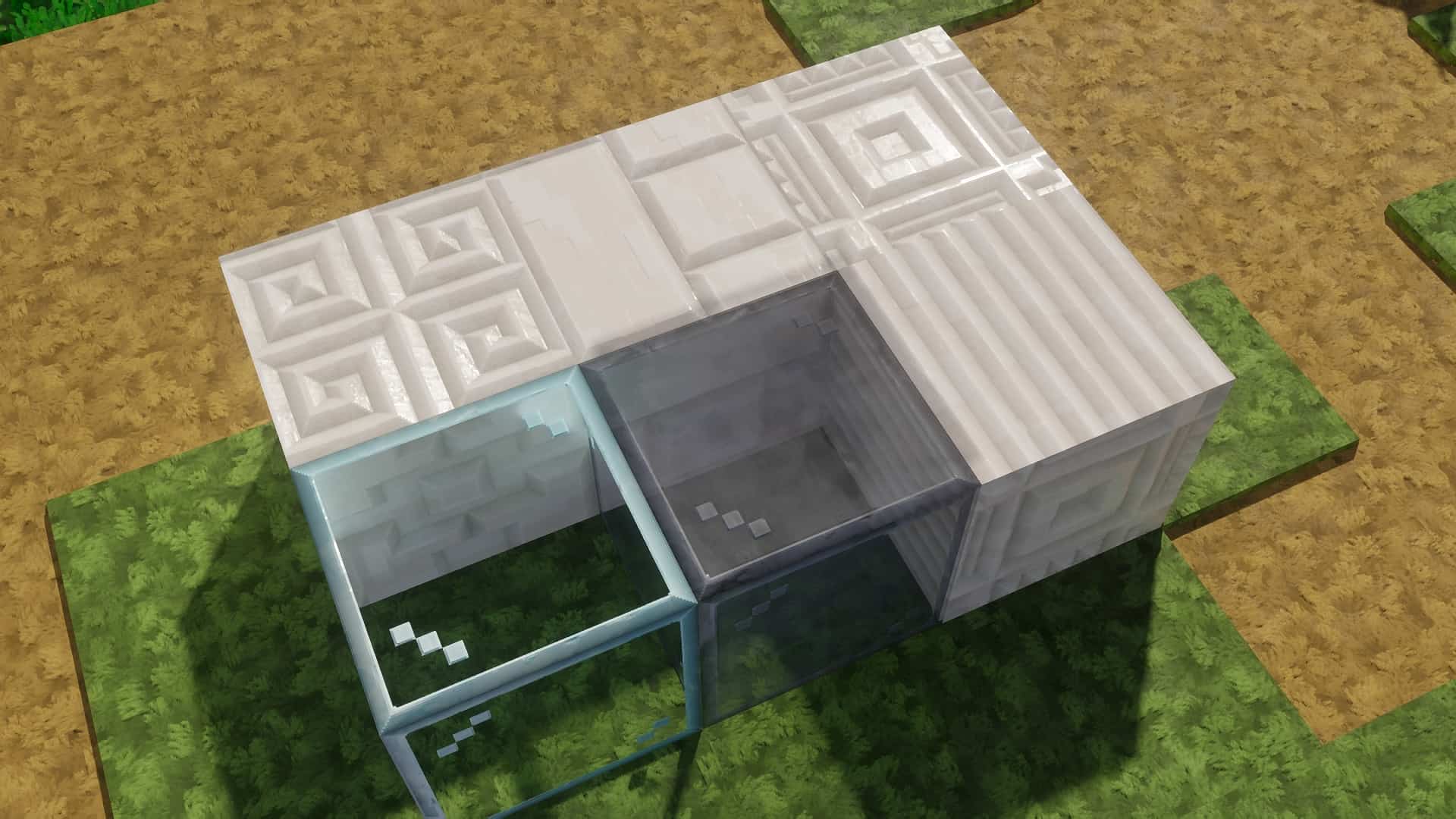
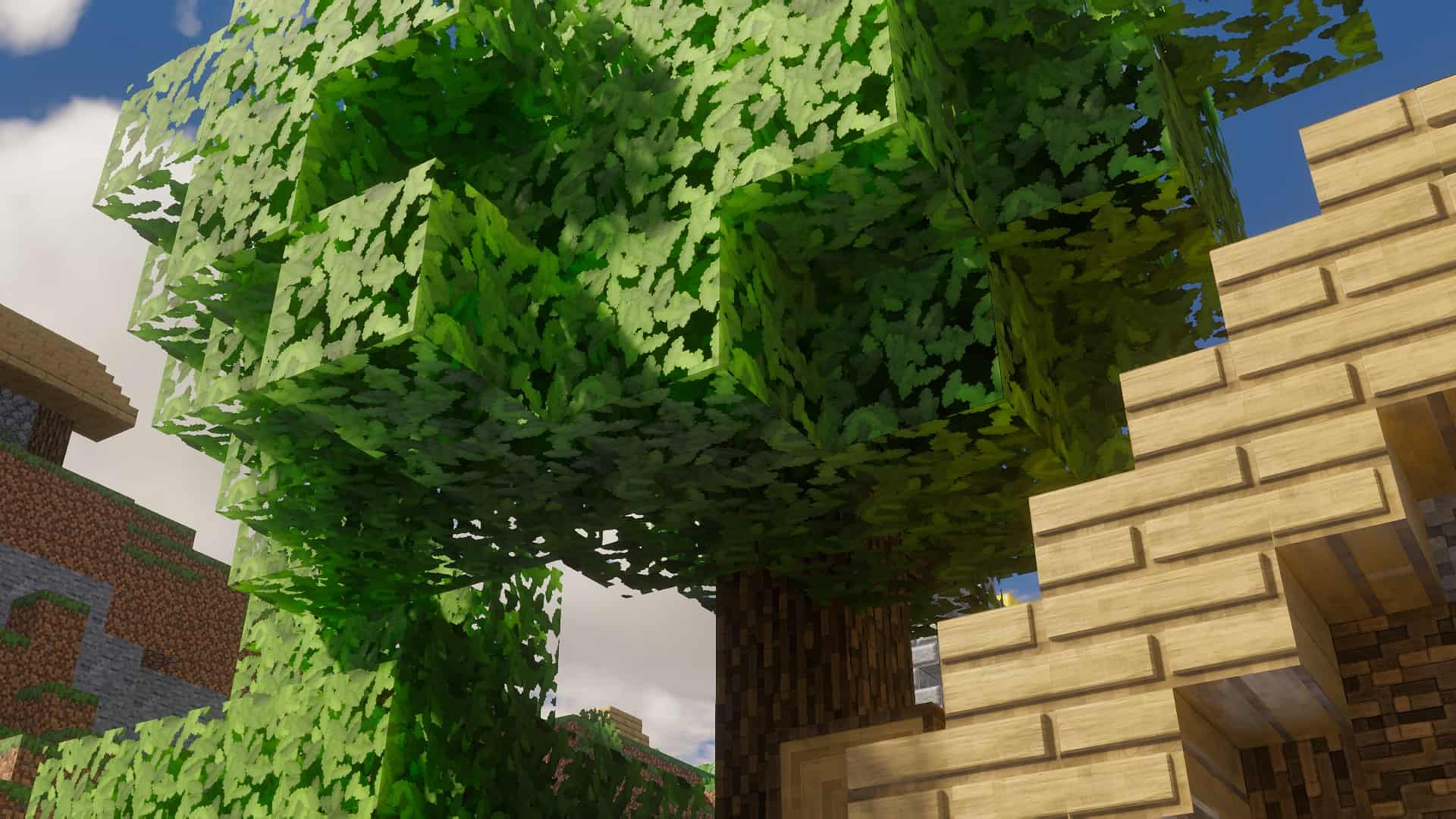
How to Install Texture Pack (Simple 10 Steps)
- Download OptiFine: Most of the texture packs and shaders need OptiFine. That’s why, first download and install OptiFine for the version of Minecraft you want to play.
- Download the Texture Pack: Get the texture pack you want from the download section. Choose the version that works with your Minecraft and your PC’s performance.
- Open Minecraft Launcher: Start Minecraft using the official game launcher — or even TLauncher, if you use that.
- Go to Options: From the main menu, click on the “Options” button.
- Open Resource Packs: Inside Options, click on “Resource Packs…”.
- Open the Resource Pack Folder: Click on “Open Resource Pack Folder” — this will open a folder named “resourcepacks”.
- Move the Pack File: Copy or move the .zip file you downloaded into that “resourcepacks” folder. (Don’t unzip the file — Minecraft uses it as-is!)
- Go Back and Refresh: Close the folder and click “Done”, then go back into “Resource Packs…” again.
- Activate the Pack: You’ll see the pack on the left side. Hover over it and click the arrow to move it to the right (active side).
Tip: If you get a message that the pack is for a different version, just click “Yes” — it usually works fine. - Click Done and Enjoy: Click “Done” again. Now your pack is ready to use in-game. It’s that easy!
Credits
This resource pack was created by illystray. We do not own or claim ownership of this content, and no modifications have been made to the original files provided by the author. All rights, intellectual property, and creative credits belong entirely to illystray. We strongly encourage you to support the creator by visiting their official download pages and contributing to their work.
Download Links
Java Edition
Download Instructions
Curseforge: download starts automatically after a few seconds;
Mediafire: click the big blue button with the text “DOWNLOAD”;
Google Drive: in the top right corner you will see a small download icon (down arrow), click it and the download should start;