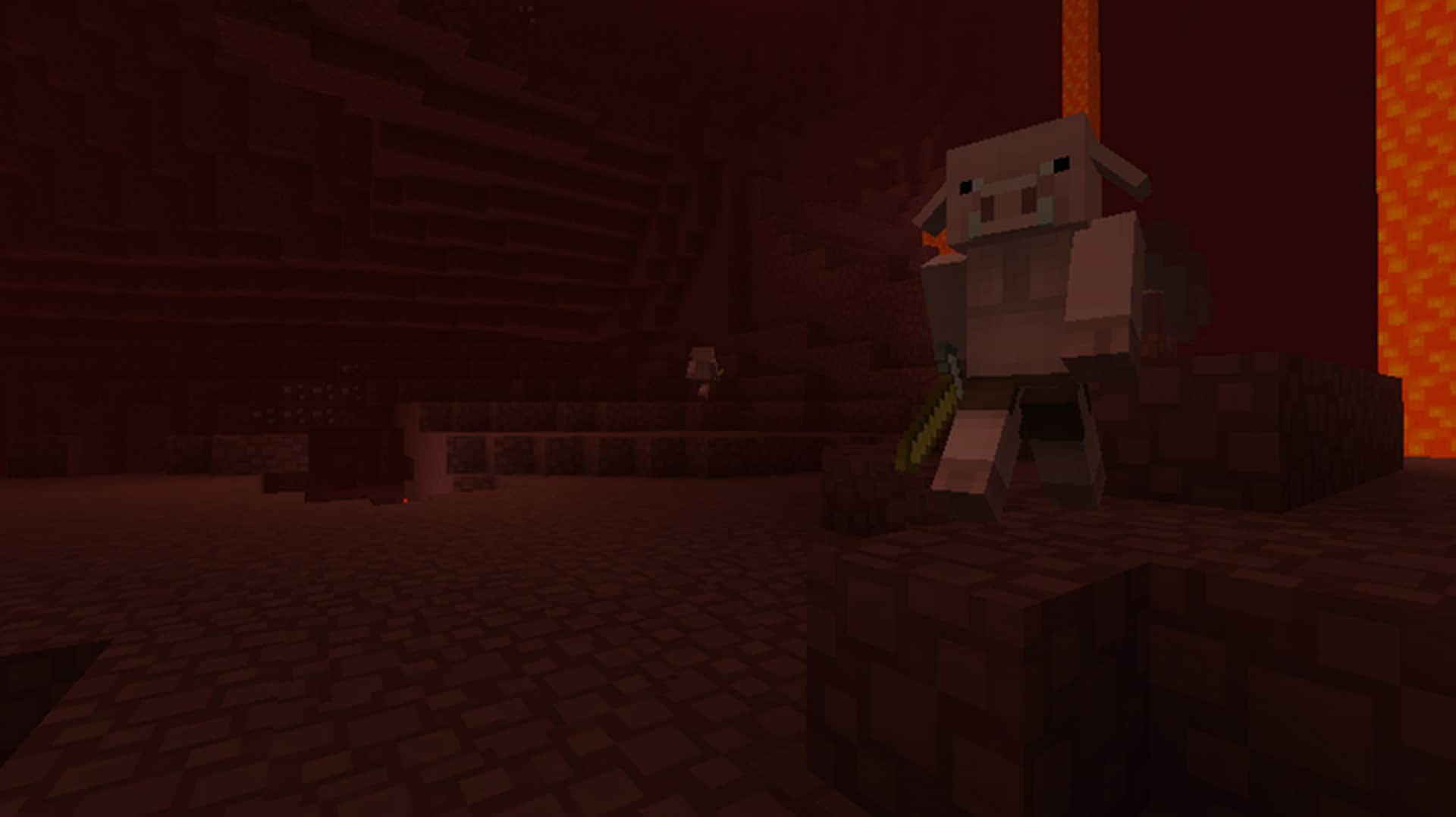
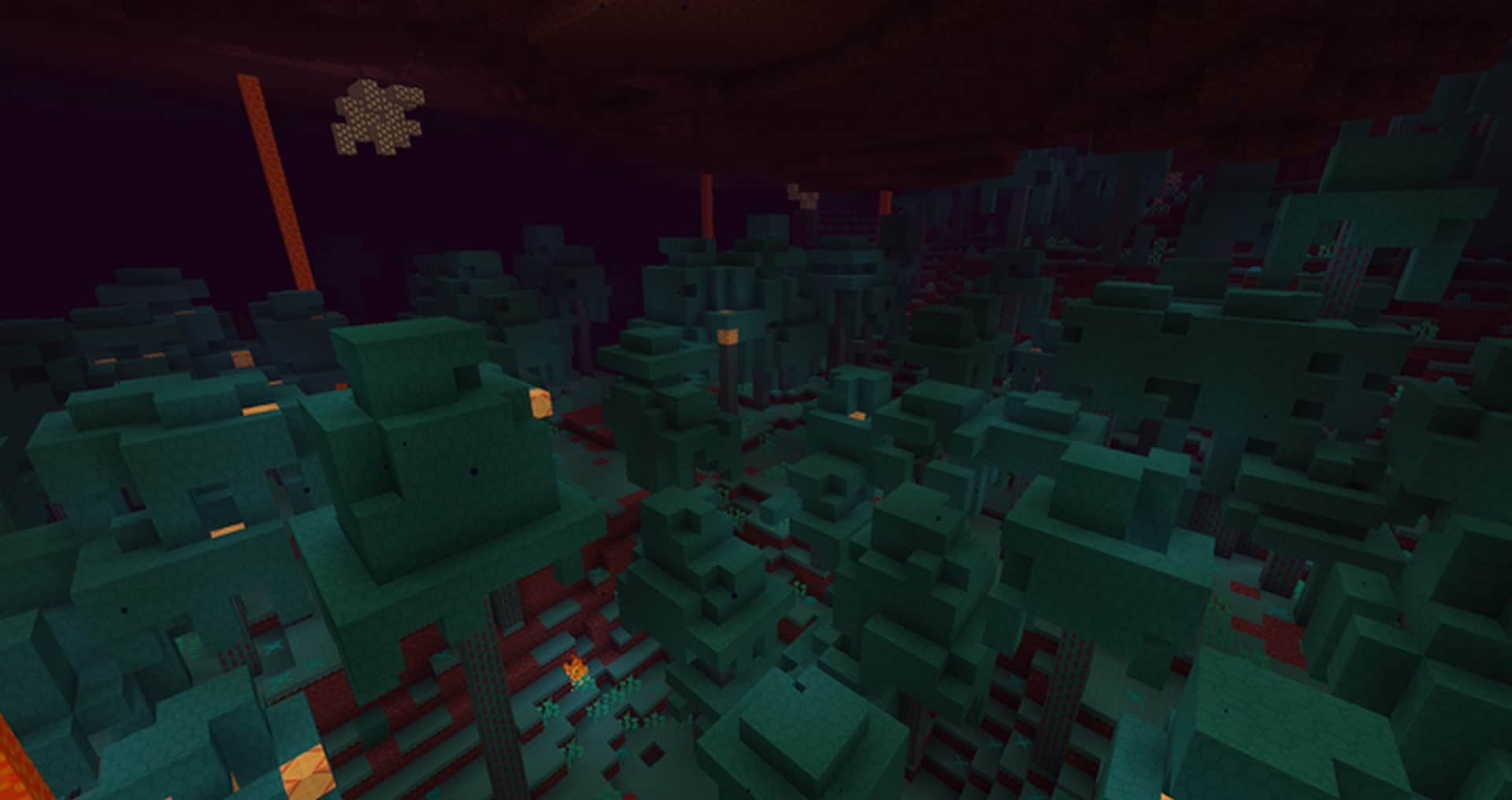
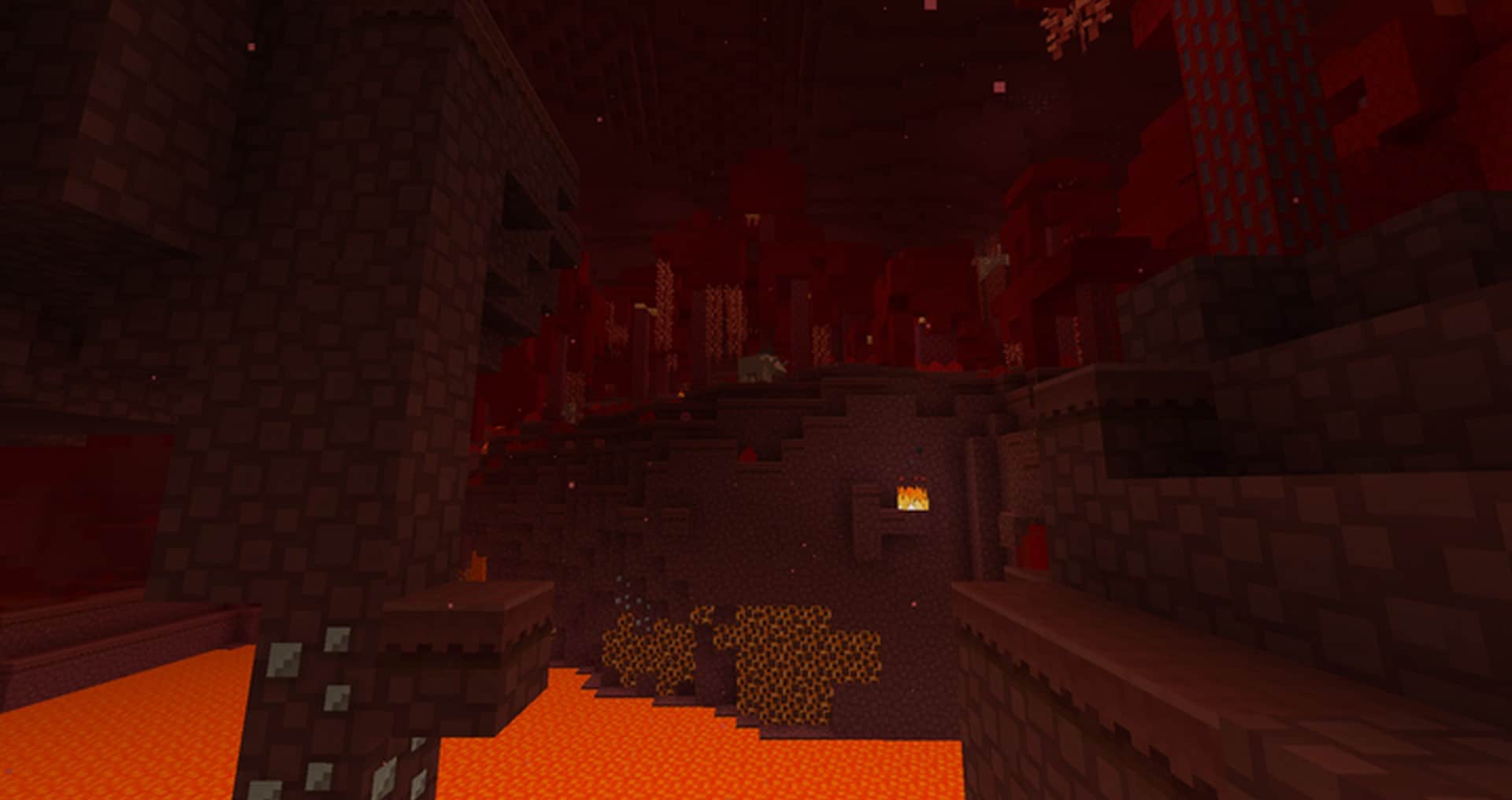
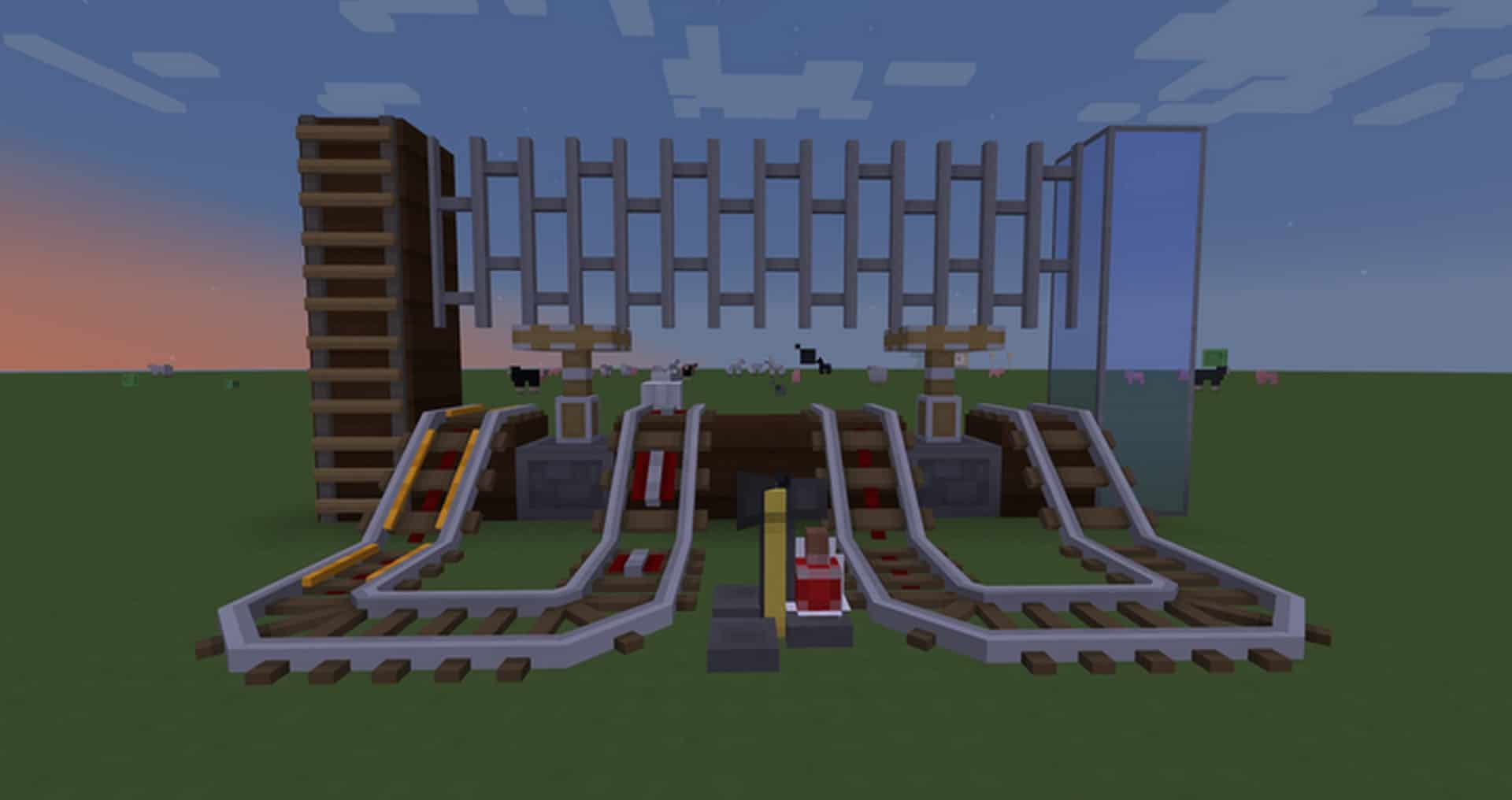
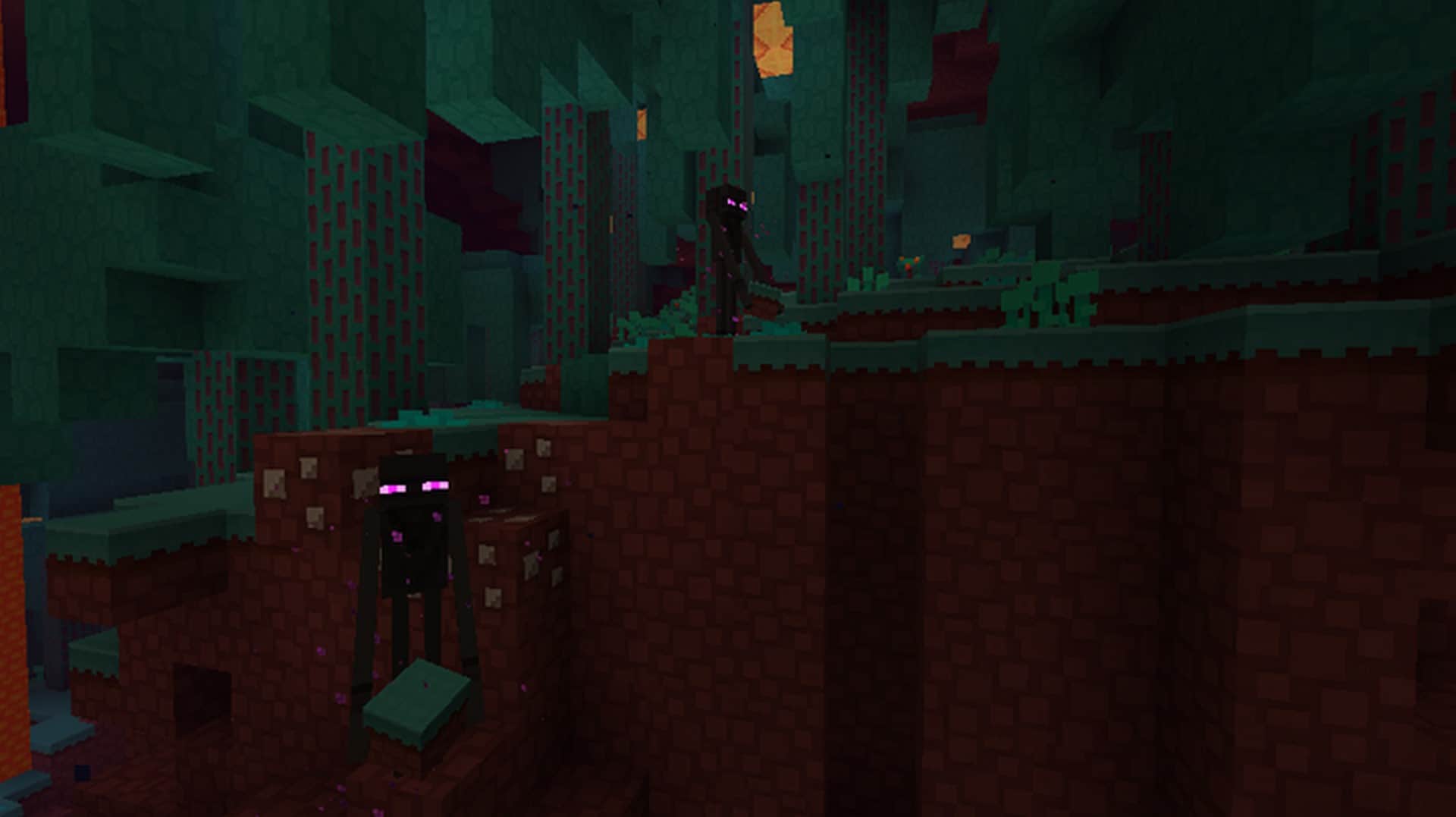
I think the Paper-Cut Out resource pack is an absolute joy to use; it is a remarkably simple and beautiful texture pack for Minecraft. The clean style aims to make the traditional icons look like flat, paper cut-outs of the original artwork. This unique style really shines when you compare how the standard ore blocks look in-game with the new paper style ores, which become wonderfully visually distinctive and flat icons. The core goal of this pack is to take the original blocky nature of Minecraft graphics and transform them into a charming flat paper world where everything appears as a unique cut out. What this pack might lack in high-end, complex graphics, it more than makes up for in pure, delightful simplicity. The textures are refreshingly small in size, and since this resource pack doesn’t contain anything but modified textures, downloading, tweaking, and installing them is an absolute breeze.
It definitely will not take up a lot of storage space, and all you have to do is drag the file right into your resource pack folder on your computer and activate it. This can be done conveniently either before or after generating a brand new world. The small texture sizes ensure that you will never have to endure any annoying, long loading times like some other larger texture packs cause. The lack of overly advanced textures, heavy scripts, and extra sounds really makes the Paper-Cut Out pack one of the absolute easiest to use and manage. Despite its fantastic simplicity and basic design, I love that this resource pack is still fully usable with a ton of advanced mods. In fact, smaller texture packs are usually much easier to incorporate into various mods and mod packs because there is significantly less to tweak to make everything compatible. All of this truly makes the Paper-Cut Out resource pack one of the most versatile, simple, and easy texture packs to enjoy in your Minecraft game.
Paper Cut-Out should be compatible with all of these Minecraft versions: 1.20.4 – 1.20.3 – 1.20.2 – 1.20.1 – 1.20 – 1.19.4 – 1.19.3 – 1.19.2 – 1.19.1 – 1.19 – 1.18.2 – 1.18.1 – 1.18 – 1.17.1 – 1.17 – 1.16.5 – 1.16.4 – 1.16.3 – 1.16.2 – 1.16.1 – 1.16 – 1.15.2 – 1.15.1 – 1.15 – 1.14.4 – 1.14.3 – 1.14.2 – 1.14 – 1.11.2 – 1.11 – 1.10.2 – 1.10 – Bedrock Edition – PE
Screenshots
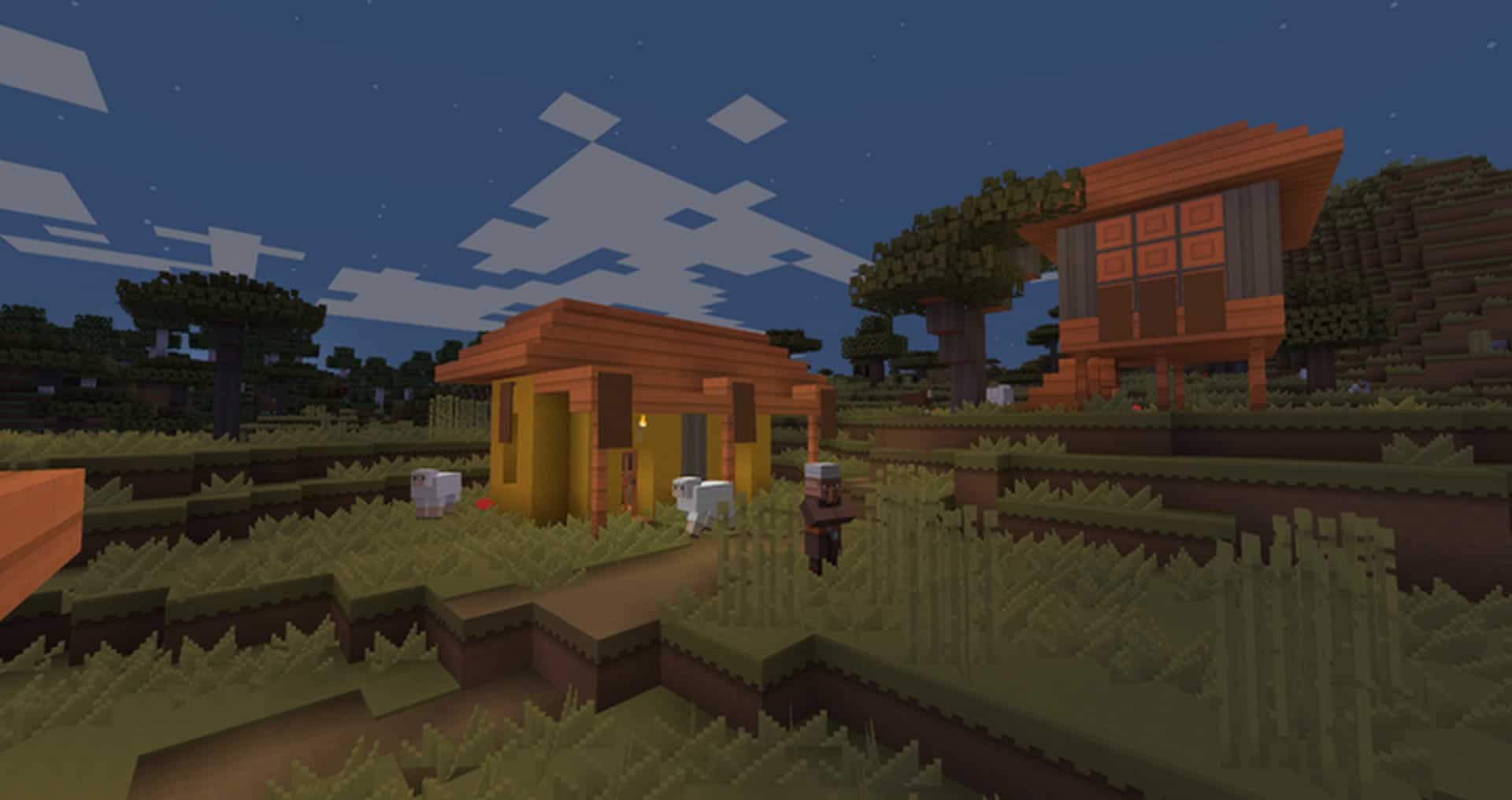
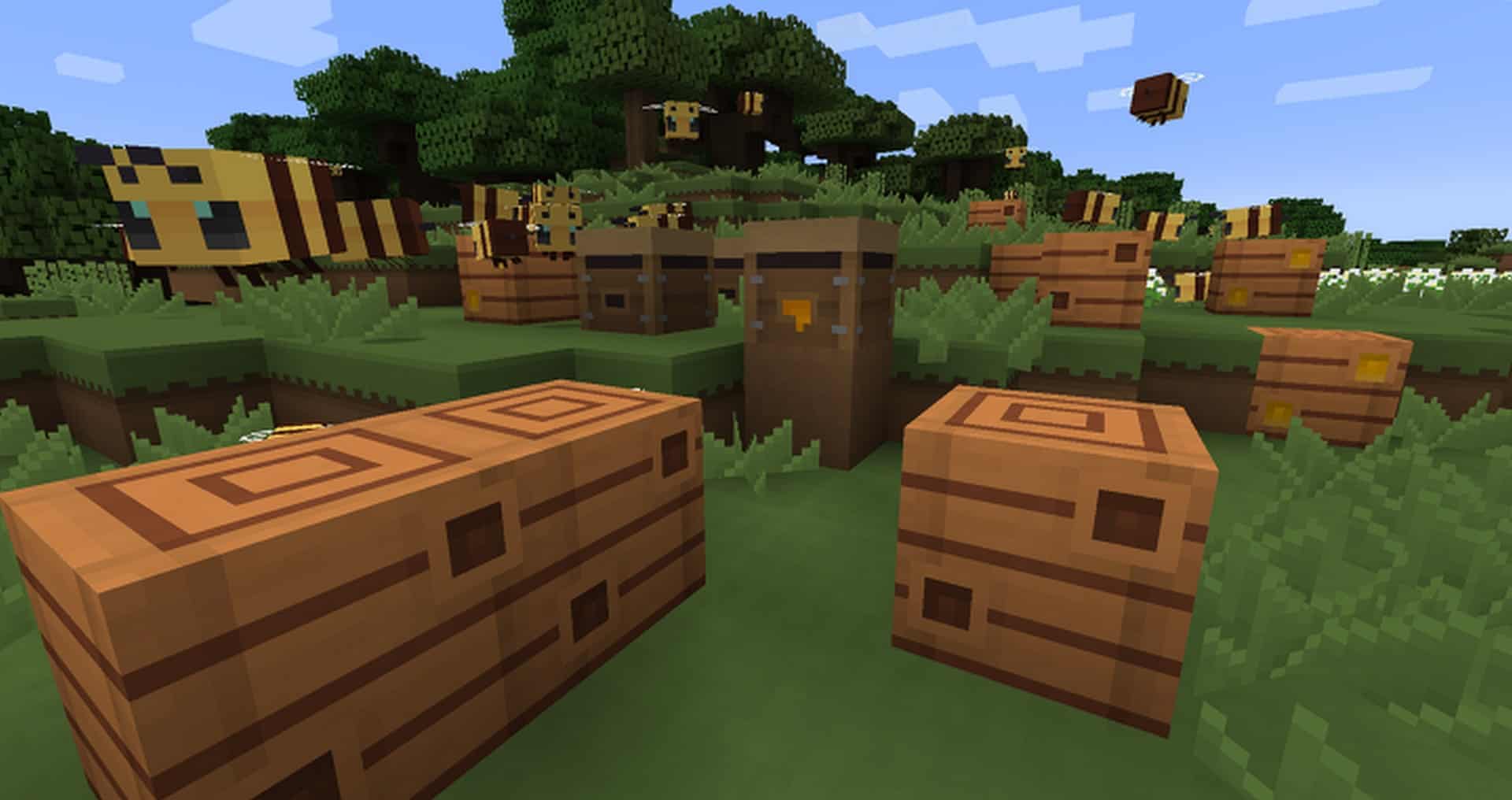
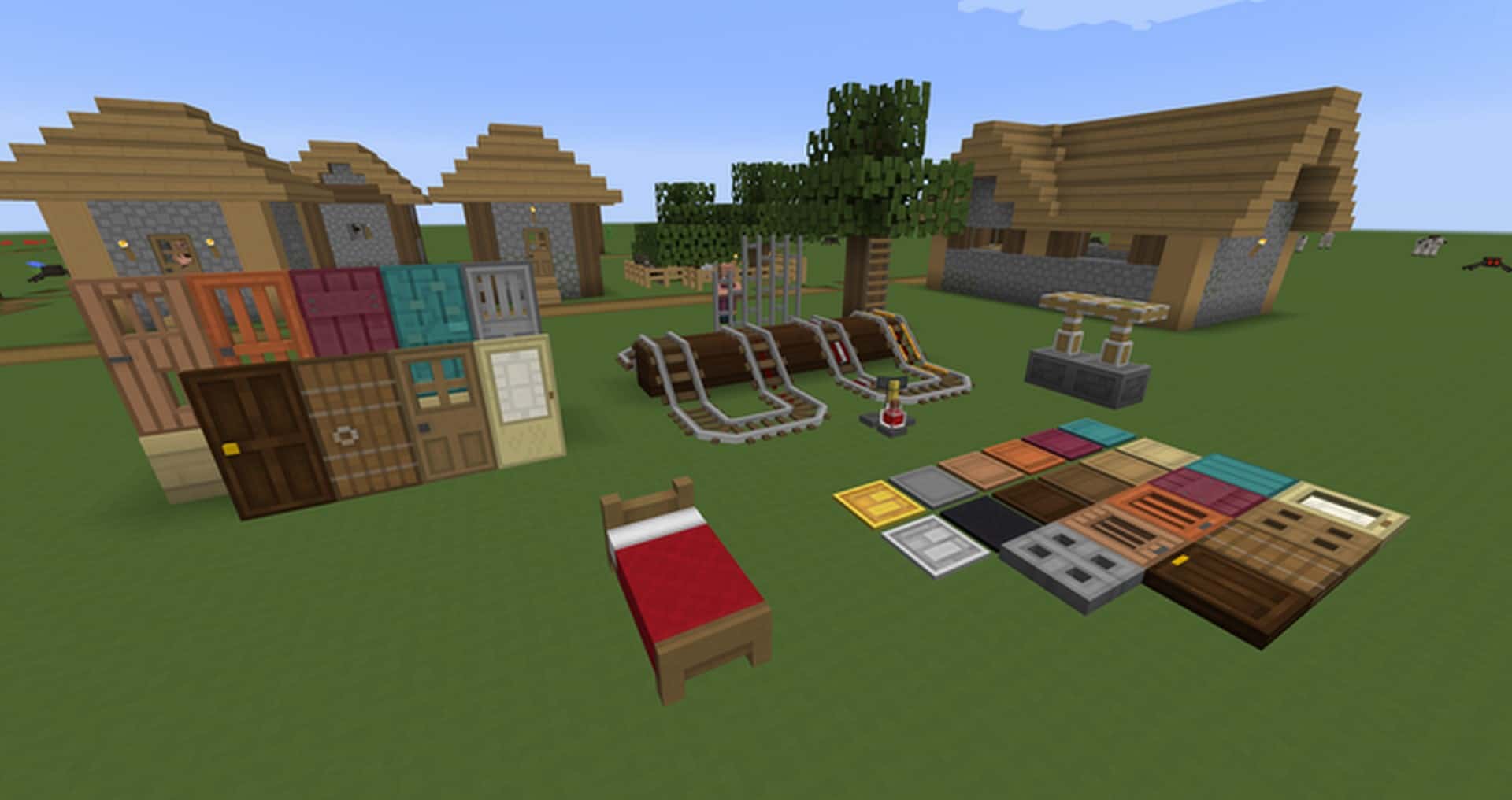
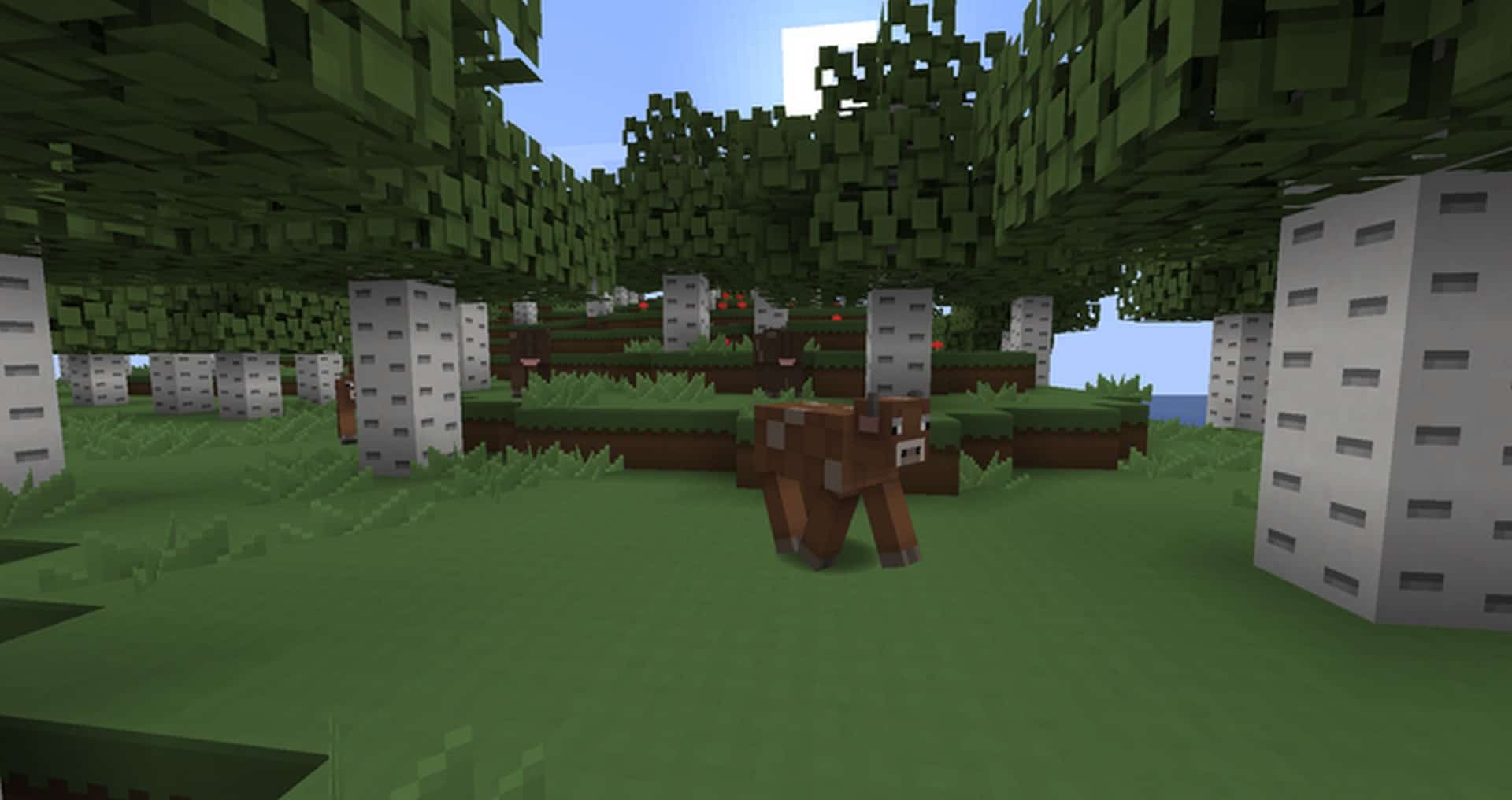
How to Install Texture Pack (Simple 10 Steps)
- Download OptiFine: Most of the texture packs and shaders need OptiFine. That’s why, first download and install OptiFine for the version of Minecraft you want to play.
- Download the Texture Pack: Get the texture pack you want from the download section. Choose the version that works with your Minecraft and your PC’s performance.
- Open Minecraft Launcher: Start Minecraft using the official game launcher — or even TLauncher, if you use that.
- Go to Options: From the main menu, click on the “Options” button.
- Open Resource Packs: Inside Options, click on “Resource Packs…”.
- Open the Resource Pack Folder: Click on “Open Resource Pack Folder” — this will open a folder named “resourcepacks”.
- Move the Pack File: Copy or move the .zip file you downloaded into that “resourcepacks” folder. (Don’t unzip the file — Minecraft uses it as-is!)
- Go Back and Refresh: Close the folder and click “Done”, then go back into “Resource Packs…” again.
- Activate the Pack: You’ll see the pack on the left side. Hover over it and click the arrow to move it to the right (active side).
Tip: If you get a message that the pack is for a different version, just click “Yes” — it usually works fine. - Click Done and Enjoy: Click “Done” again. Now your pack is ready to use in-game. It’s that easy!
Credits
This resource pack was originally created by superalgae and chengzzi89. We do not claim ownership of this content, nor have we modified the original files. We fully credit the original creators and encourage you to support them.
Download Links
Java Edition
- [16x] Minecraft 1.20.2+
- [16x] Minecraft 1.20.x – 1.20.1
- [16x] Minecraft 1.19.x – 1.18.x
- [16x] Minecraft 1.17.x – 1.14.x
- [16x] Minecraft 1.11.x – 1.10.x
Bedrock Edition
Download Instructions
Curseforge: download starts automatically after a few seconds;
Mediafire: click the big blue button with the text “DOWNLOAD”;
Google Drive: in the top right corner you will see a small download icon (down arrow), click it and the download should start;


