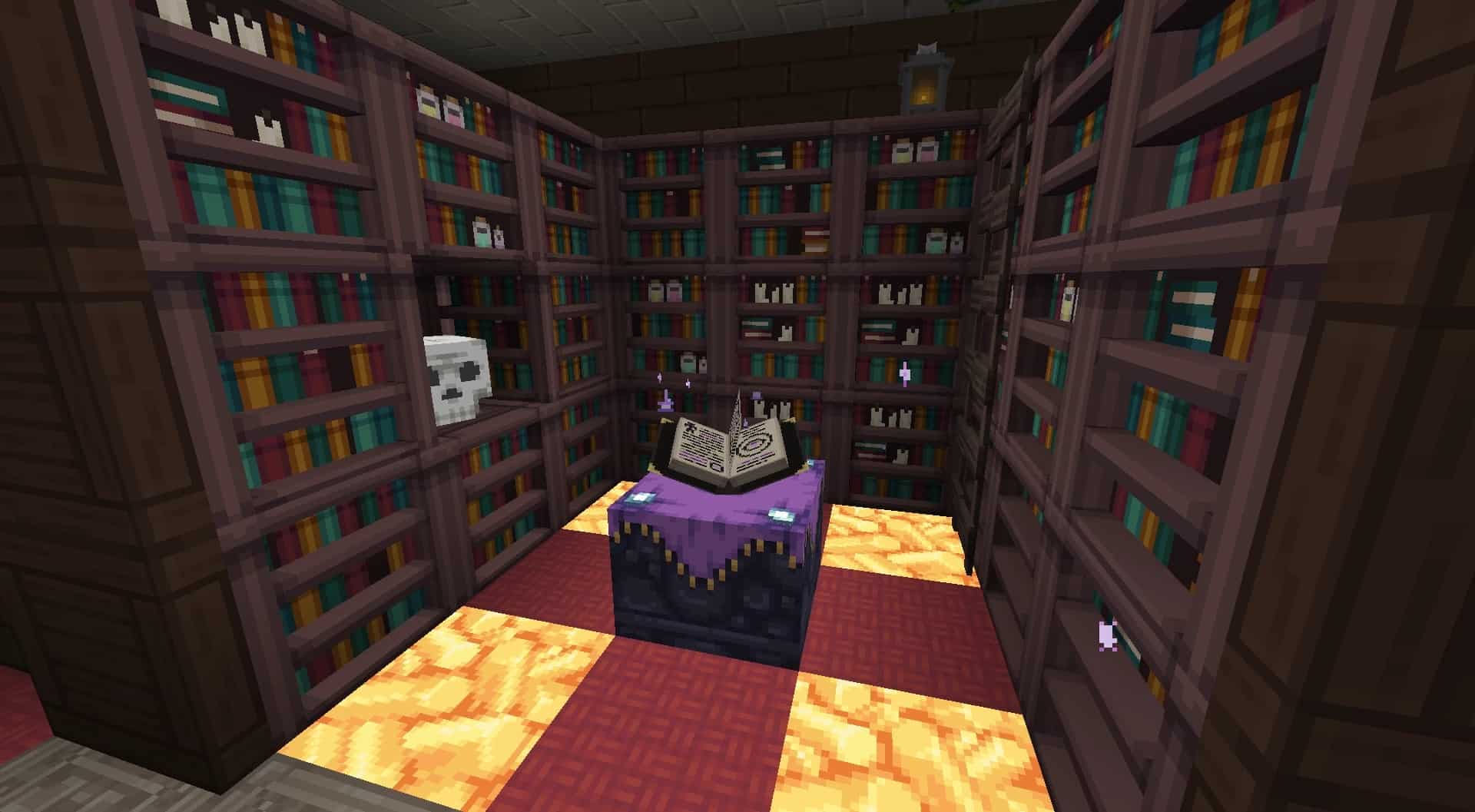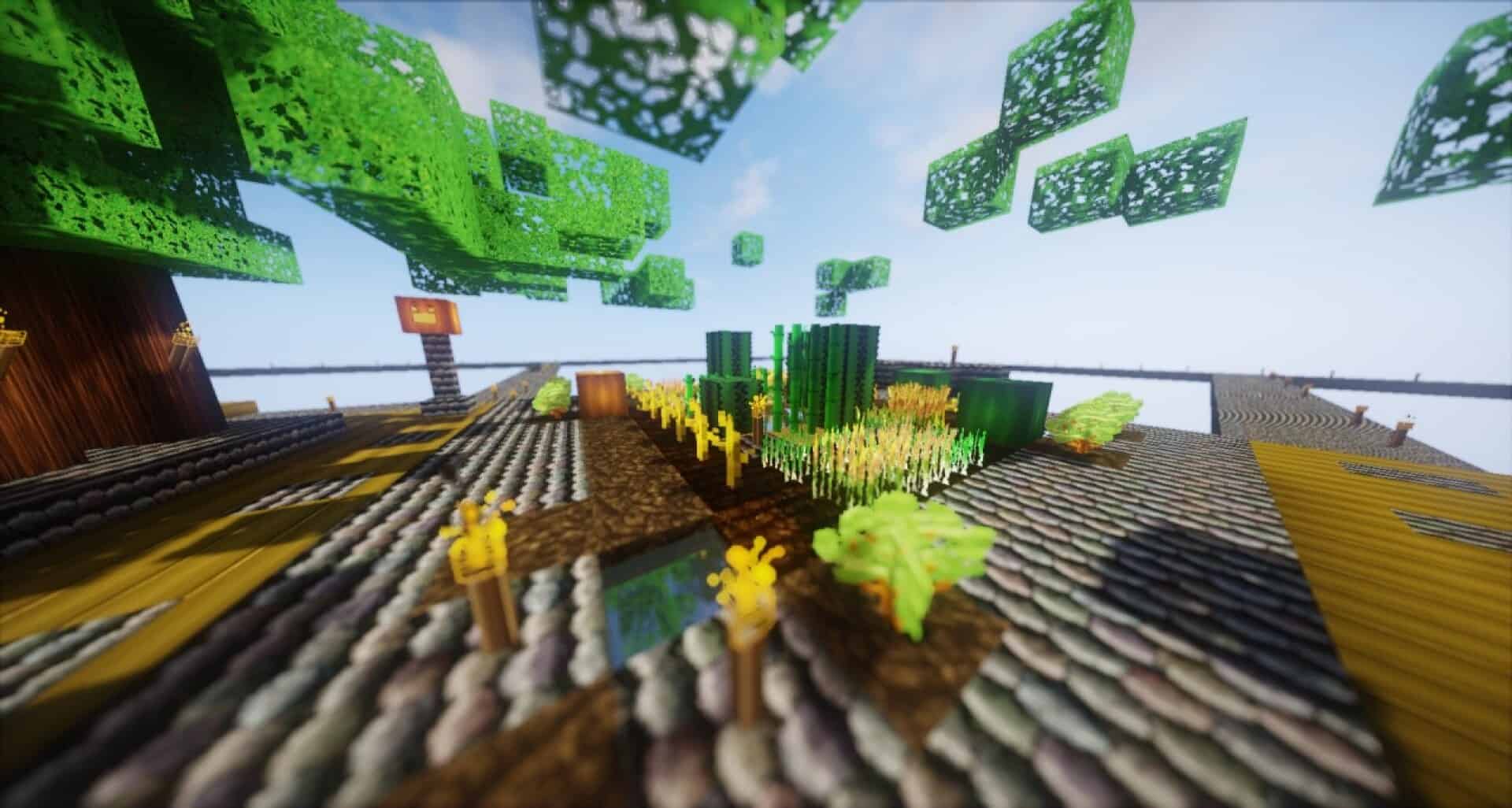
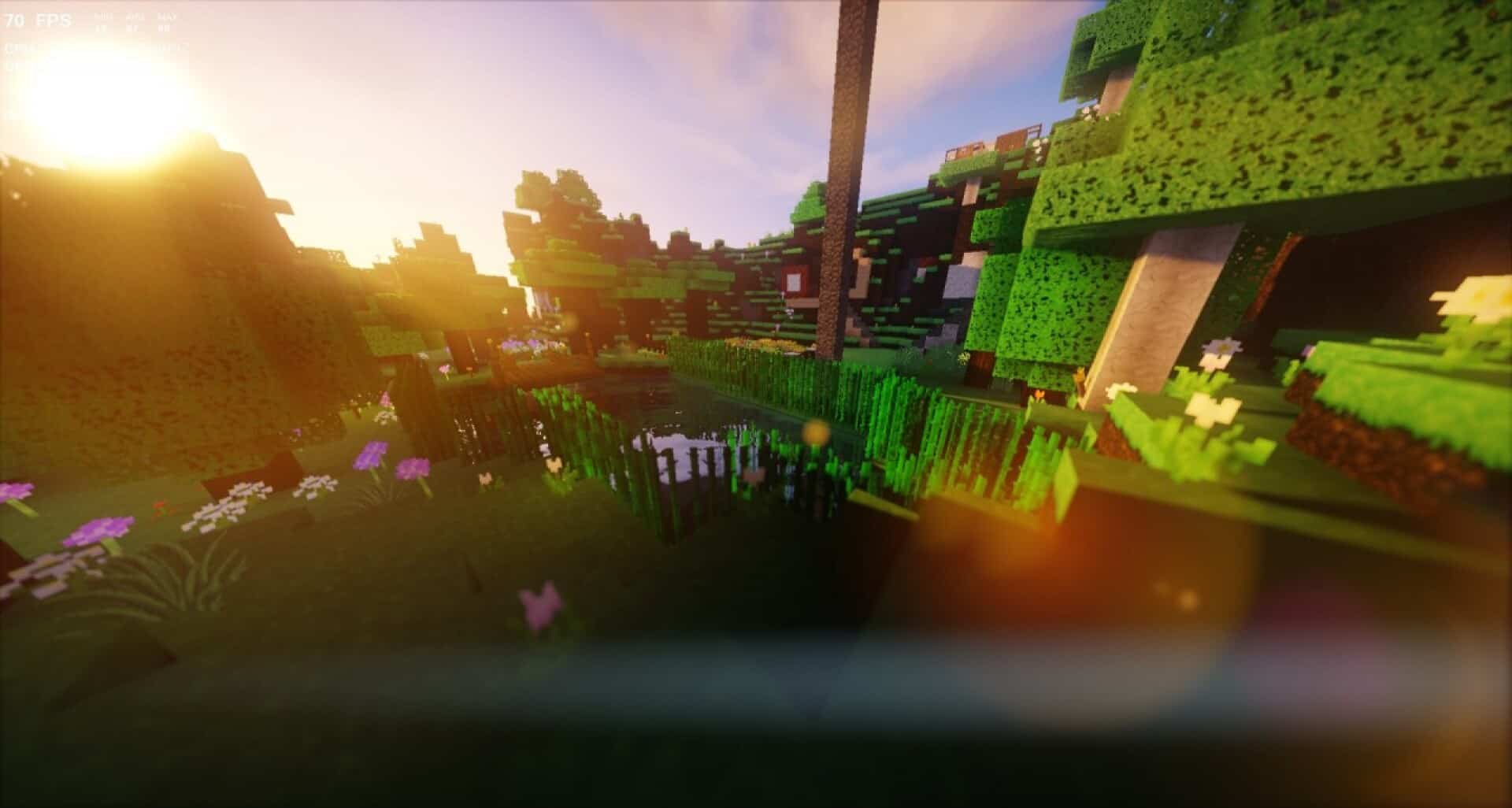
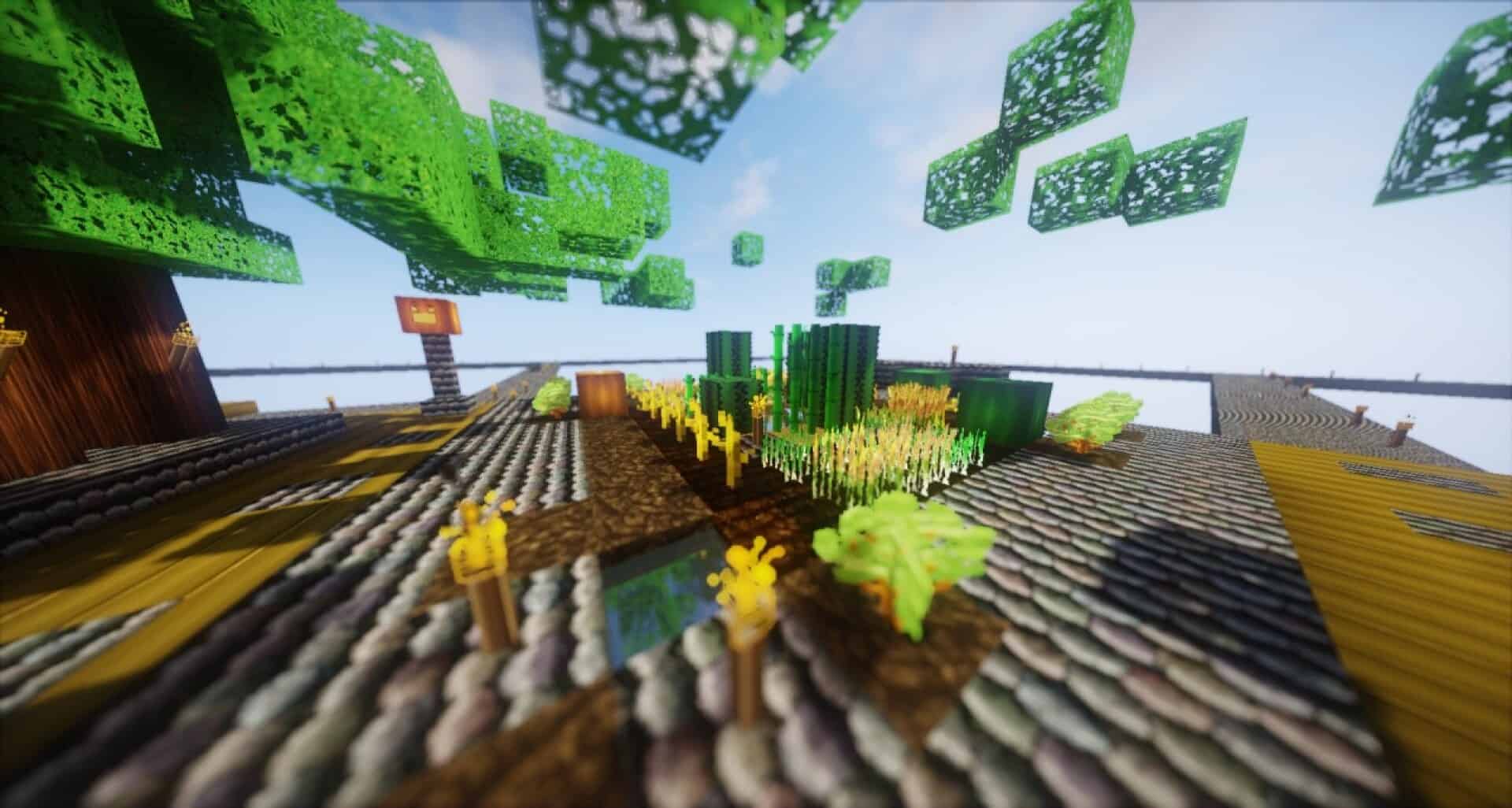
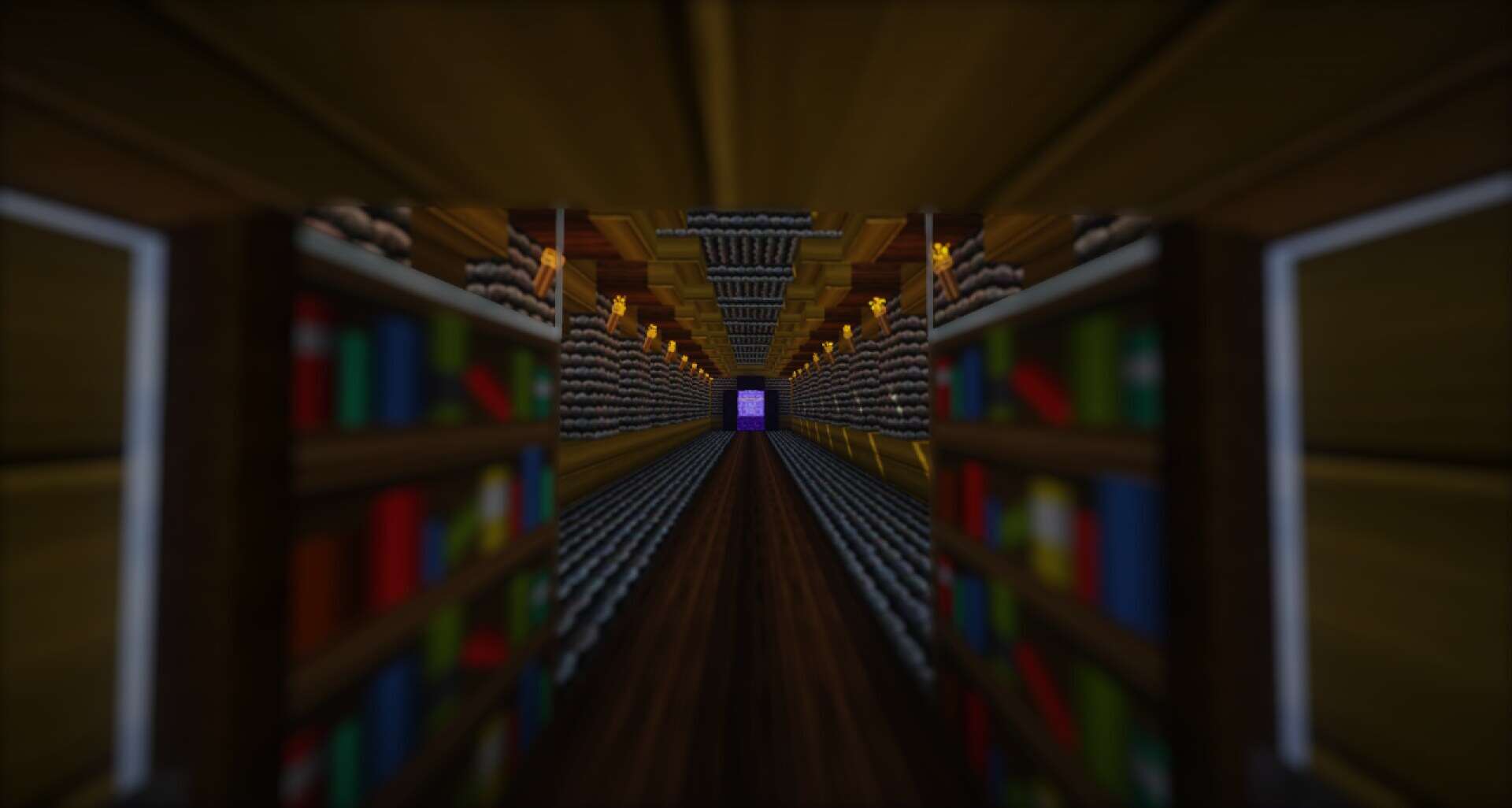
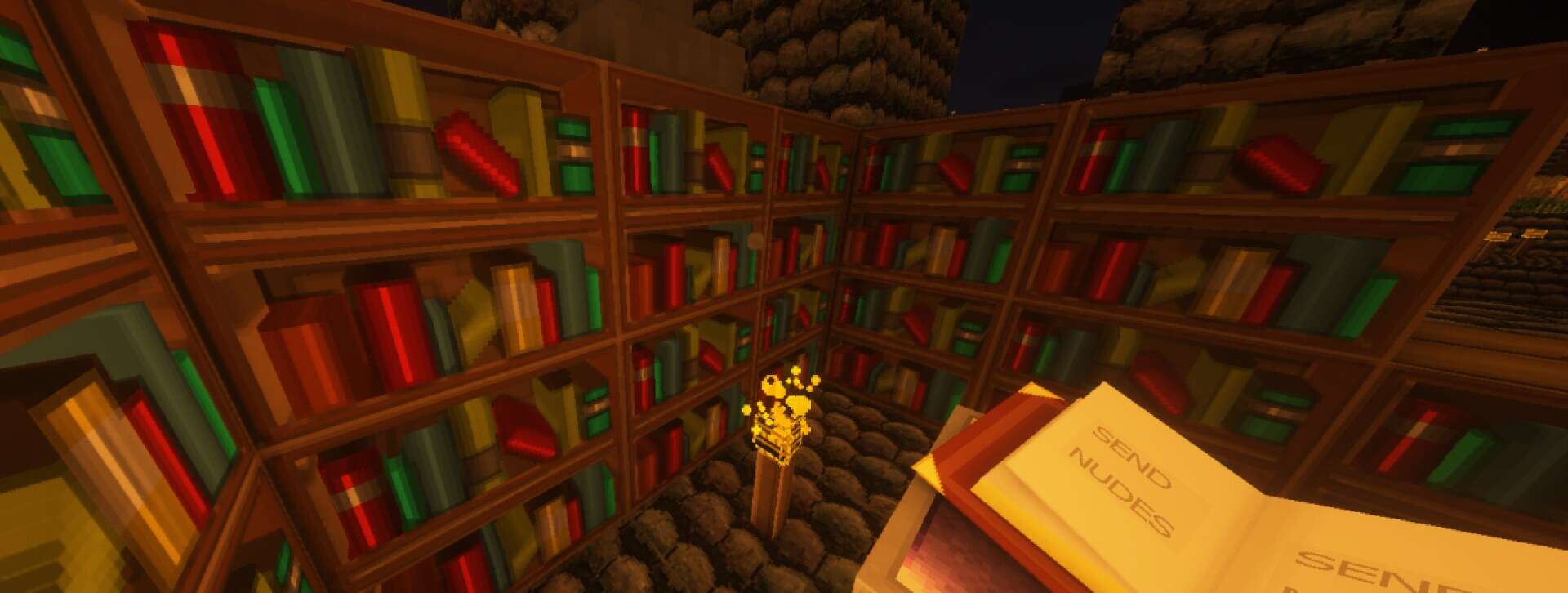
If you want your worlds to look noticeably sharper while keeping that familiar vanilla feel, you should definitely check out the Opprimere Redux Resource Pack. Running at a 64x resolution, it quadruples the default pixel density to deliver vastly improved detail on blocks and items. The art style hits a great sweet spot between clean cartoon aesthetics and subtle realism, offering stronger definition and depth without totally altering the game’s original atmosphere.
The pack features a vivid color palette that makes biomes feel remarkably crisp and vibrant. Stone and ores were carefully redesigned through multiple iterations to match the cohesive look, accompanied by targeted color tweaks. Keep in mind that as a 64x pack, it demands slightly more system resources than default textures, meaning performance will depend on your hardware and whether you run it alongside heavy shaders.
Opprimere Redux should be compatible with all of these Minecraft versions: 1.11.2 – 1.11 – 1.10.2 – 1.10
Screenshots
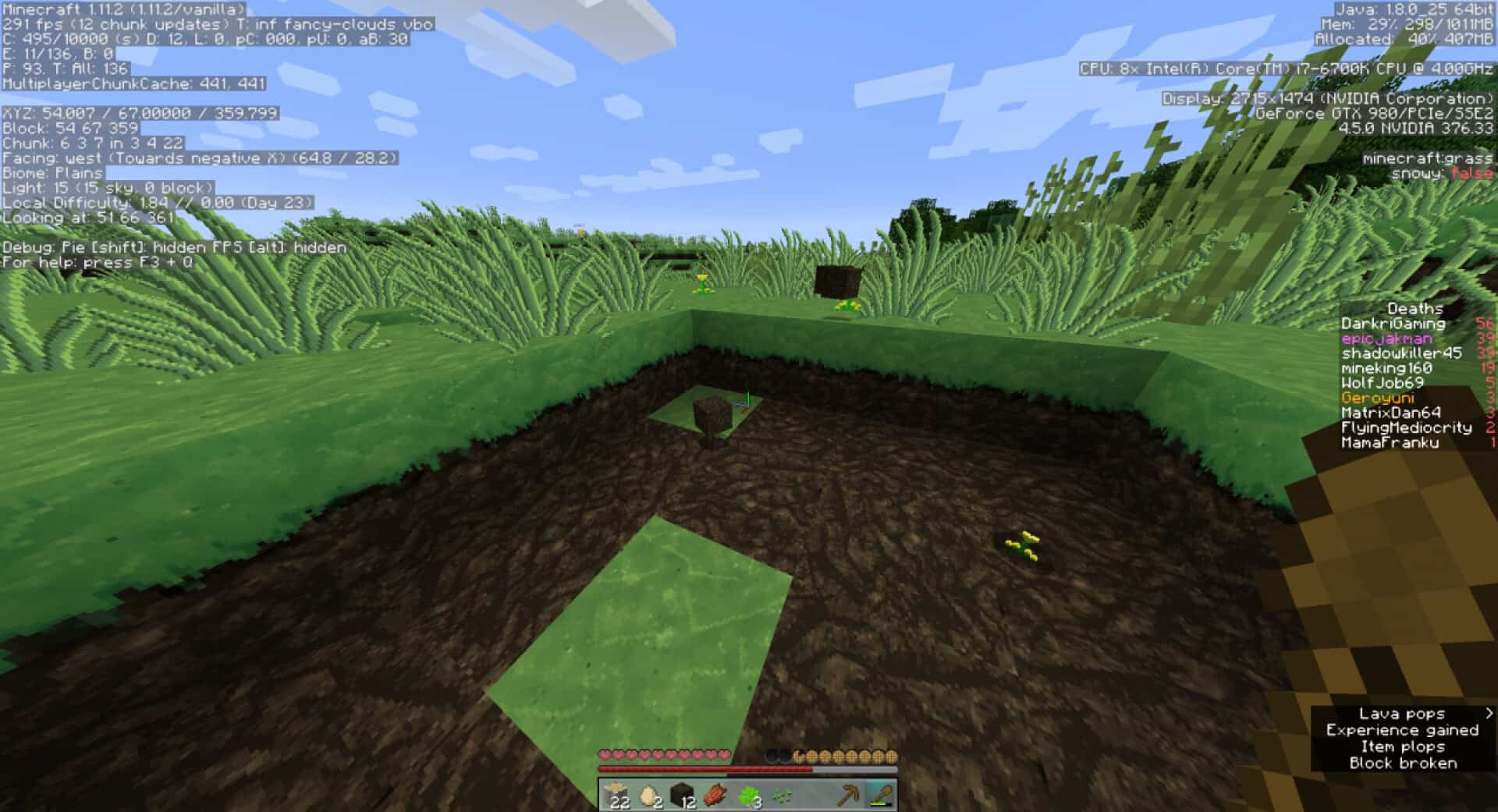
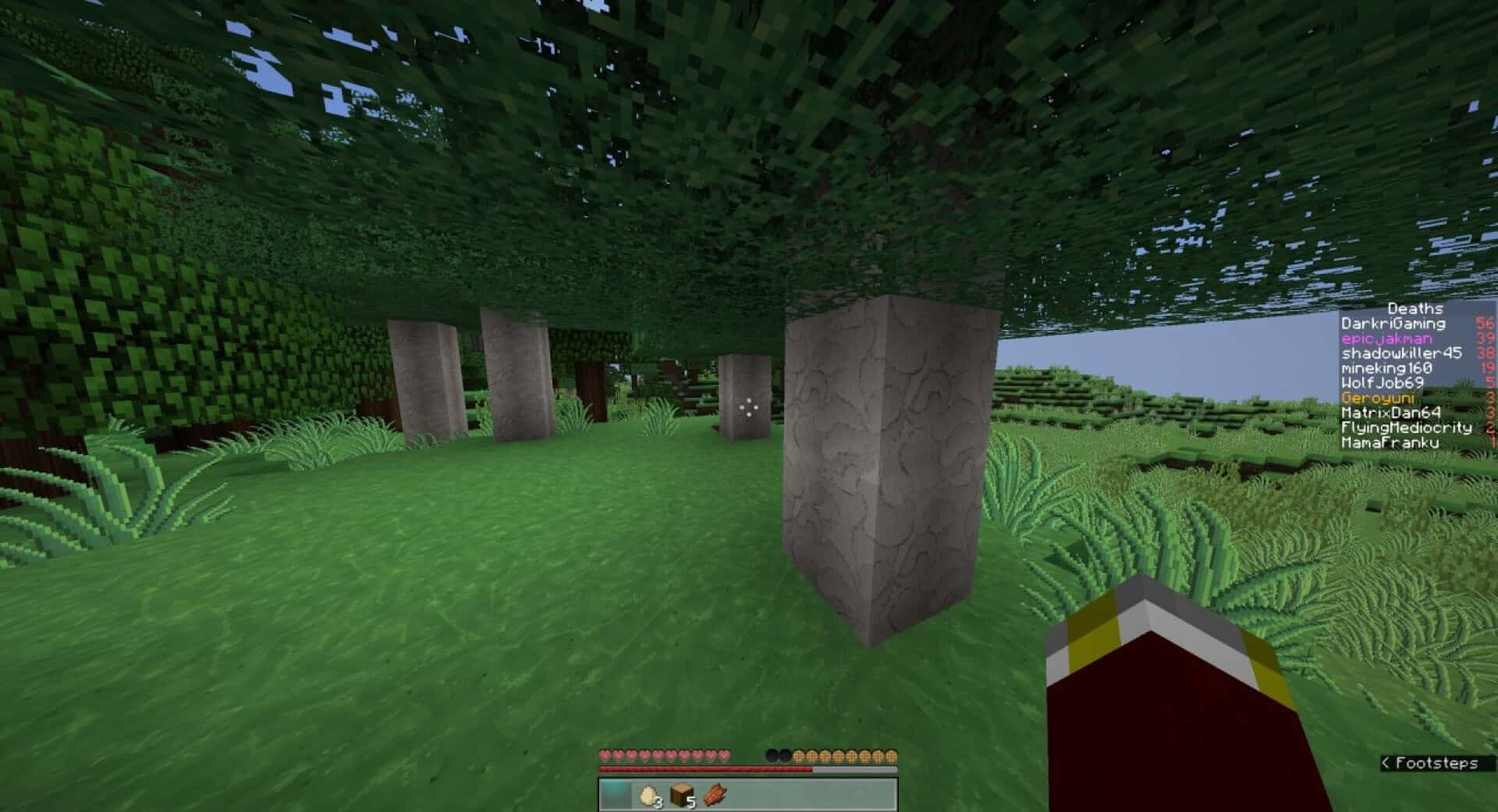
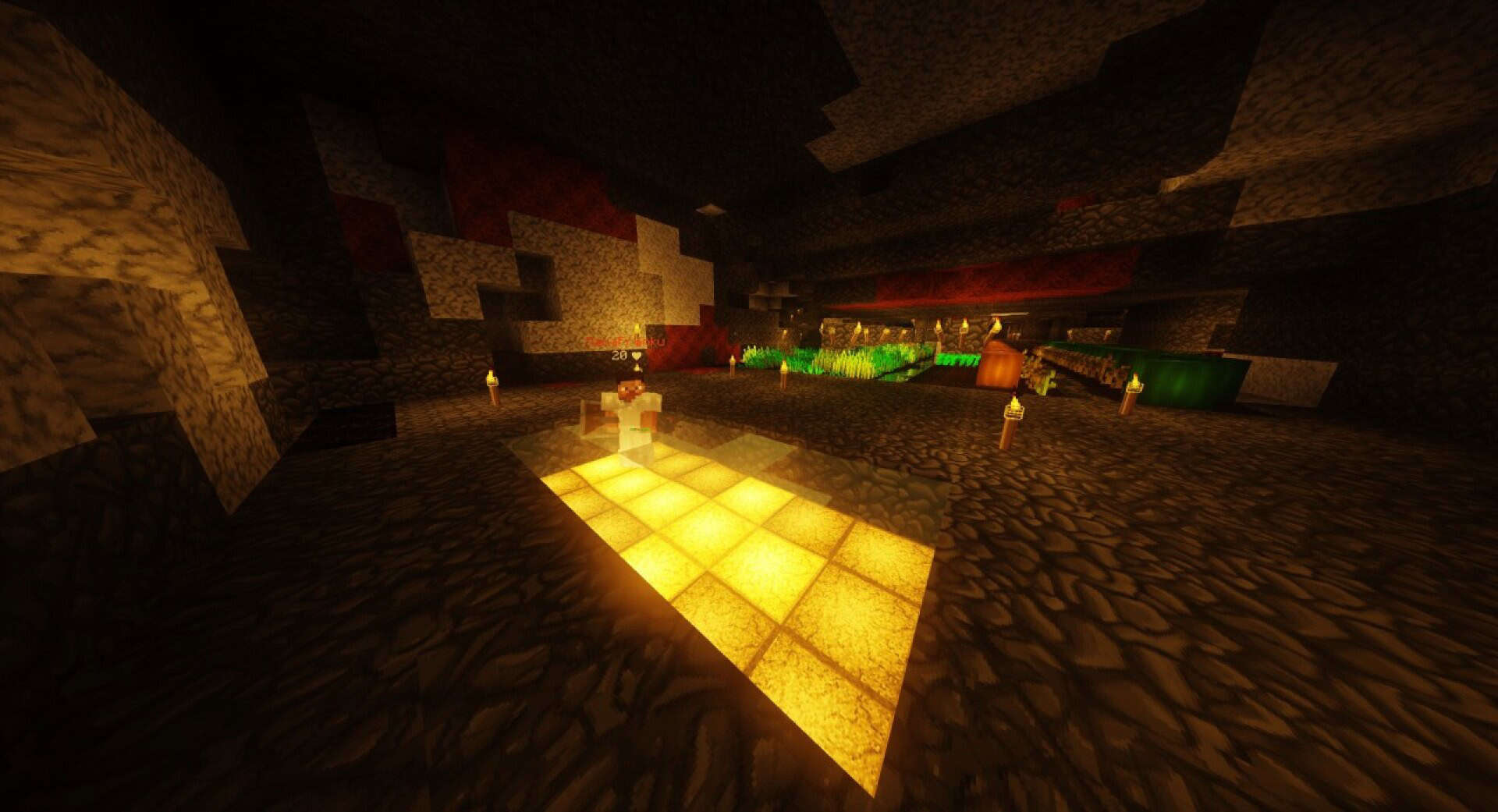
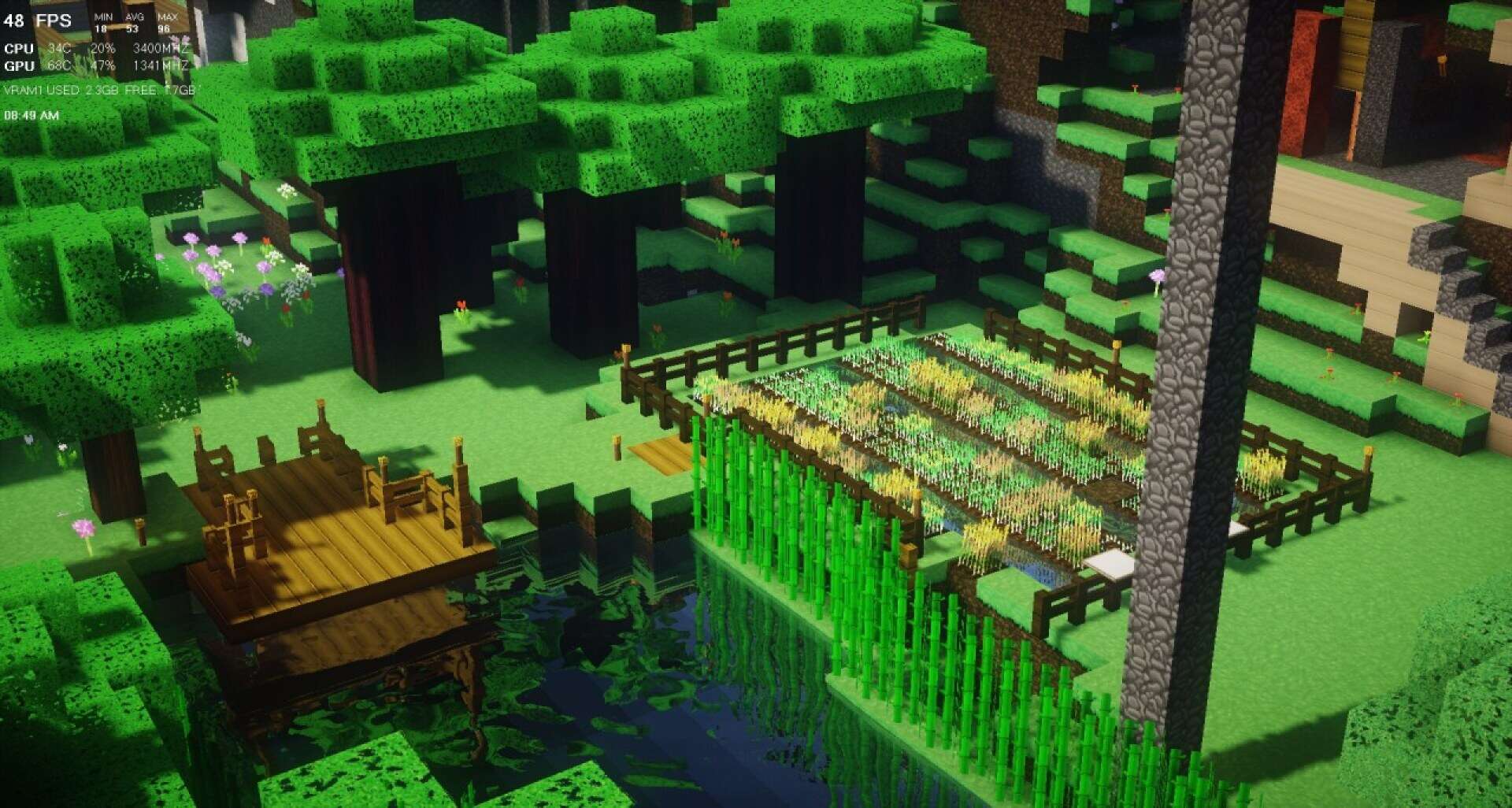
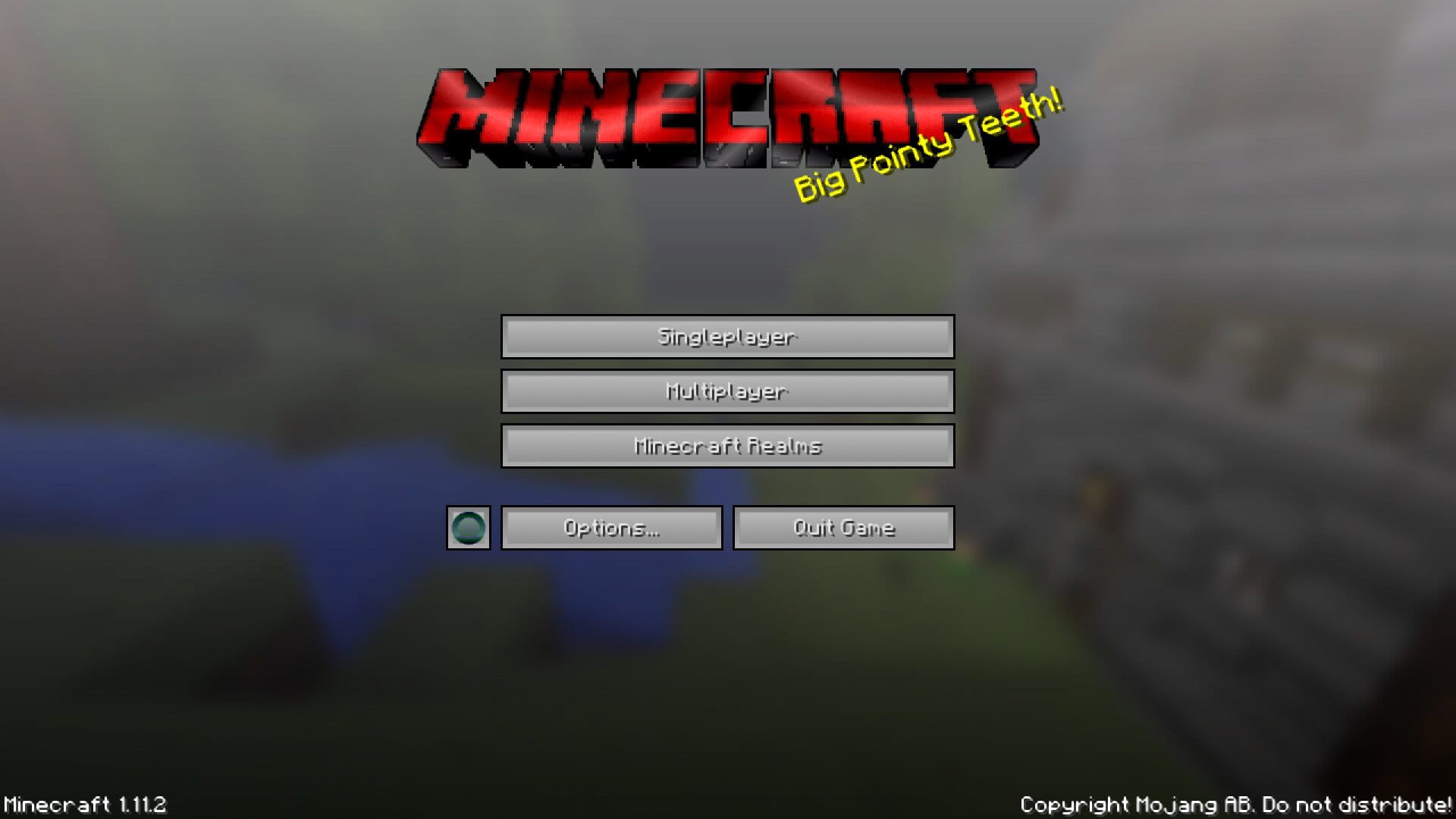
How to Install Texture Pack (Simple 10 Steps)
- Download OptiFine: Most of the texture packs and shaders need OptiFine. That’s why, first download and install OptiFine for the version of Minecraft you want to play.
- Download the Texture Pack: Get the texture pack you want from the download section. Choose the version that works with your Minecraft and your PC’s performance.
- Open Minecraft Launcher: Start Minecraft using the official game launcher — or even TLauncher, if you use that.
- Go to Options: From the main menu, click on the “Options” button.
- Open Resource Packs: Inside Options, click on “Resource Packs…”.
- Open the Resource Pack Folder: Click on “Open Resource Pack Folder” — this will open a folder named “resourcepacks”.
- Move the Pack File: Copy or move the .zip file you downloaded into that “resourcepacks” folder. (Don’t unzip the file — Minecraft uses it as-is!)
- Go Back and Refresh: Close the folder and click “Done”, then go back into “Resource Packs…” again.
- Activate the Pack: You’ll see the pack on the left side. Hover over it and click the arrow to move it to the right (active side).
Tip: If you get a message that the pack is for a different version, just click “Yes” — it usually works fine. - Click Done and Enjoy: Click “Done” again. Now your pack is ready to use in-game. It’s that easy!
Credits
This resource pack was created by WolfJobberson. We are not the original owners of this content, nor have we modified the files. We encourage you to support the original creator by visiting their official download pages.
Download Instructions
Curseforge: download starts automatically after a few seconds;
Mediafire: click the big blue button with the text “DOWNLOAD”;
Google Drive: in the top right corner you will see a small download icon (down arrow), click it and the download should start;