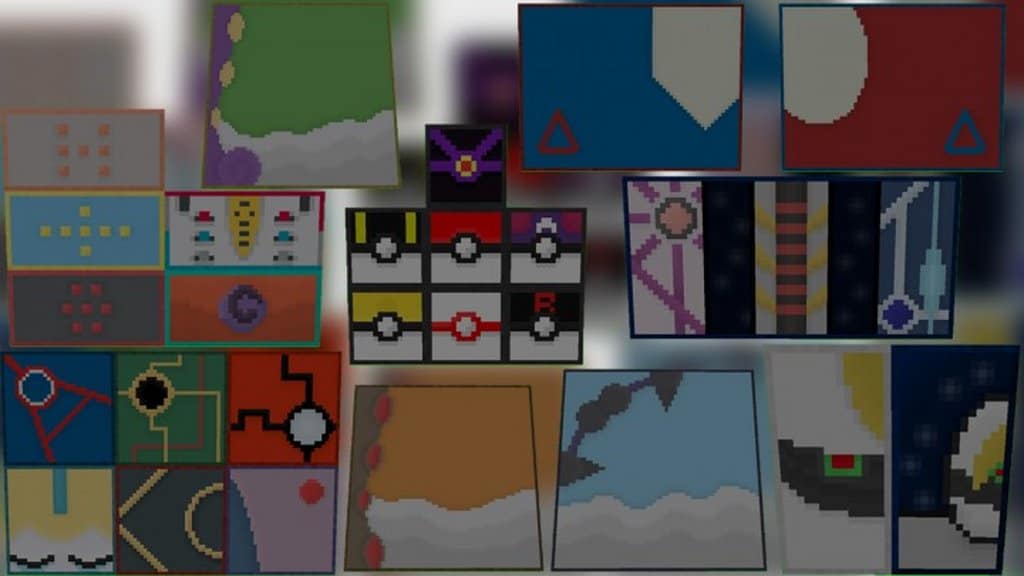
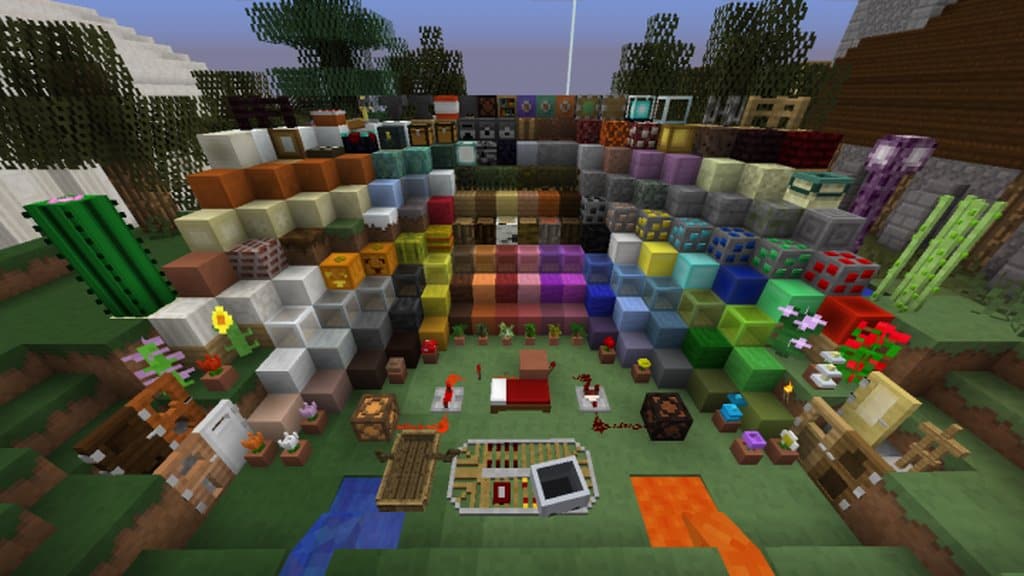
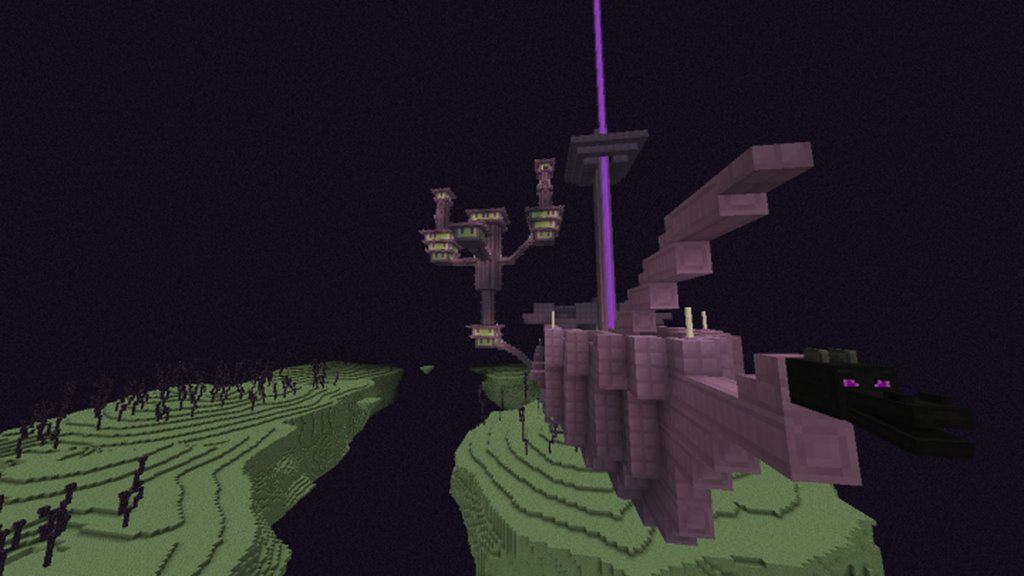
With thousands of high resolution, sophisticated resource packs out there, I honestly think it’s not an easy task to make one that’s going to be recognized by people – especially if it focuses on simplicity and unobtrusiveness. The scene has been overtaken by hardware dependent textures which try to make the game as bulky as possible. Still, OGZCraft resource pack managed to make a name for itself without reinventing the wheel. OGZCraft marks OfficialGoneZero’s debut as a resource pack developer, which is an amazing surprise considering how polished and well implemented it is. An especially interesting part is the pack’s resolution of only 8×8 – half of the Minecraft’s original textures. While it may deter some users, I found it to be a very welcome characteristic for those with poor PCs who want to enjoy a smooth experience. In an attempt to be unique, many similar resource packs introduce uninviting additions that make the game look like a kid drew it. To counter that, OGZCraft doesn’t try to be flashy by cluttering the game’s original color coding. Instead, it stays true to Minecraft’s essence. While it’s correct that you won’t notice much of a change once you enter the world, the true beauty of this pack lies in its high quality textures that manage to keep all the details even at the resolution of 8×8. The most major difference are the paintings, which take inspiration from the Pokemon franchise. The armor has received some additional touch-ups as well, mainly the gold set. Since it has been in development for quite some time, the OGZCraft resource pack is essentially glitchless. The handcrafted textures manage to paint a good picture of how much effort went into every single block, item and mob/NPC. If you want to take a break from all the comprehensive alternatives and go back to what made Minecraft what it is today, I strongly recommend trying out OGZCraft.
OGZCraft should be compatible with all of these Minecraft versions: 1.16.5 – 1.16.4 – 1.16.3 – 1.16.2 – 1.16.1 – 1.16 – 1.15.2 – 1.15.1 – 1.15 – 1.14.4 – 1.14.3 – 1.14.2 – 1.14 – 1.13.2 – 1.13.1 – 1.13 – 1.12.2 – 1.12 – 1.11.2 – 1.11 – 1.10.2 – 1.10 – 1.9.4 – 1.9 – 1.8.1 – 1.8.6 – 1.8
Screenshots
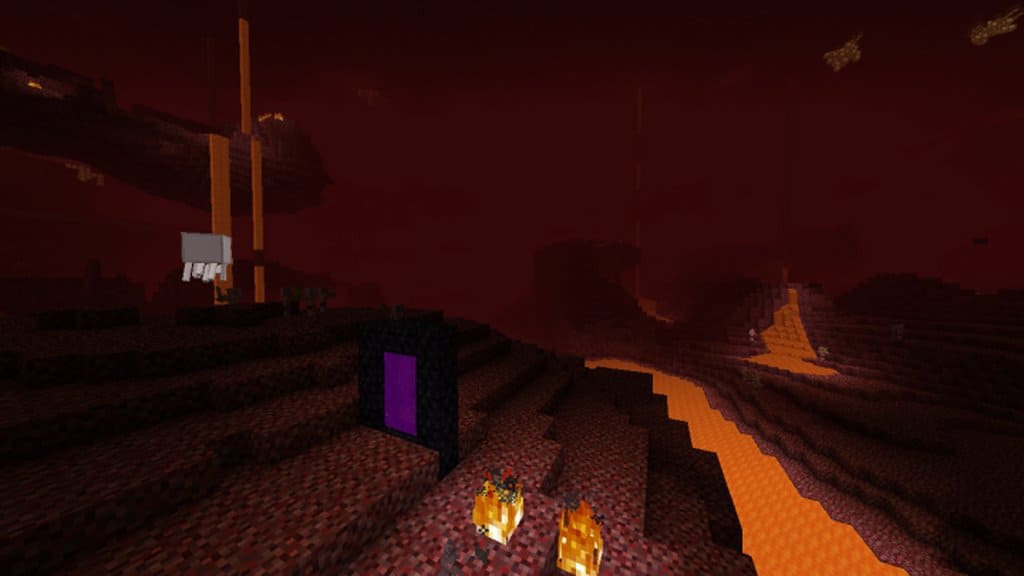
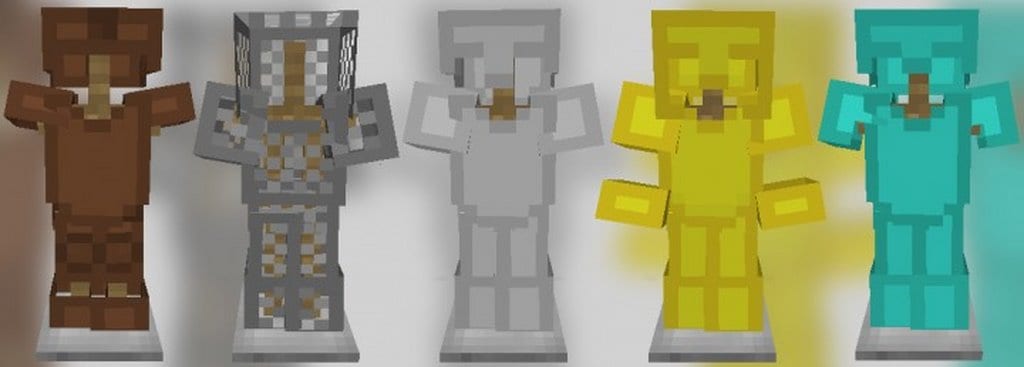
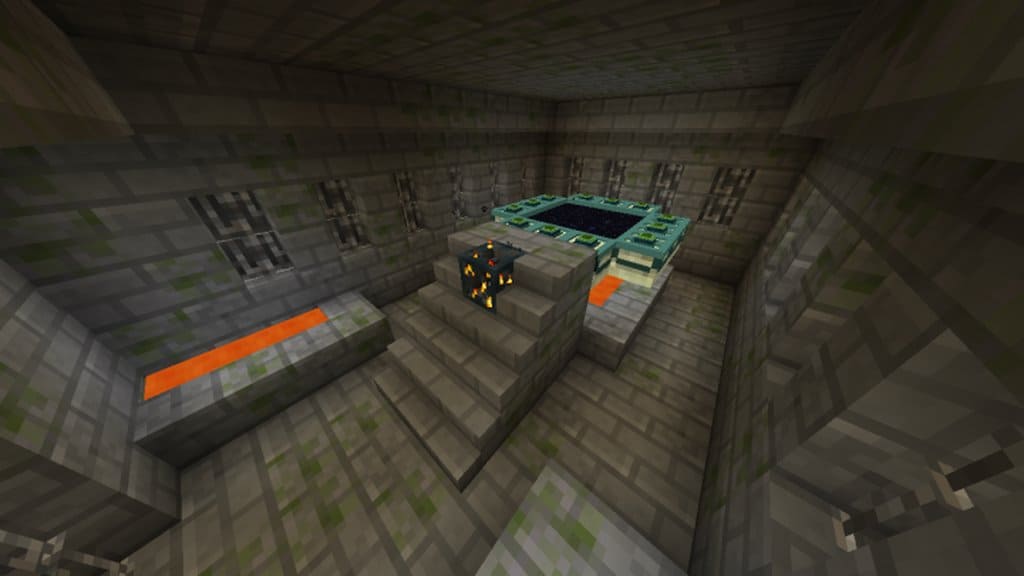
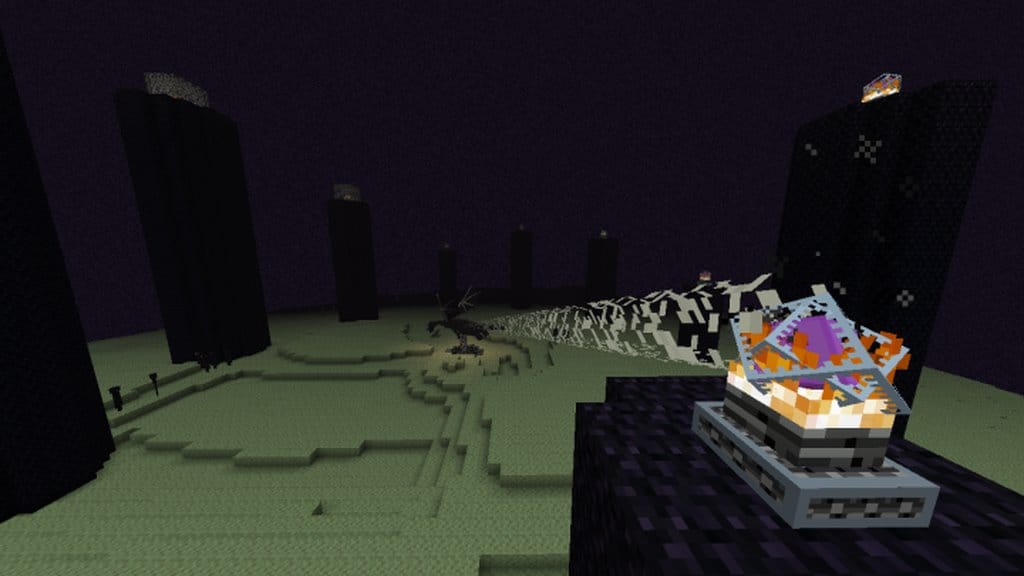
How to Install Texture Pack (Simple 10 Steps)
- Download OptiFine: Most of the texture packs and shaders need OptiFine. That’s why, first download and install OptiFine for the version of Minecraft you want to play.
- Download the Texture Pack: Get the texture pack you want from the download section. Choose the version that works with your Minecraft and your PC’s performance.
- Open Minecraft Launcher: Start Minecraft using the official game launcher — or even TLauncher, if you use that.
- Go to Options: From the main menu, click on the “Options” button.
- Open Resource Packs: Inside Options, click on “Resource Packs…”.
- Open the Resource Pack Folder: Click on “Open Resource Pack Folder” — this will open a folder named “resourcepacks”.
- Move the Pack File: Copy or move the .zip file you downloaded into that “resourcepacks” folder. (Don’t unzip the file — Minecraft uses it as-is!)
- Go Back and Refresh: Close the folder and click “Done”, then go back into “Resource Packs…” again.
- Activate the Pack: You’ll see the pack on the left side. Hover over it and click the arrow to move it to the right (active side).
Tip: If you get a message that the pack is for a different version, just click “Yes” — it usually works fine. - Click Done and Enjoy: Click “Done” again. Now your pack is ready to use in-game. It’s that easy!
Credits
This resource pack was created by OfficialGoneZero. We do not claim ownership of this content, nor do we host modified versions of these files. All rights and intellectual property belong exclusively to the original creator. We encourage you to support OfficialGoneZero by downloading the pack directly from their official channels.
Download Links
Java Edition
Download Instructions
Curseforge: download starts automatically after a few seconds;
Mediafire: click the big blue button with the text “DOWNLOAD”;
Google Drive: in the top right corner you will see a small download icon (down arrow), click it and the download should start;


