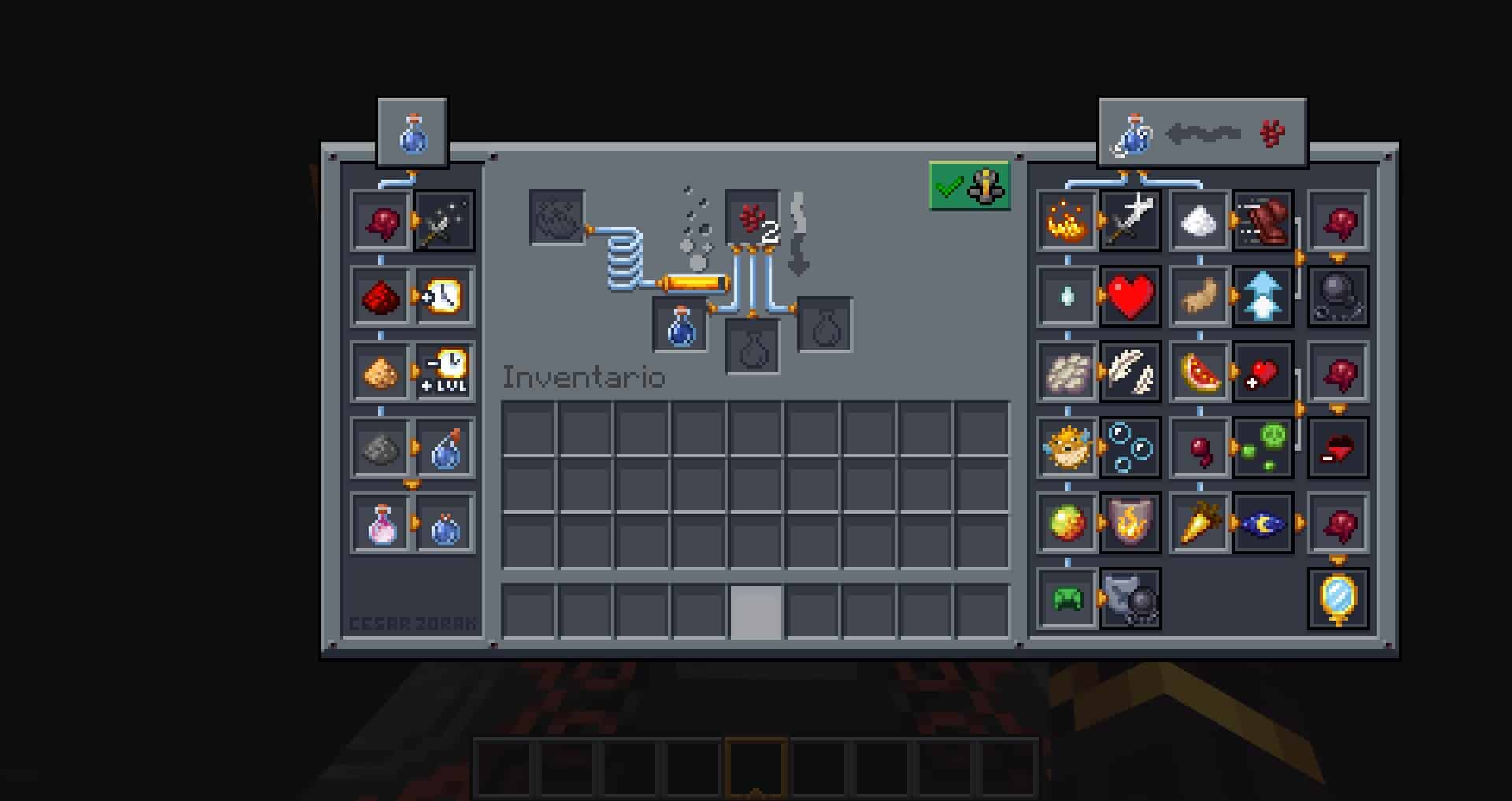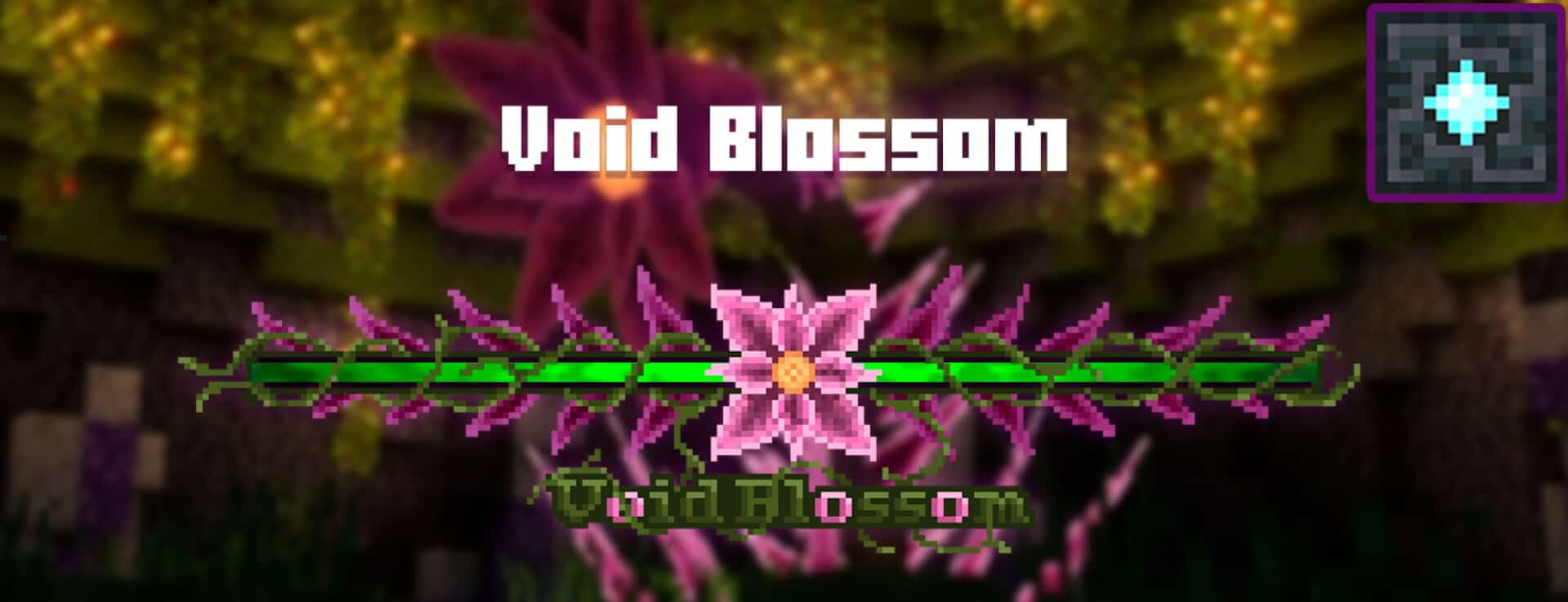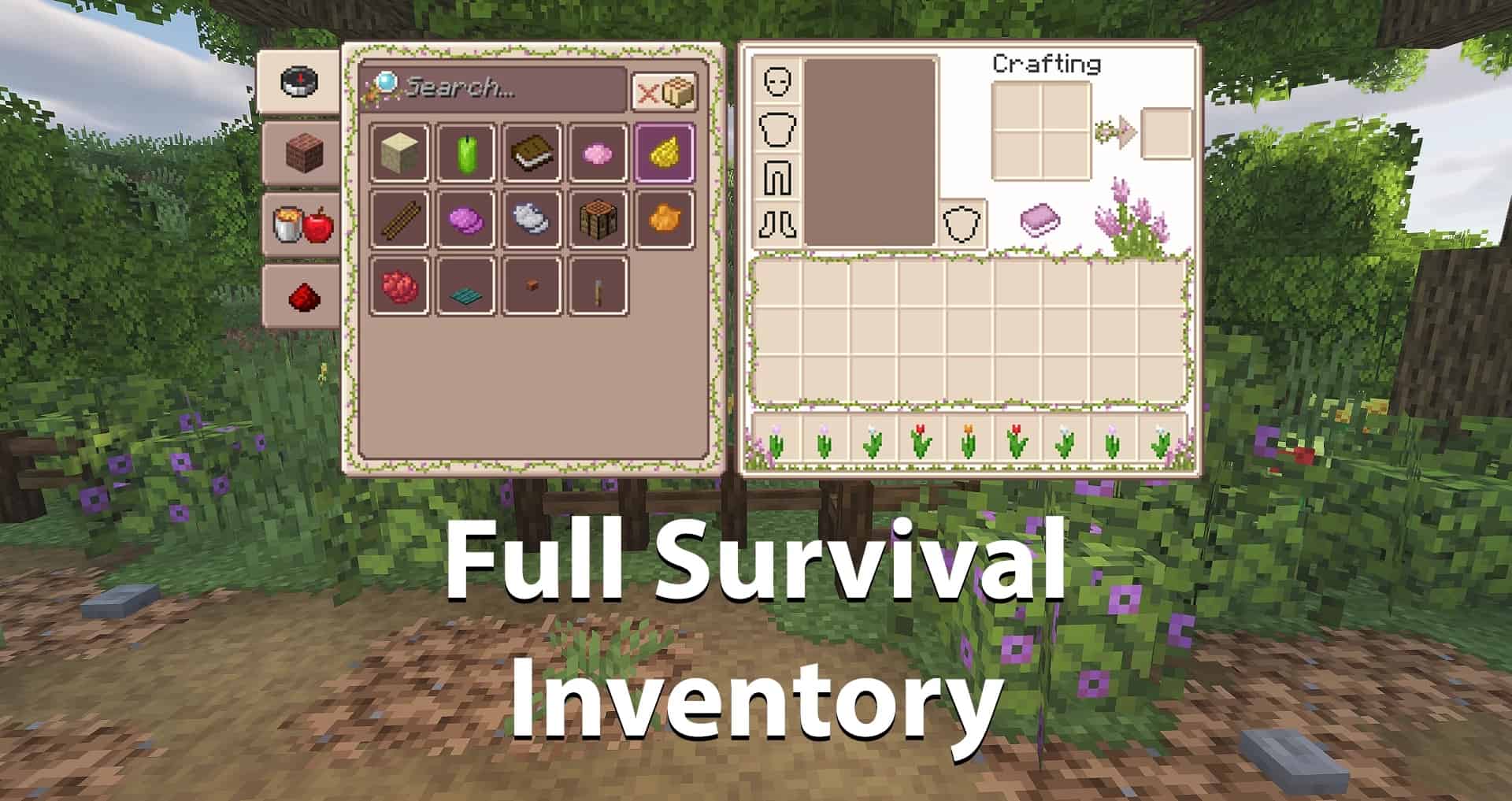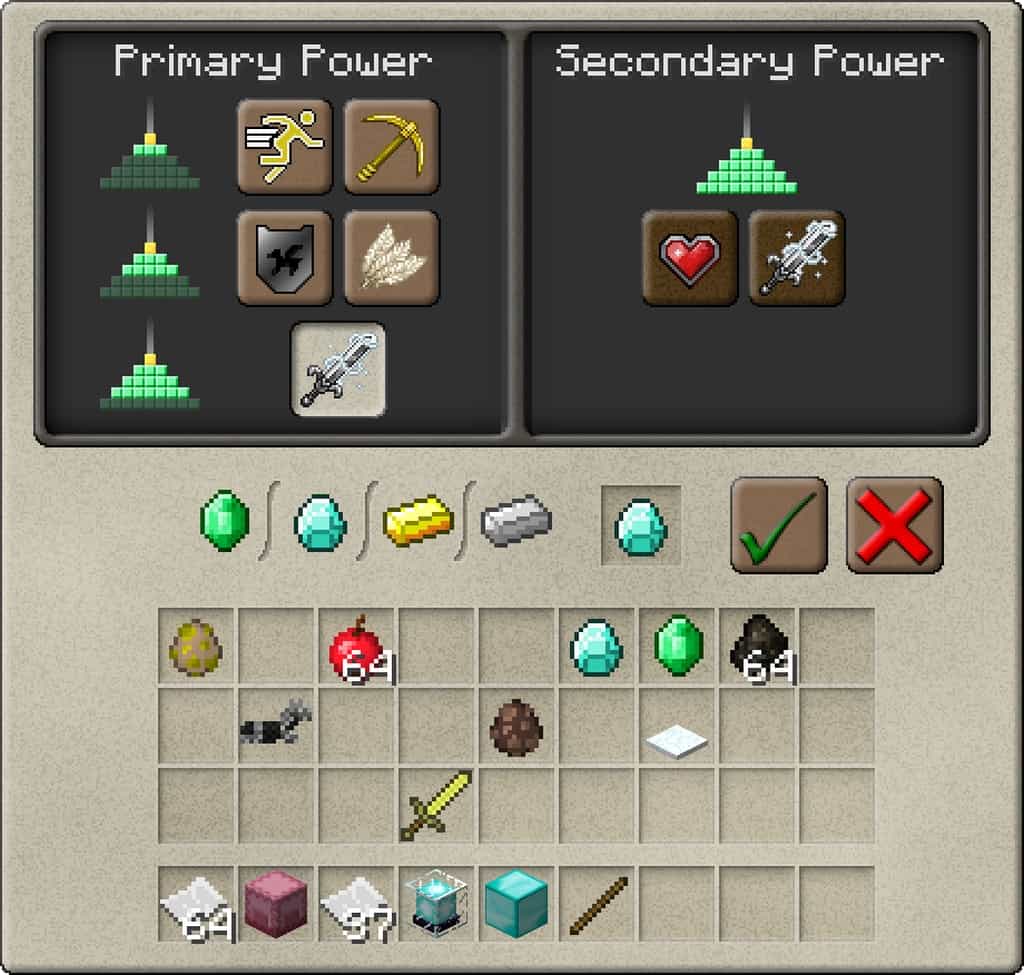
I really think Nellik’s GUIs is a quite unique resource pack that will surely catch your attention. One major flaw of standard Minecraft resource packs is that the focus of most of the packs is to improve the texture and look of the game world. There are very few resource packs which try to improve the user interface of the game itself. This is what makes Nellik’s GUIs resource pack stand out from the others. The sole focus of this pack is to change the user interface, which gave me a much better gaming experience. To be fair, we can’t say that the vanilla interface is bad by any means, but it definitely gets boring after a point of time. Fortunately, this resource pack has arrived to solve this issue, and I found that it does an excellent job of improving the interface. You are surely going to fall in love with this new interface once you try it out.
Previously, there were also some resource packs which tried to better the UI, but most of them failed to bring about any meaningful change. Unless the interface is well designed and eye-catching, you will not be able to get the best out of this game. Nellix’s GUIs interface has a very stylish design and looks extremely attractive in-game. I found no major flaws as such during testing. If you want to be overly critical, you will probably say that the color palette could have been slightly better, but overall, it is a complete pack that you are surely going to love. The 32×32 resolution of this pack means that all the textures will be bright and vivid. Since this pack is solely focused on improving the UI, it is not very heavy, and you don’t have to worry about any drop in frame rates. And the best thing is that there are regular updates to this pack, meaning it is not going to get outdated quickly.
Nellik’s GUIs should be compatible with all of these Minecraft versions: 1.16.5 – 1.16.4 – 1.16.3 – 1.16.2 – 1.16.1 – 1.16 – 1.15.2 – 1.15.1 – 1.15 – 1.14.4 – 1.14.3 – 1.14.2 – 1.14 – 1.13.2 – 1.13.1 – 1.13 – 1.12.2 – 1.12 – 1.11.2 – 1.11 – 1.10.2 – 1.10 – 1.9.4 – 1.9 – 1.8.9 – 1.8.8 – 1.8.1 – 1.8.6 – 1.8
Screenshots
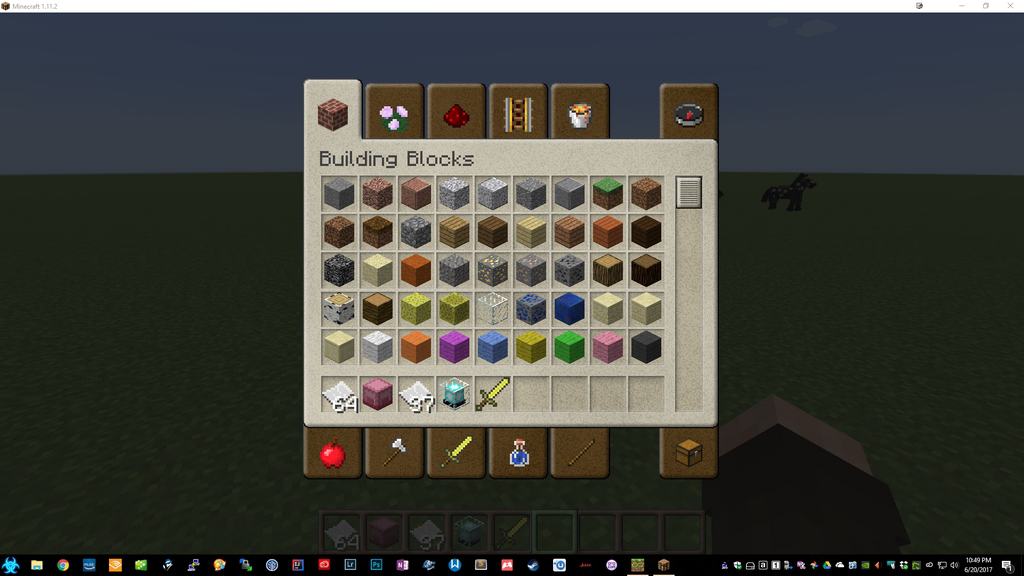
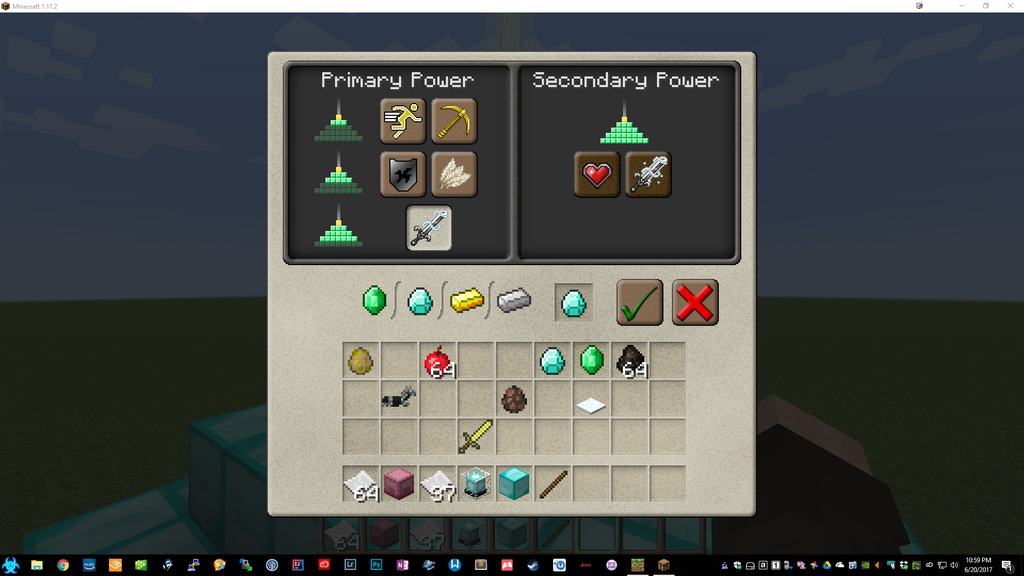
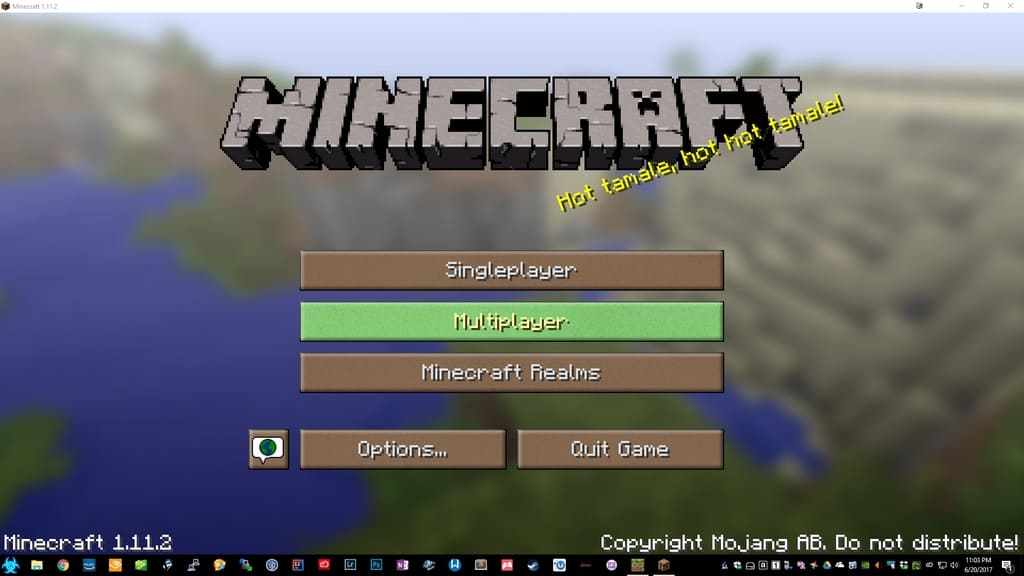
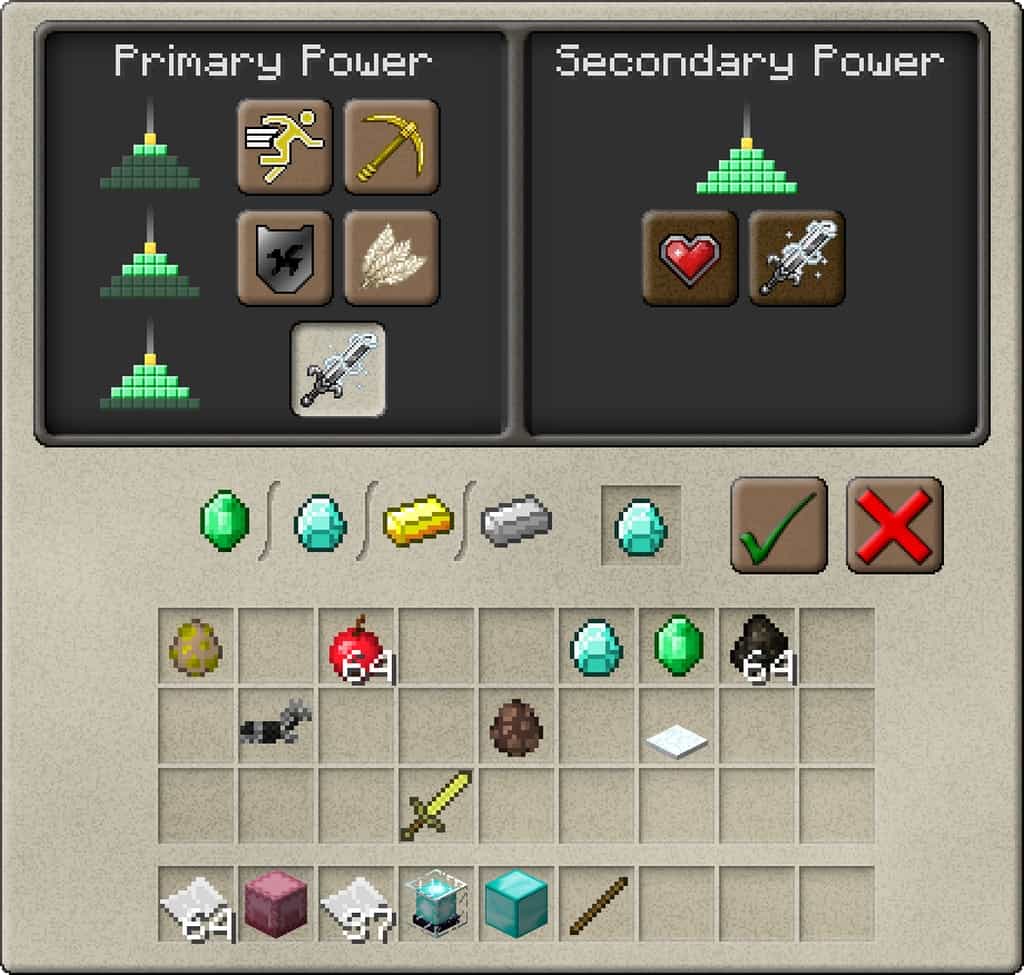
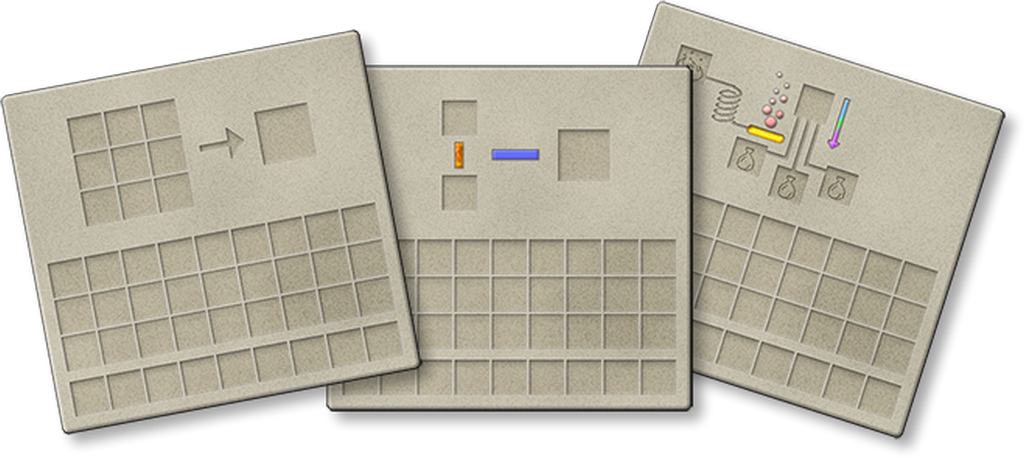
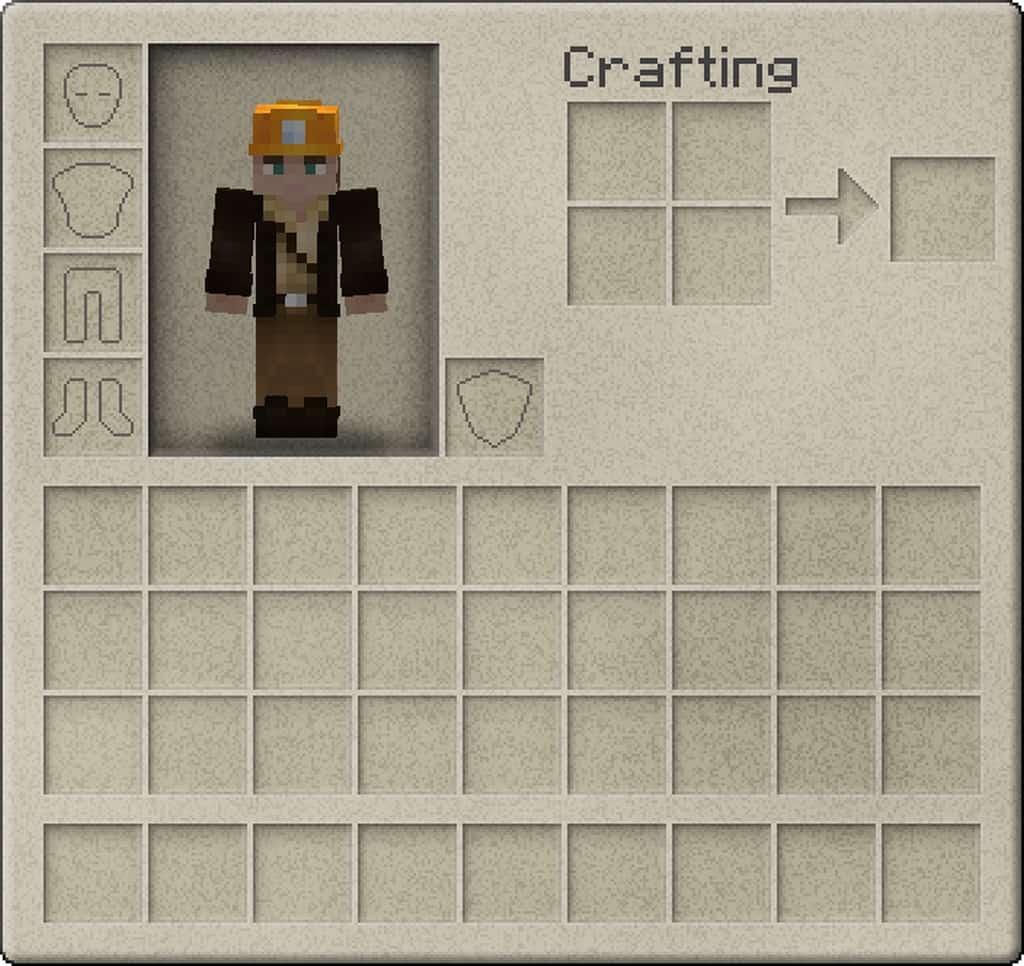
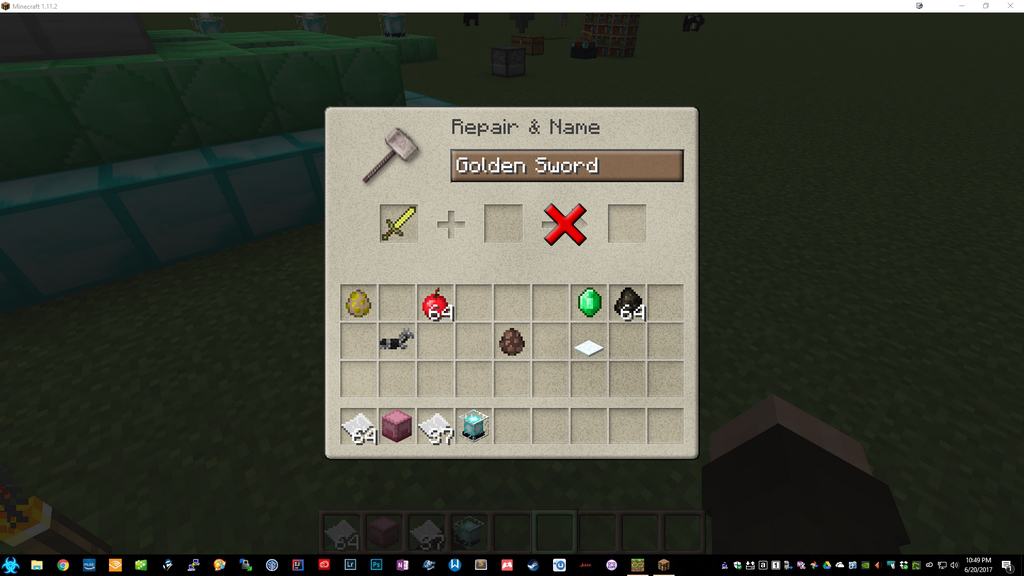
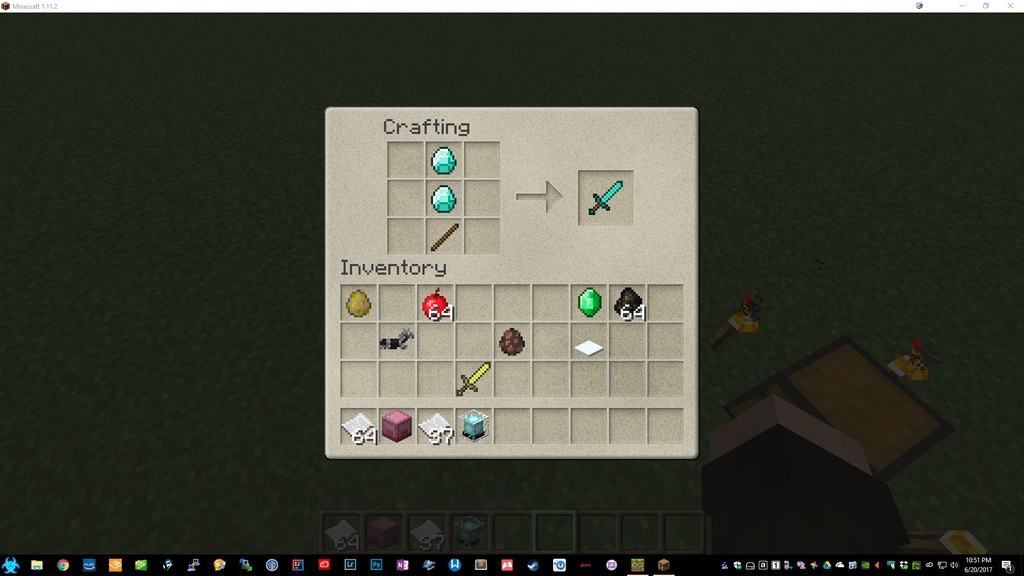
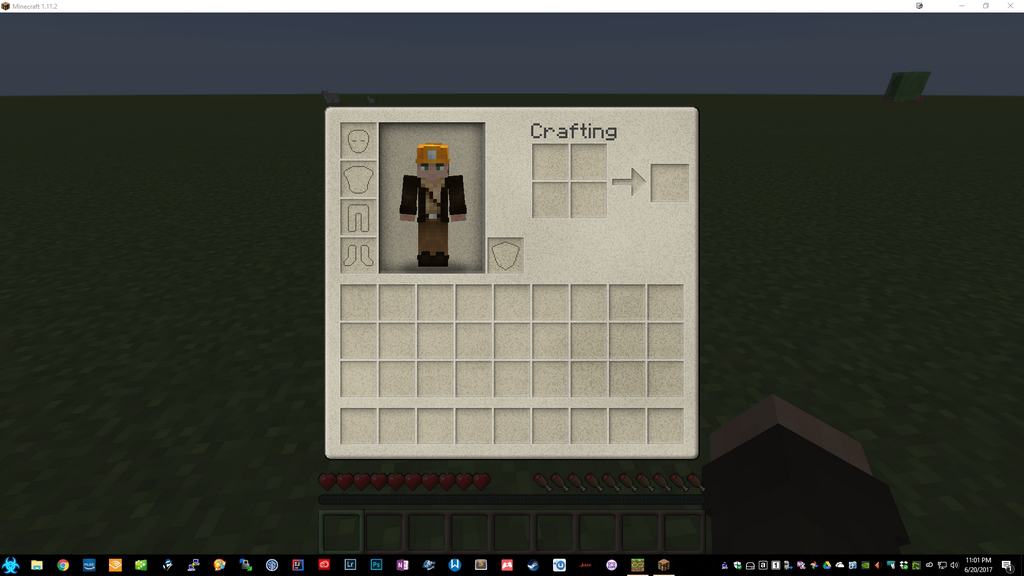
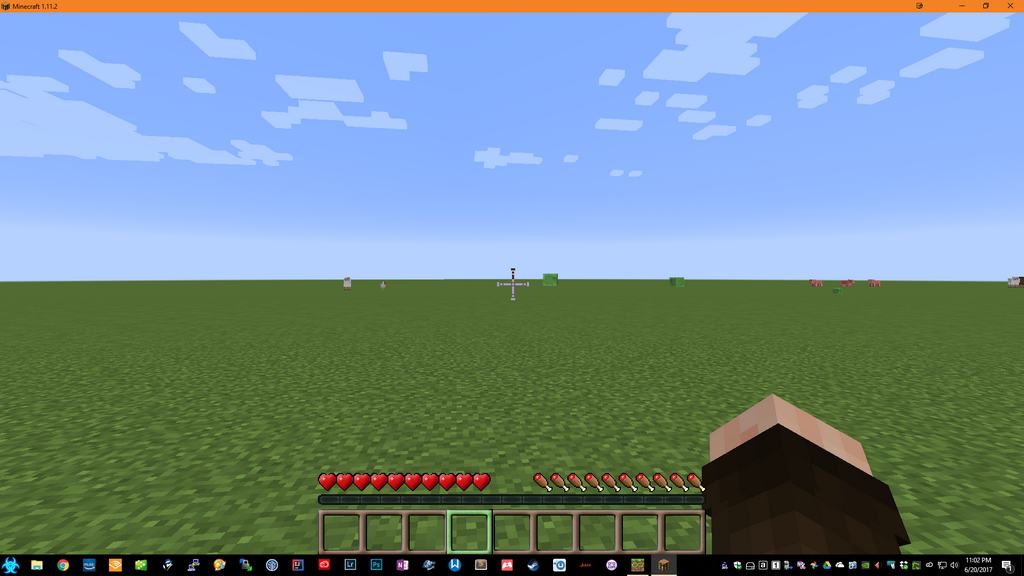
How to Install Texture Pack (Simple 10 Steps)
- Download OptiFine: Most of the texture packs and shaders need OptiFine. That’s why, first download and install OptiFine for the version of Minecraft you want to play.
- Download the Texture Pack: Get the texture pack you want from the download section. Choose the version that works with your Minecraft and your PC’s performance.
- Open Minecraft Launcher: Start Minecraft using the official game launcher — or even TLauncher, if you use that.
- Go to Options: From the main menu, click on the “Options” button.
- Open Resource Packs: Inside Options, click on “Resource Packs…”.
- Open the Resource Pack Folder: Click on “Open Resource Pack Folder” — this will open a folder named “resourcepacks”.
- Move the Pack File: Copy or move the .zip file you downloaded into that “resourcepacks” folder. (Don’t unzip the file — Minecraft uses it as-is!)
- Go Back and Refresh: Close the folder and click “Done”, then go back into “Resource Packs…” again.
- Activate the Pack: You’ll see the pack on the left side. Hover over it and click the arrow to move it to the right (active side).
Tip: If you get a message that the pack is for a different version, just click “Yes” — it usually works fine. - Click Done and Enjoy: Click “Done” again. Now your pack is ready to use in-game. It’s that easy!
Credits
This resource pack was created by scottkillen and theofficalmeatshield. We do not own or modify this content. Please support the original creators by downloading from their official links.
Download Links
Java Edition
Download Instructions
Curseforge: download starts automatically after a few seconds;
Mediafire: click the big blue button with the text “DOWNLOAD”;
Google Drive: in the top right corner you will see a small download icon (down arrow), click it and the download should start;