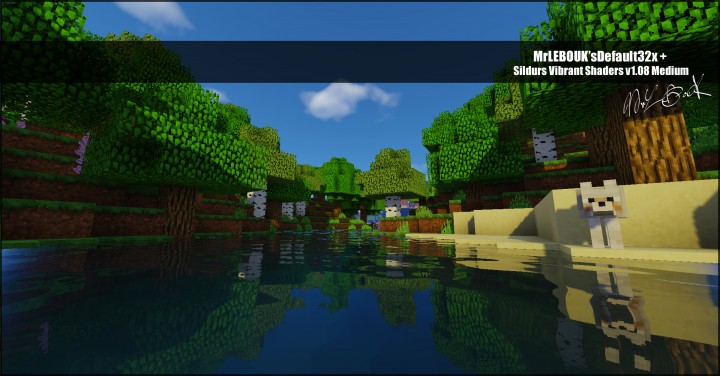
Ever since Minecraft was first launched a few years ago by Mojang, I have seen it capture the hearts of countless fans across the entire world. No matter where you live, there is a massive chance you have already played or at least heard about this incredible game. It is available everywhere, from smartphones and tablets to powerful desktop computers. Compared to modern 3D titles, Minecraft features simple graphics that remind me a lot of the classic 90s games. Yet, it is the absolute freedom to build anything from scratch or battle others in multiplayer that keeps us coming back for more. There is truly no right or wrong way to experience Minecraft. If you are as addicted to the game as I am, you will definitely agree that playing with the default 16×16 resolution can sometimes feel a bit rough on the eyes. That is precisely where MrLebouk’s Default resource pack comes to the rescue!
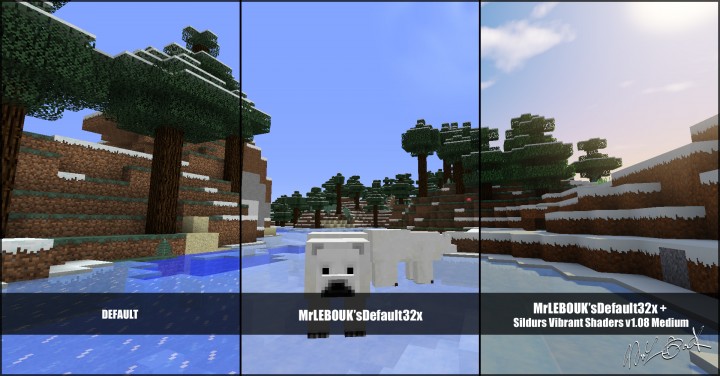
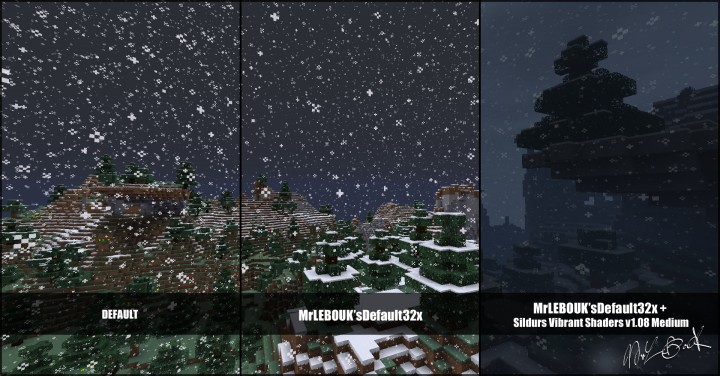
If you adore Minecraft’s classic aesthetic but find yourself craving vastly improved quality textures, you simply must try out this fantastic resource pack. True to its name, MrLebouk’s pack elevates the classic look with a top-notch 32×32 and higher resolution. As you will instantly notice, it offers double the fidelity of the vanilla game, which explains why the textures and overall style look so crisp and clean. Best of all, it achieves this without drastically altering the original feel of Minecraft. Once you load it up, the transition feels seamless, but as you explore further, you will notice wonderful minor enhancements that boost the game’s visual appeal. One of my absolute favorite features is the gorgeous, vibrant color palette. Compared directly to vanilla Minecraft, the textures here boast much richer detail that makes every single block pop.
MrLEBOUK’s Default should be compatible with all of these Minecraft versions: 1.12.2 – 1.12 – 1.11.2 – 1.11 – 1.10.2 – 1.10 – 1.9.4 – 1.9
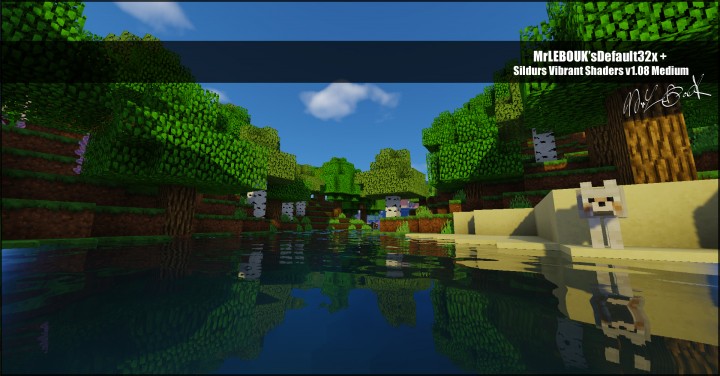
Screenshots
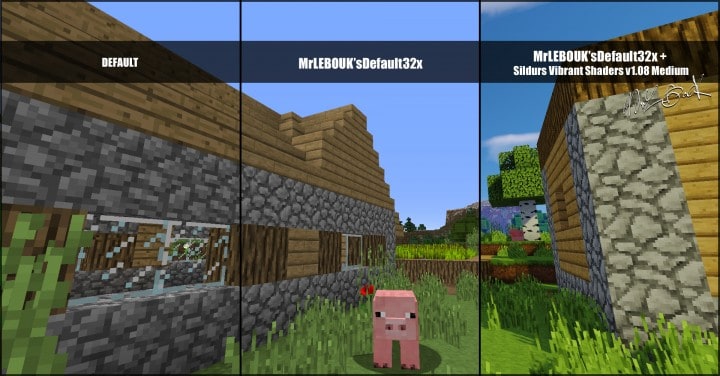
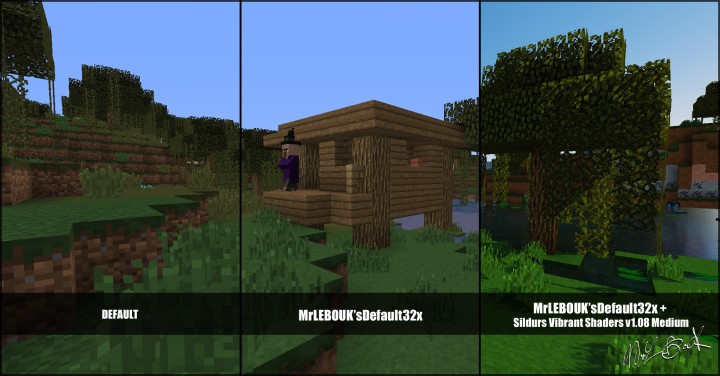
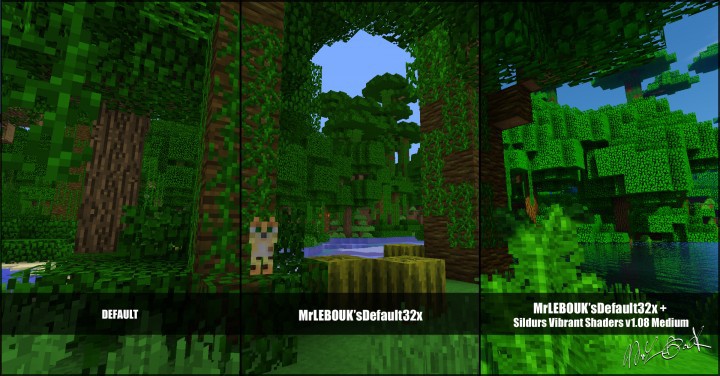
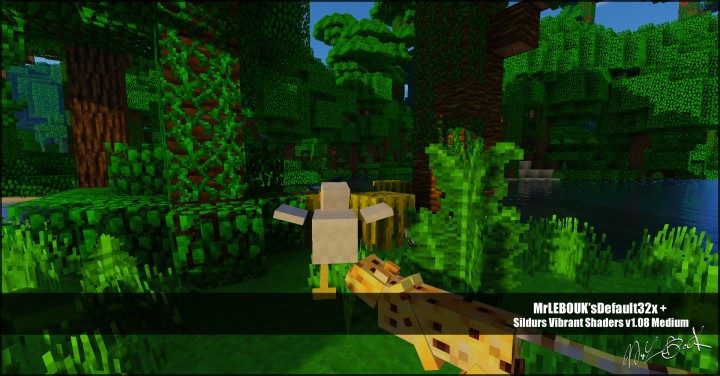


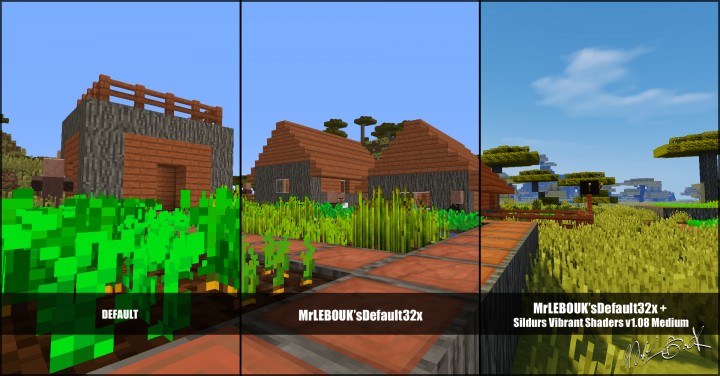
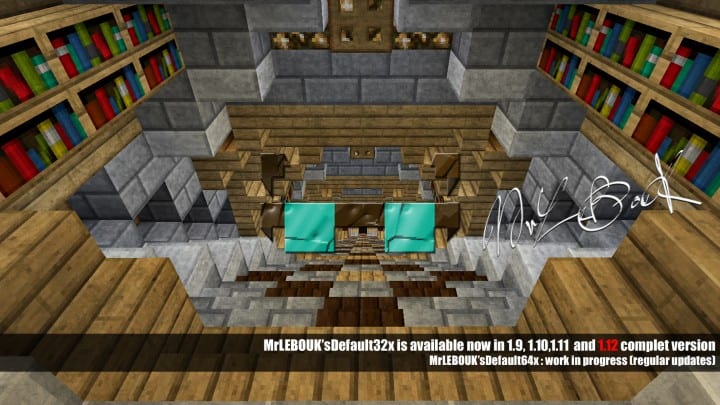
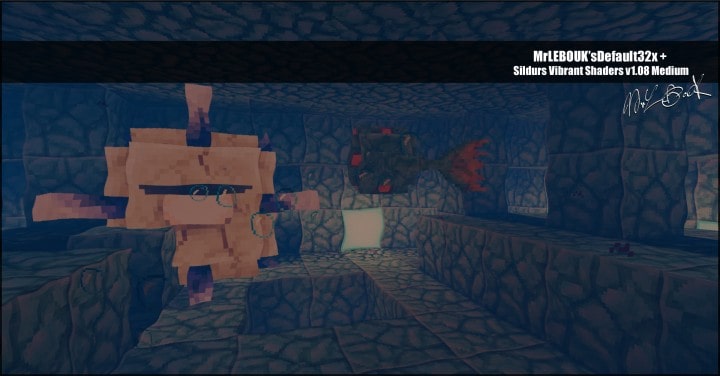
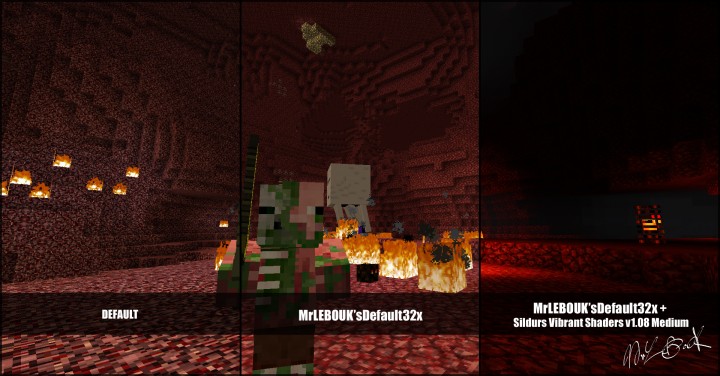
How to Install Texture Pack (Simple 10 Steps)
- Download OptiFine: Most of the texture packs and shaders need OptiFine. That’s why, first download and install OptiFine for the version of Minecraft you want to play.
- Download the Texture Pack: Get the texture pack you want from the download section. Choose the version that works with your Minecraft and your PC’s performance.
- Open Minecraft Launcher: Start Minecraft using the official game launcher — or even TLauncher, if you use that.
- Go to Options: From the main menu, click on the “Options” button.
- Open Resource Packs: Inside Options, click on “Resource Packs…”.
- Open the Resource Pack Folder: Click on “Open Resource Pack Folder” — this will open a folder named “resourcepacks”.
- Move the Pack File: Copy or move the .zip file you downloaded into that “resourcepacks” folder. (Don’t unzip the file — Minecraft uses it as-is!)
- Go Back and Refresh: Close the folder and click “Done”, then go back into “Resource Packs…” again.
- Activate the Pack: You’ll see the pack on the left side. Hover over it and click the arrow to move it to the right (active side).
Tip: If you get a message that the pack is for a different version, just click “Yes” — it usually works fine. - Click Done and Enjoy: Click “Done” again. Now your pack is ready to use in-game. It’s that easy!
Credits
This resource pack was created by MrLEBOUK, who retains all original ownership and rights. We do not claim ownership of this modification and distribute it strictly as hosted by the creator. We encourage all players to support MrLEBOUK by visiting their official download channels and endorsing their incredible work.
Download Links
Java Edition
Download Instructions
Curseforge: download starts automatically after a few seconds;
Mediafire: click the big blue button with the text “DOWNLOAD”;
Google Drive: in the top right corner you will see a small download icon (down arrow), click it and the download should start;


