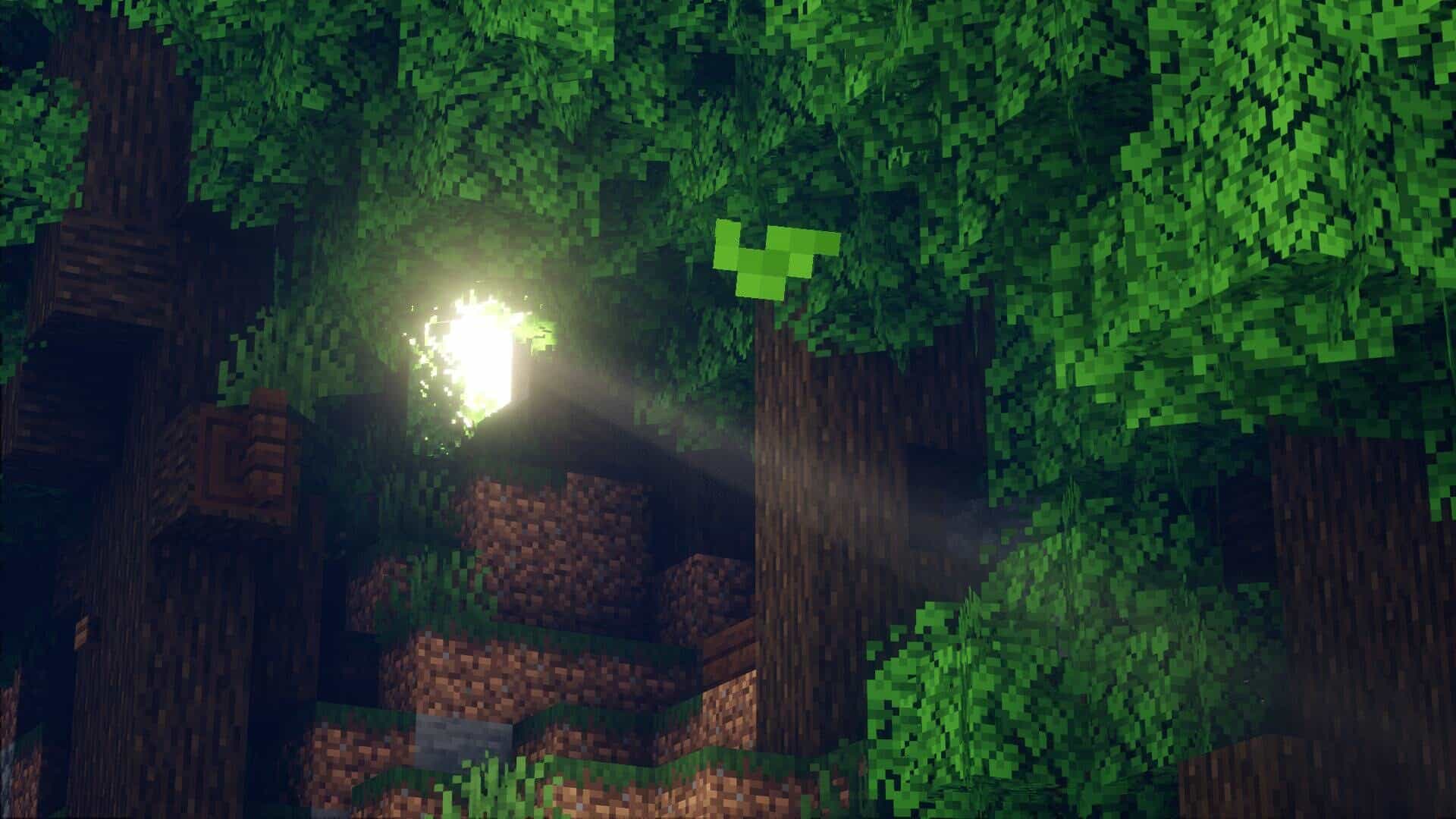
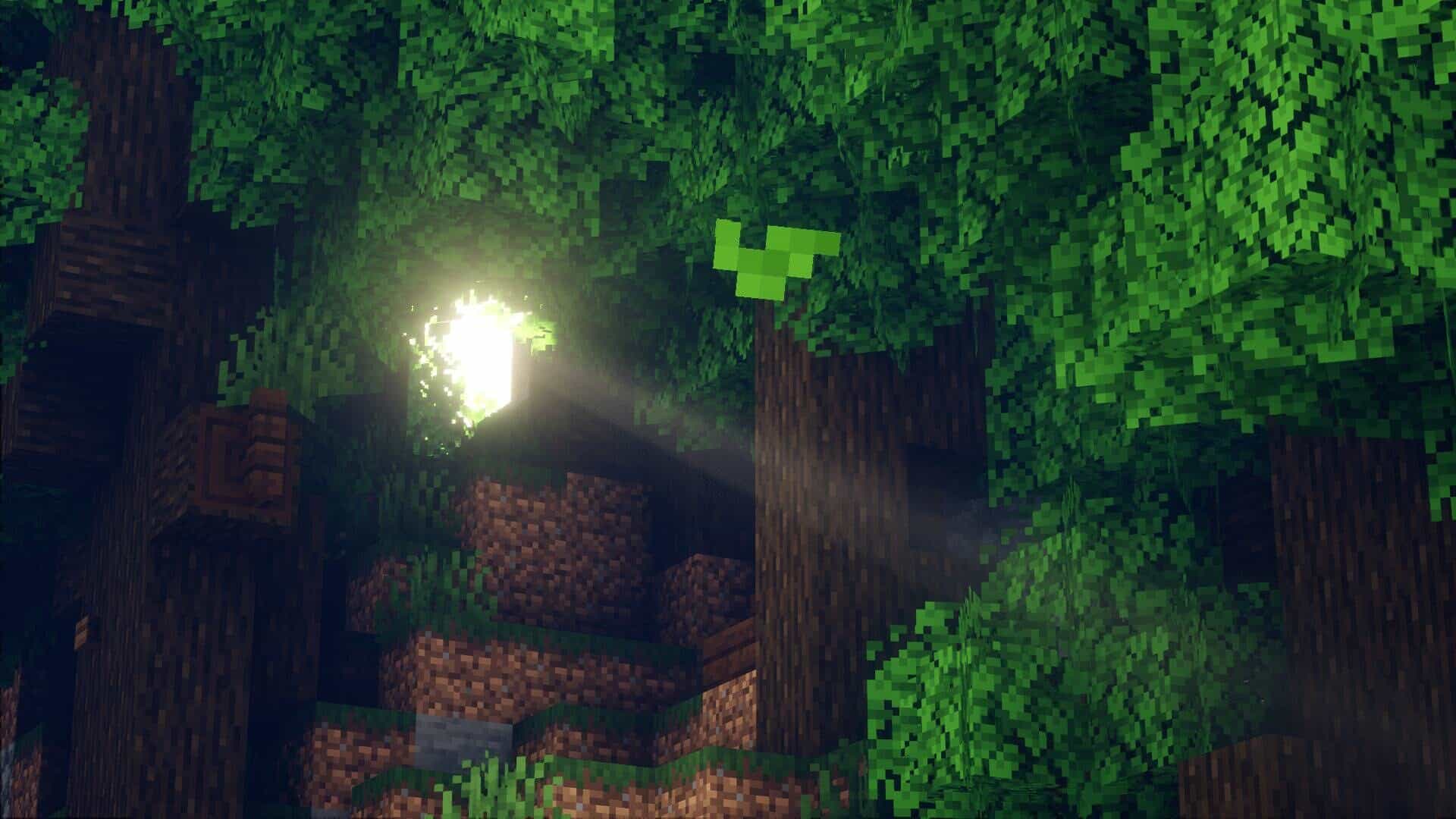
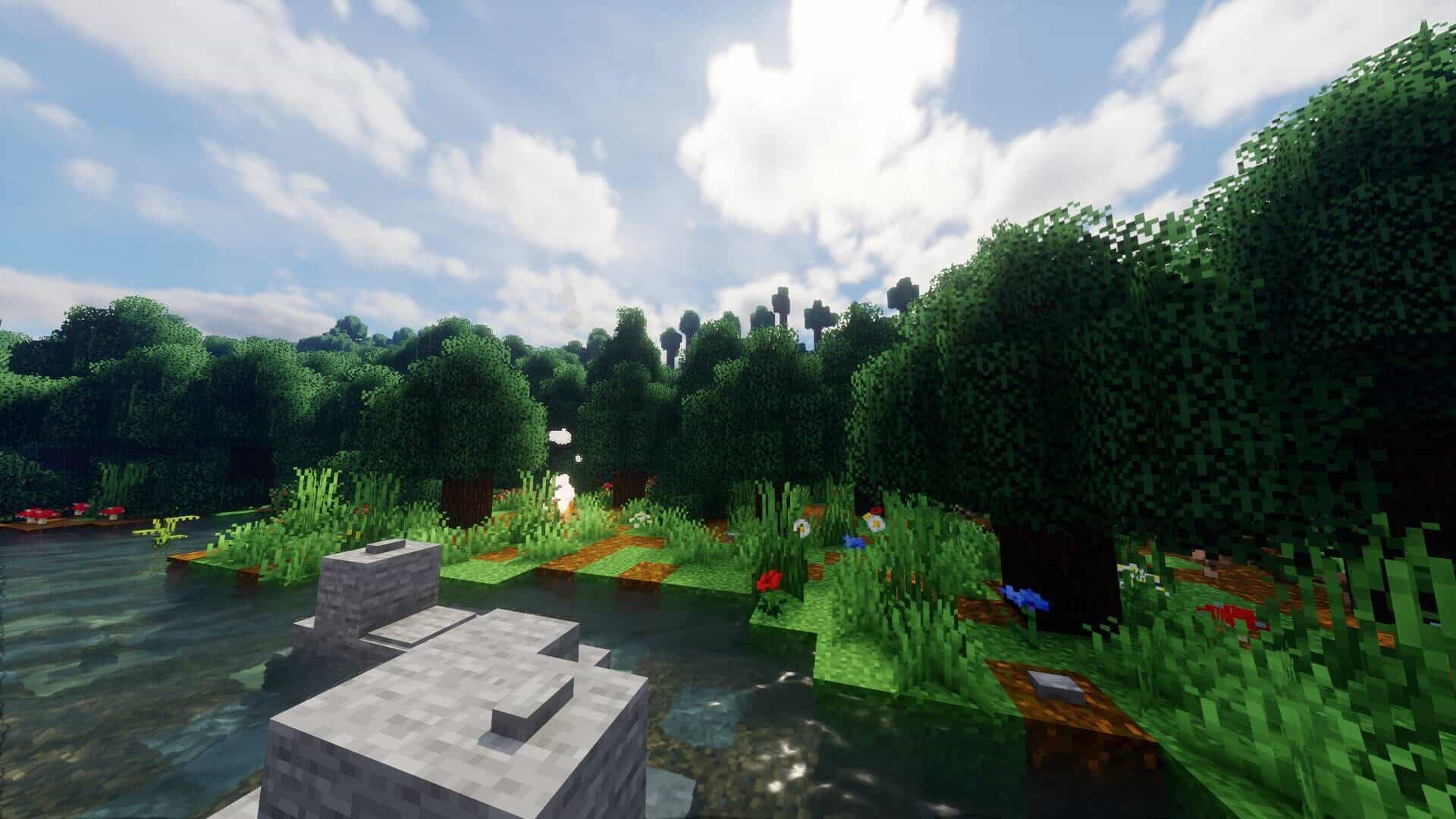
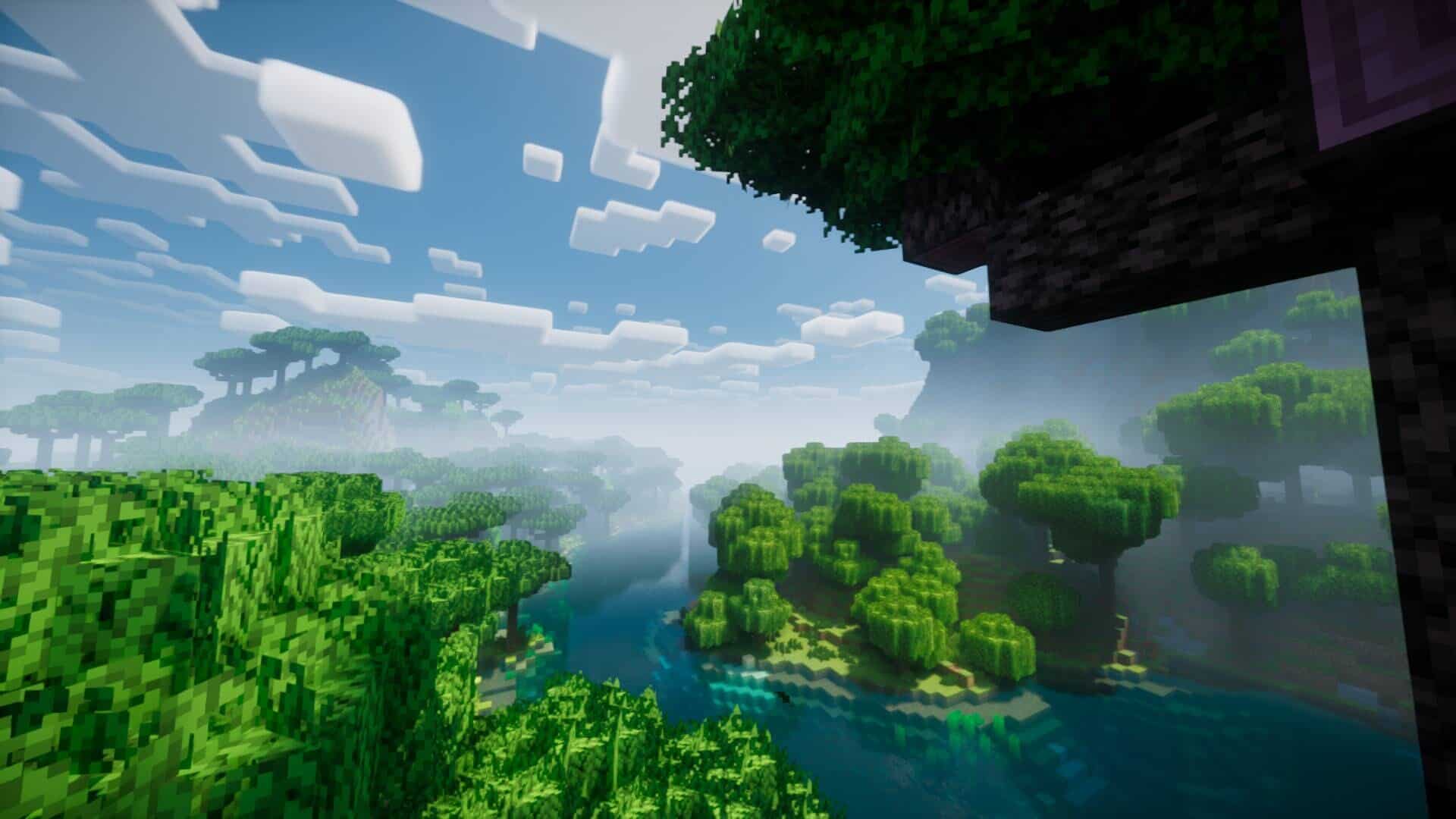
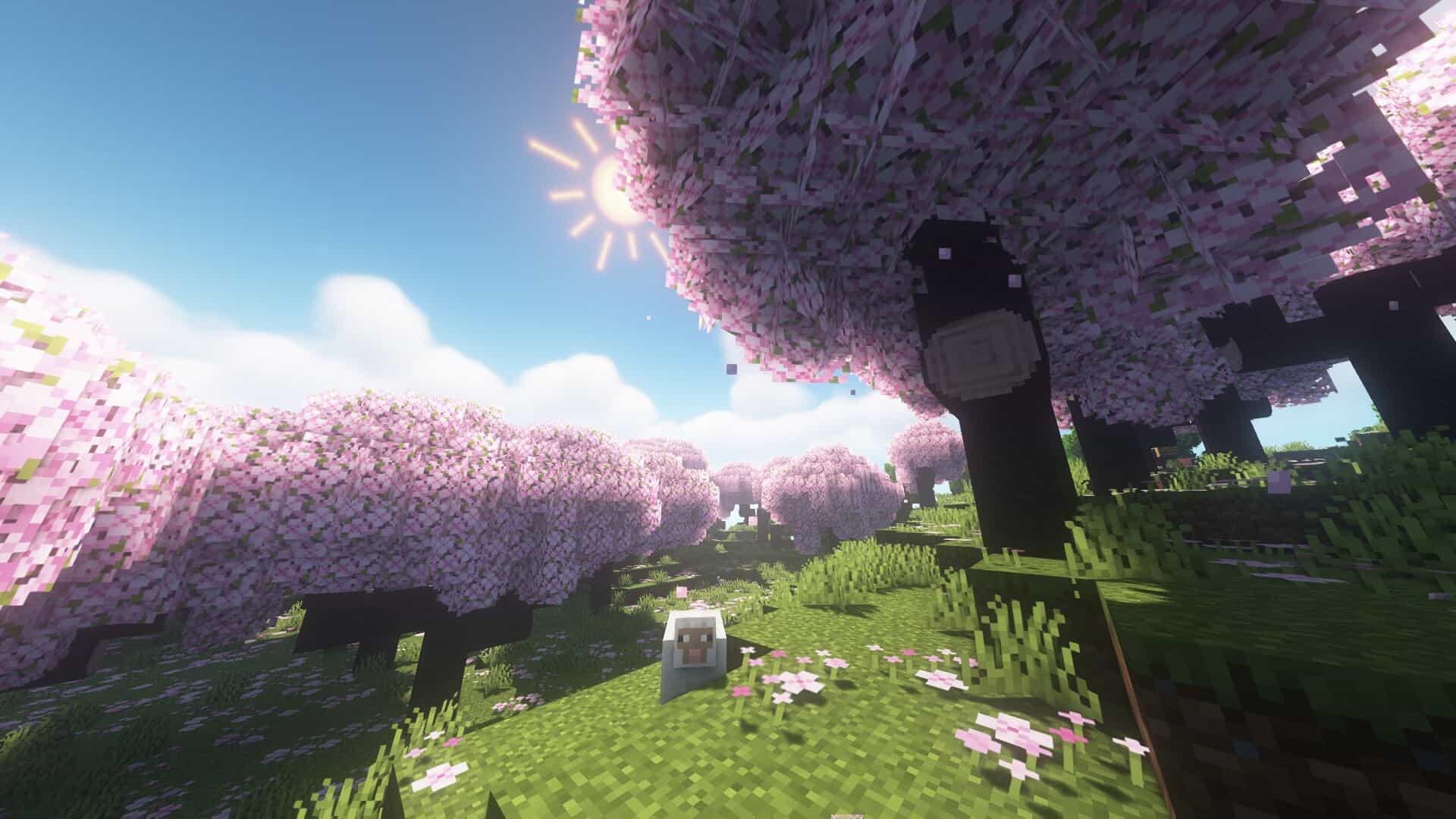
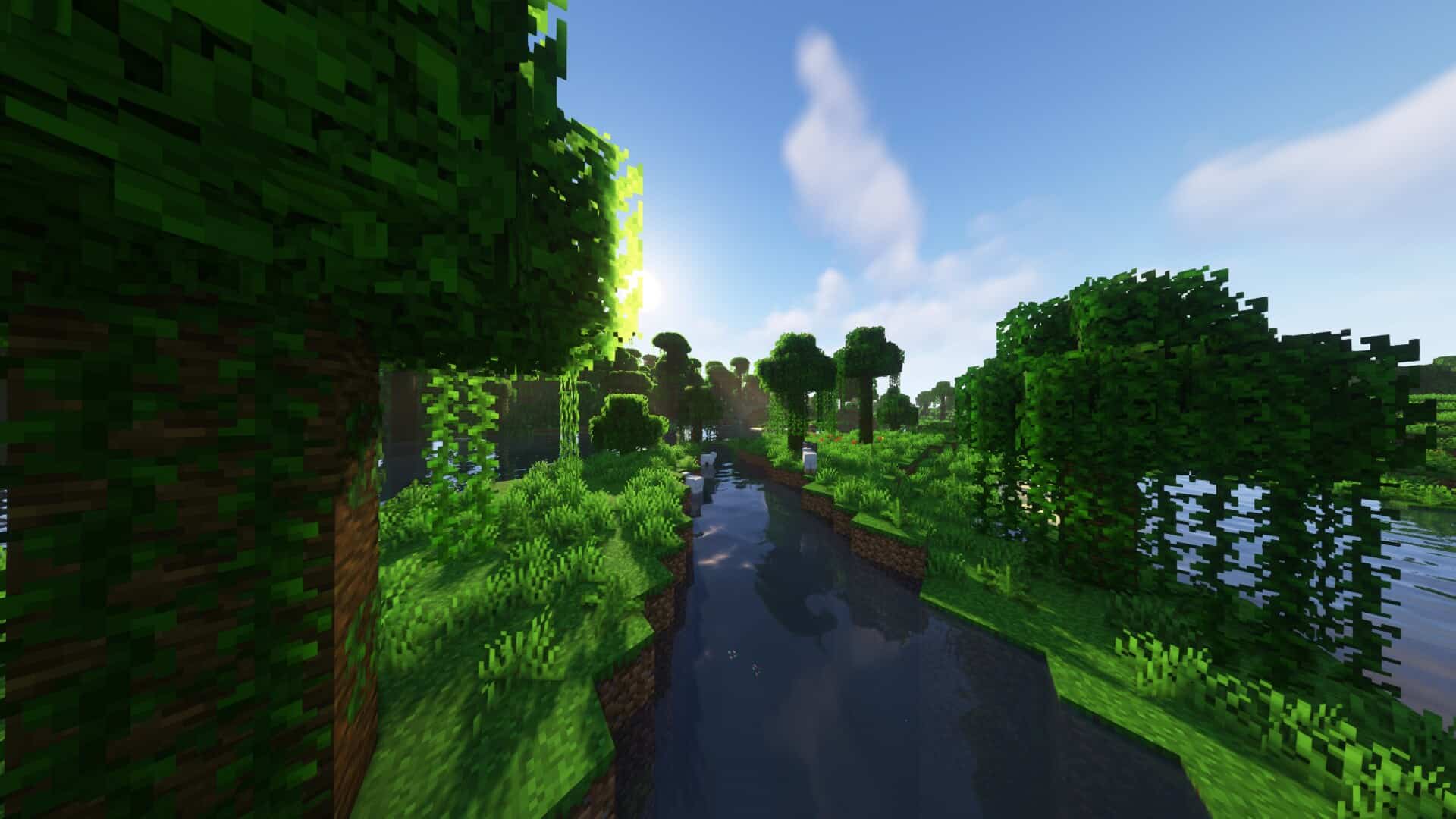
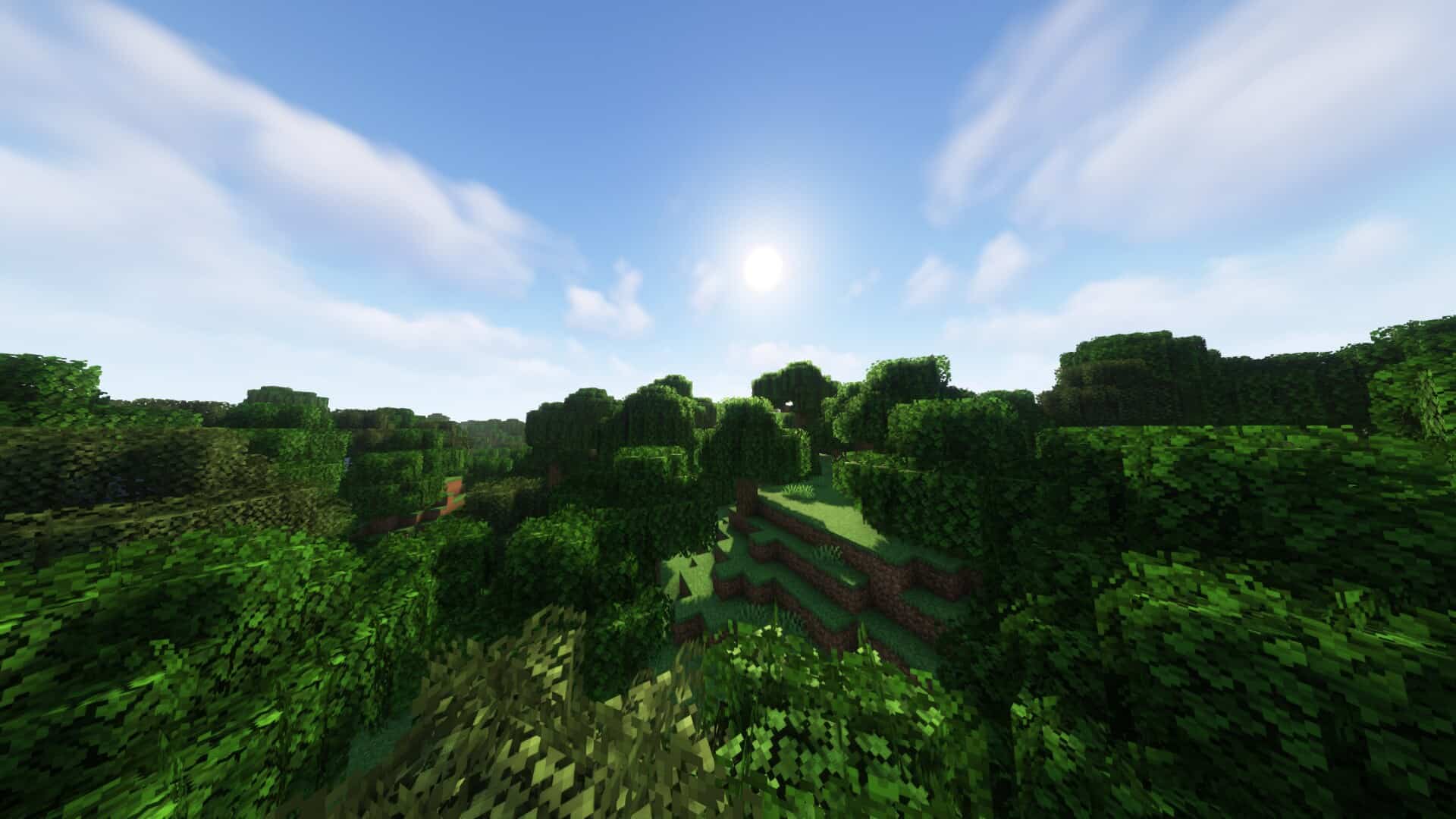
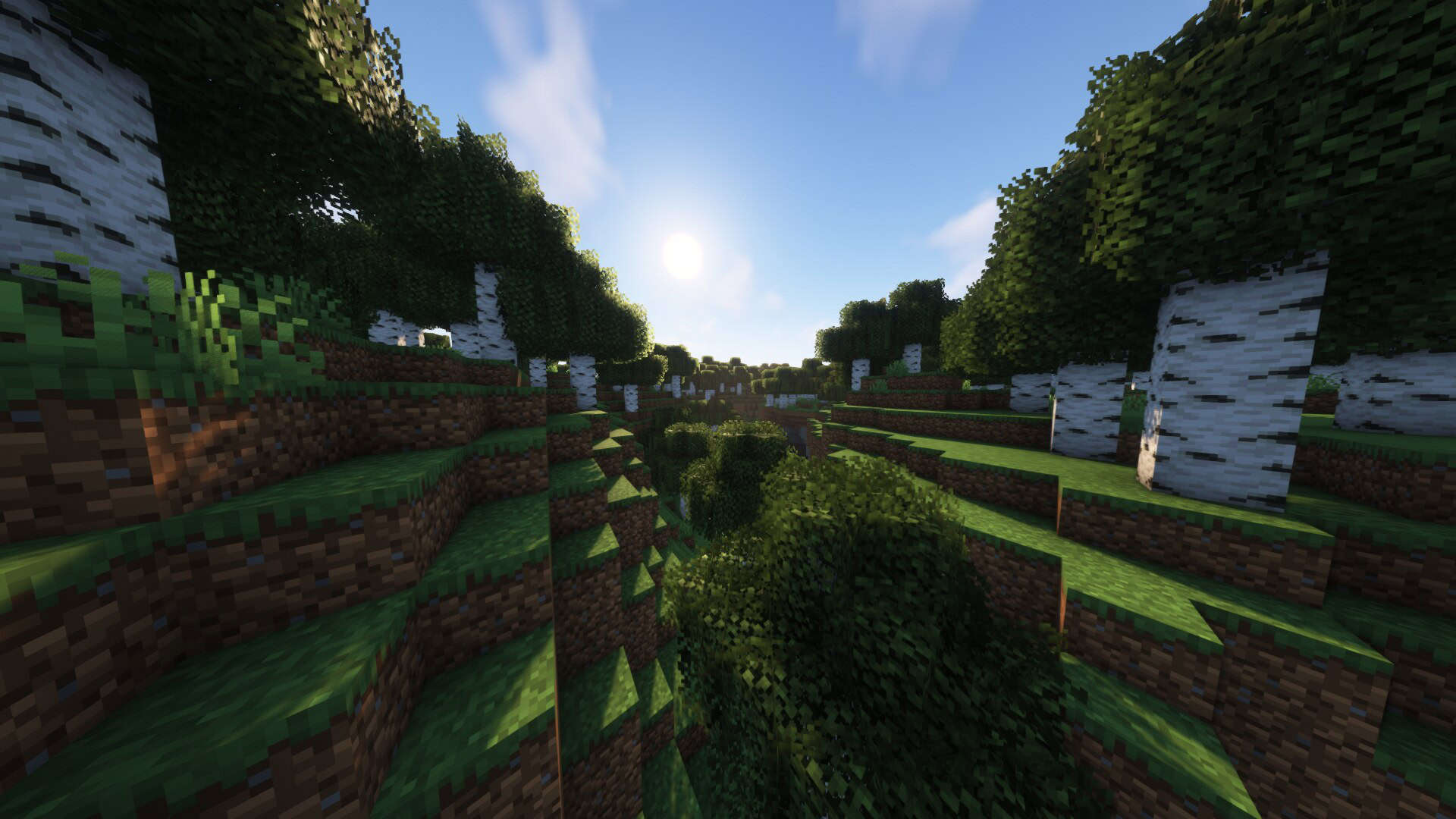
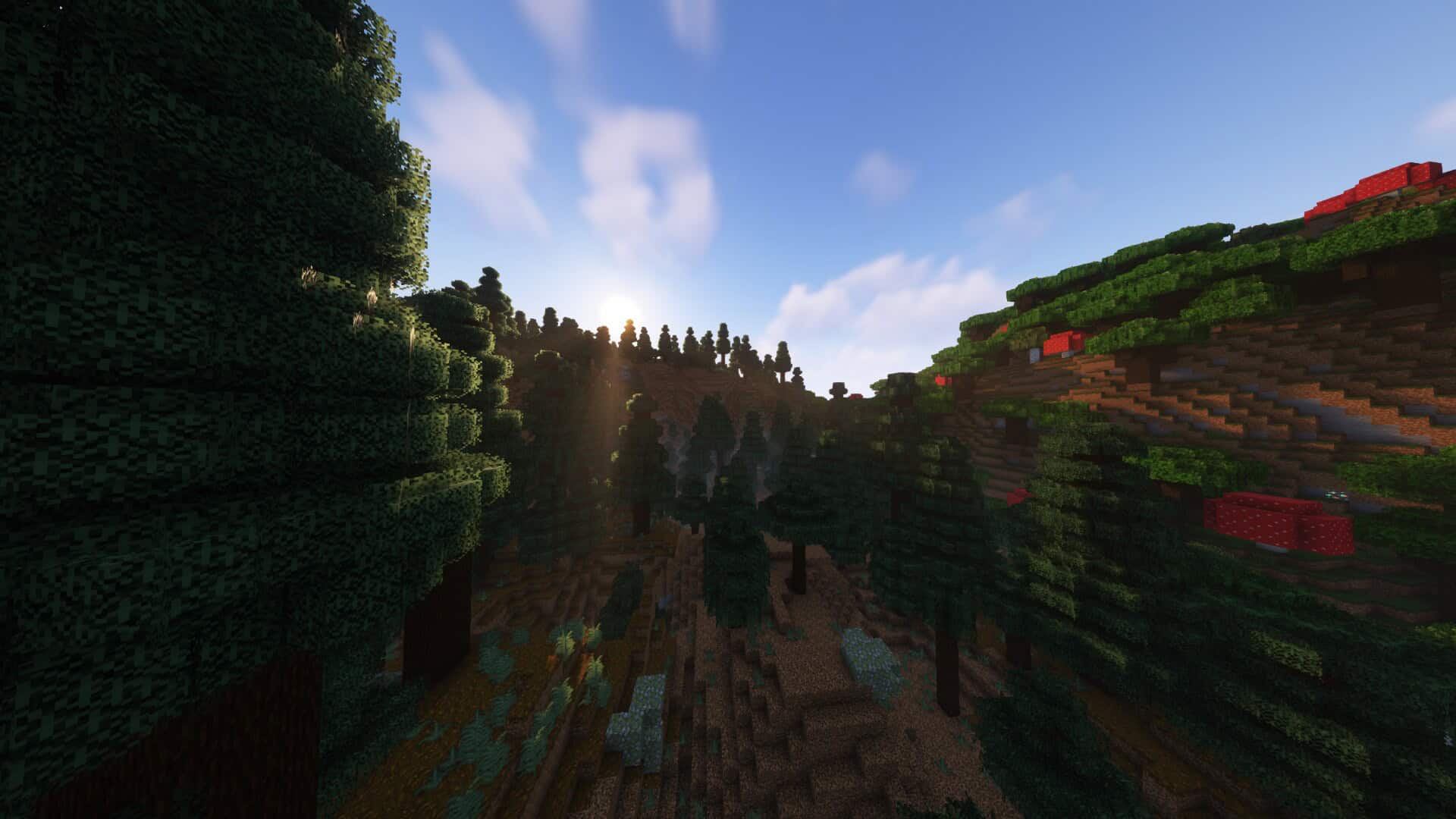
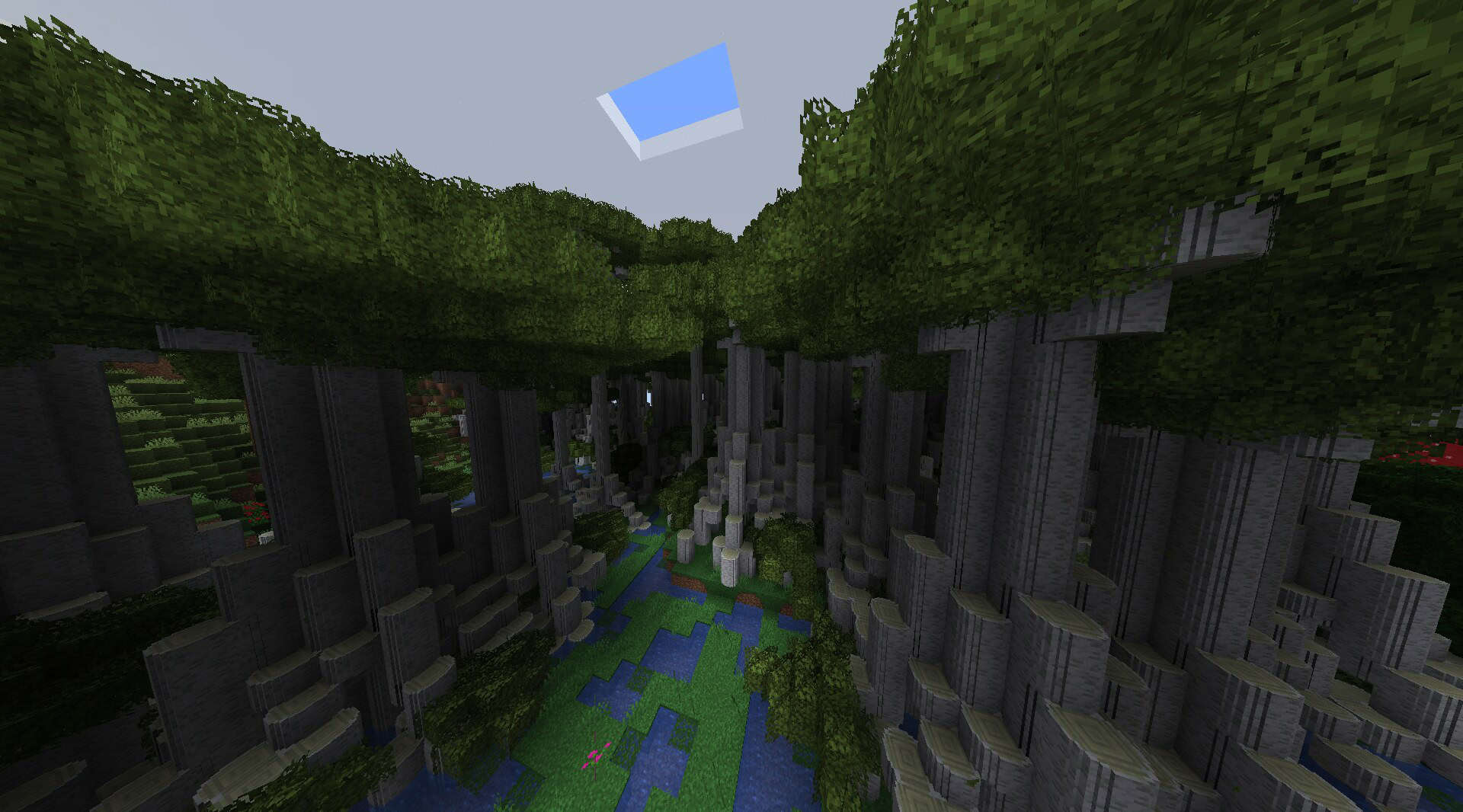
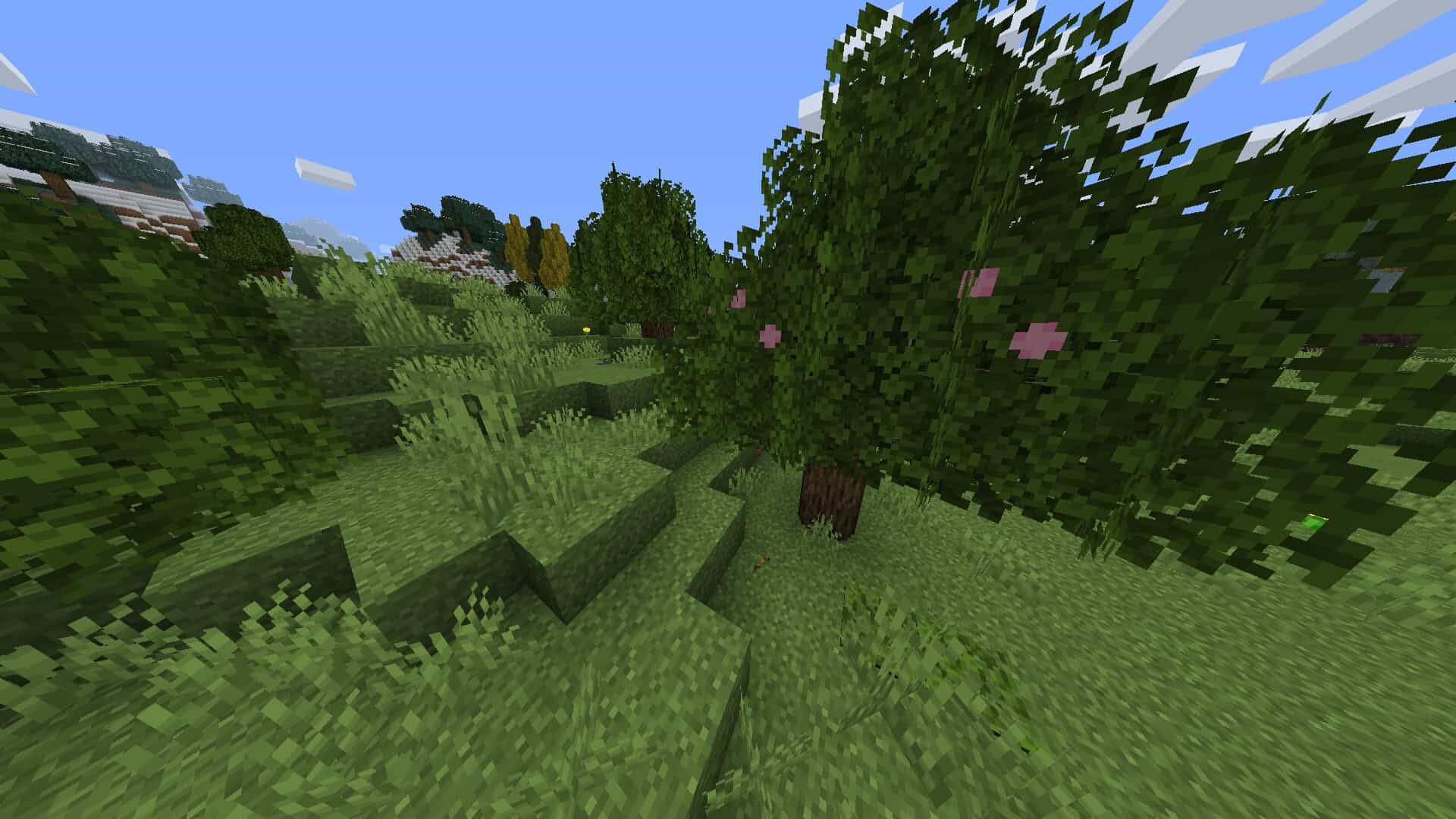
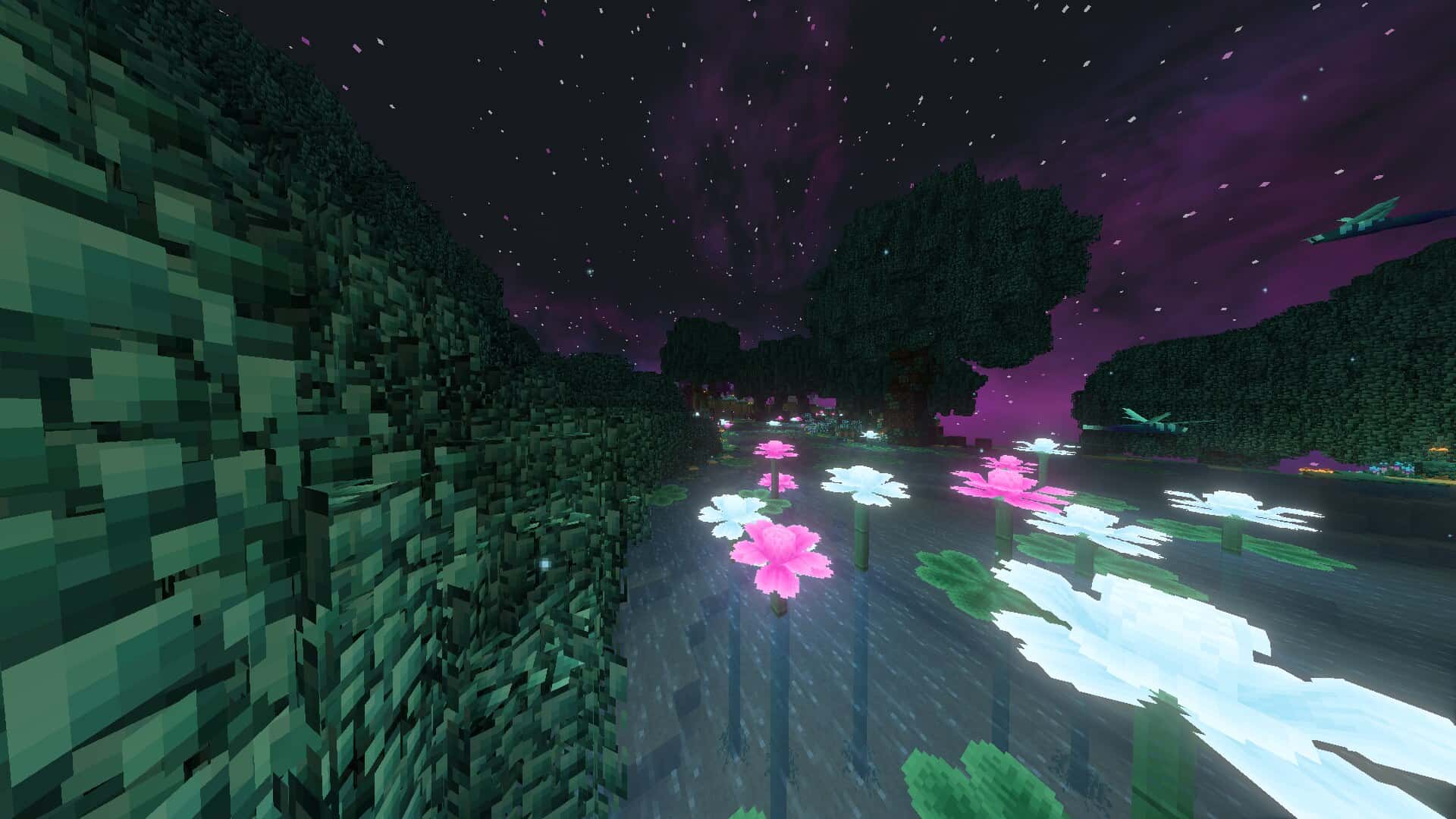
Motschen’s Better Leaves is an absolute game-changer, and while its name gives you a clear idea of what to expect, it adds a massive amount of visual value to the game despite its charming simplicity. Every Minecraft player, whether a seasoned veteran or a curious novice, knows that the game’s trademark is its classic cartoonish, child-like appearance. However, every now and then you get a strong urge to spice it up a bit, and Motschen’s Better Leaves modifies arguably the most abundant object in the entire game—trees, and more precisely, their leaves. Even in their default state, leaves are special because their looks change dynamically depending on your graphics settings, appearing transparent on fancy mode and dark green on fast mode, while shifting colors beautifully across different biomes. Fortunately, this resource pack works brilliantly on every occasion by enriching the existing texture with additional layers, making the leaves themselves appear lush and bushy. This simple touch makes trees look infinitely more lively and vibrant, which does a fantastic job of improving your overall immersion in the world. If you are used to massive resource packs that completely overhaul the core of Minecraft by replacing original textures, you are in for a treat because Motschen’s Better Leaves faithfully follows the philosophy of not fixing what isn’t broken. Once you turn it on and load into a world, you might honestly wonder if it is even working at first, purely because the only thing it modifies is the leaves. If you have been playing Minecraft for a long time, you will genuinely be surprised that this level of refinement is even possible without heavy modifications. In older versions, achieving this required clunky mods, but now you can just use it like any regular resource pack. Best of all, if you do not want to go through the trouble of downloading anything extra, this texture pack works completely standalone.
However, the pack’s creator highly recommends downloading Optifine beforehand and enabling its Smart Leaves option to optimize performance. This tiny modification removes hidden leaf elements that can cause massive performance drops, making it a lifesaver if you are playing on an older PC. If you prefer not to install Optifine, there is a great alternative in the Cull Leaves mod, which achieves the exact same results with a slightly different setup process. As you might expect, Motschen’s Better Leaves runs smoothly on any machine capable of handling vanilla Minecraft, keeping the original 16×16 resolution intact. It brilliantly rearranges existing pixels to give leaves a more detailed, polished look without bogging down your system. Because of its strictly vanilla nature, it combines seamlessly with almost any other resource pack, provided that other pack does not specifically alter leaves. Furthermore, Motschen’s Better Leaves supports popular biome-adding Forge mods like Biomes O’ Plenty, and can easily be paired with Fabric mods as well. If you have a powerful rig and want to take your visuals to the next level, shaders blend in flawlessly with this pack, adding realistic shadows and gorgeous leaf motion that truly brings the forests to life. Weighing in at less than half a megabyte, it is remarkably lightweight. With over six million downloads and countless glowing reviews across official sources, it is easily one of the best-made packs out there. The creator continues to provide active weekly updates, ensuring compatibility with new Minecraft versions and promising even greater mod support in the future. Even if you are hesitant, it costs you nothing to download and try it out, and I promise you will never want to play without it again.
Motschen’s Better Leaves should be compatible with all of these Minecraft versions: 26.2 – 26.1.2 – 26.1.1 – 26.1 – 1.21.11 – 1.21.10 – 1.21.9 – 1.21.8 – 1.21.7 – 1.21.6 – 1.21.5 – 1.21.4 – 1.21.3 – 1.21.2 – 1.21.1 – 1.21 – 1.20.6 – 1.20.5 – 1.20.4 – 1.20.3 – 1.20.2 – 1.20.1 – 1.20 – 1.19.4 – 1.19.3 – 1.19.2 – 1.19.1 – 1.19 – 1.18.2 – 1.18.1 – 1.18 – 1.17.1 – 1.17 – 1.16.5 – 1.16.4 – 1.16.3 – 1.16.2 – 1.16.1 – 1.16 – 1.15.2 – 1.15.1 – 1.15 – 1.14.4 – 1.14.3 – 1.14.2 – 1.14
Screenshots
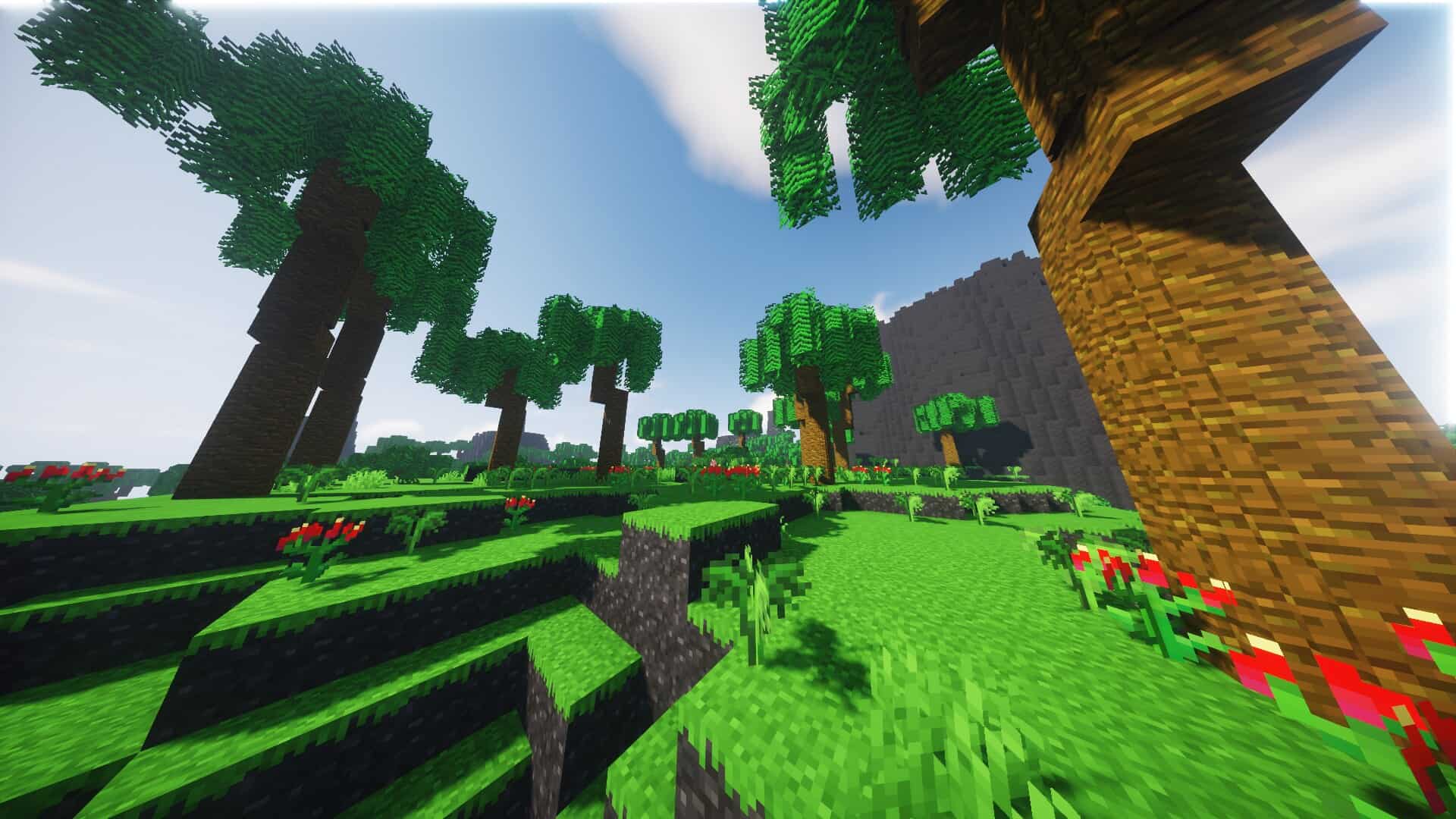
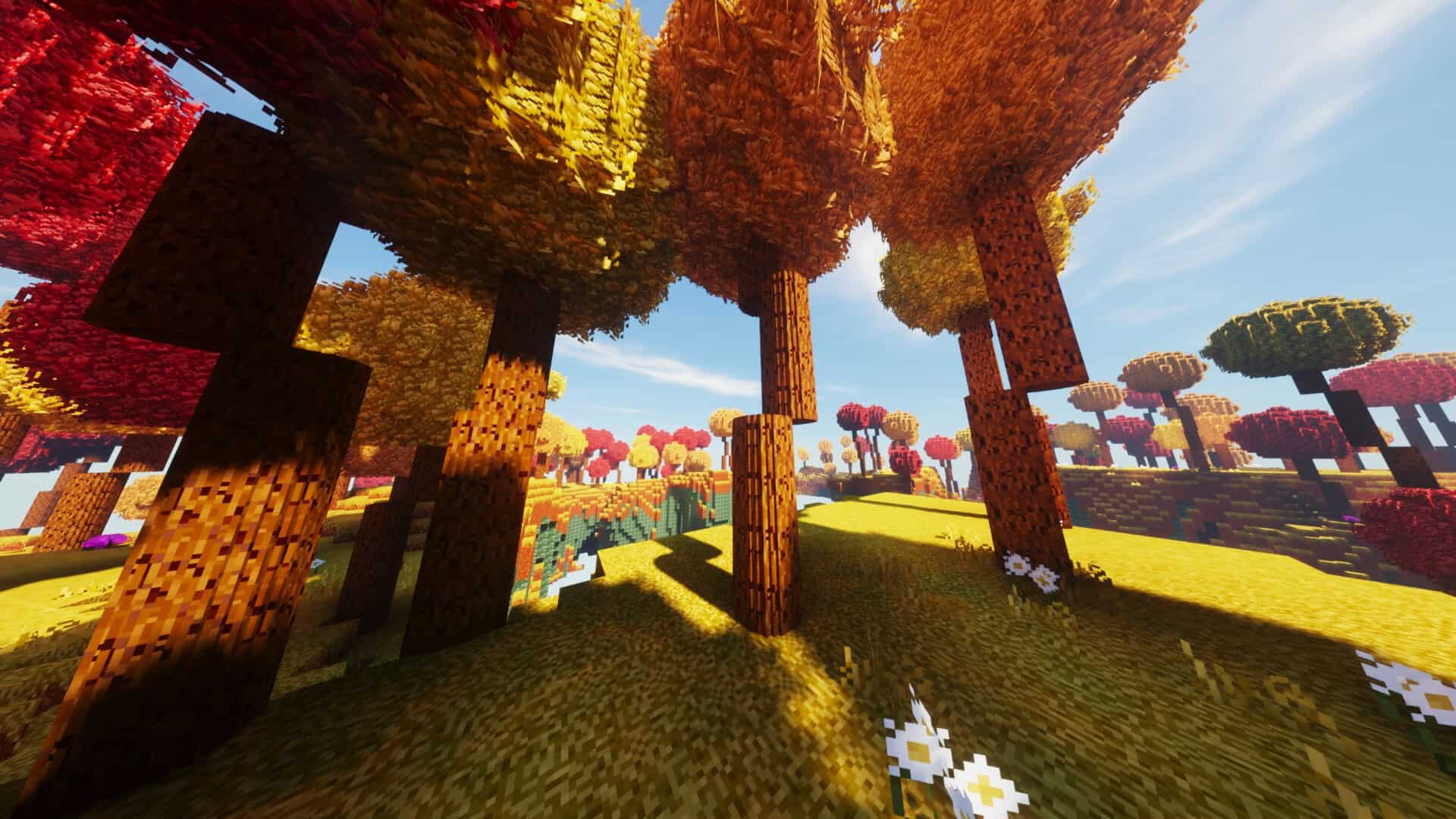
How to Install Texture Pack (Simple 10 Steps)
- Download OptiFine: Most of the texture packs and shaders need OptiFine. That’s why, first download and install OptiFine for the version of Minecraft you want to play.
- Download the Texture Pack: Get the texture pack you want from the download section. Choose the version that works with your Minecraft and your PC’s performance.
- Open Minecraft Launcher: Start Minecraft using the official game launcher — or even TLauncher, if you use that.
- Go to Options: From the main menu, click on the “Options” button.
- Open Resource Packs: Inside Options, click on “Resource Packs…”.
- Open the Resource Pack Folder: Click on “Open Resource Pack Folder” — this will open a folder named “resourcepacks”.
- Move the Pack File: Copy or move the .zip file you downloaded into that “resourcepacks” folder. (Don’t unzip the file — Minecraft uses it as-is!)
- Go Back and Refresh: Close the folder and click “Done”, then go back into “Resource Packs…” again.
- Activate the Pack: You’ll see the pack on the left side. Hover over it and click the arrow to move it to the right (active side).
Tip: If you get a message that the pack is for a different version, just click “Yes” — it usually works fine. - Click Done and Enjoy: Click “Done” again. Now your pack is ready to use in-game. It’s that easy!
Credits
This resource pack was created by Motschen. We do not own, host, or modify this content. All rights and original ownership belong to the author. We highly recommend visiting the official download sources to support the creator.
Download Links
Java Edition
Download Instructions
Curseforge: download starts automatically after a few seconds;
Mediafire: click the big blue button with the text “DOWNLOAD”;
Google Drive: in the top right corner you will see a small download icon (down arrow), click it and the download should start;


