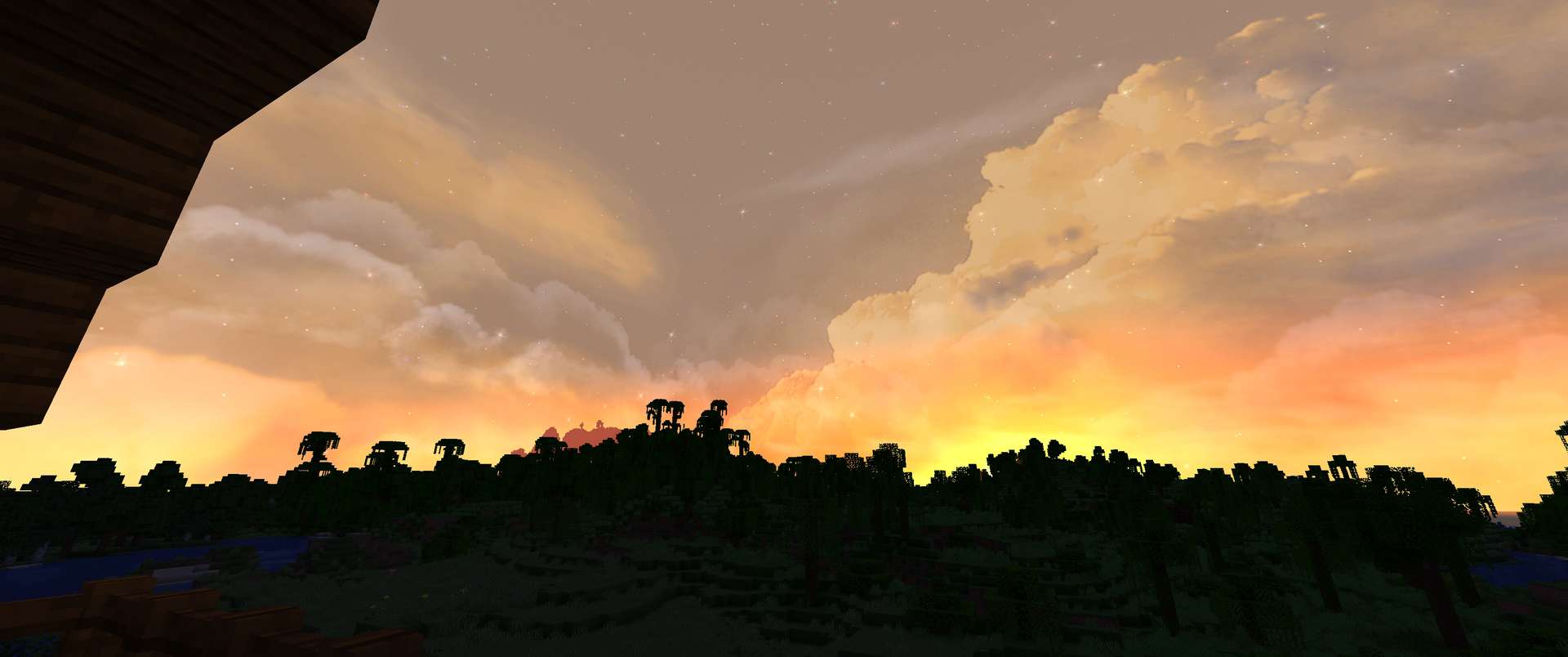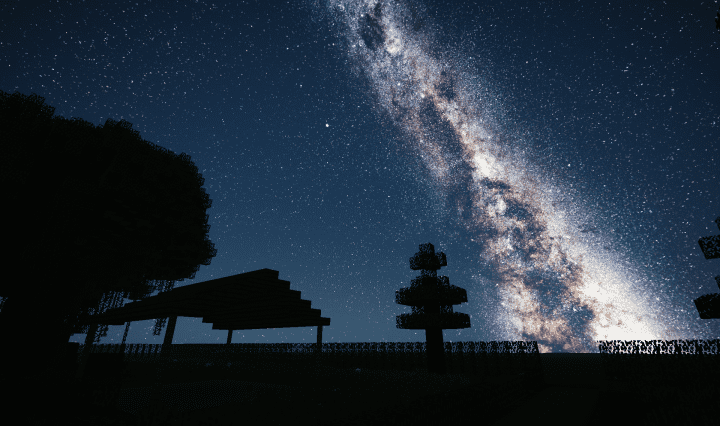
Have you ever stumbled across a Minecraft sky that offers visuals that are genuinely extraordinary in nature? I tested this resource pack out, and I can tell you it is the real deal. It makes your gameplay feel so lively with distinct, bright visuals that are remarkably kinetic and incredibly appealing to the eyes. Honestly, you simply cannot compare the Milkyway Galaxy Night Sky resource pack with most of its predecessors. A lot of older packs were entirely redundant, transforming Minecraft skies into dull, static pictures that looked pretty ugly in comparison. Because of those frustrating limitations and challenges experienced with previous resource packs, StingrayProductions completely revolutionized the Minecraft experience.
They crafted this fantastic resource pack packed with fresh features and modern functionalities that truly generate a wonderful rejuvenation for your game’s visuals. During nighttime exploration, this resource pack lets you efficiently and effectively gaze at a breathtaking, stunning sky that is just a joy to behold. The absolute most interesting part about this resource pack is how well it pairs with shaders; when you have them installed, it automatically enhances and improves your overall look, giving everything an elegant and classy appearance. Just keep in mind that this resource pack boasts an ultra-high resolution of 512x for its textures to pull off these magnificent changes to your skies, and it is important to note that it cannot function on its own unless you have OptiFine installed.
Milkyway Galaxy Night Sky should be compatible with all of these Minecraft versions: 1.19.2 – 1.19.1 – 1.19 – 1.18.2 – 1.18.1 – 1.18 – 1.17.1 – 1.17 – 1.16.5 – 1.16.4 – 1.16.3 – 1.16.2 – 1.16.1 – 1.16 – 1.15.2 – 1.15.1 – 1.15 – 1.14.4 – 1.14.3 – 1.14.2 – 1.14 – 1.13.2 – 1.13.1 – 1.13 – 1.12.2 – 1.12 – 1.11.2 – 1.11 – 1.10.2 – 1.10
Screenshots
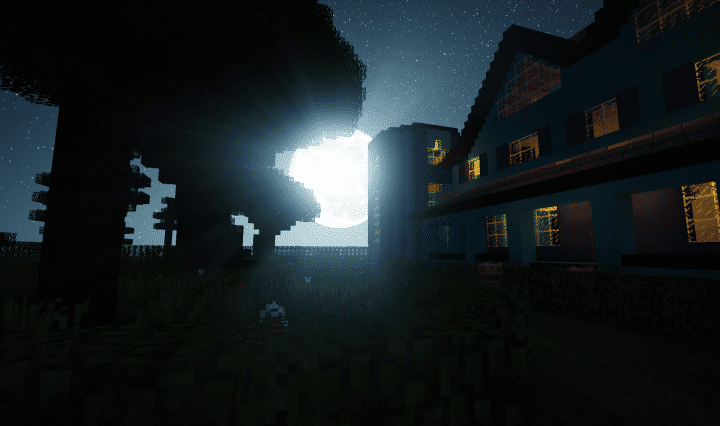
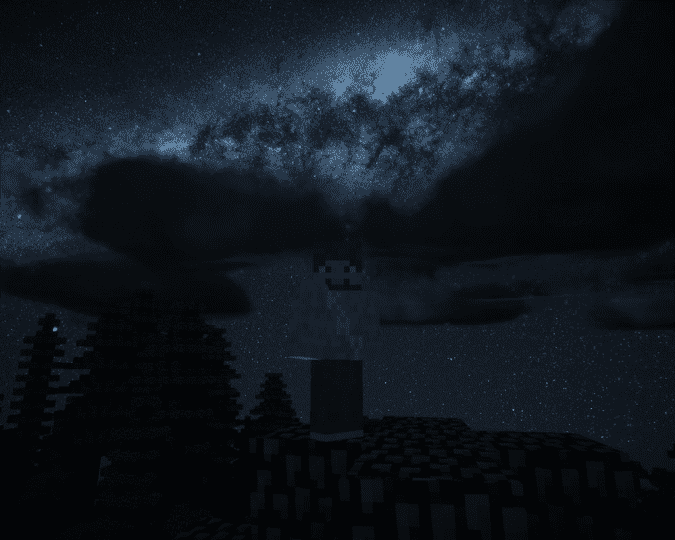
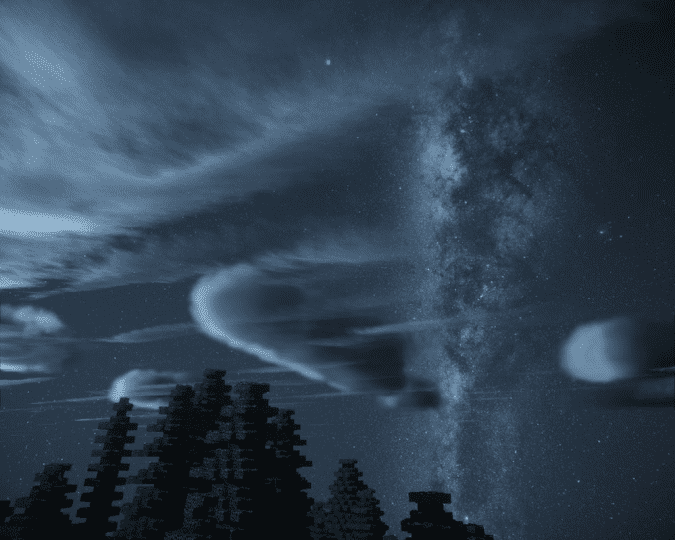
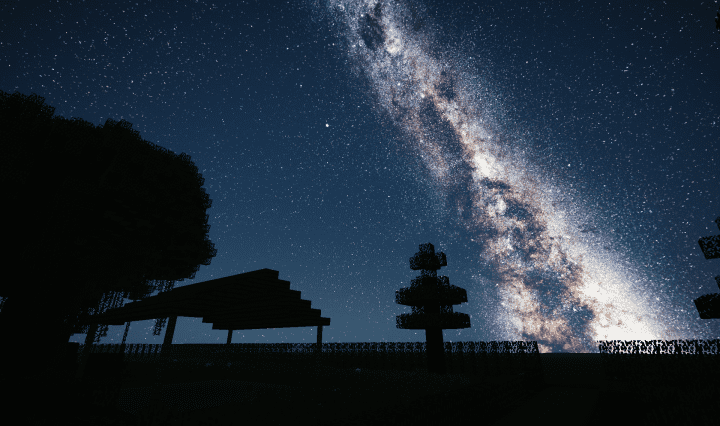
How to Install Texture Pack (Simple 10 Steps)
- Download OptiFine: Most of the texture packs and shaders need OptiFine. That’s why, first download and install OptiFine for the version of Minecraft you want to play.
- Download the Texture Pack: Get the texture pack you want from the download section. Choose the version that works with your Minecraft and your PC’s performance.
- Open Minecraft Launcher: Start Minecraft using the official game launcher — or even TLauncher, if you use that.
- Go to Options: From the main menu, click on the “Options” button.
- Open Resource Packs: Inside Options, click on “Resource Packs…”.
- Open the Resource Pack Folder: Click on “Open Resource Pack Folder” — this will open a folder named “resourcepacks”.
- Move the Pack File: Copy or move the .zip file you downloaded into that “resourcepacks” folder. (Don’t unzip the file — Minecraft uses it as-is!)
- Go Back and Refresh: Close the folder and click “Done”, then go back into “Resource Packs…” again.
- Activate the Pack: You’ll see the pack on the left side. Hover over it and click the arrow to move it to the right (active side).
Tip: If you get a message that the pack is for a different version, just click “Yes” — it usually works fine. - Click Done and Enjoy: Click “Done” again. Now your pack is ready to use in-game. It’s that easy!
Credits
This resource pack was created by StingrayProductions. We do not claim ownership of this content, nor do we modify the original files. All rights belong to the original author. We strongly recommend visiting and supporting the creator’s official platforms.
Download Links
Java Edition
Download Instructions
Curseforge: download starts automatically after a few seconds;
Mediafire: click the big blue button with the text “DOWNLOAD”;
Google Drive: in the top right corner you will see a small download icon (down arrow), click it and the download should start;