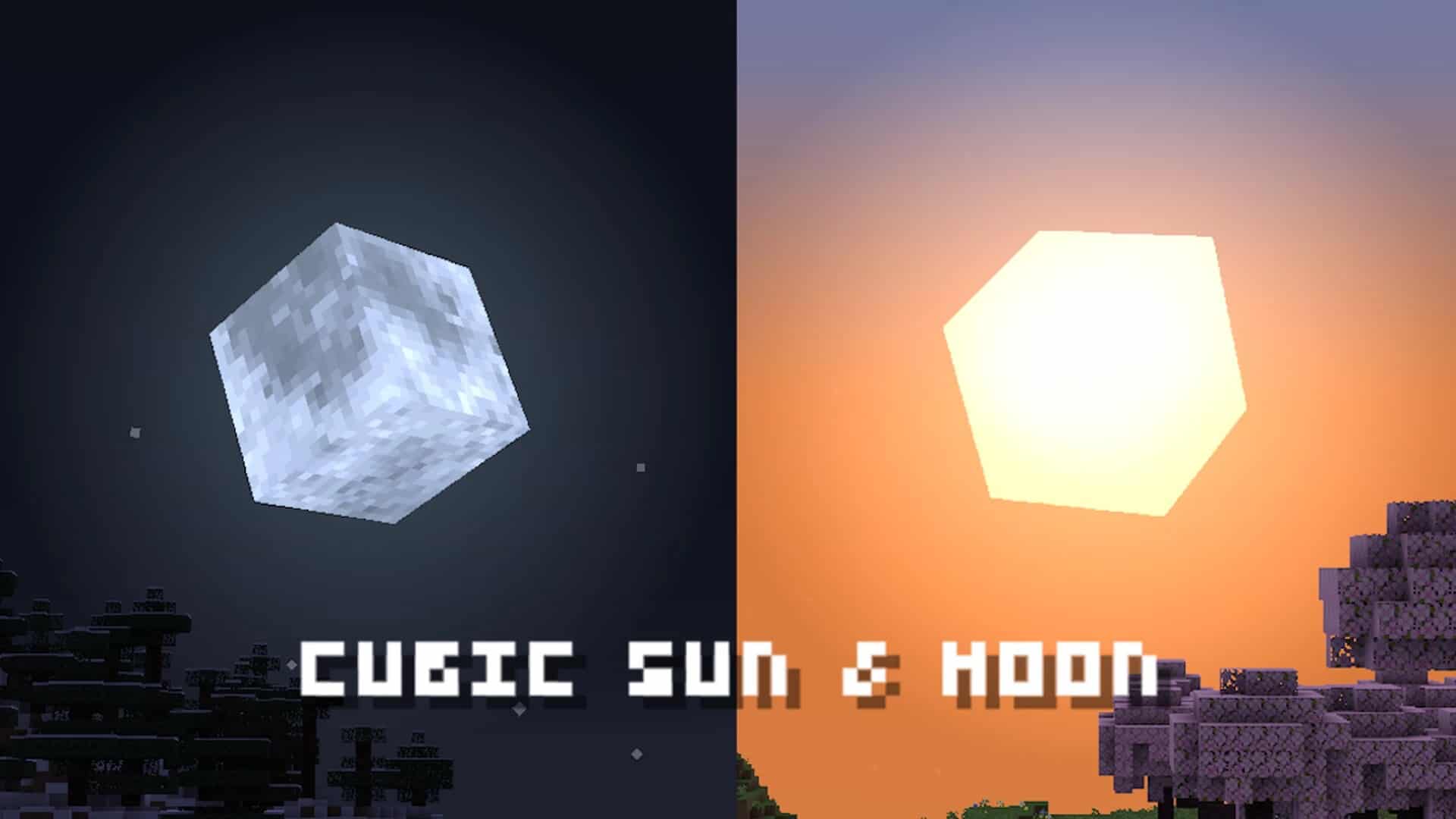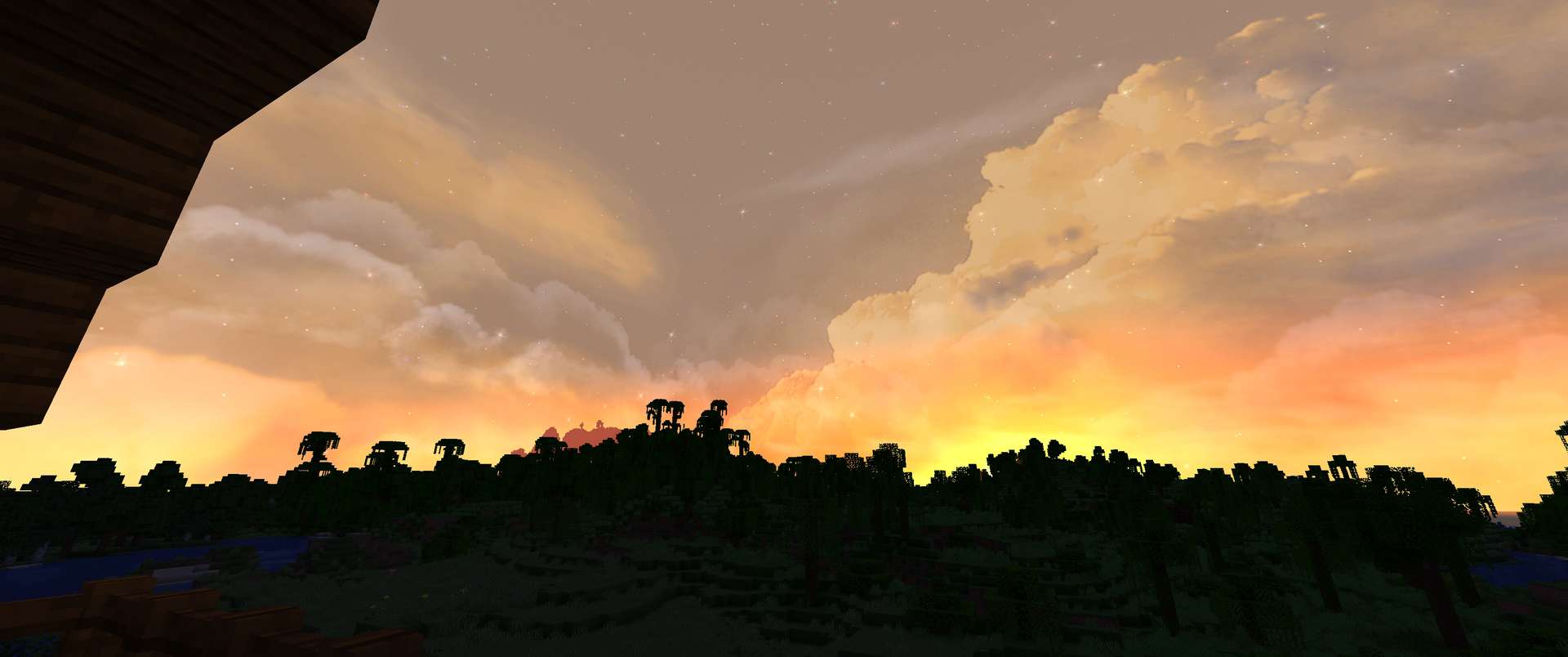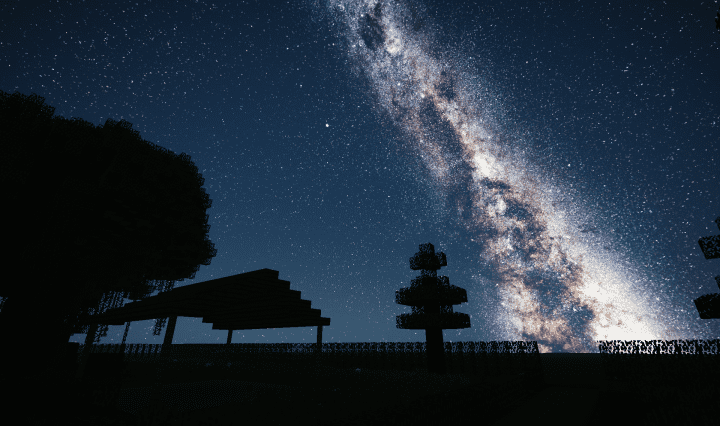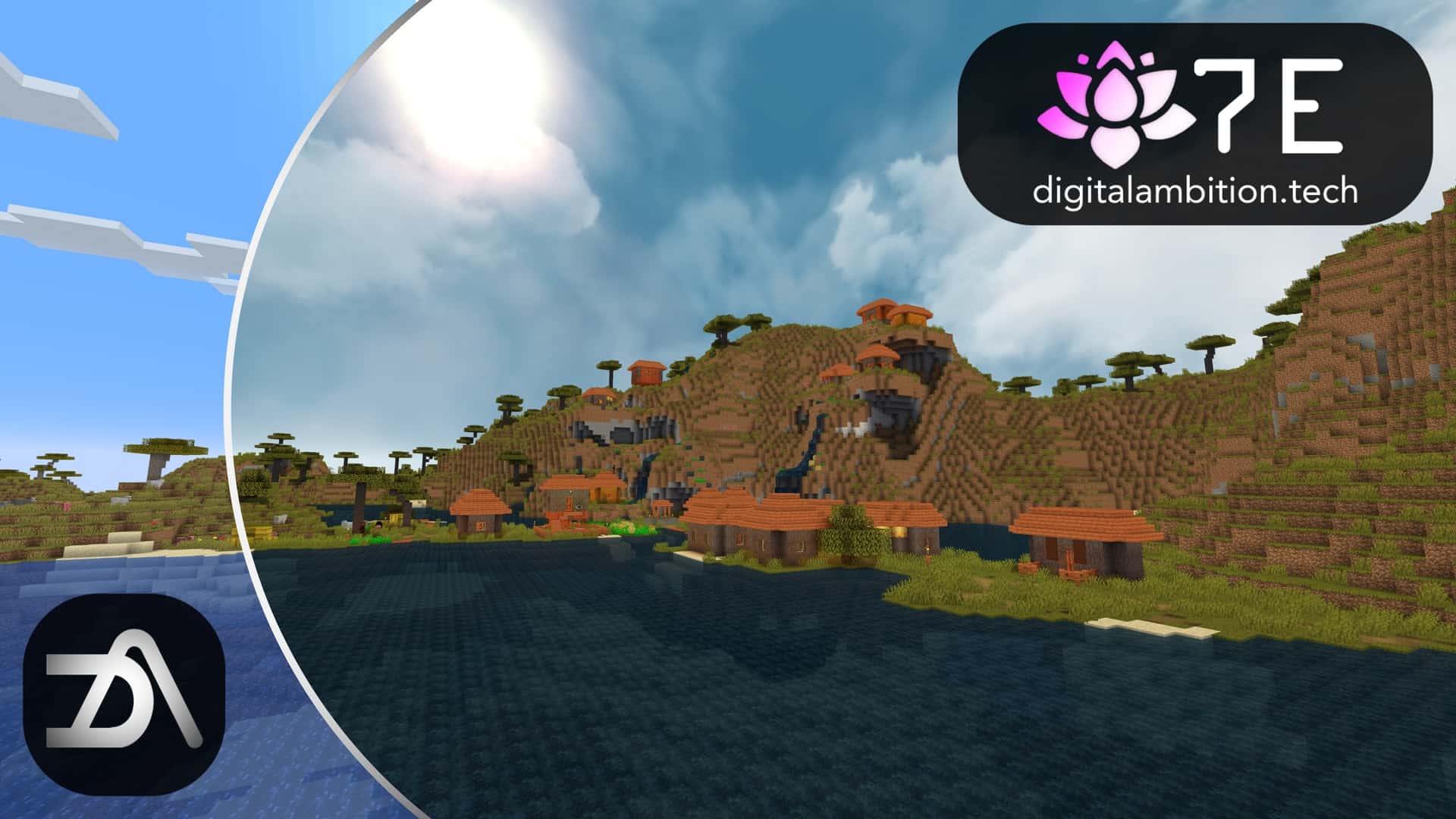
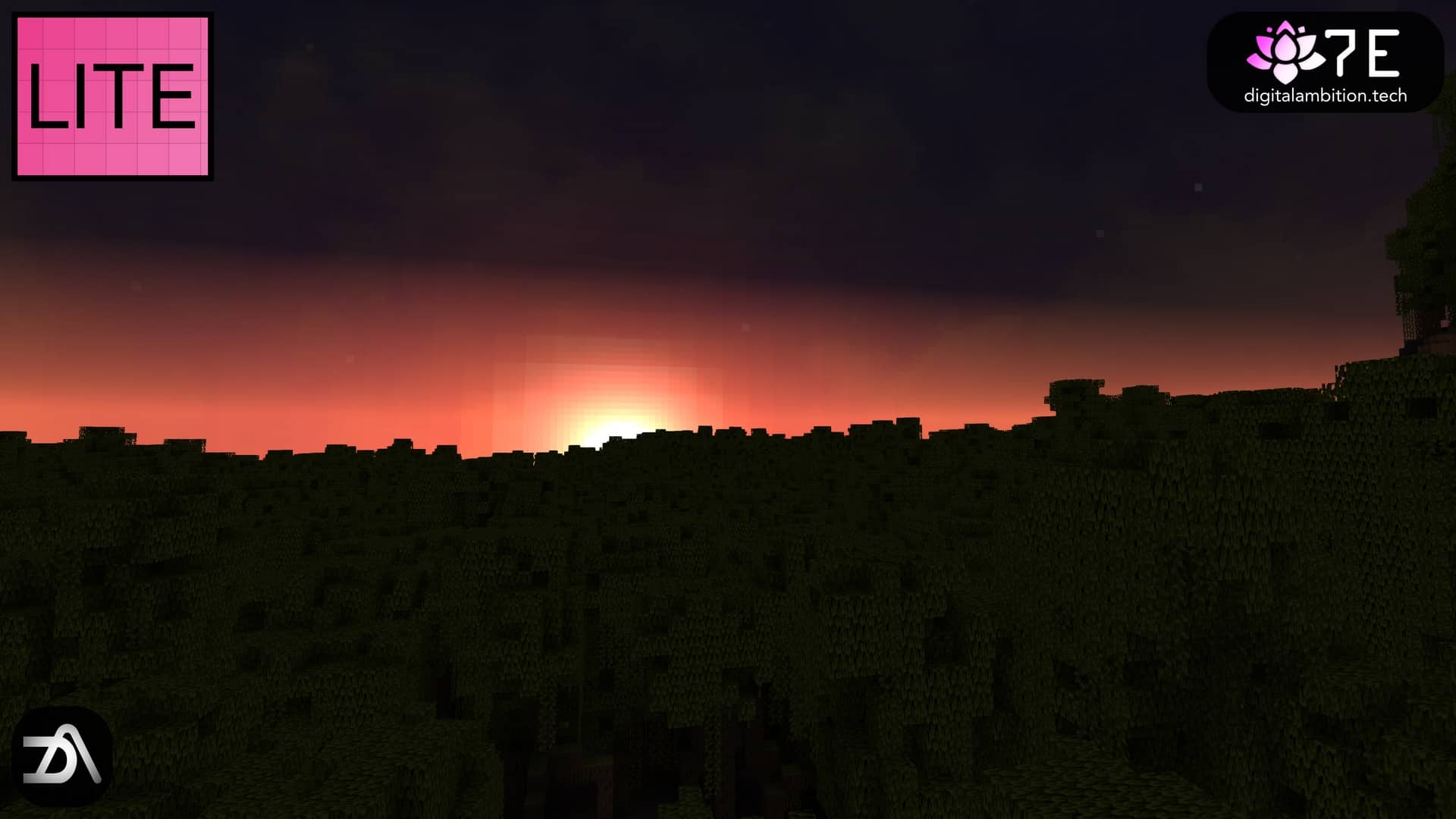
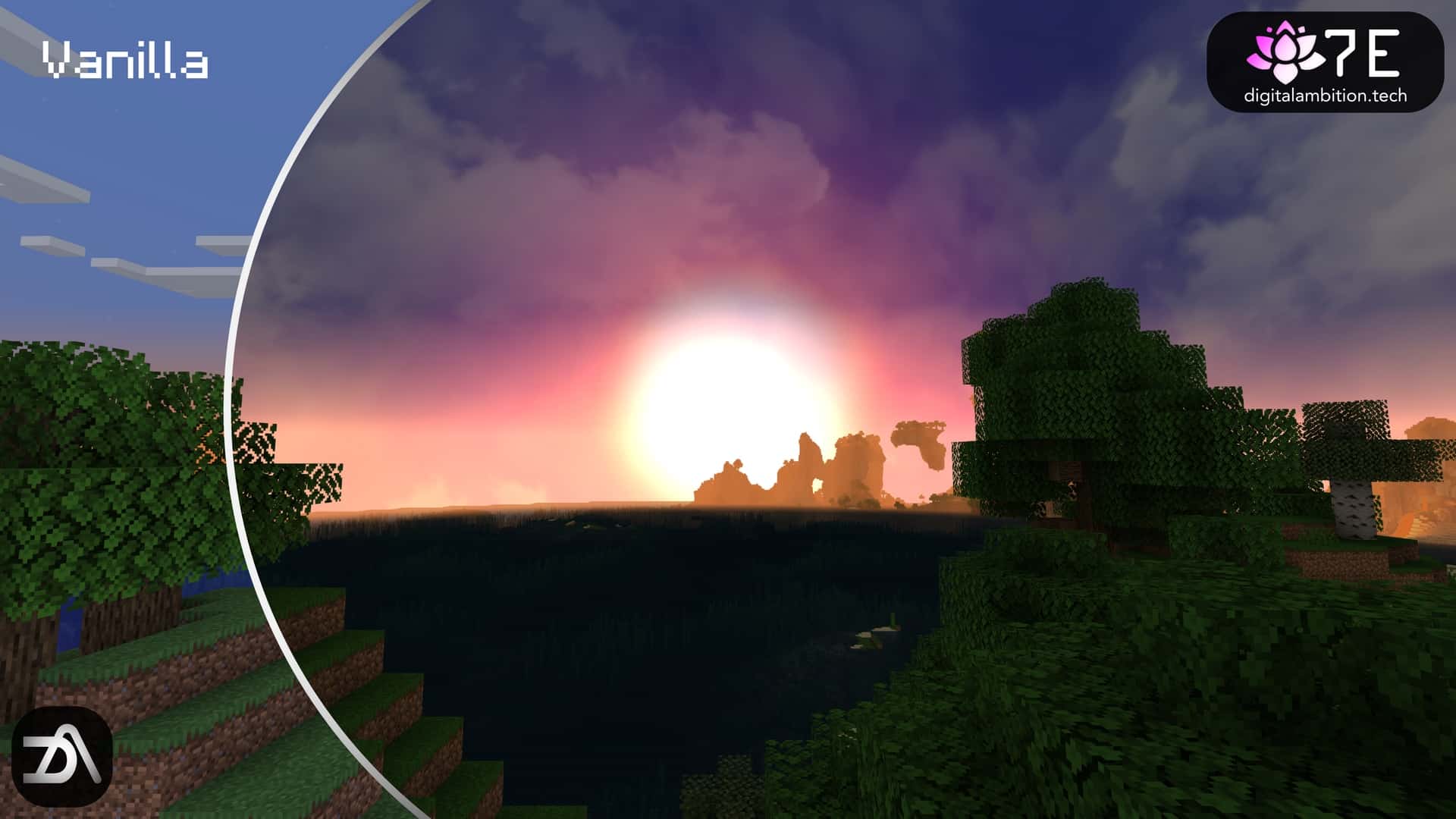
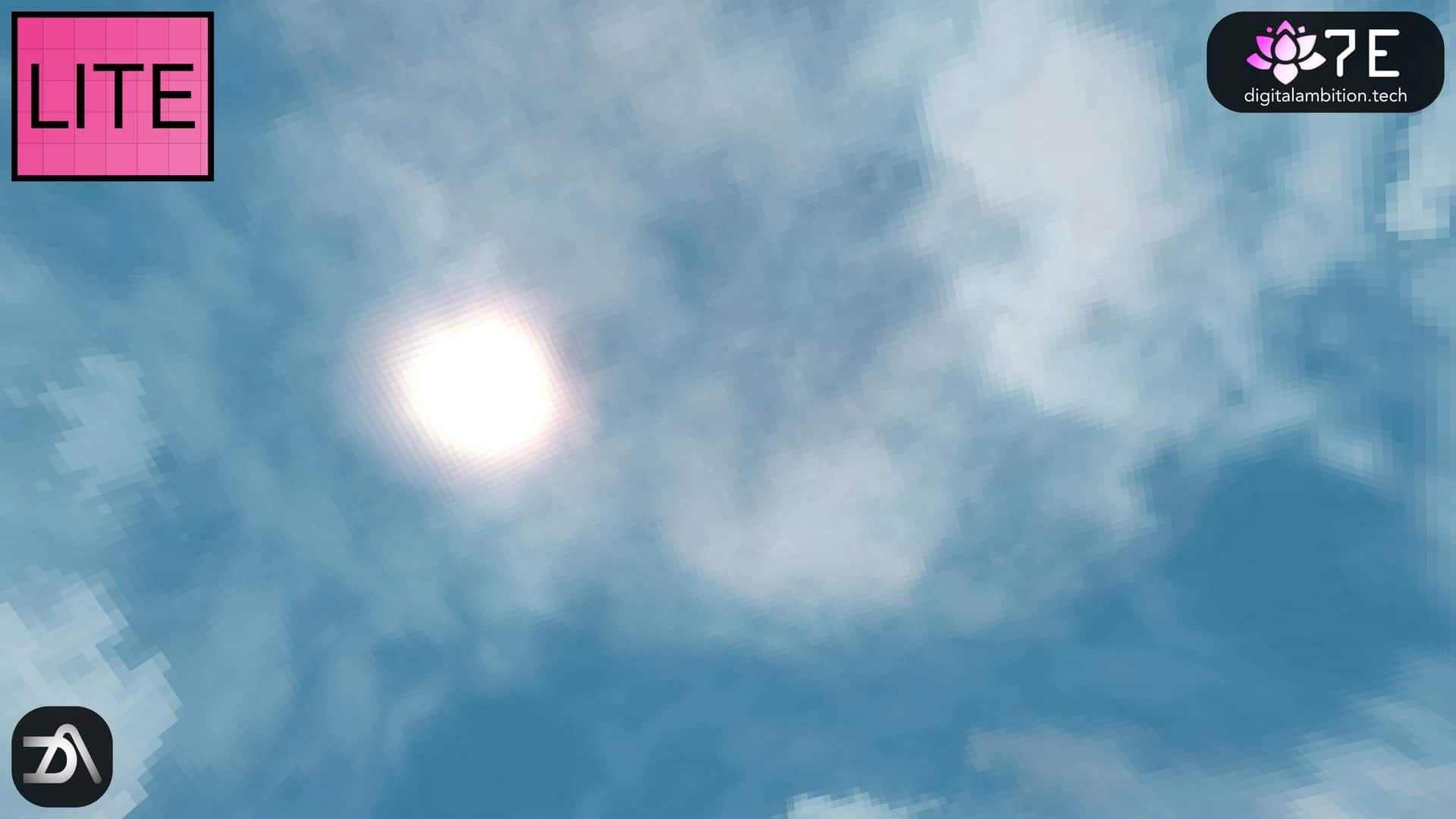
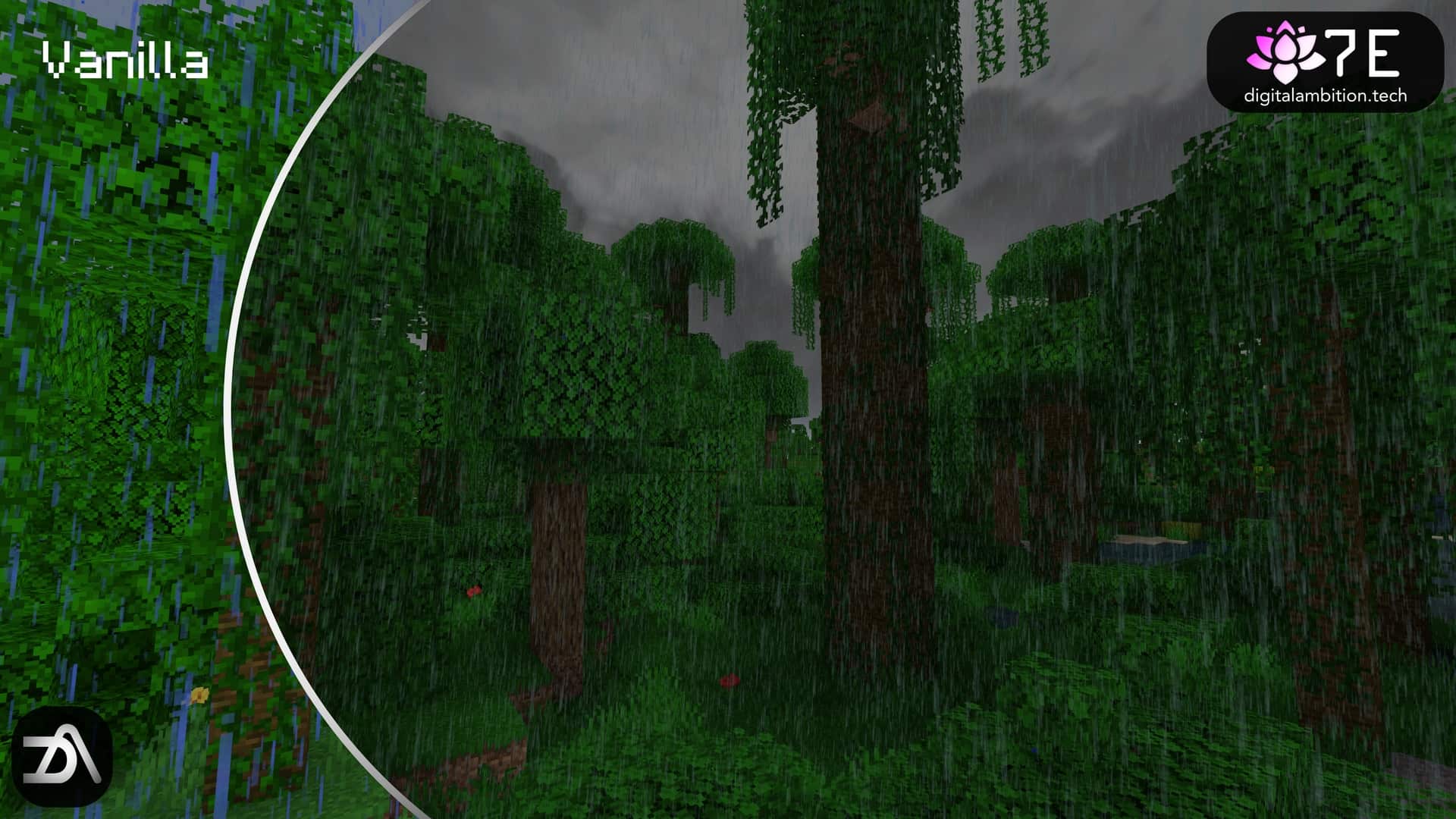
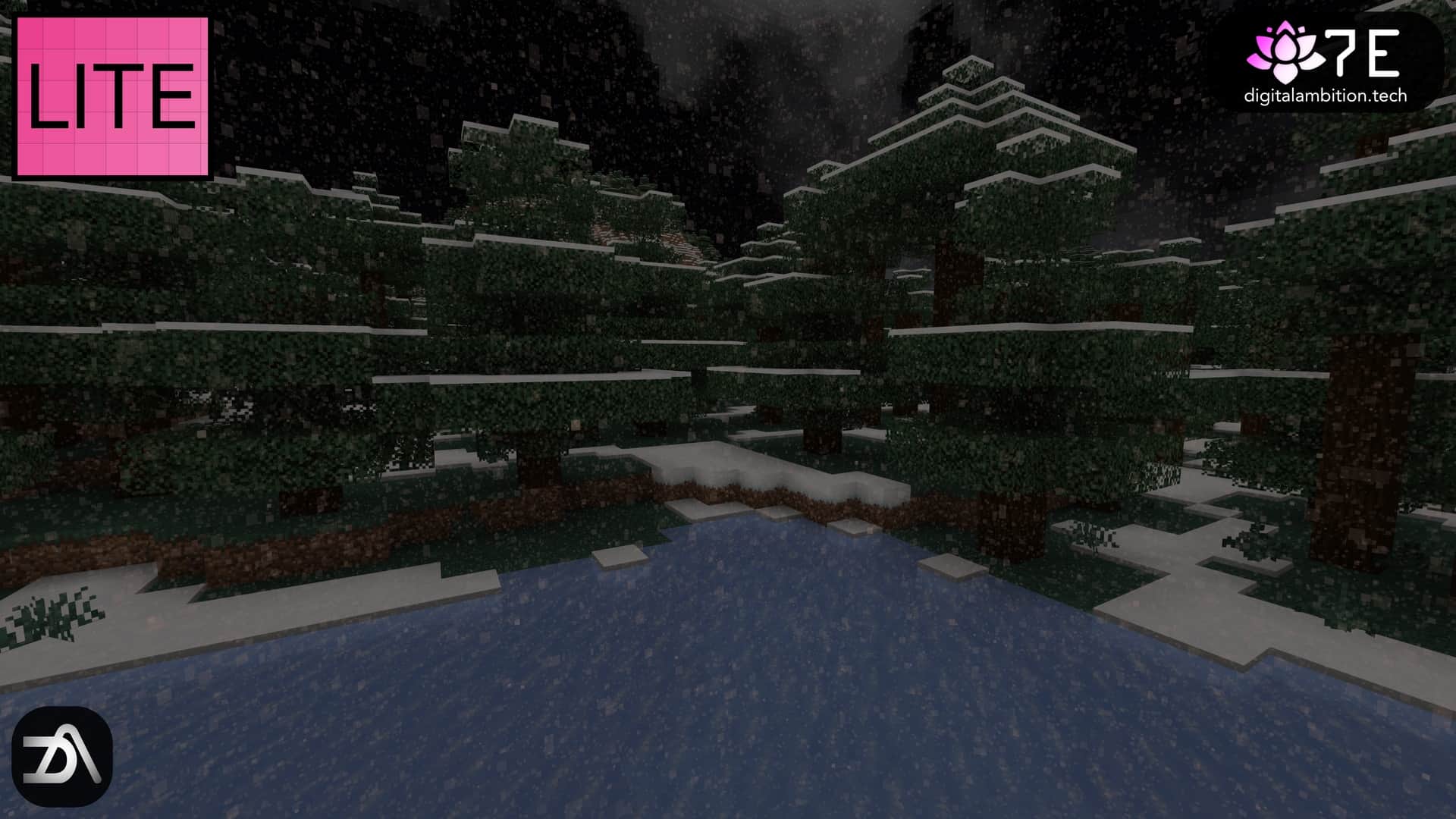
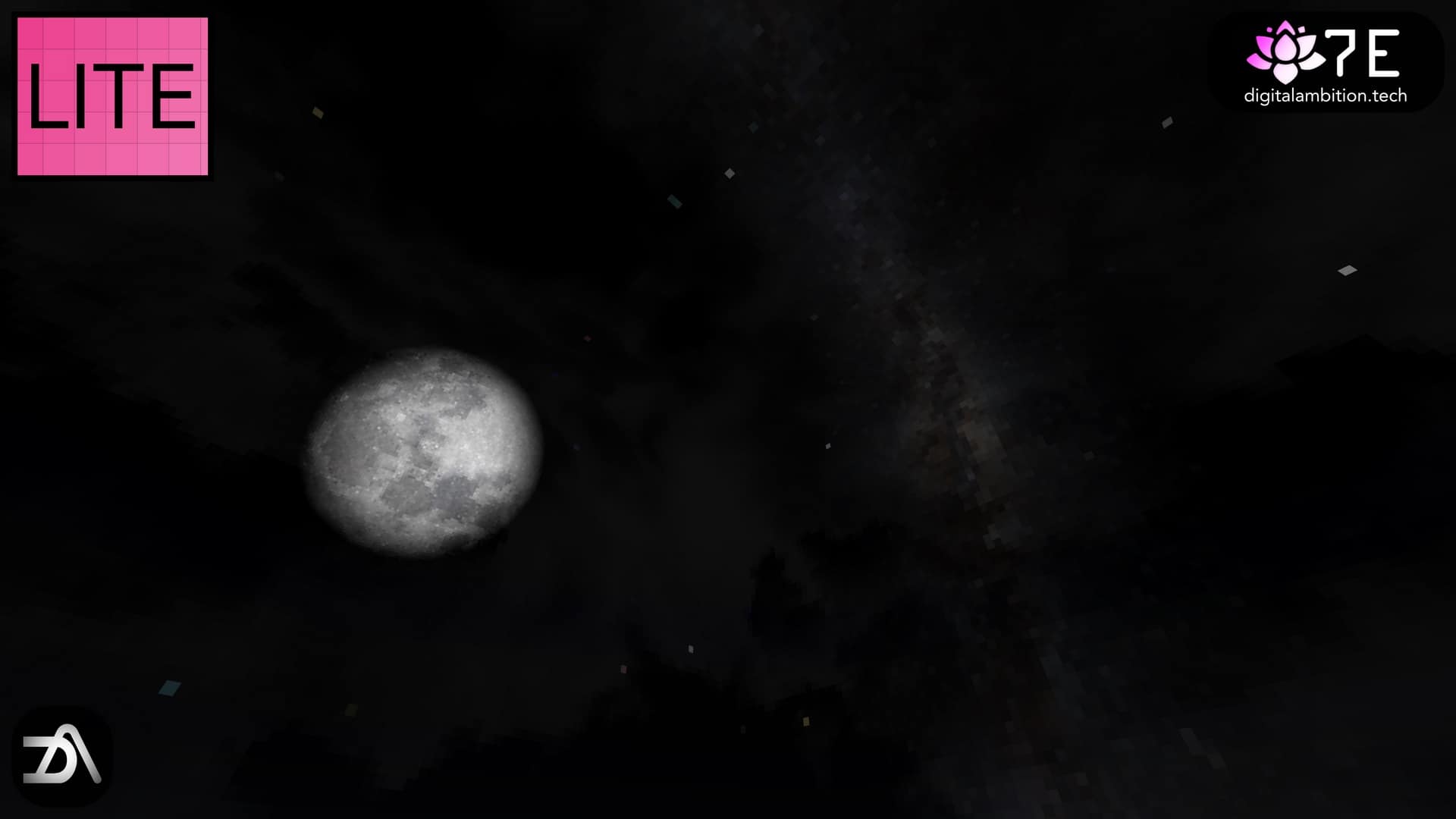
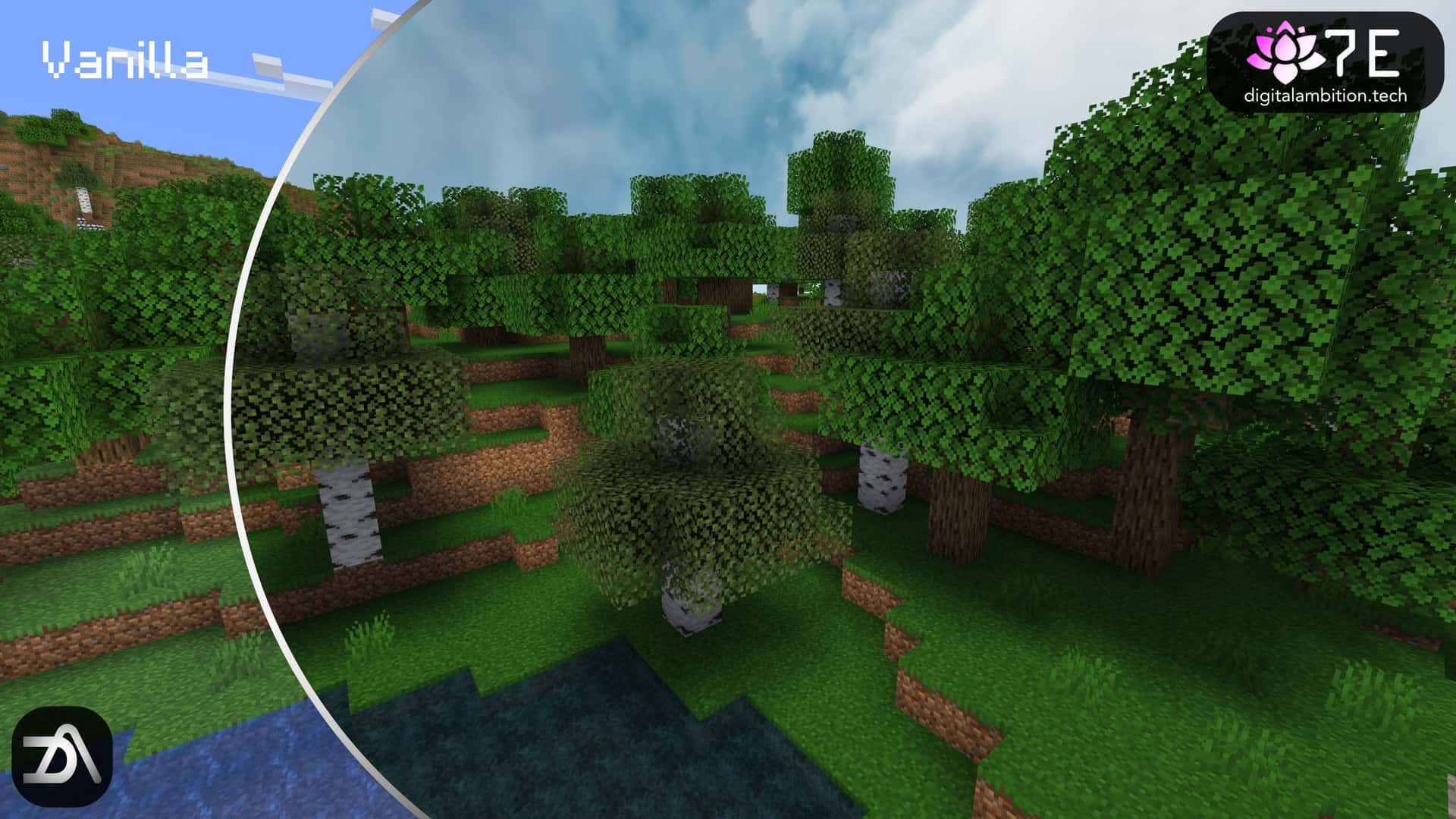
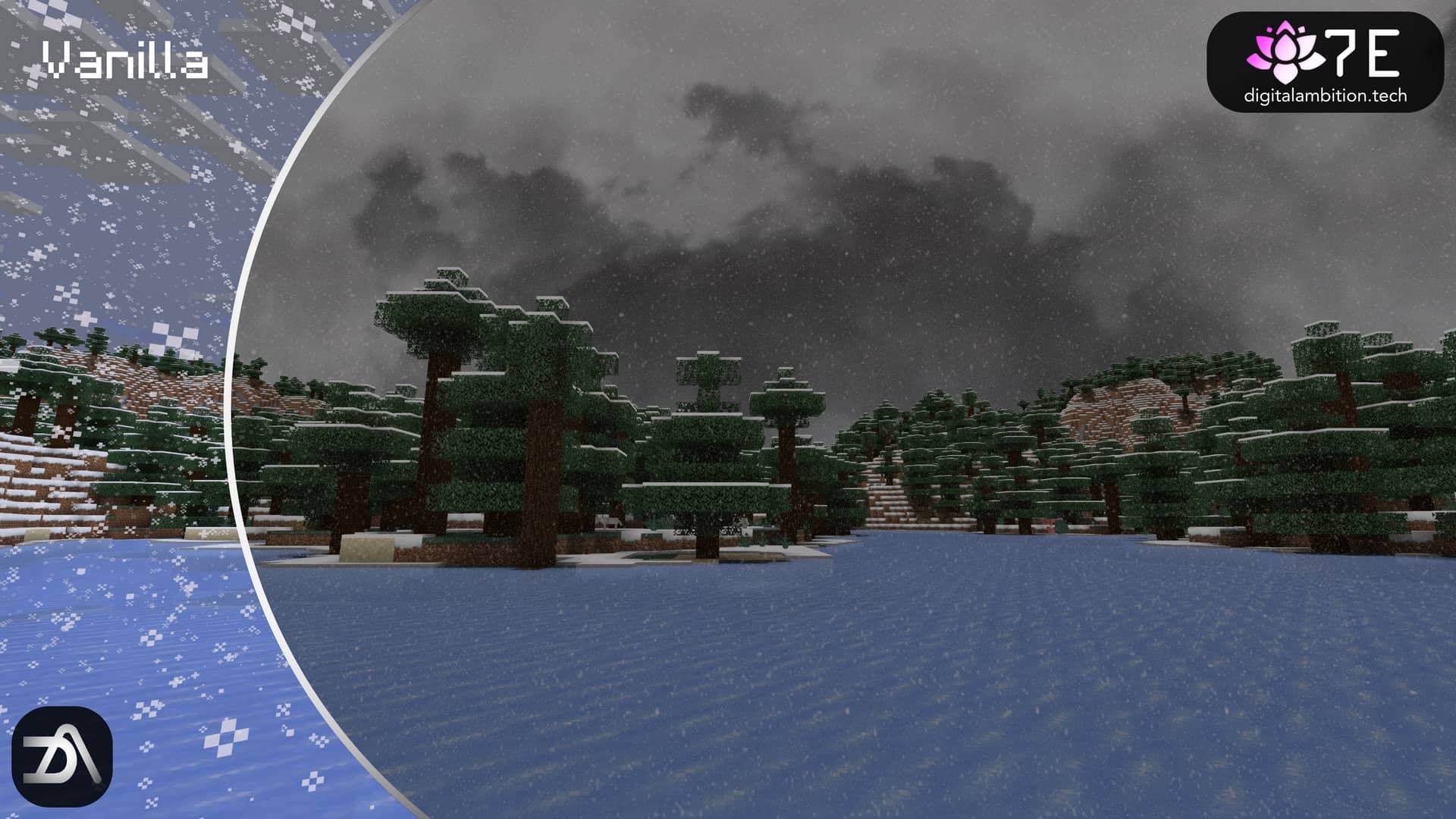
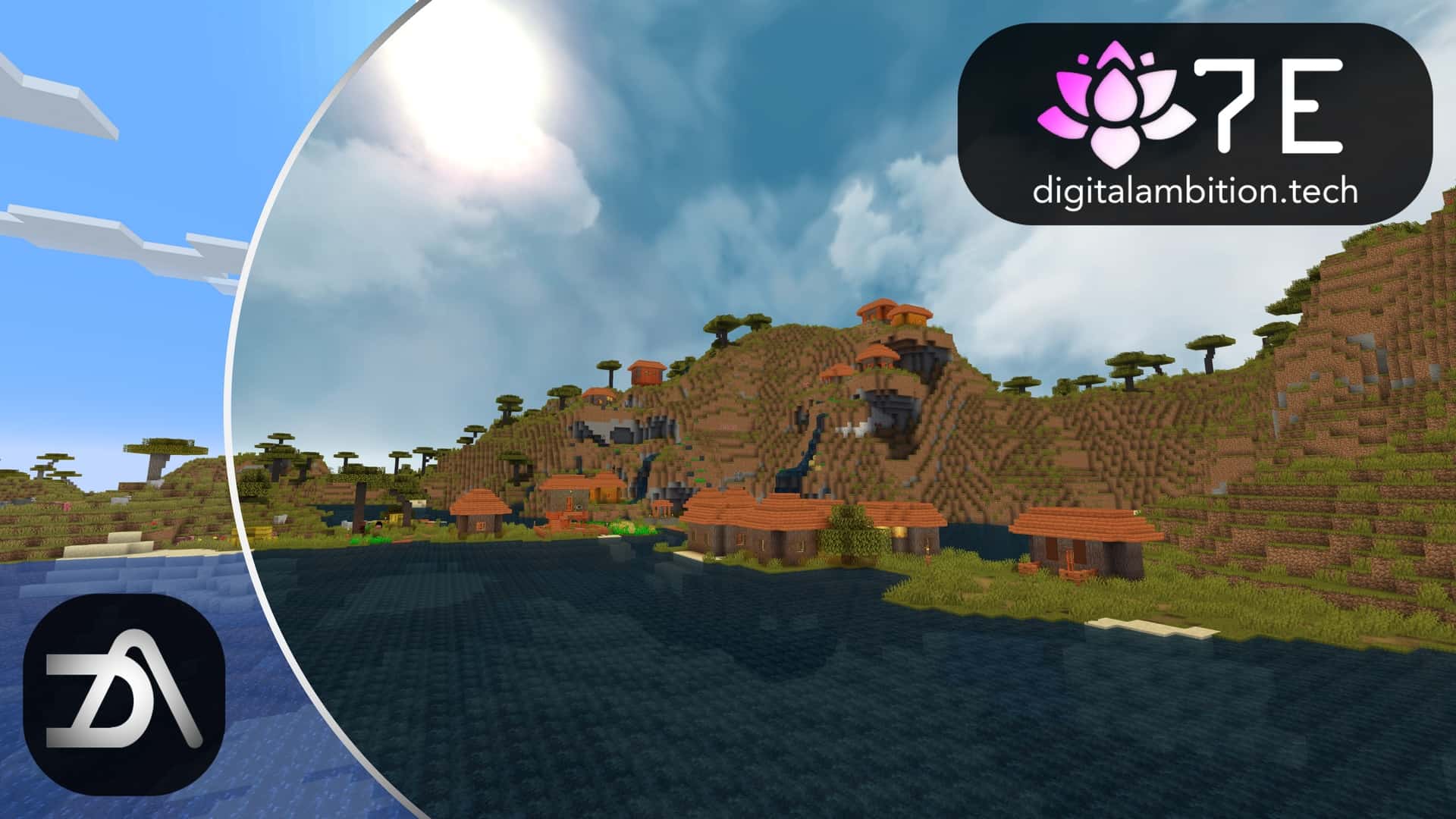
If you dig deep enough, you can find Minecraft resource packs that make it look like a whole different game. While the vast majority of them focus on texture resolution and details, lighting is rarely touched. For better lighting, sky, and cloud textures, you need to look at shader packs. The problem that shader packs pose is that they can be very taxing when it comes to game performance. Vanilla Minecraft can run smoothly on old computers, but when you add a shader pack to the mix, it can cripple your FPS. The solution comes in the form of a texture pack that aims to mimic or emulate shader-pack features. The Additional Realism resource pack aims to achieve this goal and manages to do a reasonably good job. It was developed by user DigitalAmbition. Released in May 2022, the resource pack received several updates. Since it does not introduce many new textures, it does not require frequent updates and bug fixes. While Additional Realism is considered a simple resource pack, the developer does have other projects under his belt. The improved sky is the most striking improvement that comes with the Additional Realism texture pack. Unlike the classic boxy clouds in vanilla, Additional Realism introduces clouds that are layered, smooth, and more realistic. Gone are the pixilation and cartoonish sky. Having improved clouds does not mean much without the improved Sun and Moon textures. Light from the Sun is now more realistic with proper light diffusion and flares. The moon, on the other hand, received a new texture which is the way the real moon looks like. Besides the improvements made to the sky, the Additional Realism resource pack also improves water texture and reflections. While it may not be perfect, it certainly looks considerably better than in vanilla. Lastly, Additional Realism takes a shot at shadows and lighting from things such as torches, fire, and other sources. Shadows have been smoothened out with no more pixilation and projected shapes that resemble the objects that cast the shadow.
According to the developer himself, the resource pack considerably improves lightmap and shadows when compared side by side with vanilla. What has not been touched by Additional Realism is the player inventory, crafting menu, block textures, and player HUD. These remain the same as they are in Vanilla. This means that Additional Realism can work with other resource packs as well. Also, no other texture in the game has been touched. The resource pack does not increase the texture resolution of blocks and only touches shadows, lighting, and sky textures. Also, unlike a regular shader pack, Additional Realism does not introduce any kind of motion blur or foggy visuals when looking at long-distance objects. Right off the bat, it is important to note that Additional Realism is not a shader pack but attempts to mimic one. This means that you get most of the visual benefits of a shader pack without installing one. The advantage is that shader packs are very taxing in terms of game performance. In contrast, the Additional Realism resource pack offers better game performance while getting almost the same visual improvements. This makes it a PVP-friendly resource pack. Also, it can be installed alongside other resource packs. One important aspect to note is that the Additional Realism resource pack comes in two versions. There is a free version that anyone can get and a paid one. The free version offers the above-mentioned visual improvement but with less visual fidelity. What you get is a bit of pixilation. The Sun, clouds, moon, and shadows are noticeably more pixilated but still better than in vanilla. If you get the paid version, you get fully smoothed-out textures. Ideally, you would want to try the free version first before deciding if you want to spend money on the full version of the Additional Realism resource pack. Installation of the resource pack requires Optifine. It cannot be installed manually because it requires access to special features of Optifine.
Additional Realism should be compatible with all of these Minecraft versions: 1.20.4 – 1.20.3 – 1.20.2 – 1.20.1 – 1.20 – 1.19.4 – 1.19.3 – 1.19.2 – 1.19.1 – 1.19 – 1.18.2 – 1.18.1 – 1.18 – 1.17.1 – 1.17
Screenshots



How to Install Texture Pack (Simple 10 Steps)
- Download OptiFine: Most of the texture packs and shaders need OptiFine. That’s why, first download and install OptiFine for the version of Minecraft you want to play.
- Download the Texture Pack: Get the texture pack you want from the download section. Choose the version that works with your Minecraft and your PC’s performance.
- Open Minecraft Launcher: Start Minecraft using the official game launcher — or even TLauncher, if you use that.
- Go to Options: From the main menu, click on the “Options” button.
- Open Resource Packs: Inside Options, click on “Resource Packs…”.
- Open the Resource Pack Folder: Click on “Open Resource Pack Folder” — this will open a folder named “resourcepacks”.
- Move the Pack File: Copy or move the .zip file you downloaded into that “resourcepacks” folder. (Don’t unzip the file — Minecraft uses it as-is!)
- Go Back and Refresh: Close the folder and click “Done”, then go back into “Resource Packs…” again.
- Activate the Pack: You’ll see the pack on the left side. Hover over it and click the arrow to move it to the right (active side).
Tip: If you get a message that the pack is for a different version, just click “Yes” — it usually works fine. - Click Done and Enjoy: Click “Done” again. Now your pack is ready to use in-game. It’s that easy!
Credits
This resource pack was created by Digital Ambition. We do not claim ownership of this content, and all rights remain with the original creator. We encourage you to support the author by downloading the project from their official distribution channels.
Download Links
Java Edition
Download Instructions
Curseforge: download starts automatically after a few seconds;
Mediafire: click the big blue button with the text “DOWNLOAD”;
Google Drive: in the top right corner you will see a small download icon (down arrow), click it and the download should start;