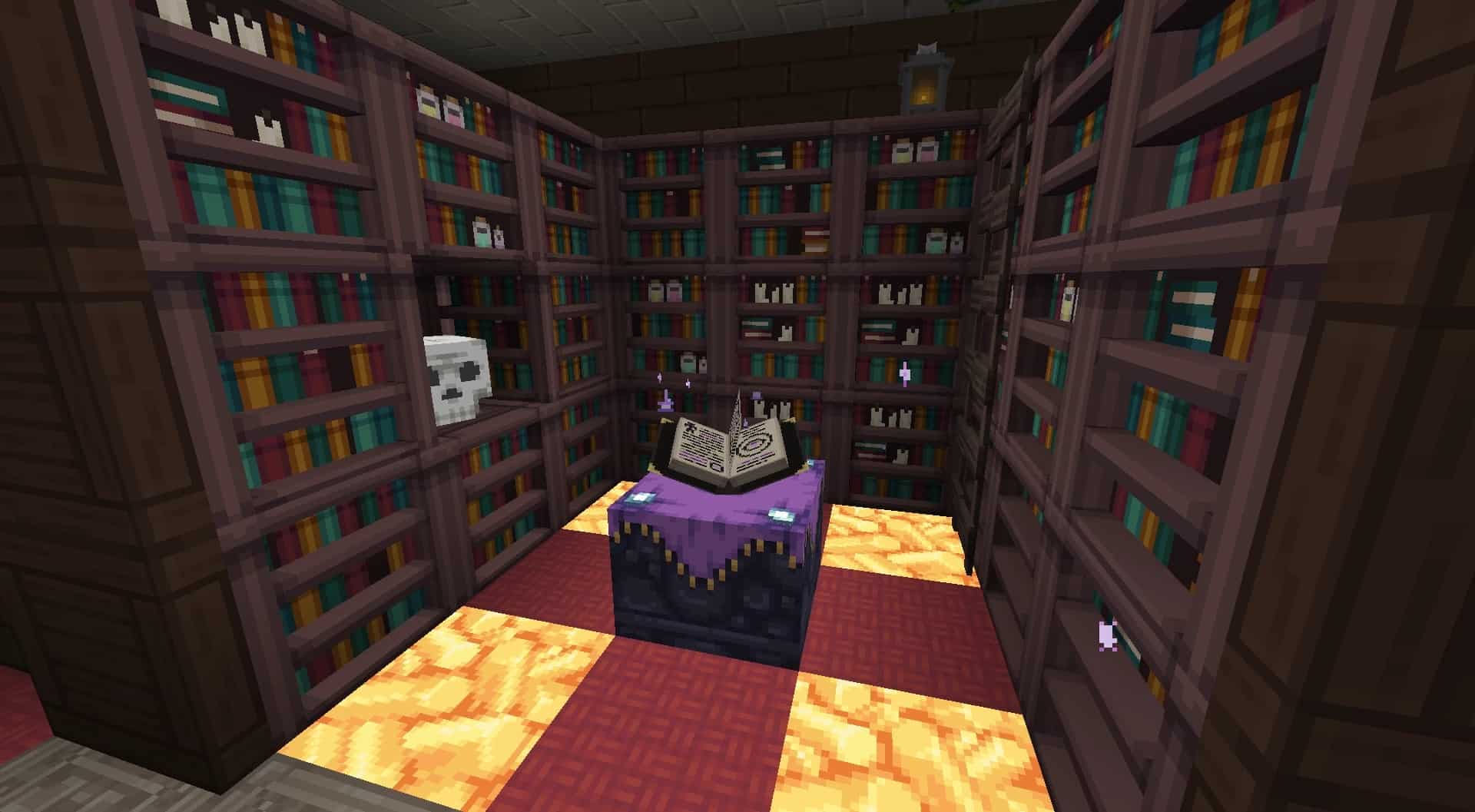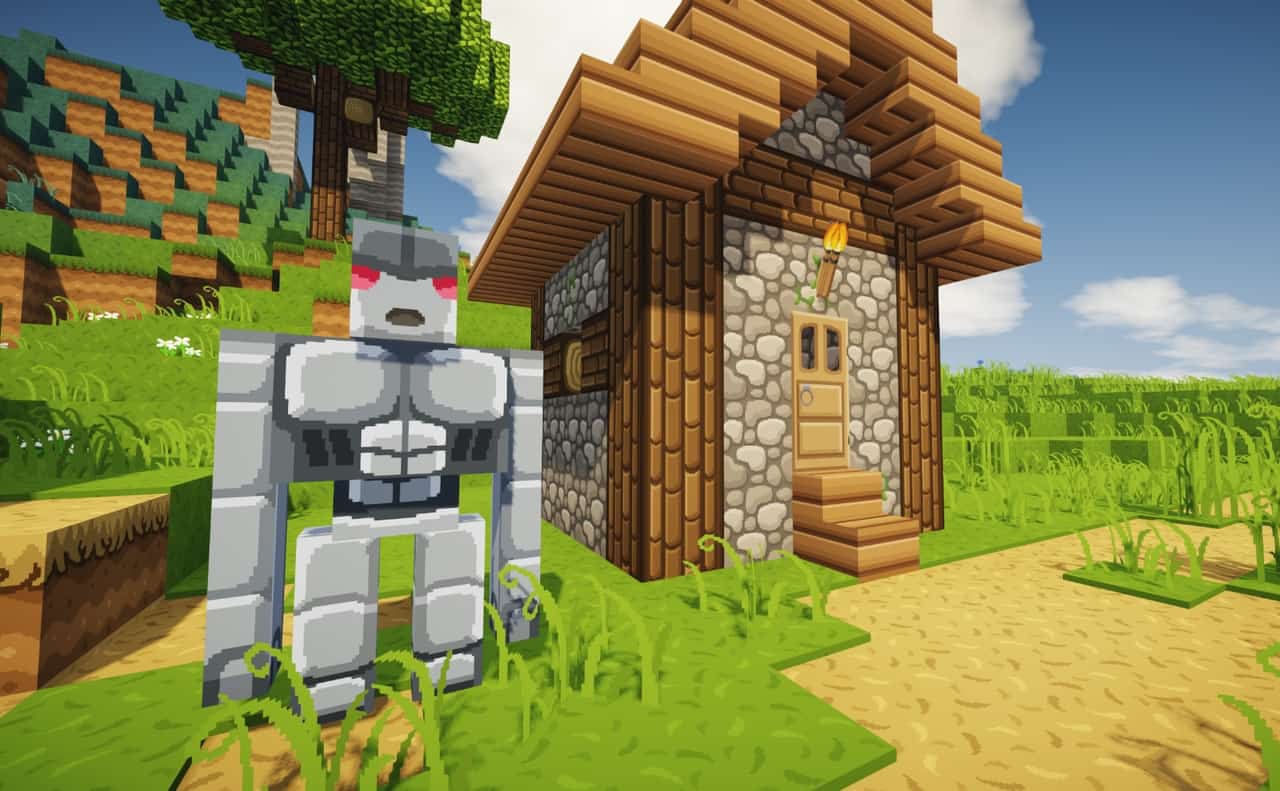
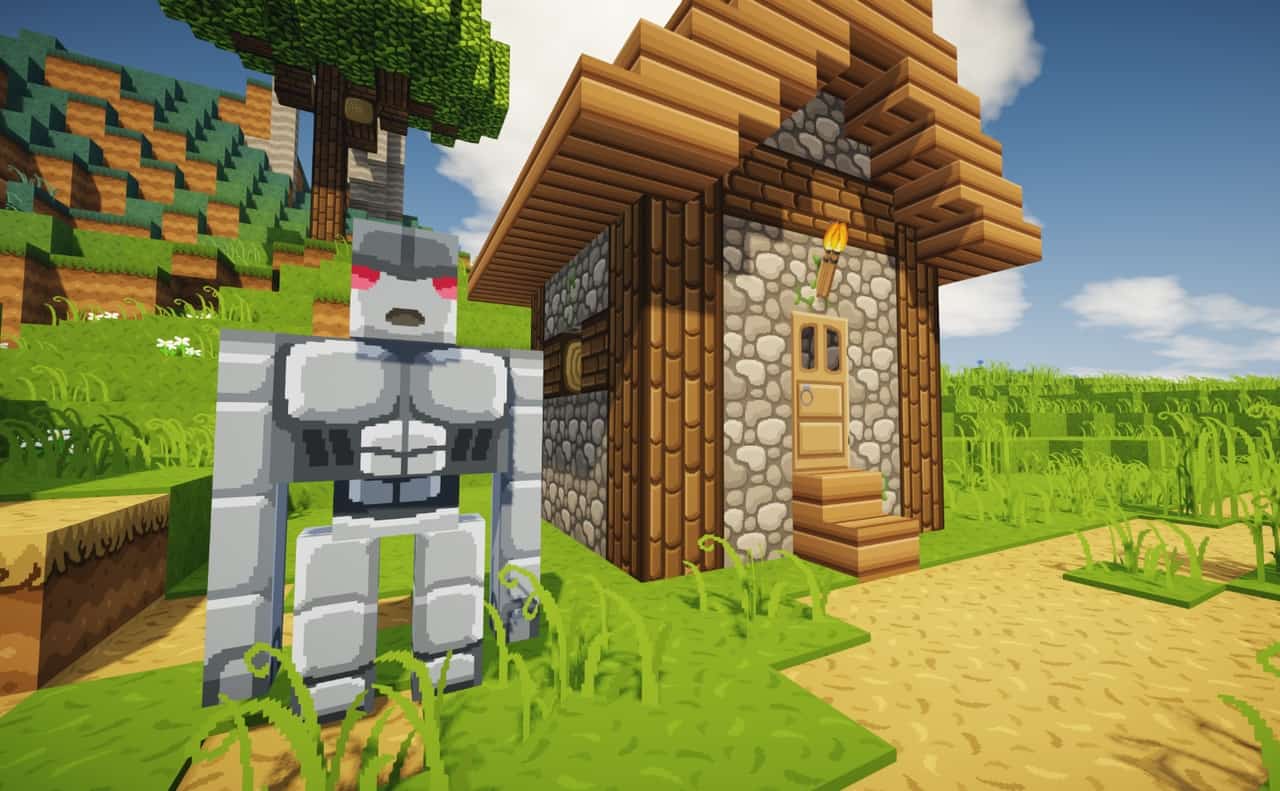
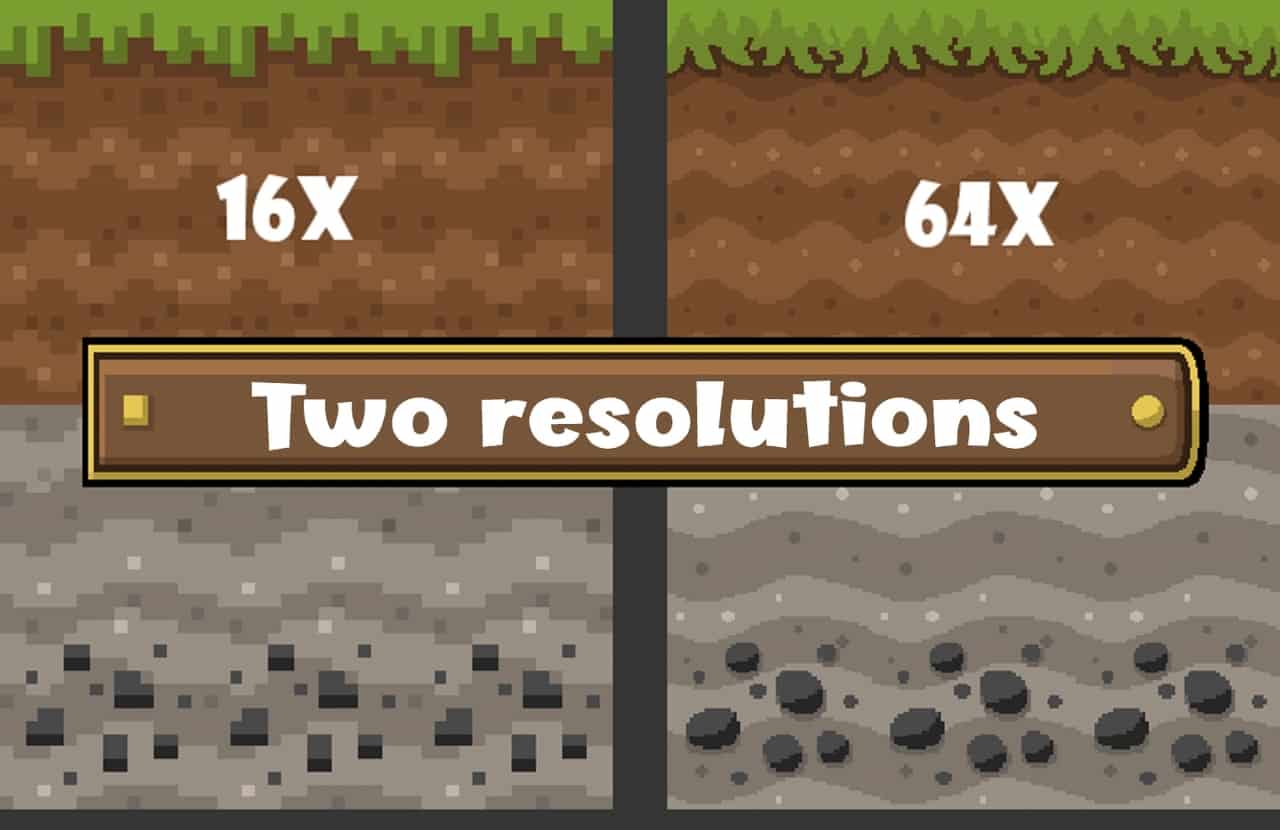
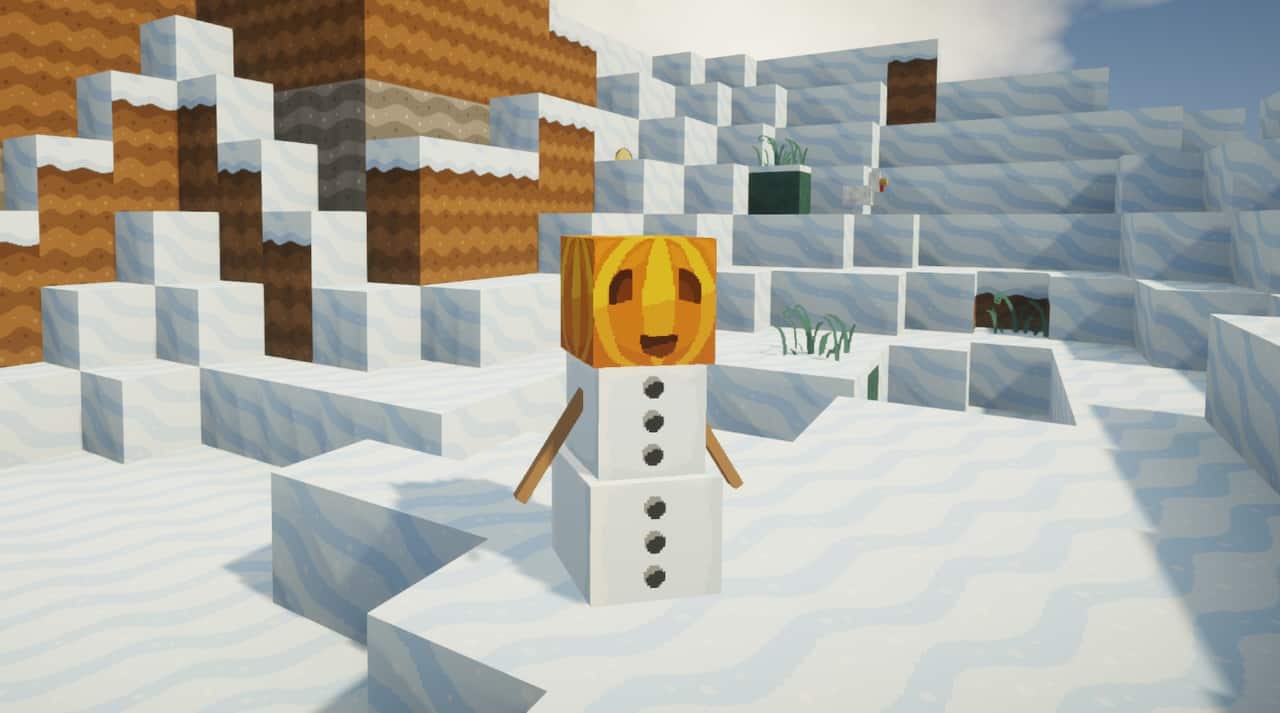
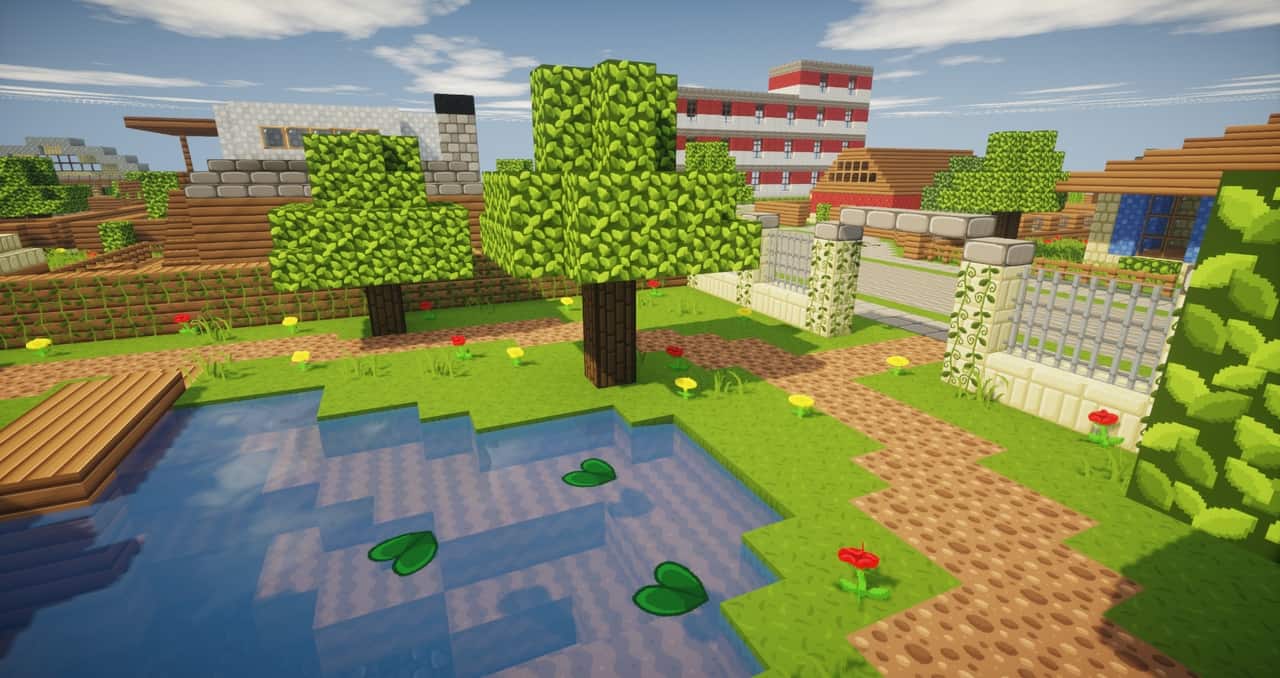
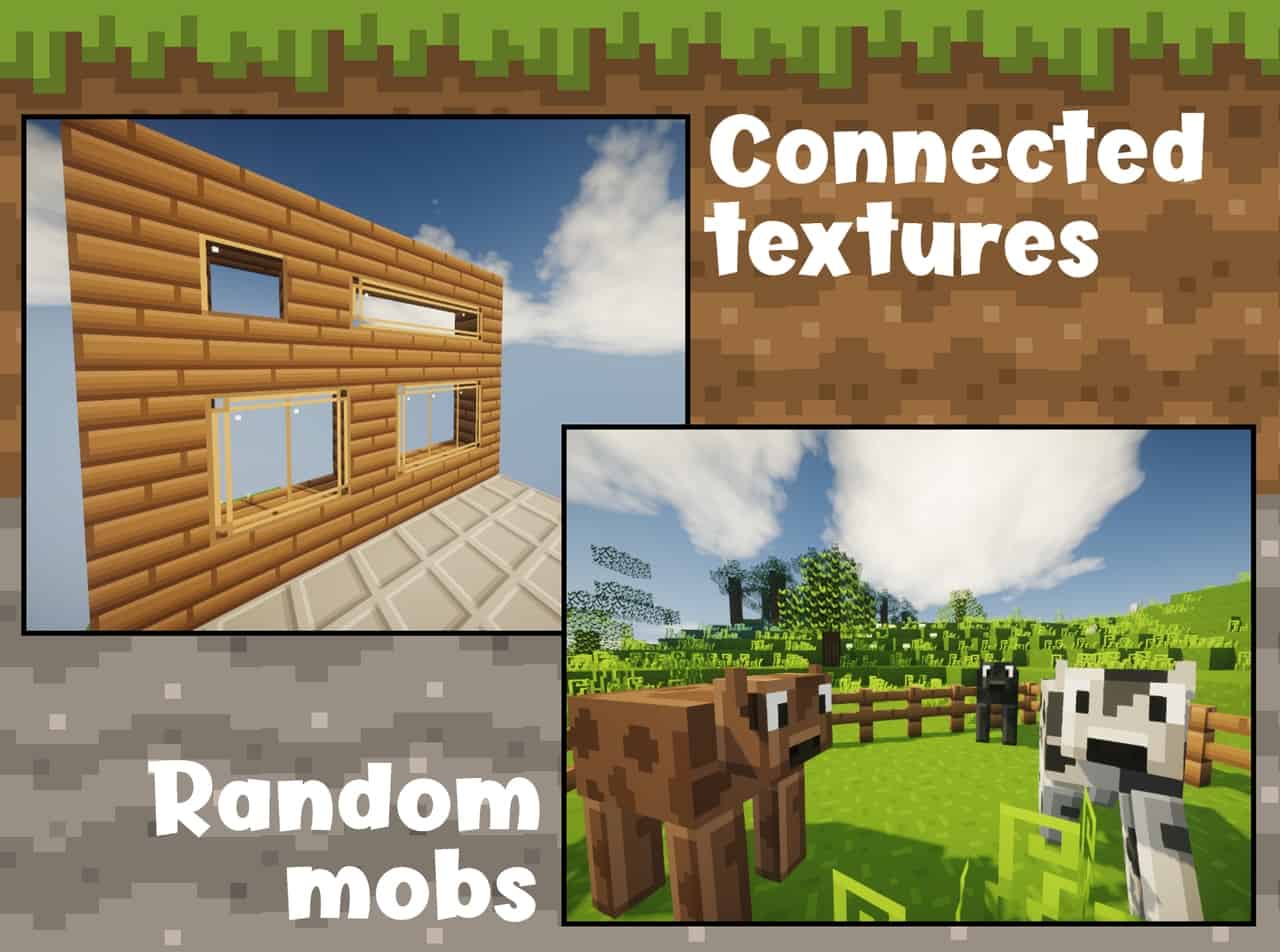
Minecraft is not exactly a realistic looking game, right? The graphics actually look rather cartoony and flat by design, which is why I totally recommend using add-ons such as the Mad Pixels resource pack because it is a seriously fantastic idea. The main objective of resource packs is to give Minecraft a completely different look, and this one nails it. Even though the resource pack does feature textures that might seem rather simple at first glance—and other texture files that might look like they were pulled straight from the source files—the redesign done in this resource pack gives a brilliant breath of fresh air to the graphic design while saving the original Minecraft gameplay feeling. Plus, I noticed it is also a great resource pack for low-end computers, as the resource pack is made for low resolution.
Even though the Mad Pixels Cartoony texture pack is not that new, I love that it is fully compatible with the most recent version of the game, as well as Minecraft versions 1.14.x. It has been a few years since the resource pack was first released, and I found it was released as a finished project, which means there are no updates or new additions for the resource pack for now. There are probably no more updates until Minecraft 1.15 is released, though that is just a possibility, as there are no confirmed news of an update for the resource pack. But don’t let this get you discouraged, as I can assure you it’s a remarkably well-done resource pack that doesn’t lack anything. Almost every single texture is changed in this resource pack, and I think it is an absolute must-have if you are looking to change Minecraft and give it a fresher look, while still maintaining the same good old Minecraft look and feel.
Mad Pixels should be compatible with all of these Minecraft versions: 26.2 – 26.1.2 – 26.1.1 – 26.1 – 1.21.11 – 1.21.10 – 1.21.9 – 1.21.8 – 1.21.7 – 1.21.6 – 1.21.5 – 1.21.4 – 1.21.3 – 1.21.2 – 1.21.1 – 1.21 – 1.20.6 – 1.20.5 – 1.20.4 – 1.20.3 – 1.20.2 – 1.20.1 – 1.20 – 1.19.4 – 1.19.3 – 1.19.2 – 1.19.1 – 1.19 – 1.17.1 – 1.17 – 1.16.5 – 1.16.4 – 1.16.3 – 1.16.2 – 1.16.1 – 1.16 – 1.15.2 – 1.15.1 – 1.15 – 1.14.4 – 1.14.3 – 1.14.2 – 1.14 – 1.13.2 – 1.13.1 – 1.13 – 1.12.2 – 1.12 – 1.11.2 – 1.11 – 1.10.2 – 1.10 – Bedrock Edition – PE
Screenshots




How to Install Texture Pack (Simple 10 Steps)
- Download OptiFine: Most of the texture packs and shaders need OptiFine. That’s why, first download and install OptiFine for the version of Minecraft you want to play.
- Download the Texture Pack: Get the texture pack you want from the download section. Choose the version that works with your Minecraft and your PC’s performance.
- Open Minecraft Launcher: Start Minecraft using the official game launcher — or even TLauncher, if you use that.
- Go to Options: From the main menu, click on the “Options” button.
- Open Resource Packs: Inside Options, click on “Resource Packs…”.
- Open the Resource Pack Folder: Click on “Open Resource Pack Folder” — this will open a folder named “resourcepacks”.
- Move the Pack File: Copy or move the .zip file you downloaded into that “resourcepacks” folder. (Don’t unzip the file — Minecraft uses it as-is!)
- Go Back and Refresh: Close the folder and click “Done”, then go back into “Resource Packs…” again.
- Activate the Pack: You’ll see the pack on the left side. Hover over it and click the arrow to move it to the right (active side).
Tip: If you get a message that the pack is for a different version, just click “Yes” — it usually works fine. - Click Done and Enjoy: Click “Done” again. Now your pack is ready to use in-game. It’s that easy!
Credits
This resource pack was originally created by VeryMadCrafter. We do not own, host, or modify this content and all rights remain with the original creator. We strongly encourage visiting and supporting the author through their official channels.
Download Links
Java Edition
- [16x] Minecraft 26.2.x – 1.19.x
- [64x] Minecraft 26.2.x – 1.19.x
- [1024x] Minecraft 26.2.x – 1.19.x
- [16x] Minecraft 1.17.x – 1.11.x (3D)
Bedrock Edition
Download Instructions
Curseforge: download starts automatically after a few seconds;
Mediafire: click the big blue button with the text “DOWNLOAD”;
Google Drive: in the top right corner you will see a small download icon (down arrow), click it and the download should start;