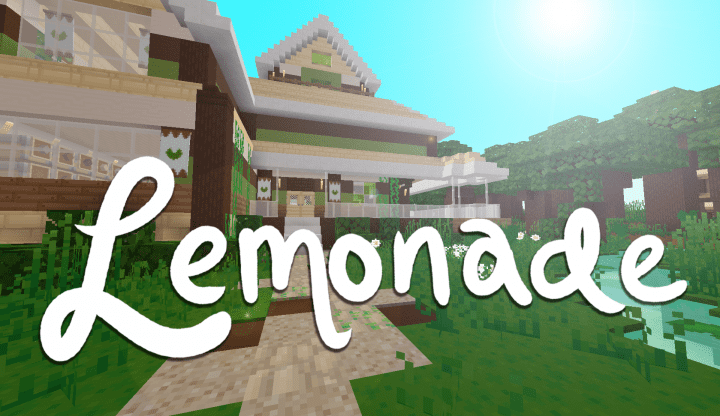
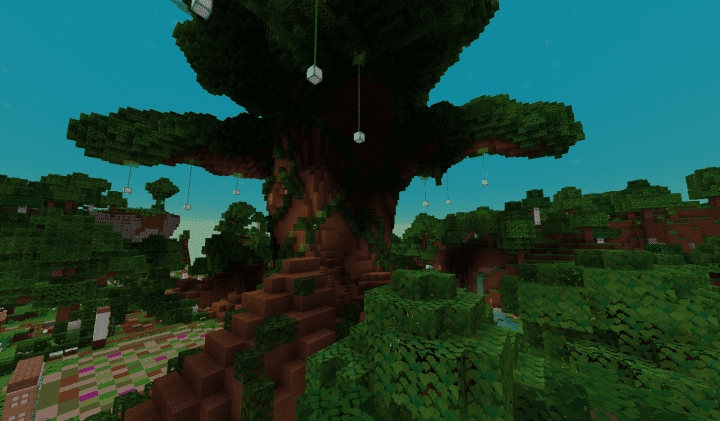
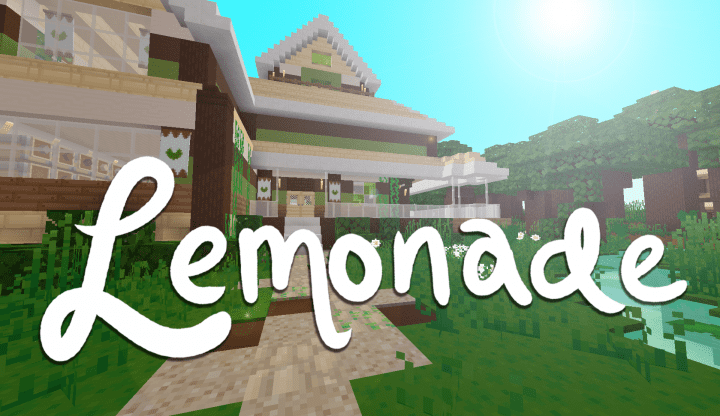
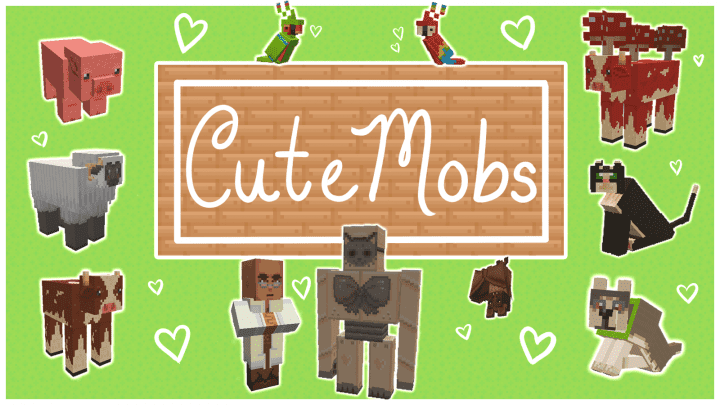
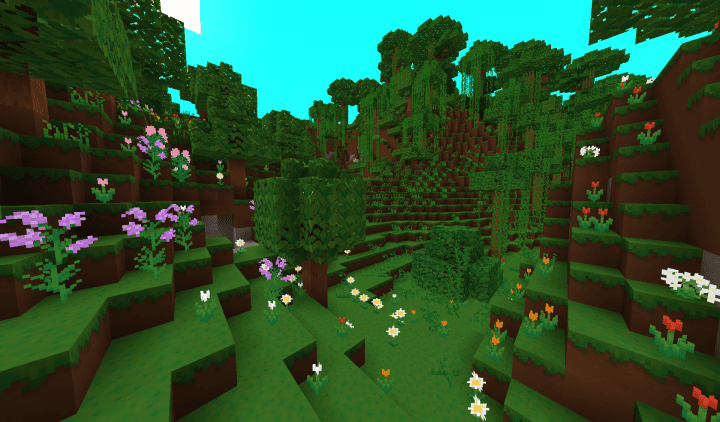
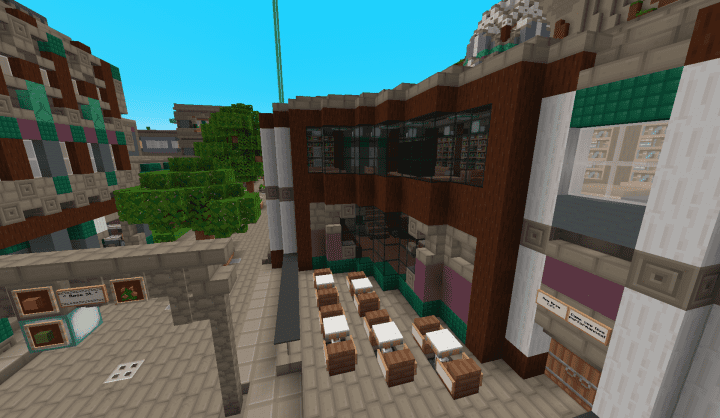
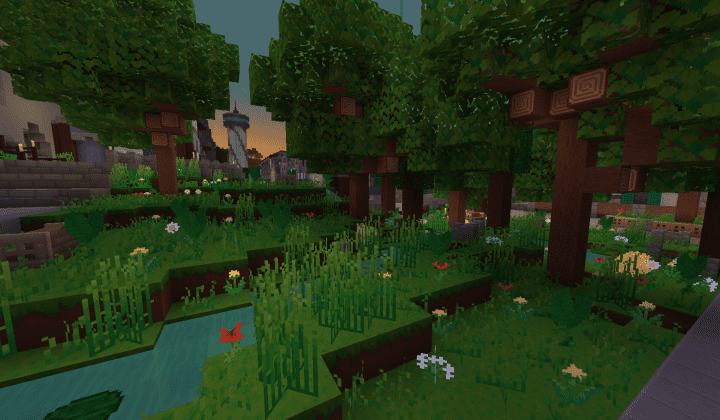
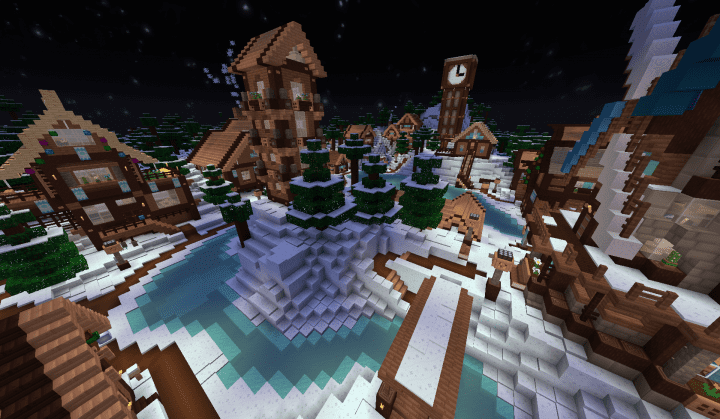
I recently stumbled upon Lemonade, and let me tell you, it is an exceptionally unique resource pack! Even when it was barely two weeks old, it had already amassed a significant number of followers, and I can completely see why. Its art style is not overly ambitious because the developers specifically wanted to retain the classic vanilla style of the game while still beautifully enhancing its textures. Despite keeping things grounded, this pack has earned stellar reviews from the entire Minecraft community. This praise is well-deserved, as the resource pack boasts some of the most remarkably natural textures I have ever experienced. The Lemonade resource pack designers brilliantly aimed to preserve traditional Minecraft aesthetics, keeping players in mind who are already deeply accustomed to the default art style we have all known and loved for years. The brilliant idea was to simply add a fresh new layer to the textures that feels vibrant and remarkably lively. Once you apply this pack, the most significant changes you will immediately notice are the vastly superior texture details.
You will also be glad to find that there is zero visual noise, while the color palette remains wonderfully vibrant throughout your world. These thoughtful changes elevate the overall visual standards of the game in the best way possible. The coolest thing about this pack is that its textures are never overdone, making them immensely appealing to the eye and ensuring a smooth, gorgeous gaming experience. Sticking true to performance, Lemonade proudly retains the regular 16 by 16 resolution. The developers consciously chose this resolution so that players will not experience any technical problems or lag while playing Minecraft. If your computer can already handle the default version of the game, you are completely good to go! Please keep in mind that the pack is roughly 70% complete, meaning you might occasionally encounter a few minor hitches regarding unfinished textures if you choose to use it in its current state. Thankfully, the talented team behind Lemonade is continuously rolling out exciting new features to further enhance the pack’s functionality. Other than that, there are no major issues to worry about, and fellow Lemonade users continue to report overwhelmingly positive experiences with only minimal glitches.
Lemonade should be compatible with all of these Minecraft versions: 1.13.2 – 1.13.1 – 1.13 – 1.12.2 – 1.12 – 1.11.2 – 1.11
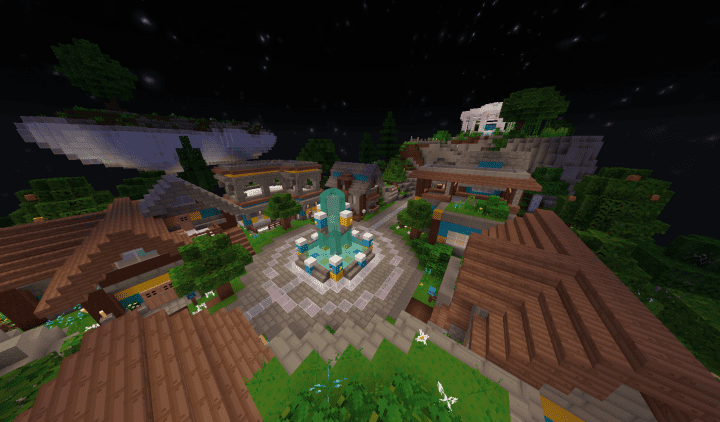
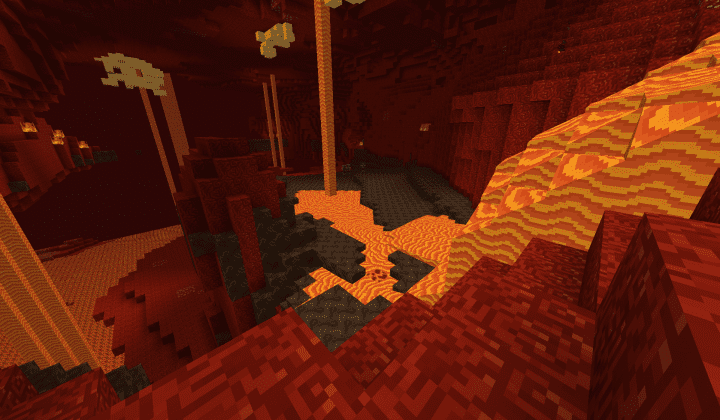
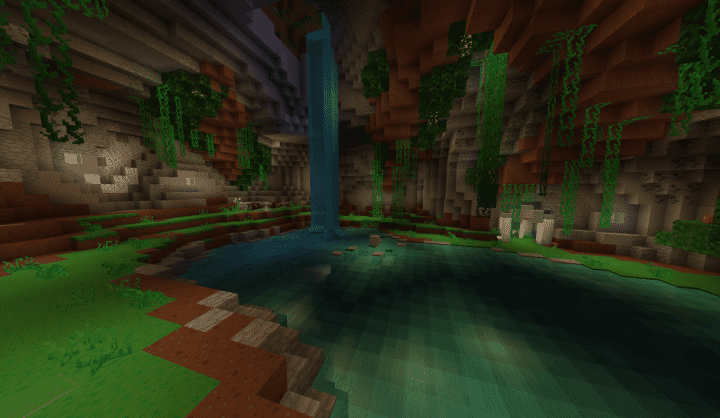
Screenshots
How to Install Texture Pack (Simple 10 Steps)
- Download OptiFine: Most of the texture packs and shaders need OptiFine. That’s why, first download and install OptiFine for the version of Minecraft you want to play.
- Download the Texture Pack: Get the texture pack you want from the download section. Choose the version that works with your Minecraft and your PC’s performance.
- Open Minecraft Launcher: Start Minecraft using the official game launcher — or even TLauncher, if you use that.
- Go to Options: From the main menu, click on the “Options” button.
- Open Resource Packs: Inside Options, click on “Resource Packs…”.
- Open the Resource Pack Folder: Click on “Open Resource Pack Folder” — this will open a folder named “resourcepacks”.
- Move the Pack File: Copy or move the .zip file you downloaded into that “resourcepacks” folder. (Don’t unzip the file — Minecraft uses it as-is!)
- Go Back and Refresh: Close the folder and click “Done”, then go back into “Resource Packs…” again.
- Activate the Pack: You’ll see the pack on the left side. Hover over it and click the arrow to move it to the right (active side).
Tip: If you get a message that the pack is for a different version, just click “Yes” — it usually works fine. - Click Done and Enjoy: Click “Done” again. Now your pack is ready to use in-game. It’s that easy!
Credits
The Lemonade resource pack was originally created by PinkLemonade. We do not claim ownership of this content and provide these download links as hosted by the original author. We strongly encourage you to support PinkLemonade and their work by visiting their official release channels.
Download Links
Java Edition
Download Instructions
Curseforge: download starts automatically after a few seconds;
Mediafire: click the big blue button with the text “DOWNLOAD”;
Google Drive: in the top right corner you will see a small download icon (down arrow), click it and the download should start;


