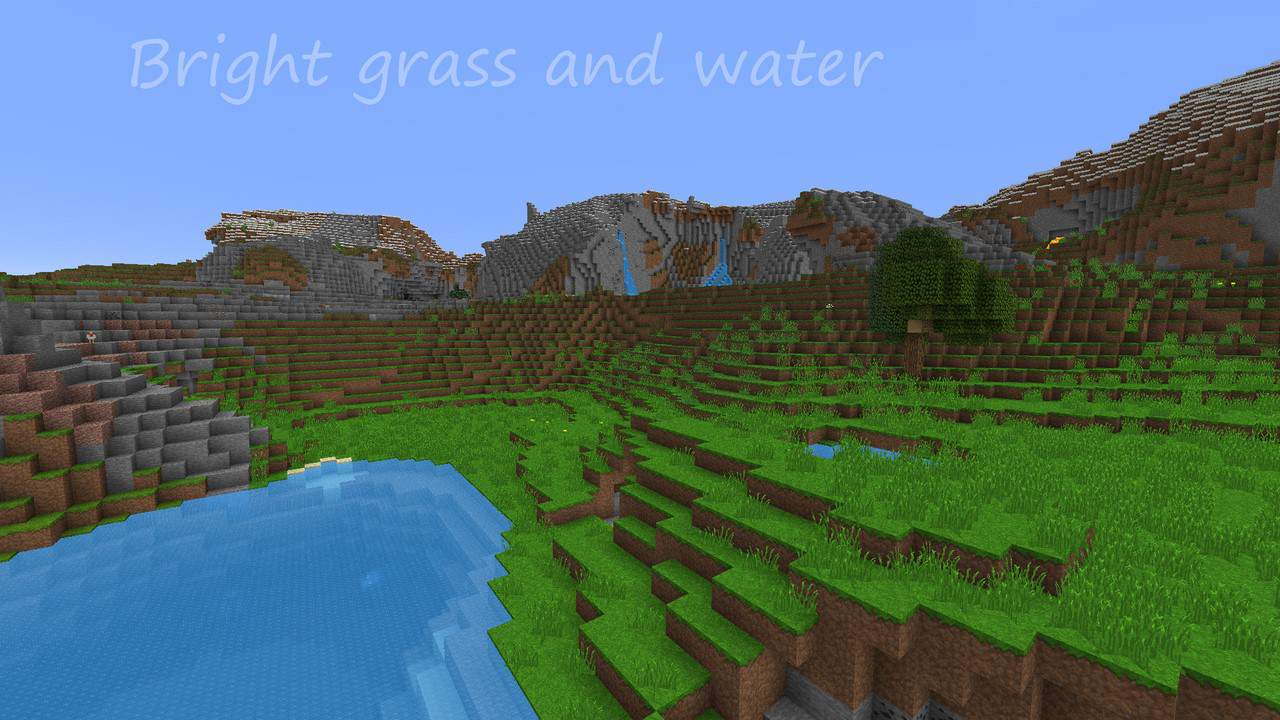
Among the best faithful texture packs of all time, the Jea Traditional resource pack truly stands out when you load it up in game. The pack was highly motivated by other packs sharing the same original textures right from its creation time, with prime examples including the 64×64 version created by HiTeen and another notable faithful pack, Ragecraft. Jea Traditional has undergone tremendous changes over the past times, being continually updated and ultimately gaining its own unique identity. One great thing we noticed is that the pack is comprised of many original textures of its own, with only a few textures created from original versions of packs with a similar identity. With all factors well thought out, the resource pack remains exceptionally unique with impeccable quality of all time. In simple words, it is easily the top-quality faithful pack offered, though one fact still remains evident as you explore.
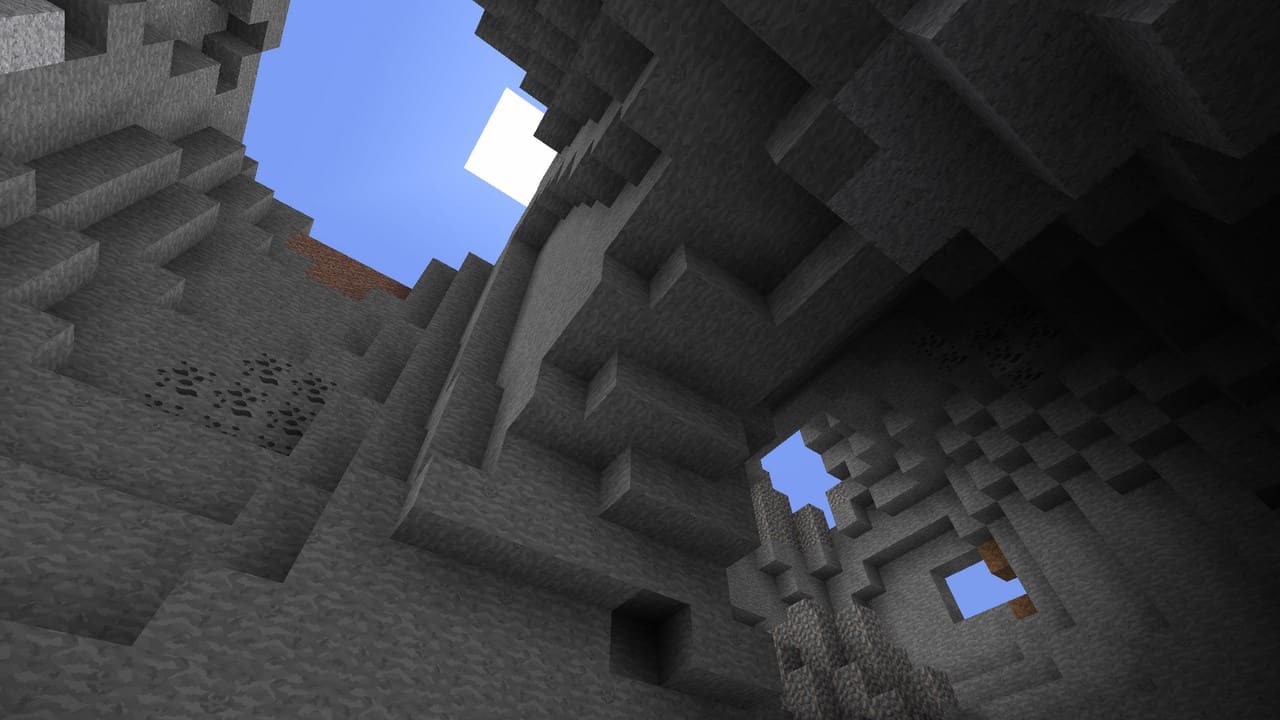
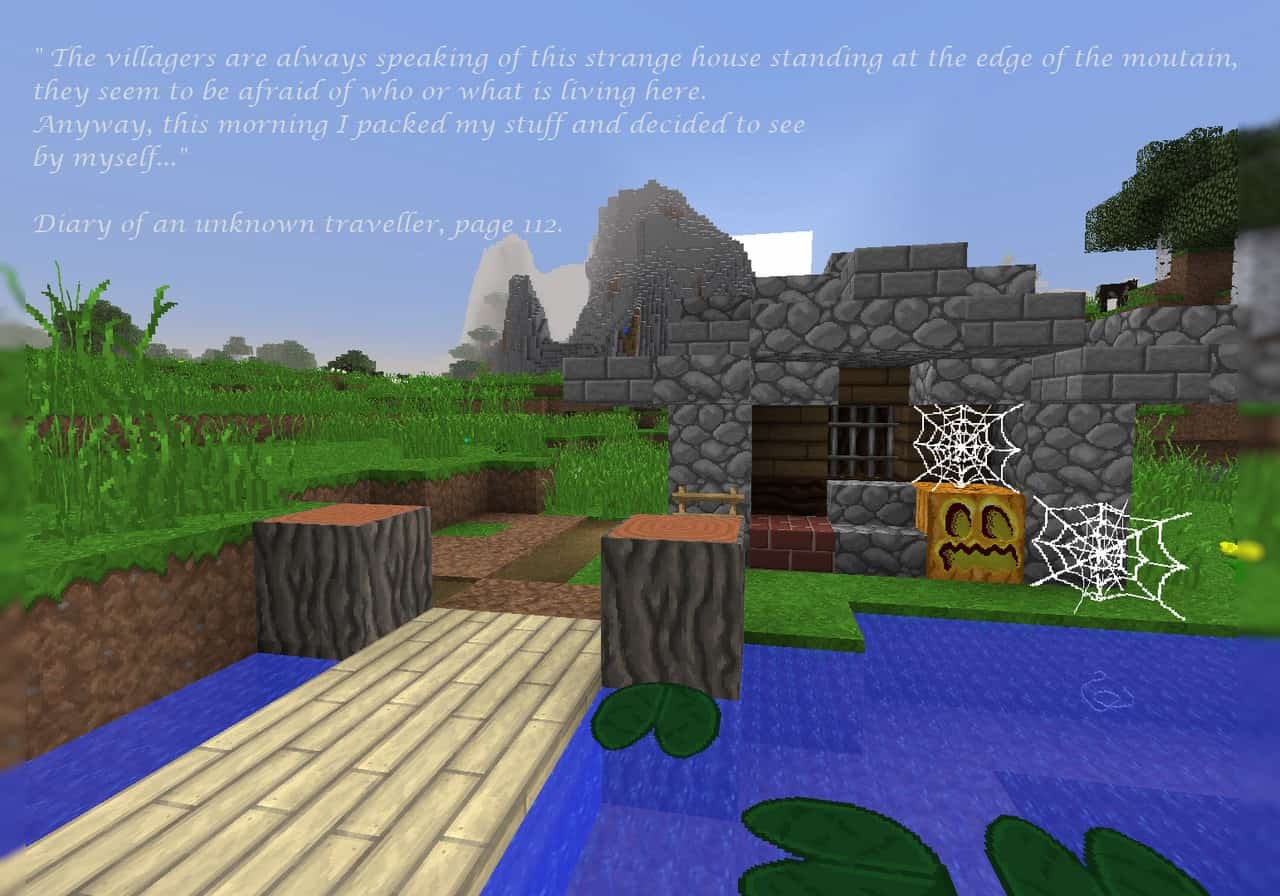
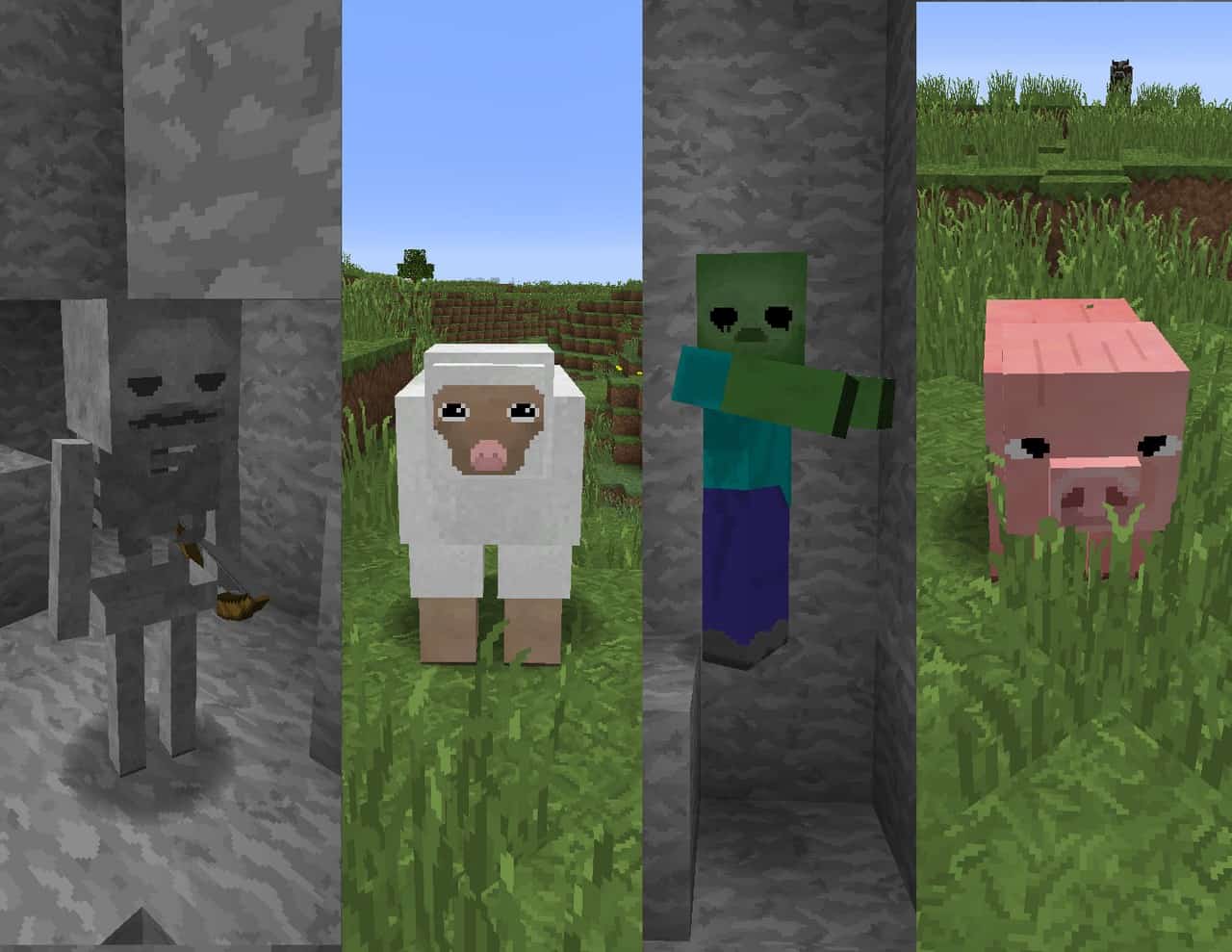
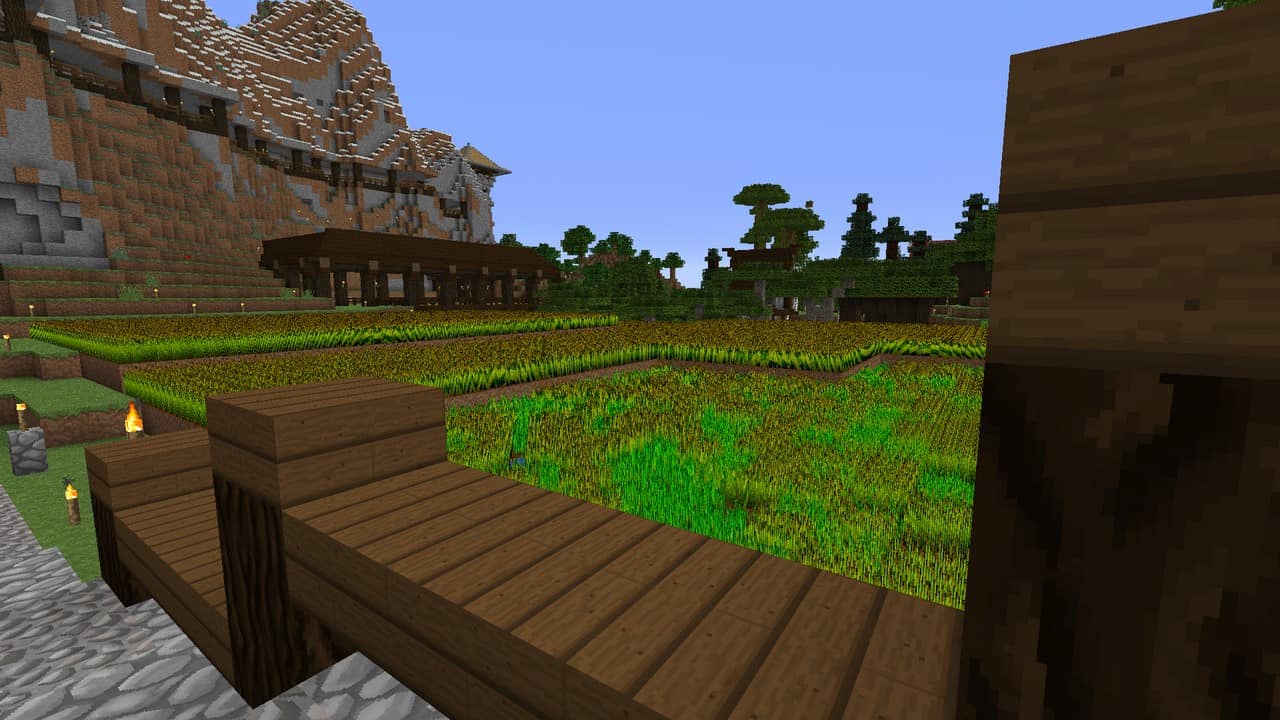
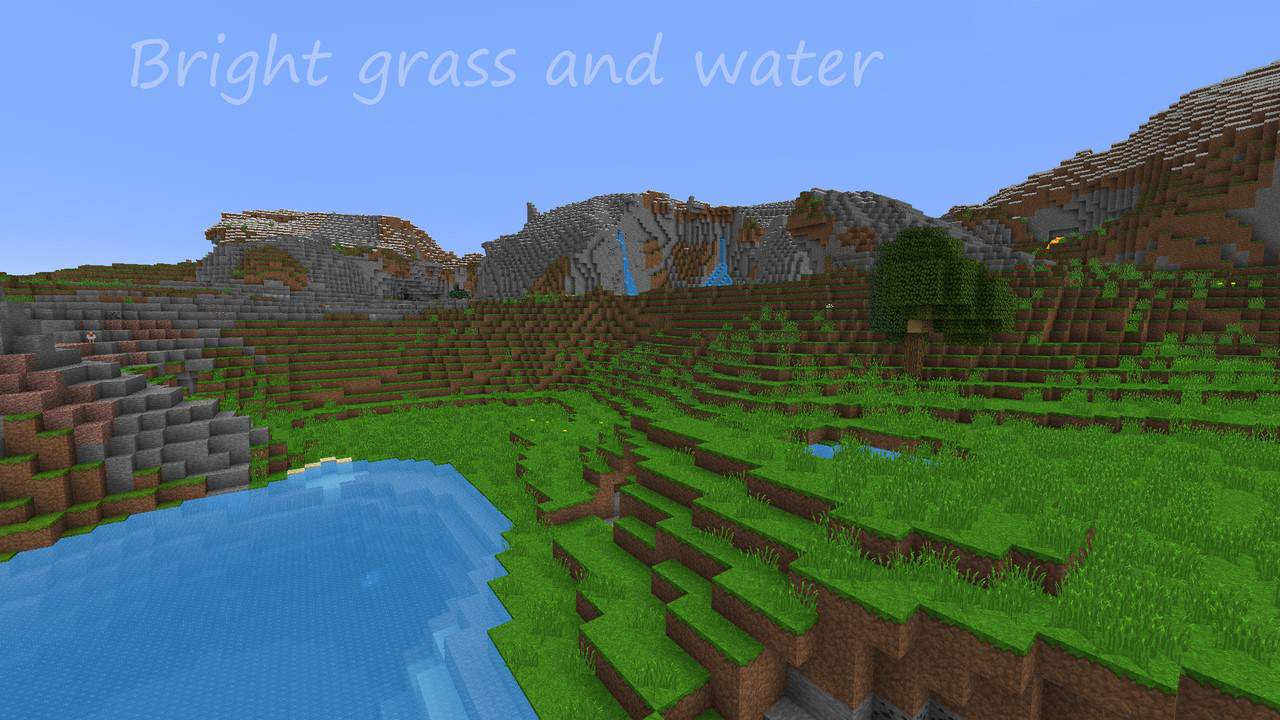
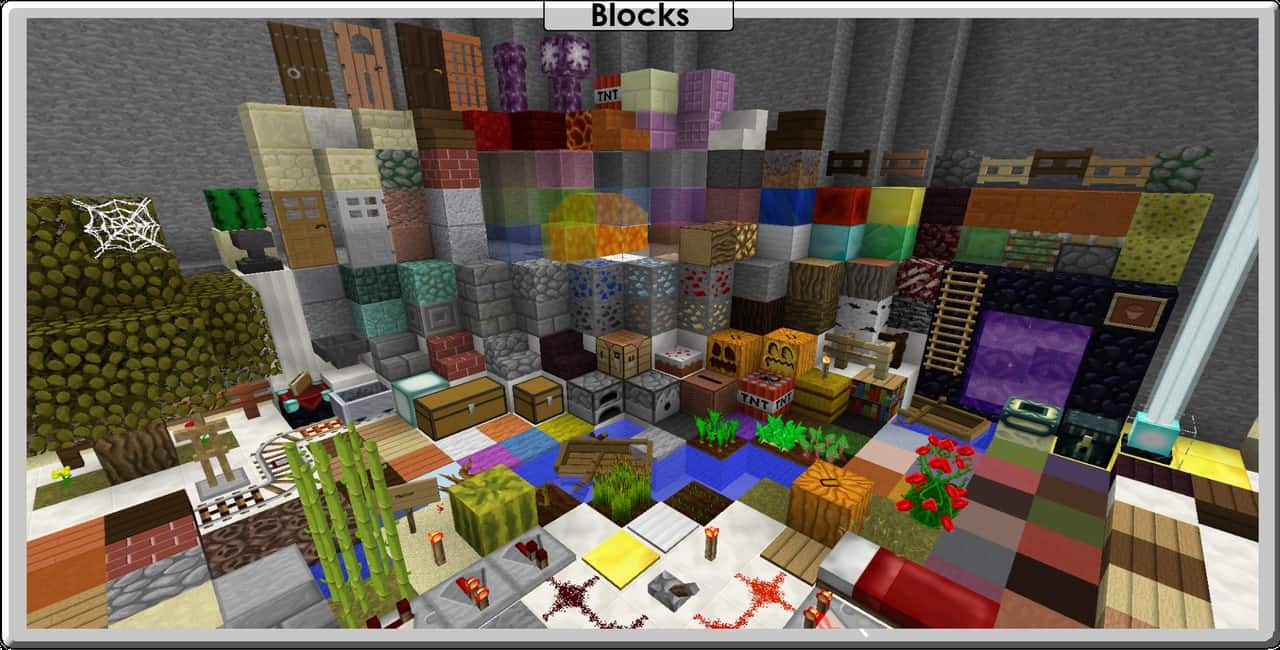
This resource pack shares a remarkably similar art style with the Vanilla resource pack, which is a massive benefit for players who prefer superior default-styled visuals without compromising the core aspects that define Minecraft. Jea Traditional comes packed with beautifully detailed textures, and best of all, the pack is completely free of visual noise despite having so many rich textures in it. For sure, this is a great success for this unique pack. You might initially expect a pack with a very bright color palette, but that is not the case; this resourceful pack has been thoughtfully toned with colors that make the textures appear far more faithful and accurate. Unlike the standard Vanilla resource pack with a basic 16x resolution, this pack comes with an advanced 64×64 resolution version. Because of this higher resolution, you will definitely want a more advanced PC to comfortably use Jea Traditional, as lower-end or standardized PCs will subject the game to frame-rate difficulties that lower the overall taste of your Minecraft experience.
Jea Traditional should be compatible with all of these Minecraft versions: 1.13.2 – 1.13.1 – 1.13 – 1.12.2 – 1.12
Screenshots
How to Install Texture Pack (Simple 10 Steps)
- Download OptiFine: Most of the texture packs and shaders need OptiFine. That’s why, first download and install OptiFine for the version of Minecraft you want to play.
- Download the Texture Pack: Get the texture pack you want from the download section. Choose the version that works with your Minecraft and your PC’s performance.
- Open Minecraft Launcher: Start Minecraft using the official game launcher — or even TLauncher, if you use that.
- Go to Options: From the main menu, click on the “Options” button.
- Open Resource Packs: Inside Options, click on “Resource Packs…”.
- Open the Resource Pack Folder: Click on “Open Resource Pack Folder” — this will open a folder named “resourcepacks”.
- Move the Pack File: Copy or move the .zip file you downloaded into that “resourcepacks” folder. (Don’t unzip the file — Minecraft uses it as-is!)
- Go Back and Refresh: Close the folder and click “Done”, then go back into “Resource Packs…” again.
- Activate the Pack: You’ll see the pack on the left side. Hover over it and click the arrow to move it to the right (active side).
Tip: If you get a message that the pack is for a different version, just click “Yes” — it usually works fine. - Click Done and Enjoy: Click “Done” again. Now your pack is ready to use in-game. It’s that easy!
Credits
Credits: The Jea Traditional Resource Pack was created by jojojea86. We do not claim ownership of this content, and no modifications have been made to the original files provided by the author. We encourage all players to support jojojea86 and their ongoing work.
Download Instructions
Curseforge: download starts automatically after a few seconds;
Mediafire: click the big blue button with the text “DOWNLOAD”;
Google Drive: in the top right corner you will see a small download icon (down arrow), click it and the download should start;


