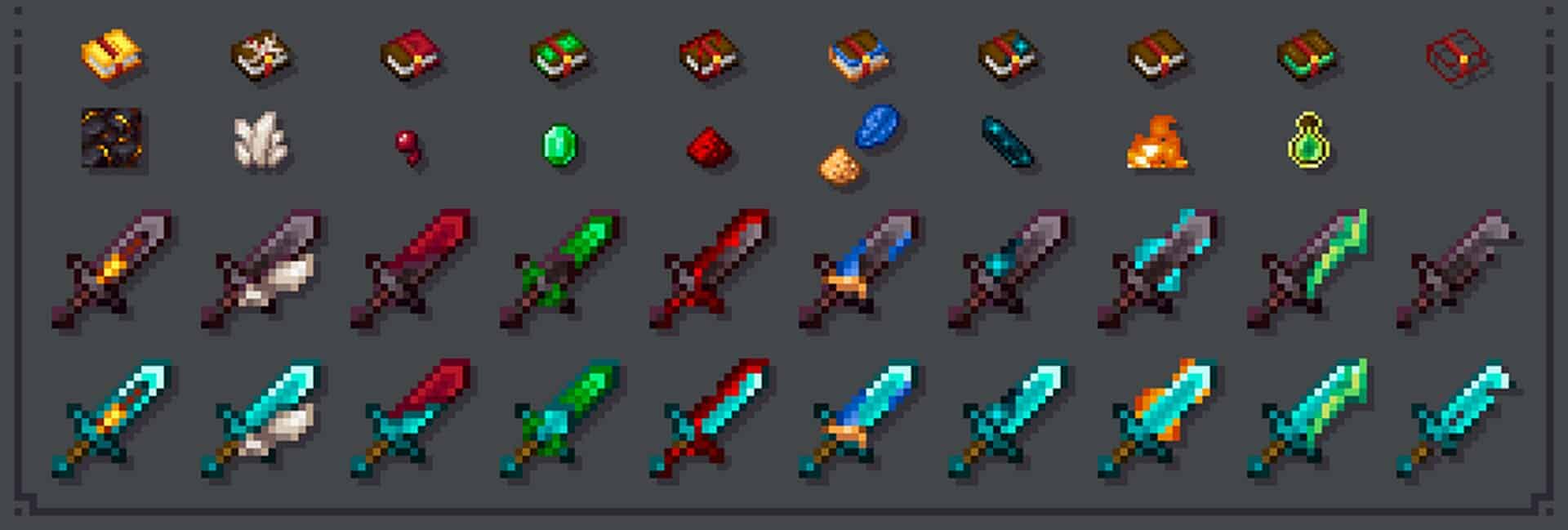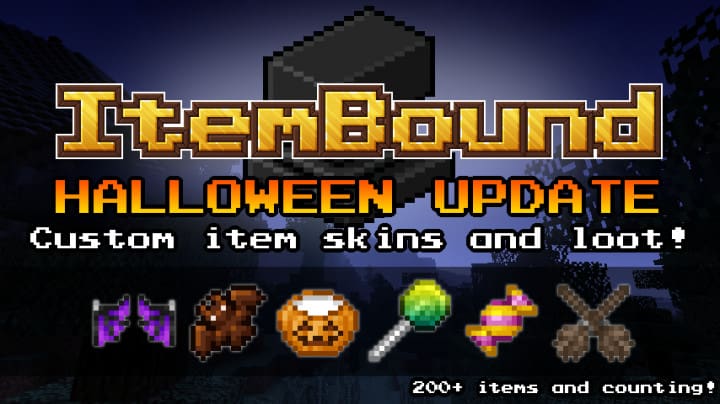
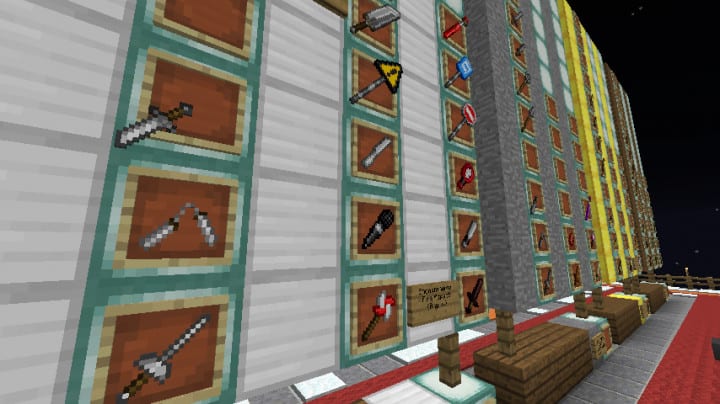
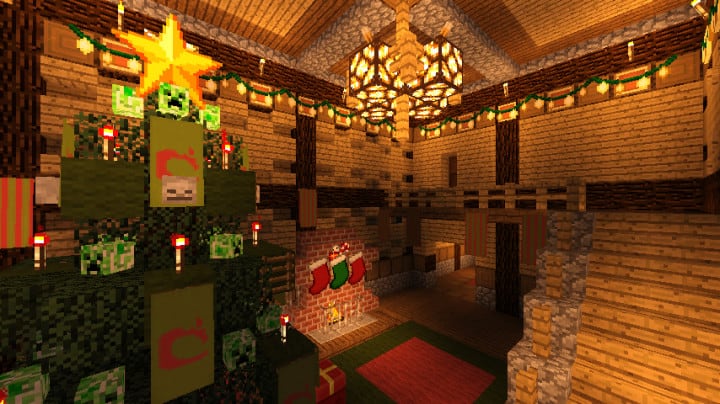
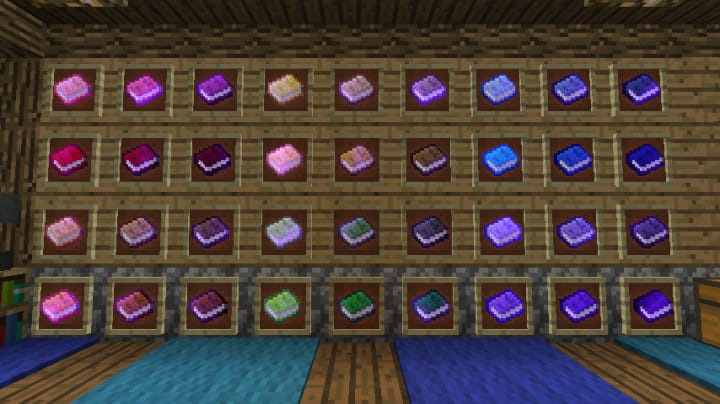
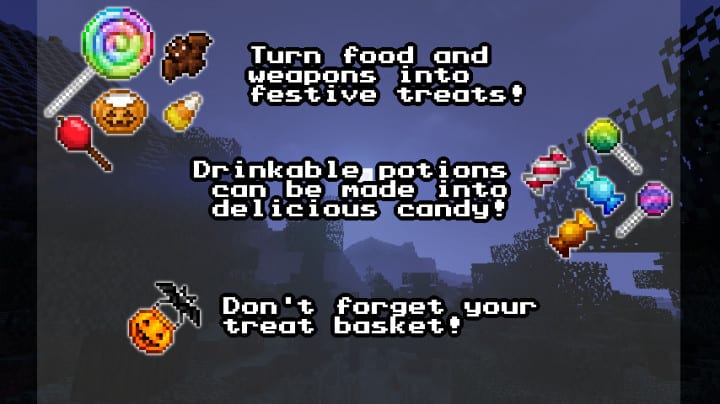
The ItemBound resource pack is an incredible add-on pack that lets players focus exclusively on refreshing their in-game items in Minecraft. I found this pack to be an absolute treat for anyone whose primary goal is to make available in-game items look significantly more satisfying. Honestly, it might not suit players who want to completely overhaul Minecraft’s overall visual style. Item-focused customization packs are quite rare nowadays, and ItemBound has truly established itself as one of the very best item texture modifiers available right now. I completely recommend it for anyone wanting more appealing item designs while keeping the classic default block textures. It is specifically designed to let players fully customize their items just the way they want. It currently features a fantastic variety of skins for all items, and every single texture has been carefully tweaked to guarantee maximum satisfaction during gameplay.
There are roughly 491 different item skins ready to use, and the creator promises this is just the beginning, with even more skins planned for upcoming updates. Examining the design specifics closely, every individual item is crafted with sharp detail and features vibrant, smooth textures that make them look stunning when you hold them. While a microscopic look might reveal tiny flaws in a select few textures, it is barely noticeable and totally negligible. You have complete freedom to use this resource pack however you like without any restrictions, meaning the custom items have limitless potential. You can either completely replace vanilla items or add the custom pack items as extra drops. Best of all, it runs at a 16x resolution, meaning it performs flawlessly even on older, low-end PCs.
ItemBound should be compatible with all of these Minecraft versions: 1.14.4 – 1.14.3 – 1.14.2 – 1.14 – 1.13.2 – 1.13.1 – 1.13 – 1.12.2 – 1.12 – 1.11.2 – 1.11 – 1.10.2 – 1.10
Screenshots
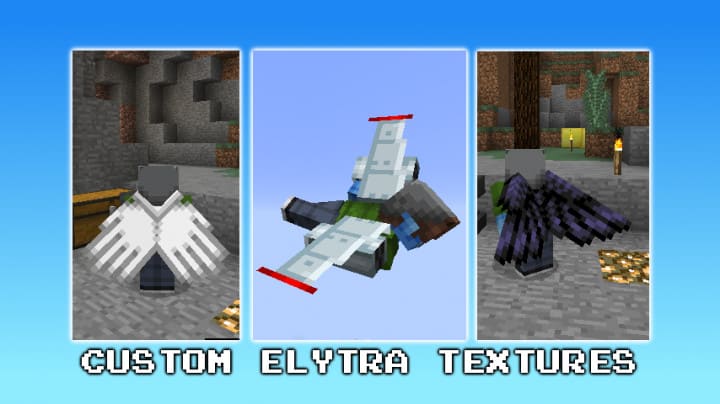
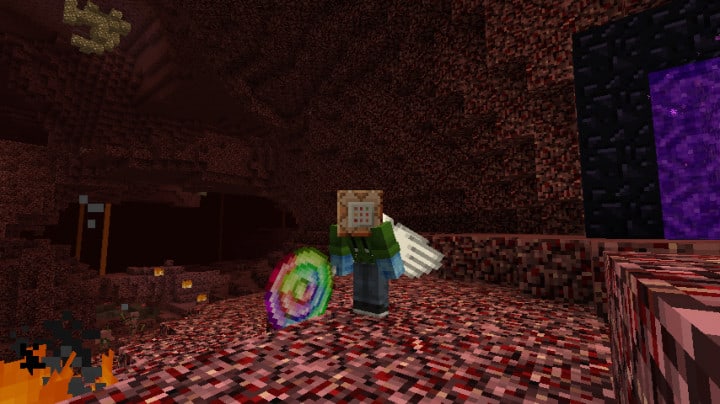
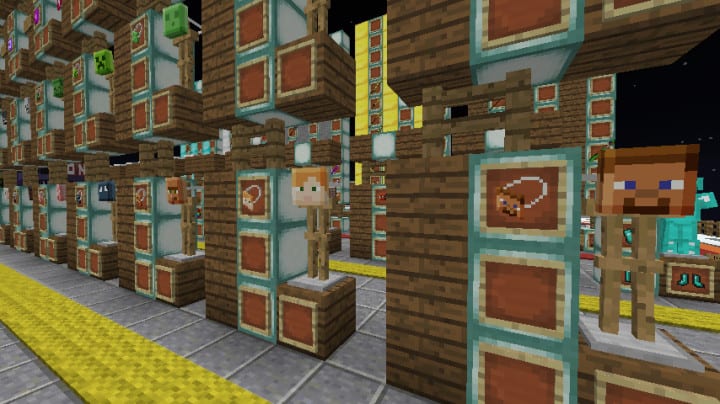

How to Install Texture Pack (Simple 10 Steps)
- Download OptiFine: Most of the texture packs and shaders need OptiFine. That’s why, first download and install OptiFine for the version of Minecraft you want to play.
- Download the Texture Pack: Get the texture pack you want from the download section. Choose the version that works with your Minecraft and your PC’s performance.
- Open Minecraft Launcher: Start Minecraft using the official game launcher — or even TLauncher, if you use that.
- Go to Options: From the main menu, click on the “Options” button.
- Open Resource Packs: Inside Options, click on “Resource Packs…”.
- Open the Resource Pack Folder: Click on “Open Resource Pack Folder” — this will open a folder named “resourcepacks”.
- Move the Pack File: Copy or move the .zip file you downloaded into that “resourcepacks” folder. (Don’t unzip the file — Minecraft uses it as-is!)
- Go Back and Refresh: Close the folder and click “Done”, then go back into “Resource Packs…” again.
- Activate the Pack: You’ll see the pack on the left side. Hover over it and click the arrow to move it to the right (active side).
Tip: If you get a message that the pack is for a different version, just click “Yes” — it usually works fine. - Click Done and Enjoy: Click “Done” again. Now your pack is ready to use in-game. It’s that easy!
Credits
This resource pack was created by sixfootblue. We do not own or claim ownership of this content, and no modifications have been made to the original files hosted on the official download platforms. We strongly encourage all users to support the original creator by visiting their official download links and following their work.
Download Links
Java Edition
Download Instructions
Curseforge: download starts automatically after a few seconds;
Mediafire: click the big blue button with the text “DOWNLOAD”;
Google Drive: in the top right corner you will see a small download icon (down arrow), click it and the download should start;